
Jak udostępniać pliki i foldery w Proton Drive przez e-mail
- Odczytywanie
- 2 min
- Kategorie
- Używanie Proton Drive
- Proton Drive
W Proton Drive możesz udostępniać pliki i foldery bezpiecznie i bezpośrednio wybranym osobom przy użyciu ich adresu e-mail. Ten przewodnik pomoże Ci szybko i łatwo rozpocząć udostępnianie.
Dlaczego warto udostępniać pliki przez e-mail?
Proton Drive oferuje dwie opcje udostępniania plików i folderów przechowywanych na Twoim koncie:
- Możesz wygenerować publiczny link, do którego każdy może uzyskać dostęp, co pozwoli Ci szybko nadać każdemu możliwość przeglądania i pobierania Twoich plików. Udostępnione linki mogą być chronione hasłem, mieć ustawiony czas wygaśnięcia oraz mogą zostać wyłączone. Dowiedz się więcej o udostępnianiu przez link.
- Możesz również udostępniać pliki i foldery bezpośrednio, wpisując adres e-mail odbiorcy. Zapewnia to większe bezpieczeństwo i kontrolę, ponieważ masz pewność, że tylko wybrani odbiorcy mają dostęp, a Ty możesz w każdej chwili nadać lub cofnąć uprawnienia do podglądu i edycji.
Jak udostępniać pliki i foldery przez e-mail
Możesz udostępniać pliki i foldery każdemu, niezależnie od tego, czy posiada adres e-mail w usłudze Proton, czy nie. Przygotowaliśmy szczegółowy przewodnik dotyczący udostępniania użytkownikom spoza Protona, ponieważ kroki te mogą się nieznacznie różnić.
- Zaloguj się do Proton Drive(nowe okno) i przejdź do plików lub folderów, które chcesz udostępnić.
- Kliknij ikonę pionowego wielokropka (⋮) na końcu wiersza, a następnie wybierz Udostępnij z menu.
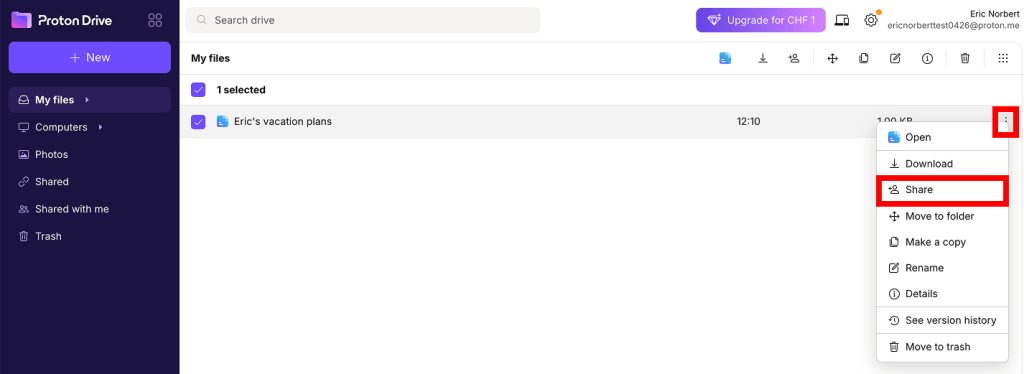
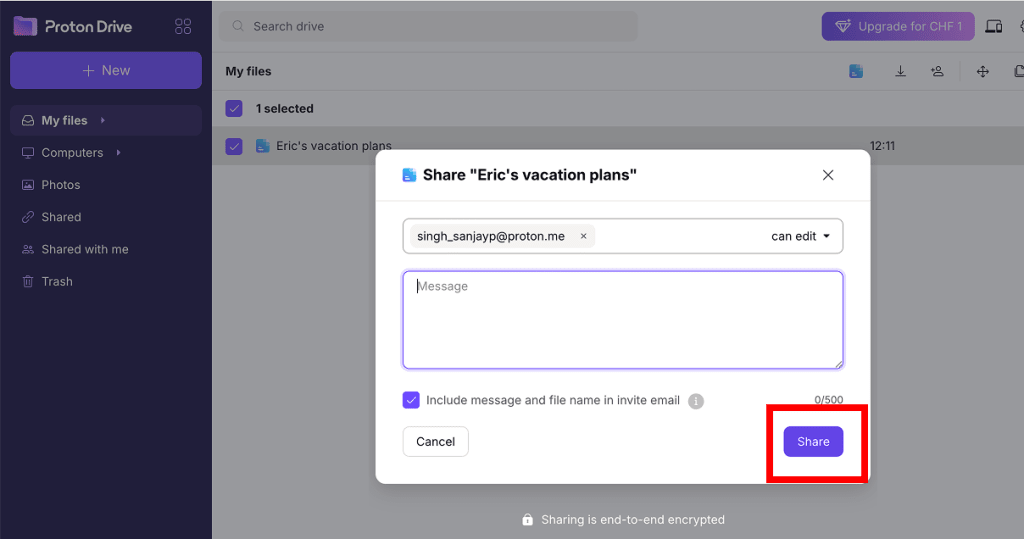
3. W wyskakującym oknie udostępniania wpisz adresy e-mail osób, którym chcesz udostępnić pliki.
Możesz również wybrać ich uprawnienia dostępu:
- Podgląd: możliwość przeglądania plików lub folderów bez wprowadzania zmian
- Edycja (domyślnie): możliwość przeglądania i modyfikowania zawartości plików lub folderów
4. Kliknij Udostępnij, aby potwierdzić.
Odbiorcy otrzymają zaproszenie e-mail z unikalnym bezpiecznym linkiem, zapewniającym dostęp do udostępnionych plików lub folderów. Zarówno użytkownicy Protona, jak i osoby z zewnątrz muszą zaakceptować to zaproszenie, zanim uzyskają dostęp do udostępnionego elementu.
Zaproszenie jest ważne przez 60 dni od daty udostępnienia pliku lub folderu. Jeśli zaproszenie nie zostanie zaakceptowane w ciągu 60 dni, wygaśnie, a adres e-mail zostanie usunięty z okna „Zarządzaj udostępnianiem”.
W takim przypadku musisz ponownie udostępnić element na ten sam adres e-mail, aby wygenerować nowe zaproszenie.

W każdej chwili możesz zarządzać dostępem do swoich udostępnionych plików lub folderów.