
Apple Intelligence è il sistema di IA generativa integrato di Apple progettato per aiutarti a scrivere, riassumere, creare immagini, usare Siri e completare attività sui dispositivi Apple. È attivato per impostazione predefinita sui dispositivi compatibili e interviene in una parte della tua esperienza quotidiana più ampia di quanto tu possa renderti conto, dalle notifiche alle chiamate e ai messaggi.
Se preferisci limitare queste funzionalità per la privacy, ridurre le distrazioni o avere un maggiore controllo su come viene usata l’IA sul tuo dispositivo, puoi disattivare Apple Intelligence.
- Come puoi disattivare Apple Intelligence?
- Come disattivare Apple Intelligence tramite Tempo di utilizzo
- Come disattivare Apple Intelligence nelle Impostazioni
- Come disattivare le funzionalità di Apple Intelligence
- Perché dovresti disattivare Apple Intelligence
- Scegli un’IA che ti permetta di mantenere il controllo
- Domande frequenti
Leggi la guida di Proton alla privacy dell’IA: cosa dovrebbero sapere tutti.
Come puoi disattivare Apple Intelligence?
Ci sono due modi principali per disattivare Apple Intelligence: tramite un interruttore nelle Impostazioni o diverse restrizioni in Tempo di utilizzo:
- L’interruttore nelle Impostazioni disattiva completamente Apple Intelligence in un solo passaggio, quindi è l’opzione più rapida se vuoi solo rimuoverla. Tuttavia, non rimuove alcuni elementi dell’IA dall’interfaccia: diventano non funzionanti, ma possono ingombrare la tua esperienza Apple.
- Le restrizioni di Tempo di utilizzo ti consentono di bloccare singole funzionalità specifiche (come Creazione immagini e Strumenti di scrittura) e rimuovono anche le relative icone e opzioni di menu.
Se desideri rimuovere dall’interfaccia tutti gli elementi dell’IA basati su Apple Intelligence, Tempo di utilizzo è la strada migliore.
Come disattivare Apple Intelligence tramite Tempo di utilizzo
In Tempo di utilizzo puoi bloccare funzionalità specifiche di Apple Intelligence a livello di sistema, inclusi elementi dell’interfaccia come il selettore di Genmoji e gli Strumenti di scrittura. Questo è il modo più completo per rimuovere Apple Intelligence dal tuo dispositivo, inclusi eventuali residui.
Su iPhone e iPad
- Apri l’app Impostazioni.
- Vai su Tempo di utilizzo → Restrizioni contenuti & privacy.

- Attiva Restrizioni contenuti & privacy e premi su Intelligence & Siri.

- Seleziona ciascuna funzionalità qui sotto e cambia la relativa impostazione in Non consentire:
- Creazione immagini — Controlla l’accesso a Genmoji (crea emoji personalizzate a partire da una descrizione), Image Playground (crea immagini da descrizioni, temi o persone nella tua Libreria foto) e Bacchetta magica immagini (trasforma schizzi o contenuti circostanti in Note in immagini generate).
- Strumenti di scrittura — Include funzionalità di composizione, correzione di bozze e riscrittura tramite IA nella maggior parte dei campi di testo, comprese molte app e siti web di terze parti.
- Estensioni di Intelligence — Consente l’uso di integrazioni IA di terze parti, come ChatGPT.

Su Mac
- Fai clic sull’icona Apple nella barra dei menu, quindi seleziona Impostazioni di Sistema.
- Vai su Tempo di utilizzo → Contenuti & privacy.

- Attiva Contenuti & privacy e seleziona Intelligence & Siri.

- Disattiva Creazione immagini, Strumenti di scrittura ed Estensioni di Intelligence, quindi fai clic su Fine.
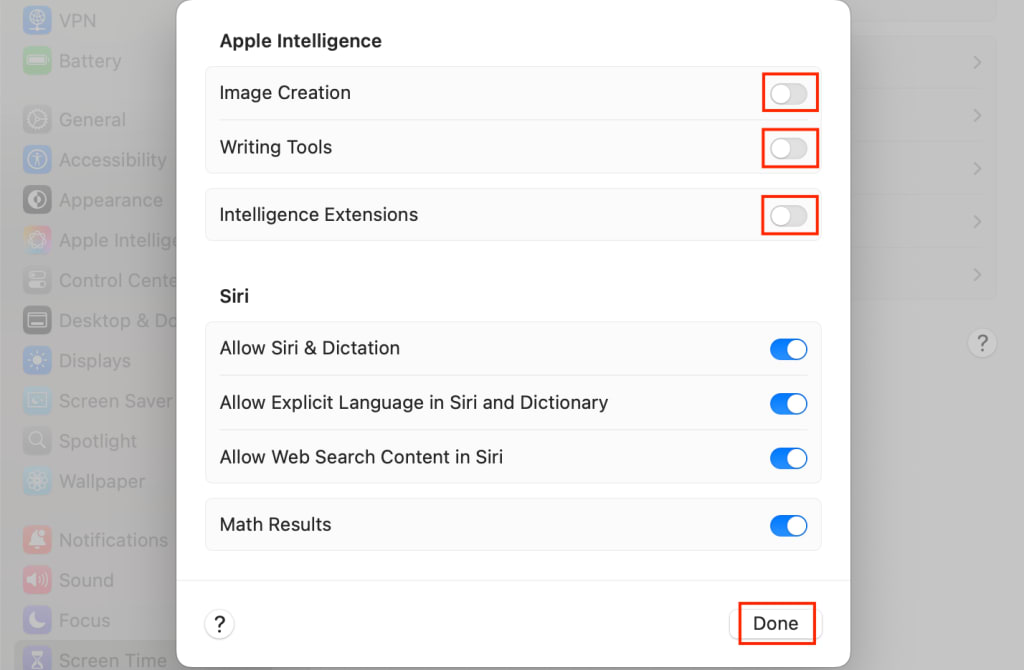
Queste modifiche potrebbero richiedere del tempo per avere effetto e potresti dover riavviare il tuo dispositivo o le app interessate.
Come disattivare Apple Intelligence nelle Impostazioni
Se vuoi disattivare Apple Intelligence senza rimuovere i suoi elementi dall’interfaccia, puoi farlo direttamente nelle Impostazioni. Questo è un metodo più rapido, anche se non eliminerà funzionalità come Genmoji dall’interfaccia. Inoltre, alcune funzionalità come Riconoscimento chiamate sono gestite in modo indipendente da questo interruttore e dovranno essere disattivate separatamente.
Su iPhone e iPad
- Apri l’app Impostazioni.
- Premi su Apple Intelligence & Siri.
- Disattiva Apple Intelligence.

Su Mac
- Fai clic sull’icona Apple nella barra dei menu, quindi seleziona Impostazioni di Sistema.
- Fai clic su Apple Intelligence & Siri.
- Disattiva Apple Intelligence.

Come disattivare le funzionalità di Apple Intelligence
Puoi disattivare le funzionalità di Apple Intelligence una alla volta:
Disattiva Visual Intelligence
Visual Intelligence analizza i contenuti sullo schermo del tuo iPhone e può utilizzare la fotocamera per analizzare l’ambiente circostante. Con questa funzionalità puoi identificare piante e animali, tradurre testi in tempo reale e cercare dettagli sulle attività commerciali. Puoi avviarla utilizzando Controllo fotocamera sugli iPhone supportati, da uno screenshot o tramite una scorciatoia aggiunta alla schermata di blocco, al Centro di Controllo o al tasto Azione.
Purtroppo non c’è modo di disattivare solo Visual Intelligence, quindi devi disattivare Apple Intelligence in Impostazioni. In alternativa, puoi ridurre la possibilità di attivazione accidentale rimuovendo le scorciatoie di Visual Intelligence e disattivando Controllo fotocamera.
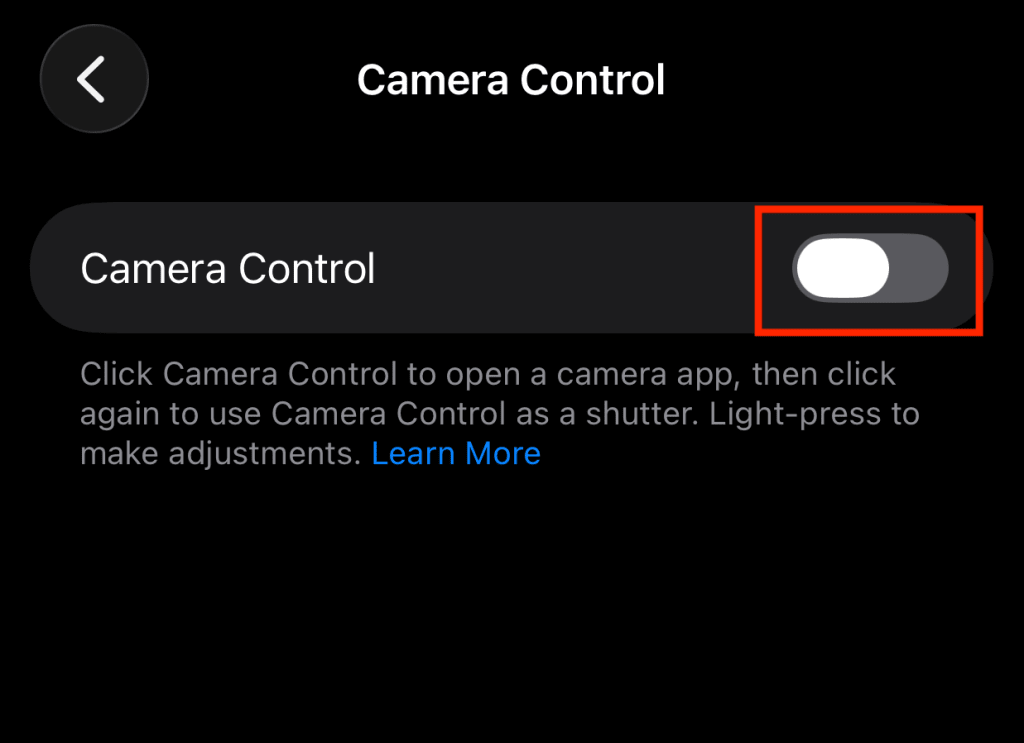
Ecco come disattivare Controllo fotocamera:
- Apri l’app Impostazioni.
- Vai su Accessibilità → Controllo fotocamera.

- Disattiva Controllo fotocamera.
Ecco come disattivare i suggerimenti automatici di Visual Intelligence sugli screenshot:
- Apri l’app Impostazioni.
- Vai su Generali → Istantanea schermo.
- Disattiva Ricerca visiva automatica. Se Apple Intelligence era già disattivata, questa impostazione non apparirà.

Disattiva l’estensione ChatGPT
Quando Apple Intelligence e Siri non riescono a rispondere a una domanda, potrebbero offrirti di inviare la tua richiesta a ChatGPT. Sebbene questo ampli le capacità di Apple Intelligence, le richieste inviate tramite questa estensione sono elaborate da OpenAI; ciò significa che i tuoi dati lasciano l’ecosistema di Apple e sono invece soggetti all’Informativa sulla privacy di ChatGPT.
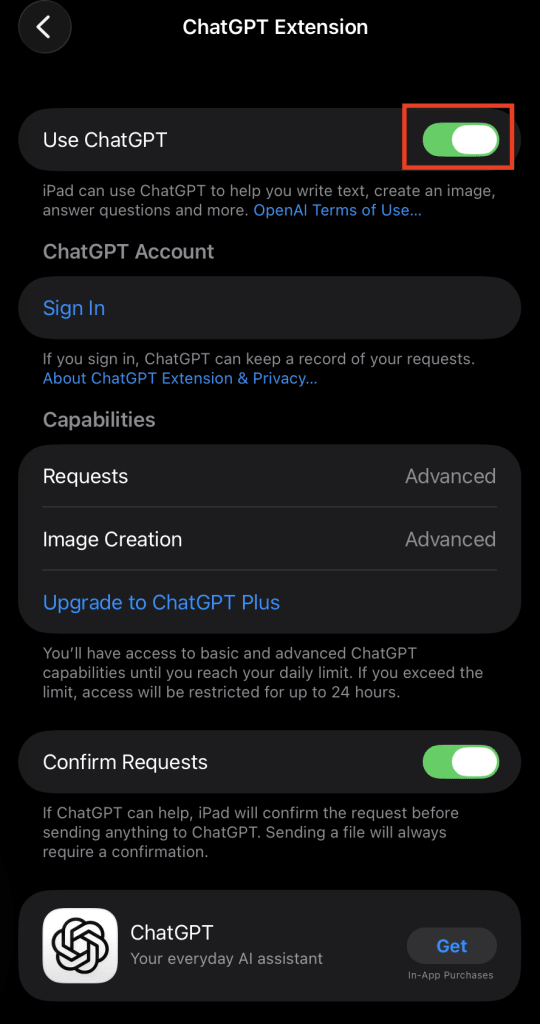
Se preferisci che le tue richieste rimangano all’interno dell’infrastruttura di Apple, ecco come disattivare l’estensione di ChatGPT:
- Apri l’app Impostazioni.
- Vai su Apple Intelligence & Siri → Estensione ChatGPT.
- Disattiva Usa ChatGPT.
Disattiva Riconoscimento chiamate e Assistenza in attesa
Con Riconoscimento chiamate, Apple Intelligence risponde automaticamente alle chiamate al tuo posto, invita chi chiama a pronunciare il proprio nome e il motivo della chiamata e mostra una trascrizione in tempo reale sullo schermo in modo che tu possa decidere se rispondere. Assistenza in attesa rileva quando vieni messo in attesa e monitora la chiamata in background, avvisandoti quando un operatore è disponibile.
Entrambe le funzionalità richiedono che Apple Intelligence elabori l’audio delle telefonate, cosa che, secondo Apple, avviene sul dispositivo.
Ecco come disattivare Riconoscimento chiamate e Assistenza in attesa:
- Apri l’app Impostazioni.
- Seleziona App → Telefono.
- Disattiva Rilevamento Assistenza in attesa.

- Sotto Filtra numeri sconosciuti, seleziona Mai.

Disattiva Genmoji
Non esiste un’impostazione autonoma per disattivare Genmoji, ma puoi farlo in uno dei seguenti modi:
- Disattiva Creazione immagini tramite Tempo di utilizzo. Questo rimuoverà Genmoji da tutti gli elementi dell’interfaccia, consentendoti al contempo di continuare a utilizzare Strumenti di scrittura ed Estensioni di Intelligence. Tieni presente che verranno disattivate anche tutte le funzionalità di creazione delle immagini, incluse Image Playground e Bacchetta magica immagini.
- Disattiva Apple Intelligence tramite le Impostazioni. Questo disattiverà tutte le funzionalità IA, ma lascerà Genmoji visibile nell’interfaccia.
Strumenti di scrittura
Come per Genmoji, non esiste un’impostazione autonoma per disattivare gli Strumenti di scrittura. Puoi:
- Disattiva gli Strumenti di scrittura usando Tempo di utilizzo. Questo rimuoverà gli Strumenti di scrittura dal tuo dispositivo, mantenendo attive le altre funzionalità di Apple Intelligence.
- Disattiva Apple Intelligence tramite le Impostazioni, il che disattiverà tutte le funzionalità IA, ma lascerà gli Strumenti di scrittura visibili nell’interfaccia.
Perché dovresti disattivare Apple Intelligence
Apple Intelligence si integra profondamente con il funzionamento del tuo dispositivo, il che può sollevare una serie di dubbi sulla privacy e sull’esperienza d’uso. Ecco alcuni motivi per cui potresti volerla limitare:
Recuperare spazio di archiviazione: come parte dell’approccio di Apple orientato alla privacy, i modelli di IA vengono scaricati localmente per consentire l’elaborazione sul dispositivo. Il rovescio della medaglia è che richiedono una quantità enorme di spazio di archiviazione disponibile. Attualmente, Apple Intelligence richiede almeno 7 GB di spazio di archiviazione libero(nuova finestra) su ciascun dispositivo per funzionare, ed è probabile che questo requisito aumenti con il rilascio di nuove funzionalità e aggiornamenti.
Limitare l’accesso all’IA: anche con l’elaborazione sul dispositivo, Apple Intelligence tocca comunque una parte significativa della tua attività personale. Visual Intelligence può scansionare lo schermo, Riconoscimento chiamate ascolta le telefonate e Strumenti di scrittura elabora i tuoi testi. Disattivare le funzionalità che non desideri significa condividere meno dati con l’IA.
Evitare la condivisione di dati con terze parti: sebbene la maggior parte di Apple Intelligence sia integrata nell’ecosistema Apple, funzionalità come l’estensione ChatGPT richiedono l’invio delle tue richieste a OpenAI. La condivisione con terze parti significa cedere i tuoi dati a un’altra azienda e non puoi avere la certezza che quest’ultima condivida l’Informativa sulla privacy di Apple. Con altre integrazioni IA in arrivo su Apple Intelligence(nuova finestra), un semplice primo passo per proteggere i tuoi dati è disattivare le Estensioni di Intelligence.
Preservare la durata della batteria: questo aspetto è aneddotico ma merita di essere menzionato. Alcuni utenti segnalano un consumo evidente della batteria(nuova finestra) quando Apple Intelligence è attiva, in particolare con le funzionalità in background in esecuzione. Disattivare le funzionalità IA che non ti servono può aiutare a prolungare la durata della batteria, anche se i risultati variano a seconda del dispositivo e dell’uso.
Scegli un’IA che ti permetta di mantenere il controllo
Disattivare Apple Intelligence ti restituisce il controllo su ciò che viene eseguito sul tuo dispositivo e su cosa accede ai tuoi dati. Ma lascia anche un vuoto: perdi l’assistenza alla scrittura, i suggerimenti intelligenti e altre funzionalità che possono essere davvero utili giorno dopo giorno.
Se vuoi i vantaggi e la comodità dell’IA senza compromessi, l’assistente IA(nuova finestra) di Proton, Lumo, è basato sugli stessi principi di priorità alla privacy che supportano tutti i prodotti di Proton. Lumo non registra i tuoi dati, non crea un profilo su di te, non condivide i tuoi dati con terze parti e non associa mai le tue conversazioni alla pubblicità. Puoi usare Lumo su tutti i tuoi dispositivi, comprese un’app web per Mac e un’app nativa per iOS, così potrai ottenere un’assistenza IA affidabile sempre e ovunque.
Domande frequenti
Apple Intelligence è disponibile su:
• iPhone: iPhone 15 Pro, iPhone 15 Pro Max, tutti i modelli di iPhone 16 e successivi
• iPad: iPad mini (A17 Pro) e modelli di iPad con chip M1 o successivo
• Mac: qualsiasi Mac con Apple Silicon (M1 o successivo)
• Apple Vision Pro
• Apple Watch: Series 6 e successivi, tutti i modelli Ultra e SE 2 e successivi. Il tuo Apple Watch deve essere abbinato a un iPhone abilitato per Apple Intelligence.
Il tuo dispositivo deve avere anche almeno 7 GB di spazio di archiviazione disponibile, e la lingua del tuo dispositivo e quella di Siri devono essere impostate sulla stessa lingua supportata. Anche la disponibilità di Apple Intelligence varia a seconda della regione. La maggior parte delle funzionalità è disponibile nell’UE sui dispositivi supportati, ma si applicano alcune restrizioni. In Cina, al momento Apple Intelligence non è affatto disponibile.
Apple Intelligence è attiva per impostazione predefinita, ma non tutte le funzionalità sono in esecuzione costante. I riepiloghi delle notifiche e i suggerimenti intelligenti sono sempre attivi quando abilitati. Altre, come Visual Intelligence, si attivano solo quando le avvii. Per impedire l’esecuzione di Apple Intelligence in background, dovrai disattivarla tramite Impostazioni o utilizzando Tempo di utilizzo.
No, Siri può funzionare indipendentemente da Apple Intelligence. Disattivando Apple Intelligence, Siri tornerà alle sue funzionalità originali, quindi potrai usare l’attivazione vocale, effettuare chiamate e altro ancora come hai sempre fatto. Tra le funzionalità interessate dalla disattivazione di Apple Intelligence vi sono la possibilità di inviare le tue richieste a ChatGPT, l’assistenza alla scrittura e altre funzionalità basate sull’IA.
Sì, ma non direttamente. Poiché l’Apple Watch riflette le impostazioni dell’iPhone associato, disattivando Apple Intelligence sul telefono la disattiverai anche sul tuo Apple Watch.
Sì, puoi farlo. La disattivazione di Apple Intelligence su Vision Pro segue essenzialmente gli stessi passaggi previsti per iPhone, iPad e Mac:
1. Apri l’app Impostazioni.
2. Seleziona Apple Intelligence & Siri.
3. Disattiva Apple Intelligence.
Puoi anche utilizzare Tempo di utilizzo per bloccare completamente Apple Intelligence. Ti basta seguire gli stessi passaggi previsti per iPhone, iPad e Mac.