Under dagen skapar din smarttelefon i det tysta en platshistorik — en detaljerad registrering av var du har varit, när och hur länge. Och denna data kan användas för att övervaka och profilera dig. Tanken på att ett företag (och dess partner) känner till den exakta adressen du tillbringar din tid på kan vara oroande, men det är en verklighet som många kanske inte inser.
Big Tech har fått oss att tro att priset för bekvämlighet är vår integritet. Hur skulle Google Maps annars kunna förutsäga din arbetspendling eller rekommendera en restaurang nära en plats du besöker regelbundet?
Problemet är att platshistorik skapar en permanent registrering av dina rörelser och gör det möjligt för appleverantörer och annonsörer att bygga en detaljerad bild av ditt liv. Allt från dina vanor, din hälsa och din livsstil kan utläsas av dessa data. Annonsörer använder platshistorik för att rikta reklam till dig, datamäklare säljer den till vem som helst som är intresserad, och myndigheter kan köpa platsdata för att spåra dig — vanligtvis utan att du vet om det (för att inte tala om att du har godkänt det).
I fel händer, till exempel hos en förföljare, en våldsam partner eller en cyberkriminell, skapar din platshistorik en fysisk säkerhetsrisk eftersom den kan avslöja din hemadress, arbetsplats, ditt dagliga schema och alla andra platser du regelbundet besöker.
Om du inte känner dig bekväm med detta kan du stänga av platshistorik och platstjänster för att skydda din integritet.
Platstjänster vs. platshistorik
I dina enhetsinställningar ser du förmodligen termerna ”Platstjänster” och ”Platshistorik”. De kan låta som samma sak, men det finns en stor skillnad:
Platstjänster avser GPS-funktionen i realtid som gör att din telefon kan fastställa din plats vid varje givet tillfälle, och som ofta används av navigerings-, väder- och samåkningsappar.
Platshistorik innehåller en registrering av dina tidigare besök och rutter. Google Maps kallar denna funktion för ”Tidslinje”, medan Apple kallar den ”Viktiga platser”.
Du kan inaktivera platshistorik utan att de appar som är beroende av realtidsplats slutar fungera. Vi visar dig hur du stänger av båda.
- Så inaktiverar du Googles platshistorik på Android och iOS
- Så inaktiverar du platshistorik på Apple-enheter
- Så inaktiverar du platshistorik i Windows
- Så inaktiverar du platsspårning i webbläsare
- Hantera platsbehörigheter för appar
- Använd en VPN för att hålla din plats privat
Så inaktiverar du Googles platshistorik på Android och iOS
Google har bytt namn på ”Platshistorik” till ”Tidslinje”, men den underliggande funktionen är densamma — en logg över din exakta position över tid, vilket är möjligt genom att du förblir inloggad på ditt Google-konto. Eftersom Googles tjänster är kopplade till ditt konto följer denna datainsamling dig på Android-enheter, iPhones och på webben.
Stegen nedan guidar dig igenom hur du stänger av din Google-platshistorik på Android och iOS, även om den exakta formuleringen kan variera beroende på din enhet.
Stäng av Tidslinje i Google Maps
Tidslinjedata lagras på din enhet snarare än på Googles servrar. Även om detta begränsar Googles direktåtkomst finns själva loggen fortfarande kvar — och om din telefon blir stulen eller om någon annan får åtkomst till den kan hela din rörelsehistorik exponeras.
Så här inaktiverar du Tidslinje:
- Öppna Google Maps på Android eller iOS.
- Tryck på din profilbild.
- Välj Min tidslinje.
- Tryck på de tre punkterna ⋮ i det övre högra hörnet och välj Plats- och integritetsinställningar.
- Öppna Tidslinje (eller Platshistorik).

- Tryck på Stäng av och välj Stäng av och ta bort aktivitet.
Att inaktivera Tidslinje förhindrar av att nya data registreras, men raderar inte det som redan har loggats, så du måste också ta bort Google Maps-historiken.
Ta bort Google Maps-historik
- Öppna Google Maps på Android eller iOS.
- Tryck på din profilbild.
- Välj Min tidslinje.
- Tryck på de tre punkterna ⋮ i det övre högra hörnet och välj Plats- och integritetsinställningar.
- Välj ett av de två alternativen:
- Ta bort alla tidslinjedata för att radera allt som Google har registrerat om dina rutter och besök.
- Ta bort tidslinjedata för ett intervall om du hellre vill ta bort registreringar från en viss period men behålla resten av din tidslinjehistorik.

- Välj Ta bort för att bekräfta.
Ha kvar Tidslinje på, men ta bort äldre platshistorik automatiskt
Om du då och då tycker att Tidslinje är användbar — till exempel för att komma ihåg en restaurang du besökte under en resa — behöver du inte välja mellan att behålla allt eller ta bort allt. Du kan ställa in ett tidsfönster för lagring så att äldre data tas bort automatiskt från alla enheter där du är inloggad med samma Google-konto:
- Öppna Google Maps på Android eller iOS.
- Tryck på din profilbild.
- Välj Min tidslinje.
- Tryck på de tre punkterna ⋮ i det övre högra hörnet och välj Plats- och integritetsinställningar.
- Välj Ta bort tidslinjedata automatiskt.

- Välj hur långt bakåt i tiden data ska sparas innan den tas bort.
- Välj Nästa, och sedan Bekräfta.
Inaktivera Webb- och appaktivitet
Googles platsspårning har stött på upprepade rättsliga utmaningar efter att en utredning från 2018(nytt fönster) visat att Googles appar och tjänster fortsatte att lagra användarnas plats även efter att Platshistorik stängts av, eftersom andra inställningar, som Webb- och appaktivitet, fortsatte att spåra platsen i bakgrunden. Den upptäckten ledde till en rad delstatliga stämningar och förlikningar under de följande åren, men Google erkände aldrig något felaktigt agerande.
Så här inaktiverar du Webb- och aktivitet:
- Gå till myaccount.google.com och logga in.
- Gå till Data och integritet och välj Webb- och appaktivitet.
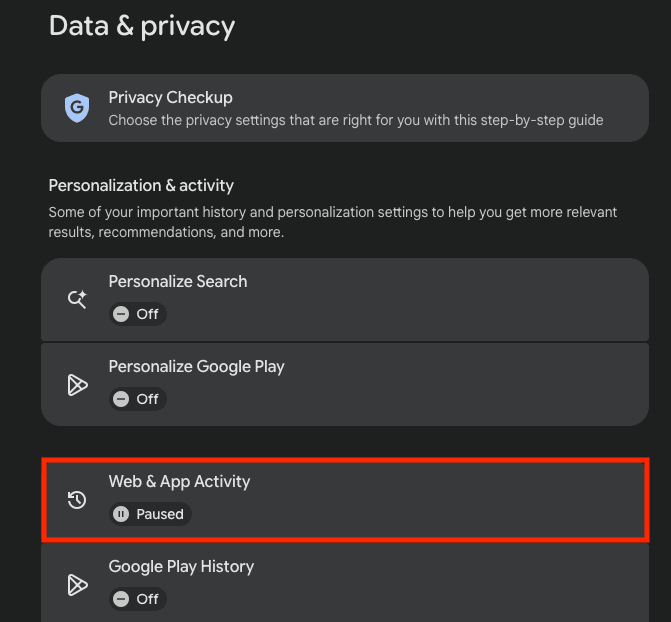
- Välj Stäng av och sedan Stäng av och ta bort aktivitet.
Om du hellre vill undvika Google Maps helt och hållet körs europeiska navigerings- och kartalternativ som Organic Maps och HERE WeGo på kartdata som inte kommer från Google och kräver inget Google-konto för att användas.
Så inaktiverar du platshistorik på Apple-enheter
Apple använder Viktiga platser för platshistorik på iPhone(nytt fönster) och andra iOS-enheter. Enligt företaget lagras denna funktion på enheten, är end-to-end-krypterad och används endast för att ge bättre upplevelser i Apple-appar som Kartor och Bilder.
Det ändrar inte det faktum att en detaljerad logg över var du befinner dig fortfarande existerar. Om säkerheten för din enhet komprometteras kan Viktiga platser avslöja exakt var du har varit. Så här hittar du funktionen, rensar den och stänger av den på alla dina Apple-enheter:
Stäng av Viktiga platser på iPhone och iPad
Viktiga platser ligger begravt djupt i din enhets systeminställningar. Observera att Apple Watch och CarPlay speglar inställningarna på din iPhone, så om du följer dessa steg förhindrar du även att de loggar dina rörelser:
- Öppna appen Inställningar .
- Välj Integritet och säkerhet.
- Tryck på Platstjänster.
- Rulla längst ned och välj Systemtjänster.
- Tryck på Viktiga platser.
- Inaktivera Viktiga platser och färdvägar.
- Välj Rensa historik för att ta bort befintliga loggar.

Stäng av Viktiga platser på Mac
Mac-datorer fastställer din plats med hjälp av kända wifi-nätverk och kan lagra en lista över platser som är viktiga för dig för att ge en smidigare upplevelse i Apple-appar. Så här inaktiverar och raderar du dessa data:
- Klicka på Apple-ikonen i menyfältet och välj sedan Systeminställningar.
- Klicka på Integritet och säkerhet i sidofältet.
- Klicka på Platstjänster.
- Klicka på Detaljer under Systemtjänster.
- Inaktivera Viktiga platser.
- Klicka på Detaljer bredvid reglaget.
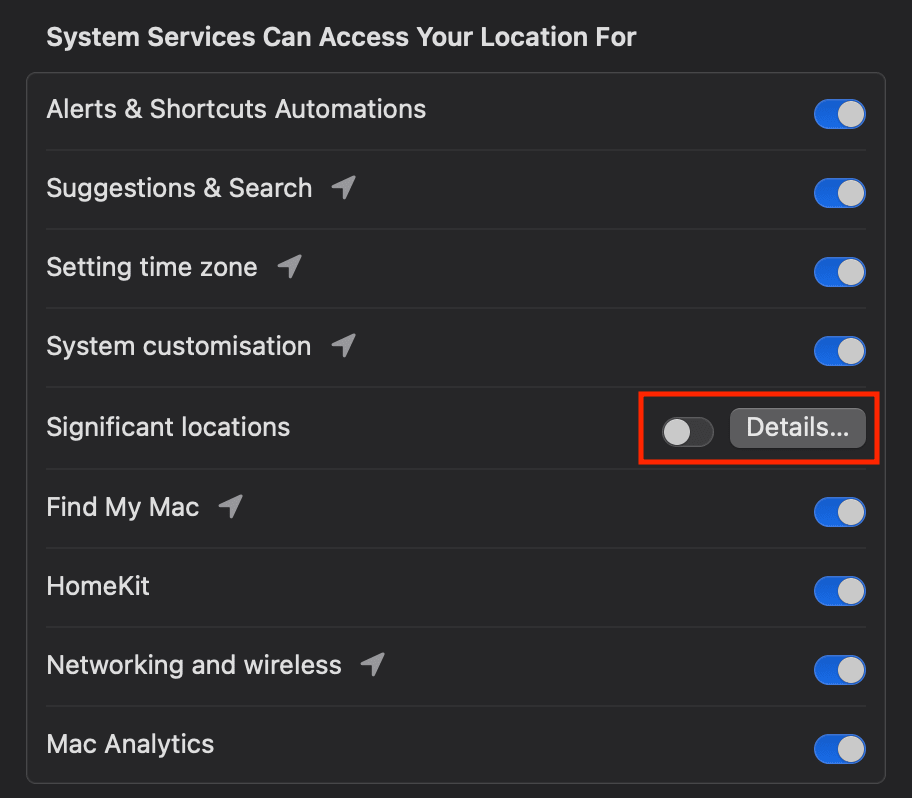
- Klicka på trepunktsikonen längst ned i avsnittet under Senaste poster.
- Klicka på Rensa historik för att ta bort befintliga loggar.
Så inaktiverar du platshistorik i Windows
Windows-enheter samlar in och lagrar platshistorik med hjälp av wifi, Bluetooth, din IP-adress(nytt fönster), GPS och mobilmaster. Eftersom Windows-enheter kräver ett Microsoft-konto för att logga in, lagras dina platsdata i molnet och är tillgängliga för företaget.
Microsoft behandlar platsinformation som vanliga personuppgifter, som kan användas för olika ändamål, inklusive personliga annonser och AI-träning (Copilot(nytt fönster)). Om du inte är bekväm med den nivå av åtkomst som Microsoft har till din platshistorik, gör du så här för att stoppa det:
Stäng av platstjänster
Så här gör du för att stänga av platstjänster(nytt fönster) i Windows:
- Öppna Start-menyn och klicka på Inställningar.
- Klicka på Integritet och säkerhet (Windows 11) eller Integritet (Windows 10).
- Klicka på Plats.
- Inaktivera Platstjänster.
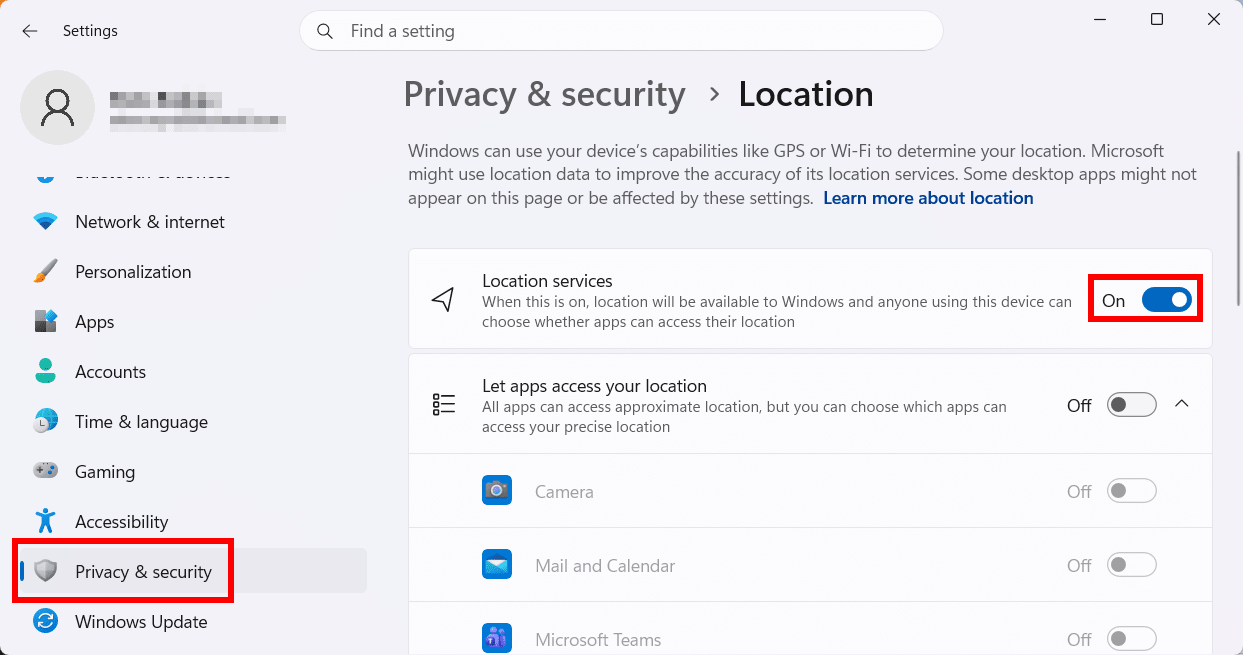
Om du hellre vill ha platstjänster(nytt fönster) aktiverade men begränsa vilka appar som har åtkomst till dem, lämnar du reglaget för Platstjänster på, rullar ned till Tillåt att appar får åtkomst till din plats och inaktiverar de appar som du inte vill ska ha åtkomst till platstjänster.
Rensa platshistorik
Så här rensar du platshistorik på enheten i Windows 10:
- Gå till Inställningar → Integritet.
- Klicka på Plats → Platshistorik.
- Klicka på Rensa.
Så här tar du bort molnlagrade platsdata (Windows 10 och 11):
- Gå till din integritetspanel på Microsoft på account.microsoft.com.
- Logga in med ditt Microsoft-konto.
- Gå till Integritet → Plats.

- Öppna Platsaktivitet och klicka på Rensa platsaktivitet.
Så inaktiverar du platsspårning i webbläsare
Webbläsare är ytterligare en väg för platsspårning, och de tenderar att åsidosätta systeminställningar. Närhelst en webbplats ber om din plats och du klickar på ”Tillåt” kvarstår det tillståndet vanligtvis tills du återkallar det manuellt.
På en smartphone stoppar återkallande av platsbehörigheter för din webbläsarapp spårning på olika webbplatser. På en bärbar eller stationär dator måste du ändra behörigheterna i själva webbläsaren (eller använda privat/inkognitoläge).
Google Chrome
Följande steg gäller endast för Chrome på datorn. För mobil, se Hantera platsbehörigheter för appar.
- Klicka på trepunktsikonen i det övre högra hörnet av ditt webbläsarfönster.
- Klicka på Inställningar.
- Klicka på Integritet och säkerhet i sidofältet.
- Klicka på Webbplatsinställningar och sedan på Plats.
- Klicka på Tillåt inte att webbplatser ser din plats.

På samma sida kan du se en lista över webbplatser som för närvarande har åtkomst till din plats. Klicka på papperskorgsikonen för att återkalla deras åtkomst.
Safari
Följande steg gäller endast för Safari på macOS. För iOS-enheter som iPhone och iPad, se Hantera platsbehörigheter för appar.
- Öppna Safari och klicka på Safari i det övre menyfältet.
- Klicka på Inställningar och gå till fliken Webbplatser.
- Klicka på Plats i sidofältet.
- Leta efter Vid besök på andra webbplatser i det nedre högra hörnet och ändra rullgardinsmenyn till Neka.

På samma sida kan du se en lista över webbplatser som för närvarande har åtkomst till din plats. Klicka på en webbplats och välj sedan Ta bort i det nedre vänstra hörnet för att återkalla dess åtkomst.
Microsoft Edge, Firefox och andra
För andra webbläsare än Chrome eller Safari följer stegen ett liknande mönster:
- Öppna din webbläsares inställningsmeny.
- Leta efter integritetsavsnittet, som ofta heter Integritet eller Integritet & säkerhet.
- Leta efter inställningar för Plats och blockera eller återkalla webbplatsers åtkomst därifrån.
Hantera platsbehörigheter för appar
Appar är en vanlig källa till platsspårning – och många av dem ber om mycket mer åtkomst än de behöver. Till exempel har samåknings- och träningsappar ett legitimt skäl att veta var du är, men appar för sociala medier och shopping har egentligen inget legitimt skäl att känna till denna känsliga information.
Den viktigaste inställningen att hålla utkik efter är Alltid eller Tillåt alltid. Att bevilja denna nivå av åtkomst innebär att appen kan spåra din plats i bakgrunden, även när du inte använder den.
Att regelbundet granska vilka appar som har platsåtkomst (som funktionen Instagrams ”vänkarta”) är en av de mest effektiva integritetsvanorna du kan skaffa dig. Det är också en bra idé att stoppa okända appar som körs i bakgrunden, vilka kan samla in din platsdata.
Så här granskar och återkallar du platsåtkomst för appar på dina mobila enheter:
Android
- Gå till Inställningar → Plats → Plats för att visa alla appar som för närvarande har åtkomst till din enhets platsdata.
- Välj en app och välj ett av följande alternativ:
- Neka eller Tillåt inte — Detta blockerar platsspårning hela tiden.
- Fråga varje gång — Appen kommer att be om tillåtelse varje gång den behöver din plats.
- Tillåt endast när appen används — Detta förhindrar spårning i bakgrunden.
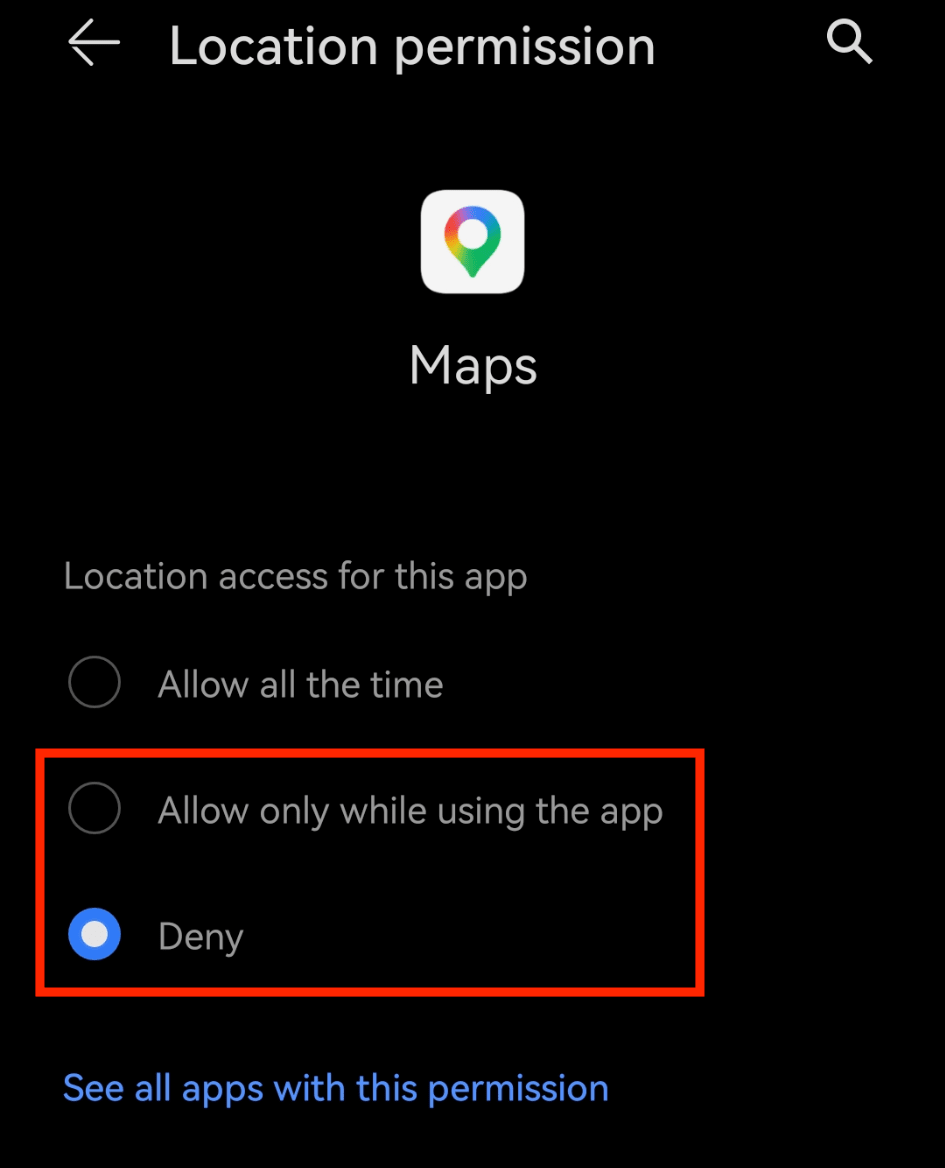
- Inaktivera Använd exakt plats för att begränsa appen till ungefärlig platsdata i stället för dina exakta koordinater.*
iOS
- Gå till Inställningar → Integritet & säkerhet → Platstjänster.
- Välj en app och ändra dess platsbehörighet till ett av följande alternativ:
- Aldrig — Detta blockerar platsspårning hela tiden.
- Fråga nästa gång eller vid delning — Appen kommer att be om tillåtelse varje gång den behöver din plats.
- När appen används — Detta förhindrar spårning i bakgrunden.
- Inaktivera Exakt plats för att begränsa appen till ungefärlig platsdata i stället för dina exakta koordinater.*

*Vissa appar kräver åtkomst till exakt plats för att fungera korrekt, till exempel navigeringsappar som Google Maps, träningsappar som Strava och samåkningsappar som Uber. Om du använder dessa bör du låta reglaget för Exakt plats vara på, men ställa in det på ”När appen används” för att skydda mer av din integritet.
Använd ett VPN för att hålla din plats privat
Att inaktivera eller begränsa platsspårning räcker långt för att återta din integritet, men saker och ting kan fortfarande slinka igenom. Nyinstallerade appar kan ha full platsåtkomst som standard, och programvaruuppdateringar kan introducera nya funktioner som loggar dina rörelser. Det är viktigt att regelbundet granska behörigheterna på dina enheter.
But there’s another source of location data that setting menus can’t touch: your IP address(nytt fönster). Even with location history and tracking disabled, apps and websites can still determine your general location through your IP address. The most effective way to stop this is by masking your IP address with a VPN(nytt fönster).
Proton VPN ersätter din IP-adress med en från våra VPN-servrar varje gång du ansluter, vilket döljer din plats(nytt fönster) för webbplatser, appar, annonsörer, myndigheter och din internetleverantör (ISP)(nytt fönster).
Det skyddar också din internettrafik med stark kryptering, vilket håller din onlineaktivitet privat och gör det svårare för tredje part att spåra var du är och vad du gör online.