
如何使用撤销发送
- 阅读
- 0 分钟
- 类别
- 撰写和发送电子邮件
如果您想在点击发送后撤回电子邮件,可以使用 Proton Mail(新窗口) 网页应用和 移动应用(iPhone、iPad、Android)中的撤销发送功能。
撤销发送功能默认处于启用状态,点击发送后,系统将通过 10 秒计时器自动延迟发送电子邮件。在此期间,您可以点击撤消将邮件退回草稿箱文件夹,以便编辑或删除。
您可以停用撤销发送或更改计时器时长。对这些设置所做的任何更改都会在您的各设备之间同步。
网页应用
如要停用撤销发送或更改计时器时长:
- 登录 mail.proton.me(新窗口) 上的 Proton Mail 帐户,然后依次点击设置 → 所有设置 → 邮件与编辑 → 撰写 → 撤销发送。
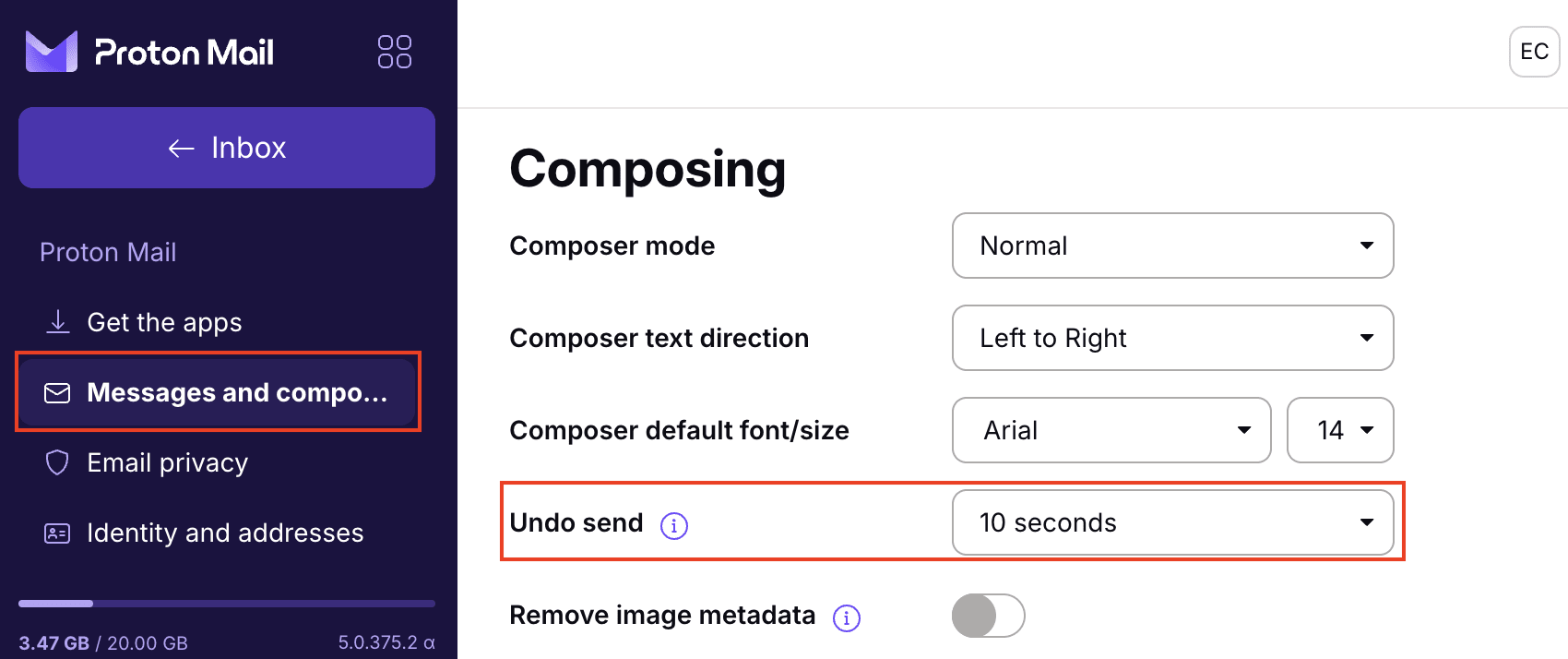
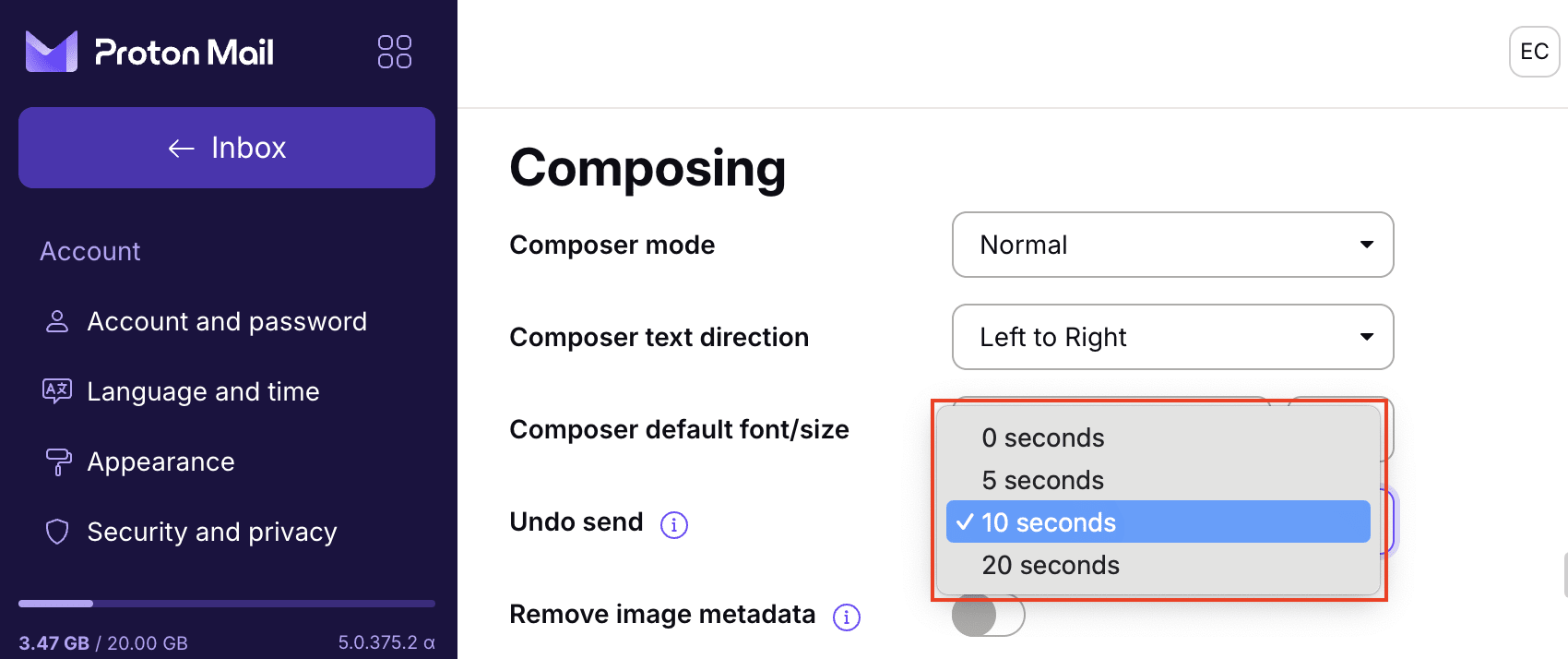
- 在撤销发送下拉菜单中选择所需的计时器时长——介于 0 到 20 秒之间。将计时器设置为 0 秒即会停用该功能。
启用撤销发送后,当您写完电子邮件并点击发送按钮后,Proton Mail 编写器窗口将关闭,屏幕顶部会显示一条横幅:邮件已发送。撤消。
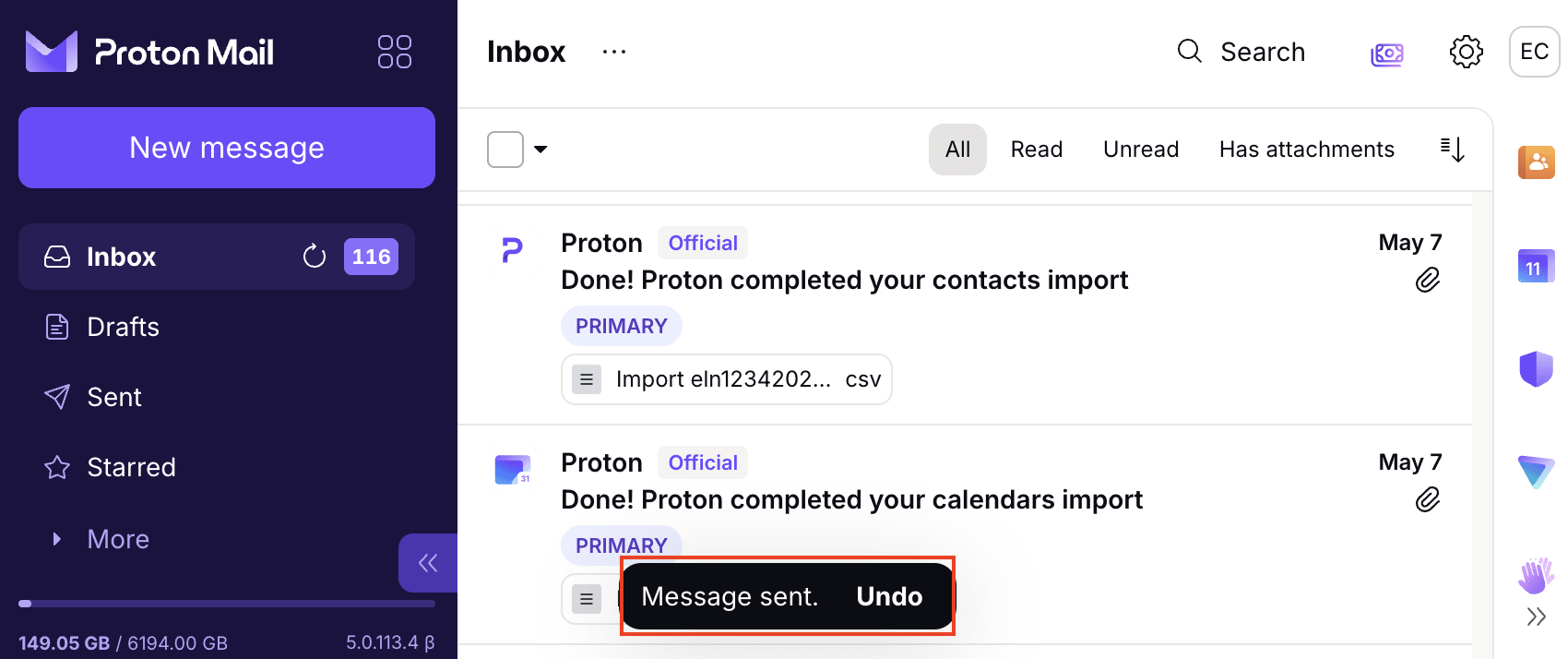
此横幅将显示设定的秒数(默认为 10 秒)。如果想在此时段内取回邮件,请点击撤消。邮件将在编写器窗口中重新打开,以便编辑或删除。
移动应用
如要在 iOS 或 Android 应用上停用撤销发送或更改计时器时长:
1. 打开 Proton Mail 应用,前往设置 → 邮箱偏好设置 → 撤销发送。
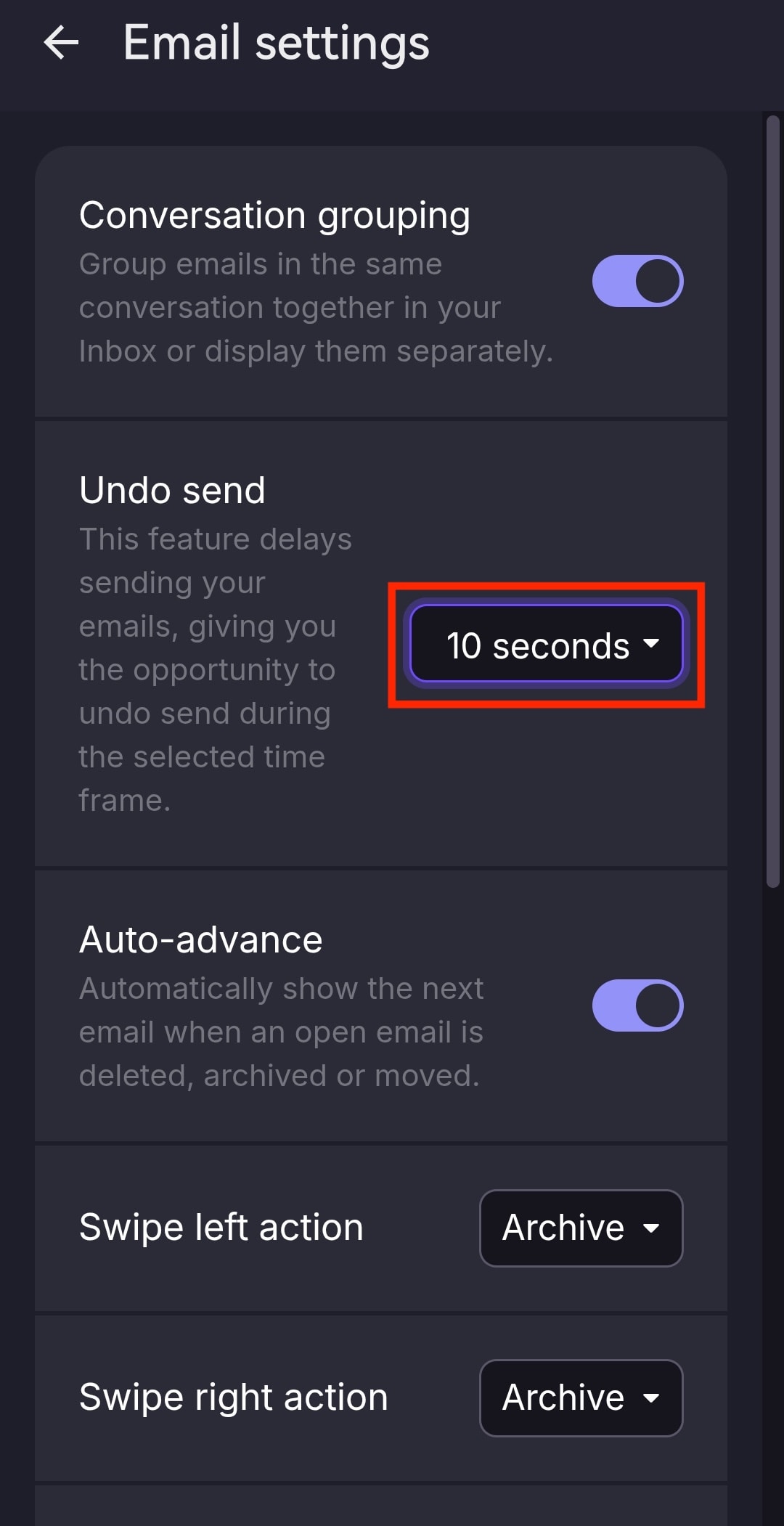
- 选择所需的计时器时长——介于 0 到 20 秒之间。将计时器设置为 0 秒即会停用该功能。
启用撤销发送后,点击发送按钮时,屏幕底部会显示一条写有邮件已发送 撤消的横幅,持续时间为设定的秒数(默认为 10 秒)。
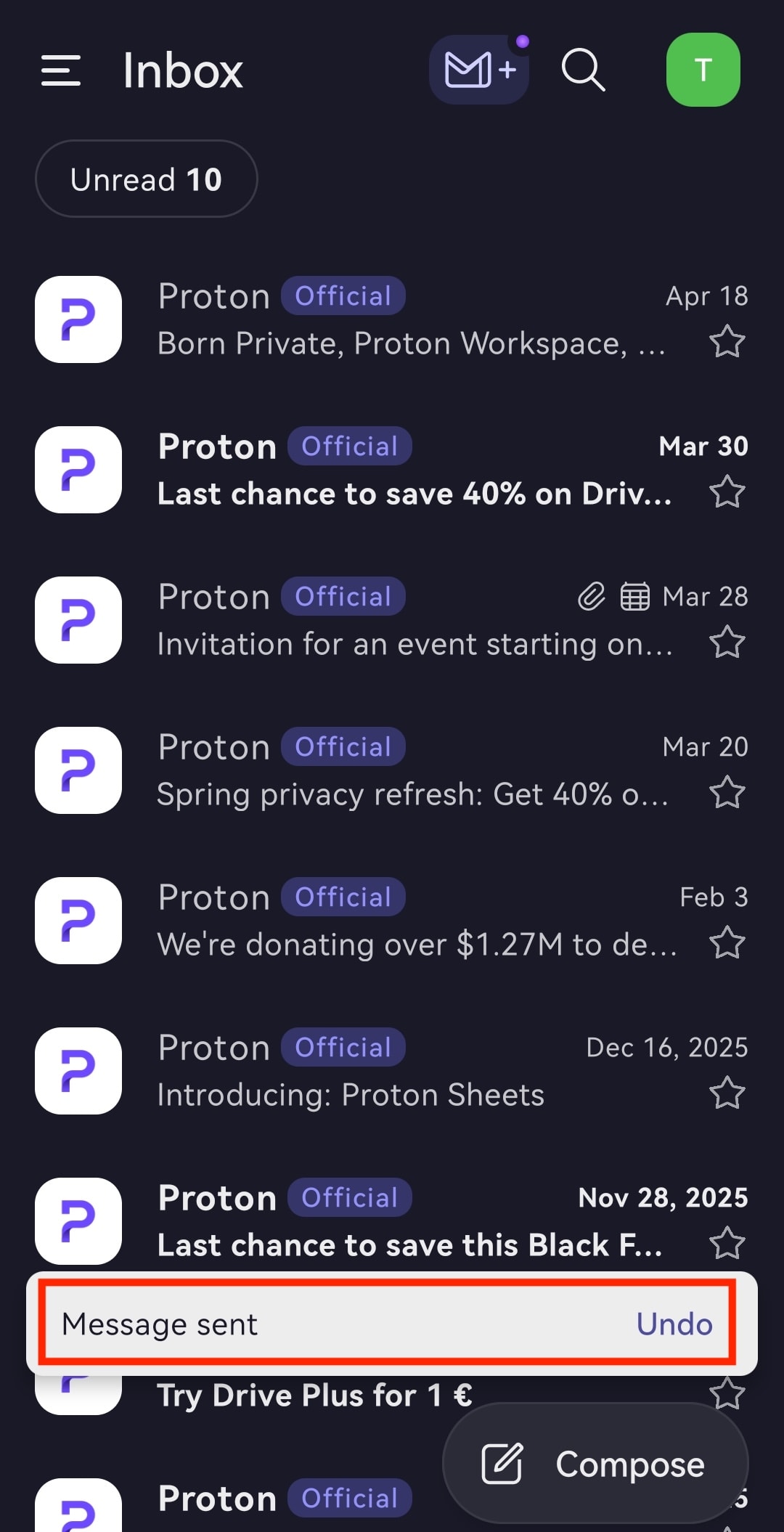
如要在此时段内取回邮件,请点击撤消。邮件随后将退回草稿箱文件夹,您可以在其中编辑或删除。