
如何在 Android 上使用 Proton Pass
- 阅读
- 2 分钟
- 类别
- 使用 Proton Pass
Proton Pass 是一款端到端加密的开源(新窗口)密码管理器,可帮助您保护在线身份。它是 Proton 隐私套件的一部分,该套件还包括 Proton Mail、Proton VPN、Proton Drive 和 Proton Calendar。在本指南中,我们将介绍如何在您的 Android 设备上使用 Proton Pass。
This guide was created using a Samsung One UI device. Details for using Proton Pass on Android may vary, depending on which version of Android you are running.
如何设置 Android 版 Proton Pass
在 Android 上使用 Proton Pass 之前,您需要先完成设置:
1. 注册 Proton Pass。您可以单独注册 Proton Pass Free 或 Pass Plus 套餐,也可以通过 Proton Unlimited 套餐获得 Pass 以及其他所有 Proton 服务的全部高级功能。
2. 下载(新窗口)并安装 Android 应用。
3(可选)。从之前的密码管理器导入您的数据。如果您以前使用过密码管理器,可能需要将保存的密码导入 Proton Pass。为此,您需要使用我们的浏览器扩展程序。
现在,您可以开始使用 Proton Pass 了。
如何使用 Proton Pass 登录
将登录详细信息保存到 Proton Pass 后,您可以手动登录网站,或使用自动填充登录。
如何手动登录
1. 访问您想要登录的网站或应用的登录页面。
2. 打开 Proton Pass 应用,选择正确的登录项目,然后轻点用户名或邮箱地址字段。用户名将复制到剪贴板。

3. 在网站或应用的登录页面上,将剪贴板中的用户名粘贴到相应字段中。在大多数 Android 版本上,长按输入字段 → 粘贴即可。

4. 对密码重复此操作。
请注意,出于安全原因,您设备的剪贴板将在 60 秒后被清除。要调整此设置,请打开 Proton Pass 应用并前往个人资料 → 设置 → 剪贴板。
如何使用自动填充登录
本指南假定您已将 Proton Pass 设为默认的自动填充密码管理器。您可以在首次安装 Proton Pass 应用时进行此配置,也可以随时打开该应用,前往个人资料 → 自动填充进行启用。
1. 访问您要登录的网站或应用的登录页面。
2. 轻点用户名或密码字段。Android 的自动填充服务会建议已保存到 Proton Pass 的相关登录信息。滑动浏览选项并轻点正确的登录信息,即可自动填充用户名和密码。

您也可以滑动屏幕,直到看到打开 Proton Pass,然后轻点它。

Select the login you wish to use and choose whether to Use always or Use once for this website or app.

Proton Pass 会自动将您返回登录页面,并自动填充用户名和密码字段。
Proton Pass 项目
A Proton Pass item can be a login, hide-my-email alias, credit card, secure note, or password. Items are stored in vaults.
登录
A login contains your username, password, the URL of the website (or websites) the login is for, 2FA codes, and any notes you saved for that login. When you’ve finished creating an item, tap Create login.
标题:轻点该字段并开始输入即可编辑。
用户名或邮箱地址:轻点该字段。要手动输入邮箱地址或其他用户名,直接开始输入即可。另外,Proton Pass 会建议使用您的默认 Proton Mail 邮箱地址自动填充该字段,或生成Hide My Email 别名。轻点您偏好的选项。

Learn how to use an email alias in Proton Pass

Password: Tap the field and start typing to manually enter a password, or tap the field → Generate a new password to let Proton Pass create a customizable strong password for you.

双重验证密钥 (2FA):对于您保存了登录信息的网站,Proton Pass 可以安全地生成 TOTP 代码。
网站:轻点该字段,添加或编辑与此登录项目关联的网址。
备注:轻点该字段,为此登录项目添加文本备注。
+ Add field: To create an additional Text, 2FA secret (TOTP), Date, or Hidden field, tap the + Add field and select the type of custom field you’d want to create.
了解更多关于在 Proton Pass 中创建自定义字段的信息

信用卡
您可以将信用卡详细信息添加到 Proton Pass,以便在线购物时随时取用。
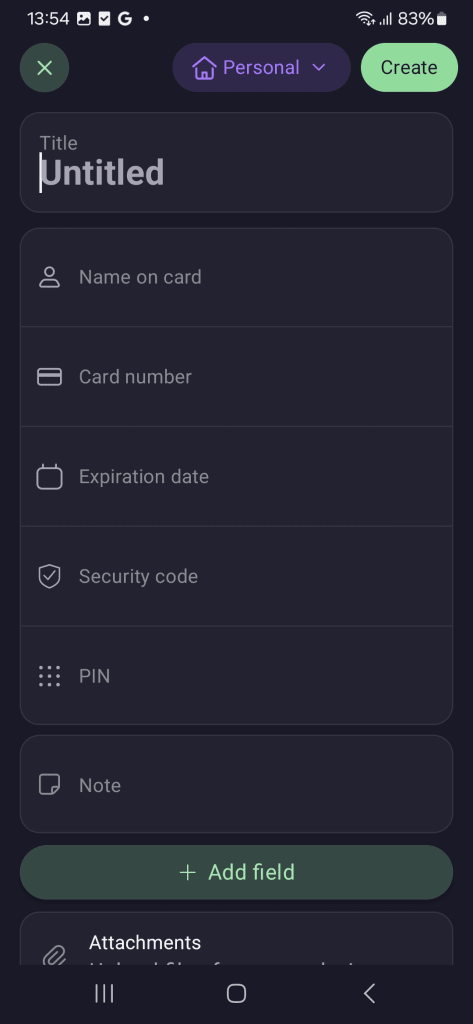
这些详细信息包括:
- 持卡人姓名
- 卡号
- 到期日期
- 安全码 (CVV)
- PIN 码
信用卡详细信息目前尚不支持自动填充。要使用已保存的卡信息,您需要从 Proton Pass 中复制详细信息,然后粘贴到结账页面。
To edit the details of a credit card that you’ve already added, simply select the card you want → Edit.
其他项目
您还可以为不与登录项目关联的别名、密码和笔记创建独立项目。
To edit already existing items, simply open the Proton Pass browser extension, select the item → Edit.

如何添加新项目
You can add new items manually, or add login and alias items using autosave.
如何手动添加项目
1. 打开 Proton Pass 应用,然后轻点+。
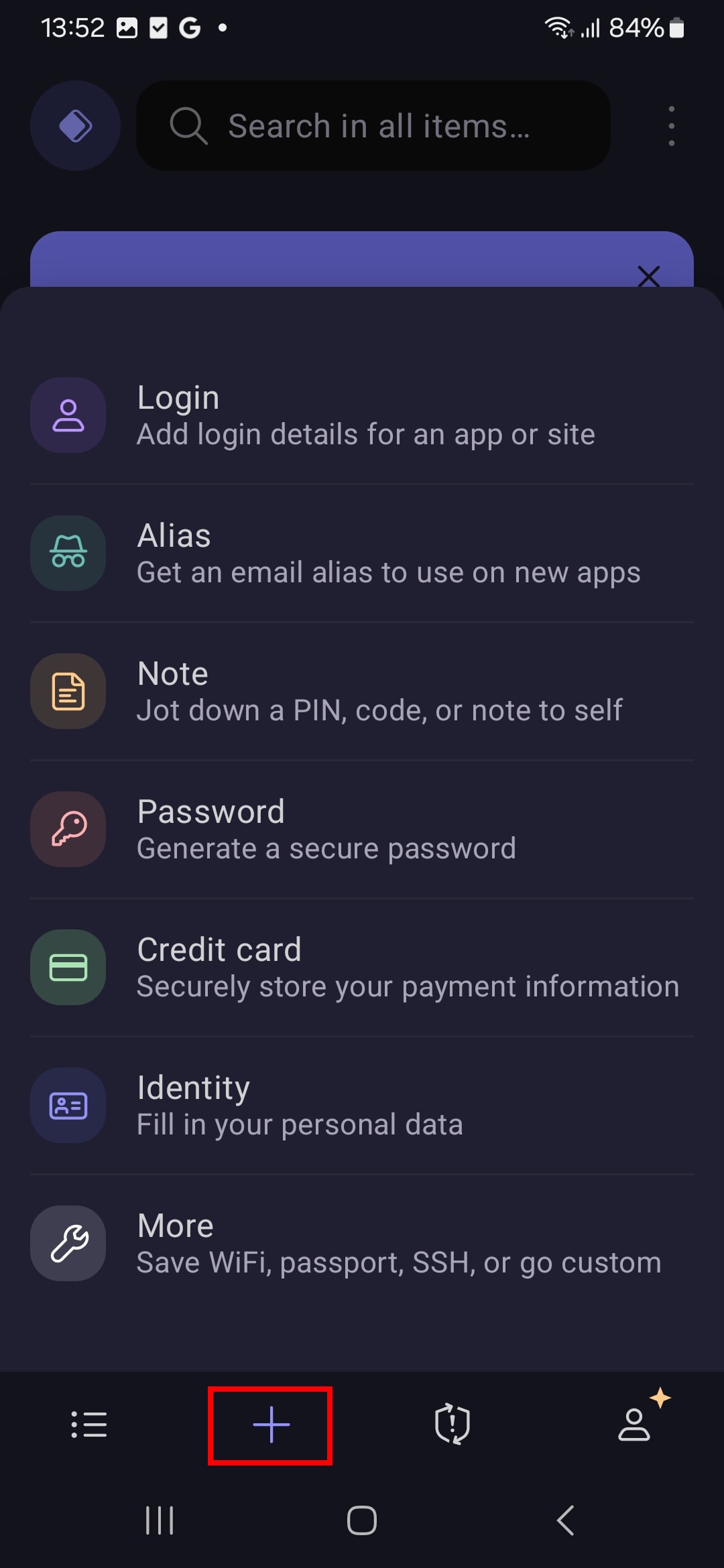
2. 根据您选择的项目,在相应字段中填写适当的信息。
如何使用自动保存添加项目
当您登录尚无 Proton Pass 登录信息的网站或应用时,Proton Pass 会建议自动保存您的登录详细信息以供日后使用。轻点保存即可接受。

在创建新帐户时,Proton Pass 还可以为其创建并保存登录信息或别名:
1. Tap Open Proton Pass.

2. 轻点+。

3. Choose whether you’d like to create a login or alias item (see above).

4. Tap Create login/alias when you’re done. Proton Pass will return you to the login page and autofill your details using the login or alias you just created. When you create the new account, Proton Pass will offer to autosave your login details.
如何查看项目的历史记录
如果您拥有付费 Proton Pass 帐户,可以查看每个项目的历史记录。操作方法如下:
1. 选择一个项目以查看其历史记录,包括当前版本、上次自动填充的时间、创建时间,以及每次被修改的时间。

2. 要了解每项更改的更多信息,请轻点查看项目历史记录。

3. 轻点时间线中相应的已创建或已修改条目。
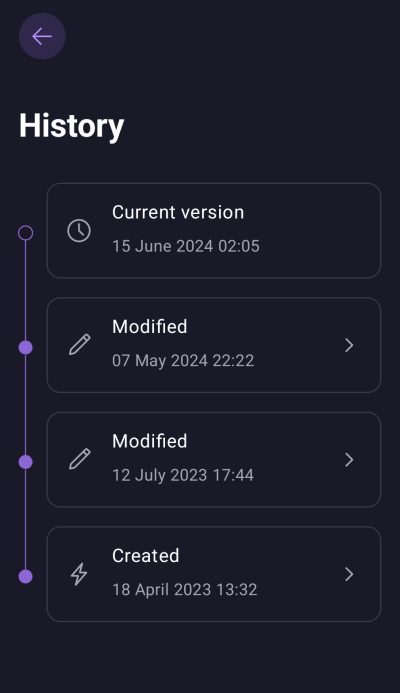
4. You can now view a snapshot of the change made on the selected date. To restore the selected older version of an item (that is, to make it the current version), tap Restore.
