
Set up two-factor authentication (2FA) with a security key
- Reading
- 5 mins
- Category
- Two factor authentication (2FA)
Two-factor authentication (2FA) adds an extra layer of security to your Proton Account by requiring a second form of verification in addition to your password.
This article explains how to set up 2FA with a physical U2F or FIDO2 security key. But you can also set up 2FA with an authenticator app.
Learn more: Two-factor authentication explained
- How it works
- Set up your security key
- Sign in with security key 2FA
- Manage your security keys
- Troubleshooting
- Lost security key
- Which 2FA method is best for me?
Note: The protonvpn.com (new window) website doesn’t support two-factor authentication (2FA) with a security key. To enable and use this feature, you’ll need to do this via the proton.me website.
How it works
When you enable two-factor authentication with a security key (also known as a hardware token or FIDO U2F key), you’ll need to complete two verification steps to sign in to your Proton Account.
Step 1: Enter your username and password.
Step 2: Plug your security key into your device, or tap it next to it. You may also need to press a button on your key.
Set up your security key
You can add up to four security keys to your Proton Account.
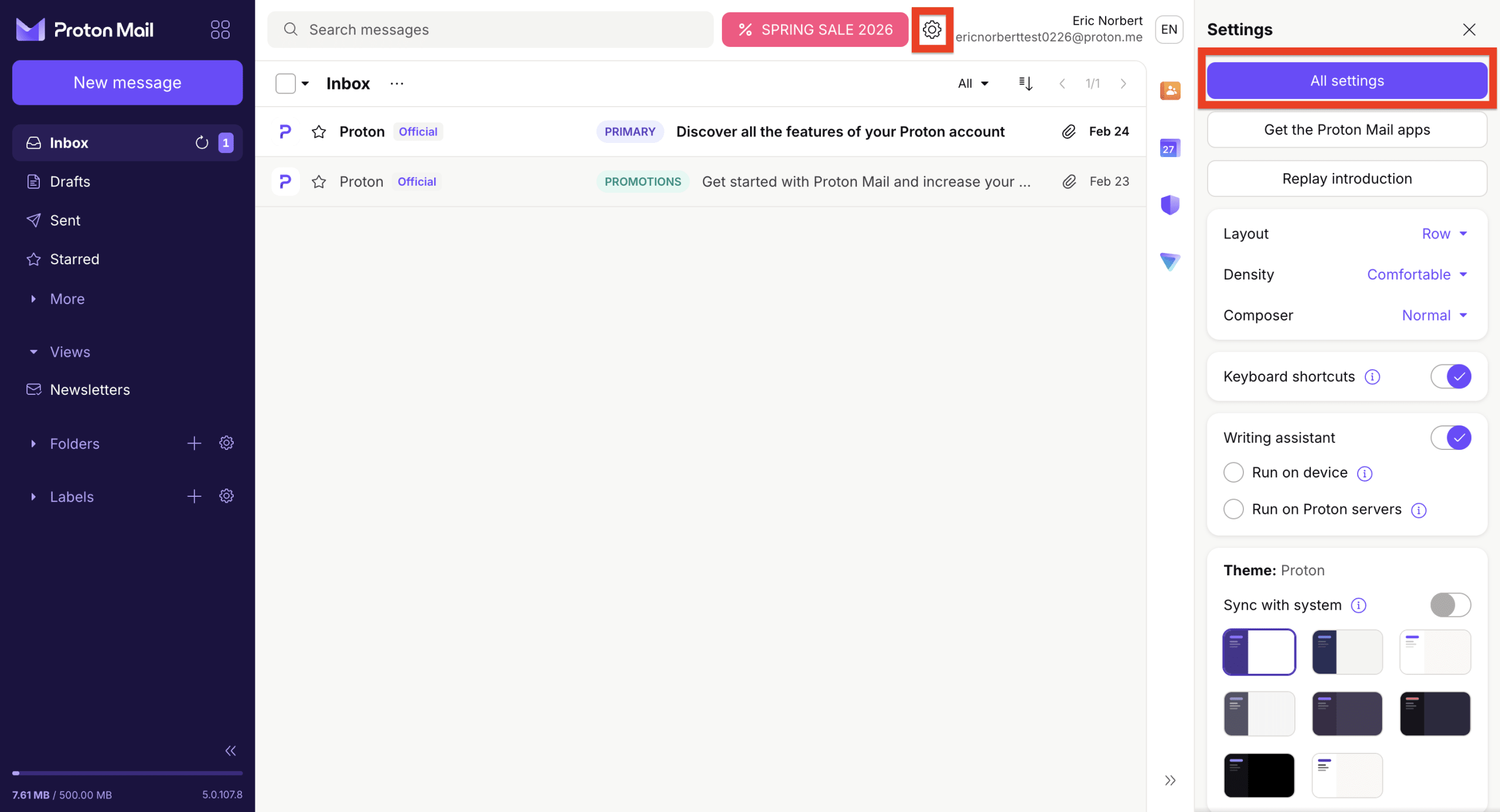
- Sign in to account.proton.me and open your account settings (Settings ⚙️ → All settings).
- Select Account and password from the sidebar. Scroll to Two-factor authentication and turn on the Security Key toggle.

You may be asked to re-enter your password. If you have another 2FA method enabled, you’ll need to verify with that too.
- Insert your security key into your device’s USB port and click Continue.

If you’re using a platform security keys like Windows Hello(new window), Touch ID(new window), or Face ID(new window), check Allow platform keys.
Note: To register your physical security key instead of a platform security key (such as Windows Hello, Touch ID, or Face ID), make sure Allow platform keys is unchecked.
4. When prompted by your browser, tap or touch the button on your security key.

Your browser’s prompt may look different from this example.
5. Enter a name for your security key and click Continue.
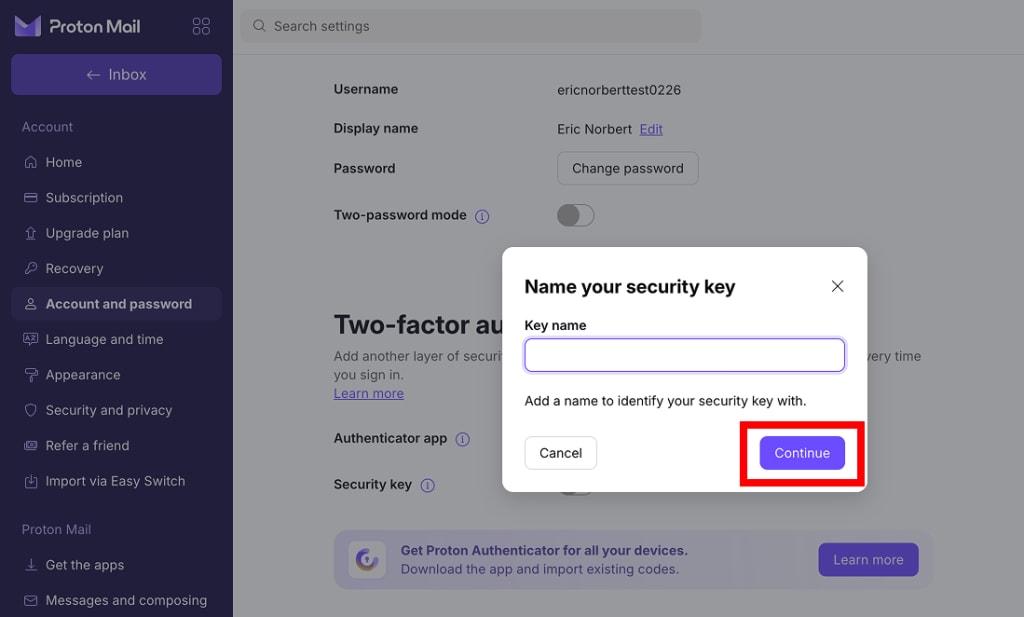
Your security key is now registered. Next time you sign in, you’ll be asked to tap or scan your key.

Sign in with security key 2FA
- Open any Proton app and sign in with your username and password.
- Select the Security key tab if needed, then insert or scan your key.
- You may be asked to tap or touch your security key. Once that’s done, click Authenticate.
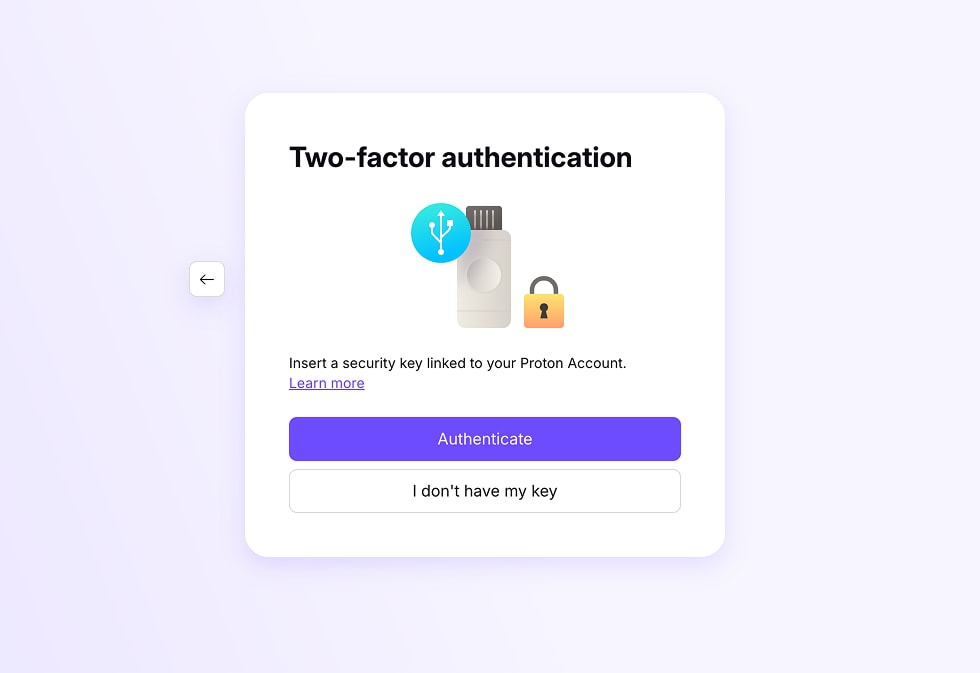
You’re now signed in.
Manage your security keys
To view, rename, or delete your keys:
- Sign in to account.proton.me and open your account settings (Settings ⚙️ → All settings).
- Select Account and password from the sidebar. Scroll to Two-factor authentication.
- Your registered keys are listed under Security keys.

- To rename a key, click the pencil icon (✏️).
- To delete a key, click the trash icon (🗑️).
Troubleshooting
Safari asks me to use a different browser
Safari has a known bug that can cause this error. To work around it:
- Force quit the Safari app: Click Safari in your menu bar, then select Quit Safari.
- Reopen Safari and try again.
If that doesn’t work, use a different browser to set up or sign in with your security key.
Tor browser
The Tor browser does not support security keys. Please use a different browser.
Lost security key
If you’ve set up security key 2FA and you can’t access your security key:
- If you also have authenticator app 2FA enabled, you can use that instead. Just select the authenticator app tab at sign-in.

- If not, you’ll need to use a 2FA recovery code or another account recovery method. Learn how to recover your account if you’ve lost your 2FA device
You can add up to four security keys to your Proton Account. Having multiple keys reduces the risk of getting locked out of your account.
Which 2FA method is best for me?
It depends on your security needs. Security key 2FA provides greater protection against cyberattacks like phishing. But using an authenticator app on your phone can be more convenient.