
Using conditional formatting in Proton Sheets
- Reading
- 3 mins
- Category
- Sheets
Conditional formatting in Proton Sheets works just like in Google Sheets or Microsoft Excel — you can automatically change how cells look based on their values to spot patterns faster. For example, you can flag high values, overdue dates, or duplicates.
With Proton Sheets, you get the same familiar tools you’re used to, with the added peace of mind that your data stays private and without the need for extra training to stay productive.
This guide explains how to use conditional formatting securely in Proton Sheets.
Apply conditional formatting
- Select the range of cells.
- Go to Format → Conditional formatting.
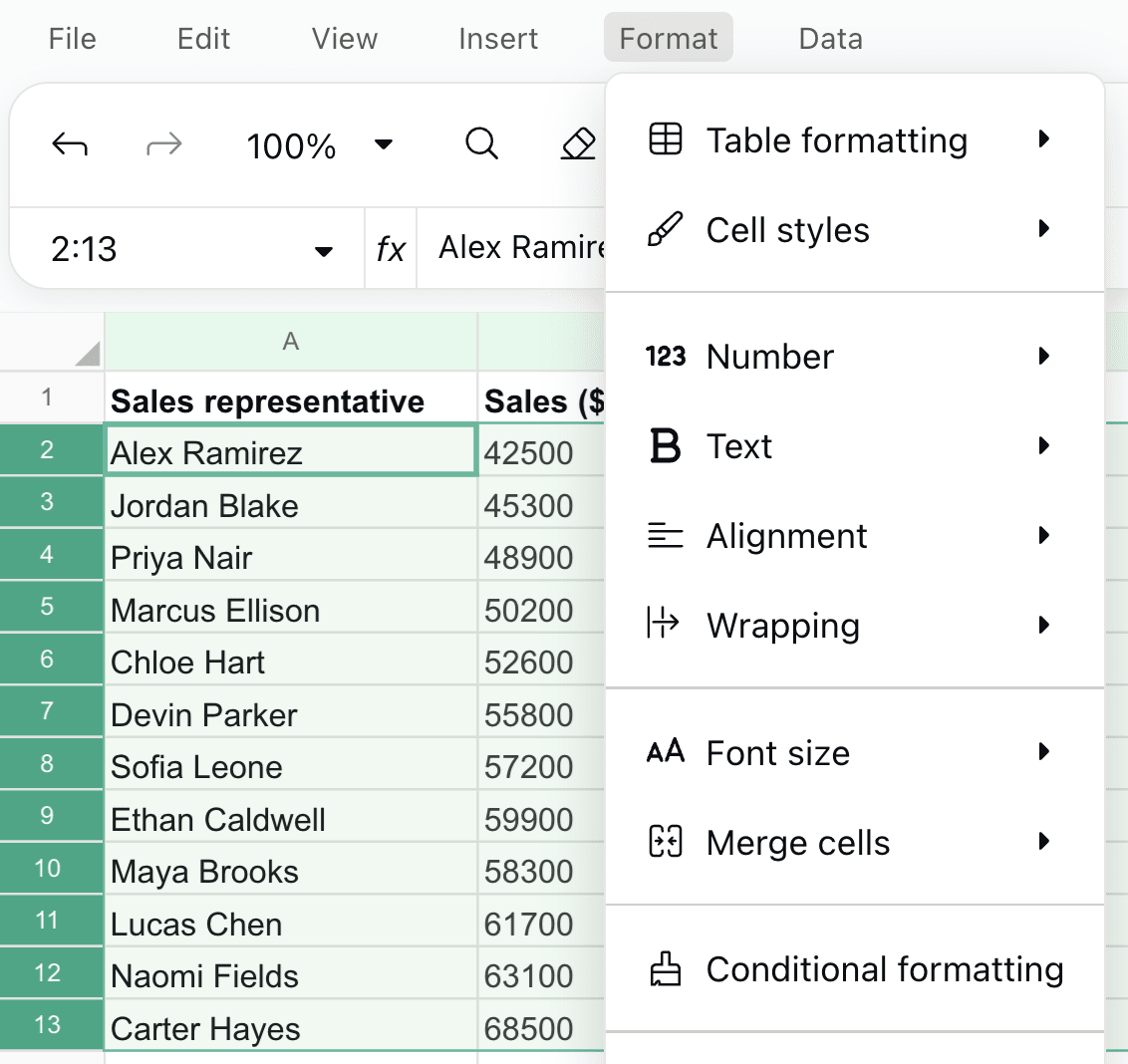
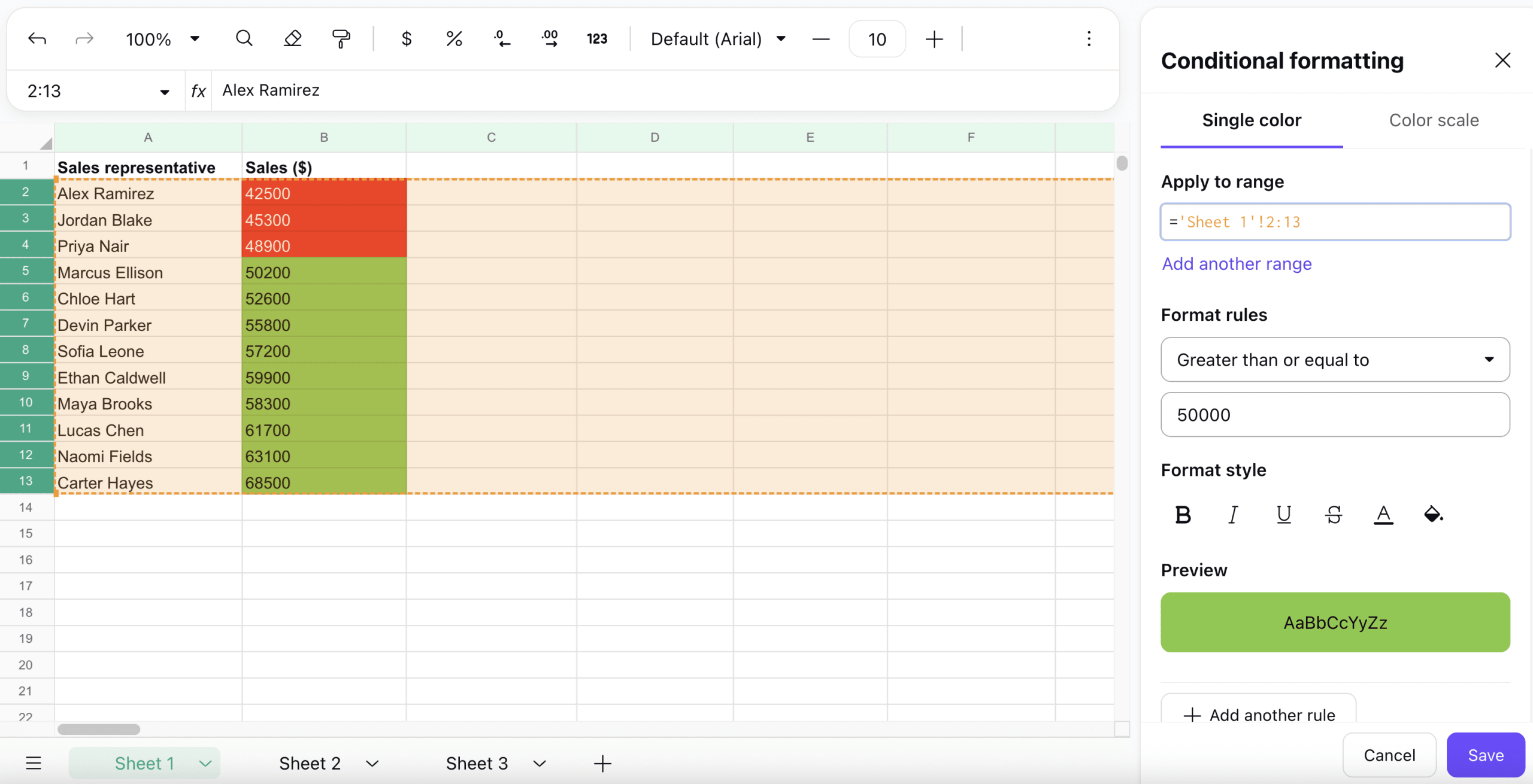
- At Apply to range, you’ll see the cell or range you’ve selected, such as
=Sheet1!A1:A10. You can type a different range manually, an entire column — like=Sheet1!B:B— or add more ranges. - At Format rules, choose the type of condition.
- At Format style, choose how matching cells should appear. You can make text bold, italic, underlined, or
strikethrough, and change the text or highlight color. You’ll see a live preview before applying your choice. - Click Save to apply your rule.
Available rule types
Here are some common rule types and what they do:
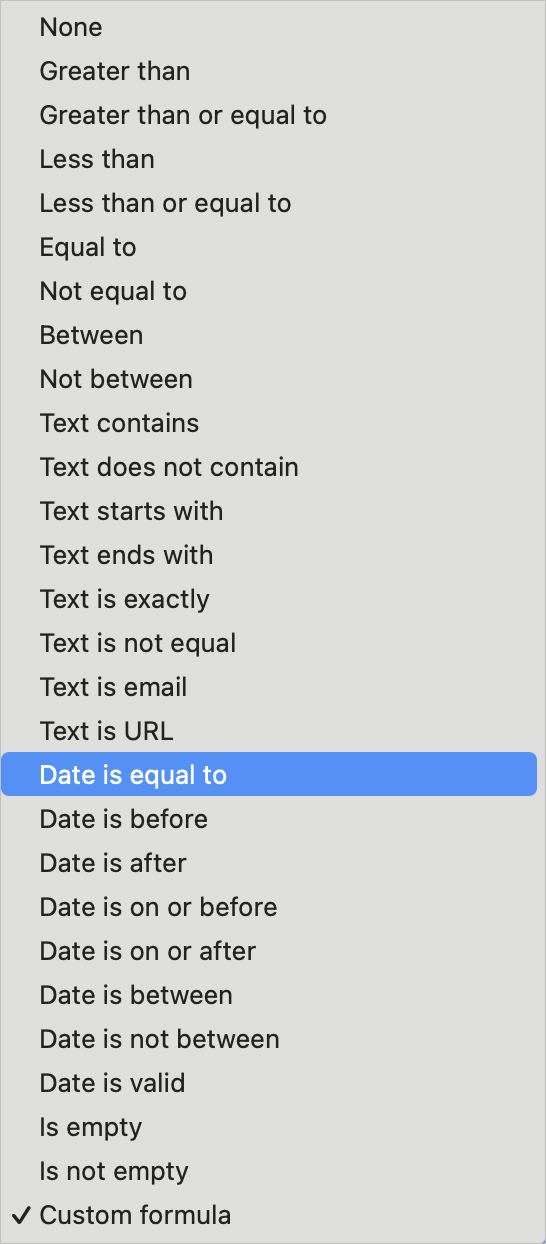
- Greater than and Less than highlight numbers above or below a certain value.
- Between highlights values within a specific range, such as “50–100”.
- Equal to and Not equal to apply formatting to cells that match or don’t match an exact value.
- Text contains highlight cells that include specific words, such as “Overdue”.
- Is empty and Is not empty highlight blank or filled cells.
- Custom formula allows you to use formulas for advanced logic. For example, to highlight rows where due date is before today, use
=$C2<TODAY().
Single color and color scale
There are two coloring modes in conditional formatting in Proton Sheets:
- Single color applies one rule with one formatting style. For example, if a value is greater than
1000, the cell turns green. You can create multiple rules, but each one has a fixed condition and a specific color or style. For example, cells turn green if they’re over1000or red if they’re under50. - Color scale adds a gradient of colors based on cell values. You can set minimum, midpoint, and maximum values, and each gets a different color — values in between are shaded gradually. For instance, for tracking monthly sales, set Min to
$1000and light red, Mid to$5000and yellow, and Max to$10000and green.
Single coloring helps to flag specific values or conditions, while color scaling is best for spotting patterns, outliers, or trends across a range of numbers.
Tip: Make sure your rules don’t conflict — if two rules apply to the same condition, only the first one will be visible.
Single color example
To flag task deadlines, including overdue, due today, and upcoming:
- Select the Deadline cells, such as
C2:C100. - Choose Single color and set the following for overdue tasks:
- Format rules to Date is before.
- Value to
TODAY(). - Format to red fill.
- Click Save.
- Click Add another rule and choose Single color.
- For tasks due today, set:
- Format rules to Date is exactly.
- Value to
TODAY(). - Format to yellow fill.
- Click Save.
- For upcoming tasks, set:
- Format rules to Date is after.
- Value to
TODAY(). - Format to green fill.
- Click Save.
Color scale example
To highlight top and underperforming sales representatives:
- Select the sales data range, such as
B2:B100. - Choose Color scale and set values for each:
- Minpoint: set to your lowest expected value, such as
0, and choose red. - Midpoint: set a middle value, such as
50000, and choose yellow. - Maxpoint: set to a high target or maximum, such as
100000, and choose green.
- Minpoint: set to your lowest expected value, such as
- Click Save.
What next?
If you’re new to Proton Sheets, check out our getting started guide to learn the basics.