
Importing and exporting in Proton Sheets
- Reading
- 2 mins
- Category
- Sheets
Proton Sheets makes it easy to move data in and out of your spreadsheets while keeping it private. You can securely import files from Google Sheets or Microsoft Excel, share reports with your team, transfer data between systems, or maintain protected records — all with end-to-end encryption.
- Import a spreadsheet
- Export a spreadsheet
- Moving Sheets files outside the synced Proton Drive folder
- What next?
Import a spreadsheet
- Open your spreadsheet in Proton Drive.
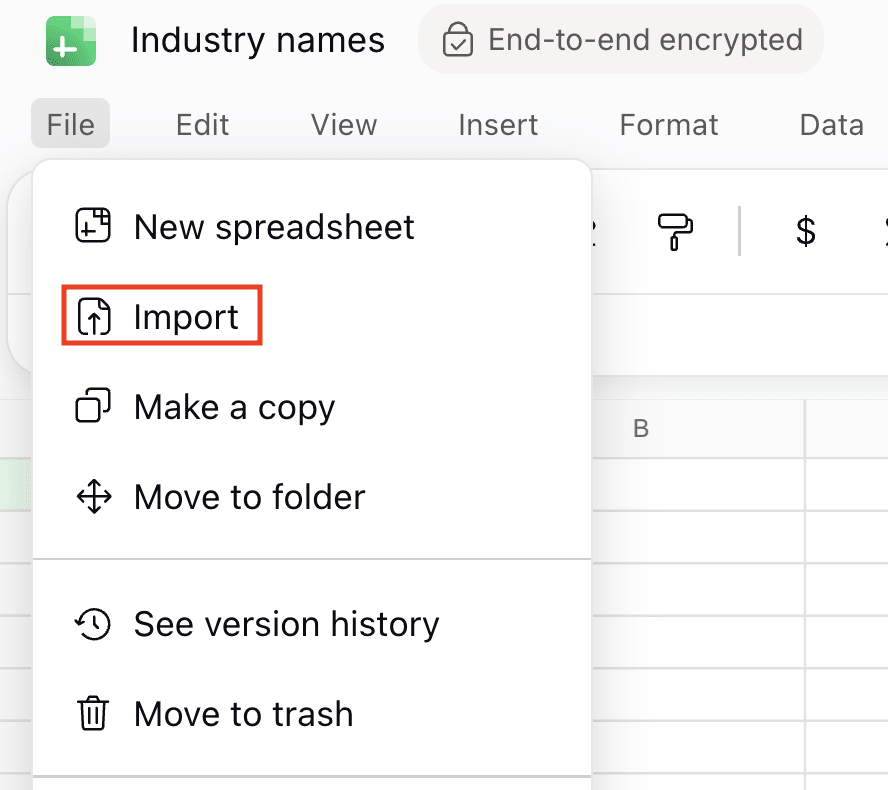
- Go to the File menu, select Import, and click Browse to choose your CSV, TSV, or XLSX file.
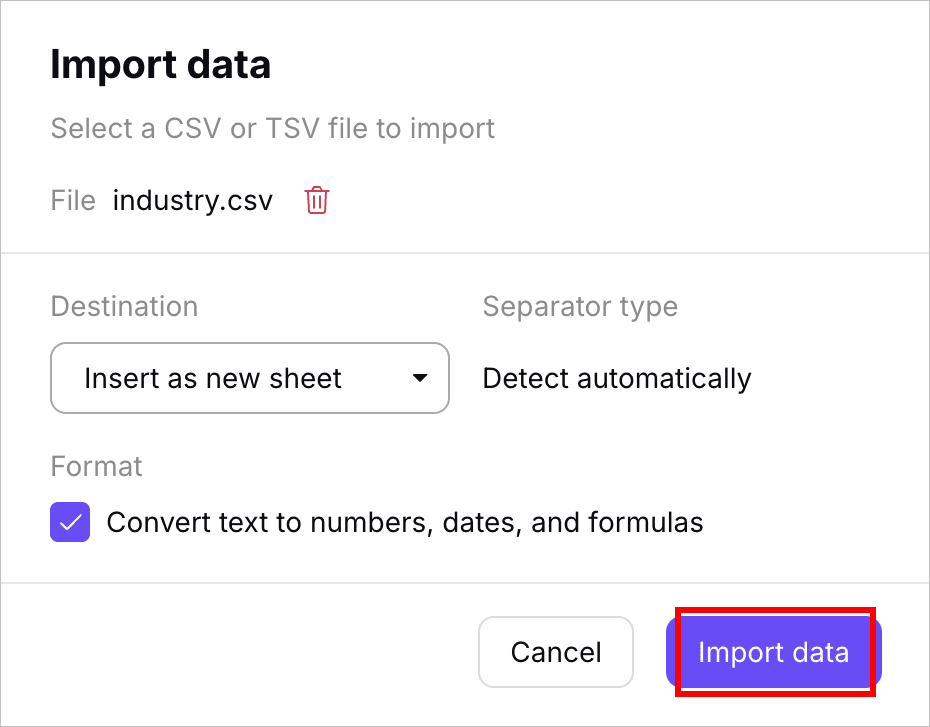
- Choose where to place the imported data. You can select from:
- Insert as new sheet — automatically creates a new empty sheet in your current spreadsheet and places the imported data there. If you’re unsure, use this option to avoid losing existing data.
- Replace data at selected cell — overwrites data starting from the currently selected cell.
- Replace current sheet — completely replaces all content in the active sheet with your imported file.
- The separator type is set to Detect automatically based on the file — this cannot be changed.
- The Convert text to numbers, dates, and formulas option is enabled by default and can be disabled. When enabled, this setting automatically turns values like
123,01/01/2025, or=SUM(A1:A3)into numbers, dates, or formulas. You can uncheck this if you want to keep all values as plain text. - Click Import data to finish.
Export a spreadsheet
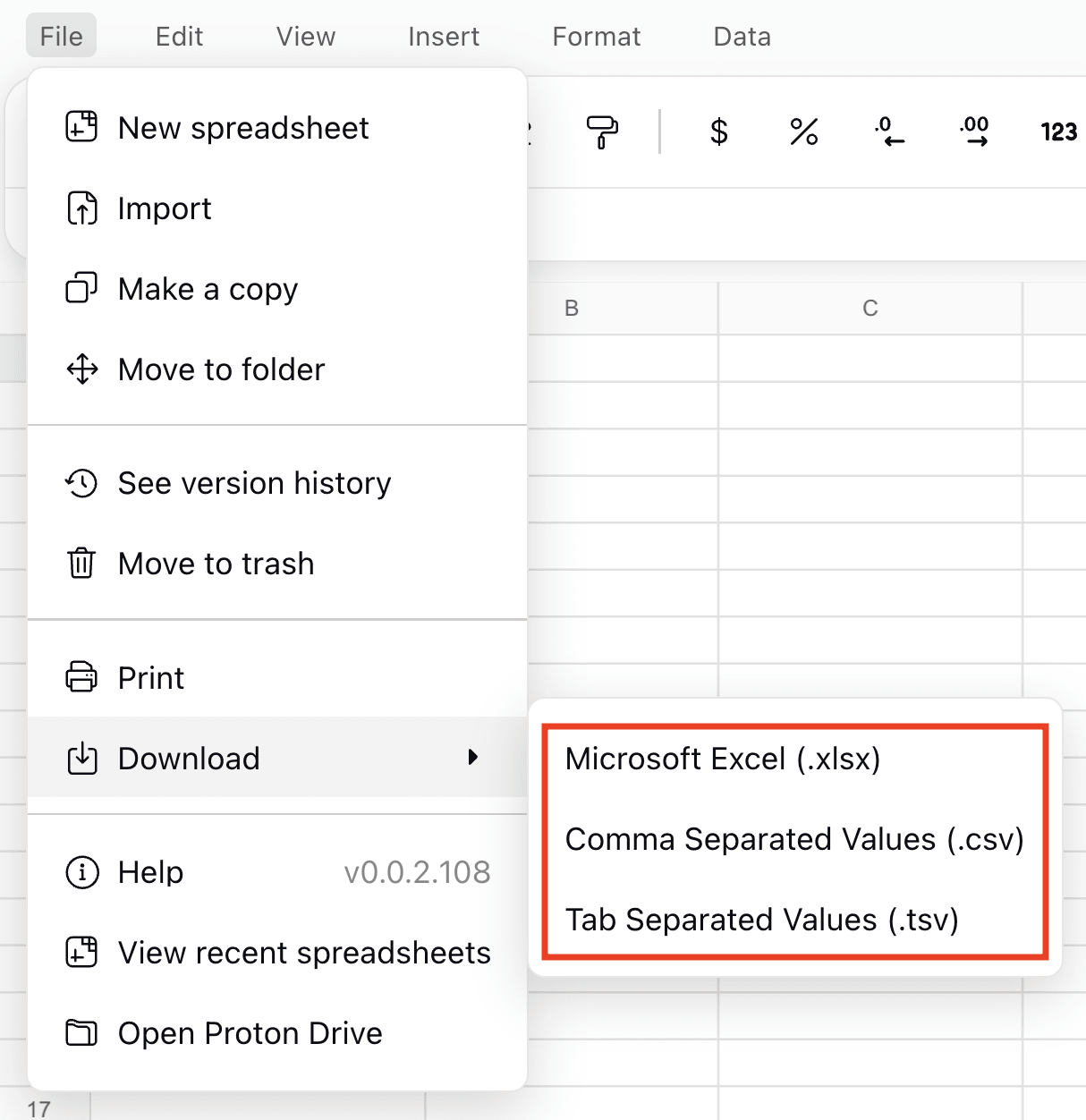
Go to File → Download and choose a file format:
- XLSX – compatible with Microsoft Excel and most spreadsheet apps.
- CSV – works best for plain text data or importing into databases.
- TSV – like CSV, but uses tabs instead of commas to separate values.
The download will start right away.
Moving Sheets files outside the synced Proton Drive folder
On the Windows and macOS apps, a Sheet is represented locally only as a small placeholder file, so it is not the actual spreadsheet. Double-clicking it opens your browser and takes you to the file at docs.proton.me(new window). You cannot access the spreadsheet’s real content directly from File Explorer or Finder.
Because of this, moving or copying a Sheet out of the Proton Drive folder that is being synced on your device will not create a usable copy. The placeholder left behind becomes an empty (0 byte) file, and the actual spreadsheet is moved to Trash in Proton Drive (at drive.proton.me(new window)).
To keep a working copy of a spreadsheet outside Proton Drive, use the Export option instead of moving or copying the file with File Explorer or Finder.
What next?
If you’re new to Proton Sheets, check out our getting started guide to learn the basics.