Que vous ayez remarqué une activité suspecte sur votre compte de messagerie ou que vous souhaitiez simplement améliorer votre sécurité, ce guide vous montre comment changer votre mot de passe de messagerie sur certains des services les plus populaires : Gmail, Outlook et Proton Mail.
Votre messagerie est la clé maîtresse de votre vie en ligne. Quiconque y ayant accès peut réinitialiser le mot de passe de tous les autres comptes liés à cette adresse, tels que vos comptes bancaires, de réseaux sociaux ou de shopping. C’est pourquoi une fuite de mot de passe de messagerie est bien plus dangereuse qu’une fuite de mot de passe Netflix, et pourquoi vous devriez traiter la sécurité de votre messagerie comme le fondement sur lequel tout le reste repose.
Vous devriez changer votre mot de passe de messagerie si :
- Vous avez remarqué une activité de connexion suspecte, surtout si personne d’autre n’a accès à votre compte de messagerie.
- Un service que vous utilisez a été impliqué dans une fuite de données.
- Vous avez réutilisé le même mot de passe sur plusieurs sites internet, ce qui peut vous exposer à des attaques par bourrage d’identifiants.
- Vous avez cliqué sur un lien suspect ou saisi vos identifiants de messagerie sur un site internet dont vous avez réalisé plus tard qu’il pourrait être faux (hameçonnage).
- Votre fournisseur de compte vous a averti que votre mot de passe figurait dans une fuite connue.
- Vous avez reçu des e-mails de réinitialisation de mot de passe ou des alertes de sécurité que vous n’avez pas demandés.
Changer le mot de passe de votre messagerie ne prend que quelques minutes et peut être effectué depuis les paramètres de compte de votre fournisseur, et non depuis votre application de messagerie.
- Comment changer le mot de passe de votre messagerie sur Gmail
- Comment changer le mot de passe de votre messagerie sur Outlook, Hotmail ou Live
- Comment changer le mot de passe de votre messagerie sur Proton Mail
- Comment changer les mots de passe de messagerie sur iPhone
- Comment changer les mots de passe de messagerie sur Android
- Conseils pour créer un mot de passe de messagerie robuste
- Bonnes pratiques pour la sécurité du mot de passe de messagerie
- Que faire si vous avez oublié le mot de passe de votre messagerie
- Protégez vos comptes de messagerie
Comment changer le mot de passe de votre messagerie sur Gmail
Pour changer votre mot de passe Gmail, mettez-le à jour via votre compte Google :
- Connectez-vous à votre compte Google à l’adresse myaccount.google.com(nouvelle fenêtre).
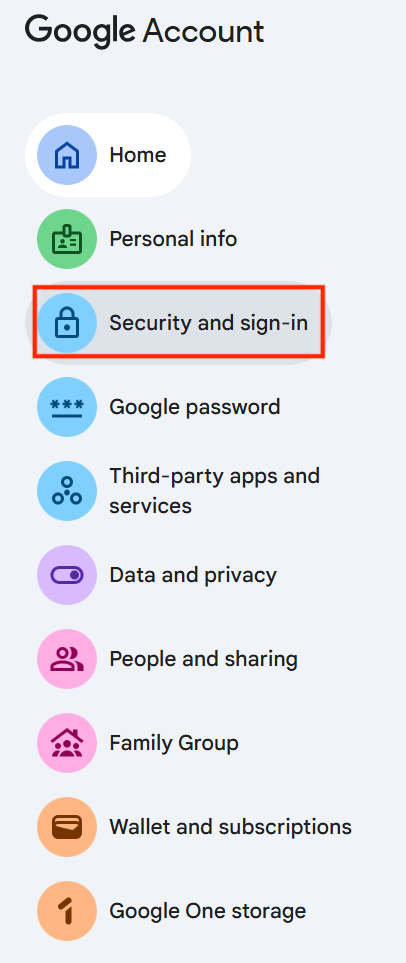
- Cliquez sur Sécurité et connexion dans le menu de gauche.
- Sous Comment vous vous connectez à Google, cliquez sur Mot de passe.

- Saisissez votre mot de passe actuel pour vérifier votre identité.
- Saisissez votre Nouveau mot de passe, confirmez-le et cliquez sur Modifier le mot de passe.
Google vous maintiendra connecté sur l’appareil que vous utilisez. Pour vous déconnecter partout ailleurs, accédez à Sécurité → Vos appareils et retirez toutes les sessions que vous ne reconnaissez pas.
Comment changer le mot de passe de votre messagerie sur Outlook, Hotmail ou Live
Si vous utilisez un compte Microsoft pour Outlook, Hotmail ou Live, vous pouvez changer votre mot de passe via le portail de sécurité Microsoft :
- Allez sur account.microsoft.com(nouvelle fenêtre) et choisissez Se connecter.
- Ouvrez l’accordéon Sécurité et cliquez sur Modifier le mot de passe.

- Saisissez votre Nouveau mot de passe, puis cliquez sur Enregistrer.
Pour vous déconnecter de toutes les autres sessions, allez dans Sécurité → Activité de connexion et cliquez sur Se déconnecter de partout.
Comment changer le mot de passe de votre messagerie sur Proton Mail
Vous pouvez changer votre mot de passe Proton Mail directement dans vos paramètres de compte :
- Ouvrez Proton Mail et allez dans Paramètres → Tous les paramètres.
- Dans la barre latérale, cliquez sur Compte et mot de passe.
- Cliquez sur Changer le mot de passe.

- Saisissez votre Mot de passe actuel.
- Saisissez et confirmez votre Nouveau mot de passe, puis cliquez sur Enregistrer.
Proton Mail utilise le chiffrement de bout en bout, donc changer votre mot de passe rechiffre également vos données. Assurez-vous d’avoir configuré votre méthode de récupération avant de le changer. Sans celle-ci, vous pourriez perdre l’accès à vos anciens messages chiffrés.
Comment changer les mots de passe de messagerie sur iPhone
- Ouvrez les Paramètres.
- Sélectionnez votre compte.
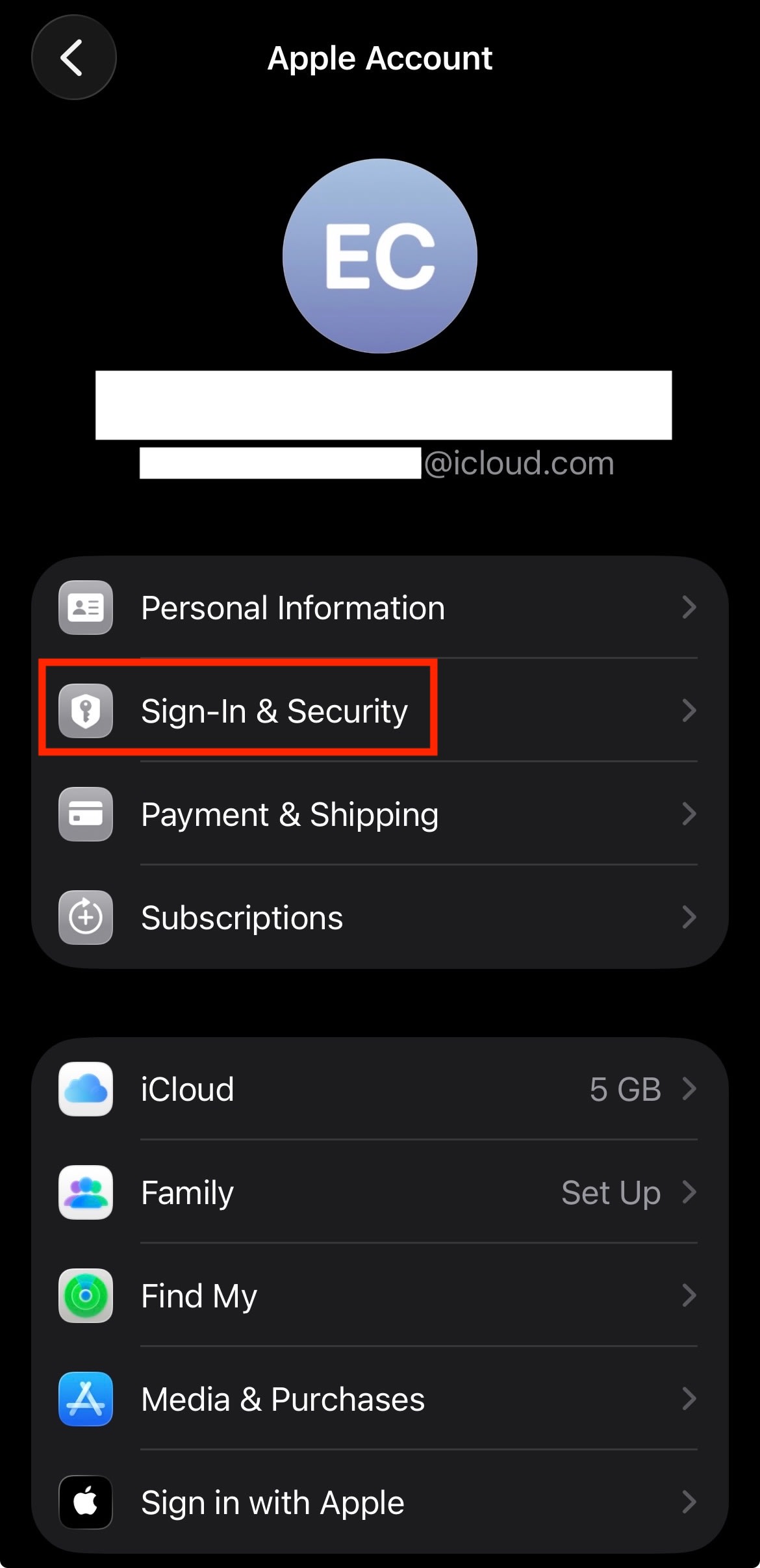
- Allez dans Connexion et sécurité.
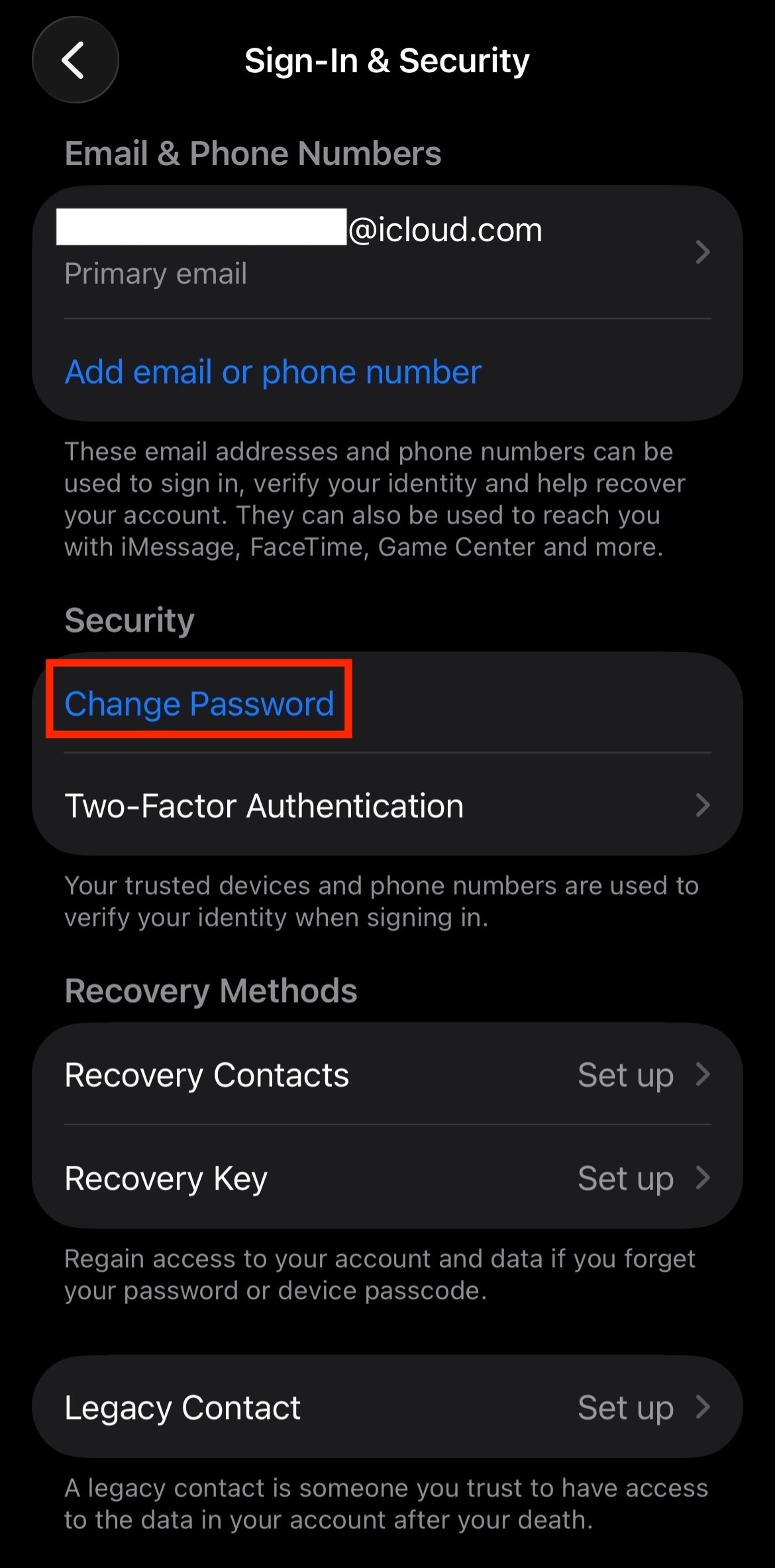
- Appuyez sur Changer le mot de passe.
- Authentifiez-vous avec votre mot de passe actuel ou Face ID.
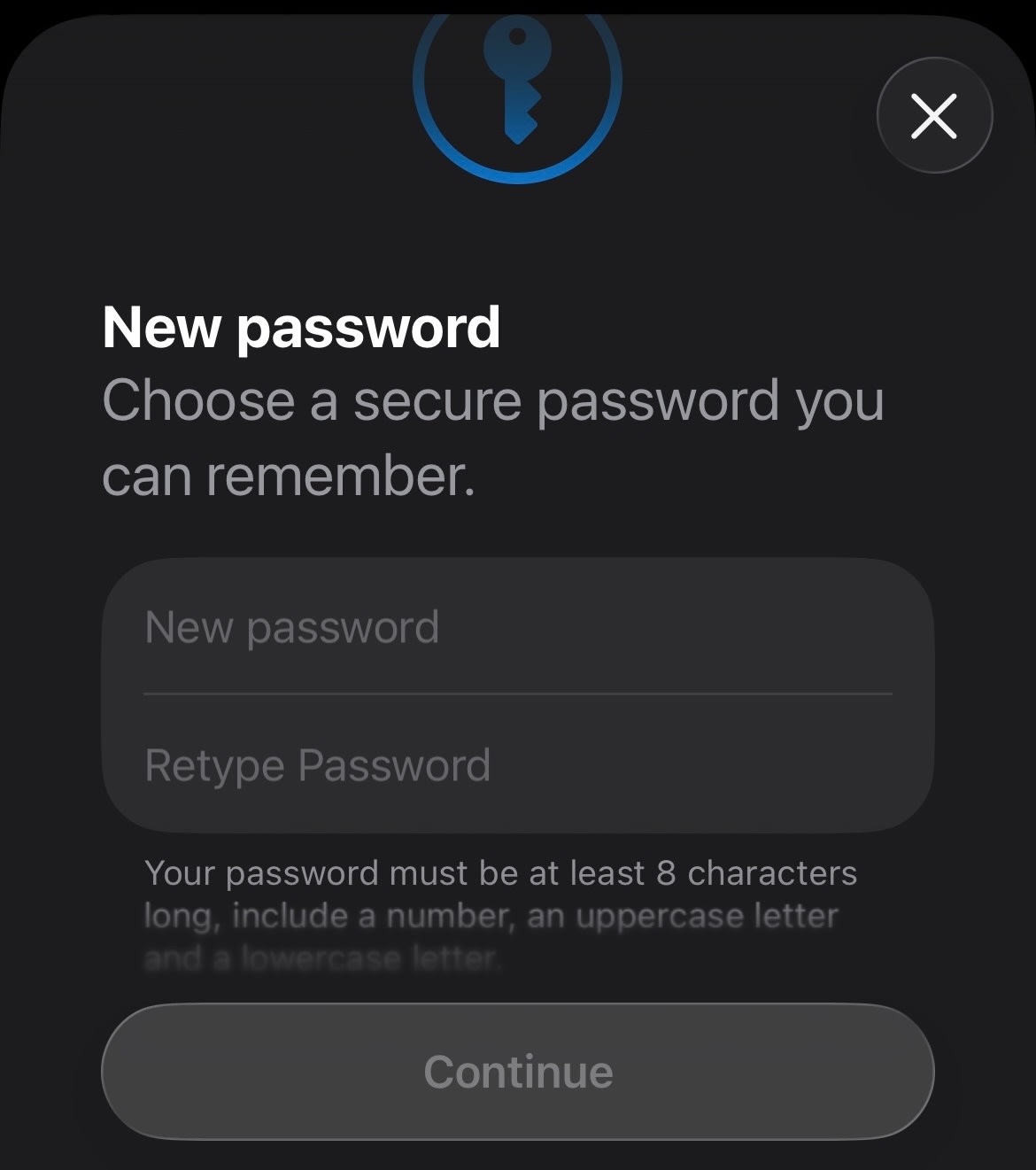
- Saisissez le nouveau mot de passe et confirmez-le.
Comment changer les mots de passe de messagerie sur Android
Si vous utilisez Gmail, vous pouvez changer votre mot de passe dans les paramètres de votre compte Google. Les étapes exactes peuvent varier légèrement selon votre appareil.
- Ouvrez les Paramètres.
- Appuyez sur Mots de passe, clés d’accès et comptes.
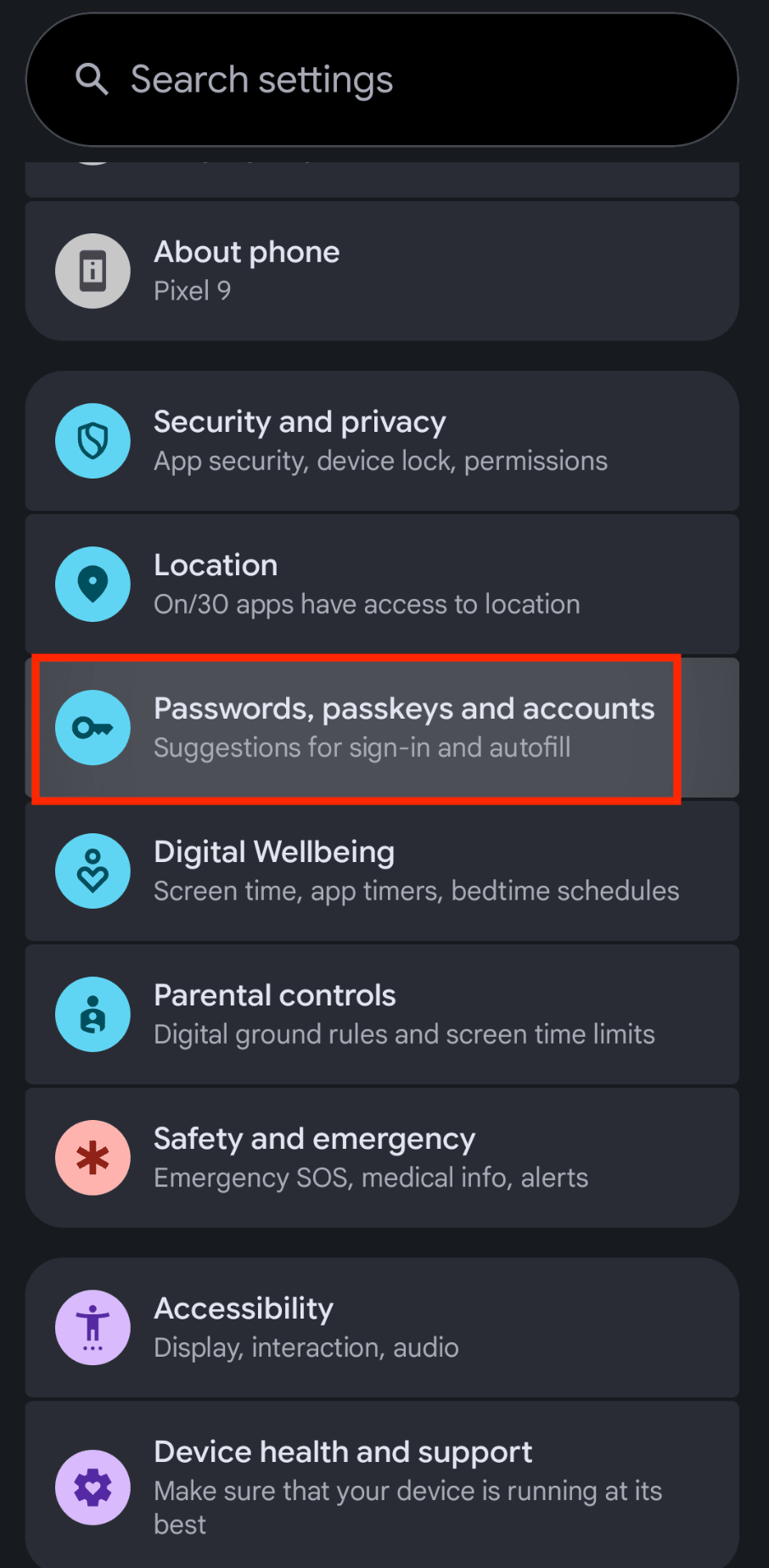
- Sélectionnez votre compte.
- Appuyez sur Compte Google.

- Allez dans l’onglet Sécurité ou Connexion.

- Sous Comment vous vous connectez à Google, appuyez sur Mot de passe.
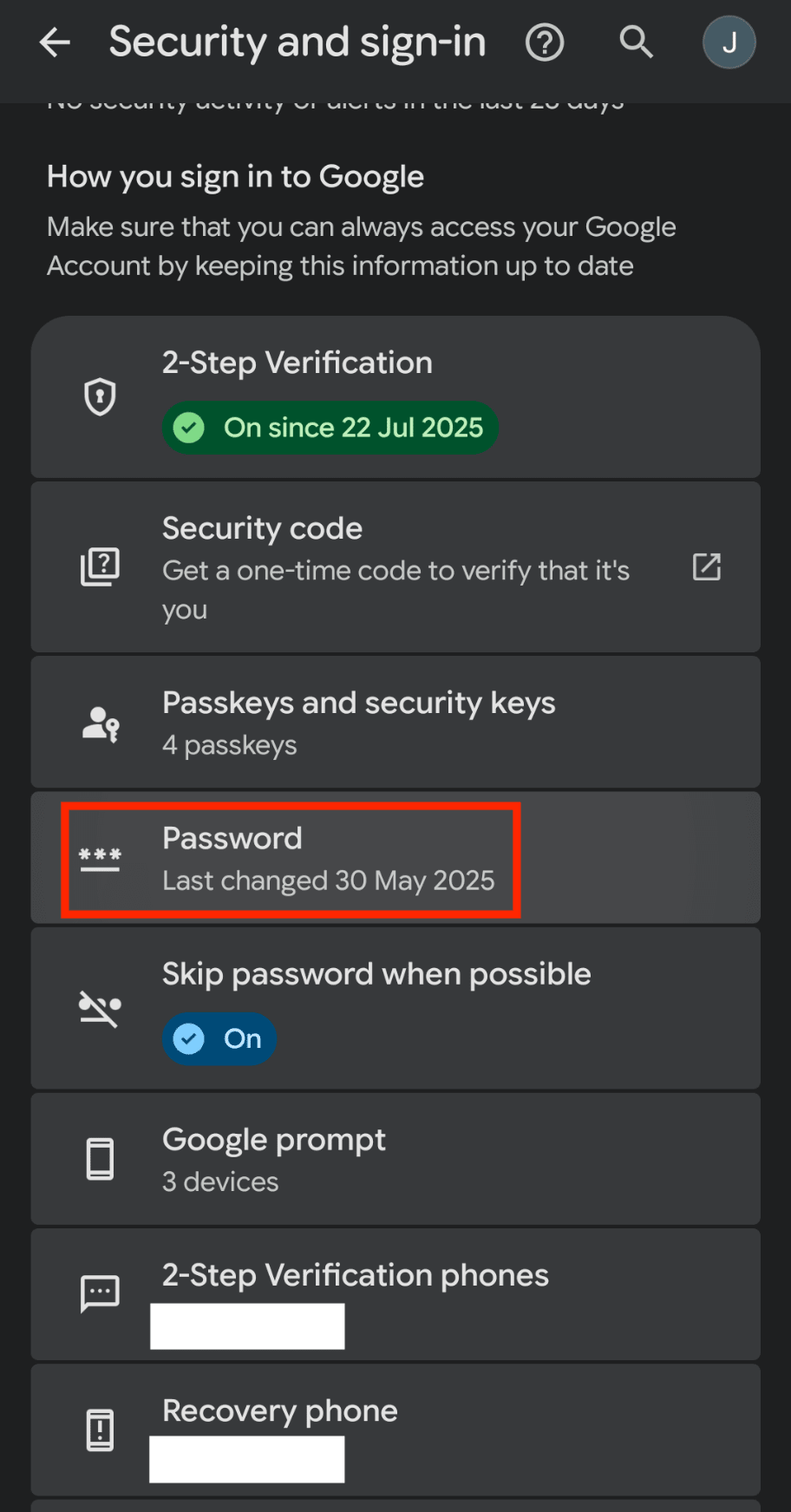
- Saisissez votre nouveau mot de passe et appuyez sur Modifier le mot de passe.
Une fois votre mot de passe mis à jour, votre appareil vous demandera généralement de vous connecter à nouveau. Vous pourriez également voir un message tel que « Action requise pour le compte » si votre messagerie cesse de se synchroniser. Saisissez votre nouveau mot de passe lorsque vous y êtes invité.
Si aucune invite ne s’affiche, retirez le compte et ajoutez-le de nouveau :
- Ouvrez les Paramètres.
- Appuyez sur Mots de passe, clés d’accès et comptes.
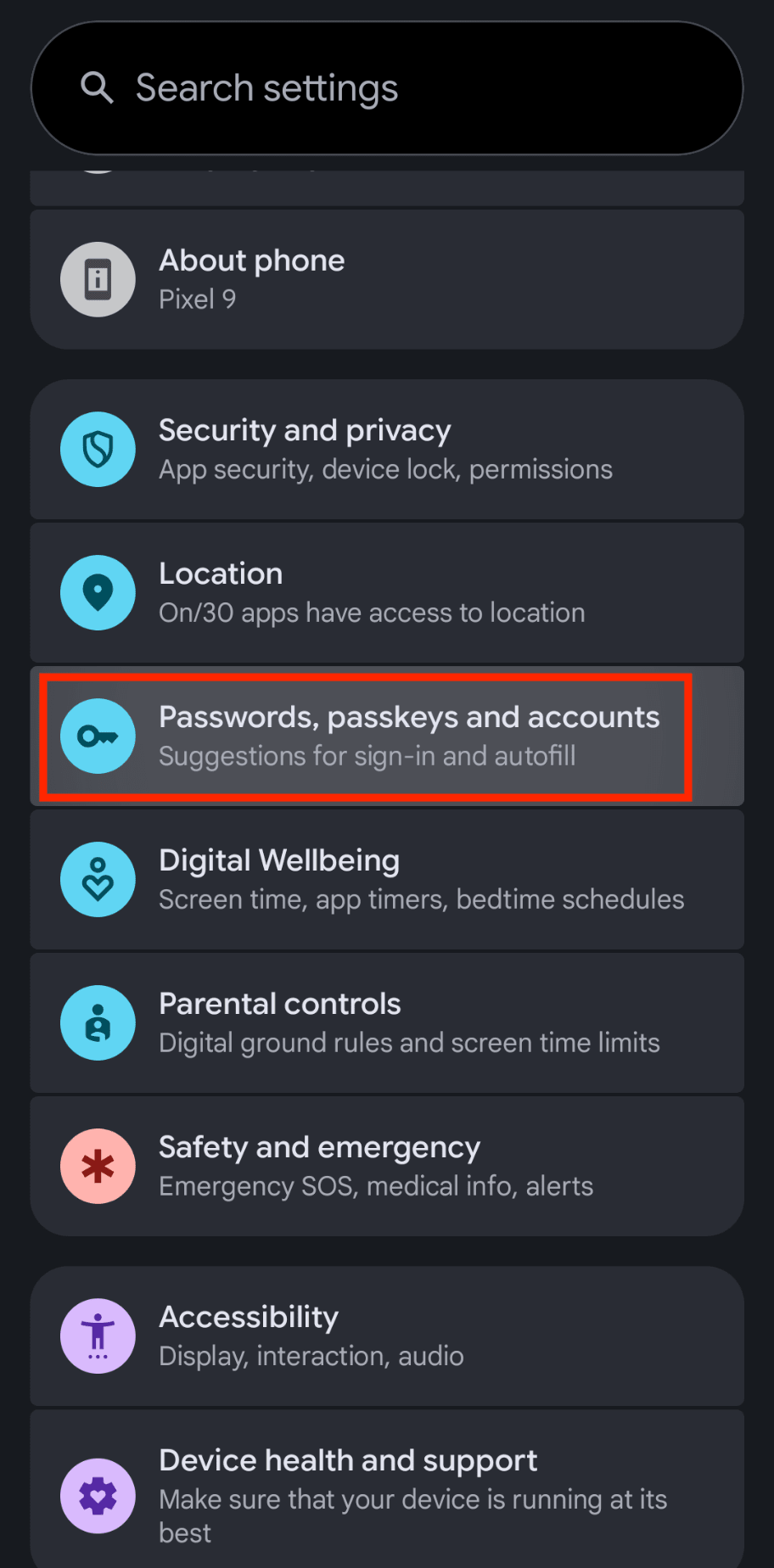
- Sélectionnez le compte que vous souhaitez mettre à jour.
- Appuyez sur Retirer le compte.

- Ajoutez de nouveau le compte et connectez-vous en utilisant votre nouveau mot de passe.
Conseils pour créer un mot de passe de messagerie robuste
Un mot de passe doit être difficile à deviner pour un étranger ou un ordinateur, mais facile à gérer pour vous.
Privilégiez la longueur : essayez d’utiliser au moins 12 caractères. Les mots de passe plus longs sont plus difficiles à pirater.
Rendez-le unique : ne réutilisez pas vos mots de passe sur différents comptes.
Évitez les informations personnelles : n’utilisez pas de noms, de dates de naissance ou de mots courants.
Optez pour l’aléatoire ou le mémorable : un mot de passe aléatoire est plus sécurisé qu’un mot de passe prévisible.
Un générateur de mots de passe rend tout cela plus facile à gérer.
Meilleures pratiques pour la sécurité des mots de passe de messagerie
Changer votre mot de passe est un excellent début, mais la sécurité ne se limite pas à un mot ou une phrase secrète. Vous pouvez rendre votre boîte de réception beaucoup plus difficile à atteindre en utilisant des outils qui font le plus gros du travail pour vous :
Utilisez un gestionnaire de mots de passe : Proton Pass peut créer, stocker et remplir automatiquement vos mots de passe en toute sécurité sur vos appareils. Il dispose d’un générateur de mots de passe intégré pour vous aider à créer des mots de passe uniques pour tous vos comptes.
Activez l’authentification à deux facteurs (A2F) : cela ajoute une deuxième couche de sécurité, comme un code à usage unique envoyé à votre application d’authentification, de sorte qu’un mot de passe seul ne suffise pas pour accéder à votre compte. Proton Pass fournit l’A2F pour chaque compte qui le prend en charge, ainsi qu’une fonctionnalité Pass Monitor qui vous alerte en cas de mots de passe répétés et d’A2F inactive.
Vérifiez régulièrement les sessions actives : vérifiez où votre compte est connecté et révoquez l’accès aux appareils ou aux emplacements que vous ne reconnaissez pas. Tous les comptes Proton sont dotés d’un suivi de compte gratuit pour vous aider à suivre les sessions actives.
Gardez vos options de récupération à jour : assurez-vous que votre adresse e-mail de récupération et votre numéro de téléphone sont actuels, sécurisés et n’appartiennent qu’à vous.
Soyez prudent avec l’accès aux applications tierces : retirez les applications connectées, les extensions de navigateur ou les clients de messagerie que vous n’utilisez plus ou que vous ne reconnaissez pas.
Gare au hameçonnage : vérifiez toujours l’expéditeur, le domaine et l’URL avant de saisir vos identifiants. Évitez de vous connecter à partir de liens contenus dans des e-mails inattendus. Proton Mail dispose d’une protection intégrée contre l’hameçonnage qui vous protège des expéditeurs malveillants connus.
Gardez vos appareils à jour : installez les mises à jour de sécurité pour votre système d’exploitation, votre navigateur, votre application de messagerie et votre gestionnaire de mots de passe.
Utilisez les alertes de compte : activez les notifications pour les nouvelles connexions, les changements de mot de passe, les modifications de récupération et les activités suspectes. Avec les abonnements payants Proton, vous pouvez activer Proton Sentinel pour empêcher les piratages de compte.
Sécurisez votre compte de gestionnaire de mots de passe : utilisez un mot de passe maître robuste et activez l’A2F pour le gestionnaire de mots de passe lui-même. Vous pouvez utiliser Proton Authenticator pour activer l’A2F pour votre compte Proton.
Que faire si vous avez oublié le mot de passe de votre messagerie
Si vous ne parvenez pas à vous connecter, recherchez le lien Mot de passe oublié. La plupart des sites internet placent ce lien directement sous la zone de connexion sur leur page d’identification. En cliquant dessus, vous pourrez généralement vérifier votre identité à l’aide d’une adresse e-mail de sauvegarde ou d’un numéro de téléphone.
Pour Proton Mail, vous pourriez également avoir besoin de votre phrase de récupération ou de votre fichier de récupération pour accéder de nouveau à vos messages chiffrés.
Protégez vos comptes de messagerie
Un mot de passe de messagerie faible ou exposé peut rapidement devenir un problème de sécurité bien plus important. Si vous avez reçu des alertes de sécurité, réutilisé des mots de passe sur plusieurs sites internet ou si vous soupçonnez que votre compte a pu être exposé lors d’une fuite de données, vous devriez changer les mots de passe concernés dès que possible.
Changer votre mot de passe est l’un des moyens les plus rapides de réduire le risque qu’un tiers accède à vos informations. L’utilisation d’un gestionnaire de mots de passe comme Proton Pass et d’une boîte mail chiffrée de bout en bout comme Proton Mail peut vous aider à sécuriser votre boîte de réception.