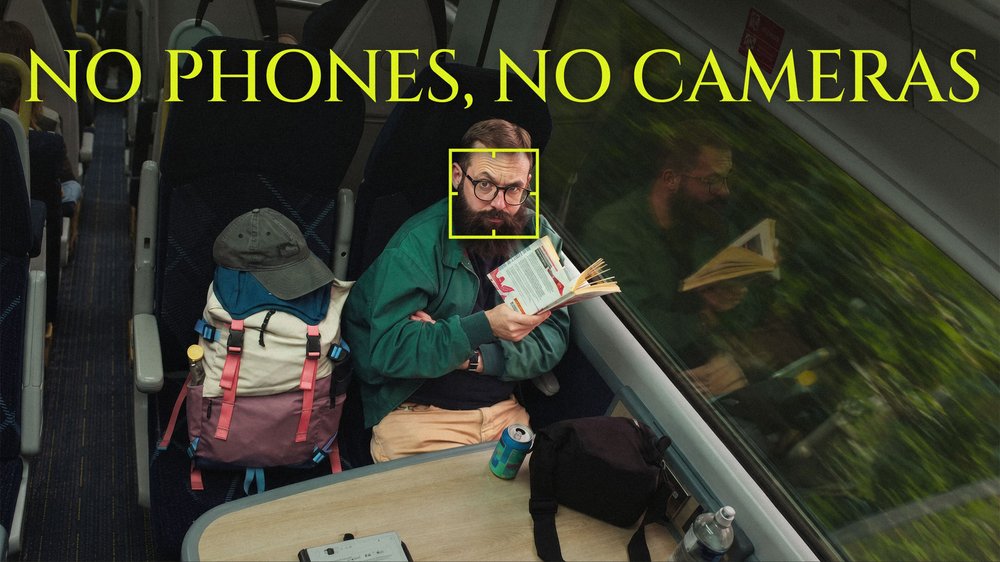
L’ampleur de la surveillance de Meta est stupéfiante.
En tant que société mère de Facebook et d’Instagram, Meta collecte d’immenses quantités de données d’utilisateurs chaque jour, et ce qu’elle souhaite par-dessus tout, c’est ce que les gens ne publient pas. Les produits de l’entreprise, des plus célèbres aux plus confidentiels, sont conçus pour suivre et monétiser vos habitudes, même si vous ne vous êtes jamais connecté à Facebook.
L’émergence de l’IA a enhardi ses stratégies de surveillance.
Pour rivaliser avec les géants de l’IA comme Anthropic, Google et OpenAI, Meta alimente son modèle d’IA avec chaque interaction sur Facebook, Instagram et Threads. Facebook sait qui vous êtes et où vous vous trouvez. Il connaît les noms des fichiers sur votre appareil, vos opinions politiques, votre orientation sexuelle et les événements de votre vie, autant d’éléments qu’il utilise pour vendre des publicités. C’est une activité lucrative : près de 99 % des revenus annuels de Meta proviennent de la publicité.
Vous ne pouvez pas non plus échapper à Meta simplement en restant à l’écart des réseaux sociaux. Le kit de développement logiciel (SDK) de Facebook, qui permet aux développeurs d’intégrer leurs sites internet, applications et jeux à l’écosystème de Facebook, leur donne accès aux outils d’analyse de performances de Facebook. Mais l’échange de données se fait dans les deux sens, ce qui signifie que vous utilisez peut-être à votre insu des applications qui communiquent avec Meta.
Et ce n’est que la partie émergée de l’iceberg.
La surveillance de Meta est plus difficile que jamais à contourner, mais des ajustements rapides peuvent vous aider à protéger vos informations personnelles. Évitez d’utiliser le navigateur intégré de Facebook et envisagez de passer à un navigateur ou à un module complémentaire axé sur le respect de la vie privée. Vous pouvez également désactiver Meta AI sur Facebook pour limiter la quantité de données qui alimentent le ciblage publicitaire de Meta.
Suivez la liste de contrôle ci-dessous pour ajuster vos paramètres de confidentialité et détecter la surveillance de Meta.
Table des matières
- Mettre à jour vos paramètres de confidentialité sur Facebook, Instagram, WhatsApp et Threads
- Confidentialité du téléphone : restreindre l’accès de Meta à vos applications
- Garder une longueur d’avance sur le pistage de Meta
Mettre à jour vos paramètres de confidentialité sur Facebook, Instagram, WhatsApp et Threads

1. Trouver vos paramètres de compte Meta
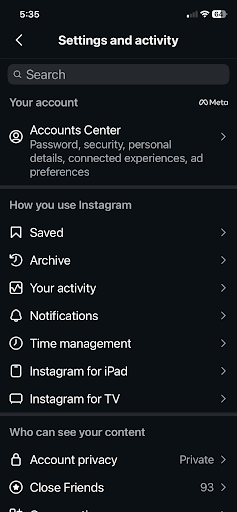
Certains paramètres de Meta s’appliquent à plusieurs plateformes, notamment WhatsApp, Threads, Facebook et Instagram. Si ces comptes sont connectés dans le même Espace Comptes de Meta, vous n’aurez à modifier vos préférences qu’une seule fois. Vous pouvez trouver vos paramètres Meta et vos comptes connectés sur accountscenter.facebook.com(nouvelle fenêtre) ou en suivant ces étapes :
Trouver vos paramètres de compte Meta sur Facebook
- Ouvrez Facebook dans votre navigateur.
- Cliquez sur la flèche déroulante sous la photo de votre compte.
- Sélectionnez Paramètres et confidentialité, puis Paramètres.

- Cliquez sur Espace Comptes en haut du menu de gauche.

Trouver vos paramètres de compte Meta sur Instagram
- Ouvrez Instagram dans votre navigateur.
- Cliquez sur le menu (trois lignes) dans le coin inférieur gauche.
- Sélectionnez Paramètres.
- Sélectionnez Espace Comptes en haut du menu de gauche.
Trouver vos paramètres de compte Meta sur WhatsApp
- Ouvrez WhatsApp sur votre téléphone ou votre ordinateur.
- Cliquez sur Vous en bas à droite.
- Faites défiler vers le bas et sélectionnez Espace Comptes.

Trouver vos paramètres de compte Meta sur Threads
- Appuyez sur le menu (deux lignes) dans le coin inférieur gauche.
- Cliquez sur Paramètres, puis cliquez sur Compte.
- Cliquez sur Informations personnelles, ce qui vous dirigera vers l’Espace Comptes.

2. Empêcher Meta de suivre vos activités en dehors de la plateforme
Résumé rapide :
Paramètres > Espace Comptes > Vos informations et autorisations > Votre activité en dehors des technologies Meta > Gérer l’activité future > Déconnecter l’activité future
Étape par étape :
- Allez dans vos paramètres de compte Meta.
- Sélectionnez Vos informations et autorisations dans le menu de gauche.

- Cliquez sur Activité en dehors des technologies Meta.

- Sélectionnez Gérer l’activité future.

- Cliquez sur Déconnecter l’activité future.

- Confirmez vos modifications dans la boîte de dialogue pop-up.
3. Limiter la publicité ciblée de Meta
Résumé rapide :
Paramètres > Espace Comptes > Préférences publicitaires > Gérer les informations
Étape par étape :
- Allez dans vos paramètres de compte Meta.
- Sélectionnez Préférences publicitaires.
- Cliquez sur l’onglet Gérer les informations.

À partir de là, vous pouvez personnaliser la manière dont les publicités de Meta vous parviennent ainsi que les informations que les annonceurs peuvent utiliser pour vous cibler.
Confidentialité du téléphone : restreindre l’accès de Meta à vos applications
1. Vérifier quelles applications contactent des domaines appartenant à Facebook
Résumé rapide :
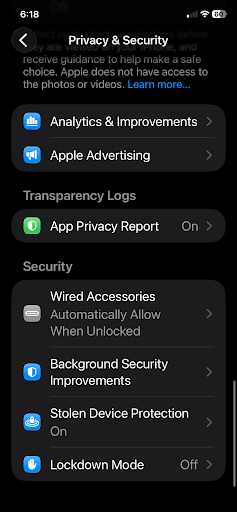
Réglages du téléphone > Confidentialité et sécurité > Rapport de confidentialité des apps
Étape par étape :
- Sur un iPhone, ouvrez vos réglages et sélectionnez Confidentialité et sécurité.
- Activez le Rapport de confidentialité des apps. Vous pouvez ensuite cliquer dessus pour voir quelles applications communiquent avec Facebook.
2. Désactiver les autorisations des applications sur votre smartphone
Résumé rapide sur iPhone
Réglages > Confidentialité et sécurité > Sélectionner la fonctionnalité/le type de données > Sélectionner l’application > Ne pas autoriser
Étape par étape
- Ouvrez les réglages de votre téléphone et cliquez sur Confidentialité et sécurité.
- Sélectionnez la fonctionnalité ou le type de données (appareil photo, microphone, etc.) que vous souhaitez modifier. Vous verrez une liste d’applications ayant accès à ces données spécifiques.

- Faites défiler pour trouver les applications appartenant à Meta, puis sélectionnez Jamais ou Ne pas autoriser.
Résumé rapide sur Android
(Remarque : ce guide a été créé à l’aide d’un téléphone Samsung OneUI. Les détails peuvent varier légèrement sur d’autres appareils Android.)
Paramètres > Sécurité et confidentialité > Autres paramètres de confidentialité > Gestionnaire d’autorisations > Sélectionner la fonctionnalité/le type de données > Désactiver
Étape par étape
- Ouvrez les paramètres de votre téléphone, faites défiler vers le bas et sélectionnez Sécurité et confidentialité.
- Sélectionnez Autres paramètres de confidentialité

- Appuyez sur Gestionnaire d’autorisations.

- Sélectionnez la fonctionnalité ou le type de données (appareil photo, microphone, etc.) que vous souhaitez modifier.
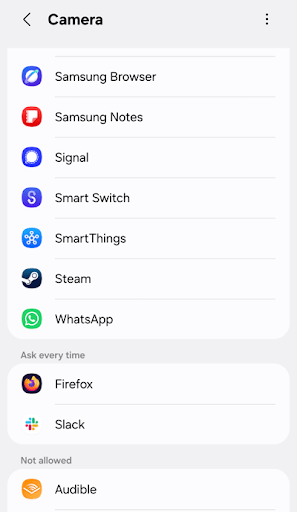
- Sélectionnez comment cette application peut utiliser l’autorisation :
- Autoriser seulement si l’app est active
- Toujours demander
- Ne pas autoriser

Lunettes connectées Ray-Ban Meta
1. Recevoir des notifications lorsque des lunettes Meta se trouvent à proximité
Vous ne pouvez pas empêcher d’autres personnes de porter les lunettes connectées de Meta, qui peuvent enregistrer discrètement des photos et des vidéos, entre autres fonctionnalités. Vous pouvez, en revanche, détecter si une paire se trouve à proximité.
Des applications comme Nearby Glasses(nouvelle fenêtre) détectent la signature Bluetooth des lunettes connectées et envoient des alertes push lorsqu’une paire se trouve dans la zone.
Garder une longueur d’avance sur le pistage de Meta
Modifier ces paramètres n’empêchera pas Meta d’essayer de collecter vos données. L’entreprise ne cesse de trouver de nouveaux moyens d’y parvenir, depuis les fonctionnalités d’IA activées par défaut jusqu’aux autorisations enfouies au plus profond des paramètres de votre téléphone. Revenir régulièrement sur cette liste de contrôle, en particulier après le déploiement de nouvelles fonctionnalités par Meta, reste le meilleur moyen de garder une longueur d’avance.
La plateforme est également devenue un terrain propice aux publicités frauduleuses qui exploitent les mêmes outils de ciblage que ceux présentés ici. Et si vous utilisez Meta AI au travail, il est utile de comprendre comment l’entreprise traite les données des employés avant d’y saisir des informations sensibles.
Limiter ce que Meta peut voir est un processus continu, et chaque paramètre que vous verrouillez à présent rend vos données plus difficiles à collecter.