The scale of Meta’s surveillance is staggering.

As the parent company of Facebook and Instagram, Meta is collecting massive amounts of user data every day, and what it wants most is what people aren’t posting. The company’s products, from the well-known to the relatively unheard-of, are designed to track and monetize your habits, even if you’ve never logged into Facebook. 

The emergence of AI has emboldened its surveillance strategies.

To keep up with AI giants like Anthropic, Google, and OpenAI, Meta feeds every interaction across Facebook, Instagram and Threads into its AI model. Facebook knows who you are and where you are. It knows the names of the files on your device, your politics, your sexual orientation, and your life events, all of which it uses to sell ads. It’s a profitable pursuit: Nearly 99% of Meta’s annual revenue comes from advertising. 

You can’t avoid Meta by simply staying off social media either. The Facebook Software Development Kit — which allows developers to integrate their websites, applications and games with Facebook’s ecosystem — grants developers access to Facebook’s performance analytics. But the data exchange goes both ways, meaning you may unknowingly be using apps that communicate with Meta. 

That’s just scratching the surface. 

Meta’s surveillance is harder than ever to circumvent, but quick adjustments can help protect your personal information. Avoid using Facebook’s in-app browser, and consider switching to a privacy-focused browser or plug-in. You can also turn off Meta AI on Facebook to limit how much it feeds into Meta’s ad targeting.

Follow the checklist below to fine-tune your privacy settings and spot Meta’s monitoring.

Table of contents

Update your privacy settings in Facebook, Instagram, WhatsApp, and Threads 

Threads image 1

1. Find your Meta account settings 

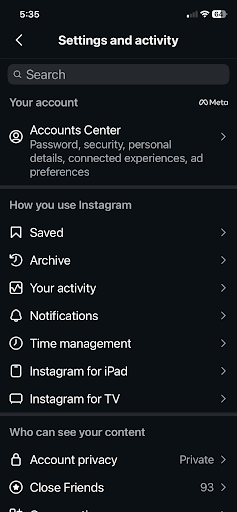
Some of Meta’s settings apply across multiple platforms, including WhatsApp, Threads, Facebook, and Instagram. If those accounts are connected in the same Meta Accounts Center, you’ll need to change your preferences only once. You can find your Meta settings and connected accounts at accountscenter.Facebook.com(新視窗) or by following these steps: 

Find your Meta account settings on Facebook

  • Open Facebook in your browser.
  • Click the dropdown arrow under your account photo.
  • Select Settings & privacy, then Settings.
meta account settings
  • Click Accounts Center at the top of the left-hand menu. 
finding accounts center on facebook

Find your Meta account settings on Instagram

  • Open Instagram in your browser. 
  • Click the menu (three lines) in the bottom-left corner. 
  • Select Settings.
  • Select Accounts Center at the top of the left-hand menu. 
instagram accounts center

Find your Meta account settings on WhatsApp

  • Open WhatsApp on your phone or computer. 
  • Click You in the bottom right. 
  • Scroll to the bottom, and select Accounts Center
What's app accounts center

Find your Meta account settings on Threads 

  • Tap the menu (two lines) in the bottom-left corner. 
  • Click Settings, and then click Account
  • Click Personal information, which will take you to the Accounts Center.
Threads account center

2. Prevent Meta from tracking your off-platform activity 

Quick summary

Settings > Accounts Center > Your Information and Permissions > Your activity Off Meta Technologies > Manage Future Activity > Disconnect Future Activity 

Step-by-step: 

  • Go into your Meta account settings. 
  • Select Your information and permissions from the left-hand menu.
Meta your information and permissions
  • Click Your activity off Meta technologies.
your activity off meta technologies
  • Select Manage future activity.
manage future activity
  • Click Disconnect future activity.
disconnect future activity
  • Confirm your changes in the pop-up dialogue box. 

3. Limit Meta’s targeted advertising

Quick summary

Settings > Accounts Center > Ad Preferences > Manage Info 

Step-by-step:

  • Go into your Meta account settings. 
  • Select Ad preferences
  • Click the Manage info tab. 
manage info

From there, you can customize how Meta’s ads reach you and the information. advertisers can use to target you. 

Phone privacy: Restrict Meta’s access to your apps 

1. Check which apps contact domains owned by Facebook

Quick summary

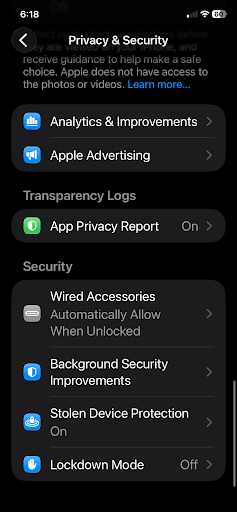
Phone Settings > Privacy & Security > App Privacy Report 

Step-by-step

  • On an iPhone, open your settings and select Privacy & Security.
  • Turn on App Privacy Report. You can then click it to see which apps communicate with Facebook.
App privacy report

2. Turn off app permissions on your smartphone

iPhone quick summary

Settings > Privacy & Security > Select Feature/Data Type > Select App > Don’t Allow 

Step-by-step
  • Open your phone settings, and click Privacy & Security.
  • Select the feature or data type (camera, microphone, etc.) that you want to change. You’ll see a list of apps with access to that specific data.
iphone feature and data types
  • Scroll to find Meta-owned apps, and select Never allow or Don’t allow.

Android quick summary 

(Note: This guide was created using a Samsung OneUI phone. Details may differ slightly on other Android devices.)

Settings > Security and Privacy > More privacy settings > Permission Manager > Select Feature/Data Type > Toggle Off 

Step-by-step 
  • Open your phone settings and scroll to select Security and Privacy.
  • Select More privacy settings
More privacy settings
  • Tap Permission Manager
permission manager
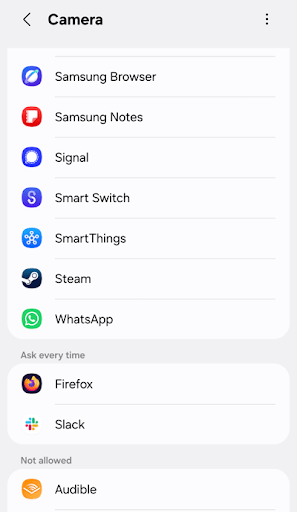
  • Select the feature or data type (camera, microphone, etc.) that you want to change.
android feature select
  • Select how that app can use the permission:
    • Allow only while using the app
    • Ask every time
    • Don’t allow
allow or don't allow

Ray-Ban Meta smart glasses 

1. Receive notifications when Meta glasses are near 

You can’t prevent other people from wearing Meta’s smart glasses, which can discreetly record photos and videos, among other features. You can, however, detect when a pair is near.

Apps like Nearby Glasses(新視窗), detect smart glasses’ Bluetooth signature and send push alerts when a pair is in the area. 

Staying ahead of Meta’s tracking

Adjusting these settings won’t make Meta stop trying to collect your data. The company keeps finding new ways to do it, from AI features turned on by default to permissions buried deep in your phone’s settings. Revisiting this checklist periodically, especially after Meta rolls out new features, is the best way to stay a step ahead.

The platform has also become a hotspot for scam ads that exploit the same targeting tools covered here. And if you use Meta AI at work, it’s worth understanding how the company handles employee data before typing anything sensitive into it.

Limiting what Meta can see is an ongoing process, and every setting you lock down now makes your data harder to harvest.