Gmail’den Proton Mail’e nasıl geçiş yapılır
- Okuma süresi
- 9 dakikalık
- Kategori
- Taşıma kılavuzları
Gmail’den Proton Mail’e geçiş yapmak, daha güvenli bir gelen kutusuna doğru atılmış bir adımdır ancak her şeyi bir gecede geride bırakmak zorunda değilsiniz. Easy Switch ile Gmail verilerinizi Proton Mail’e taşıyabilir, Gmail adresinize gönderilen iletileri almaya devam edebilir ve bu adresten e-postalar gönderebilirsiniz. Buna, alıcılarınız Proton Mail kullanıyorsa uçtan uca şifrelenmiş e-postalar da dahildir. Hazır olduğunuzda, Gmail’i tamamen geride bırakabilir ve Proton Mail’i eviniz yapabilirsiniz.
Easy Switch kullanarak Gmail’den taşıyın
Easy Switch, e-postalarınızı (ek dosyalar dahil), takvimlerinizi ve kişilerinizi Gmail’den kolayca taşımanıza yardımcı olan, Proton Mail bünyesindeki bir araçtır. Ayrıca Google hesabınızı bağlayabilir, böylece Proton Mail’den ayrılmadan Gmail iletileri gönderip alabilirsiniz.
Gmail hesabınızdan Proton Mail kullanarak ileti göndermek, gizlilik yolculuğunuzda ileriye doğru atılmış bir adımdır; çünkü Proton Mail, e-postalarınızı Gmail’in tek başına yapamadığı uçtan uca şifreleme ile otomatik olarak koruyabilir. Bu durum alıcılarınızın e-posta adreslerine bağlıdır:
- Uçtan uca şifrelenmiş: Bağlı Gmail adresinizden Proton Mail kullanıcılarına gönderdiğiniz e-postalar uçtan uca şifrelenir. Buna @proton.me adreslerini, özel etki alanlarını veya bir Proton hesabına bağlı @gmail.com adreslerini kullanan alıcılar dahildir. Google iletilerinizi görmeden gizli bir şekilde iletişimde kalabilmek için arkadaşlarınızdan ve ailenizden Gmail hesaplarını Proton Mail’e bağlamalarını isteyin.
- Uçtan uca şifreleme ile korunmuyor: Bağlı Gmail adresinizden Proton kullanıcısı olmayan kişilere gönderdiğiniz e-postalar, uçtan uca şifreleme olmadan Gmail sunucuları üzerinden gönderilir; bu nedenle Google tarafından okunabilirler. Bu iletiler Gmail Gönderilmiş klasörünüzde de görünür.
Gmail’den Proton Mail’e yapılan bu taşıma işlemi şunları içerebilir:
- İçe aktarma: Easy Switch, mevcut Gmail verilerinizi Proton Mail’e aktarır.
- Bağlantı: Easy Switch, gelecekteki e-postaları Gmail’den Proton Mail’e yönlendirir ve doğrudan Proton Mail içinden Gmail adresinizden ileti göndermenize olanak sağlar.
- Önerilen kurulum: Easy Switch mevcut verilerinizi içe aktarır ve Gmail hesabınızı bağlar, böylece geçmiş e-postalarınızın ve gelecekteki iletilerinizin tümüne Proton Mail üzerinden erişilebilir.
Bu talimatları kişisel, Workspace dışı Gmail hesapları için uygulayın. Google Workspace taşıma işlemleri için işletmeler için Easy Switch kullanımını inceleyin.
Önerilen kurulum
- Proton Mail ayarlarını açın.
- Easy Switch ile içe aktar bölümüne gidin ve Google seçeneğini belirleyin.
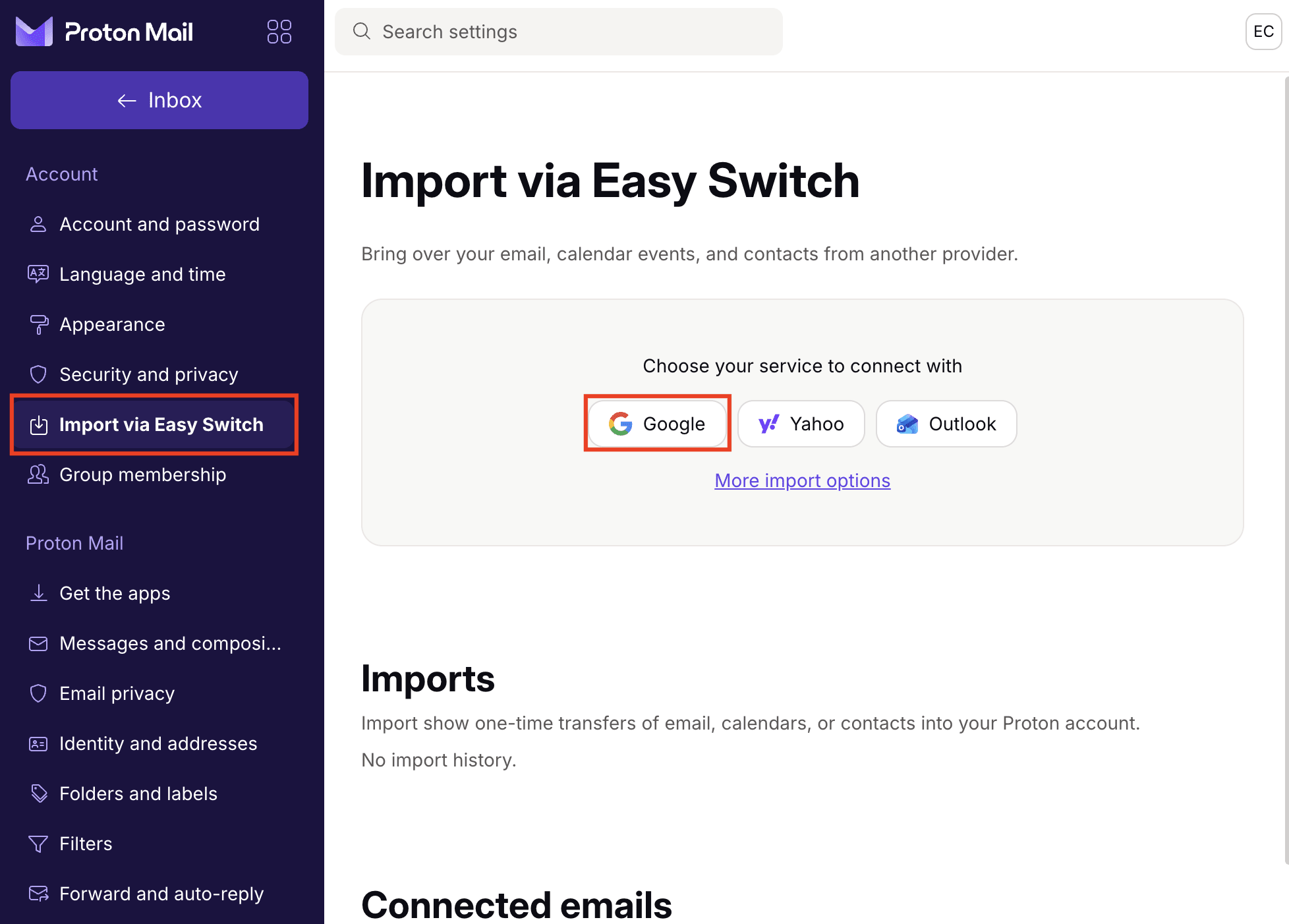
- OAuth yetkilendirme sürecini başlatmak için Gmail’e Bağlan düğmesine tıklayın. Gmail hesabınızı bağlamadan önce e-postalarınızı içe aktarma seçeneğini bırakabilirsiniz. Bunu yapmak için ekrandaki varsayılan olarak seçili olan onay kutusunun işaretini kaldırın.

- Tümünü seç ve ardından İlerle seçeneklerine tıklayarak Google Hesabınıza istenen tüm erişim izinlerini Easy Switch aracına verin. İstenen tüm izinleri vermezseniz, kurulum daha sonra hataya neden olur.

Kurulum tamamlandıktan sonra Easy Switch, mevcut Proton depolama alanınızın yüzde 80’ine kadarını kullanarak Gmail verilerini otomatik olarak içe aktarmaya başlar. Gmail adresiniz de Proton Mail’e bağlanır, böylece doğrudan Proton Mail içinden bu adresten ileti gönderip alabilirsiniz.

Notlar
- Varsayılan olarak Easy Switch, mevcut Proton depolama alanınızın yüzde 80’ine kadar en son Gmail iletilerinizi içe aktarır. Bu, yakın zamandaki yazışma geçmişinizi Proton Mail’e taşırken yeni gelen iletiler için alanın boş kalmasına yardımcı olur. İlk kurulum sırasında bu ayarı değiştiremezsiniz.
- İlk içe aktarma işlemi tamamlandıktan sonra, Daha fazla içe aktarma seçeneği kısmını seçerek tüm Gmail iletilerini içe aktarabilirsiniz.
- İlk e-posta içe aktarma işlemini saklamak istemiyorsanız, Proton Mail ile olan Gmail bağlantısını koparmadan bu işlemi daha sonra geri alabilirsiniz. İçe aktarmalar hakkında daha fazla ayrıntıya göz atın.
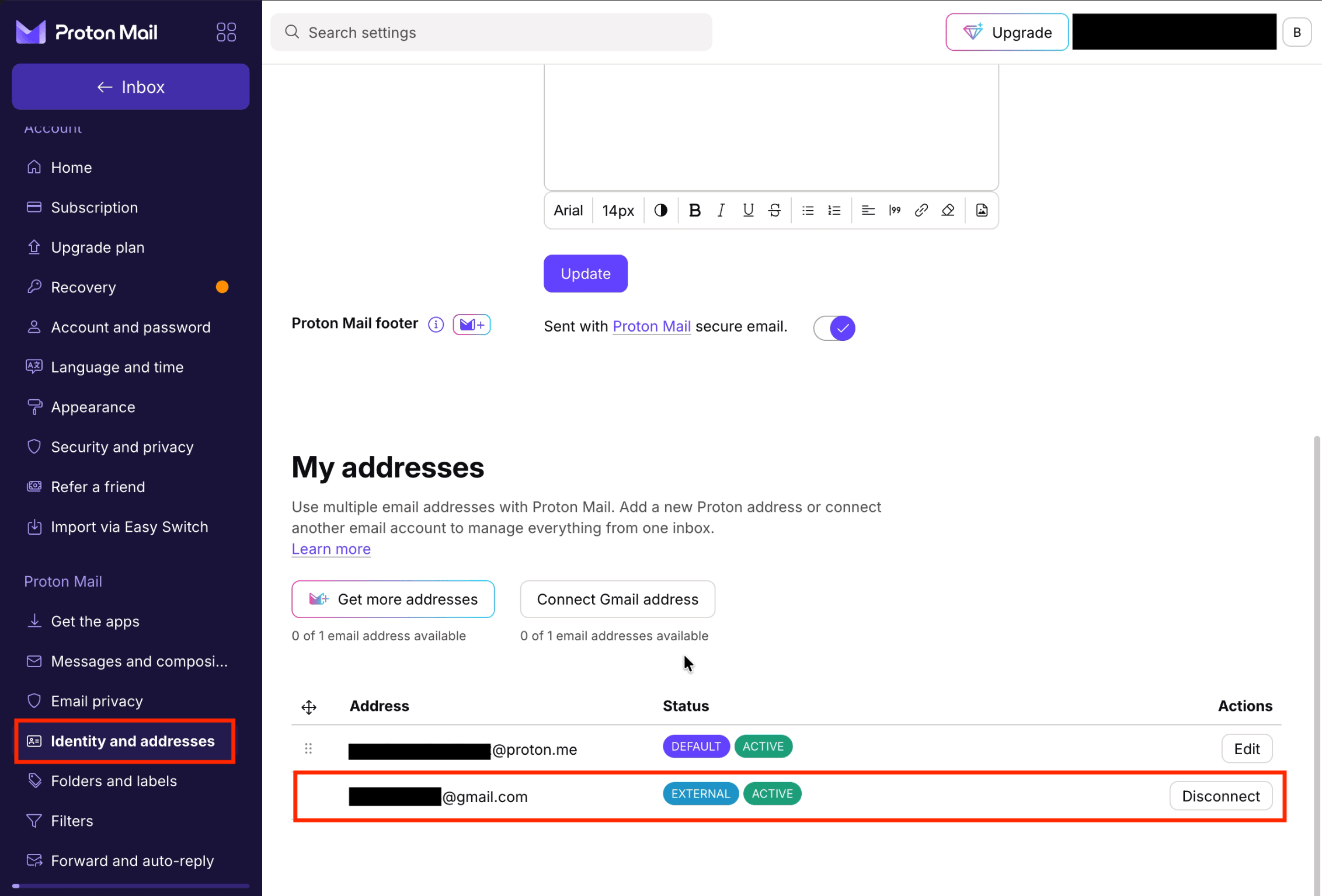
- Ayarlardaki Easy Switch ile içe aktar veya Kimlik ve adresler sekmelerinden Gmail bağlantınızın durumunu kontrol edebilirsiniz; bu durum sorun giderme için yararlı olabilir. Bağlantıyı yönetmek için Kimlik ve adresler bölümüne gidin.
- Proton’a Gmail adresinizi kullanarak Proton VPN veya Proton Pass üzerinden katıldıysanız, şu anda bu Gmail hesabıyla Gmail bağlantısı kuramazsınız. Bu özelliği desteklemek için çalışıyoruz.
- Gmail adresinizi bağlamak, bireysel Google hesapları için geçerlidir. Google Workspace hesapları veya özel etki alanı adresleri şu anda desteklenmemektedir.
İçe aktarma başlatın: Mevcut e-postaları, takvimleri ve kişileri aktarın
Bir Gmail bağlantısı kurmadan da içe aktarma işlemi başlatabilirsiniz. Bu seçenek, önceki bir Easy Switch kurulumunun Gmail iletilerinizin yalnızca bir kısmını içe aktardığı ve şimdi geri kalanını içe aktarmak istediğiniz durumlarda yararlıdır.
- Proton Mail ayarlarını açın.
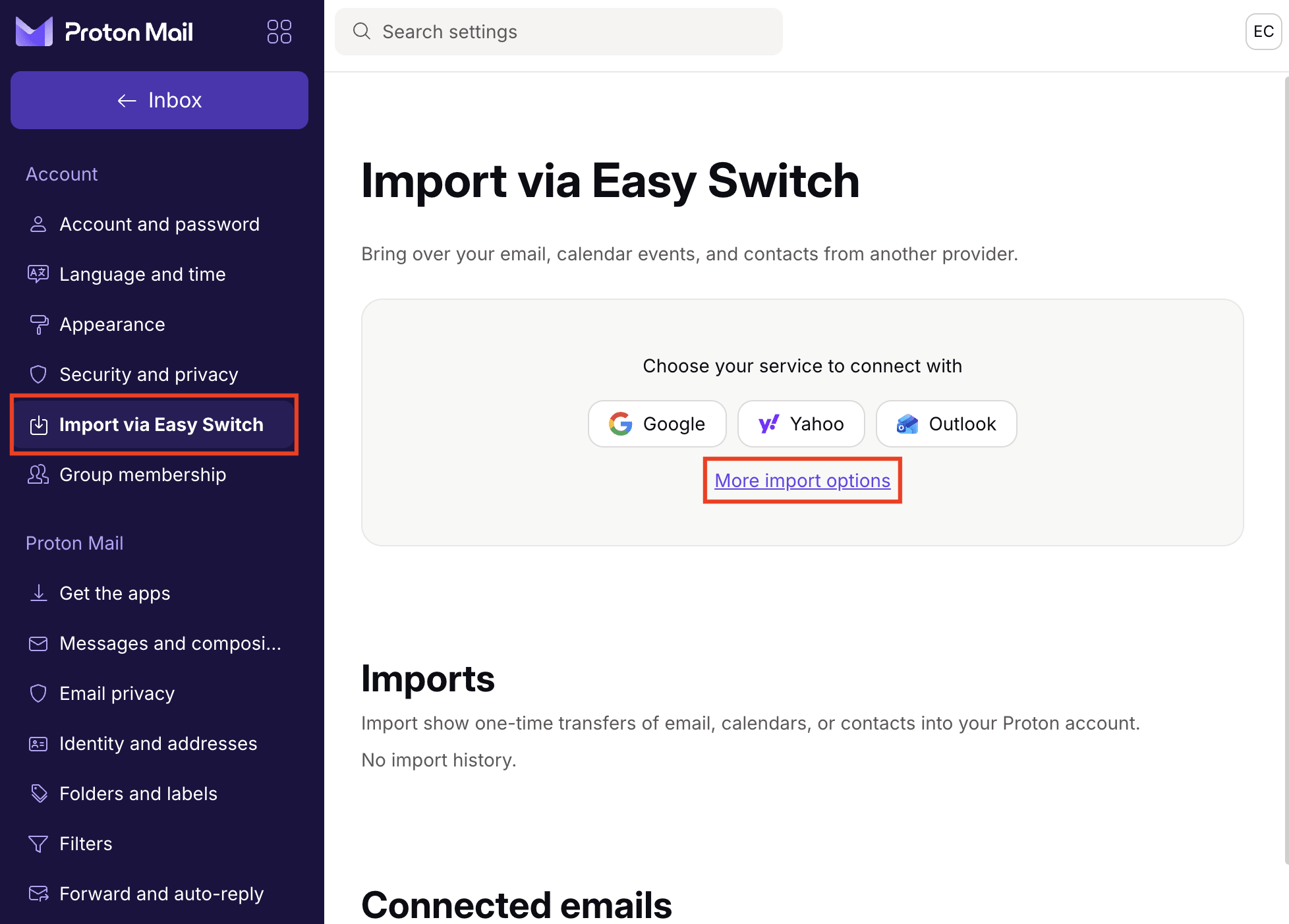
- Easy Switch ile içe aktar bölümüne gidin ve Daha fazla içe aktarma seçeneği kısmını seçin.
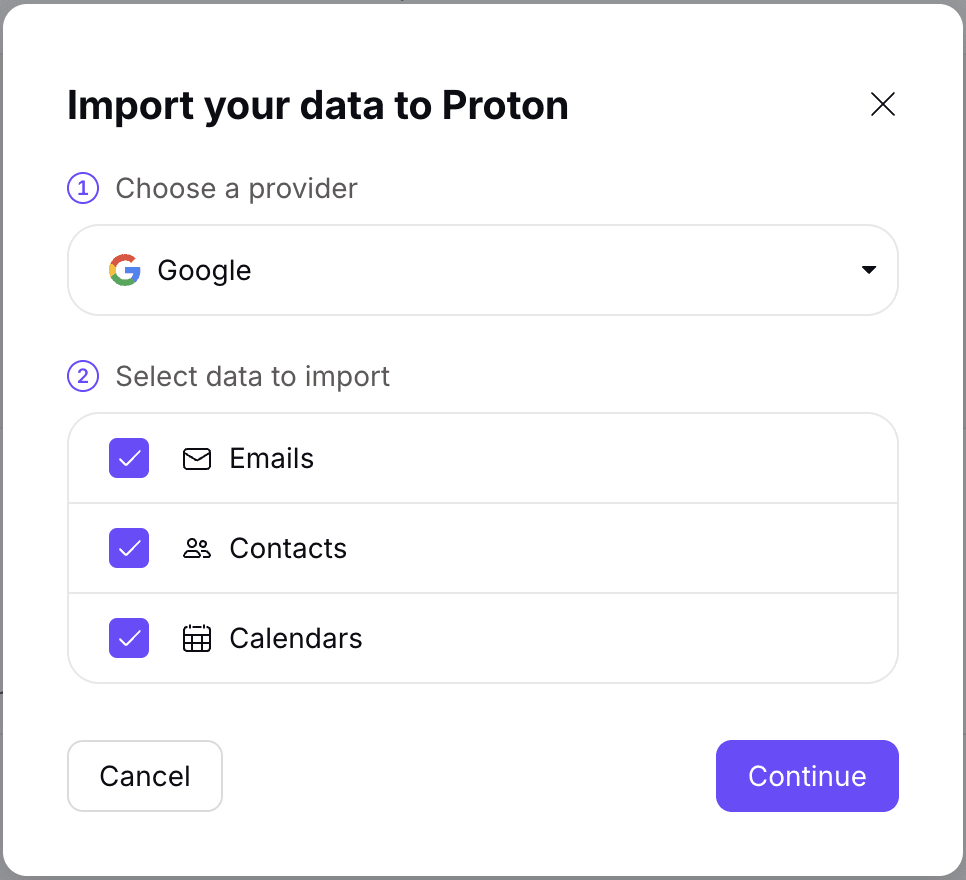
- Google seçeneğini belirleyin ve E-postalar, Kişiler ve Takvimler arasından hangi verilerin içe aktarılacağını seçin.
- Tümünü seç ve ardından İlerle seçeneklerine tıklayarak Google Hesabınıza istenen tüm erişim izinlerini Easy Switch aracına verin. Bu Gmail hesabını Proton ile daha önce kullanıp kullanmadığınıza bağlı olarak, bazı izinler zaten verilmiş olabilir. İstenen tüm izinleri vermezseniz, kurulum daha sonra hataya neden olur.
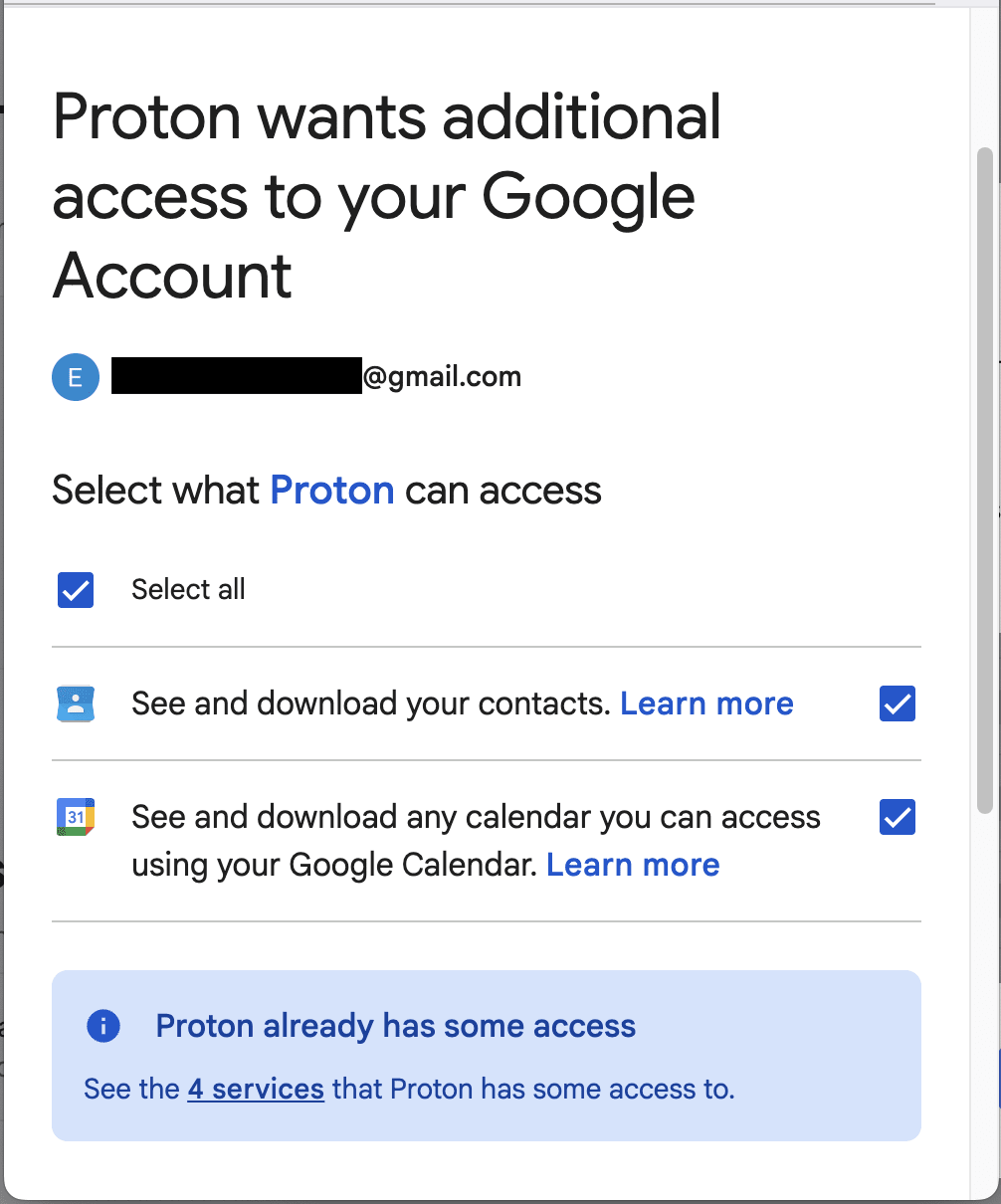
- İçe aktarma özetini inceleyin ve İçe aktarmayı başlat düğmesine tıklayın ya da nelerin içe aktarılacağını ayarlamak için herhangi bir veri türünün altındaki Özelleştir seçeneğine tıklayın:
- E-postalar: İçe aktarılan iletilere uygulanan etiketi değiştirin (Easy Switch kullanarak daha fazla e-posta hesabından veri taşımayı planlıyorsanız yararlıdır), zaman aralığını sınırlayın (tüm iletileri veya son 1, 3, 6 ya da 12 ayı içe aktarın) veya hariç tutulacak klasörlerin seçimini kaldırın.
- Takvim: Varsayılan olarak Easy Switch, Proton Calendar üzerinde yeni bir takvim oluşturur. Mevcut bir takvimle birleştirmek için Takvim ile birleştir altından ilgili takvimi seçin.
- Kişiler: 10.000 adede kadar olduğu gibi içe aktarılır.
Notlar
- Aynı içe aktarma işlemini birden fazla kez tetiklemek Proton Mail’de yinelenen iletiler oluşturmaz. Easy Switch halihazırda içe aktarılmış olan e-postaları algılar ve bunları otomatik olarak atlar.
- İçe aktardığınız klasör, Proton Mail’de henüz mevcut olmayan alt klasörler içeriyorsa Easy Switch bunları oluşturur.
- Üst klasörün seçimini kaldırmak, tüm alt klasörlerinin seçimini de kaldırır, böylece bunlar içe aktarılmaz.
- Bazı durumlarda Easy Switch, devam etmeden önce içe aktarma işleminizi özelleştirmenizi isteyebilir. Bu durum şu durumlarda gerçekleşebilir:
- Eski hesabınızdaki bir klasör adının uzunluğu, boşluklar dahil 100 karakterden fazladır.
- Eski hesabınızda 2.000’den fazla klasör bulunuyor.
- Gmail hesabınızdaki bir klasör veya etiket, mevcut bir Proton Mail klasörü veya etiketiyle çakışıyor. Örneğin, Proton Mail’de zaten “Yönetici” adında bir klasör bulunuyor ve içe aktarım yaptığınız Gmail hesabında da “Yönetici” adında bir etiket var.
- Google’daki kişiler ve kişi grupları Proton kişilerinize eklenecektir.
Gmail bağlantısı ayarlama: e-posta iletme ve gönderme
İçe aktarma olmadan bir Gmail bağlantısı ayarlamak, Google’daki mevcut yazışma geçmişinizi getirmeden Proton Mail’de Gmail adresinizi kullanarak e-posta gönderip almanızı sağlar. Bu, şu durumlarda yararlıdır:
- Zaten ayarlanmış bir Gmail iletme işleminiz varsa ve bunu e-posta göndermenize de olanak tanıyan bir Gmail bağlantısına yükseltmek istiyorsanız. Easy Switch, içe aktarma işlemini otomatik olarak atlar; ek bir işlem yapılması gerekmez.
- Gmail hesabınızı bağlamak ama mevcut Gmail iletilerinizi geride bırakarak temiz bir gelen kutusuyla başlamak istiyorsanız.
İçe aktarma olmadan bir Gmail bağlantısı ayarlamak için:
- Önerilen kurulum adımlarını tamamlayın. Easy Switch, bağlantı işleminin bir parçası olarak kısa bir otomatik içe aktarma çalıştıracaktır.
- Easy Switch ile İçe Aktar bölümüne gidin ve İçe aktarmalar altındaki Gmail hesabınızın yanında bulunan İçe aktarmayı geri al seçeneğine tıklayın.
Bu işlem, içe aktarılan e-postaları ve klasörleri siler ancak Gmail – Proton Mail bağlantınızı etkin tutar.
Ücretsiz kullanıcılar bir Gmail hesabı bağlayabilirken, ücretli tarifeler en fazla üç adede kadar destekler. Eski iletme bağlantıları da aynı limite dahil edilir.
Easy Switch sorunlarını giderme
Başarısız içe aktarmalar, eksik iletiler, klasör yapısı değişiklikleri veya Gmail bağlantısı sorunları gibi yaygın sorunlarla ilgili yardım almak için Easy Switch sorun giderme kılavuzumuza göz atın.
Proton Mail’i eviniz yapın
Gmail’i tamamen geride bırakmaya hazır hissettiğinizde, Proton Mail geçiş yapmanız için ihtiyacınız olan her şeye sahiptir: tüm cihazlarınız için uygulamalar, özel etki alanları desteği, hide-my-email takma adları ve daha fazlası. Gmail bağlantınızı zaten ayarladığınız ve iletilerinizi içe aktardığınız için düşündüğünüzden daha yakınsınız. İşte bazı basit adımlar:
- Çevrim içi hesaplarınızı güncelleyin: Bankacılık, sağlık hizmetleri, kamu hizmetleri ve bir ödeme yöntemine bağlı olan her şey gibi önemli hesaplarla başlayın. Easy Switch kullanılarak Proton Mail’de bir Gmail bağlantısı ayarlandığında, aboneliklerinizi kolayca düzenlemek ve gözden kaçırmış olabileceğiniz hesapları tespit etmek için Duyurular görünümünü kullanabilirsiniz.
- Kişisel verilerinizi Google’dan indirin: E-postalarınızın, kişilerinizin ve kullandığınız Drive ile Fotoğraflar gibi diğer Google hizmetlerinin bir kopyasını dışa aktarmak için Google Takeout’u kullanın. Google Fotoğraflar veya Google Drive dosyalarınızı Proton Drive’a kolayca aktarabilirsiniz.
- Gmail’in Proton Mail ile olan bağlantısını kesin: Ayarlar ⚙ → Tüm ayarlar → Easy Switch ile İçe Aktar bölümüne gidin ve Gmail bağlantınızı kaldırın.