
Easy Switch kullanarak Google Workspace’inizi Proton’a nasıl taşırsınız
- Okuma süresi
- 7 dakikalık
- Kategori
- Easy Switch
- Taşıma kılavuzları
- Proton'a Taşı
Proton Easy Switch, tüm kuruluşunuzun e-postalarını, kişilerini ve takvim etkinliklerini Google Workspace’ten Proton for Business hesabınıza güvenli bir şekilde taşımanızı sağlar. Bu makale, süreç boyunca size adım adım yol gösterecektir.
Google Workspace taşımaları için bu talimatları takip edin. Kişisel Gmail hesapları için Gmail’den Proton Mail’e nasıl geçiş yapılacağını inceleyin.
Gereksinimler
- Bir Proton yöneticisi olmalısınız.
- Bir Google Workspace yöneticisi olmalısınız. Standart bir kullanıcı hesabı gerekli izinlere sahip olmayacaktır.
- Etki alanı sağlayıcınıza erişiminiz olmalıdır.
Ayrıntılı bilgi alın: Squarespace ile özel etki alanınızı ayarlayın
Başlarken
Proton Mail’de ilk kez oturum açtığınızda, gelen kutunuzda Kuruluşunuzu ayarlayın penceresi görünür. Kurulum kılavuzu üç seçenek sunar.
Easy Switch for Business seçeneğini seçin ve İleri düğmesine tıklayın.

Easy Switch ile İçe Aktar ayarlar sayfasına yönlendirileceksiniz. Taşıma sihirbazını başlatmak için Google seçeneğine tıklayın.

Sol kenar çubuğundaki Ayarlar ⚙ → Easy Switch ile İçe Aktar bölümünden bu sayfaya istediğiniz zaman geri dönebilirsiniz.
Taşıma adımlarına genel bakış
Taşıma sihirbazı size altı adımda rehberlik eder:
- Taşımayı yapılandırın
- Kimliği doğrulayın
- Taşıma uygulamasını kurun
- Etki alanını yapılandırın
- Kullanıcıları yapılandırın
- Son adım
Adım 1: Taşımayı yapılandırın
Taşımak istediğiniz verileri seçin. Varsayılan olarak üç seçeneğin tümü seçilidir: E-postalar, Kişiler ve Takvimler. İhtiyacınız olmayanların seçimini kaldırın ve ardından İleri düğmesine tıklayın.

Adım 2: Google Workspace hesabınızın kimliğini doğrulayın
Google Workspace’te Oturum Aç seçeneğine tıklayın. Bir Google oturum açma penceresi açılacaktır.

Bir Google Workspace yönetici hesabı kullanarak oturum açın. Google daha sonra sizden Proton for Business’a Workspace verilerinize erişim izni vermenizi isteyecektir.

Proton’da verilerinizi korumak, yaptığımız her şeyin temelini oluşturur. Google Workspace API’leri aracılığıyla alınan tüm bilgiler, Sınırlı Kullanım gereksinimleri de dahil olmak üzere Google API Hizmetleri Kullanıcı Verileri Politikası’na uygun olarak işlenir ve tüm kullanıcı verilerine uyguladığımız aynı titiz standartlara tabi tutulur.
Adım 3: Taşıma uygulamasını kurun
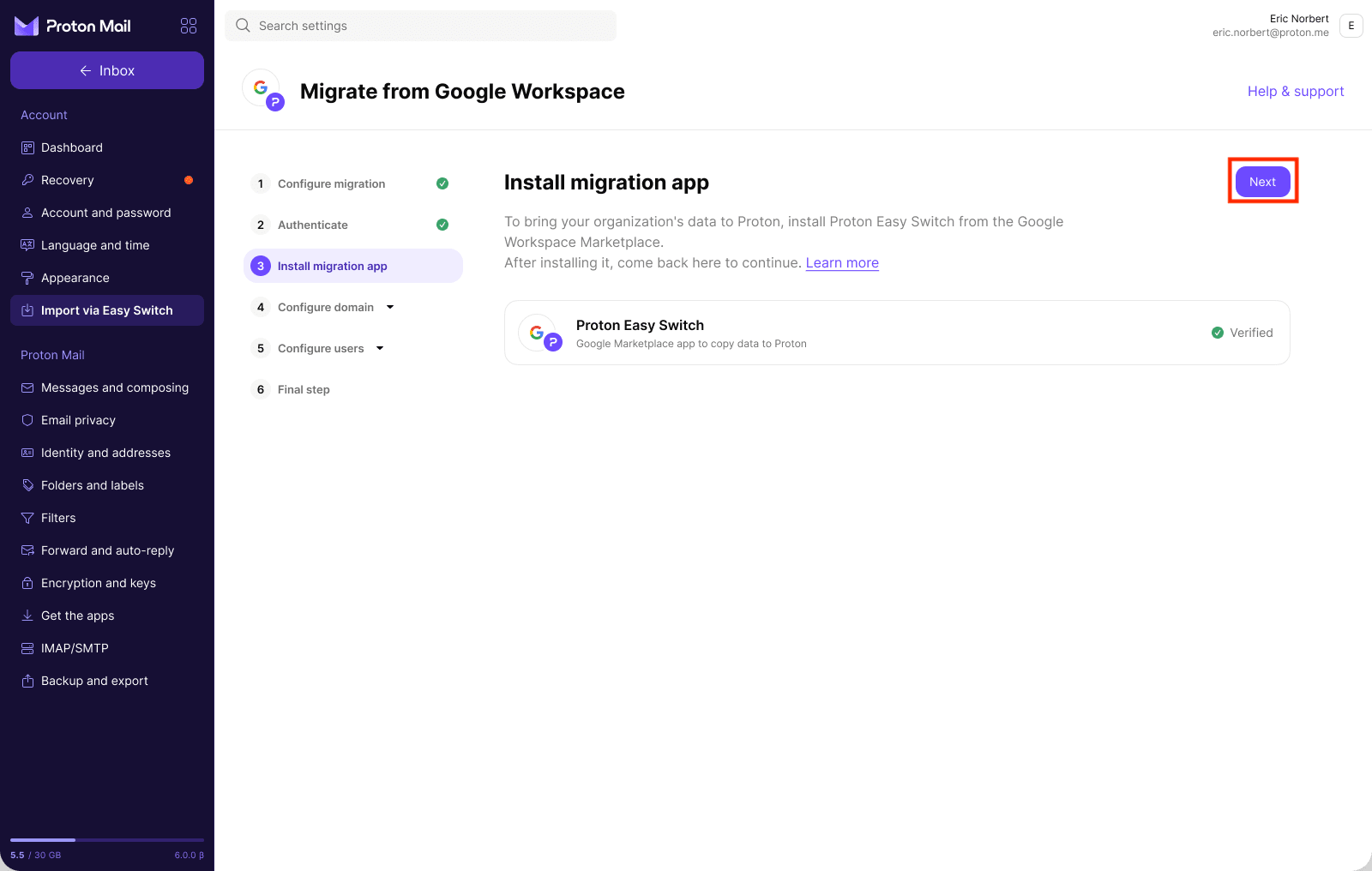
Bu ekranda Proton Easy Switch uygulamasının listelendiğini göreceksiniz. Uygulamayı kurun seçeneğine tıklayın.

Google Workspace Marketplace’te Proton Easy Switch(yeni pencere) uygulamasını bulun (Proton AG tarafından yayınlanmıştır) ve kuruluşunuz için kurun.

Kurulduktan sonra Proton Mail’deki Easy Switch ile İçe Aktar sekmesine geri dönün. Uygulama listesinde artık kur düğmesi yerine kurulumun başarılı olduğunu onaylayan bir Doğrulandı rozeti görüntülenecektir. Devam etmek için İleri seçeneğine tıklayın.
Adım 4: Etki alanınızı yapılandırın
Yapılandırma sürecini başlatmak için Etki alanı ekle seçeneğine tıklayın.

Bu adım, her birine sol kenar çubuğundan erişilebilen dört alt adımdan oluşur.
4.1 Etki alanınızı doğrulayın
Sağlanan TXT kaydını kopyalayın ve etki alanı barındırıcınızın DNS konsoluna yapıştırın. Sunucu adı için varsayılan değeri (genellikle @) kullanın. Ardından doğrulamayı kontrol etmek için Durumu yenile seçeneğine tıklayın. (Not: Eşitleme işlemi 24 saate kadar sürebilir.)
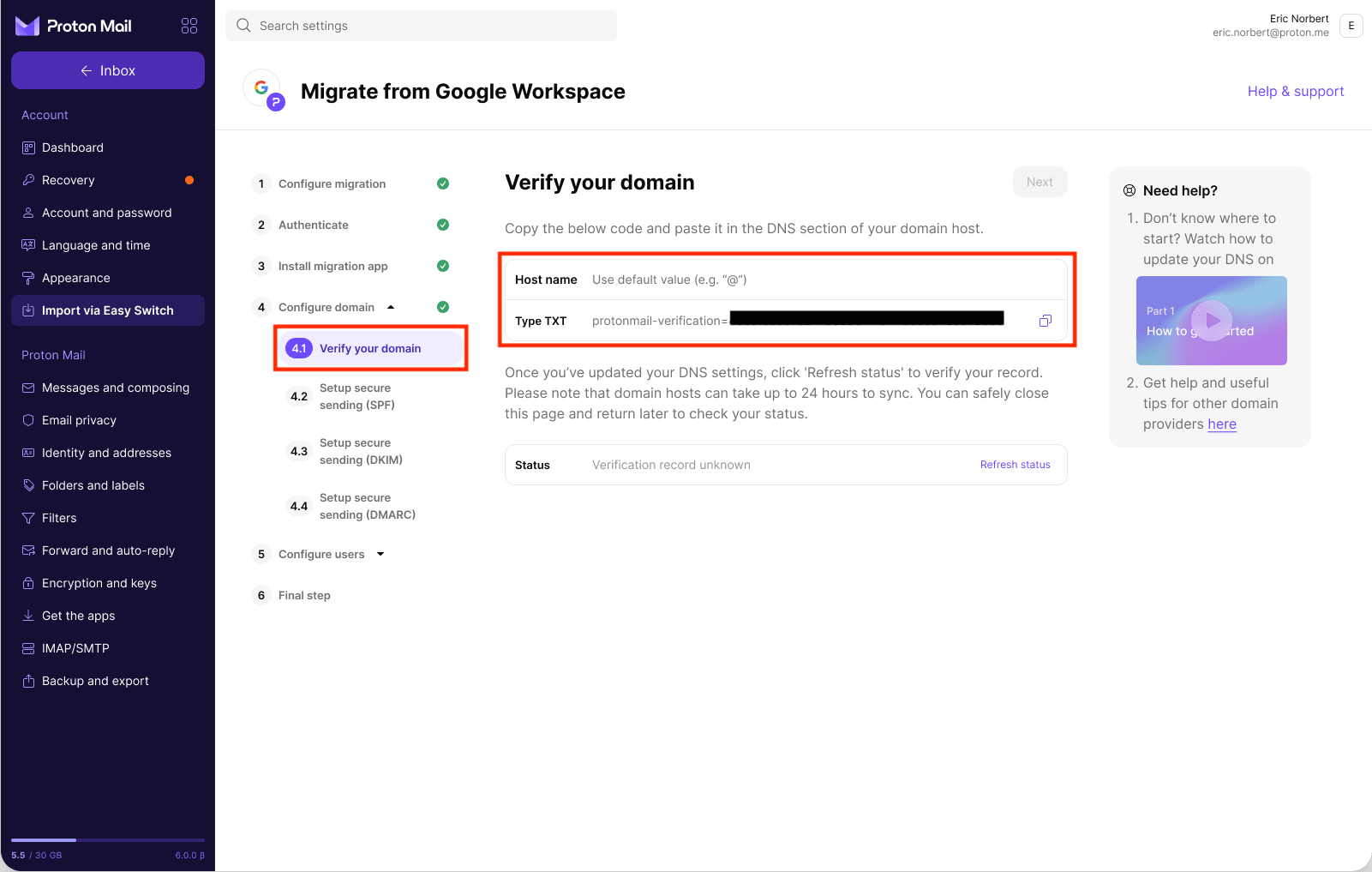
DNS yayılması devam ederken durum başlangıçta Doğrulama kaydı bulunamadı olarak görüntülenecektir. Kontrol etmek için Durumu yenile seçeneğine tıklayabilirsiniz.

Kayıt algılandığında durum Geçerli doğrulama bulundu olarak güncellenecektir. Devam etmek için İleri seçeneğine tıklayın.

(Not: DNS değişikliklerinin yayılması 24 saate kadar sürebilir. Sağdaki “Yardım gerekiyor mu?” paneli, Squarespace dahil olmak üzere popüler etki alanı sağlayıcıları için adım adım kılavuzlar sunar.)
4.2 Güvenli gönderimi ayarlayın (SPF)
Sağlanan TXT kaydını kopyalayın ve etki alanı barındırıcınızın DNS bölümüne yapıştırın. Varsayılan sunucu adını (@) kullanın. SPF kaydı, ekibinizin taşıma süresi boyunca hem Proton hem de Google üzerinden eş zamanlı olarak e-posta göndermesine olanak tanır.

4.3 Güvenli gönderimi ayarlayın (DKIM)
DNS’inize sağlanan üç CNAME kaydını ekleyin. Sunucu adları şunlardır: protonmail._domainkey, protonmail2._domainkey ve protonmail3._domainkey. DKIM, alıcıların iletinin gerçekten etki alanınızdan geldiğini ve aktarım sırasında değiştirilmediğini doğrulayabilmesi için her e-postaya dijital bir imza ekler. Bu imza olmadan iletiler daha az güvenilir olarak değerlendirilebilir.

4.4 Güvenli gönderimi ayarlayın (DMARC)
Sağlanan TXT kaydını kopyalayın ve _dmarc sunucu adıyla DNS’inize ekleyin. DMARC, etki alanınızı taklit edilmeye karşı korumak ve e-posta teslimat güvenilirliğini artırmak için SPF ve DKIM altyapısını kullanır.

Adım 5: Kullanıcıları yapılandırın
5.1 Hesapları taşıyın
Google Workspace’inizdeki tüm kullanıcıların yer aldığı, her kişinin adını, e-posta adresini ve tahmini veri boyutunu gösteren bir liste görüntülenecektir. Tüm kuruluşunuzu tek seferde taşıyabilir veya daha küçük bir grupla başlayıp geri kalanını daha sonra ekleyebilirsiniz.
Proton Mail’e taşımak istediğiniz kullanıcıları seçin ve Taşı seçeneğine tıklayın.

Bir ilerleme ekranı görüntülenecektir. Bu süre zarfında Proton, hesapları ayarlar ve verileri doğrudan cihazınıza içe aktarır.

Taşıma işlemi başladıktan sonra, seçilen her kullanıcı için İşleniyor durumu görüntülenecektir. Hesaplar işlendikçe üstteki sayaç güncellenir. Tüm taşıma işlemlerinin tamamlanmasını beklemeden bir sonraki alt adıma geçebilirsiniz.

5.2 Ekibinizi sisteme dahil edin
Hesaplar taşındıktan sonra Proton, taşınan tüm kullanıcılar için geçerli olan tek bir davet bağlantısı oluşturur. Sunulan ileti şablonunu kullanabilir veya kendi iletinizi yazabilirsiniz. Bağlantıyı kopyalayın ve ekibinizle paylaşın.

Her kullanıcının şunları yapması gerekir:
- Davet bağlantısını ziyaret etmesi
- E-posta adresini yazması
- Mevcut Gmail gelen kutusuna bir doğrulama kodu alması
- E-postasını doğrulamak ve yeni bir Proton parolası ayarlamak için kodu kullanması
Bu ekrandaki Taşınan hesaplar tablosu, kurulumu kimlerin tamamladığını takip edebilmeniz için her kullanıcı için Etkinleştirildi veya Başlatılmadı durumunu gösterir.
Adım 6: MX kayıtlarınızı güncelleyin
Son adım, etki alanınızın gelen e-postalarını Proton’a yönlendirir. Etki alanınızın DNS’ine aşağıdaki iki MX kaydını ekleyin:
- mail.protonmail.ch — Sunucu adı: @ (varsayılan)
- mailsec.protonmail.ch — Sunucu adı: @ (varsayılan)
Not: Sahip olduğunuz diğer tüm MX kayıtlarını da silmelisiniz.
Her iki kaydı da DNS’inize ekledikten sonra, Eklenen MX kayıtlarını onayla seçeneğinin yanındaki Onayla düğmesine tıklayın.

Kaydet ve çıkış seçeneğine tıklayın.

Uçtan uca şifreleme artık etkinleştirilecektir.

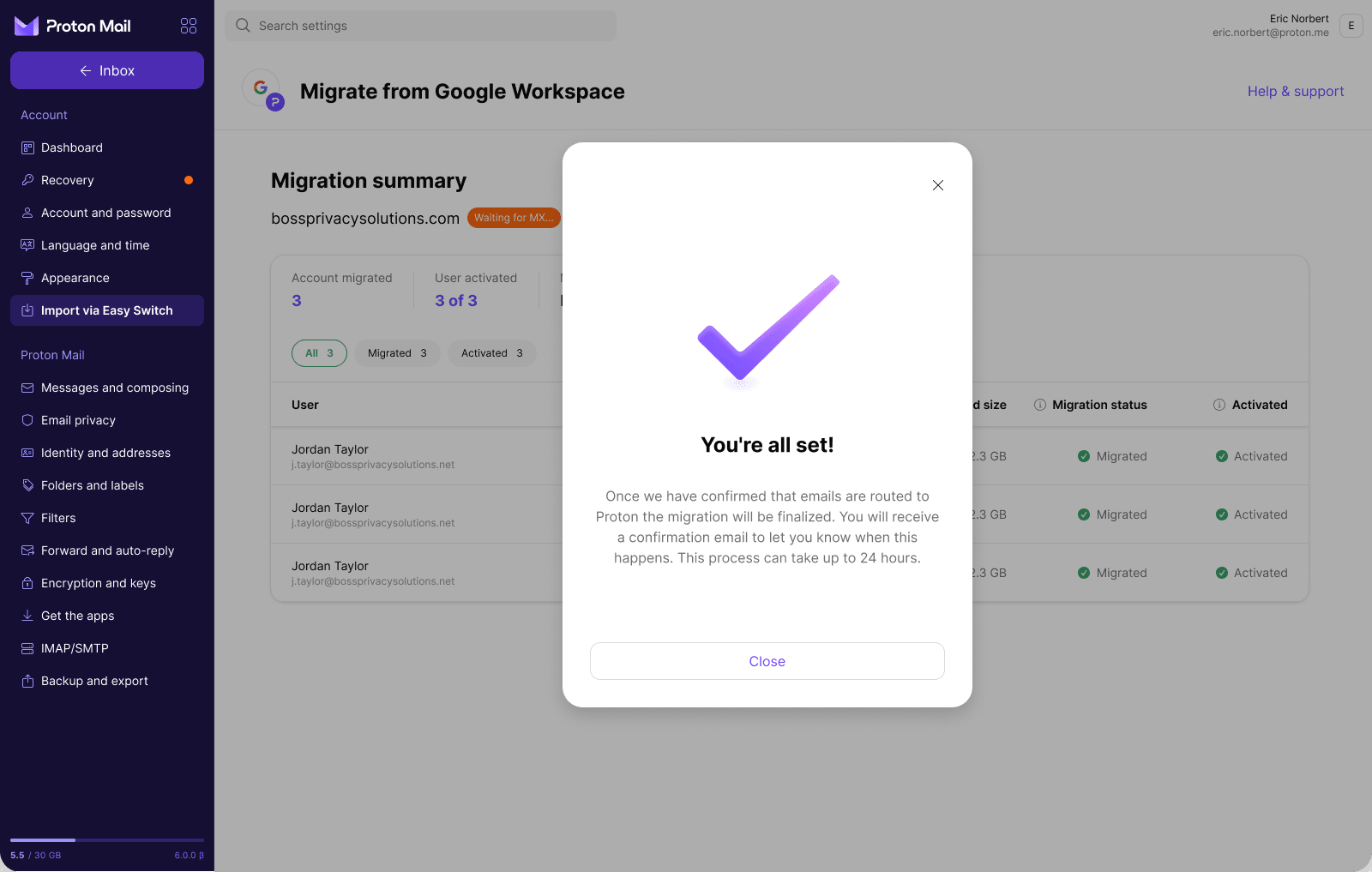
Her şey hazır! Gelen postalar Proton’a yönlendirilmeye başlandığında Proton size bir onay e-postası gönderecektir. Bu işlem 24 saate kadar sürebilir.
Taşıma işleminizi takip etme
Kaydettikten sonra Taşıma özeti sayfasına yönlendirileceksiniz. Bu sayfa; hangi hesapların taşındığı, hangi kullanıcıların etkinleştirildiği ve etki alanının MX kaydı durumu dahil olmak üzere genel ilerlemeyi gösterir. E-postalar doğrudan Proton’a yönlendirilene kadar etki alanında bir MX bekleniyor… rozeti gösterilecektir. Bu noktada kullanıcılar Gmail’de yeni iletiler almayı durduracak ve taşıma işlemi tamamlanmış olacaktır.
Not: Taşıma işlemi tamamlandıktan sonra etkinleştirme bağlantıları çalışmayacaktır. Hesaplarını etkinleştirmemiş olan kullanıcıların, parolalarının manuel olarak sıfırlanması için yöneticileriyle iletişime geçmeleri gerekecektir.
