
How to use activity monitor
- Reading
- 2 mins
- Category
- Proton VPN for Business
Security is about much more than protecting data; it’s also about visibility and control. Our activity monitor feature is available on on the VPN Professional, VPN and Pass Professional, and Workspace plans, and provides the insight you need to enhance security, ensure compliance, and detect suspicious behavior across your organization.
When activity monitor is turned off, no event data is collected.
- How to turn on activity monitor
- How to view activity monitor events as a user
- How to view activity monitor events as an admin
- Why use activity monitor?
How to turn on activity monitor
1. Sign in to account.proton.me and select the VPN app.
2. Go to Monitoring → Activity monitor.
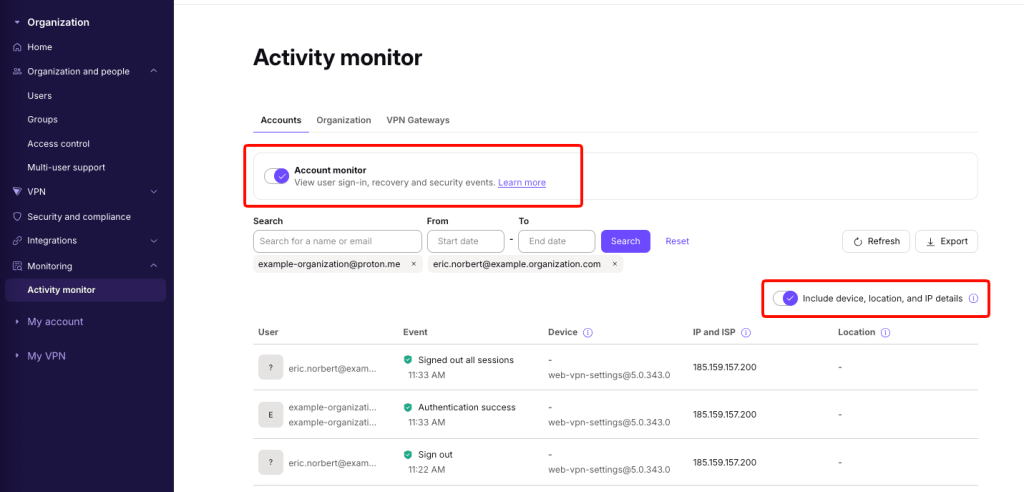
3. Toggle the Activity monitor switch on.
To view Device, IP and ISP and Location details, also toggle the Include device, location, and IP details switch.
How to view activity monitor events as a user
Users can see events for their own account. Once activity monitor has been turned on:
1. Sign in to account.proton.me and select the VPN app.
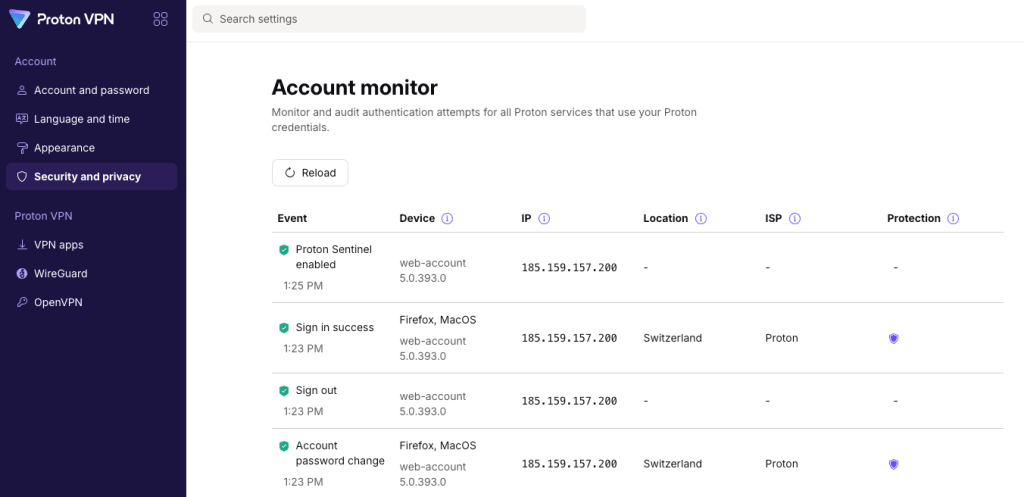
2. Go to Account → Security and privacy → Activity monitor
Note that to view Location, ISP, and whether the event is Protected by Sentinel details, you must enable Proton Sentinel (Account → Security and privacy → Proton Sentinel → Enable Proton Sentinel).
How to view activity monitor events as an admin
Sign in to account.proton.me and select the VPN app.
2. Go to Monitoring → Activity monitor.
3. Select the type of events you’d like to monitor:
- Accounts
- Organization
- VPN Gateways
You can search for events using a name or email address and filter events by time range.

Select the Export button to download the activity monitor logs as a CSV file.

Why use activity monitor?
IT and security teams need visibility into how VPN and security tools are used within their organizations. They need a way to track user activity, ensure compliance with security policies, and detect threats like unauthorized access attempts or credential misuse.
When an incident occurs, admins need to perform post-forensic analysis by auditing historical information to identify weaknesses and threats. Without a detailed audit trail, your organization risks blind spots in its security and compliance gaps that could expose it to cyber threats.
With activity monitoring, admins can track, audit, and review account-related events through a centralized dashboard. Events such as failed login attempts and changes in user activity are logged with:
- User
- Event type with a timestamp
- Device name and app version
- IP address of the Proton VPN server used (or the users real IP address if a VPN isn’t used), and ISP(new window) the IP address belongs to. Optional.
- Location — the user’s approximate location (based on their IP address). Optional.
This allows your organization to enforce security policies, identify anomalies, and investigate potential security breaches proactively.
When activity monitor is turned on, your team can also access all events related to their Proton Account, allowing them to check for themselves if account has been compromised.