Slik deler du filer og mapper med Proton Drive-mobilappene
- Lesetid
- 4 min
- Kategori
- Mobilapplikasjoner
Med Proton Drives mobilapper kan du enkelt og sikkert dele filene og mappene dine fra din iPhone/iPad eller Android-telefon eller -nettbrett.
Denne artikkelen forklarer hvordan du oppretter, kopierer og deler en kobling til filen eller mappen din. Den viser deg også hvordan du angir et passord eller en utløpsdato for ekstra beskyttelse, og hvordan du avslutter deling av en fil eller mappe.
iPhone eller iPad (iOS/iPadOS)
På iOS og iPadOS kan du dele en fil med en delingskobling, eller ved å sende en e-postinvitasjon.
Del via kobling
1. Åpne Proton Drive-appen. I Mine filer finner du filen eller mappen du vil dele, og trykker på ikonet med tre loddrette prikker (⋮).
2. Velg Del fra menyen.

3. Under Delingsalternativer aktiverer du bryteren Alle med linken.

4. Som standard får mottakere kun visning-tilgang til filen din. For å gi dem redigeringstillatelse trykker du på Kan se, og velger deretter Kan redigere fra menyen.

5. Delingskoblingen din er opprettet. Trykk på Kopier kobling for å kopiere den til utklippstavlen din og dele med andre.

Husk at alle som har denne koblingen, vil ha tilgang til filen eller mappen du har delt.
Legg til et passord og en utløpsdato
Når du har opprettet en delingskobling, kan du legge til passordbeskyttelse og en utløpsdato. Vi har skrevet en egen veiledning som forklarer hvordan du gjør dette.
Lær hvordan du legger til passordbeskyttelse og utløpsdato for delbare koblinger i Proton Drive
Avslutt deling av en delingskobling
1. Åpne Proton Drive-appen. I Mine filer finner du filen eller mappen du vil dele, og trykker på ikonet med tre loddrette prikker (⋮).
2. Velg Del fra menyen.

3. Under Delingsalternativer deaktiverer du bryteren for Alle med linken.

4. Dette vil deaktivere delingskoblingen din permanent, og alle med koblingen vil miste tilgangen. Hvis du er sikker på at du vil fortsette, trykker du på Avslutt deling.

Alt klart. Hvis du vil dele filen eller mappen din igjen, oppretter du bare en ny kobling.
Del via e-post
1. Åpne Proton Drive-appen. I Mine filer finner du filen eller mappen du vil dele, og trykker på ikonet med tre loddrette prikker (⋮).
2. Velg Del fra menyen.
3. Under Delingsalternativer trykker du på Legg til person eller gruppe til delt ressurs.

4. Angi detaljer for invitasjon:
- Legg til personer: Angi e-postadressen til personen du vil dele med. Du kan invitere flere personer.
- Tildel tillatelser: Som standard kan mottakere vise og redigere filen din. For å endre til tillatelser for kun visning trykker du på Kan redigere, og velger deretter Leser fra menyen.
- Legg til en melding (valgfritt): Skriv en melding til mottakerne dine.
Når du er ferdig, trykker du på Send (➤).

Vi sender en e-post til mottakerne dine med en kobling til filen din.
Avslutt deling av en fil delt via e-post
1. Åpne Proton Drive-appen. I Mine filer finner du filen eller mappen du vil dele, og trykker på ikonet med tre loddrette prikker (⋮).
2. Velg Del fra menyen.
3. Rull til Delt med og finn personen du vil slutte å dele filen din med. Trykk på e-postadressen deres.

4. Velg Fjern tilgang fra menyen.

5. Gjenta prosessen for alle andre som du ikke lenger vil skal ha tilgang til filen din.
Android
Del via e-post
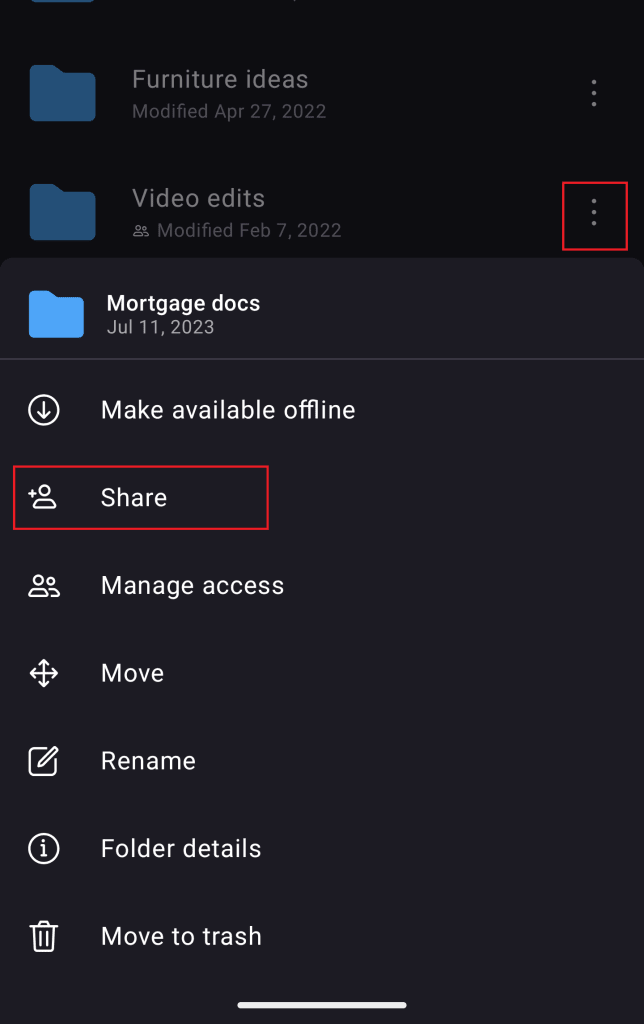
1. Trykk på de tre loddrette prikkene ved siden av filen eller mappen du vil dele.
2. Velg Del.
3. Legg til mottakerens e-post i feltet Legg til personer.
4. Du kan også tildele tilgangsrettigheter for Redaktør eller Leser (standardalternativet er Redaktør).
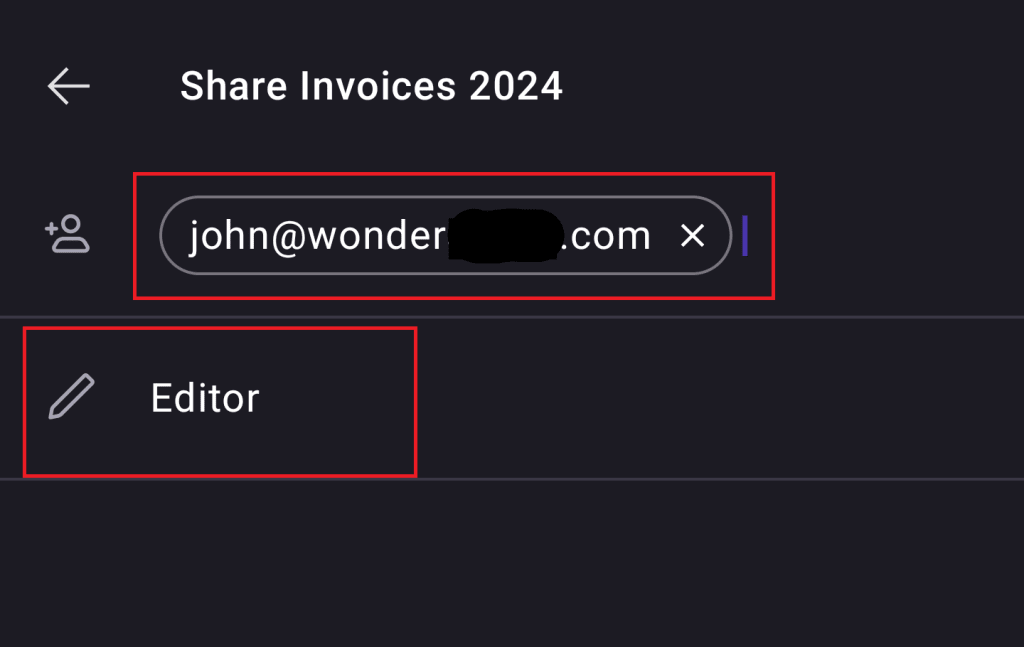
5. Mottakeren vil motta en e-post med en invitasjon til å få tilgang til den delte filen eller mappen.
Opprett en delingskobling
Du kan også dele filer og mapper med en offentlig kobling.
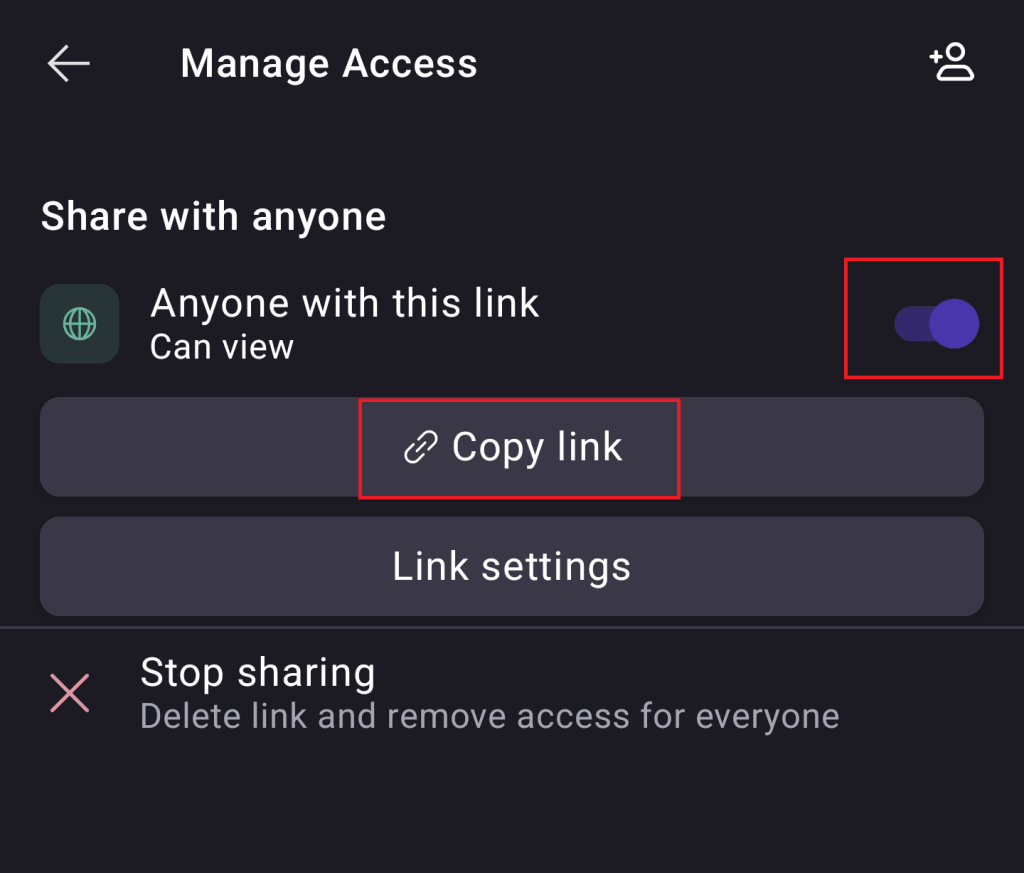
1. Trykk på de tre loddrette prikkene ved siden av filen eller mappen du vil dele.
2. Velg Administrer tilgang.
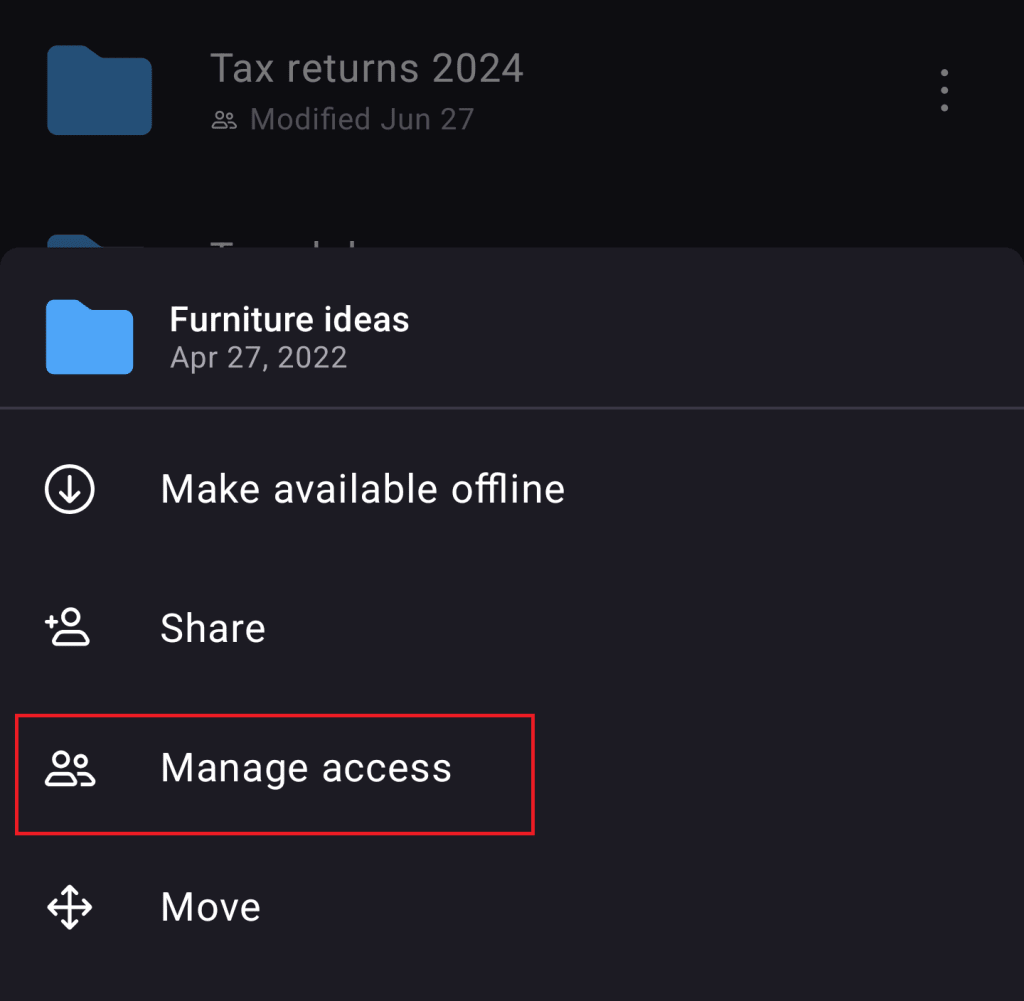
3. Opprett en delingskobling ved å aktivere Del med hvem som helst.
4. Du kan nå kopiere koblingen og dele koblingen din hvor som helst.
Legg til et passord og en utløpsdato
Når du har opprettet en delingskobling, kan du legge til passordbeskyttelse og en utløpsdato. Vi har skrevet en egen veiledning som forklarer hvordan du gjør dette.
Lær hvordan du legger til passordbeskyttelse og utløpsdato for delbare koblinger i Proton Drive
Avslutt deling av en kobling
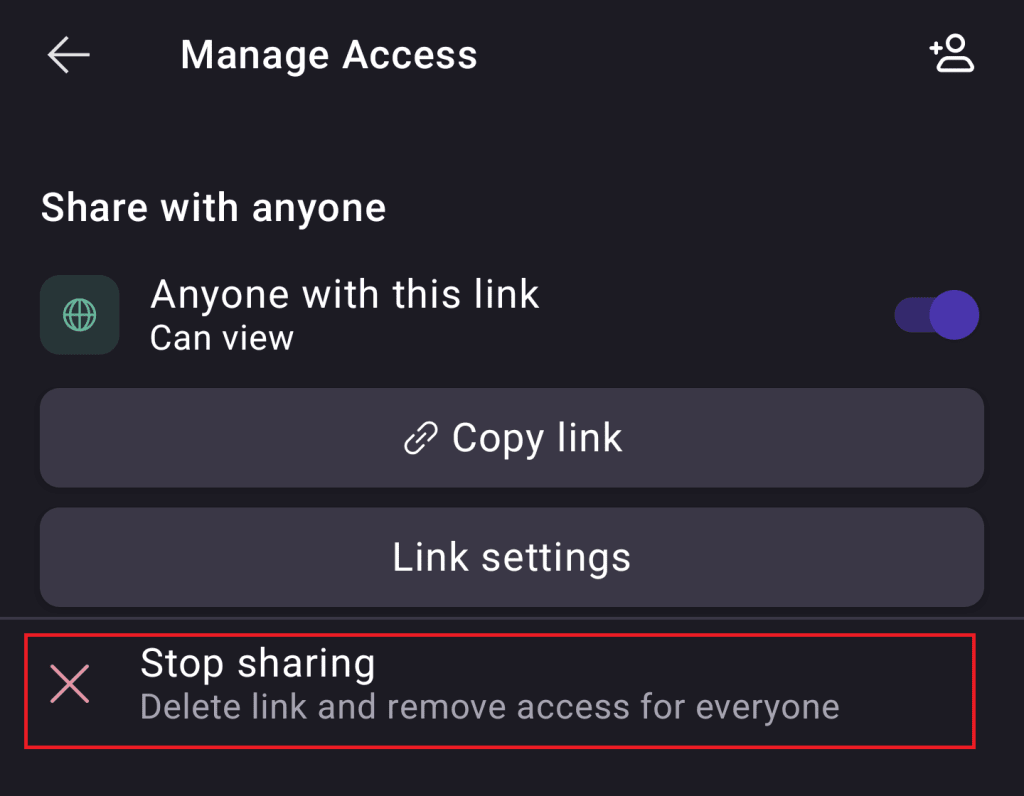
1. Trykk på de tre loddrette prikkene ved siden av en delt fil eller mappe.
2. Velg Administrer tilgang.
3. Velg Avslutt deling og bekreft handlingen.