
Slik passordbeskytter du de delte filene dine i Proton Drive
- Lesetid
- 2 min
- Kategorier
- Bruke Proton Drive
- Proton Drive
Du kan dele filer og mapper fra Proton Drive med hvem som helst ved å bruke sikre delingslenker. Disse lenkene genereres lokalt i nettleseren din, så Proton har aldri tilgang til filene eller mappene dine.
Finn ut hvordan du oppretter en delingslenke i Proton Drive
I denne artikkelen forklarer vi hvordan du beskytter en eksisterende delingslenke med et passord og/eller en utløpsdato.
Legg til passordbeskyttelse og en utløpsdato på en delingslenke i Proton Drive
Nettapp
1. Logg inn på proton.me/drive.
2. I Mine filer velger du filen eller mappen du vil legge til et passord for. Klikk på Administrer deling (ikonet som viser to personer).

3. Klikk på Angi passord eller utløpsdato.

4. Konfigurer passordet og/eller utløpsdatoen.

- For å legge til et passord: Aktiver bryteren for Krev passord, opprett et sterkt passord(nytt vindu), og klikk deretter på Lagre endringer.
- For å legge til en utløpsdato: Aktiver bryteren for Angi utløpsdato, angi en utløpsdato, og klikk deretter på Lagre endringer.
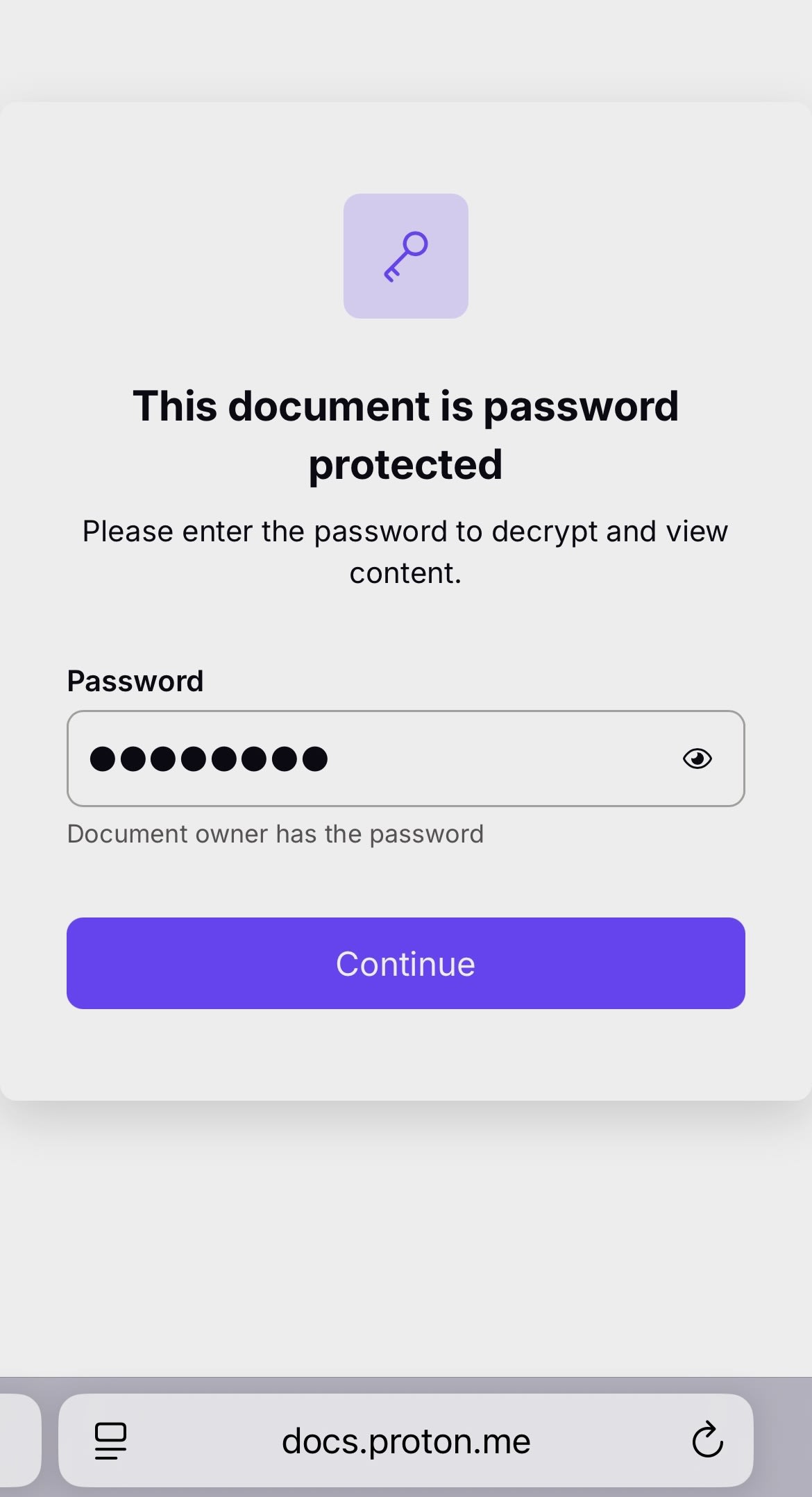
Alle som mottar lenken kan klikke på den for å få tilgang til de delte filene ved å angi passordet. Sørg for at du sender passordet til personen du deler filene med, via en sikker kommunikasjonskanal, eller bare fortell dem det personlig.
Mobil
Skjermbildene nedenfor er fra en iPhone, men trinnene er identiske for iPadOS og Android.
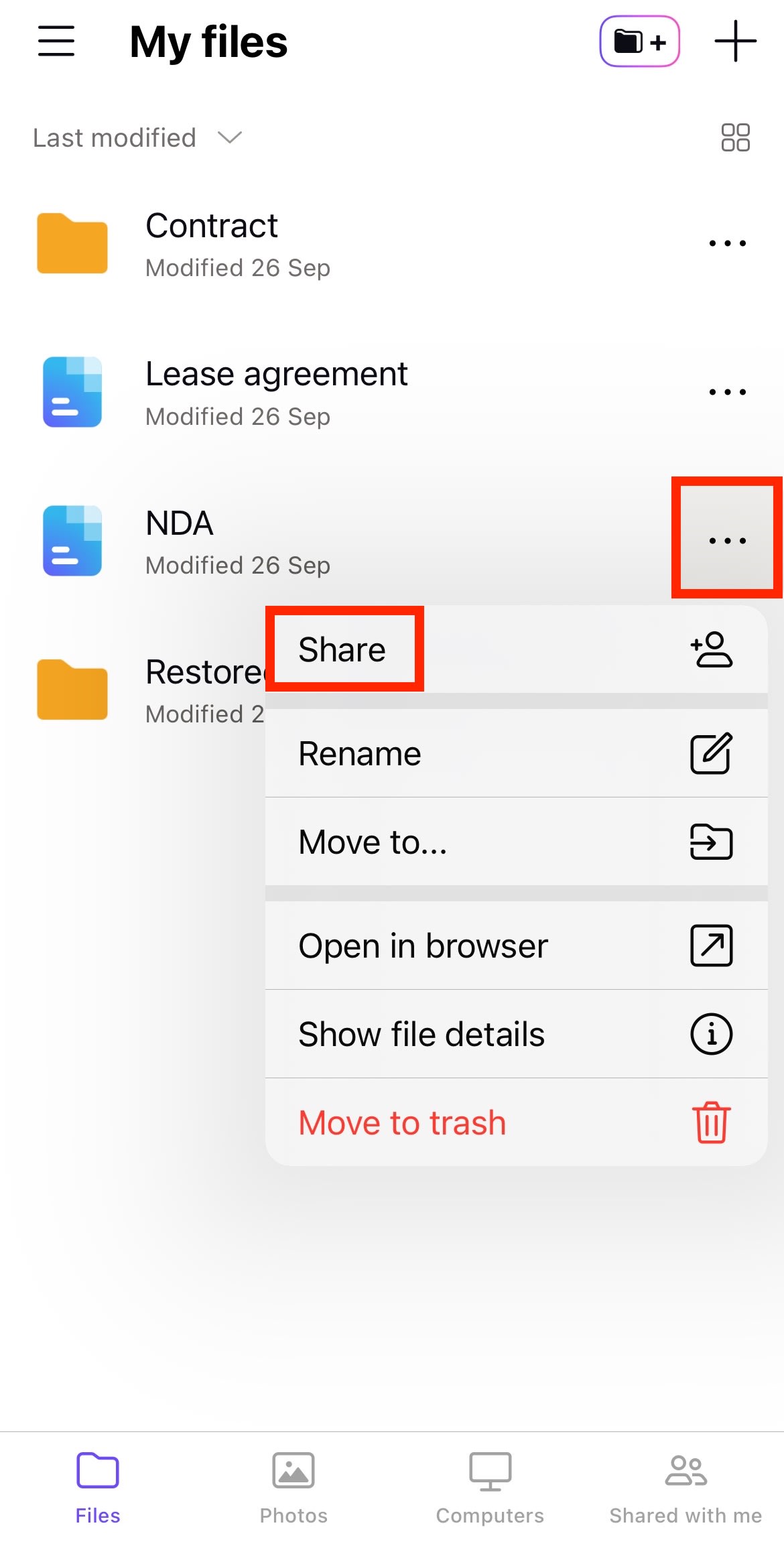
1. Trykk på … ved siden av filen eller mappen, og velg Del.
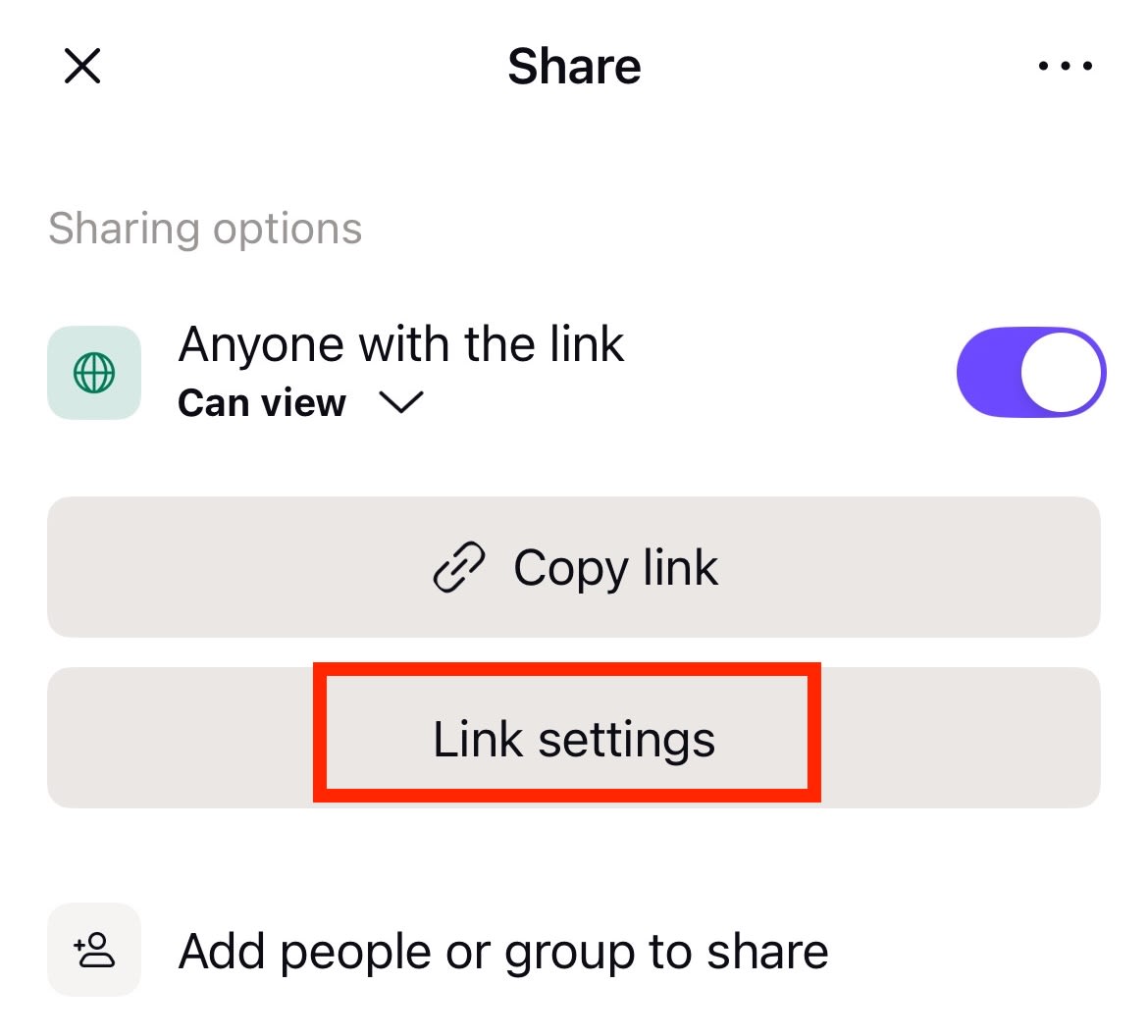
2. Velg Innstillinger for kobling.
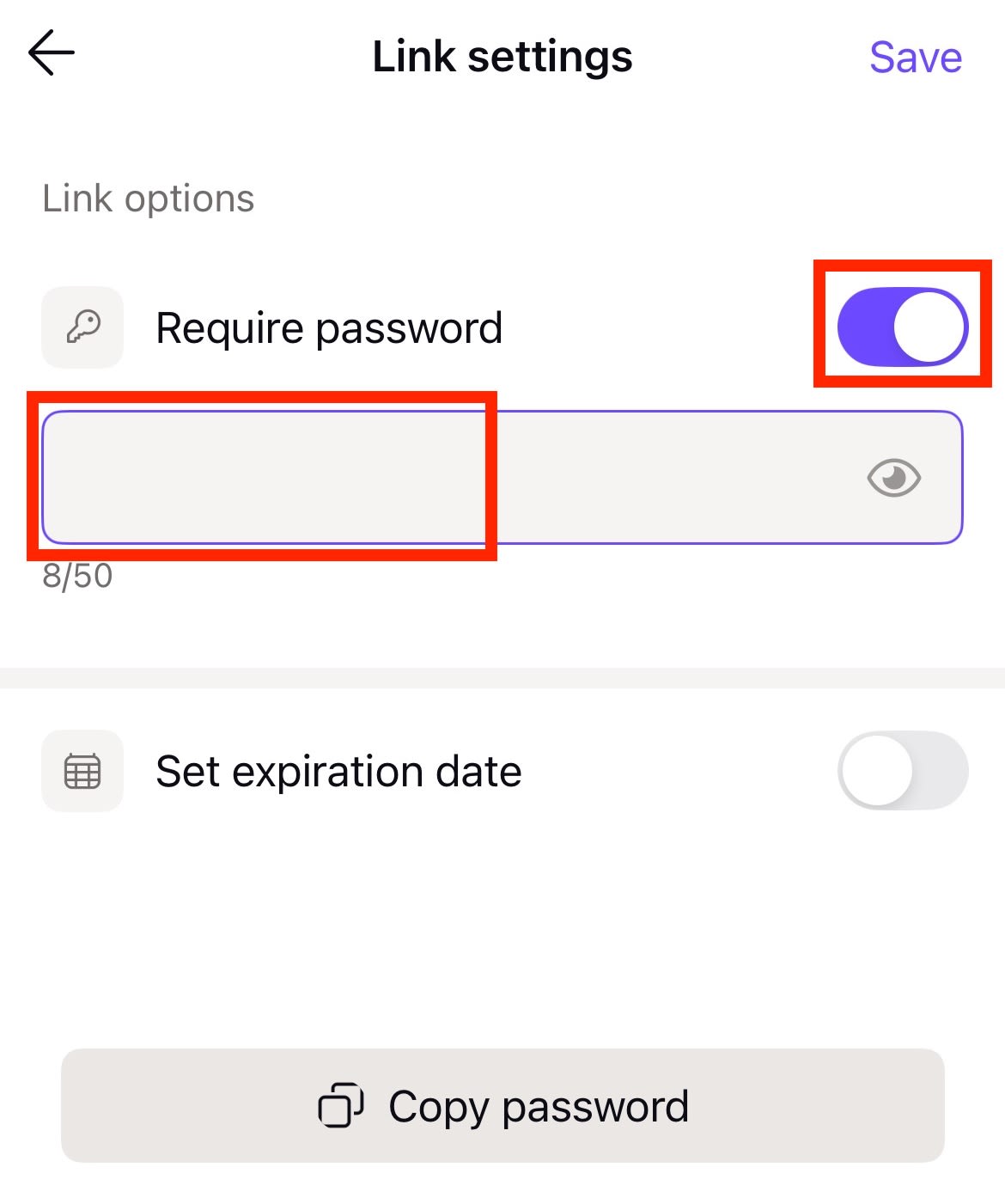
3. Slå på Krev passord og angi et passord.
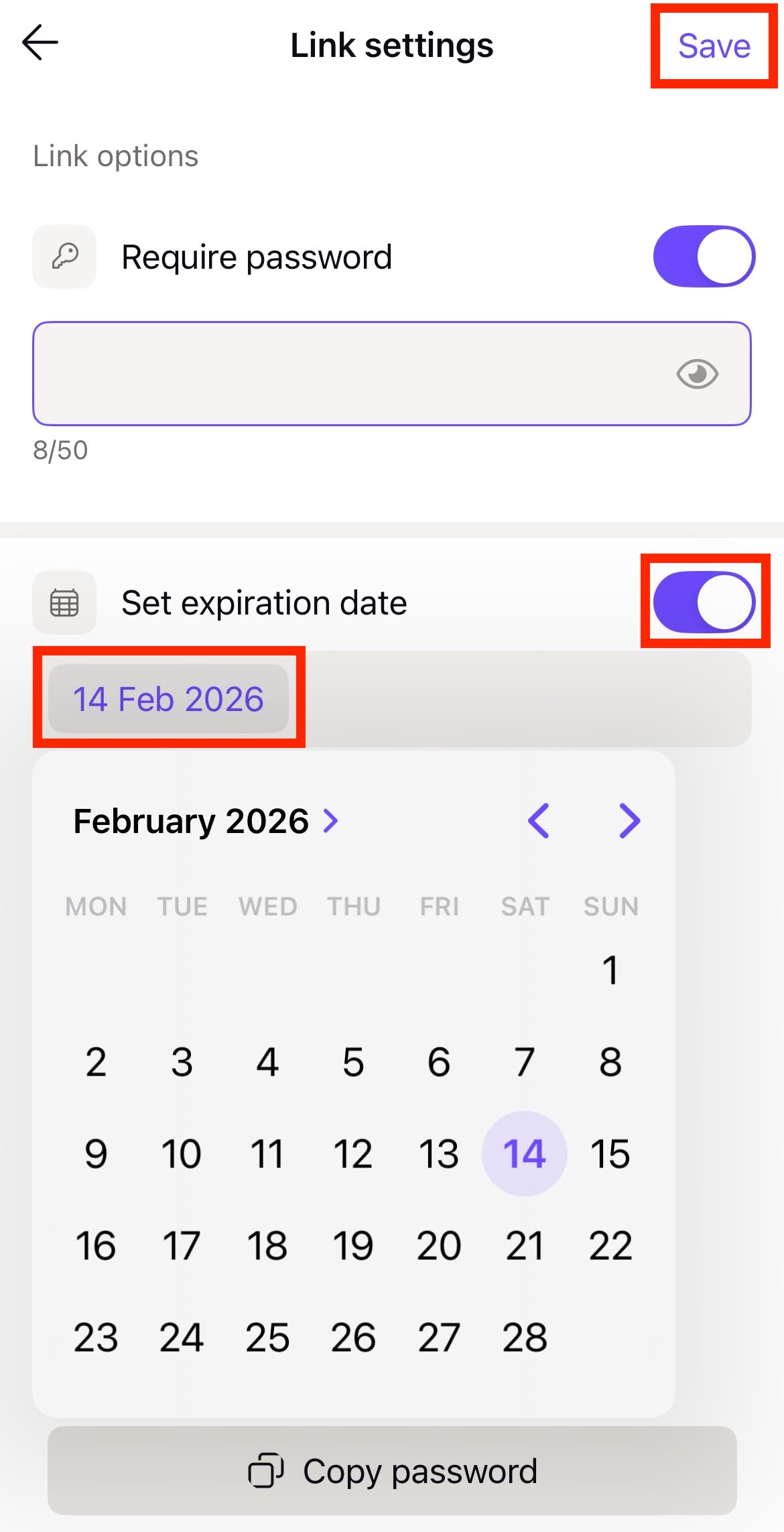
4. Hvis du vil at lenken skal slutte å fungere etter en bestemt dato, aktiverer du Angi utløpsdato og velger ønsket dato. Trykk på Lagre når du er ferdig.
Alle som ønsker tilgang til filen eller mappen din, trenger både lenken og passordet.
Finn ut hvordan du deler filer og mapper med Proton Drive-nettappen
Finn ut hvordan du deler filer og mapper med Proton Drive-mobilappene