如何在 Proton Drive 中為已分享的檔案設定密碼保護
- 閱讀
- 0 分鐘
- 類別
- 使用 Proton Drive
- Proton Drive
您可以使用安全的共享連結,與任何人分享 Proton Drive 中的檔案和資料夾。這些連結是在您的瀏覽器中本地產生的,因此 Proton 永遠無法存取您的檔案或資料夾。
在本文中,我們將說明如何使用 密碼 和/或 過期日期 來保護現有的共享連結。
為 Proton Drive 共享連結新增密碼保護與過期日期
網頁應用程序
1. 登入 proton.me/drive。
2. 在我的檔案中,選取要加入密碼的檔案或資料夾。點擊管理共享(顯示兩個人像的圖示)。

3. 點擊設定密碼或過期日期。

4. 配置您的密碼和/或過期日期。

- 若要加入密碼:啟用需要密碼切換開關,建立高強度密碼(新視窗),然後點擊儲存變更。
- 若要加入過期日期:啟用設定到期日切換開關,輸入過期日期,然後點擊儲存變更。
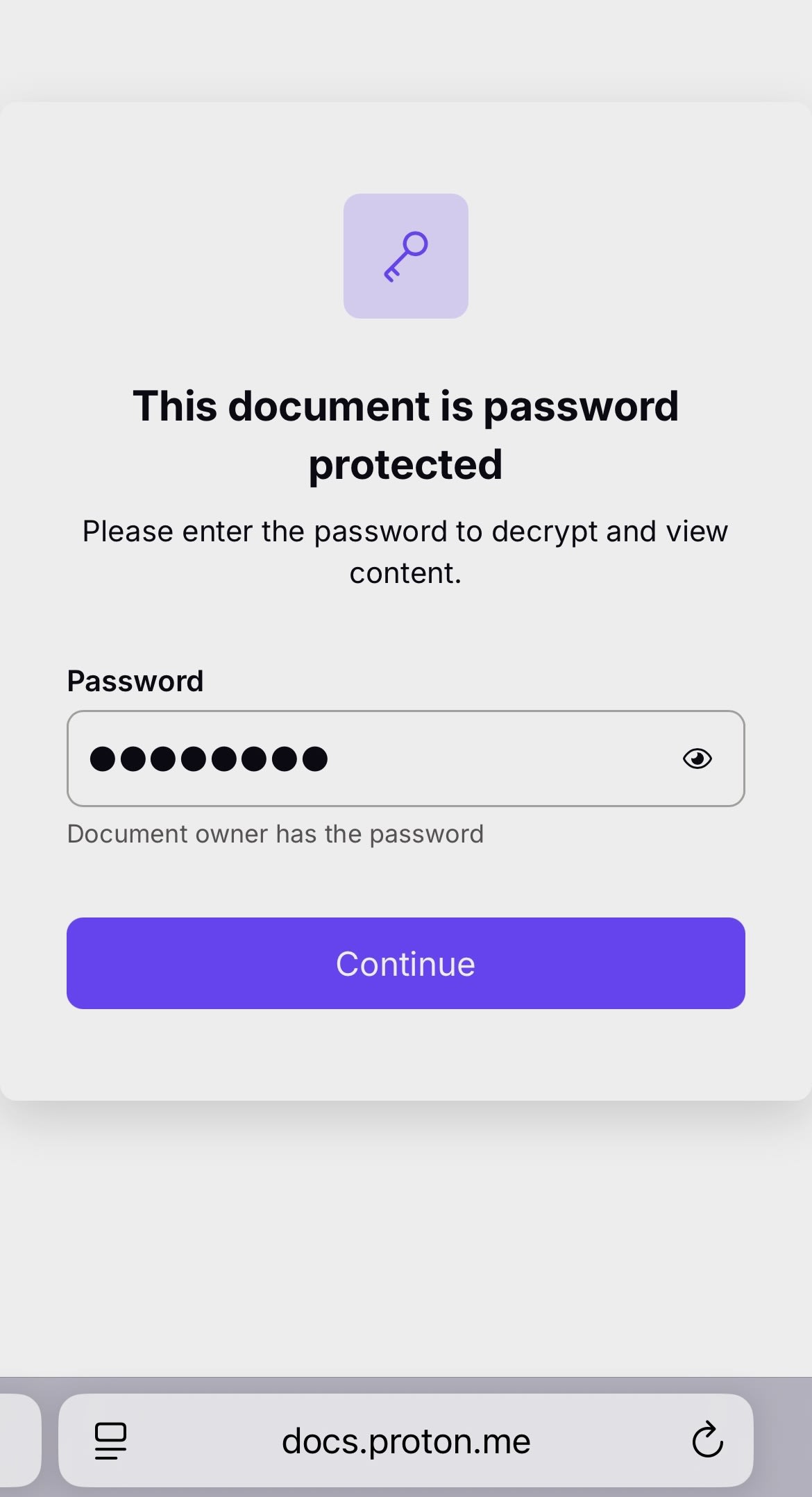
收到連結的任何人只要輸入密碼,即可點擊連結來存取已分享的檔案。請務必使用安全的通訊管道將密碼傳送給與您分享檔案的人,或直接當面告知。
行動裝置
以下螢幕擷取畫面來自 iPhone,但 iPadOS 和 Android 的步驟完全相同。
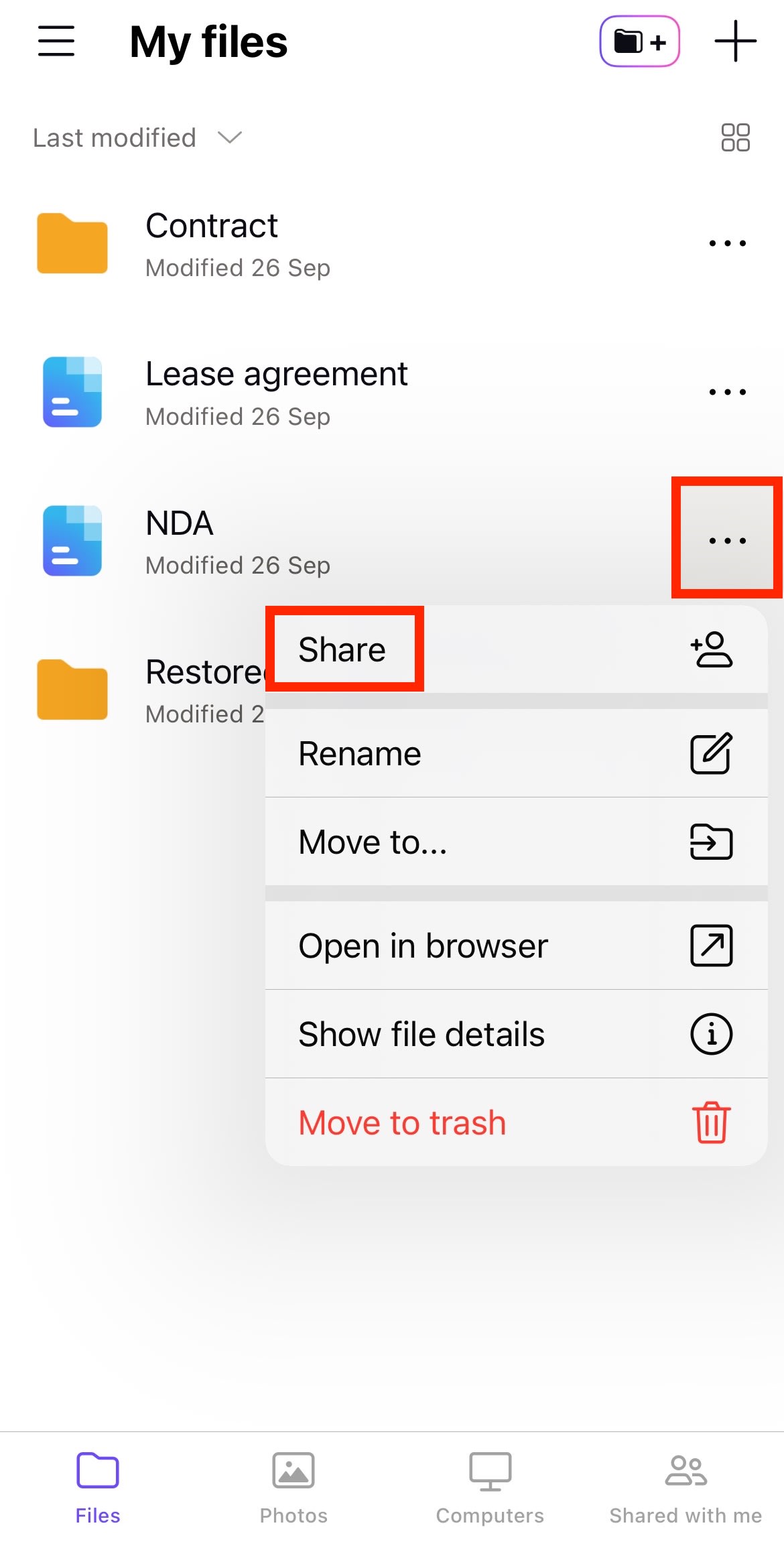
1. 輕點檔案或資料夾旁的 …,然後選取分享。
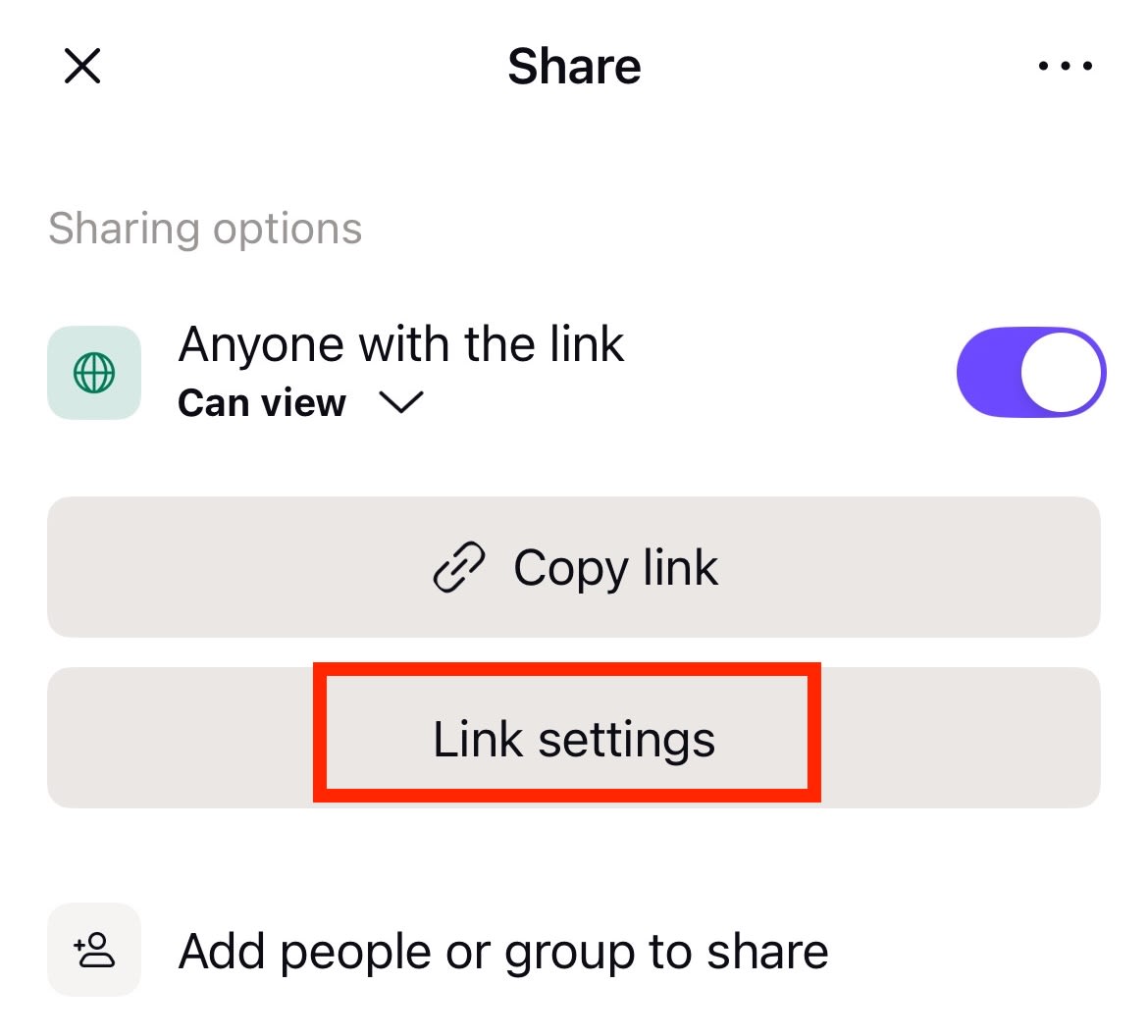
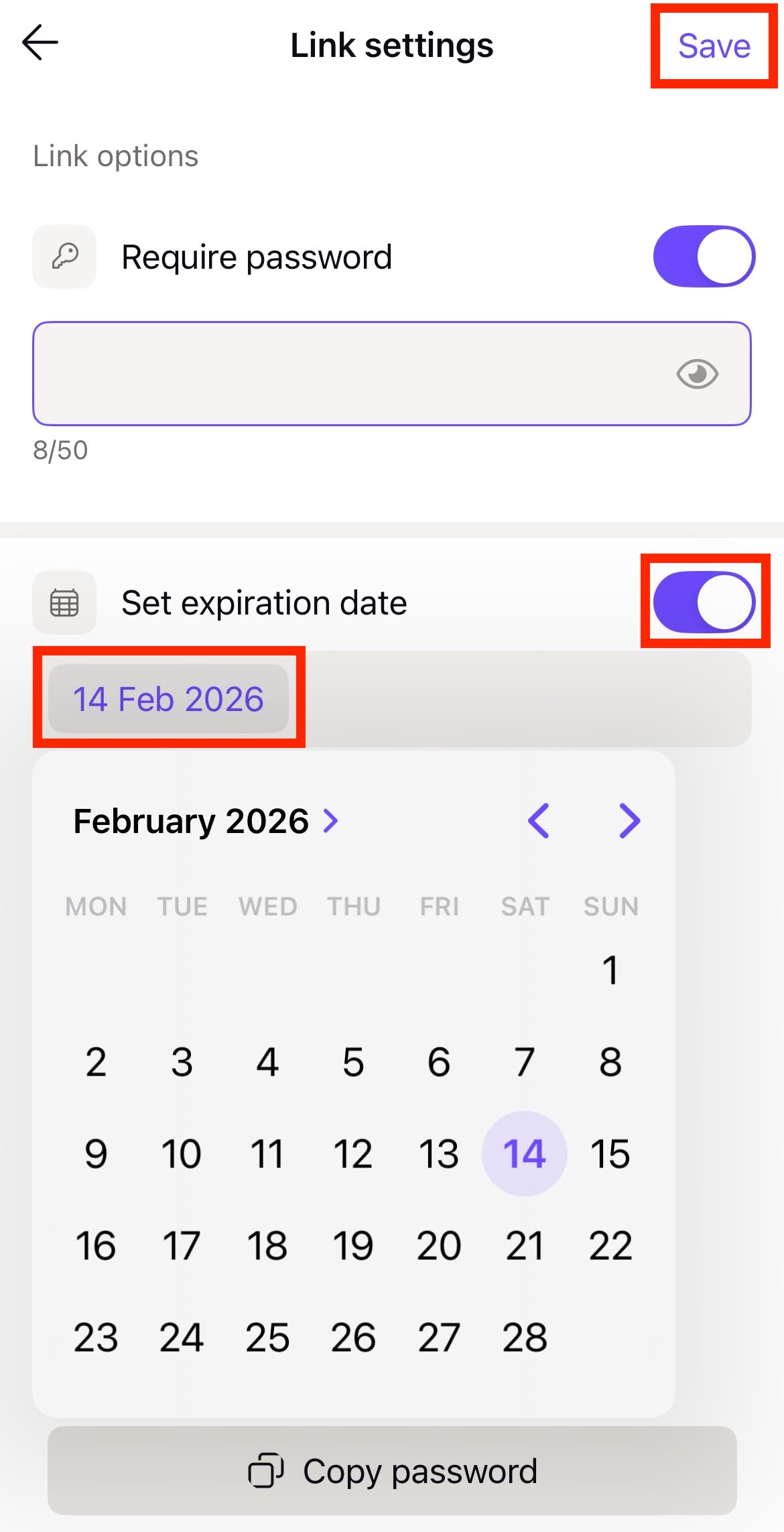
2. 選取連結設定。
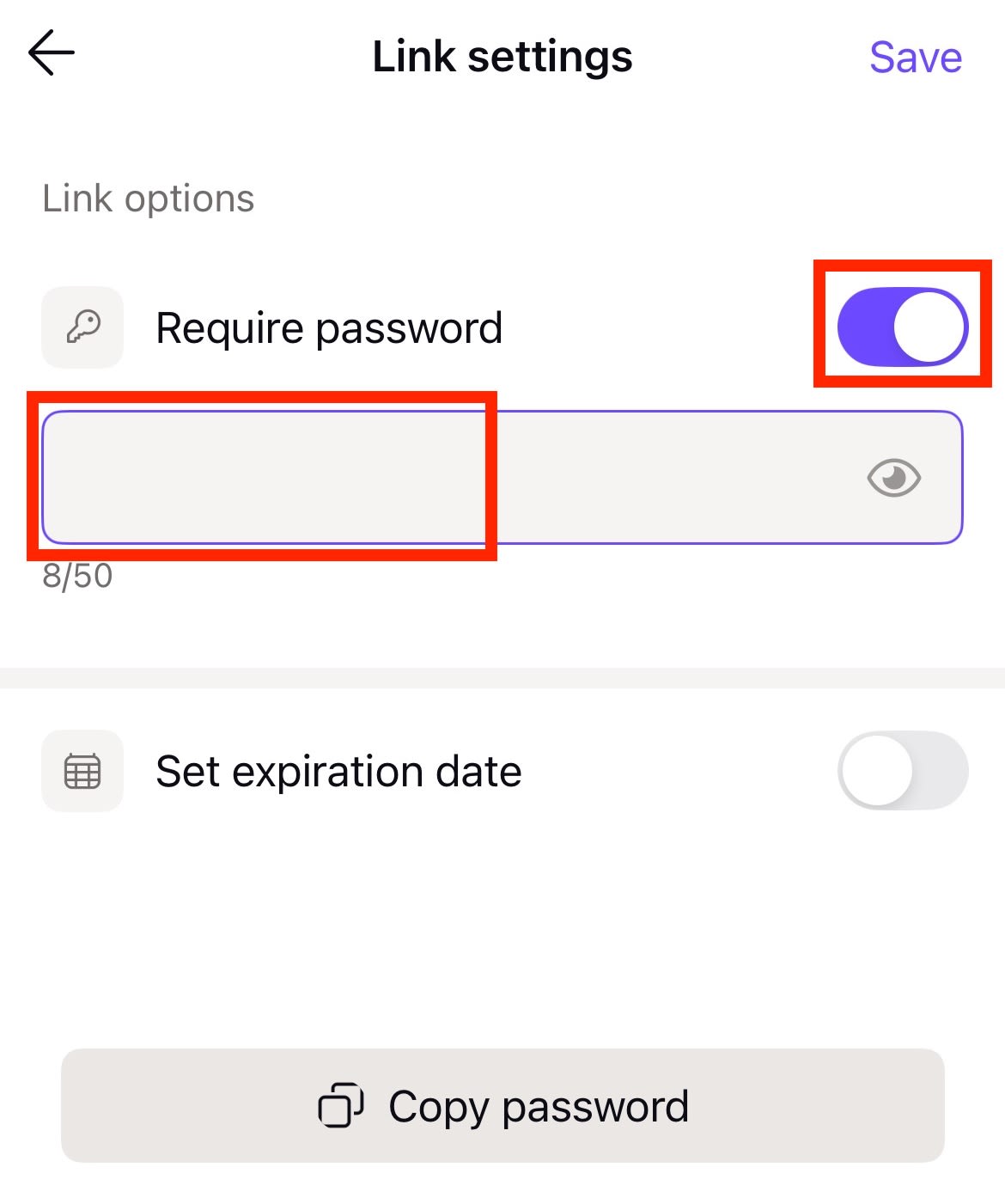
3. 啟用需要密碼並輸入密碼。
4. 如果您希望連結在特定日期後失效,請啟用設定到期日並選擇所需日期。完成後,輕點儲存。
任何想要存取您的檔案或資料夾的人,都需要同時擁有連結與密碼。