如何在 Proton Drive 中为共享文件设置密码保护
- 阅读
- 0 分钟
- 类别
- 使用 Proton Drive
- Proton Drive
您可以通过安全分享链接与任何人分享 Proton Drive 中的文件和文件夹。这些链接在您的浏览器中本地生成,因此 Proton 永远无法访问您的文件或文件夹。
在本文中,我们将说明如何使用密码和/或过期日期来保护现有的分享链接。
为 Proton Drive 分享链接添加密码保护和过期日期
网页应用
1. 登录 proton.me/drive。
2. 在我的文件中,选择要添加密码的文件或文件夹。点击管理共享(双人图标)。

3. 点击设置密码或过期日期。

4. 配置密码和/或过期日期。

- 添加密码:启用需要密码开关,创建一个强密码(新窗口),然后点击保存更改。
- 添加过期日期:启用设置过期日期开关,输入过期日期,然后点击保存更改。
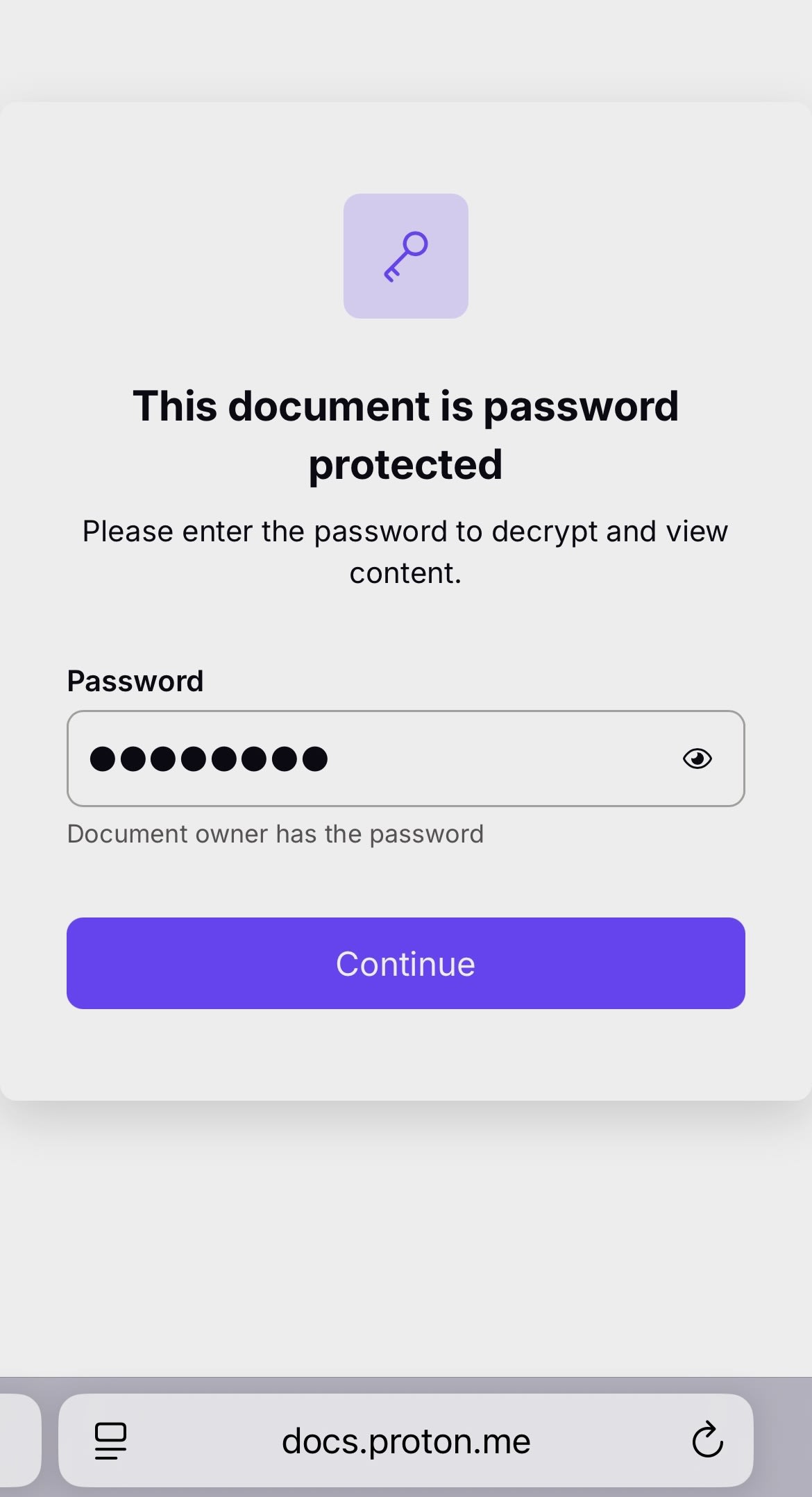
任何收到链接的人都可以点击该链接并输入密码来访问共享的文件。请务必通过安全的通信渠道将密码发送给分享对象,或者直接当面告知。
移动版
以下截图来自 iPhone,但 iPadOS 和 Android 上的步骤完全相同。
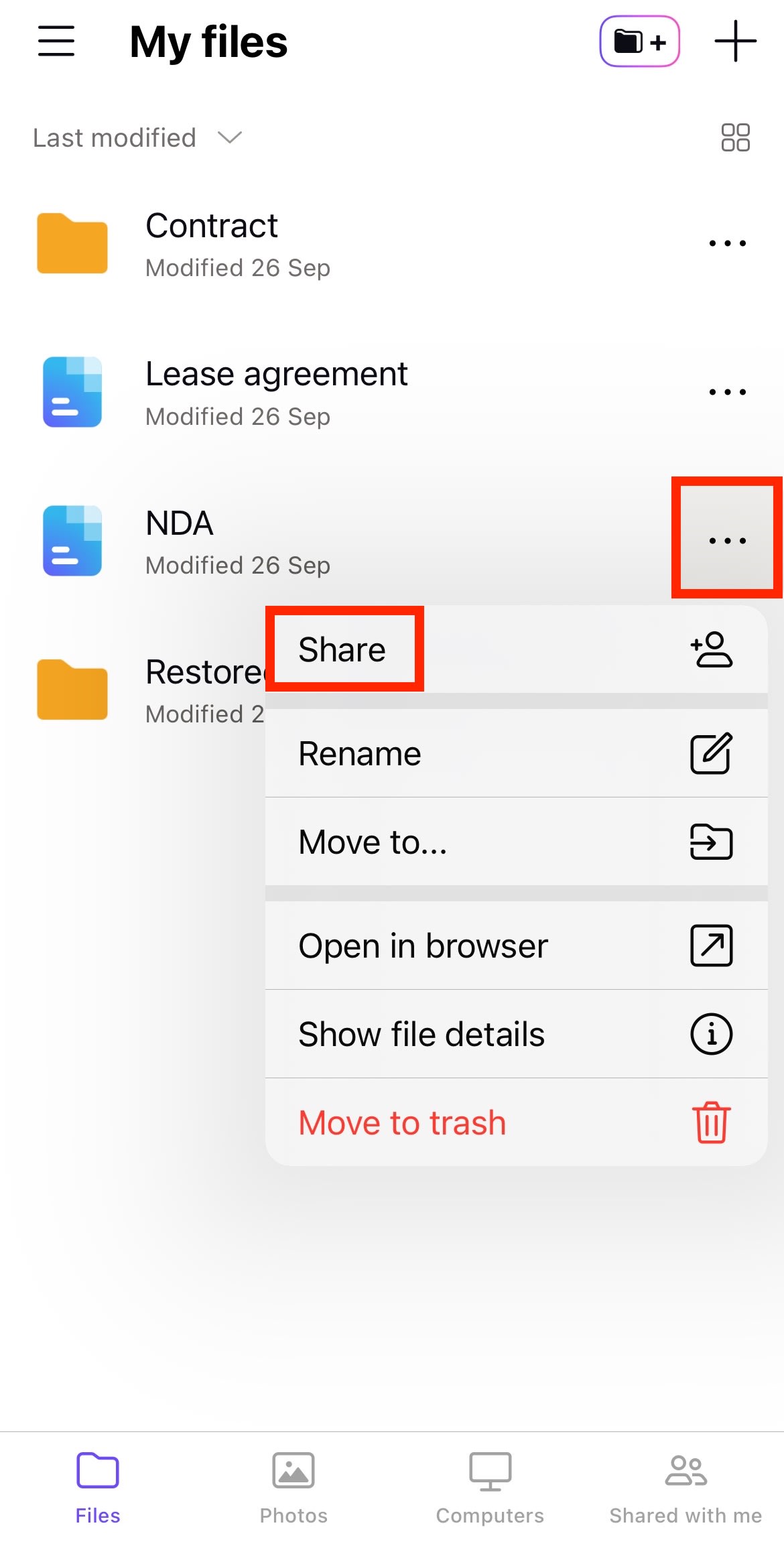
1. 轻点文件或文件夹旁边的 …,然后选择分享。
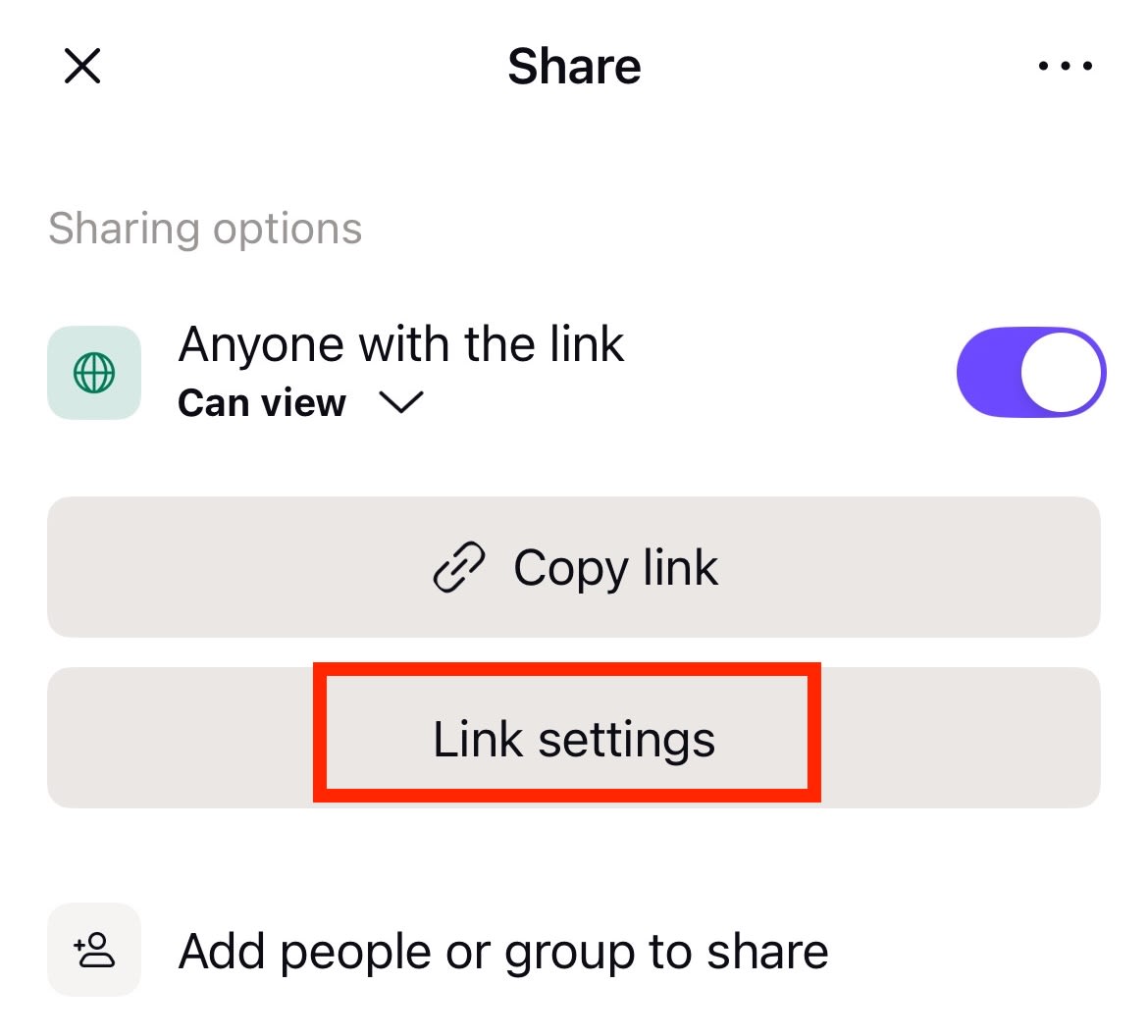
2. 选择链接设置。
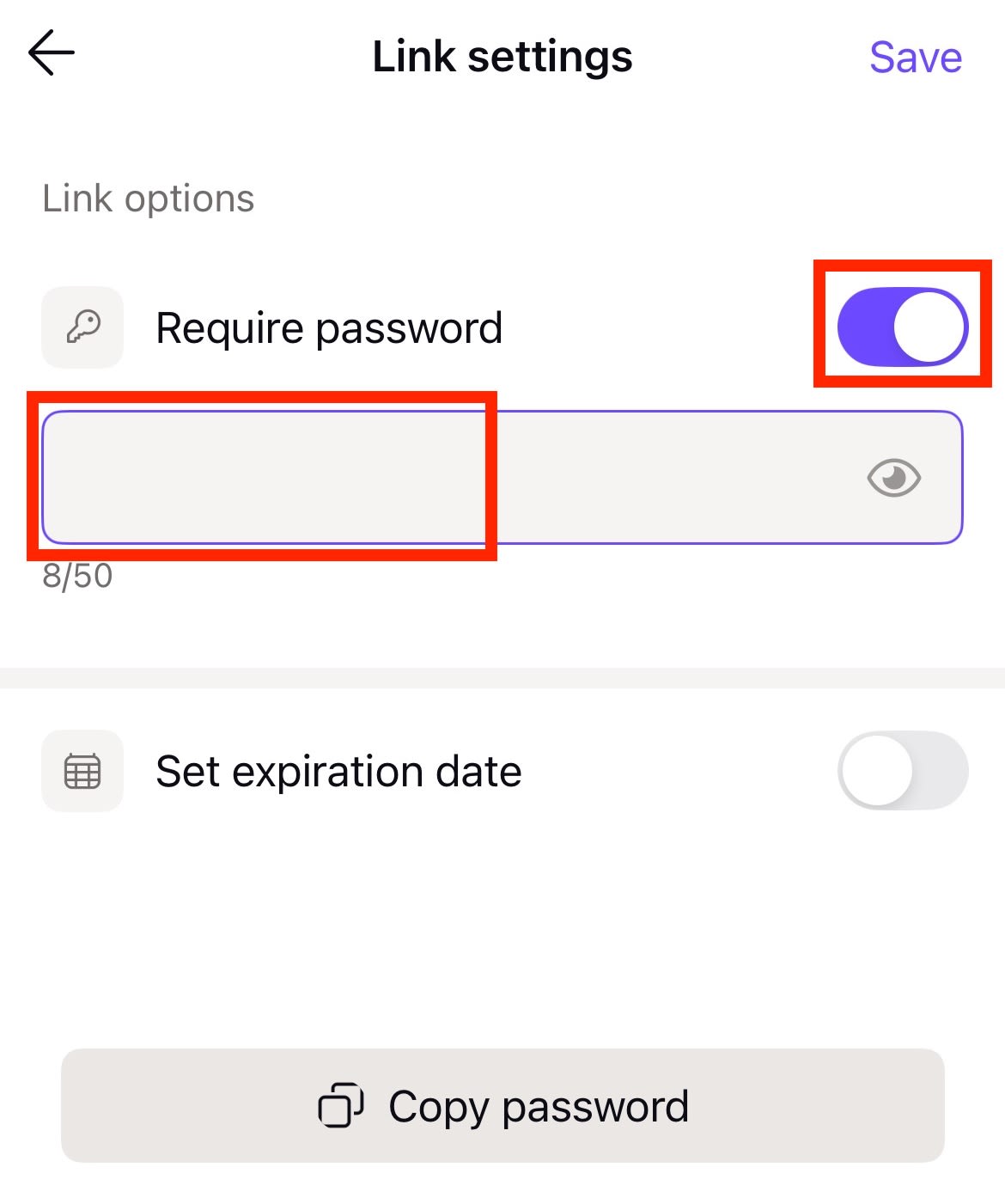
3. 开启需要密码开关并输入密码。
4. 如果希望链接在特定日期后失效,请启用设置过期日期并选择所需日期。完成后轻点保存。
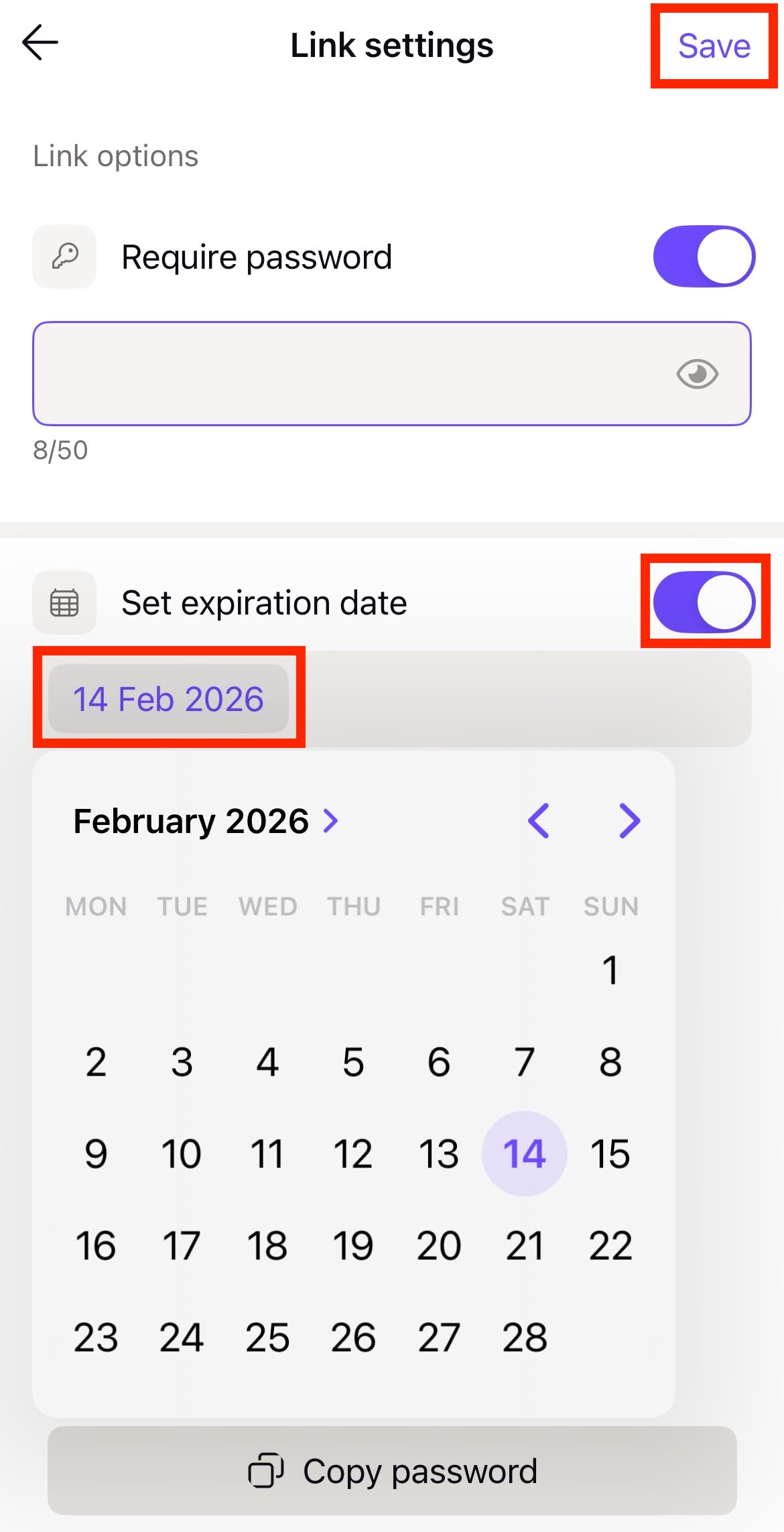
任何想要访问您的文件或文件夹的人都同时需要链接和密码。