
Hoe u e-mails kunt snoozen in Proton Mail
- Lezen
- 4 min
- Categorie
- Proton Mail gebruiken
Met Proton Mail kunt u uw e-mails sluimeren en op een geschikter moment een herinnering ontvangen. Zo vergeet of mist u nooit meer een e-mail, aangezien deze weer in uw Postvak in verschijnt wanneer u klaar bent om actie te ondernemen.
Houd er rekening mee dat u e-mails momenteel alleen kunt snoozen via de Proton Mail web- en mobiele apps (iOS en Android).
De snooze-optie is alleen zichtbaar als u Conversatieweergave op uw account heeft ingeschakeld.
Iedereen kan e-mails snoozen voor vooraf gedefinieerde tijden. Als u een betaald abonnement heeft, kunt u ook een aangepaste snooze-tijd instellen.
Dit artikel behandelt:
- Een e-mail snoozen
- Een gesnoozed bericht bekijken
- Een gesnoozed bericht annuleren
- Veelgestelde vragen
Een e-mail snoozen
In de Proton Mail web-app
1. Log in bij Proton Mail via mail.proton.me.
2. Selecteer een e-mail in uw Postvak in of beweeg de muis eroverheen en klik op het Snooze-pictogram (een klok) om het snooze-pop-upvenster te openen.
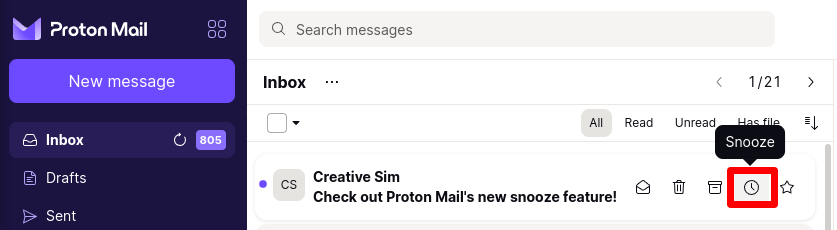
Als alternatief kunt u, wanneer u een e-mail opent, het Snooze-pictogram selecteren in de werkbalk.

3. Om de e-mail te snoozen, selecteert u eenvoudig wanneer u een melding wilt ontvangen. Dit is het moment waarop de e-mail opnieuw verschijnt in uw Postvak in.
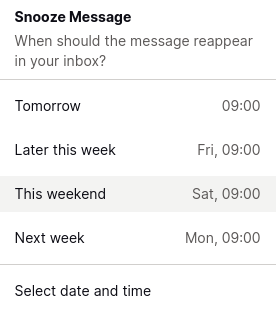
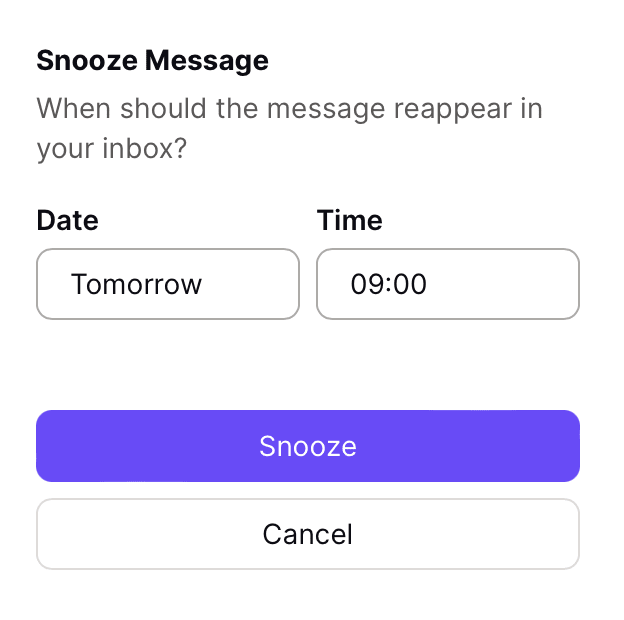
4. Als u een betaald Proton Mail-abonnement heeft, kunt u op Datum en tijd selecteren klikken om een aangepaste snooze-tijd te kiezen. Er verschijnt een bevestigingsvenster waarin u de datum en tijd kunt selecteren waarop u een herinnering wilt ontvangen.
Wanneer u klaar bent, klikt u op Snooze om de e-mail te snoozen. Uw e-mail wordt verplaatst naar de Snooze-map (zie hieronder) en u ontvangt een herinnering op het door u geselecteerde tijdstip.
In de mobiele apps van Proton Mail
In de iOS-applicatie:
1. Open een e-mail en druk op het …-pictogram in de werkbalk.

2. Selecteer Snooze in het menu

3. Selecteer wanneer u een melding wilt ontvangen. De e-mail verschijnt op dat tijdstip opnieuw in uw Postvak in.

In de Android-applicatie:
1. Open een e-mail en tik op de drie verticale stippen in de werkbalk.
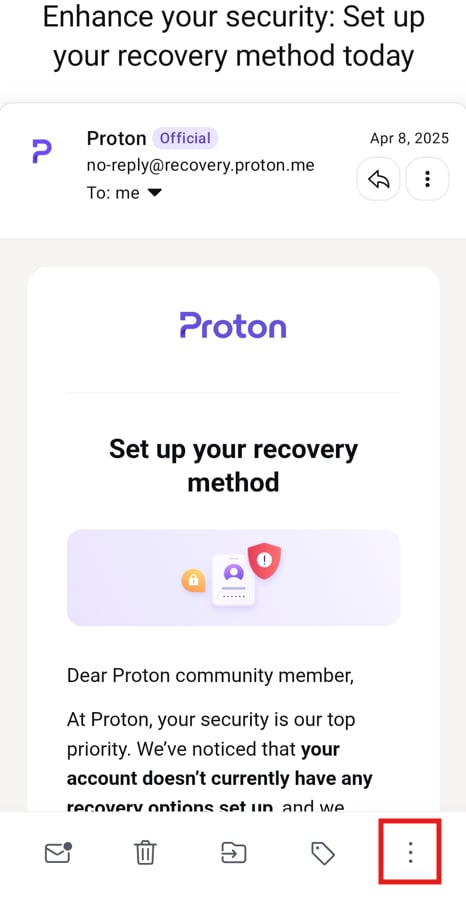
2. Selecteer Snooze in het menu
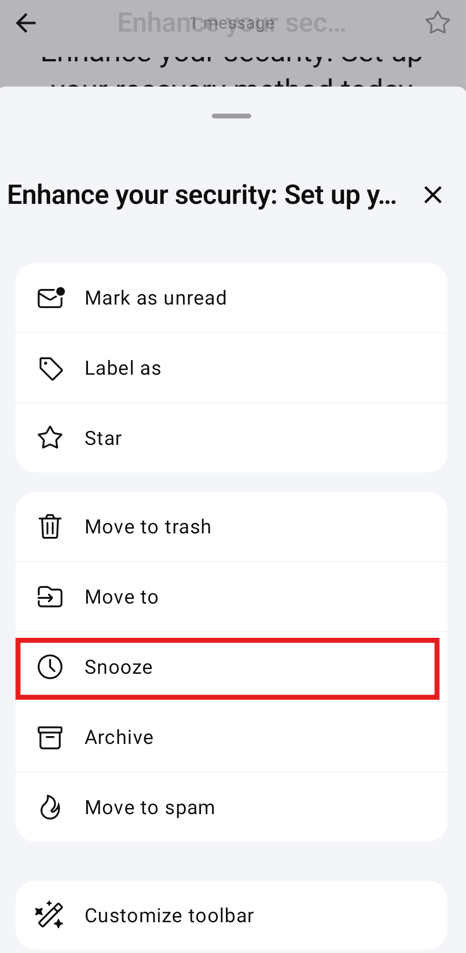
3. Selecteer wanneer u een melding wilt ontvangen. De e-mail verschijnt op dat tijdstip opnieuw in uw Postvak in.
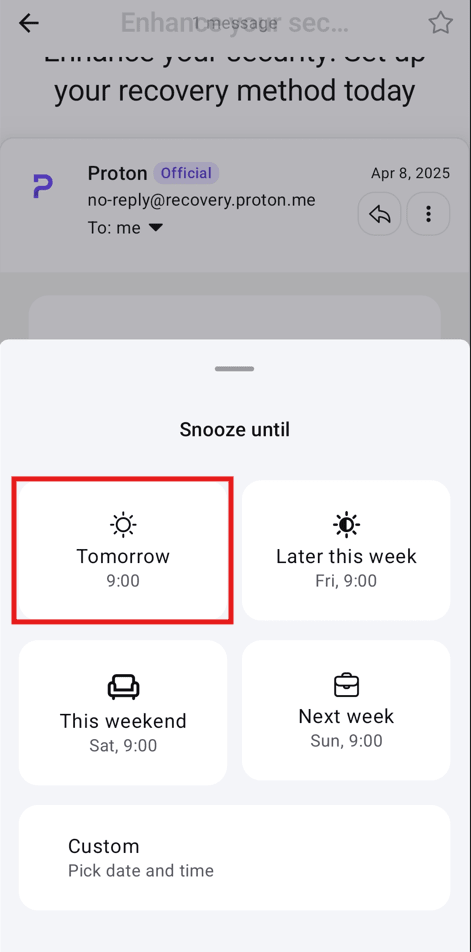
Als u een betaald Proton Mail-abonnement heeft, kunt u op Aangepast klikken om een aangepaste snooze-tijd te kiezen. Er verschijnt een bevestigingsvenster waarin u de datum en tijd kunt selecteren waarop u een herinnering wilt ontvangen.
U kunt ook lang op een e-mail drukken om deze te selecteren en deze via de stappen hierboven vanuit de werkbalk snoozen.
Een gesnoozed bericht bekijken
In de Proton Mail web-app
1. Log in bij uw Proton Mail-account via mail.proton.me.
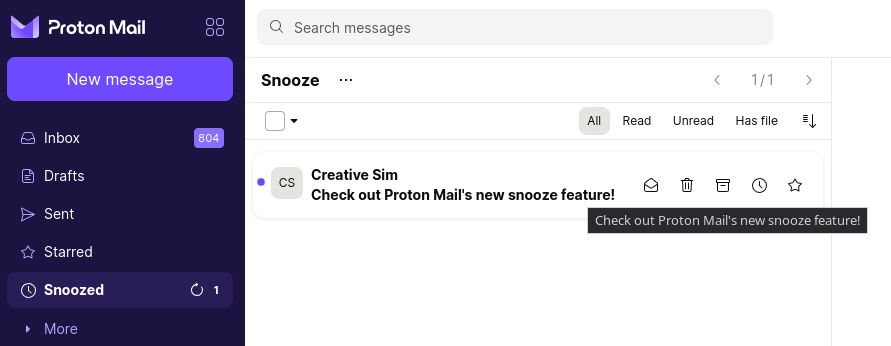
2. Ga naar de Snoozed-map. E-mails die u heeft gesnoozed, worden hier weergegeven met het exacte tijdstip waarop u een melding ontvangt. Houd er rekening mee dat u momenteel alleen toegang heeft tot deze map via de Proton Mail web- en iOS-apps.
In de mobiele apps van Proton Mail
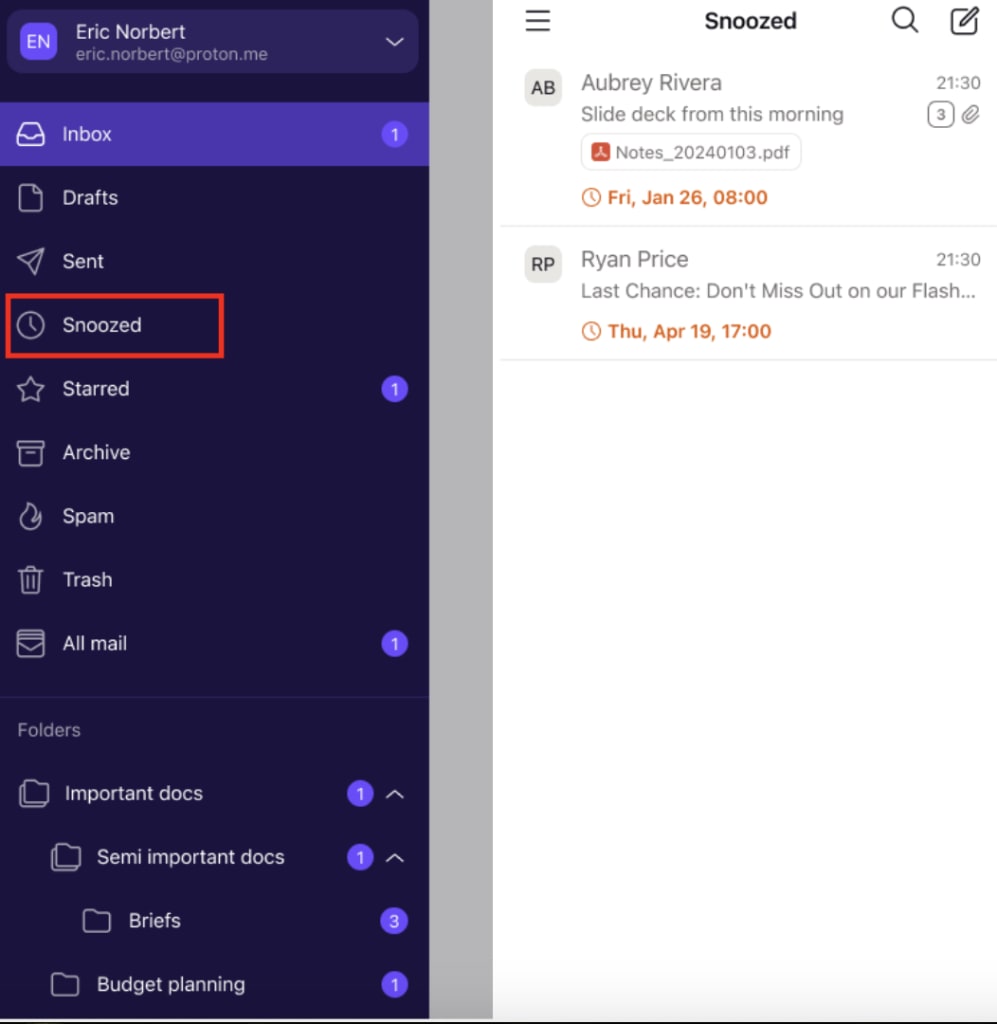
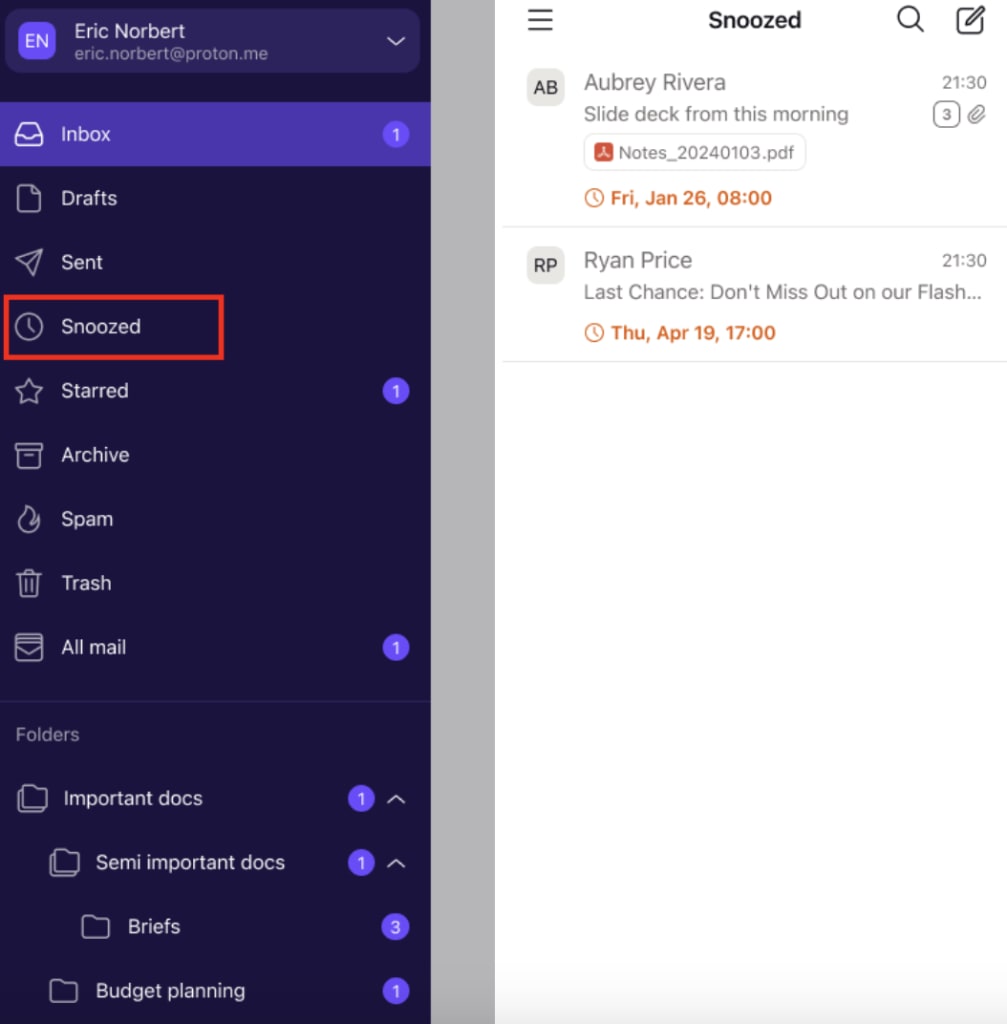
Open het zijmenu en ga naar de Snoozed-map. E-mails die u heeft gesnoozed, worden hier weergegeven met het exacte tijdstip waarop u een melding ontvangt.
Een gesnoozed bericht annuleren
In de Proton Mail web-app
1. Log in bij Proton Mail via mail.proton.me.
2. Ga naar de Snoozed-map, selecteer een e-mail in uw Postvak in of beweeg de muis eroverheen en klik op het Snooze icon (een klok) om het snooze-pop-upvenster te openen. Houd er rekening mee dat u momenteel alleen toegang heeft tot deze map via de Proton Mail web-app.
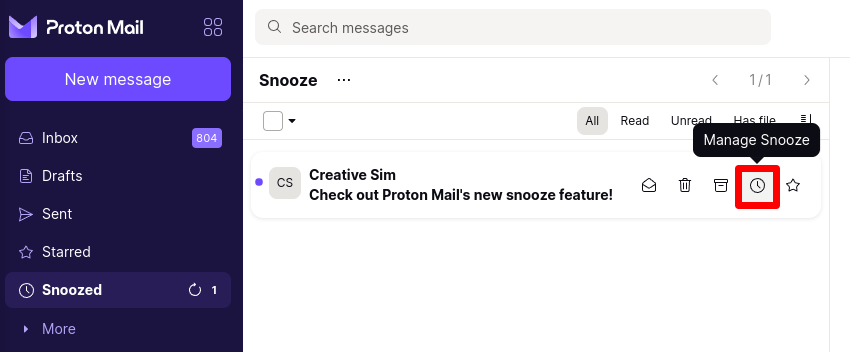
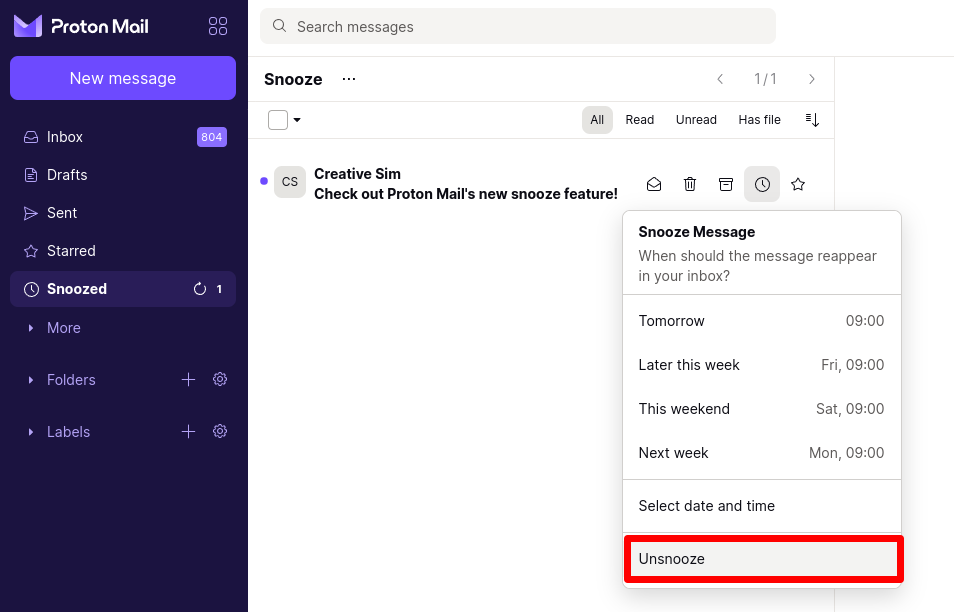
4. Selecteer Unsnooze om een snooze te annuleren, of kies een andere tijd uit de lijst.
In de mobiele apps van Proton Mail
1. Open het zijmenu en ga naar de Snoozed-map. Tik op de e-mail die u wilt ‘unsnoozen’.
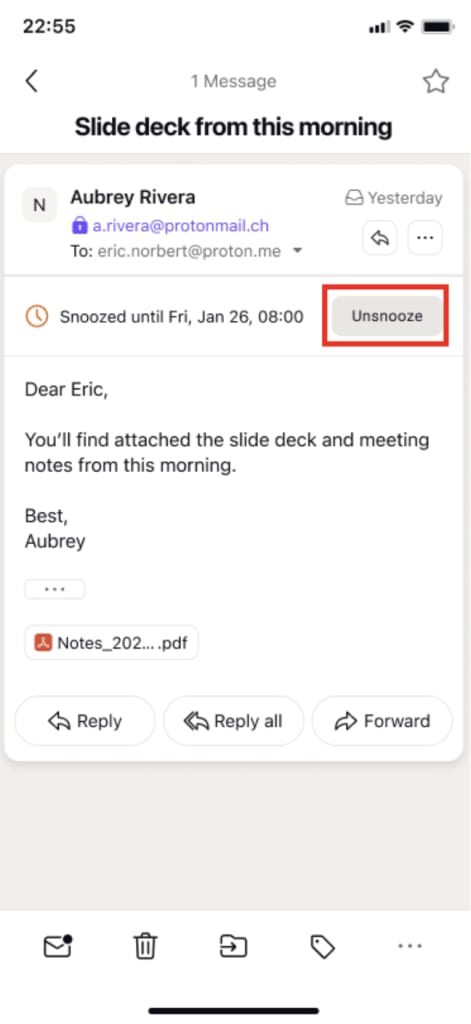
2. Selecteer Unsnooze om een snooze te annuleren.
Veelgestelde vragen
Als u het Snooze-pictogram niet kunt vinden in de Proton Mail web- of desktop-apps, zorg er dan voor dat u zich in de map Postvak in bevindt. U moet ook controleren of gespreksgroepering is ingeschakeld onder Instellingen → Berichten en opstellen → Berichten → Gesprek groeperen.
U kunt e-mails alleen snoozen via de Proton Mail web- en mobiele apps. U ontvangt echter wel een melding in onze web- en mobiele apps, of uw desktopclient die gesynchroniseerd is met Proton Bridge.
Het verplaatsen van een gesnoozed e-mail naar een andere map zal de snooze-functie annuleren. U wordt gewaarschuwd wanneer u dit probeert te doen.