
Protection renforcée contre les traqueurs de messages
- Lecture
- 4 minutes
- Catégorie
- Recevoir et lire des messages
Sur Proton Mail, la fonctionnalité Bloquer le suivi des messages vous protège des pixels espions sur le web, iOS, iPadOS et Android. Sur l’application web, elle retire également les traqueurs connus des liens présents dans vos e-mails.
- Qu’est-ce que le suivi des messages ?
- Comment fonctionne la protection contre le suivi de Proton Mail
- Gérer les paramètres de protection contre les traqueurs de messages
- Comment savoir si la protection contre les traqueurs fonctionne ?
- Questions et dépannage
Qu’est-ce que le suivi des messages ?
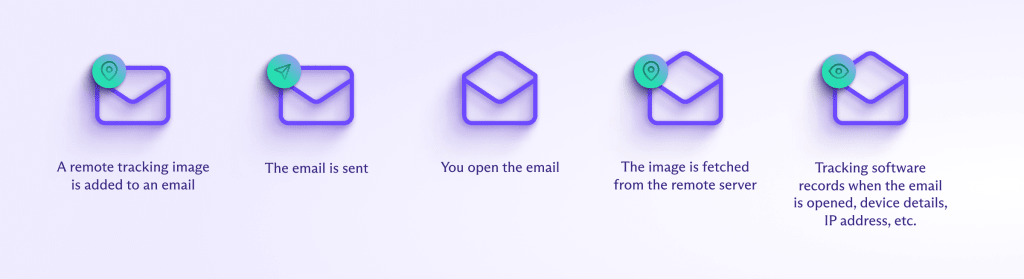
Les entreprises incluent souvent des traqueurs de messages (ou pixels espions) dans leurs newsletters et autres e-mails marketing. Les traqueurs de messages sont conçus pour collecter des informations à votre sujet et peuvent inclure :
- Pixels de suivi : des images invisibles qui informent l’expéditeur lorsque vous ouvrez le message.
- Liens de suivi : des URL qui enregistrent le moment et l’endroit où vous cliquez sur un lien dans le message.
Ces traqueurs peuvent révéler des informations comme votre adresse IP et votre type d’appareil — souvent sans votre consentement.
Comment fonctionne la protection contre le suivi de Proton Mail
Protection contre les pixels espions
Nous retirons les traqueurs de messages connus chaque fois que vous recevez un message qui n’est pas chiffré de bout en bout. Cela permet de masquer votre adresse IP(nouvelle fenêtre) personnelle, les informations sur votre appareil et l’heure exacte à laquelle vous avez ouvert le message.
Nous préchargeons également les autres images distantes pour votre compte en utilisant un proxy avec une adresse IP et une géolocalisation génériques.
Protection contre les liens de suivi (Proton Mail pour le web)
Nous retirons tout Urchin Tracking Module (UTM) connu ou autre paramètre de suivi des URL de vos e-mails. Ainsi, l’expéditeur ne peut pas vous suivre lorsque vous cliquez sur le lien.
Voici un exemple de lien de suivi avant et après nettoyage :

Gérer les paramètres de protection contre les traqueurs de messages
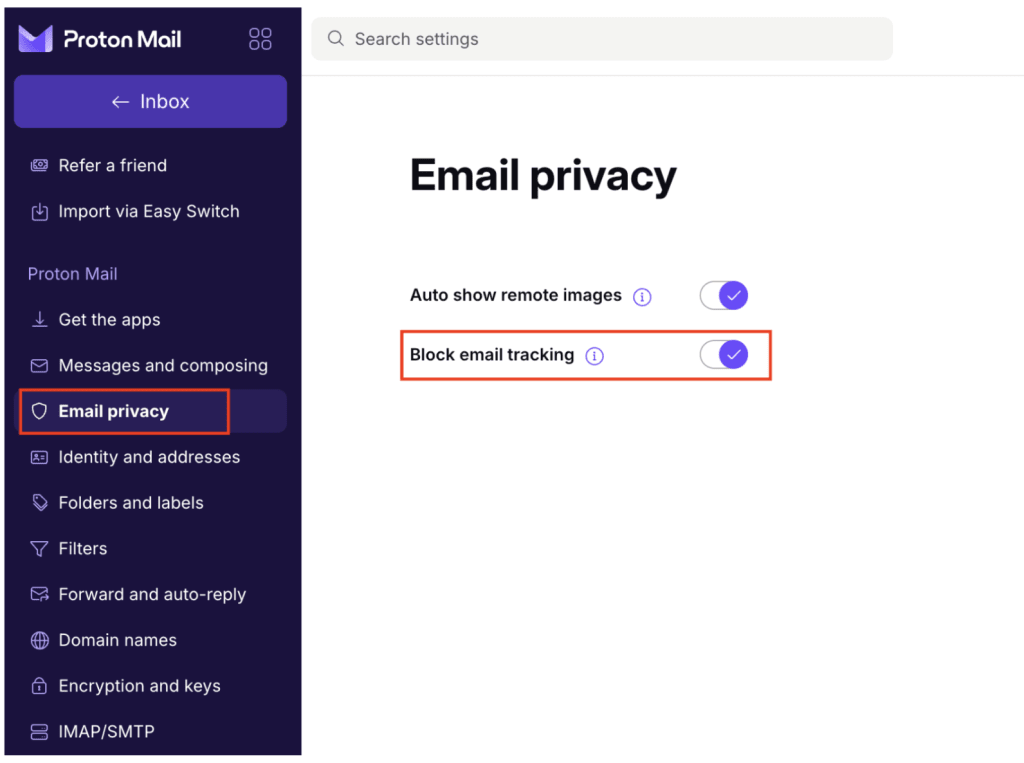
La protection contre le suivi est activée par défaut. Ce paramètre ne se synchronise pas entre vos applications — donc si vous souhaitez la désactiver ou la réactiver, vous devrez le faire sur tous vos appareils.
Applications web et de bureau
- Ouvrez les paramètres de votre compte. Sélectionnez Confidentialité des messages dans la barre latérale.
- Activez ou désactivez Bloquer le suivi des messages.
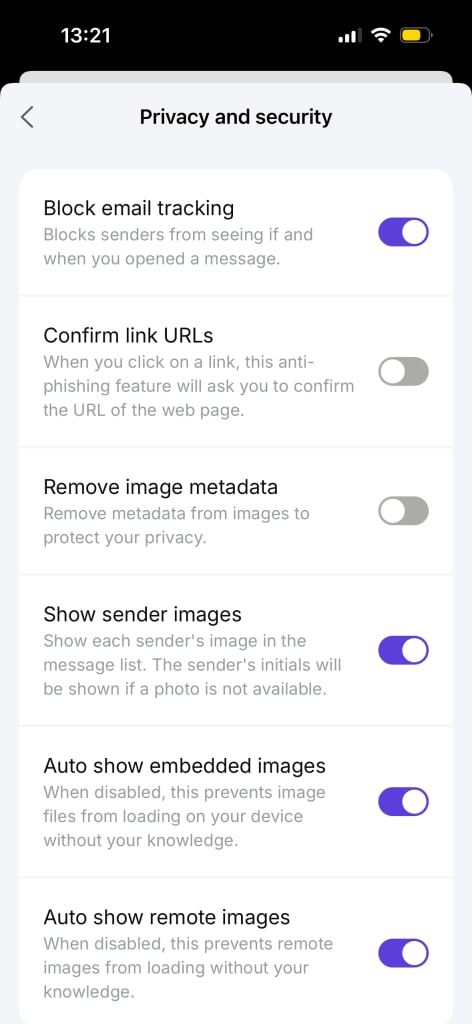
Applications mobiles (Android, iOS)
- Ouvrez les Paramètres.
- Allez dans Vie privée et sécurité.
- Activez ou désactivez Bloquer le suivi des messages.
Comment savoir si la protection contre les traqueurs fonctionne ?
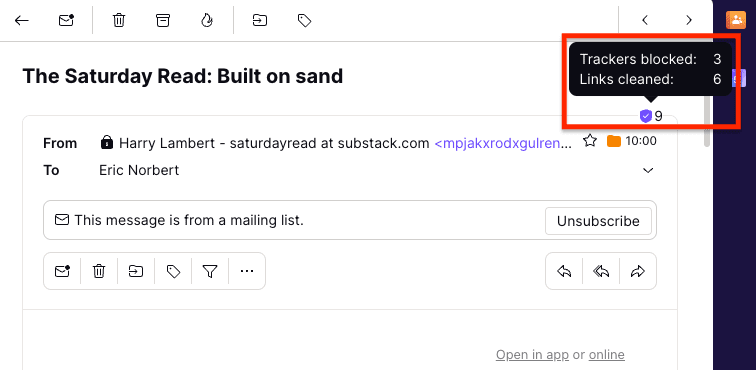
Applications web et de bureau
Lorsque Proton Mail détecte des traqueurs dans un message, vous verrez un badge de protection contre le suivi en haut du message. Le badge vous indique combien de traqueurs ont été bloqués et combien de liens ont été nettoyés.
Mobile (Android, iOS)
Vous pouvez vérifier si des pixels espions ont été trouvés et bloqués dans un message en développant la section des détails. Pour la développer, appuyez sur la flèche vers le bas à côté du champ À : .
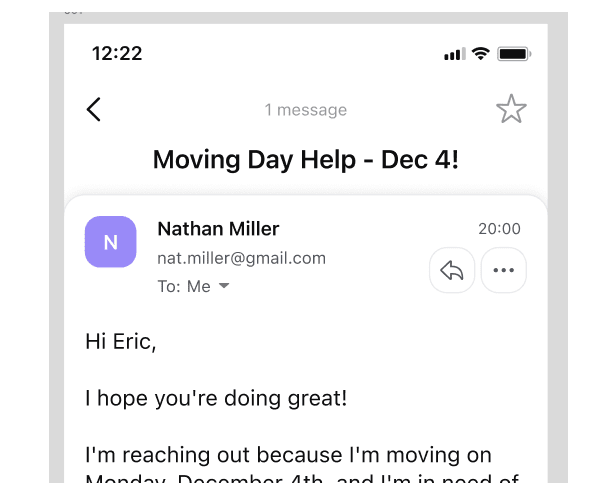
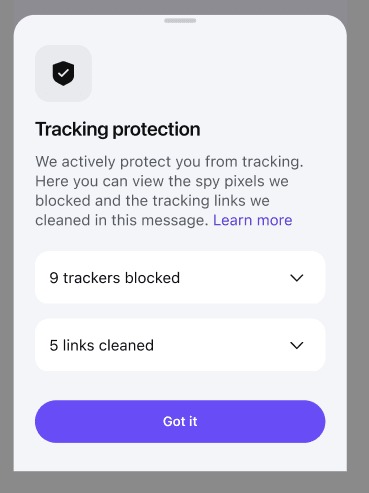
Vous pourrez voir combien de traqueurs ont été bloqués ou de liens ont été nettoyés.

Appuyez sur En savoir plus pour afficher plus de détails sur ce qui a été bloqué.
Questions et dépannage
Pourquoi est-il écrit Aucun lien nettoyé alors que je peux voir des liens avec des paramètres de suivi dans mon message ?
Proton Mail tient à jour une liste de détection des liens et utilise également des listes de blocage open source qui sont continuellement mises à jour. Cependant, de nombreuses entreprises utilisent leurs propres paramètres de suivi, ce qui peut rendre leur détection difficile pour nous.
De plus, retirer les paramètres de suivi d’un lien signifie parfois que celui-ci ne fonctionne plus. Si vous pensez que nous avons manqué certains paramètres de suivi, veuillez le signaler à notre équipe.
Dois-je empêcher le chargement automatique des images distantes ?
Lorsque la protection contre le suivi des messages est activée, vous pouvez charger automatiquement les images distantes en toute sécurité. Cette fonctionnalité a été conçue pour vous permettre d’afficher le contenu des images tout en évitant les traqueurs.
Si vous souhaitez tout de même empêcher le chargement automatique des images, désactivez l’option Afficher automatiquement les images distantes dans vos paramètres de Confidentialité des messages.
En savoir plus sur le chargement des images dans Proton Mail
Comment nous interceptons les traqueurs dans les images sans lire vos messages
Pour vous protéger, nous chargeons désormais les images distantes de vos e-mails sur nos serveurs à leur réception, plutôt qu’au moment où vous les ouvrez.
Cela s’applique aux e-mails qui ne sont pas chiffrés de bout en bout lorsque vous les recevez (ce qui inclut la plupart des newsletters et des e-mails promotionnels).
Les e-mails non chiffrés font déjà l’objet d’une vérification du spam, de l’hameçonnage et des logiciels malveillants à leur réception. Nous avons donc simplement ajouté la protection contre le suivi à ces filtres automatisés existants.
Les e-mails sont ensuite stockés dans votre boîte de réception avec un chiffrement à accès zéro.
En savoir plus sur le chiffrement de bout en bout avec Proton Mail