Accesso tramite codice QR
- Lettura
- 2 minuti
- Categoria
- Reimpostazione della password
Se dimentichi la password del tuo Account Proton ma hai ancora effettuato l’accesso a una delle nostre app, puoi trasferire la tua sessione su un altro dispositivo utilizzando l’accesso con codice QR. Questo ti permette di accedere in sicurezza al tuo Account Proton.
- Una volta effettuato l’accesso, puoi modificare la tua password con la nostra funzionalità di ripristino ad accesso effettuato. Scopri come funziona il ripristino ad accesso effettuato e quali app lo supportano
- Se perdi la password e non hai effettuato l’accesso a Proton, dovrai procedere al recupero dell’account e dei dati. Scopri come funziona il recupero dell’account
Nota: Per usare l’accesso con il codice QR, sul dispositivo deve essere configurato un blocco schermo (impronta digitale, riconoscimento del volto, PIN o codice di accesso).
Se sul dispositivo non è configurato un blocco schermo, l’opzione di accesso con il codice QR non sarà disponibile. Per usare questa funzionalità, occorre prima configurare un blocco schermo sul dispositivo.
Come eseguire l’accesso con un codice QR
Per iniziare, avrai bisogno di:
- Il tuo dispositivo di origine (il dispositivo su cui hai già effettuato l’accesso)
- Il tuo dispositivo Destination (il dispositivo a cui vuoi accedere)
Questa guida utilizza screenshot dell’app Proton Mail per Android. Ma i passaggi sono gli stessi (o simili) in tutte le app e su tutti i dispositivi Proton.
Passaggio 1: Apri il codice QR sul tuo dispositivo di destinazione
- Apri un’app Proton sul dispositivo a cui vuoi accedere.

- Apri il menu di aiuto premendo Aiuto o Hai bisogno di aiuto?.
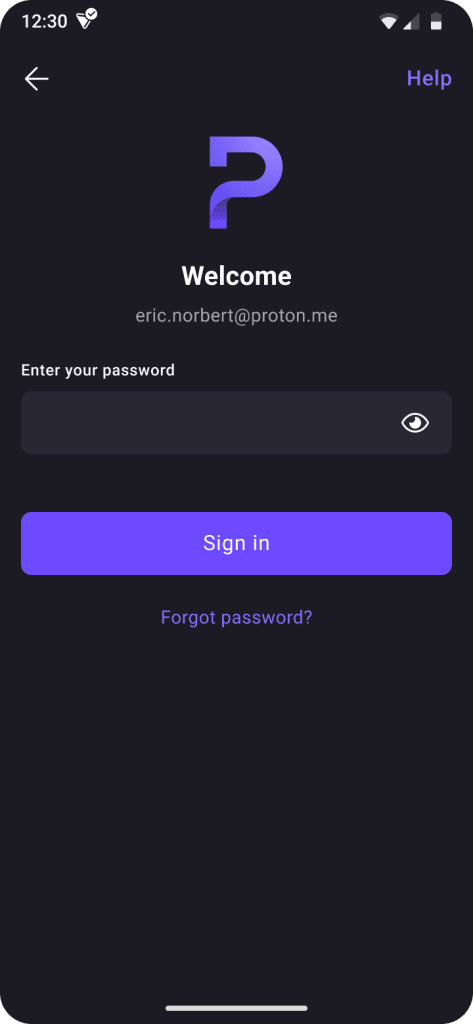
In alcune app, potrebbe essere necessario inserire il proprio indirizzo email e selezionare Continua > Hai dimenticato la password?.
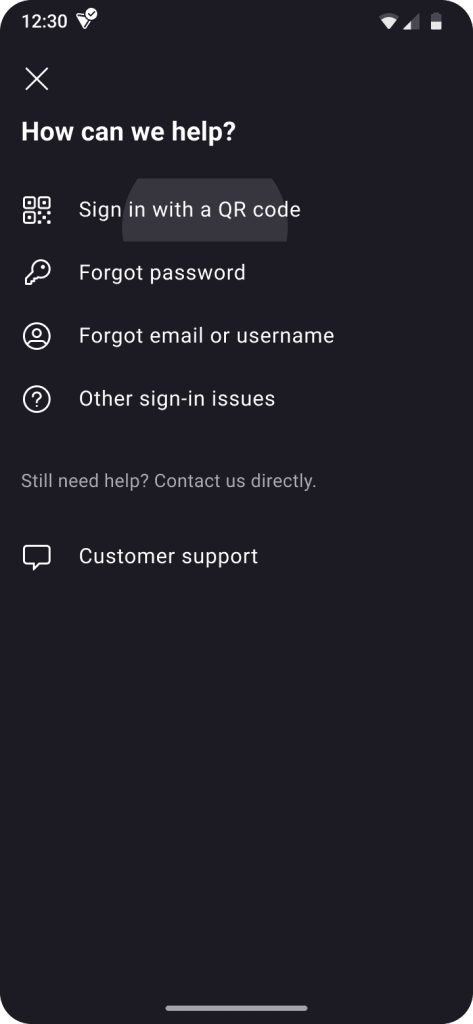
- Seleziona Accedi con un codice QR.
Dovresti vedere un codice QR.
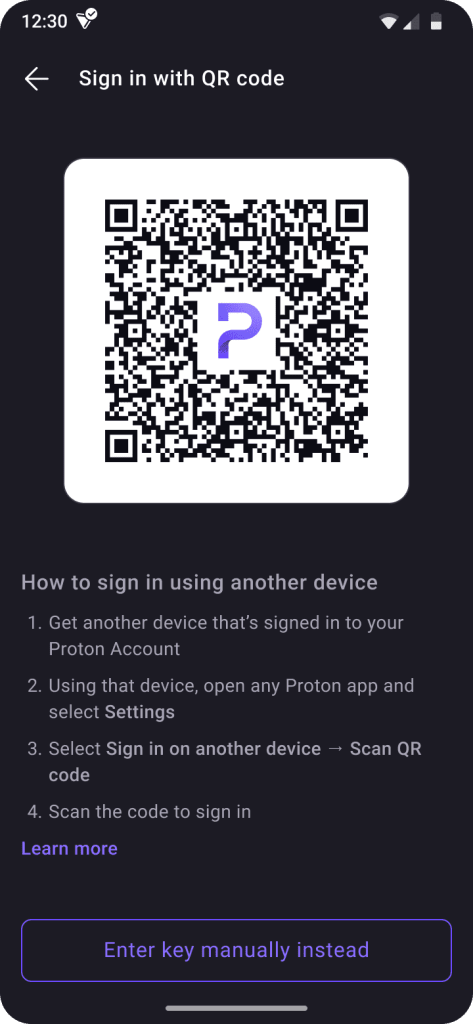
Se il tuo dispositivo non ha una webcam, seleziona Inserisci invece la chiave manualmente. Questo farà apparire un codice che potrai inserire manualmente.

Step 2: Scansiona il codice con il tuo dispositivo
- Utilizzando il tuo dispositivo, apri una qualsiasi App Proton a cui hai effettuato l’accesso.
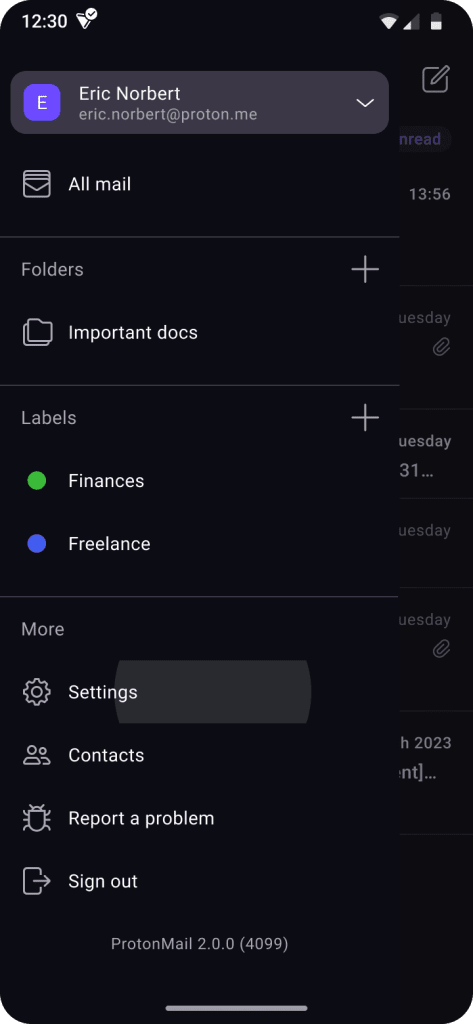
2. Apri il Menu Impostazioni dell’App e seleziona Accedi su un altro dispositivo.

Nella maggior parte delle App, puoi aprire le Impostazioni selezionando il tuo Avatar, oppure aprendo la barra laterale e selezionando Impostazioni.
3. Seleziona Scansiona il codice QR.

- Autentica utilizzando la tua impronta digitale, il riconoscimento facciale o il PIN.
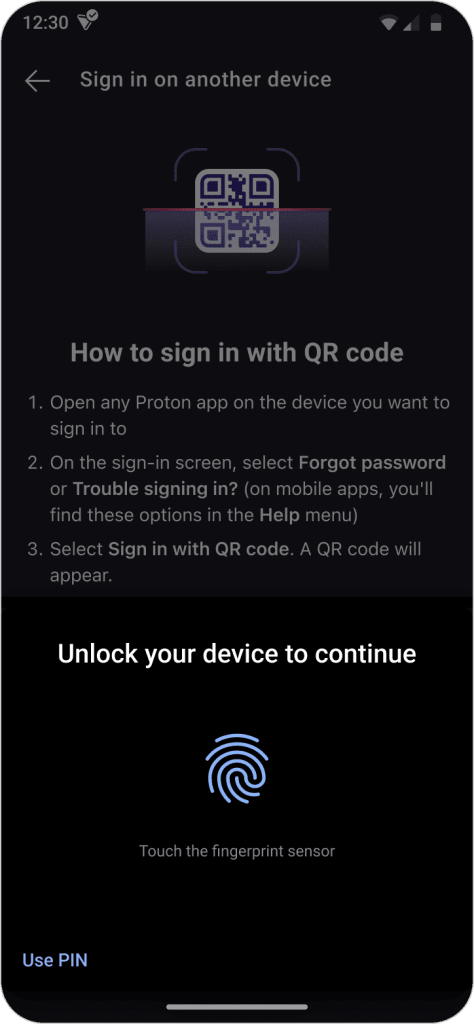
Potrebbe esserti chiesto di consentire a Proton di accedere alla tua webcam.
5. Scansiona il codice QR.
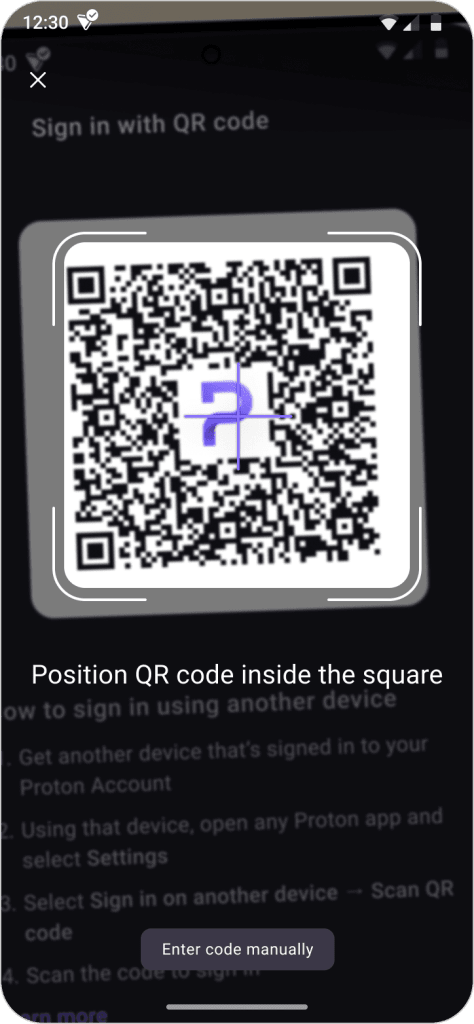
Se il tuo dispositivo di origine non ha una webcam, premi Inserisci il codice manualmente e inserisci il codice.
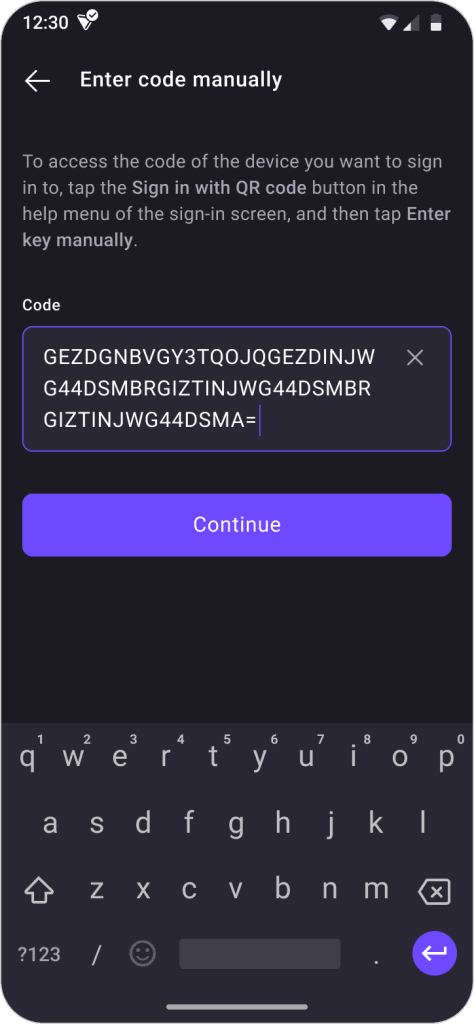
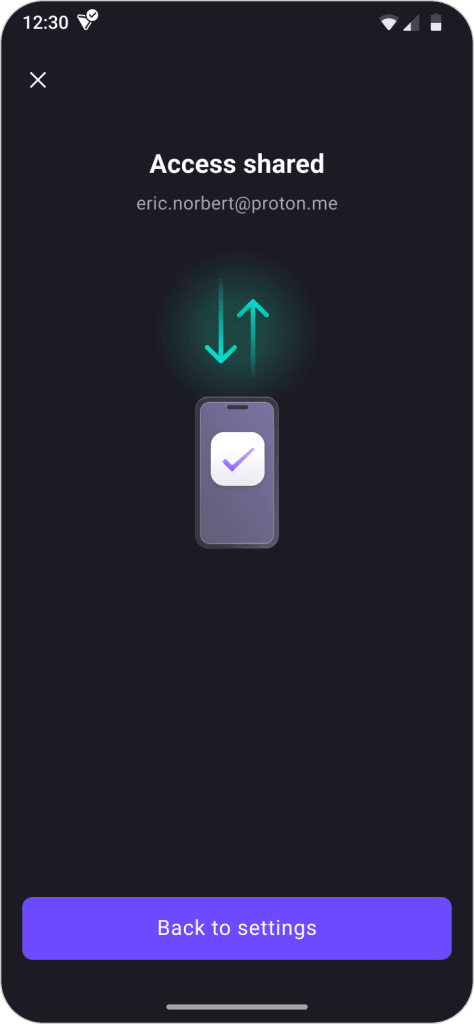
Fatto. Ora hai effettuato l’accesso a Proton sul tuo dispositivo di destinazione. Vedrai anche una conferma sul tuo dispositivo di origine.