
Lumo 메모리
- 읽기
- 0분
- 카테고리
- Lumo AI
메모리를 활성화하면 Lumo AI가 귀하와의 대화에서 학습하여 시간이 지남에 따라 더 관련성 높고 개인화된 답변을 제공할 수 있습니다.
Lumo가 보존하는 정보에는 귀하가 선호하는 어조, 글쓰기 스타일, 반복되는 주제 또는 Lumo가 기억하기를 원하는 기타 세부사항이 포함되며, 이는 저장된 메모리로 저장됩니다. 저장된 메모리는 대화에서 생성되거나 수동으로 추가될 수 있습니다. 그런 다음 Lumo는 이 정보를 사용하여 향후 세션 전체에서 답변을 맞춤 설정하므로, 귀하는 같은 말을 반복하는 시간을 줄이고 유용한 답변을 얻는 데 더 많은 시간을 할 수 있습니다.
메모리는 무료 및 유료 플랜을 사용하는 모든 Lumo 사용자에게 제공되지만, 이 기능을 사용하려면 Proton 계정이 필요합니다. 귀하는 항상 Lumo가 기억하는 내용을 완전히 제어할 수 있으며, 메모리는 제로 액세스로 암호화됩니다.
이 문서에서는 다음 내용을 다룹니다:
- 메모리 작동 방식
- 메모리 활성화하기
- 메모리 비활성화하기
- Lumo가 메모리를 자동으로 업데이트하지 못하도록 중지하기
- 대화에서 메모리 생성하기
- 사용자 지정 메모리 추가하기
- 저장된 메모리 관리하기
메모리 작동 방식
Lumo는 자동 생성된 메모리와 사용자 지정 메모리라는 두 가지 유형의 저장된 메모리를 저장합니다. 자동 생성된 메모리는 자동으로 또는 귀하가 과거 대화에서 메모리를 생성하도록 선택할 때 대화에서 생성됩니다. 사용자 지정 메모리는 선호하는 어조, 글쓰기 스타일 또는 반복되는 설정과 같이 귀하가 직접 추가하는 세부사항입니다.
저장된 모든 메모리는 Lumo의 메모리 설정에 있는 저장된 메모리 섹션에 표시됩니다. 귀하가 메모리를 편집하면 Lumo는 앞으로 업데이트된 버전을 사용합니다. 메모리를 삭제하면 Lumo는 향후 답변에서 해당 메모리를 더 이상 사용하지 않습니다.
메모리 활성화
1. lumo.proton.me(새 창) 로 이동하거나 Lumo 모바일 앱을 열고, 귀하의 Proton 계정으로 로그인합니다.
2. 설정 열기:
- 웹: 왼쪽 하단 모서리에 있는 설정 (⚙) 아이콘을 클릭합니다.
- 모바일: 메뉴 아이콘 (☰)을 누른 다음 설정(⚙)을 누릅니다.
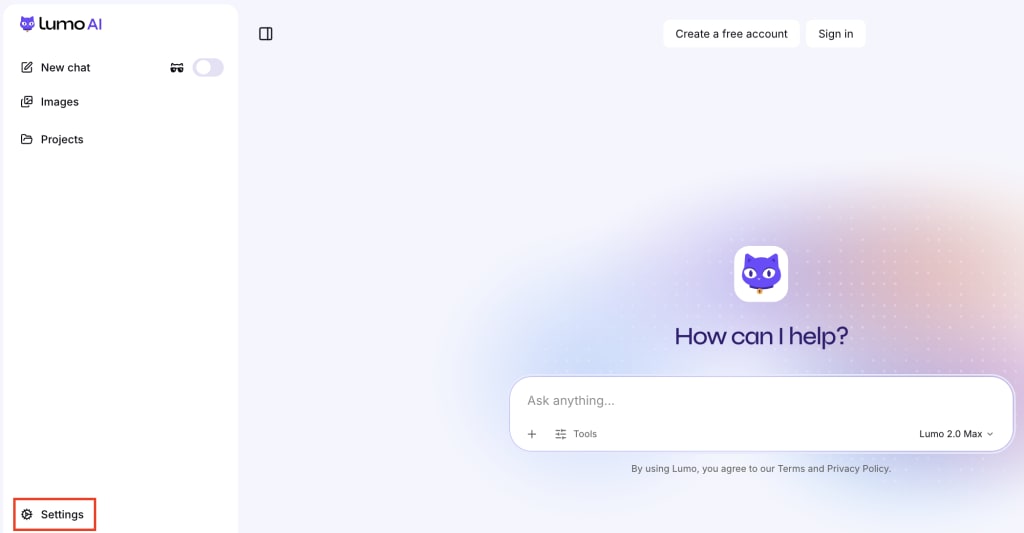
3. 사이드바에서 메모리를 선택한 다음 메모리 켜기를 선택합니다.

이제 메모리가 활성화되었습니다. Lumo는 귀하의 설정과 대화를 기반으로 정보를 보존하고, 이를 사용하여 귀하의 경험을 개인화합니다.
메모리 비활성화
1. lumo.proton.me(새 창) 로 이동하거나 Lumo 모바일 앱을 열고, 귀하의 Proton 계정으로 로그인합니다.
2. 설정 열기:
- 웹: 왼쪽 하단 모서리에 있는 설정 (⚙) 아이콘을 클릭합니다.
- 모바일: 메뉴 아이콘 (☰)을 누른 다음 설정(⚙)을 누릅니다.
3. 사이드바에서 메모리를 선택한 다음 끄기를 선택합니다.

이제 메모리가 비활성화되었습니다. Lumo는 더 이상 귀하에 대한 정보를 보존하지 않습니다.
Lumo가 메모리를 자동으로 업데이트하지 못하도록 중지하기
Lumo는 기본적으로 메모리를 자동으로 업데이트합니다. 다음 단계에 따라 이 기능을 끌 수 있습니다:
1. lumo.proton.me(새 창) 로 이동하거나 Lumo 모바일 앱을 열고, 귀하의 Proton 계정으로 로그인합니다.
2. 설정 열기:
- 웹: 왼쪽 하단 모서리에 있는 설정 (⚙) 아이콘을 클릭합니다.
- 모바일: 메뉴 아이콘 (☰)을 누른 다음 설정(⚙)을 누릅니다.
3. 사이드바에서 메모리를 선택합니다. 메모리 자동 업데이트 스위치를 꺼짐으로 전환합니다. 언제든지 다시 켤 수 있습니다.
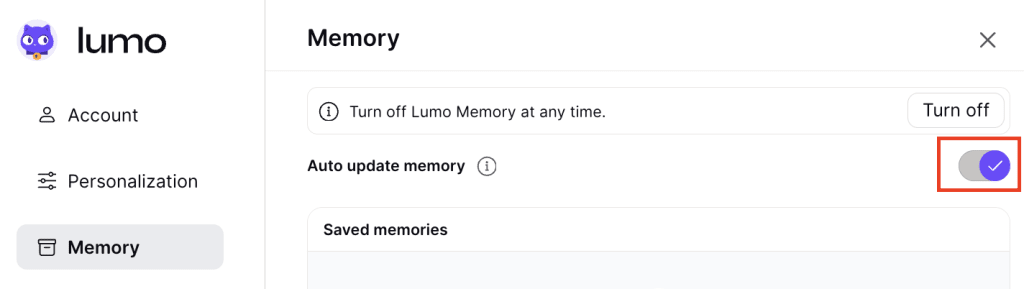
이제 Lumo는 답변에 기존에 저장된 메모리만 사용하며 더 이상 새로운 정보를 자동으로 추가하지 않습니다.
대화에서 메모리 생성
1. lumo.proton.me(새 창) 로 이동하거나 Lumo 모바일 앱을 열고, 귀하의 Proton 계정으로 로그인합니다.
2. 설정 열기:
- 웹: 왼쪽 하단 모서리에 있는 설정 (⚙) 아이콘을 클릭합니다.
- 모바일: 메뉴 아이콘 (☰)을 누른 다음 설정(⚙)을 누릅니다.
3. 사이드바에서 메모리를 선택합니다. 저장된 메모리 아래에서 대화에서 생성 버튼을 선택합니다.
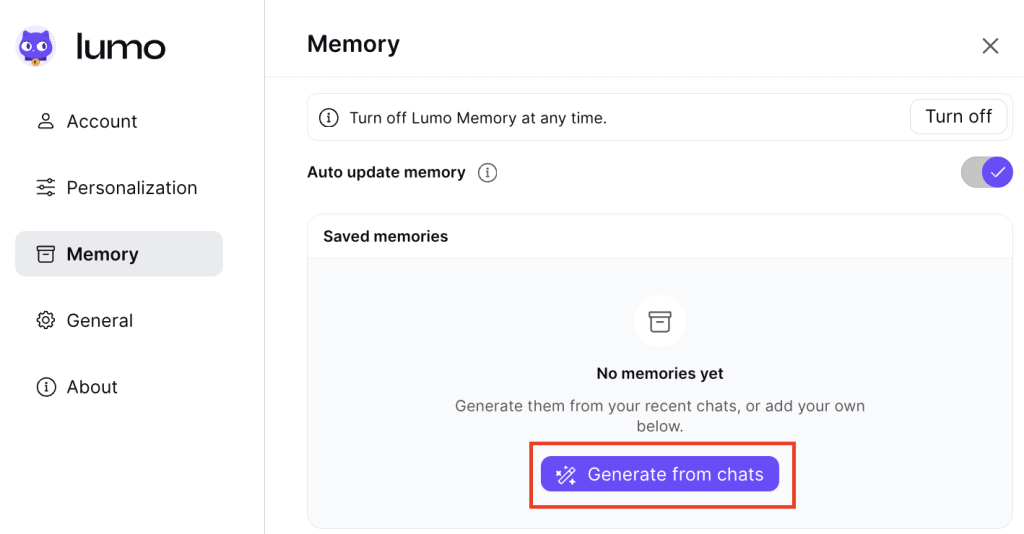
완료되면 귀하의 대화 기록에서 생성된 저장된 메모리 목록이 표시됩니다.
사용자 지정 메모리 추가
대화에서 메모리를 생성하는 것 외에도 Lumo가 기억하기를 원하는 특정 정보를 추가할 수도 있습니다.
1. lumo.proton.me(새 창) 로 이동하거나 Lumo 모바일 앱을 열고, 귀하의 Proton 계정으로 로그인합니다.
2. 설정 열기:
- 웹: 왼쪽 하단 모서리에 있는 설정 (⚙) 아이콘을 클릭합니다.
- 모바일: 메뉴 아이콘 (☰)을 누른 다음 설정(⚙)을 누릅니다.
3. 사이드바에서 메모리를 선택합니다. 자신만의 메모리 추가 아래의 텍스트 상자에 원하는 메모리를 입력한 다음 추가를 선택합니다.
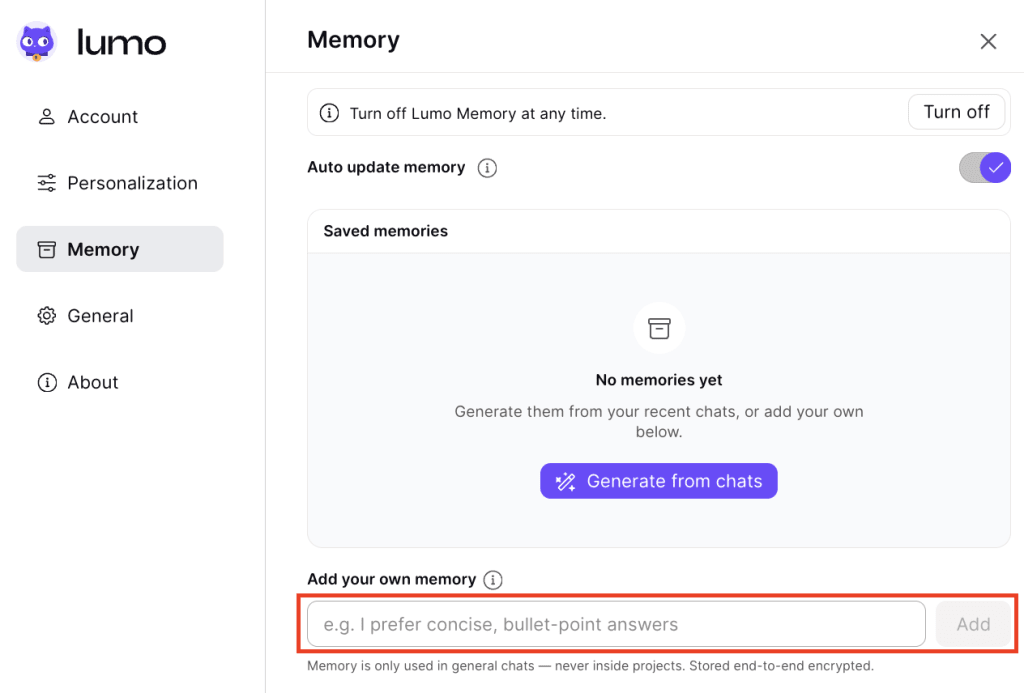
귀하가 새로 추가한 메모리는 저장된 메모리 아래에 표시됩니다.

저장된 메모리를 편집하려면 🖊️ 메모리 편집 아이콘을 선택합니다. 편집을 완료하면 ✔ 아이콘을 클릭하여 변경 사항을 저장합니다.
저장된 메모리 관리
1. lumo.proton.me(새 창) 로 이동하거나 Lumo 모바일 앱을 열고, 귀하의 Proton 계정으로 로그인합니다.
2. 설정 열기:
- 웹: 왼쪽 하단 모서리에 있는 설정 (⚙) 아이콘을 클릭합니다.
- 모바일: 메뉴 아이콘 (☰)을 누른 다음 설정(⚙)을 누릅니다.
3. 사이드바에서 메모리를 선택한 다음 저장된 메모리로 스크롤합니다.
여기에서 다음을 수행할 수 있습니다.
- 메모리 편집: 메모리 편집(🖊️)을 선택합니다. 편집을 완료하면 ✔ 아이콘을 클릭하여 변경 사항을 저장합니다.
- 개별 메모리 삭제: 삭제하려는 메모리를 찾아 메모리 삭제(🗑️)를 선택합니다 .

- 자동 생성된 모든 메모리 삭제: 자동 생성 비우기를 선택합니다.
- 자동 생성 및 사용자 지정 메모리 전체 삭제: 전체 비우기를 선택합니다.

- 기존 메모리 최적화: 더보기 버튼(…)을 클릭한 후 메모리 최적화를 선택하세요.
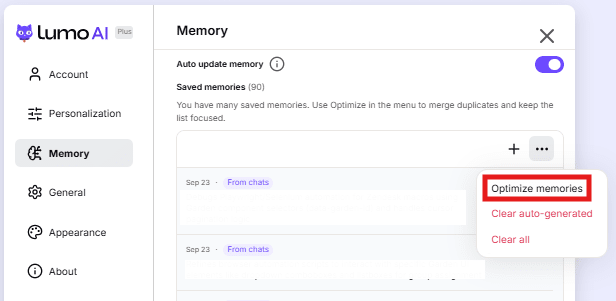
이 기능은 자동 생성된 메모리를 요약하고 중복 항목을 삭제하여 하나로 정리합니다. 사용자 지정 메모리는 영향을 받지 않습니다.
참고: 이 옵션은 기본적으로 숨겨져 있습니다. 계정에 자동 생성된 메모리가 아주 많은 경우에만 표시됩니다.