
Lumo Memory
- Reading
- 4 mins
- Category
- Lumo AI
When you enable Memory, Lumo AI can learn from your conversation and give you more relevant, personalized responses over time.
The information Lumo retains includes things like your preferred tone, writing style, recurring topics, or any other details you want Lumo to remember, and are stored as saved memories. Saved memories may be generated from chats or added manually. Lumo then uses this information to tailor its responses across future sessions, so you spend less time repeating yourself and more time getting useful answers.
Memory is available to all Lumo users on both free and paid plans, but you’ll need a Proton Account to use this feature. You have full control over what Lumo remembers at all times, and memories are zero-access encrypted.
In this article, we’ll cover:
- How Memory works
- Enable Memory
- Disable Memory
- Stop Lumo from automatically updating its Memory
- Generate memories from chats
- Add custom memories
- Manage saved memories
How Memory works
Lumo stores two kinds of saved memories: Auto-generated memories and custom memories. Auto-generated memories are created from your chats, either automatically or when you choose to generate memories from past chats. Custom memories are details you add yourself, such as a preferred tone, writing style, or recurring preference.
All saved memories appear in the Saved memories section under Lumo’s Memory settings. If you edit a memory, Lumo will use the updated version going forward. If you delete a memory, Lumo will stop using it in future responses.
Enable Memory
1. Go to lumo.proton.me(new window) or open the Lumo mobile app, and sign in to your Proton Account.
2. Open Settings:
- Web: Click the Settings (⚙) icon in the bottom-left corner.
- Mobile: Tap the Menu icon (☰), then tap Settings (⚙).
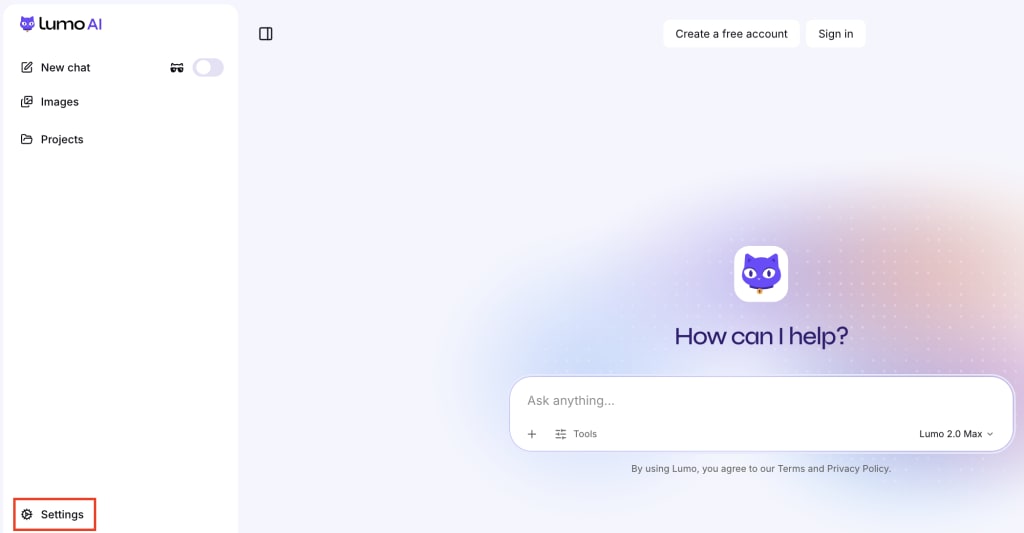
3. Select Memory from the sidebar, then select Turn on memory.

Memory is now enabled. Lumo will retain information based on your preferences and chats, and use it to personalize your experience.
Disable Memory
1. Go to lumo.proton.me(new window) or open the Lumo mobile app, and sign in to your Proton Account.
2. Open Settings:
- Web: Click the Settings (⚙) icon in the bottom-left corner.
- Mobile: Tap the Menu icon (☰), then tap Settings (⚙).
3. Select Memory from the sidebar, then select Turn off.

Memory is now disabled. Lumo will no longer retain information about you.
Stop Lumo from automatically updating its Memory
Lumo will automatically update its Memory by default. You can toggle it off by following these steps:
1. Go to lumo.proton.me(new window) or open the Lumo mobile app, and sign in to your Proton Account.
2. Open Settings:
- Web: Click the Settings (⚙) icon in the bottom-left corner.
- Mobile: Tap the Menu icon (☰), then tap Settings (⚙).
3. Select Memory from the sidebar. Turn the Auto update Memory switch Off. You can turn it back on at any time.
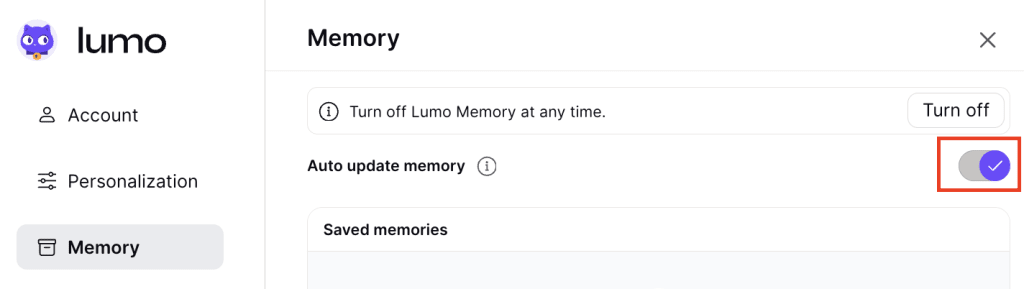
Lumo will now only use its existing saved memories in responses and will no longer automatically add new information.
Generate memories from chats
1. Go to lumo.proton.me(new window) or open the Lumo mobile app, and sign in to your Proton Account.
2. Open Settings:
- Web: Click the Settings (⚙) icon in the bottom-left corner.
- Mobile: Tap the Menu icon (☰), then tap Settings (⚙).
3. Select Memory from the sidebar. Under Saved memories, select the Generate from chat button.
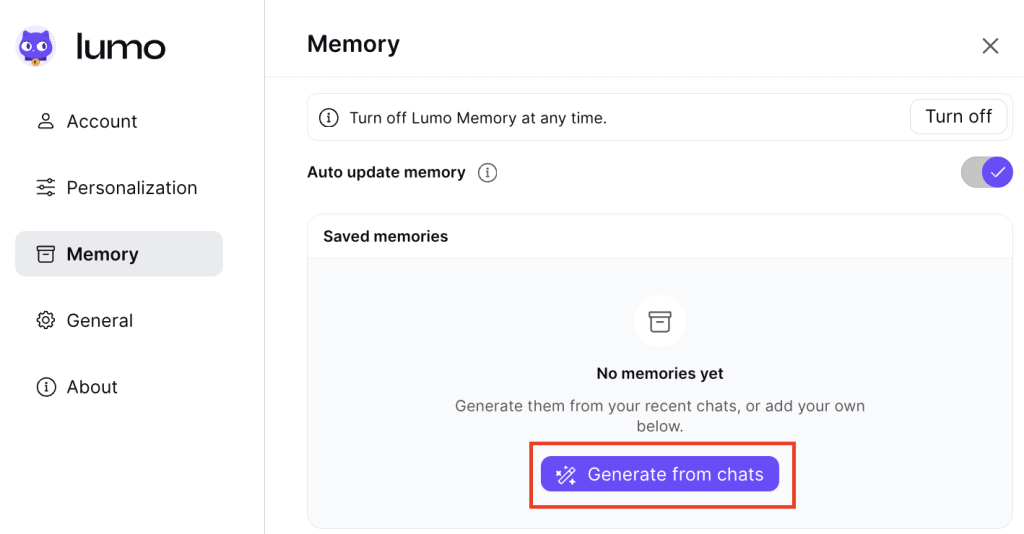
Once completed, you’ll see a list of saved memories created from your chat history.
Add custom memories
Besides generating memories from chats, you can also add specific information you want Lumo to remember.
1. Go to lumo.proton.me(new window) or open the Lumo mobile app, and sign in to your Proton Account.
2. Open Settings:
- Web: Click the Settings (⚙) icon in the bottom-left corner.
- Mobile: Tap the Menu icon (☰), then tap Settings (⚙).
3. Select Memory from the sidebar. Under Add your own memory, type the memory you want in the text box, then select Add.
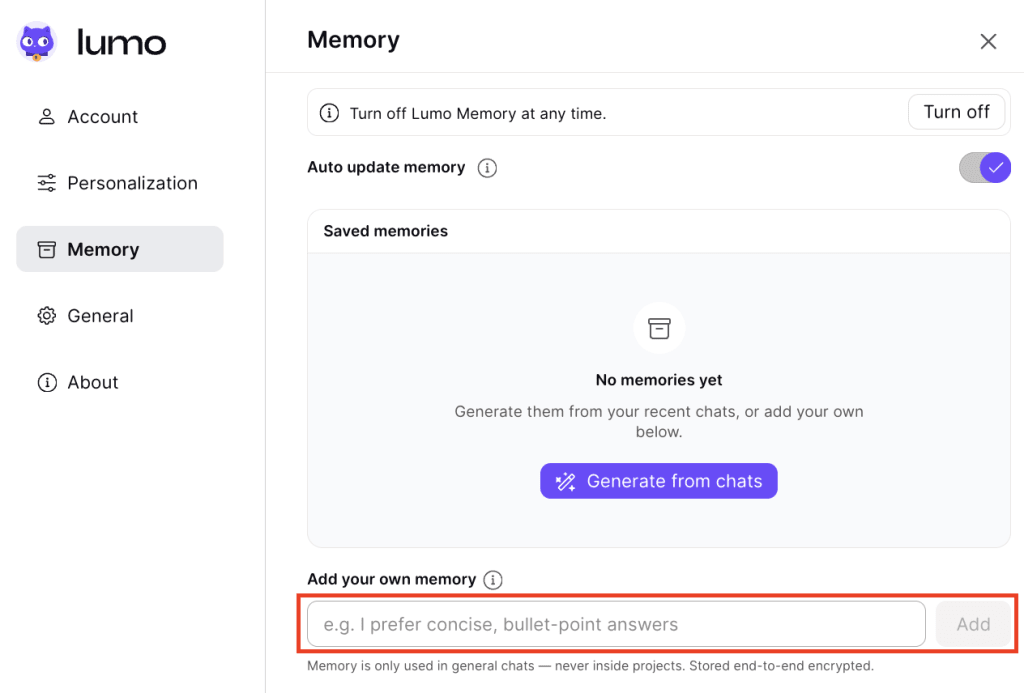
Your newly-added Memory will appear under Saved memories.

To edit a saved Memory, select the 🖊️ Edit memory icon. Once you’re done editing, click the ✔ icon to save your changes.
Manage saved memories
1. Go to lumo.proton.me(new window) or open the Lumo mobile app, and sign in to your Proton Account.
2. Open Settings:
- Web: Click the Settings (⚙) icon in the bottom-left corner.
- Mobile: Tap the Menu icon (☰), then tap Settings (⚙).
3. Select Memory from the sidebar, then scroll to Saved memories.
From here you can:
- Edit a Memory: Select Edit memory (🖊️). Once you’re done editing, click the ✔ icon to save your changes.
- Delete an individual Memory: Find the memory you want to delete and select Delete memory (🗑️) .

- Delete all auto-generated memories: Select Clear auto-generated.
- Delete all auto-generated and custom memories: Select Clear all.

- Optimize existing memories: Click on the More button (…) and select Optimize memories.
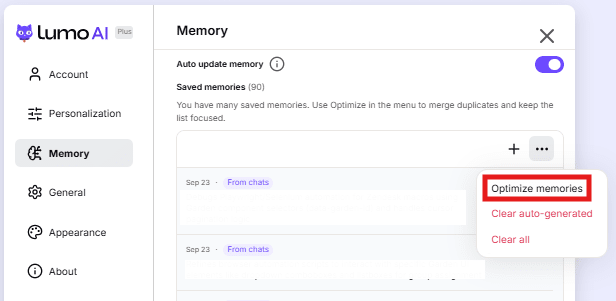
This feature consolidates your auto-generated memories by summarizing them and removing duplicates. Custom memories are not affected.
Note: This option is hidden by default. It appears only if your account has a large number of auto-generated memories.