Nie potrzebujesz skanera, aby zamienić dokumenty papierowe w plik PDF. Najprawdopodobniej masz go już przy sobie: Twój iPhone ma funkcję skanowania dokumentów wbudowaną w kilka aplikacji, w tym Notatki i Pliki. Począwszy od systemu iOS 26, możesz także skanować dokumenty za pomocą aplikacji Podgląd. Niezależnie od wybranej aplikacji, skanowanie dokumentu na iPhonie wymaga zaledwie kilku kliknięć.
Najlepszy sposób skanowania dokumentu zależy głównie od tego, co i po co skanujesz. Paragony i notatki ze spotkań mogą nie zawierać wielu poufnych informacji, ale paszporty, umowy, dokumentacja podatkowa, dokumentacja medyczna, faktury i dokumenty firmowe już tak. W warunkach biznesowych wyciek kopii nie tylko naraża Ciebie, ale może również naruszyć poufność danych klientów, warunki umowy dotyczące przetwarzania danych lub pociągnąć Twoją organizację do odpowiedzialności prawnej.
W przypadku poufnych dokumentów Proton Drive pozwala na skanowanie i zapisywanie bezpośrednio w zaszyfrowanej end-to-end przestrzeni dyskowej w chmurze, a następnie bezpieczne udostępnianie ich bez przekazywania kopii Big Tech.
- 4 sposoby na zeskanowanie dokumentu na iPhonie
- Jak zeskanować dokument na iPhonie za pomocą aplikacji Notatki
- Jak zeskanować dokument do formatu PDF za pomocą aplikacji Pliki
- Jak zeskanować dokument na iPhonie za pomocą aplikacji Podgląd
- Jak bezpiecznie zeskanować dokument za pomocą Proton Drive
- Czy można zeskanować wiele stron do jednego pliku PDF na iPhonie?
- Wskazówki dotyczące uzyskania wyraźnego skanu dokumentu
- Czy wbudowany w iPhone’a skaner dokumentów jest bezpieczny?
- Skanuj poufne dokumenty za pomocą Proton Drive
4 sposoby na zeskanowanie dokumentu na iPhonie
| Metoda | Najlepsze dla | Konfiguracja | Szyfrowanie |
|---|---|---|---|
| Notatki | Szybkie skanowanie i podpisy | Już na Twoim iPhonie | Standardowe szyfrowanie iCloud; Apple domyślnie posiada klucze |
| Pliki | Tworzenie samodzielnego pliku PDF | Już na Twoim iPhonie | Standardowe szyfrowanie iCloud; Apple domyślnie posiada klucze |
| Podgląd | Skanowanie i praca z plikami PDF | Już na Twoim iPhonie, począwszy od systemu iOS 26 | Standardowe szyfrowanie iCloud, w którym Apple domyślnie posiada klucze, chyba że zapisano w innym miejscu |
| Proton Drive | Bezpieczne skanowanie, przechowywanie i udostępnianie dokumentów | Pobierz darmową aplikację | Zaprojektowane z szyfrowaniem end-to-end, tylko Ty masz klucze |
Jak zeskanować dokument na iPhonie za pomocą aplikacji Notatki
Apple Notes ma wbudowany skaner dokumentów, począwszy od systemu iOS 26. Aby zeskanować dokument:
- Otwórz Notatki i utwórz nową notatkę lub wybierz istniejącą.
- Kliknij przycisk Załącznik, a następnie Skanuj dokumenty.
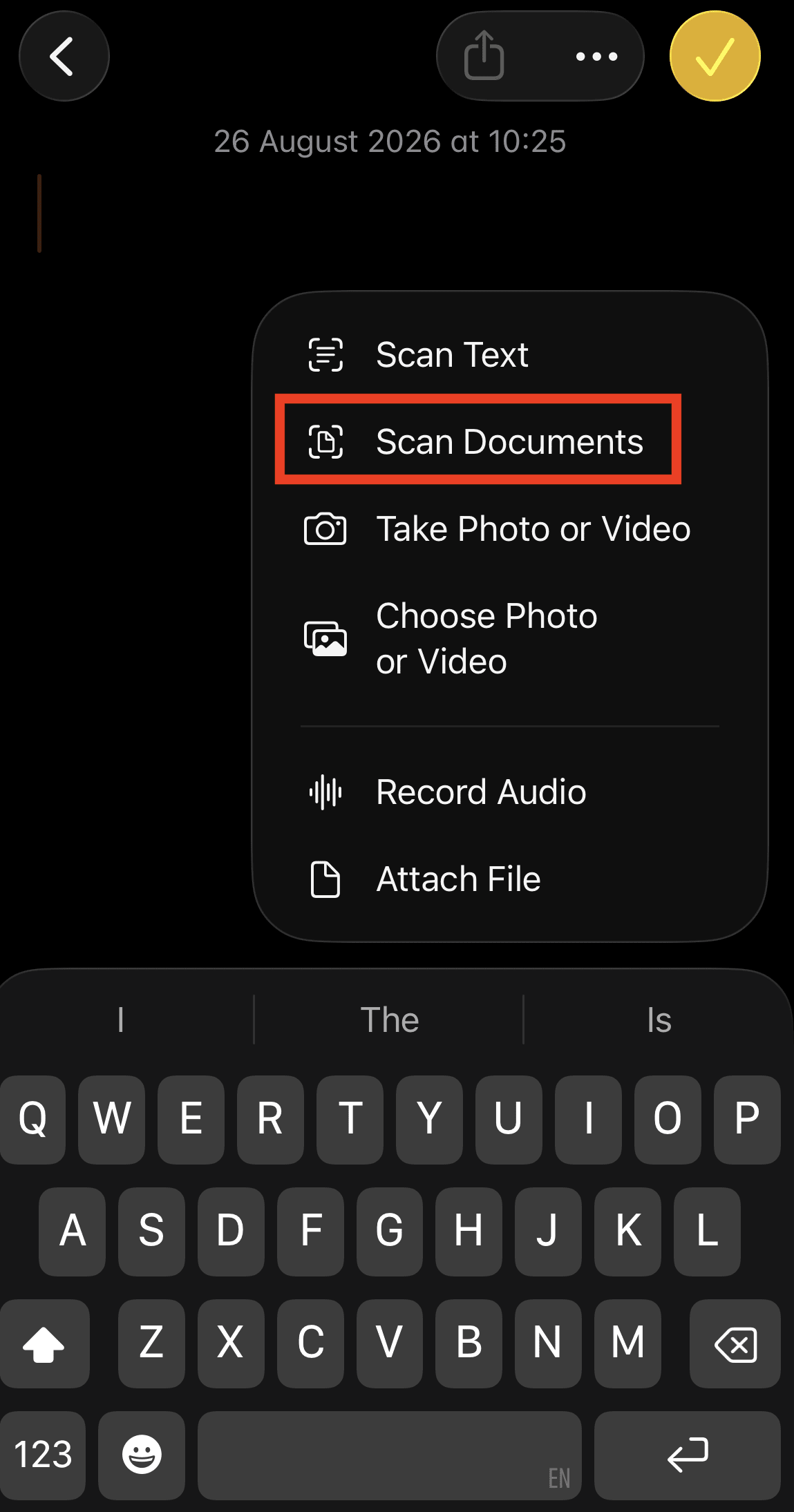
- Pozwól, aby iPhone automatycznie przechwycił stronę, lub przełącz z trybu Automatyczny na Ręczny i kliknij przycisk Migawki. W razie potrzeby dopasuj narożniki i kliknij Zachowaj skan.
- Zeskanuj kolejne strony.
- Kliknij Gotowe. Zeskanowany dokument zostanie zapisany jako plik PDF w notatce.
Jak zeskanować dokument do formatu PDF za pomocą aplikacji Pliki
Aplikacja Pliki to dobra opcja, jeśli chcesz utworzyć plik PDF i zapisać go bezpośrednio w folderze, zamiast przechowywać go w notatce. Aby zeskanować dokument:
- Otwórz Pliki.
- Przejdź do lokalizacji lub folderu, w którym chcesz zapisać skan.
- Kliknij przycisk Więcej (…).
- Wybierz Skanuj dokumenty.
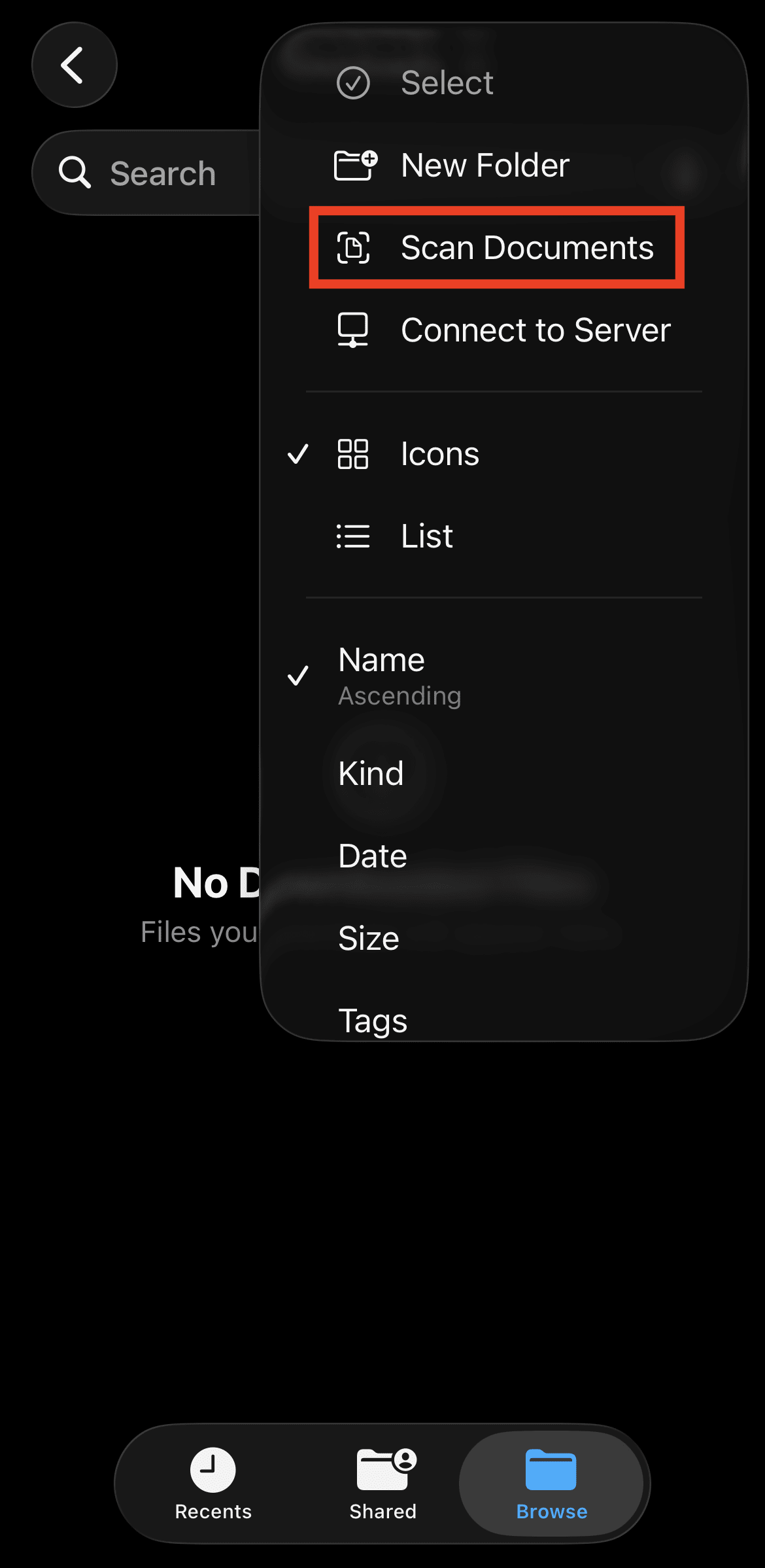
- Pozwól, aby iPhone automatycznie przechwycił stronę, lub przełącz z trybu Automatyczny na Ręczny i kliknij przycisk Migawki. W razie potrzeby dopasuj narożniki i kliknij Zachowaj skan.
- Zeskanuj kolejne strony.
- Kliknij Gotowe, wybierz miejsce docelowe zapisu pliku PDF, a następnie kliknij Zachowaj.
Jak zeskanować dokument na iPhonie za pomocą aplikacji Podgląd
Jeśli korzystasz z systemu iOS 26 lub nowszego, aplikacja Podgląd od Apple tworzy plik PDF, który możesz następnie zmienić nazwę, opatrzyć adnotacjami, wypełnić, podpisać lub udostępnić. Aby zeskanować dokument:
- Otwórz aplikację Podgląd.
- Kliknij Skanuj dokumenty.
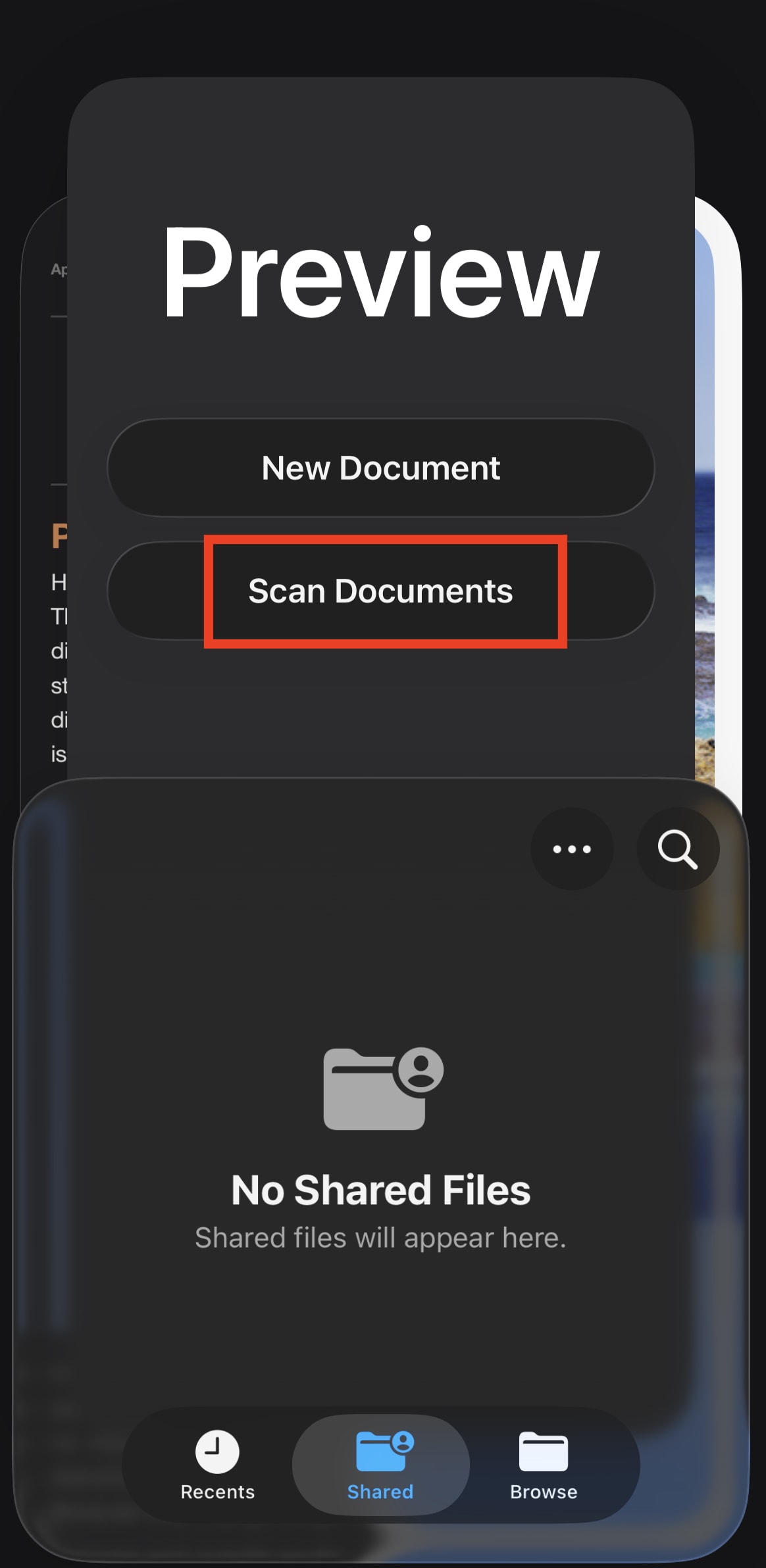
- Pozwól, aby iPhone automatycznie przechwycił stronę, lub przełącz z trybu Automatyczny na Ręczny i kliknij przycisk migawki.
- Zeskanuj kolejne strony. Kliknij miniaturę strony, jeśli chcesz dostosować jej wygląd.
- Kliknij Gotowe.
Jak bezpiecznie zeskanować dokument za pomocą Proton Drive
Skanowanie za pomocą Proton Drive jest szybkie i proste. Strony są wykrywane i przechwytywane automatycznie, a przed zapisaniem możesz je przyciąć, obrócić, nałożyć filtry lub dodać kolejne strony. Aplikacja uzyskuje dostęp wyłącznie do stron, które zdecydujesz się zachować, i do niczego więcej z rolki z aparatu.
Aby zeskanować dokument w Proton Drive:
- Pobierz Proton Drive na iOS.
- Zaloguj się na swoje konto Proton. Możesz zacząć od 5 GB za darmo.
- Przejdź do Pliki i otwórz folder, w którym chcesz zapisać skan.
- Kliknij + w prawym górnym rogu i wybierz Skanuj dokument. Zezwól na dostęp do aparatu, jeśli pojawi się monit.

- Umieść dokument w kadrze. Proton Drive automatycznie wykryje i przechwyci stronę; możesz też przełączyć się na przechwytywanie ręczne.
- Zeskanuj kolejne strony. Możesz powtórzyć lub usunąć skany, zastosować filtry, obrócić strony i dostosować krawędzie dokumentu.
- Kliknij Zapisz. Twój skan zostanie zapisany jako zaszyfrowany end-to-end plik PDF w Proton Drive.
Możesz bezpiecznie przechowywać zeskanowany dokument w zaszyfrowanej end-to-end przestrzeni dyskowej w chmurze, mając pewność, że nikt poza Tobą nie ma do niego dostępu — nawet my. Jeśli zdecydujesz się udostępnić skan innej osobie, możesz zaprosić ją przez e-mail lub utworzyć link do udostępniania z ochroną hasłem i datą wygaśnięcia. Odbiorcy nie potrzebują konta Proton, aby przeglądać lub pobierać udostępnione pliki za pośrednictwem linków, a nawet mogą przesyłać własne pliki do Twojej przestrzeni dyskowej w chmurze.
Czy można zeskanować wiele stron do jednego pliku PDF na iPhonie?
Tak. Aplikacje Notatki, Pliki, Podgląd i Proton Drive umożliwiają przechwytywanie wielu stron podczas tej samej sesji skanowania. Skanuj dalej, aż przechwycisz wszystkie strony, sprawdź je we właściwej kolejności, a następnie zapisz dokument. Twoje strony zostaną połączone w jeden plik PDF.
Wskazówki dotyczące uzyskania wyraźnego skanu dokumentu
Twój iPhone może automatycznie wykrywać, przycinać i prostować dokumenty, ale kilka prostych kroków może pomóc uzyskać czytelniejszy skan:
Ułóż dokument płasko. Zagięcia lub podwinięte krawędzie mogą utrudnić wykrycie strony i zniekształcić tekst.
Użyj jasnego, równomiernego oświetlenia. Cienie mogą zasłaniać tekst i zakłócać automatyczne wykrywanie krawędzi.
Użyj kontrastowego tła. Biała kartka papieru jest łatwiejsza do wykrycia na ciemniejszej powierzchni niż na innej białej powierzchni.
Trzymaj iPhone’a równolegle do strony. Skanowanie pod kątem może zniekształcić dokument.
Sprawdź krawędzie. Złe przycięcie może odciąć tekst, podpisy lub inne ważne szczegóły.
W razie potrzeby użyj filtra. Filtr czarno-biały lub o wysokim kontraście może ułatwić odczytanie wyblakłych dokumentów.
Przejrzyj każdą stronę. Upewnij się, że ważne szczegóły, takie jak nazwiska, numery i podpisy, są widoczne.
Sprawdź gotowy plik PDF. Upewnij się, że każda strona została zapisana, pojawia się we właściwej kolejności i jest czytelna.
Czy wbudowany w iPhone’a skaner dokumentów jest bezpieczny?
W przypadku codziennych dokumentów wbudowane skanery Apple są wygodne. W przypadku bardziej poufnych dokumentów warto zastanowić się, jak gotowy plik jest przechowywany i udostępniany. Skany przechowywane w iCloud Drive lub Notatkach są szyfrowane, ale Apple domyślnie zachowuje klucze szyfrowania, co oznacza, że firma ma do nich dostęp techniczny, m.in. w odpowiedzi na wniosek prawny. Zaawansowana ochrona danych (ADP) od Apple może zlikwidować tę lukę, ale jest domyślnie wyłączona i niedostępna dla wszystkich użytkowników, np. w Wielkiej Brytanii.
Jeśli nie odpowiada Ci myśl, że ktoś inny mógłby przeglądać Twoje skany, warto zamiast tego przejść na domyślnie bezpieczną opcję, taką jak Proton Drive.
Skanuj poufne dokumenty za pomocą Proton Drive
Proton Drive chroni zeskanowane pliki PDF za pomocą szyfrowania end-to-end, co oznacza, że nikt poza Tobą i osobami, którym zdecydujesz się je udostępnić, nie ma dostępu do Twoich poufnych danych – nawet Proton. Możesz także udostępniać dokumenty za pomocą linków chronionych hasłem lub z datą wygaśnięcia oraz łatwo unieważnić dostęp w późniejszym czasie. Jeśli skanujesz w imieniu firmy, nasza przestrzeń dyskowa w chmurze dla firm rozszerza tę samą ochronę na przechowywanie i udostępnianie zespołowe.