कागज़ी दस्तावेज़ों को PDF में बदलने के लिए आपको स्कैनर की ज़रूरत नहीं है। संभव है, आपके पास पहले से एक मौजूद हो: आपके iPhone में डॉक्यूमेंट स्कैनिंग कई ऐप्स में पहले से शामिल है, जिनमें Notes और Files शामिल हैं। iOS 26 से आप दस्तावेज़ों को Preview से भी स्कैन कर सकते हैं। कोई भी ऐप चुनें, iPhone पे डॉक्यूमेंट स्कैन करने में बस कुछ टैप लगते हैं।
डॉक्यूमेंट स्कैन करने का सबसे अच्छा तरीका बड़ी हद तक इस बात पे निर्भर करता है कि आप क्या और क्यों स्कैन कर रहे हैं। रसीदों और मीटिंग नोट्स में ज़्यादा संवेदनशील जानकारी नहीं हो सकती, लेकिन पासपोर्ट, अनुबंध, टैक्स रिकॉर्ड, मेडिकल दस्तावेज़, इनवॉइस और बिज़नेस कागज़ात में हो सकती है। बिज़नेस सेटिंग में, लीक हुई कॉपी सिर्फ आपको ही उजागर नहीं करती; ये क्लाइंट की गोपनीयता का उल्लंघन कर सकती है, किसी अनुबंध की डेटा-हैंडलिंग शर्तों का उल्लंघन कर सकती है, या आपके संगठन के लिए ज़िम्मेदारी पैदा कर सकती है।
संवेदनशील दस्तावेज़ों के लिए, Proton Drive आपको स्कैन करके सीधे शुरु-से-अंत तक एन्क्रिप्ट किए गए क्लाउड स्टोरेज में सेव करने और फिर उन्हें सुरक्षित तरीके से शेयर करने देता है, बिना किसी कॉपी को Big Tech के हवाले किए।
- आपके iPhone पे डॉक्यूमेंट स्कैन करने के 4 तरीके
- Notes का इस्तेमाल करके iPhone पे डॉक्यूमेंट कैसे स्कैन करें
- Files का इस्तेमाल करके डॉक्यूमेंट को PDF में कैसे स्कैन करें
- Preview का इस्तेमाल करके iPhone पे डॉक्यूमेंट कैसे स्कैन करें
- Proton Drive के साथ डॉक्यूमेंट सुरक्षित रूप से कैसे स्कैन करें
- क्या iPhone पे कई पेजों को एक PDF में स्कैन कर सकते हैं?
- साफ डॉक्यूमेंट स्कैन पाने के लिए टिप्स
- क्या iPhone का बिल्ट-इन डॉक्यूमेंट स्कैनर इस्तेमाल करने में सुरक्षित है?
- Proton Drive के साथ संवेदनशील दस्तावेज़ स्कैन करें
आपके iPhone पे डॉक्यूमेंट स्कैन करने के 4 तरीके
| विधि | किसके लिए सबसे अच्छा | सेटअप | एन्क्रिप्शन |
|---|---|---|---|
| नोट्स | क्विक स्कैन और हस्ताक्षर | पहले से आपके iPhone पे मौजूद | स्टैंडर्ड iCloud एन्क्रिप्शन; डिफॉल्ट रूप से की Apple के पास रहती है |
| फ़ाइलें | अलग PDF बनाने के लिए | पहले से आपके iPhone पे मौजूद | स्टैंडर्ड iCloud एन्क्रिप्शन; डिफॉल्ट रूप से की Apple के पास रहती है |
| प्रीव्यू | स्कैन करने और PDFs के साथ काम करने के लिए | पहले से आपके iPhone पे मौजूद, iOS 26 से | स्टैंडर्ड iCloud एन्क्रिप्शन, जिसमें डिफॉल्ट रूप से की Apple के पास रहती है, जब तक कहीं और सेव ना किया जाए |
| Proton Drive | दस्तावेज़ों को सुरक्षित रूप से स्कैन करना, स्टोर करना और शेयर करना | ऐप मुफ़्त डाउनलोड करें | डिज़ाइन से ही शुरु-से-अंत तक एन्क्रिप्ट किया गया, कीज़ सिर्फ आपके पास रहती हैं |
Notes का इस्तेमाल करके iPhone पे डॉक्यूमेंट कैसे स्कैन करें
Apple Notes में एक बिल्ट-इन डॉक्यूमेंट स्कैनर है, iOS 26 से। डॉक्यूमेंट स्कैन करने के लिए:
- Notes खोलें और नया नोट बनाएं या कोई मौजूदा नोट चुनें।
- अटैचमेंट बटन को टैप करें, फिर डॉक्यूमेंट स्कैन करें।
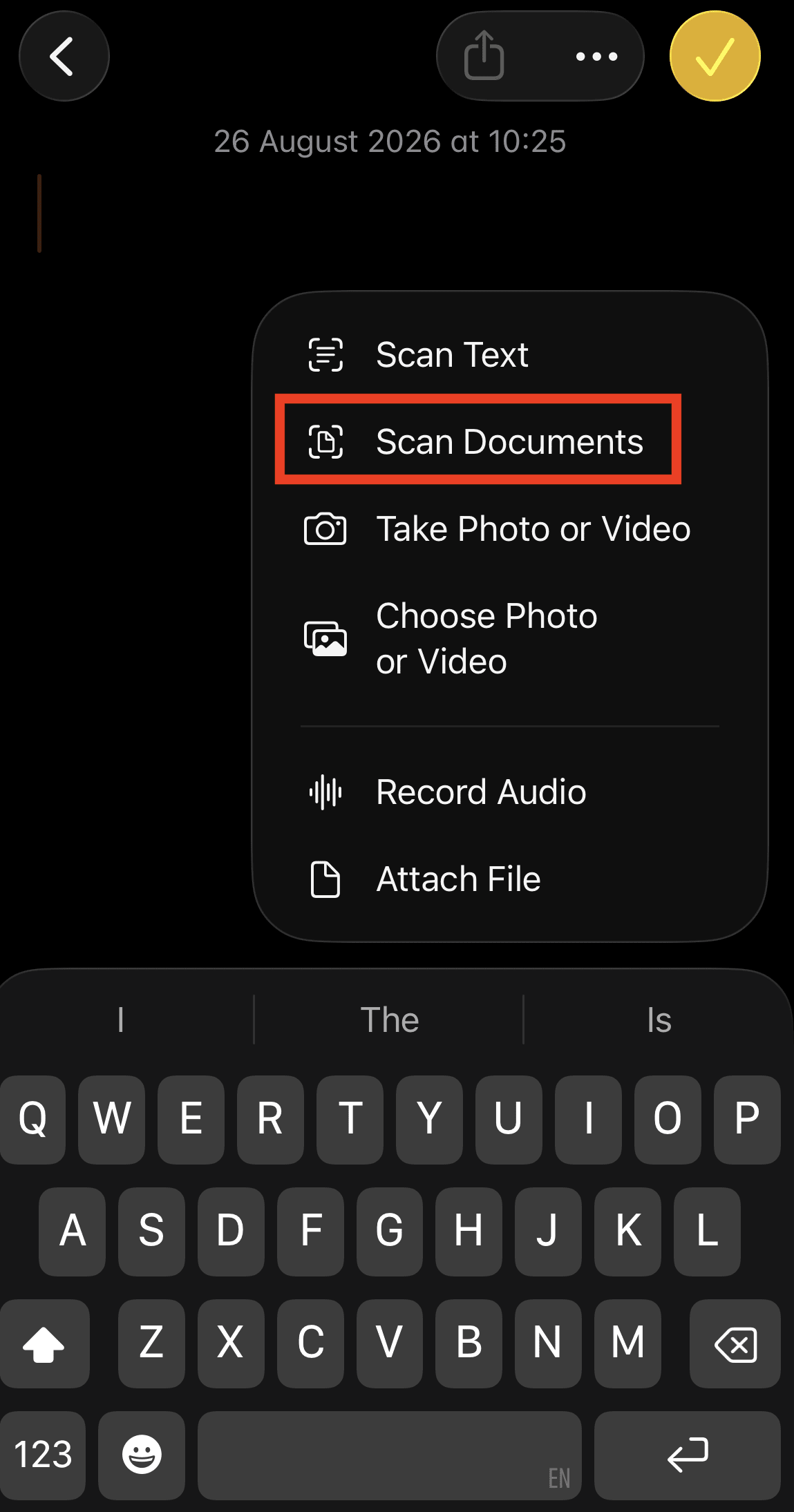
- अपने iPhone से पेज अपने आप कैप्चर होने दें, या ऑटो से मैनुअल पे स्विच करके शटर बटन को टैप करें। ज़रूरत हो तो कोनों को एडजस्ट करें और स्कैन रखें को टैप करें।
- कोई भी अतिरिक्त पेज स्कैन करें।
- हो गया को टैप करें। स्कैन किया गया डॉक्यूमेंट नोट के अंदर PDF के रूप में सेव हो जाता है।
Files का इस्तेमाल करके डॉक्यूमेंट को PDF में कैसे स्कैन करें
Files ऐप एक अच्छा विकल्प है अगर आप PDF बनाकर उसे सीधे किसी फोल्डर में सेव करना चाहते हैं, ना कि नोट के अंदर रखना चाहते हैं। डॉक्यूमेंट स्कैन करने के लिए:
- Files खोलें।
- उस स्थान या फोल्डर पे जाएं जहां आप स्कैन सेव करना चाहते हैं।
- और (…) बटन को टैप करें।
- डॉक्यूमेंट स्कैन करें चुनें।
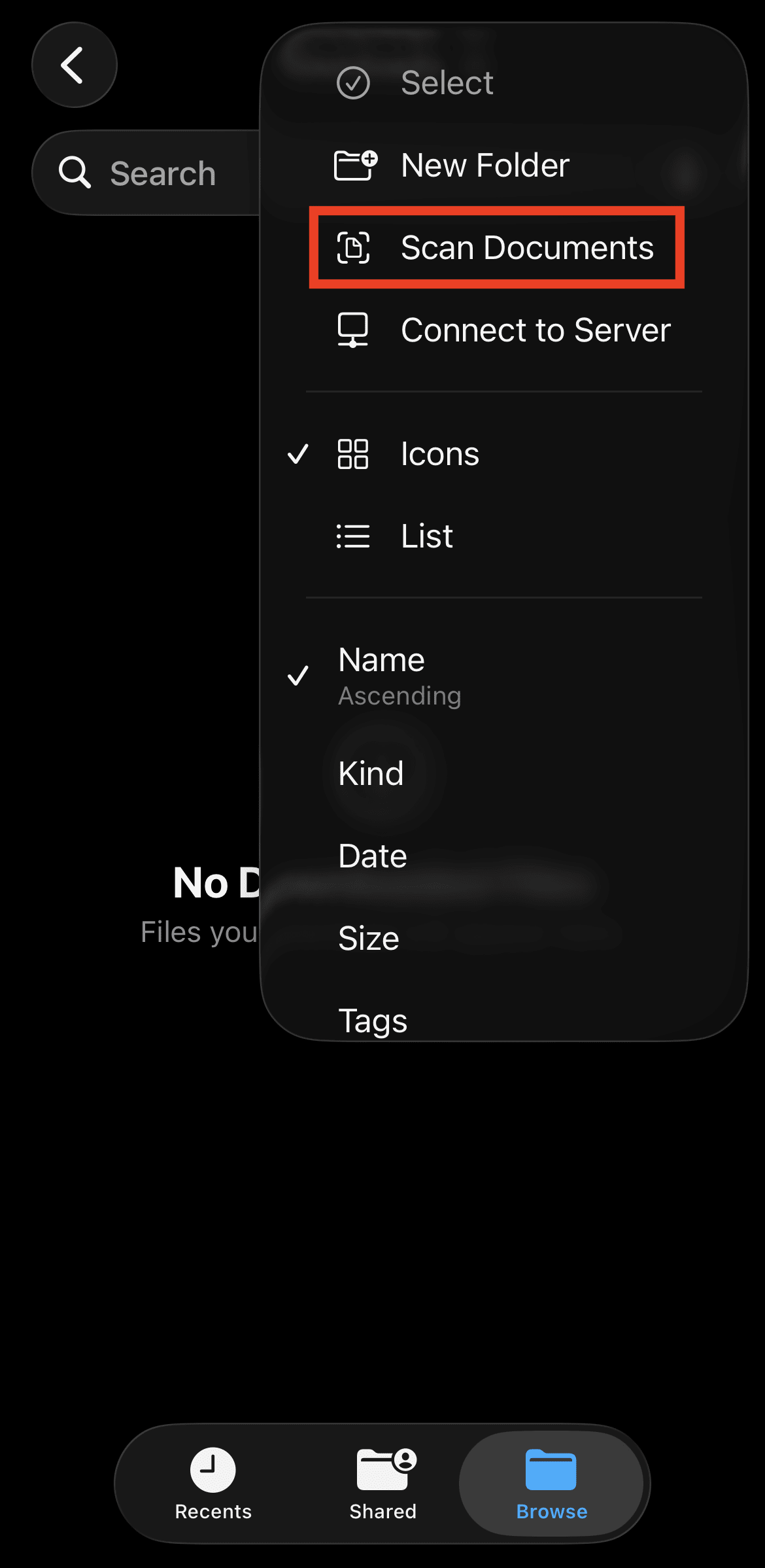
- अपने iPhone से पेज अपने आप कैप्चर होने दें, या ऑटो से मैनुअल पे स्विच करके शटर बटन को टैप करें। ज़रूरत हो तो कोनों को एडजस्ट करें और स्कैन रखें को टैप करें।
- कोई भी अतिरिक्त पेज स्कैन करें।
- हो गया को टैप करें, चुनें कि PDF कहां सेव करना है, फिर सेव को टैप करें।
Preview का इस्तेमाल करके iPhone पे डॉक्यूमेंट कैसे स्कैन करें
अगर आप iOS 26 या उससे नया इस्तेमाल कर रहे हैं, तो Apple का Preview ऐप एक PDF बनाता है जिसे आप फिर नाम बदल सकते हैं, एनोटेट कर सकते हैं, भर सकते हैं, साइन कर सकते हैं या शेयर कर सकते हैं। डॉक्यूमेंट स्कैन करने के लिए:
- Preview खोलें।
- डॉक्यूमेंट स्कैन करें को टैप करें।
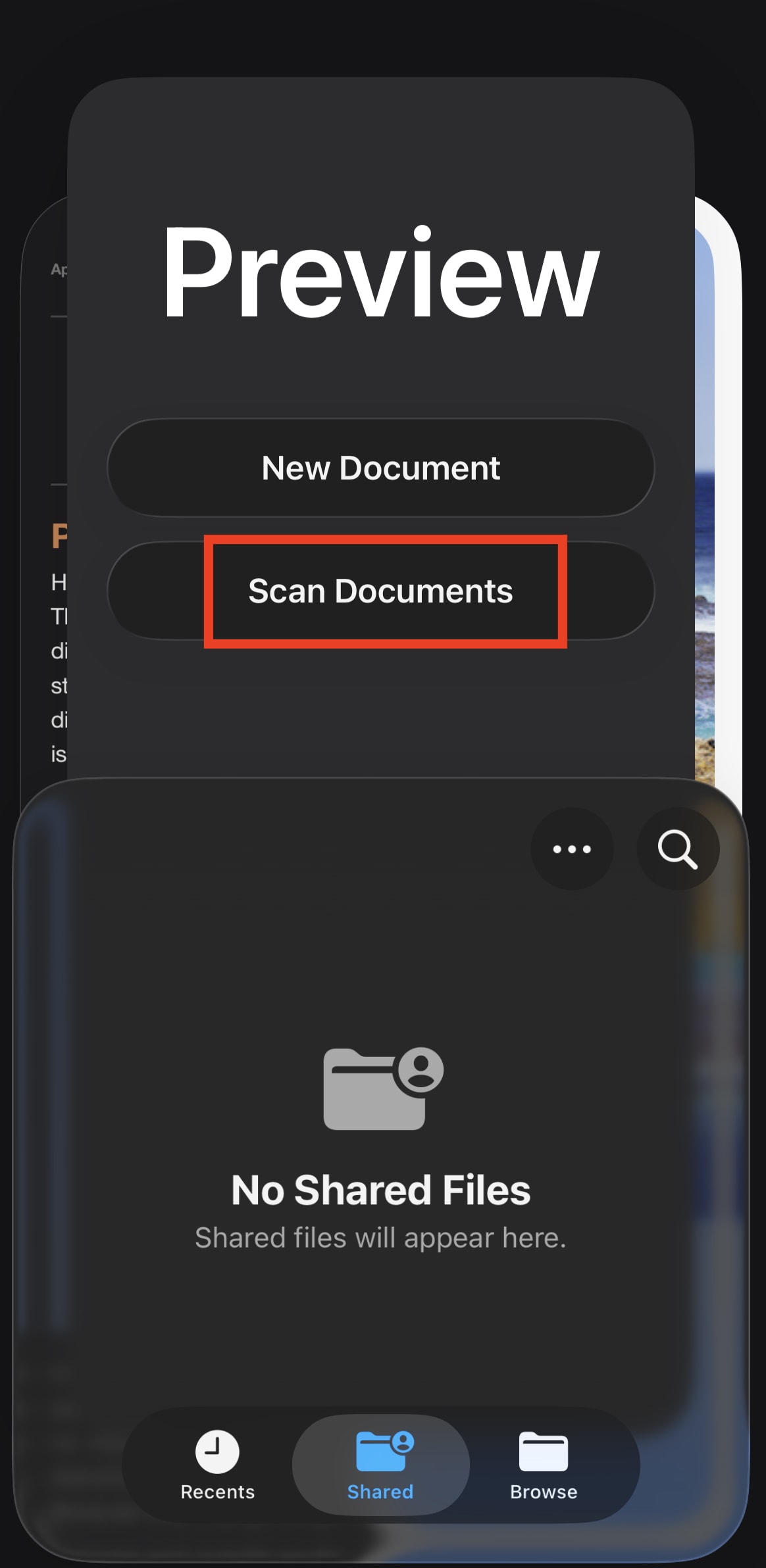
- अपने iPhone से पेज अपने आप कैप्चर होने दें, या ऑटो से मैनुअल पे स्विच करके शटर बटन को टैप करें।
- कोई भी अतिरिक्त पेज स्कैन करें। अगर पेज का लुक एडजस्ट करना चाहते हैं तो उसके थंबनेल पे टैप करें।
- पूर्ण पे टैप करें।
Proton Drive के साथ डॉक्यूमेंट सुरक्षित रूप से कैसे स्कैन करें
Proton Drive के साथ स्कैन करना तेज़ और आसान है। पेज अपने आप डिटेक्ट और कैप्चर हो जाते हैं, और सेव करने से पहले आप क्रॉप कर सकते हैं, पेज घुमा सकते हैं, फ़िल्टर लागू कर सकते हैं या और पेज जोड़ सकते हैं। ऐप को सिर्फ उन्हीं पेजों तक एक्सेस मिलता है जिन्हें आप रखना चुनते हैं, आपकी कैमरा रोल की किसी और चीज़ तक नहीं।
Proton Drive में डॉक्यूमेंट स्कैन करने के लिए:
- iOS के लिए Proton Drive लें।
- अपने Proton खाते से साइनइन करें। आप 5 GB मुफ़्त में शुरु कर सकते हैं।
- Files में जाएं और वो फोल्डर खोलें जहां आप अपना स्कैन सेव करना चाहते हैं।
- ऊपर-दाएं कोने में + को टैप करें और डॉक्यूमेंट स्कैन करें चुनें। कहा जाए तो कैमरा एक्सेस की अनुमति दें।

- डॉक्यूमेंट को व्यूफ़ाइंडर में रखें। Proton Drive पेज को अपने आप डिटेक्ट और कैप्चर कर लेता है, या आप मैनुअल कैप्चर पे स्विच कर सकते हैं।
- कोई भी अतिरिक्त पेज स्कैन करें। आप स्कैन दोबारा ले सकते हैं या मिटा दें, फ़िल्टर लागू करें, पेज घुमाएं और डॉक्यूमेंट के किनारों को एडजस्ट करें।
- सेव को टैप करें। आपका स्कैन शुरु-से-अंत तक एन्क्रिप्ट किए गए PDF के रूप में Proton Drive में सेव हो जाता है।
स्कैन किया गया डॉक्यूमेंट आप शुरु-से-अंत तक एन्क्रिप्ट किए गए क्लाउड स्टोरेज में सुरक्षित रूप से स्टोर किया रख सकते हैं, ये जानते हुए कि उसे आपके अलावा कोई एक्सेस नहीं कर सकता — हम भी नहीं। अगर आप स्कैन किसी के साथ शेयर करने का फैसला करें, तो आप लोगों को ईमेल से इनवाइट कर सकते हैं या शेयरिंग लिंक बना सकते हैं, पासवर्ड प्रोटेक्शन और समय खत्म होने की तारीख के साथ। प्राप्तकर्ताओं को आपके शेयर किए गए लिंक देखने या डाउनलोड करने के लिए Proton खाते की ज़रूरत नहीं है, और वो अपनी फ़ाइलें आपके क्लाउड स्टोरेज में अपलोड कर भी सकते हैं।
क्या iPhone पे कई पेजों को एक PDF में स्कैन कर सकते हैं?
हां। Notes, Files, Preview और Proton Drive सभी आपको एक ही स्कैनिंग सत्र के दौरान कई पेज कैप्चर करने देते हैं। जब तक हर पेज कैप्चर ना हो जाए, स्कैन करते रहें, उन्हें सही क्रम में देखें, फिर डॉक्यूमेंट सेव करें। आपके पेज एक ही PDF में जुड़ जाएंगे।
साफ डॉक्यूमेंट स्कैन पाने के लिए टिप्स
आपका iPhone डॉक्यूमेंट को अपने आप डिटेक्ट, क्रॉप और सीधा कर सकता है, लेकिन कुछ आसान स्टेप्स से ज़्यादा साफ स्कैन बनाने में मदद मिल सकती है:
डॉक्यूमेंट को सपाट रखें। सिलवटें या मुड़े हुए किनारे पेज का डिटेक्ट होना मुश्किल बना सकते हैं और टेक्स्ट को बिगाड़ सकते हैं।
तेज़, एक जैसी रोशनी इस्तेमाल करें। परछाइयां टेक्स्ट को छुपा सकती हैं और किनारों के अपने आप डिटेक्ट होने में बाधा डाल सकती हैं।
कंट्रास्ट वाला बैकग्राउंड इस्तेमाल करें। सफेद कागज़ की शीट किसी गहरी सतह पे किसी दूसरी सफेद सतह की तुलना में आसानी से डिटेक्ट हो जाती है।
अपने iPhone को पेज के समानांतर रखें। तिरछे एंगल से स्कैन करने से डॉक्यूमेंट बिगड़ सकता है।
किनारों को देखें। गलत क्रॉप टेक्स्ट, हस्ताक्षर या दूसरी ज़रूरी जानकारी को काट सकता है।
ज़रूरत पड़ने पे फ़िल्टर इस्तेमाल करें। ब्लैक-एंड-व्हाइट या हाई-कंट्रास्ट फ़िल्टर से फीके पड़ चुके दस्तावेज़ पढ़ने में आसान हो जाते हैं।
हर पेज देखें। पक्का करें कि नाम, नंबर और हस्ताक्षर जैसी ज़रूरी जानकारी दिख रही हो।
तैयार PDF चेक करें। पक्का करें कि हर पेज सेव हुआ है, सही क्रम में दिख रहा है और पढ़ने लायक है।
क्या iPhone का बिल्ट-इन डॉक्यूमेंट स्कैनर इस्तेमाल करने में सुरक्षित है?
रोज़मर्रा के कागज़ी कामों के लिए, Apple के बिल्ट-इन स्कैनर सुविधाजनक हैं। ज़्यादा संवेदनशील दस्तावेज़ों के लिए, ये सोचना ज़रूरी है कि तैयार फ़ाइल कैसे स्टोर और शेयर की जाती है। iCloud Drive या Notes में स्टोर किए गए स्कैन एन्क्रिप्ट किए गए होते हैं, लेकिन डिफॉल्ट रूप से एन्क्रिप्शन की Apple के पास रहती है, यानी तकनीकी तौर पे कंपनी उन तक एक्सेस कर सकती है, जिसमें कानूनी अनुरोध के जवाब में एक्सेस भी शामिल है। Apple का Advanced Data Protection (ADP) ये गैप बंद कर सकता है, लेकिन ये डिफॉल्ट रूप से बंद रहता है और सभी उपयोगकर्ताओं के लिए उपलब्ध नहीं है, जैसे UK में।
अगर ये ख़याल कि कोई और आपके स्कैन देख सकता है, ठीक नहीं लगता, तो Proton Drive जैसे secure-by-default विकल्प पे स्विच करना बेहतर है।
Proton Drive के साथ संवेदनशील दस्तावेज़ स्कैन करें
Proton Drive स्कैन किए गए PDFs को शुरु-से-अंत तक एन्क्रिप्शन से बचाता है, यानी आपका संवेदनशील डेटा आपके अलावा कोई एक्सेस नहीं कर सकता, सिवाय उनके जिनके साथ आप उसे शेयर करना चुनते हैं — Proton भी नहीं। आप पासवर्ड-प्रोटेक्टेड या समय-सीमा वाले लिंक के ज़रिए दस्तावेज़ शेयर कर सकते हैं और बाद में आसानी से एक्सेस वापस ले सकते हैं। अगर आप अपनी कंपनी की तरफ से स्कैन कर रहे हैं, तो हमारा बिज़नेस के लिए क्लाउड स्टोरेज वही सुरक्षा टीम स्टोरेज और शेयरिंग तक ले जाता है।