
Bir kimlik doğrulama uygulamasıyla iki adımlı doğrulamayı (2FA) ayarlayın
- Okuma süresi
- 7 dakikalık
- Kategori
- İki adımlı doğrulama (2fa)
- Parolalar ve kimlik doğrulama
- Proton Hesabı
İki adımlı doğrulama (2FA) , parolanıza ek olarak ikinci bir doğrulama biçimi gerektirerek Proton Hesabınıza ekstra bir güvenlik katmanı ekler.
Bu makale, bir kimlik doğrulama uygulaması ile iki adımlı doğrulamanın (2FA) nasıl ayarlanacağını açıklamaktadır. Ancak iki adımlı doğrulamayı (2FA) fiziksel bir U2F veya FIDO2 güvenlik anahtarıyla da ayarlayabilirsiniz.
Ayrıntılı bilgi alın: İki adımlı doğrulama açıklaması
- Nasıl çalışır
- Kimlik doğrulama uygulaması 2FA kurulumu yapın
- Kimlik doğrulama uygulaması 2FA ile oturum açın
- Sorun giderme
- Kaybolan 2FA aygıtı
- Kimlik doğrulama uygulaması nedir ve hangisini kullanmalıyım?
- Hangi 2FA yöntemi benim için daha uygun?
Nasıl çalışır
Kimlik doğrulama uygulaması 2FA’yı kullanıma aldığınızda, Proton Hesabınızda oturum açmak için iki doğrulama adımını tamamlamanız gerekecektir:
- 1. Adım: Kullanıcı adınızı ve parolanızı yazın.
- 2. Adım: Hesabınıza bağlı bir kimlik doğrulama uygulamasından gelen altı haneli kodu yazın.
Kimlik doğrulama uygulaması 2FA kurulumu yapın
Henüz yapmadıysanız, iki adımlı doğrulama için kullanmak istediğiniz aygıta bir kimlik doğrulama uygulaması indirin. Proton’da her oturum açtığınızda bu aygıtın yanınızda olması gerekeceğini unutmayın.
- account.proton.me adresinde oturum açın ve hesap ayarlarınızı (Ayarlar ⚙️ → Tüm ayarlar) açın.
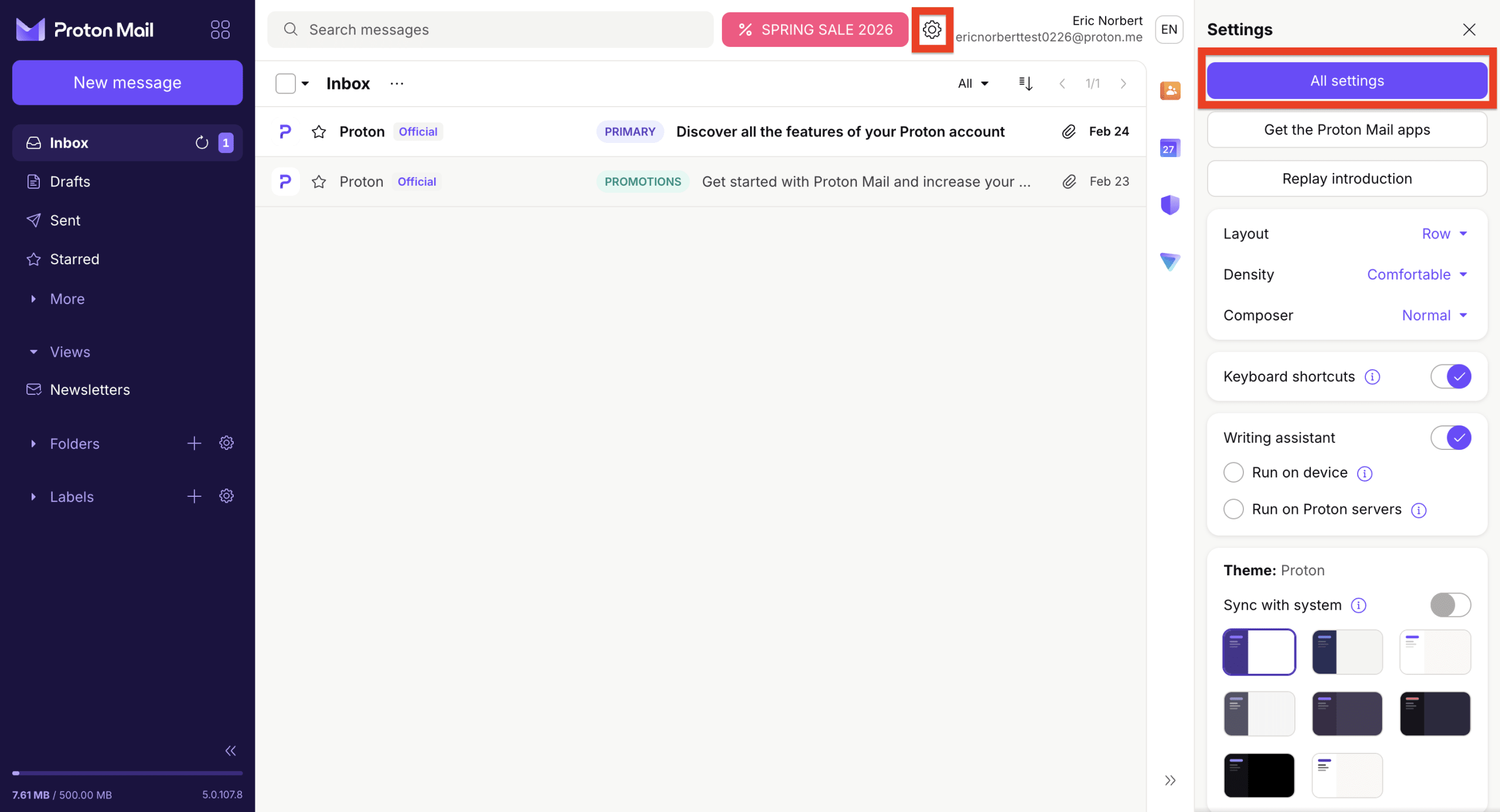
- Kenar çubuğundan Hesap ve parola seçeneğini seçin. İki adımlı doğrulama kısmına kaydırın ve Kimlik doğrulama uygulaması düğmesini açın.
 (yeni pencere)
- Devam etmek için parolanızı yazın.
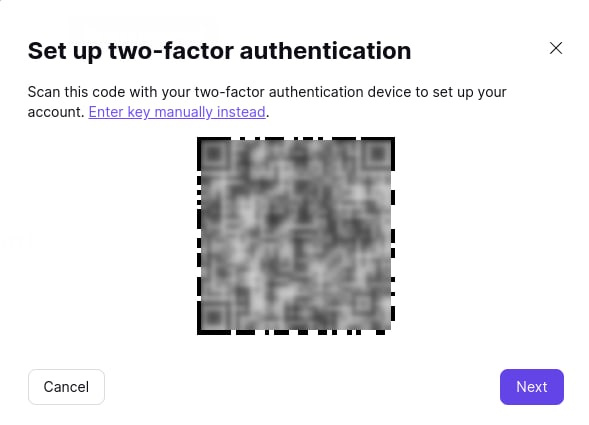
- Artık bir Kare kod görmelisiniz. Kimlik doğrulama uygulamanızı açın ve yeni bir hesap ekleme seçeneğini bulun. Buradan şunları yapabilirsiniz:
a. Kare kodu kullanarak kimlik doğrulama uygulamanızı eşleştirin
- Proton Hesabı ayarlarınızda gösterilen Kare kodu taramak için aygıtınızın kamerasını kullanın.
- Birden fazla kimlik doğrulama uygulaması eşleştirmek istiyorsanız, kodu şu anda tüm aygıtlarınızla tarayın.
b. Kimlik doğrulama uygulamanızı el ile eşleştirin
- Bunun yerine anahtarı el ile yazın seçeneğine tıklayın ve gösterilen bilgileri kimlik doğrulama uygulamanıza girin.
- Birden fazla kimlik doğrulama uygulaması eşleştirmek istiyorsanız, bu bilgileri şimdi tüm uygulamalarınıza ekleyin.
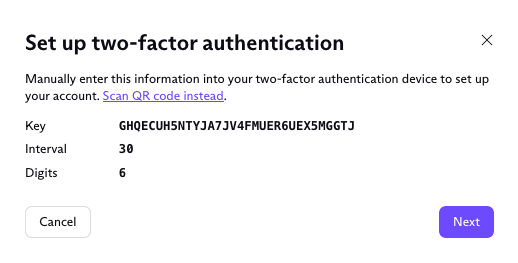
Proton Mail hesabınızı kimlik doğrulama uygulamanıza başarıyla ekledikten sonra İleri‘ye tıklayın.
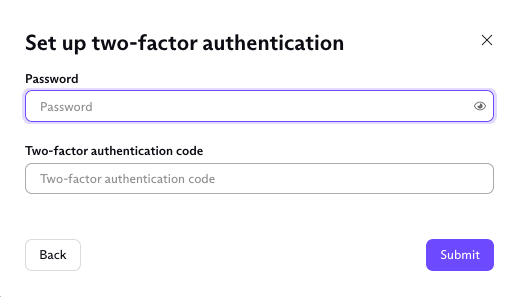
- Parolanızı ve kimlik doğrulama uygulamanızdan aldığınız 6 haneli kodu yazın. Tamamladığınızda Gönder düğmesine tıklayın.
6. Kurtarma kodlarınızı kaydedin. Bu tek kullanımlık kodlar, kimlik doğrulama uygulamanıza erişiminizi kaybetmeniz durumunda Proton’da oturum açmanızı sağlar. Bunları güvenli bir şekilde sakladığınızdan emin olun.
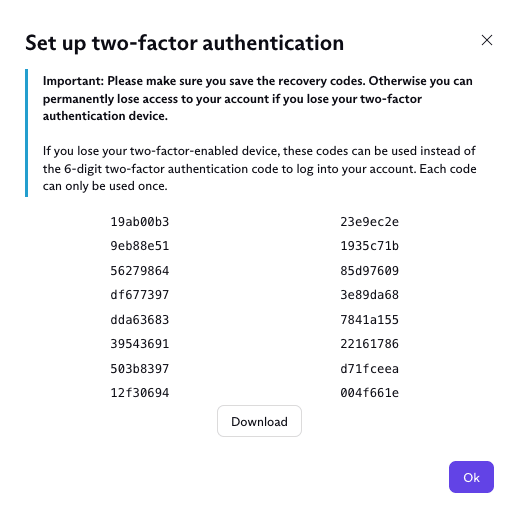
İki adımlı doğrulama kullanıma alındı. Artık, her oturum açışınızda kimlik doğrulama uygulamanızdan altı haneli bir kod yazmanız gerekecek.
Ek 2FA aygıtları ekleyin
2FA kodlarını birden fazla aygıtta veya birden fazla kimlik doğrulama uygulamasında alabilirsiniz.
Uygulamaların aynı Kare kod (veya 2FA anahtarı) kullanılarak eşleştirilmesi gerekir. Bu nedenle halihazırda kimlik doğrulama uygulaması 2FA kullanıyorsanız, şunları yapmanız gerekecektir:
- Kimlik doğrulama uygulaması 2FA’yı kapatın (Kimlik doğrulama uygulaması anahtarını Kapalı konuma getirin).
- Kimlik doğrulama uygulaması 2FA’yı yeniden kullanıma alın (anahtarı tekrar Açık konuma getirin).
- 2FA kurulumunu tekrar yapın, kullanmak istediğiniz her aygıtı ayarlarınızda gösterilen Kare kod veya 2FA anahtarı ile eşleştirin.
Tüm aygıtlarınız yanınızda değilse, Kare kodunuzun veya 2FA anahtar bilgilerinizin bir ekran görüntüsünü alabilir ve diğer aygıtlarınızı daha sonra eşleştirebilirsiniz.
Kimlik doğrulama uygulaması 2FA’yı kapatın
- account.proton.me adresinde oturum açın ve hesap ayarlarınızı (Ayarlar ⚙️ → Tüm ayarlar) açın.
- Kenar çubuğundan Hesap ve parola seçeneğini seçin. İki adımlı doğrulama kısmına kaydırın ve Kimlik doğrulama uygulaması düğmesini kapatın.
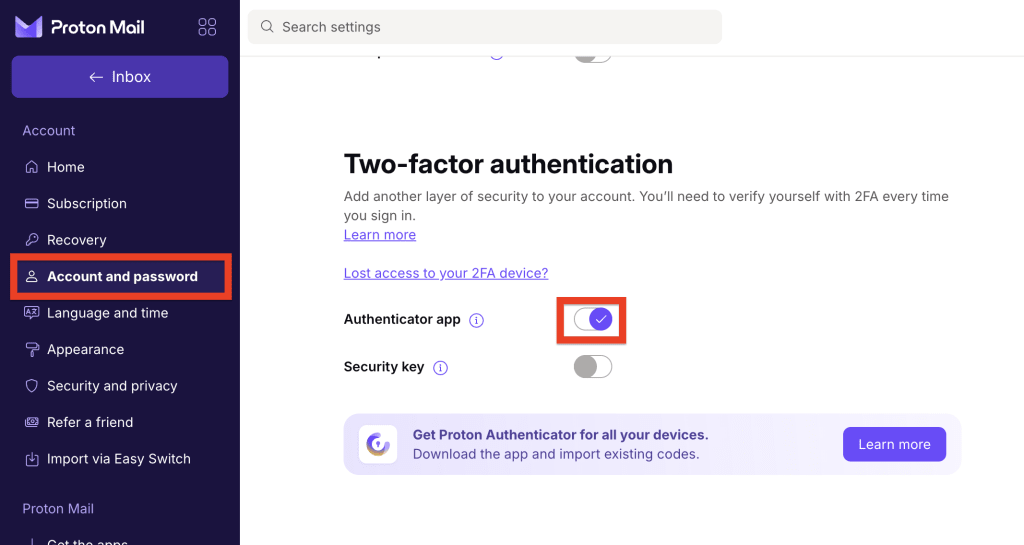
3. Onaylamak için parolanızı yazın.
Kimlik doğrulama uygulaması 2FA artık kapatıldı. Bir sonraki oturum açışınızda, kimlik doğrulama uygulamanızdan bir kod yazmanıza gerek kalmayacaktır.
Kimlik doğrulama uygulaması 2FA ile Proton’da oturum açın
- Herhangi bir Proton uygulamasını Açın ve kullanıcı adınız ile parolanızla Oturum açın.
- Kimlik doğrulama uygulamanızı açın ve Proton Hesabınız için altı haneli kodu bulun.
- Altı haneli kodu yazın ve Kimliği doğrula düğmesine tıklayın.
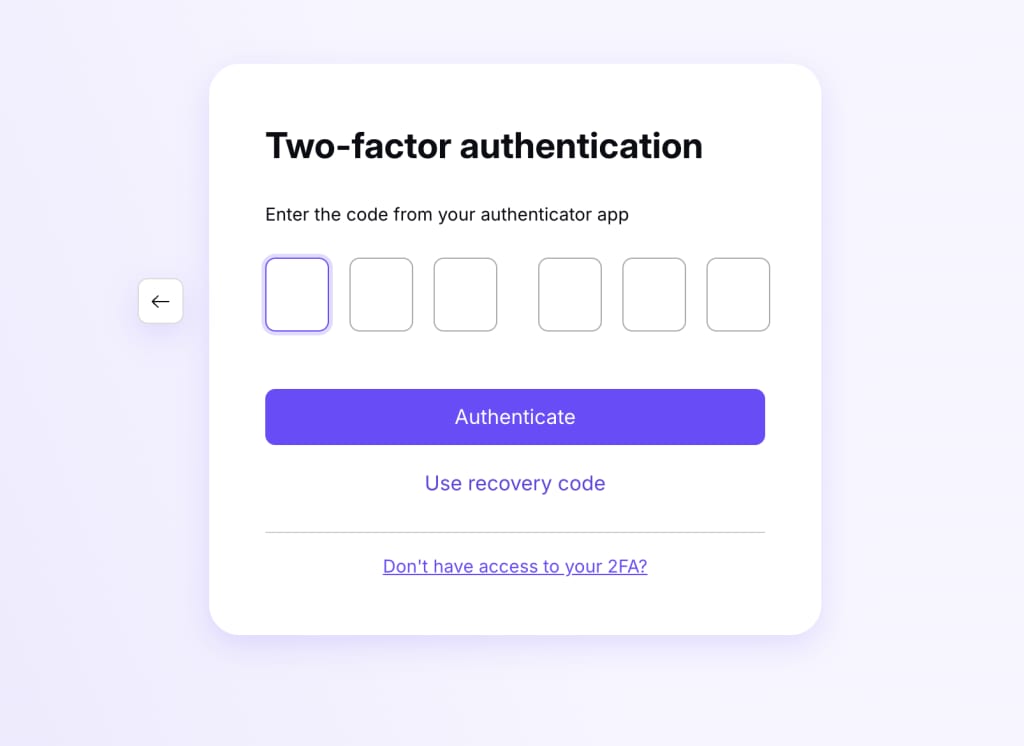
Oturum açtınız.
Sorun giderme
“Yanlış oturum açma kimlik bilgileri” hata iletisi
Bu durum genellikle 2FA aygıtınızdaki tarih ve saat, oturum açmak istediğiniz aygıtla eşleşmediğinde gerçekleşir.
2FA’nın çalışması için aygıtlarınızdaki tarih ve saatin tam olarak aynı olması gerekir.
Aygıtlarınızın eşitleme durumunu kontrol edin ve tekrar deneyin.
Kurulumunuzu kontrol edin
Aygıtlarınızı eşitlediyseniz ancak hesabınıza hâlâ erişemiyorsanız, lütfen bu makaledeki İki adımlı doğrulama (2FA) özelliğini kullanıma alma ile ilgili adım adım talimatları izlediğinizden emin olun.
Diğer oturum açma sorunları
Proton Hesabınıza başka bir nedenle erişemiyorsanız, oturum açma sorunlarına yönelik sorun giderme kılavuzumuza göz atın.
Kayıp 2FA aygıtı
Kimlik doğrulama uygulaması ile 2FA ayarlarını yaptıysanız ve 2FA aygıtınıza ya da kodunuza erişemiyorsanız:
- Güvenlik anahtarı ile 2FA özelliğini de kullanıma aldıysanız, bunun yerine onu kullanabilirsiniz. Oturum açarken sadece Güvenlik anahtarı sekmesini seçin.

- Değilse, bir 2FA kurtarma kodu veya başka bir Hesap kurtarma yöntemi kullanmanız gerekecektir. 2FA aygıtınızı kaybettiyseniz hesabınızı nasıl kurtaracağınızı öğrenin
Proton Hesabınız ile birden fazla 2FA aygıtını eşleştirebilirsiniz. Bu, hesabınıza erişememe riskini azaltır.
Kimlik doğrulama uygulaması nedir ve hangisini kullanmalıyım?
Bir kimlik doğrulama uygulaması, çevrim içi bir hizmette oturum açmaya çalışan kişinin gerçekten siz olduğunuzu kanıtlamak için kullanabileceğiniz zamana dayalı tek kullanımlık parolalar(yeni pencere) (TOTP) oluşturur.
Mobil ve masaüstünde indirebileceğiniz birçok farklı kimlik doğrulama uygulaması mevcuttur ancak biz Proton Authenticator uygulamasını öneririz. Ücretsizdir, uçtan uca şifrelenmiştir ve her aygıtta kullanılabilir:
- 2FA kodlarınıza mobil ve masaüstü uygulamalar üzerinden, çevrim dışı olsanız bile erişin.
- 2FA kodlarınızı uçtan uca şifreleme ile tüm aygıtlarınızda eşitleyin.
- Gönül rahatlığı için otomatik yedeklemeleri kullanıma alın.
- Diğer 2FA uygulamalarından kolayca içe aktarın veya Proton Authenticator uygulamasından dışa aktarın.
- Hesabınızı biyometri veya PIN kodu ile koruyun.
Proton Authenticator uygulamasını indirin
Hangi 2FA yöntemi benim için en iyisidir?
Bu, güvenlik ve gizlilik ihtiyaçlarınıza bağlıdır. Güvenlik anahtarı ile 2FA, kimlik avı girişimi gibi siber saldırılara karşı daha büyük bir koruma sağlar. Ancak telefonunuzda bir kimlik doğrulama uygulaması kullanmak daha kolay olabilir.