Il devient de plus en plus difficile de gérer le temps d’écran des enfants — qu’il s’agisse de configurer des limites de temps ou de veiller à ce qu’ils n’accèdent pas à du contenu inapproprié. Parfois, vous penserez avoir pris toutes les précautions nécessaires en bloquant l’accès à une application (comme YouTube(nouvelle fenêtre) ou à des applications de jeux comme Roblox), mais il s’avère qu’ils ont trouvé un moyen de contourner cette restriction en accédant au même contenu via leur navigateur.
Si vous devez bloquer un site internet sur votre navigateur Chrome, il est important de noter que Chrome ne dispose pas de fonctionnalité intégrée à cet effet, nous allons donc partager quelques approches différentes pour les ordinateurs et les appareils mobiles.
Pourquoi aurais-je besoin de bloquer un site internet sur Chrome ?
Il existe de nombreuses raisons pour lesquelles vous pourriez vouloir bloquer des sites internet sur Chrome. Celles-ci peuvent inclure :
- Pour bloquer le contenu inapproprié
- Pour limiter le temps d’écran
- Pour empêcher d’accéder aux réseaux sociaux
- Pour bloquer l’accès à certains jeux
Bloquer l’accès à des sites internet spécifiques peut s’avérer important dans votre démarche de limitation du temps d’écran et de protection de la santé mentale de votre enfant.
Options pour bloquer des sites internet sur Chrome
Voici un aperçu rapide de vos options avant d’obtenir plus d’informations sur chacune d’elles.
| Option | Facilité d’utilisation | Appareils concernés |
| Family Link | Simple | Mobile et ordinateur |
| Extensions Chrome | Simple | Ordinateur |
| Paramètres au niveau de l’appareil | Simple | Mobile |
| Blocage au niveau du routeur | Difficile | Tous les appareils |
Comment bloquer des sites internet sur Chrome avec Google Family Link
Family Link est l’option gratuite la plus robuste pour les parents, et elle est assez simple à configurer. Vous pouvez utiliser les catégories de Family Link pour bloquer des sites, ou ajouter des sites internet individuels.
- Créez un compte Gmail pour votre enfant à l’aide de Family Link(nouvelle fenêtre)
- Ouvrez Family Link et sélectionnez le profil de votre enfant
- Appuyez sur Commandes > Google Chrome et Web
- Choisissez l’un des paramètres existants (Autoriser tous les sites, Essayer de bloquer les sites au contenu explicite ou Autoriser uniquement les sites approuvés)
- Sélectionnez Sites autorisés et Sites bloqués sous « Gérer les sites » pour ajouter des sites internet autorisés et/ou bloqués
Cette option fonctionne sur ordinateur et sur mobile, à condition que votre enfant soit connecté à son compte Google. Si vous disposez d’un appareil plus ancien, vous devriez toutefois vérifier pour confirmer sa compatibilité(nouvelle fenêtre).
La fonctionnalité SafeSearch(nouvelle fenêtre) de Google est une autre option qui vous aide à gérer le contenu explicite dans les résultats de recherche de votre enfant. Si votre enfant est connecté à son compte Google avec son âge réel (et qu’il a moins de 18 ans), cette fonctionnalité sera déjà activée sur le paramètre Filtrer, qui bloque tout contenu explicite détecté.

Conseil pour les parents : dès que votre enfant atteint l’âge de 13 ans, il peut opter pour un compte Gmail non supervisé, ce qui signifie que vous ne pouvez plus gérer son compte. Il peut alors consulter les sites internet précédemment bloqués et modifier les paramètres de SafeSearch.
Comment utiliser les extensions Chrome pour bloquer des sites internet
L’installation d’une extension Chrome est la méthode la plus populaire si vous ne devez vous soucier que des solutions pour ordinateur. Ces extensions vous permettent généralement d’être plus précis concernant les autorisations, de sorte que vous pouvez bloquer des sites internet à certains moments (par exemple pendant la nuit ou pendant les devoirs) et les autoriser à d’autres.
- Choisissez une extension et installez-la
- Ajoutez les URL des sites internet que vous souhaitez bloquer
- Définissez un mot de passe pour que vos enfants ne puissent pas désactiver l’extension
- Facultatif : définissez des limites de temps d’utilisation pour les sites, configurez des horaires de blocage ou effectuez un blocage par catégorie
Certaines extensions couramment recommandées incluent BlockSite et Stay Focusd, cependant, vous devriez faire preuve de vigilance et vous assurer que l’extension choisie répond à vos besoins et obtient une bonne note sur le Google Play ou l’App Store. Notez que si beaucoup d’entre elles sont techniquement gratuites, vous devrez probablement payer pour bloquer plus d’un ou deux sites.

Conseil pour les parents : les extensions Chrome ne fonctionneront pas si votre enfant passe à un autre navigateur.
Comment bloquer des sites internet sur Chrome Mobile
Si vous devez uniquement bloquer des sites internet sur des appareils mobiles, ou si vous souhaitez compléter votre solution d’extension Chrome, voici comment procéder pour bloquer des sites sur l’appareil mobile de votre enfant :
Appareils Android
Les paramètres de Bien-être numérique et de contrôle parental sur Android vous permettent de limiter le temps qu’ils peuvent passer sur chaque site, mais si vous recherchez un contrôle plus ciblé, vous devrez télécharger l’application Family Link de Google(nouvelle fenêtre), qui s’intègre au Bien-être numérique d’Android.

Conseil pour les parents : le filtrage des sites internet de Bien-être numérique s’applique au navigateur Chrome. Si votre enfant décide d’utiliser un autre navigateur, vous devrez peut-être bloquer entièrement ces applications de navigation via les commandes d’application de Family Link.
iPhone/iPad
Les paramètres de Temps d’écran offrent un contrôle étendu sur ce que vos enfants peuvent voir sur leurs appareils, y compris la possibilité de bloquer des sites internet.
- Accédez à Temps d’écran, faites défiler vers le bas jusqu’à Famille et sélectionnez le nom de votre enfant
- Faites défiler vers le bas et sélectionnez Restrictions de contenu et de confidentialité
- Assurez-vous que cette option est activée et appuyez sur App Store, multimédia, web et jeux
- Sélectionnez Contenu web et choisissez vos paramètres préférés
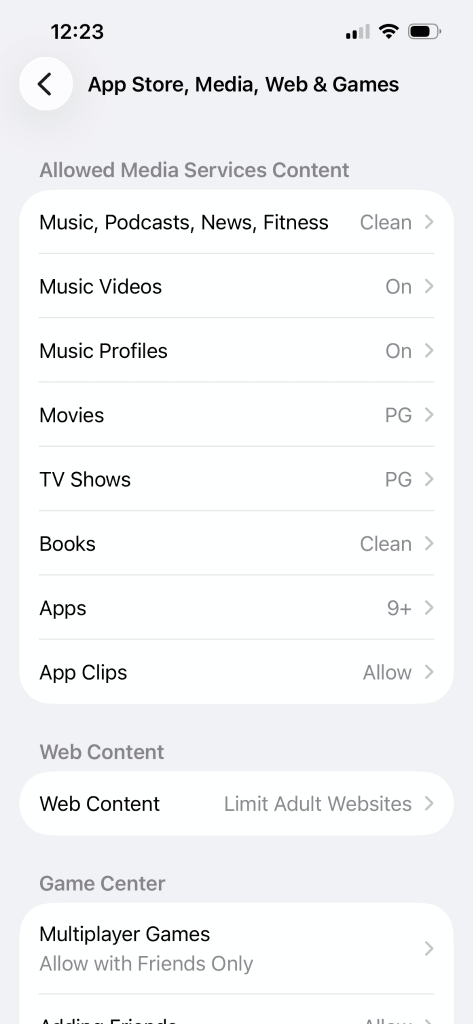
Conseil pour les parents : ces paramètres s’appliquent à l’ensemble de l’iPhone ou de l’iPad, et pas seulement aux sites internet consultés avec Google Chrome.
Comment bloquer des sites internet sur Chrome à l’aide de votre routeur
Pour les parents qui souhaitent bloquer des sites sur tous les appareils de la maison, y compris les consoles de jeux, les smart TV et bien plus encore, il est possible de le faire en mettant à jour les paramètres de votre routeur. C’est une option plus avancée, mais la plupart des routeurs disposent d’une application que vous pouvez télécharger, ce qui facilite un peu le processus.
Voici les étapes à suivre pour le routeur ASUS, qui vous permet de bloquer des catégories, telles que la pornographie et les jeux d’argent, plutôt que des pages spécifiques.
- Appuyez sur l’onglet Famille
- Ajoutez un profil en utilisant le + en haut à droite de l’écran
- Choisissez la tranche d’âge appropriée
- Ajoutez tous les appareils que vous souhaitez regrouper sous ce profil
- Sélectionnez le mode de planification horaire
- Accédez au nouveau profil et sélectionnez Blocage de contenu
- Bloquez toutes les catégories concernées
Nous vous recommandons de rechercher les étapes spécifiques à votre routeur domestique, car le niveau de personnalisation varie d’un appareil et d’un modèle à l’autre.
Conseil pour les parents : les enfants peuvent contourner les blocages du routeur en utilisant les données mobiles.
Ce que vous ne pouvez pas bloquer (et ce qu’il faut faire à la place)
Les enfants sont des natifs du numérique et ils sont incroyablement doués pour trouver des solutions de contournement lorsqu’il s’agit de blocages techniques ; verrouillez Chrome et ils risquent de télécharger un autre navigateur ou d’utiliser l’appareil d’un ami. Le contrôle parental est important, notamment pour les réseaux sociaux, mais il est encore plus efficace lorsqu’il s’accompagne de conversations ouvertes sur la sécurité sur internet et l’éducation au numérique.
Si vous utilisez plusieurs services pour gérer l’activité en ligne de votre enfant, il peut être utile d’utiliser un gestionnaire de mots de passe sécurisé pour conserver tous vos identifiants au même endroit. Proton Pass propose également un gestionnaire de mots de passe familial dédié qui peut vous aider à partager et à gérer les identifiants de la famille.
Conseil pour les parents : bien qu’il s’agisse de bonnes options pour empêcher votre enfant de voir du contenu inapproprié sur Google Chrome, l’utilisation des produits Google rend votre enfant vulnérable à la collecte de données, au suivi et au profilage de Google. Vous devriez peut-être envisager d’utiliser un navigateur axé sur le respect de la vie privée..
FAQ : Bloquer des sites internet sur Chrome
Puis-je bloquer des sites internet sur Chrome sans extension ?
Oui, le meilleur moyen de bloquer des sites internet sur Chrome sans extension consiste à utiliser l’application Family Link.
Comment bloquer des sites internet sur Chrome sur le téléphone de mon enfant ?
Pour bloquer des sites internet sur le téléphone de votre enfant, vous pouvez utiliser l’application Family Link sur Android ou iOS, ou mettre à jour les paramètres de Temps d’écran sur les appareils iOS.
Comment empêcher mon enfant de débloquer des sites internet ?
Les restrictions de Family Link sont associées à votre compte Google. Votre enfant ne peut donc pas modifier les paramètres de filtrage de Chrome sans l’approbation d’un parent. Cependant, cela ne signifie pas qu’il n’essaiera pas d’accéder à des sites internet sur un autre navigateur que Chrome, ou sur un appareil qui n’est pas couvert par le contrôle parental. Il est préférable d’associer des solutions techniques à des conversations sur ce qui est approprié et pourquoi.
Le blocage fonctionne-t-il en mode de navigation privée ?
Si votre enfant est connecté à Chrome avec un compte géré par Family Link, le mode de navigation privée ne lui est pas accessible.
Existe-t-il un moyen gratuit de bloquer des sites internet sur Chrome ?
Oui, Family Link est gratuit et il existe certaines extensions Chrome qui proposent un blocage de base des sites sans frais, même s’il vous faudra payer pour obtenir les fonctionnalités vraiment utiles.