How to view an item’s history
- Lezen
- 2 min
- Categorie
- Proton Pass
If you have a paid Proton Pass account, you can view each item’s history.
Web app
1. Click on the item. Here, you can see the item’s history, including the current version, when the last autofill was performed, when it was created, and each time it’s been modified.
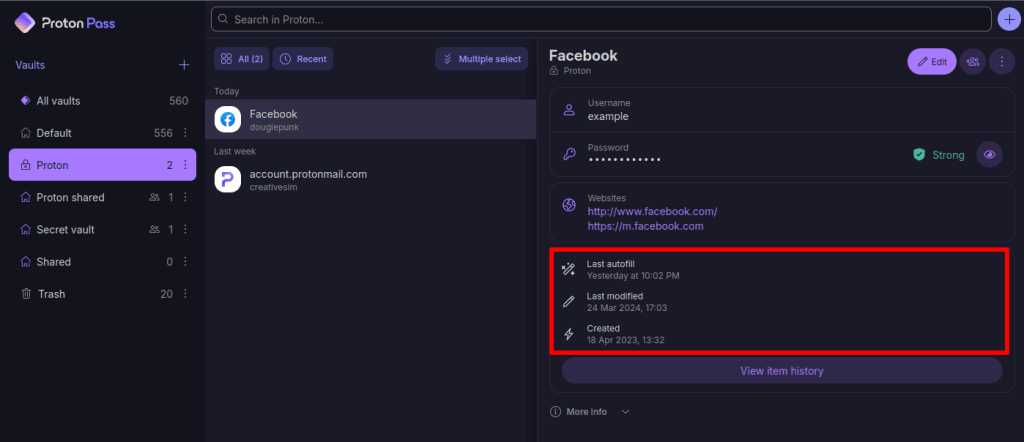
2. To find out more information about each change, click View item history.

3. Click the relevant Created or Modified entry in the timeline.

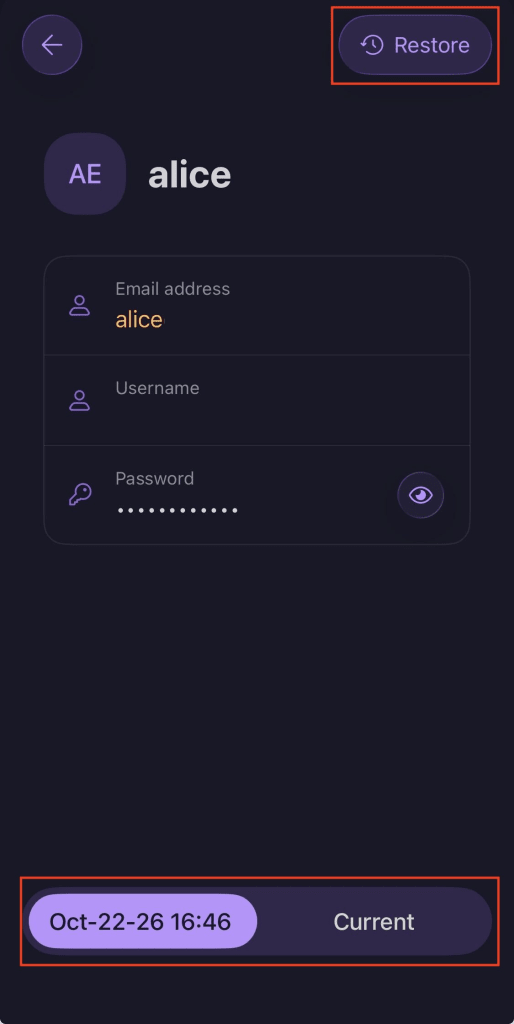
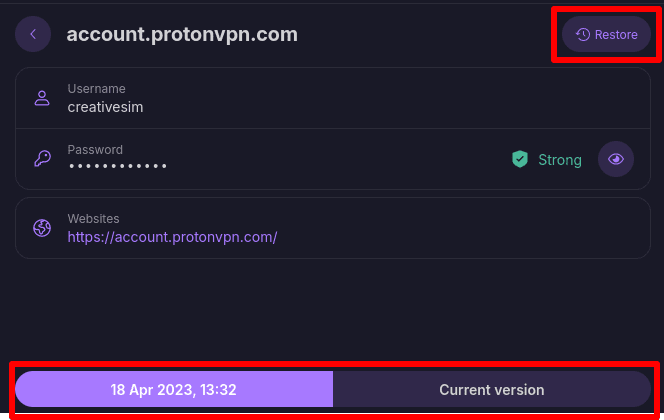
4. You can now view a snapshot of the change made on the selected date. Tab between the version of this item you’re looking at and the current version to compare them. To restore an older version of an item, click Restore.

Desktop app
1. Click on the item. Here, you can see the item’s history, including the current version, when the last autofill was performed, when it was created, and each time it’s been modified.
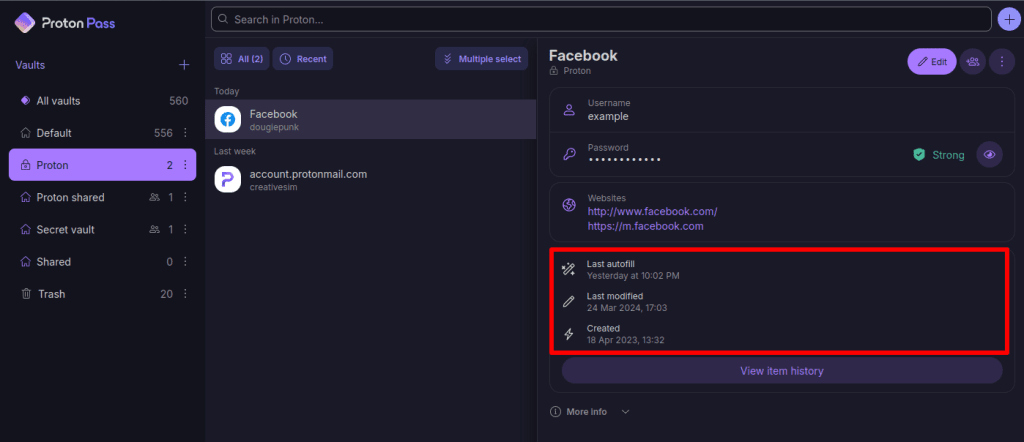
2. To find out more information about each change, click View item history.
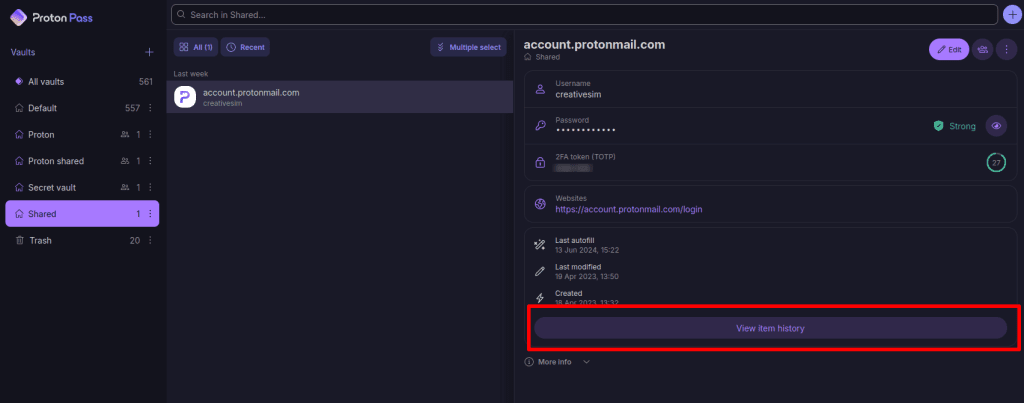
3. Click the relevant Created or Modified entry in the timeline.
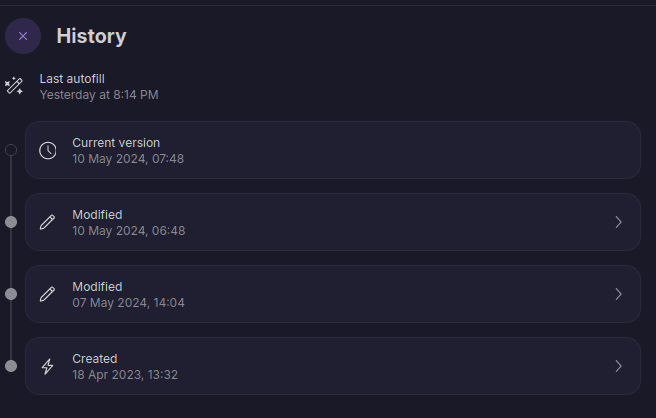
4. You can now view a snapshot of the change made on the selected date. Tab between the version of this item you’re looking at and the current version to compare them. To restore an older version of an item, click Restore.
Browser extension
1. Select an item to see its history, including the current version, when the last autofill was performed, when it was created, and each time it’s been modified.
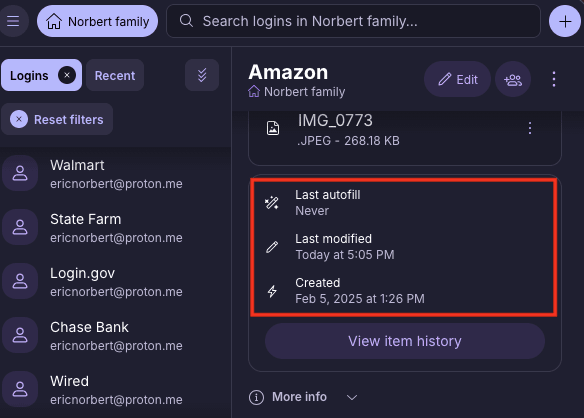
2. To find out more information about each change, select View item history.
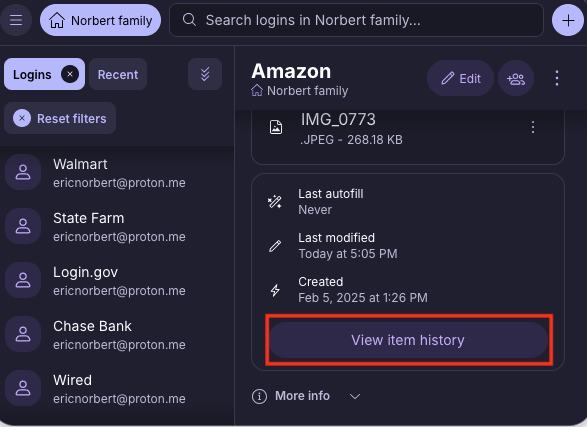
3. Click the relevant Created or Modified entry in the timeline.
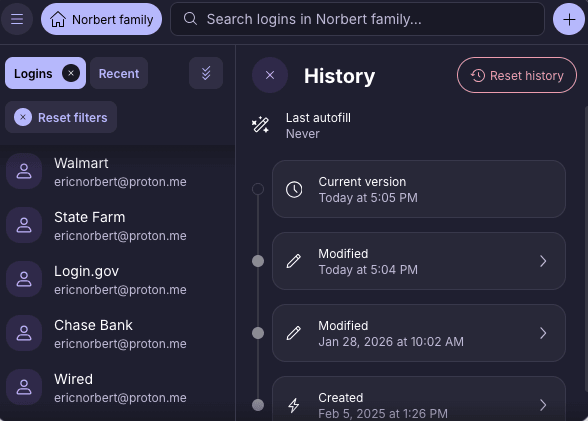
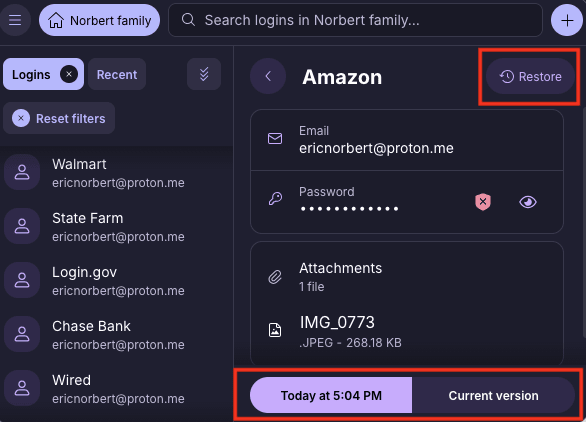
4. You can now view a snapshot of the change made on the selected date. To restore the selected older version of an item, click Restore.
Android
1. Select an item to see its history, including the current version, when the last autofill was performed, when it was created, and each time it’s been modified.
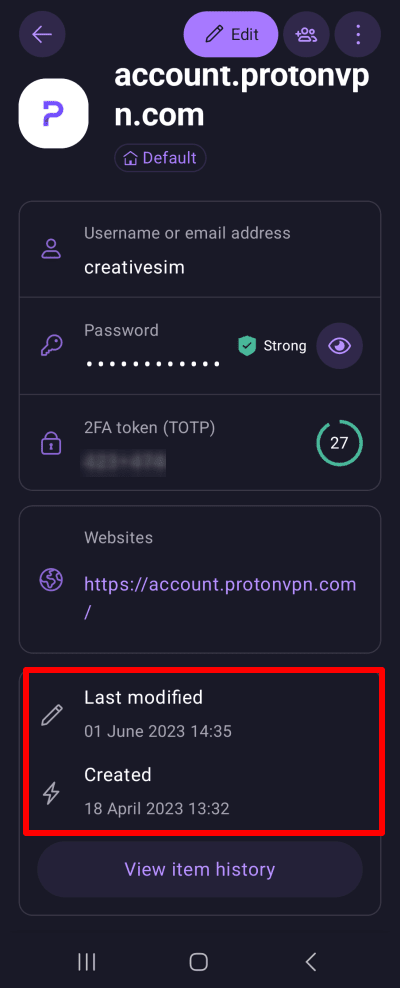
2. To find out more information about each change, tap View item history.
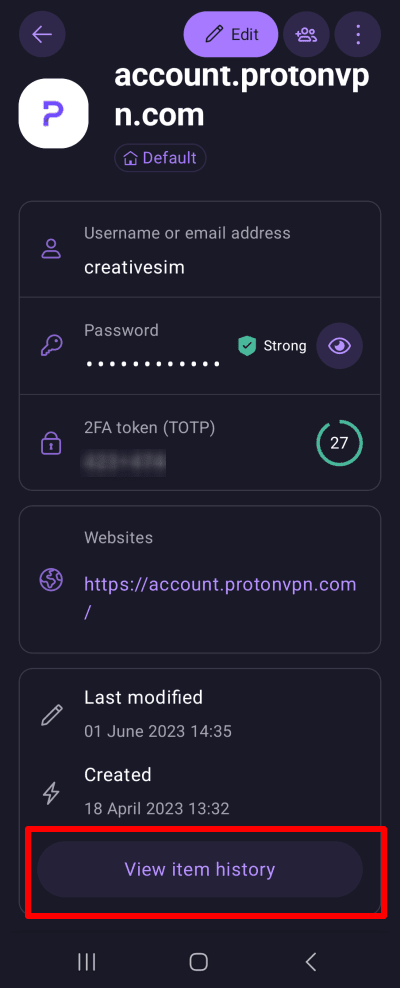
3. Tap the relevant Created or Modified entry in the timeline.
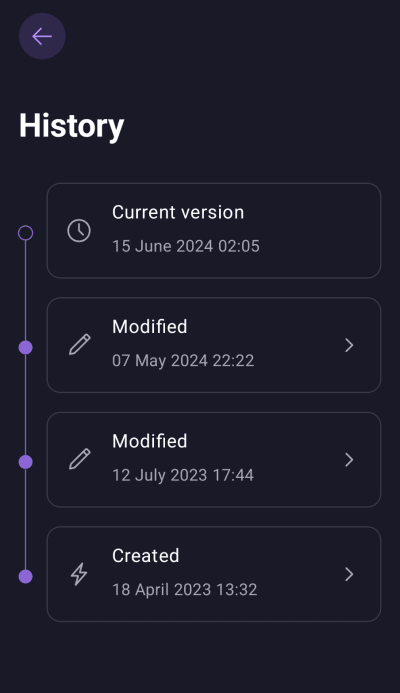
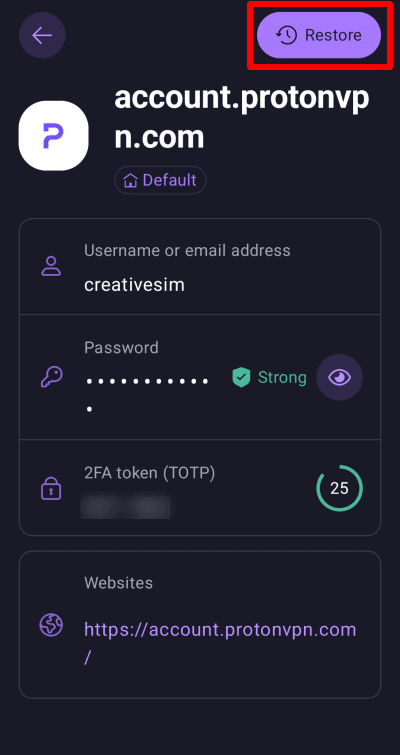
4. You can now view a snapshot of the change made on the selected date. To restore the selected older version of an item, tap Restore.
iPhone/ iPad
1. Select an item to see its history, including the current version, when the last autofill was performed, when it was created, and each time it’s been modified.
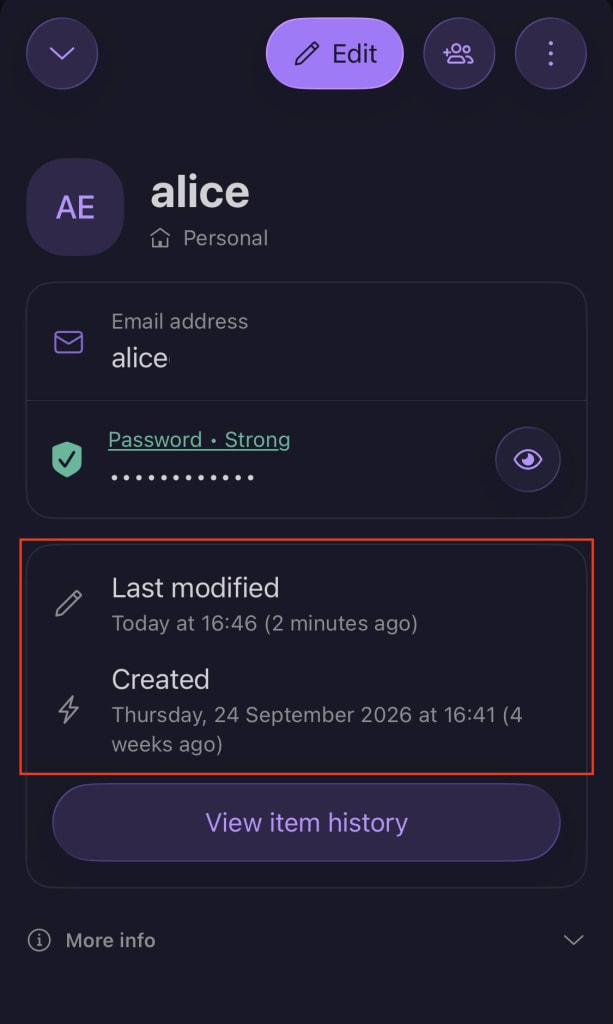
2. To find out more information about each change, click View item history.
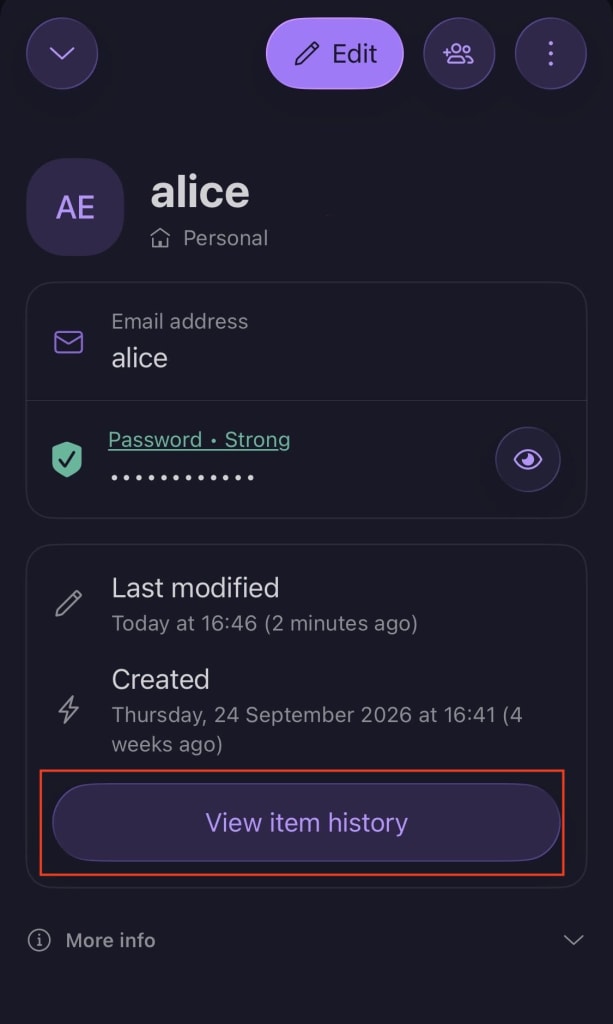
3. Tap the relevant Created or Modified entry in the timeline.
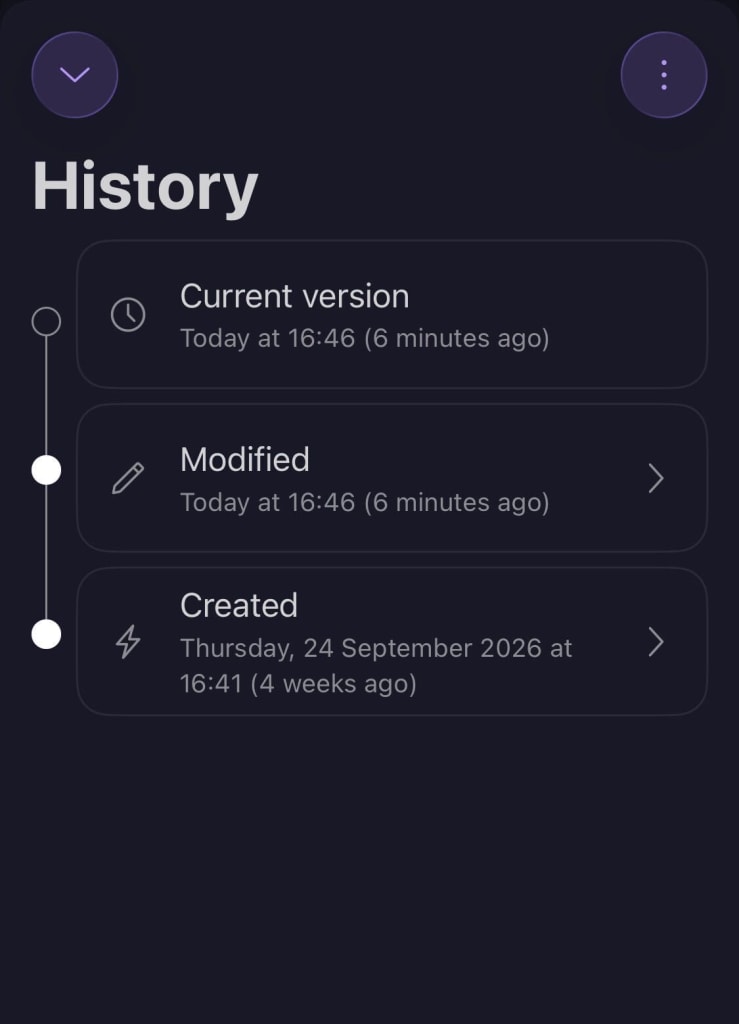
4. You can now view a snapshot of the change made on the selected date. Tab between the version of this item you’re looking at and the current version to compare them. To restore the selected older version of an item, tap Restore.