
Chat threads in Proton Meet
- Reading
- 2 mins
- Category
- Proton Meet
Chat threads let you reply directly to a message in a Proton Meet chat. Related replies stay together under the original message, so you can have side conversations and find important messages without cluttering the main chat.
All messages, including chat threads and reactions, are end-to-end encrypted. There’s no server-side chat history, and messages disappear when the meeting ends. Even the structure of a conversation, meaning which messages are replies and what they reply to, is fully encrypted, so no one outside of a meeting can see into its contents.
Chat threads are available to all users on the latest version of Proton Meet, including free users and guests.
In this article, we explain:
- How to reply to a message in a chat thread
- How to view all messages in a chat thread
- How to find messages and replies
How to reply to a message in a chat thread
1. In the chat panel during a Meet call, hover over or tap the message you want to reply to.
2. Select the Reply icon. You can also choose to react to the message instead by selecting an emoji.
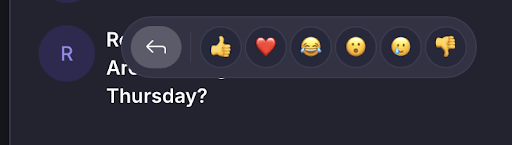
3. Enter your response into the reply box under the message and send it.
If you start drafting a reply and leave, your draft stays with the thread, so you can come back to it later. If there are further responses, you’ll be notified with a New reply badge.
You won’t be notified about threads you haven’t engaged in. Note that chat threads are one level deep, meaning you can reply in a thread to the original message, but can’t create another thread from a reply.
How to view all messages in a chat thread
Replies stay grouped under the original message, keeping them organized and easier to follow.
1. Look for the original message in the chat panel.
2. Select the dropdown icon under the message that shows the number of replies.
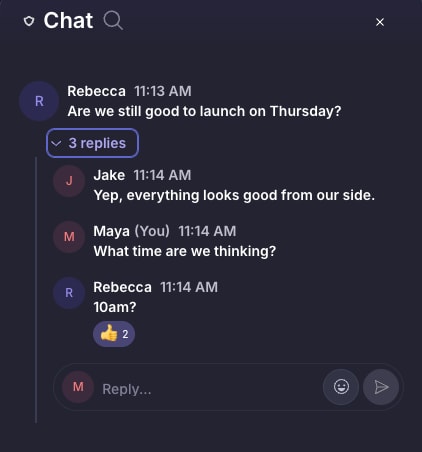
This expands the chat thread without losing your place in the main chat. Note that unless you add a reply to the thread, you won’t be notified of updates and new responses.
If you scroll up in the chat, a New messages badge will show how many new main chat messages you’ve missed. Thread replies aren’t included in this count.
How to find messages and replies
All messages and replies, including those in chat threads, are available to be searched during the call. Enter keywords or phrases in the search bar, and you’ll receive a list of related messages and responses.