Sometimes the best time to write an email isn’t the best time to send it. Whether you’re preparing a client update outside business hours, coordinating with colleagues in another time zone, or scheduling a follow-up, Outlook can send your message at a time you choose.
Outlook has two versions for Windows — new Outlook and classic Outlook — with different scheduling features. New Outlook uses Schedule send, while classic Outlook uses Delay Delivery. To further complicate matters, scheduling works differently on Mac, mobile, and the web, too.
Not to worry. Here’s how to schedule an email in each version, change or cancel a scheduled message, and protect your business email with Proton Mail.
How to schedule an email in new Outlook for Windows
New Outlook has a built-in Schedule send feature. Messages are saved in Drafts until their scheduled delivery time, so you don’t need to keep Outlook open.
- Open Outlook and click New mail.
- Enter the recipient’s address, subject, and message.
- Click the dropdown arrow beside Send and select Schedule send.
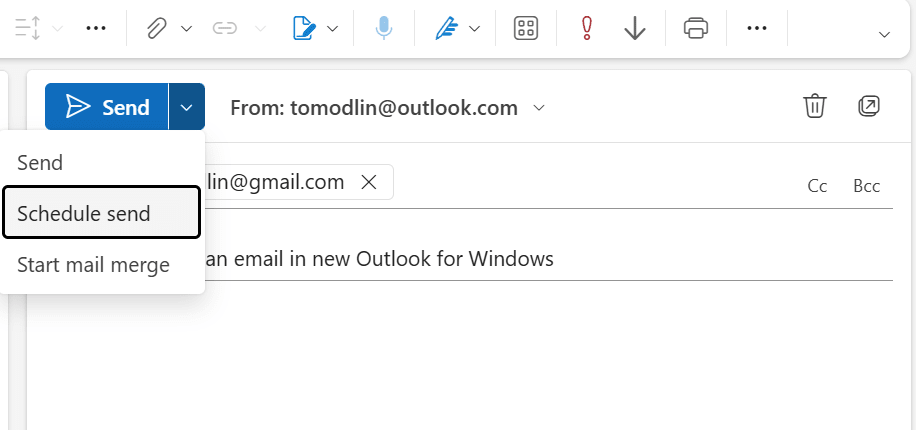
- Choose one of the suggested times or set a custom date and time.
- Click Send to schedule the message.
Note: Schedule send isn’t available for accounts connected using IMAP or POP.
How to schedule an email in classic Outlook for Windows
Classic Outlook uses Delay Delivery instead of Schedule send. Messages remain in the Outbox until the specified delivery time, and Outlook must be running, online, and connected for them to send. If Outlook is closed or offline, delivery will be delayed until it reconnects.
- Open Outlook and click New Email.
- Enter the recipient’s address, subject, and message.
- Open the Options tab and click the More options arrow in the Tags group.
- Under Delivery options, check Do not deliver before.
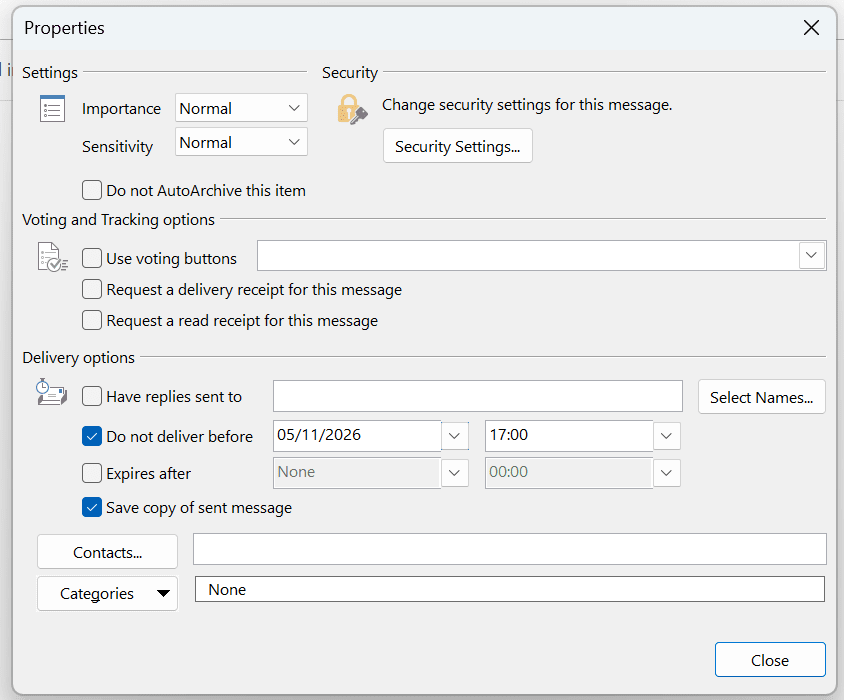
- Choose the date and time you want to send the email.
- Click Close, then Send.
How to schedule an email in Outlook for Mac
Outlook for Mac supports Schedule send with compatible Microsoft 365 and Exchange accounts. The message stays in Drafts until the selected time and sends even when Outlook isn’t open.
- Open Outlook and compose a new email.
- Enter at least one recipient.
- Click the dropdown arrow beside Send and select Schedule send.
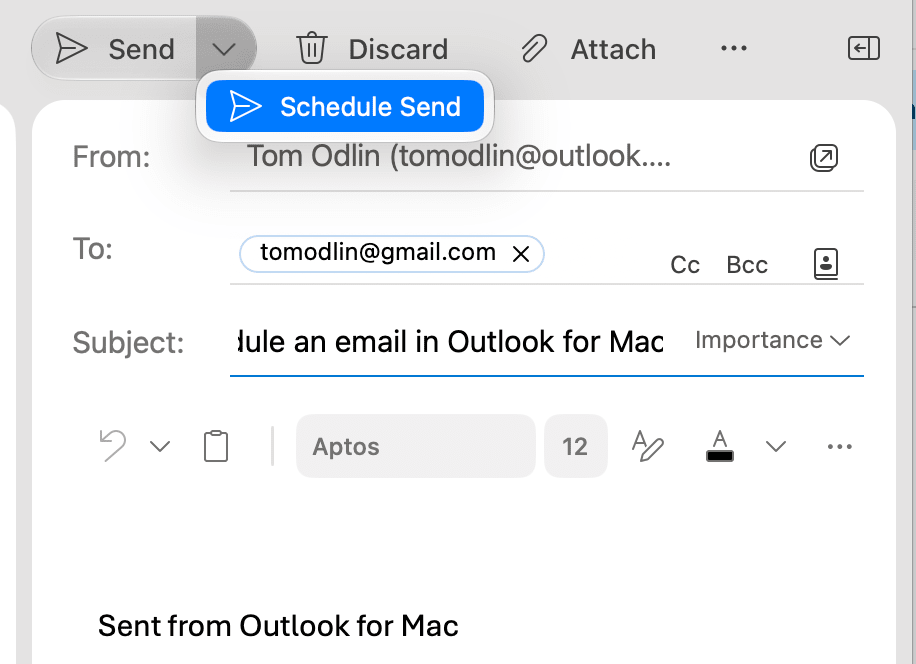
- Choose the date and time for delivery.
- Click OK.
Note: Older versions of Outlook for Mac may call the feature Send Later. Schedule send isn’t supported for IMAP or POP accounts, including Gmail, Yahoo, and iCloud accounts connected through those protocols.
How to schedule an email in Outlook on the web
Outlook on the web and Outlook.com use a similar scheduling process to the new Outlook for Windows. Scheduled messages remain in Drafts, and you don’t need to keep your browser open for them to send.
- Sign in to Outlook on the web.
- Click New mail and compose your message.
- Click the dropdown arrow beside Send and select Schedule send.
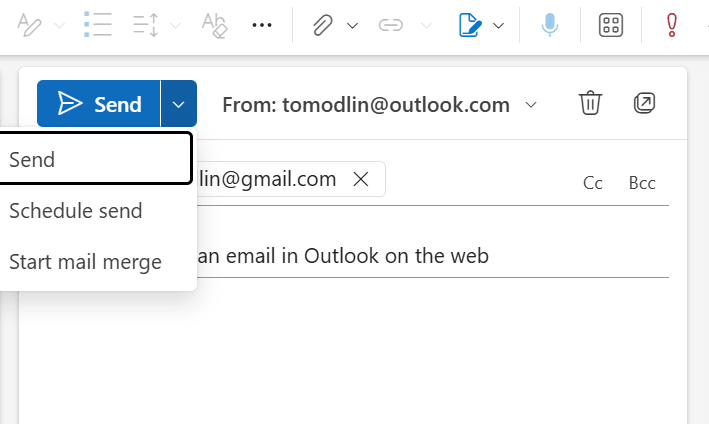
- Choose a suggested time or select a custom date and time.
- Click Send.
How to schedule an email in Outlook for Android and iPhone
Outlook’s mobile apps also support scheduling outgoing emails. The position of the scheduling menu may vary between Android and iOS versions, so make sure your app is up to date if the option isn’t available.
- Open the Outlook app on your Android phone or iPhone.
- Tap the compose icon to start a new message.
- Enter the recipient, subject, and message.
- On Android, look in the toolbar above the keyboard and tap the paper-plane icon with a small clock. On iPhone, tap the three-dot menu (•••) in the compose toolbar and select Schedule send.
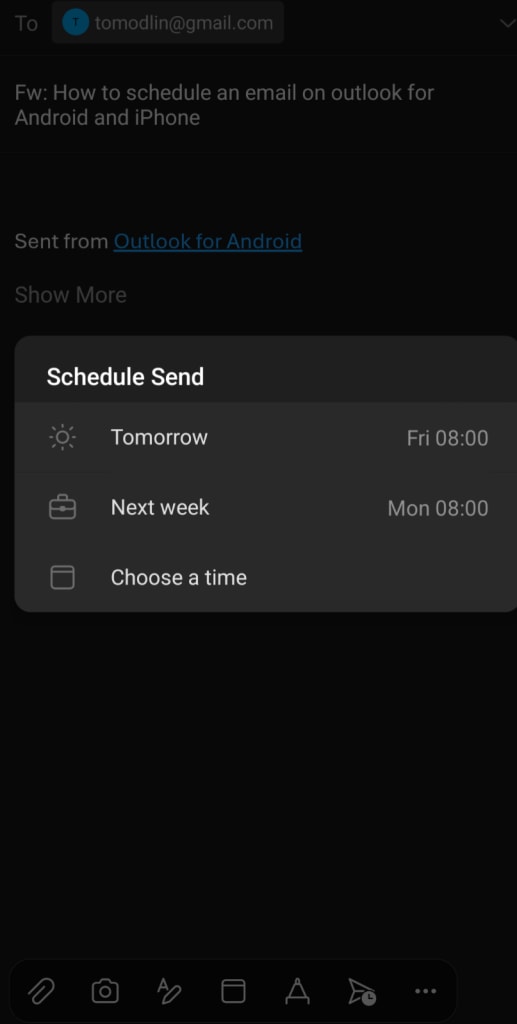
- Choose a suggested time or set a custom date and time.
- Confirm the scheduled send.
How to change or cancel a scheduled email in Outlook
Plans change, and sometimes an email needs another edit before it goes out. Outlook scheduled messages can be changed or canceled before delivery, although the steps depend on which version of Outlook you’re using.
In new Outlook or Outlook on the web
Scheduled emails remain in the drafts folder until their delivery time.
- Open Drafts and select the scheduled email.
- Click Cancel send.
In classic Outlook for Windows
Classic Outlook stores delayed messages in the outbox.
- Open Outbox and double-click the scheduled email.
- Open Options → More options to access Delivery options.
- Change the date and time under Do not deliver before, or clear the checkbox to remove the delay.
In Outlook for Mac
- Open Drafts and select the scheduled message.
- Click Cancel Send, then Yes to confirm.
For more information, check out our guide on how to unsend an email.
Schedule emails with Proton Mail
Standard Microsoft 365 email is encrypted in transit and at rest, but Microsoft retains technical access to message contents. Proton Mail uses end-to-end encryption between Proton Mail accounts, so only the sender and intended recipients can decrypt their messages and attachments.
Timing is only part of managing business email. Proton Mail also offers:
- Password-protected emails: send end-to-end encrypted messages to people who don’t use Proton Mail (how it works).
- Message expiration: set encrypted emails to delete themselves automatically after a chosen time (details).
- Proton Mail Bridge: use Proton Mail in Outlook, Apple Mail, or Thunderbird with encryption intact (on paid plans).
- Proton Sentinel: extra account protection for people at higher risk of attack (learn more).
- One privacy suite: calendar, cloud storage, and a password manager alongside your email.
Get private business email with Proton Mail.