
Slik administrerer du Proton Drive-filer og -mapper på mobilapper
- Lesetid
- 2 min
- Kategori
- Mobilapplikasjoner
Proton Drives mobilapper lar deg enkelt lagre, dele og administrere filer og mapper fra din iPhone/iPad eller Android-telefon eller nettbrett.
Denne artikkelen forklarer hvordan du oppretter mapper, og hvordan du sletter, gir nytt navn til og flytter filer og mapper.
iOS
Opprett en mappe
- Åpne Proton Drive-appen. Trykk på + (plussikonet) og velg Opprett mappe fra menyen.
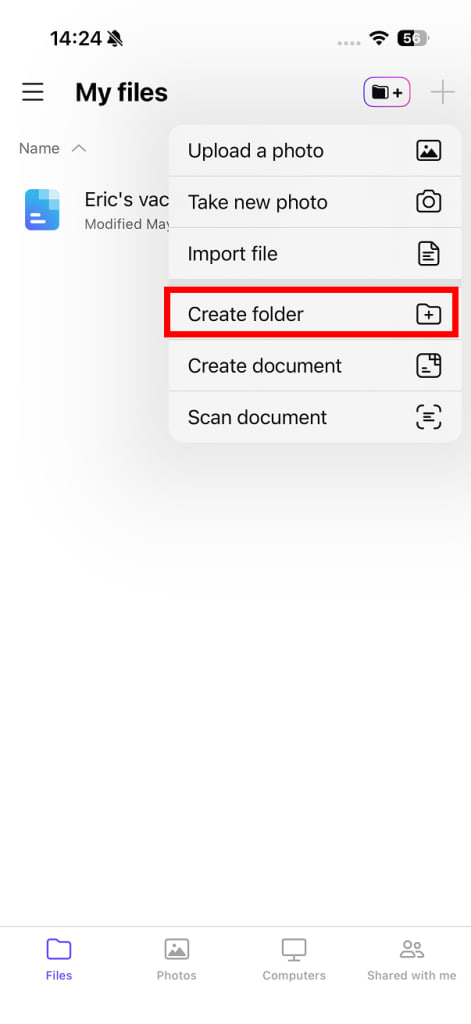
2. Legg til et navn på mappen din og trykk på Utført.
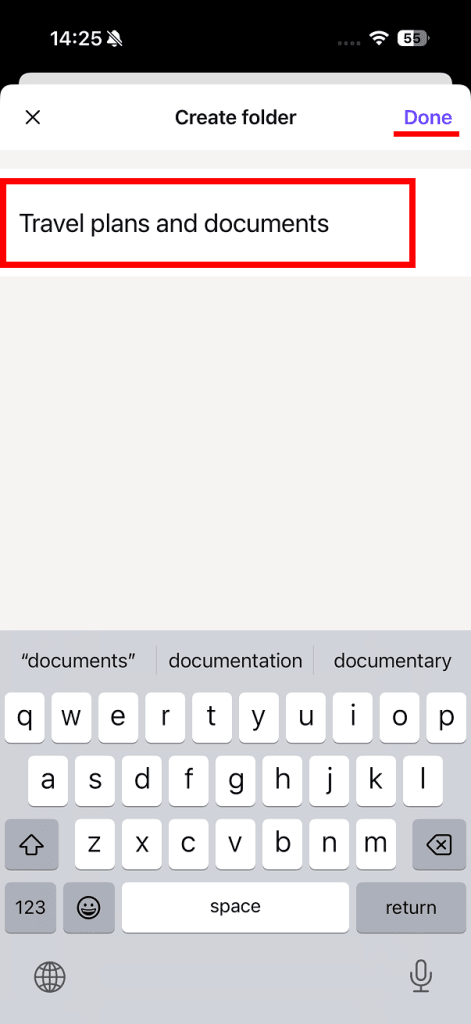
Mappen din er opprettet.
For å opprette en undermappe åpner du den nye mappen din, trykker på + (plussikonet) igjen og velger Opprett mappe.
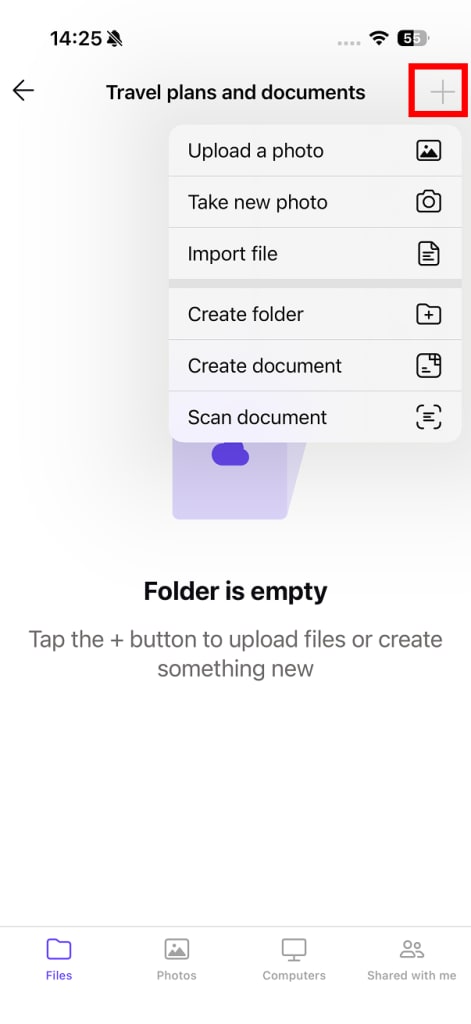
Flytt en fil (eller mappe) inn i en mappe
- Åpne Proton Drive-appen og finn filen eller mappen du vil flytte.
2. Trykk på de tre loddrette prikkene (⋮). Velg Flytt til… fra menyen.
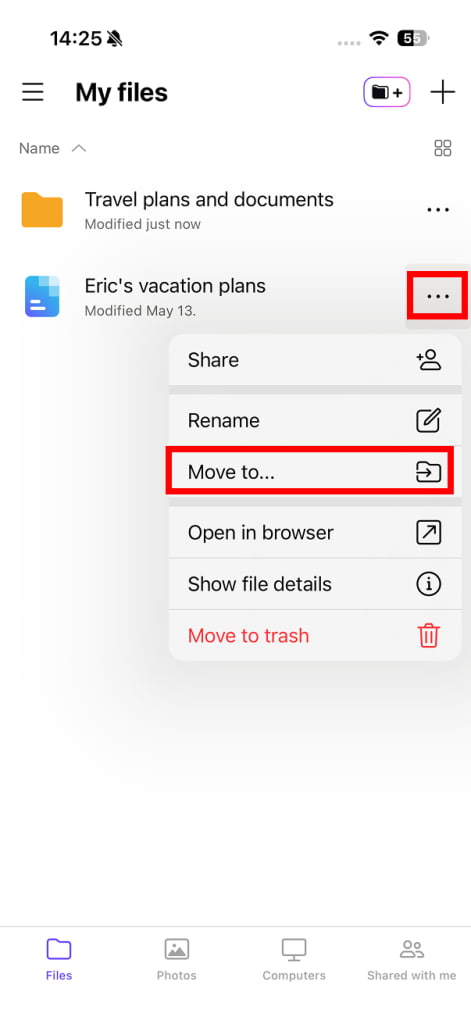
3. Velg målmappen din.
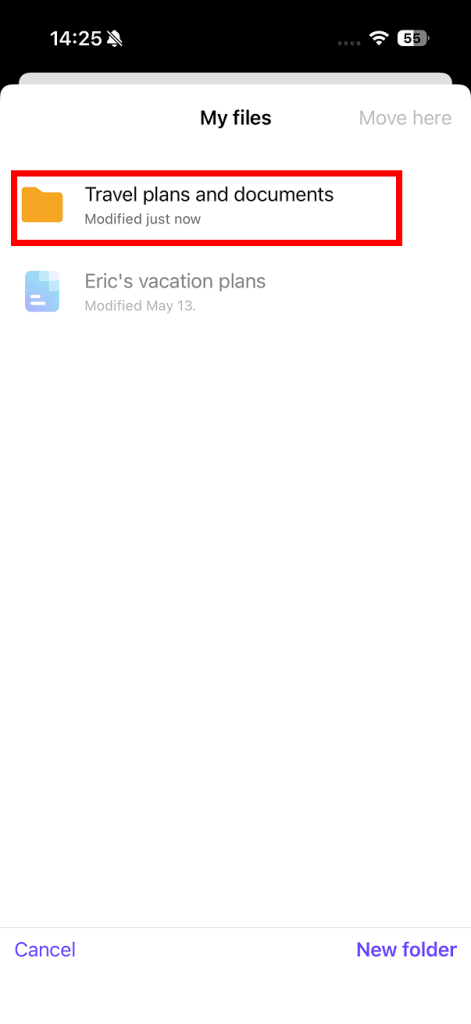
4. Trykk på Flytt hit for å bekrefte.
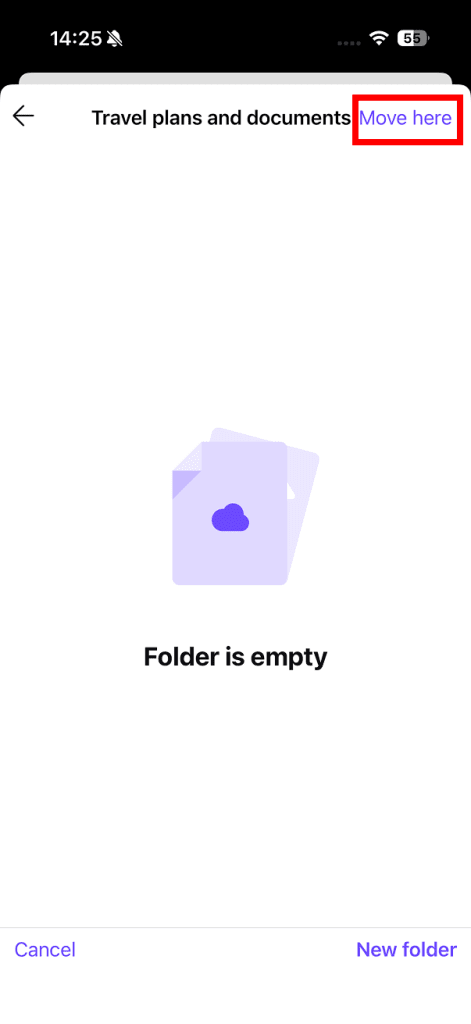
Filen din er flyttet.
Gi en fil eller mappe nytt navn
- Åpne Proton Drive-appen og finn mappen du vil gi nytt navn til.
2. Trykk på de tre loddrette prikkene (⋮) og velg Gi nytt navn… fra menyen.
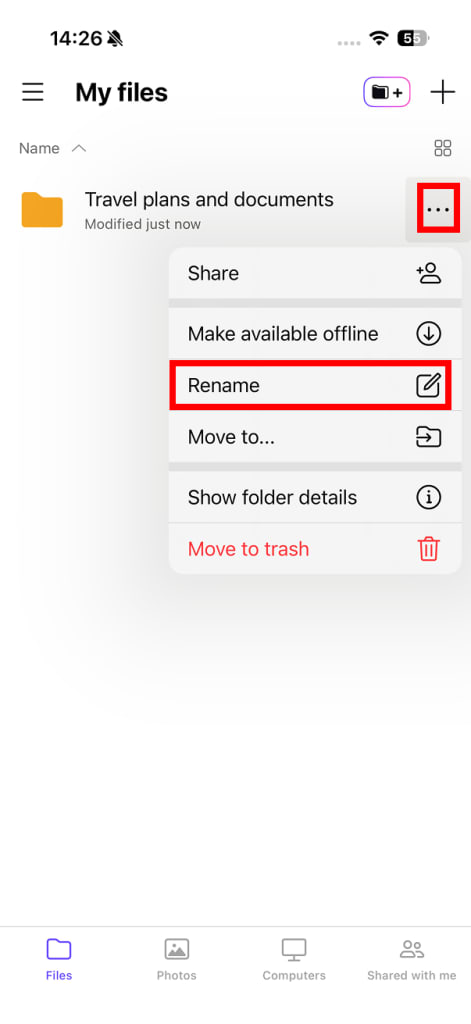
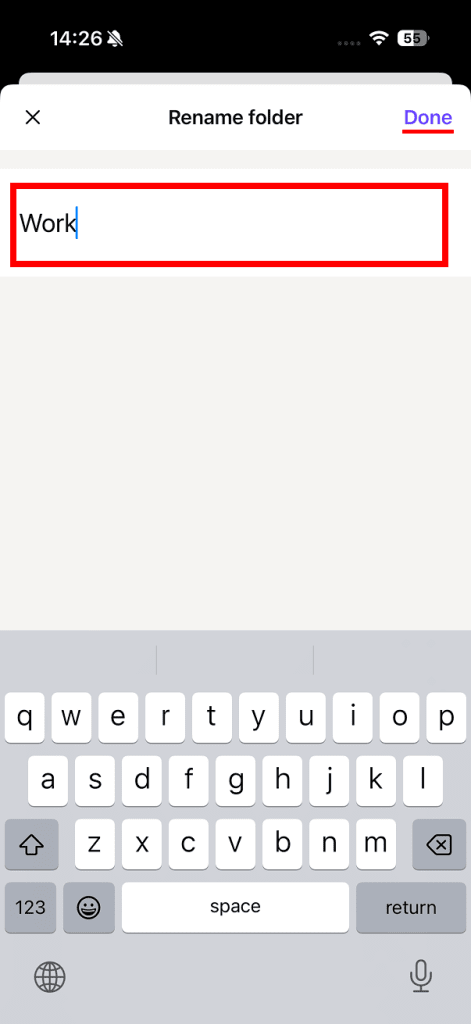
3. Angi et nytt navn og trykk deretter på Utført.
Slett en fil eller mappe
- Åpne Proton Drive-appen og finn filen eller mappen du vil slette.
2. Trykk på de tre loddrette prikkene (⋮) og velg Move to trash fra menyen.
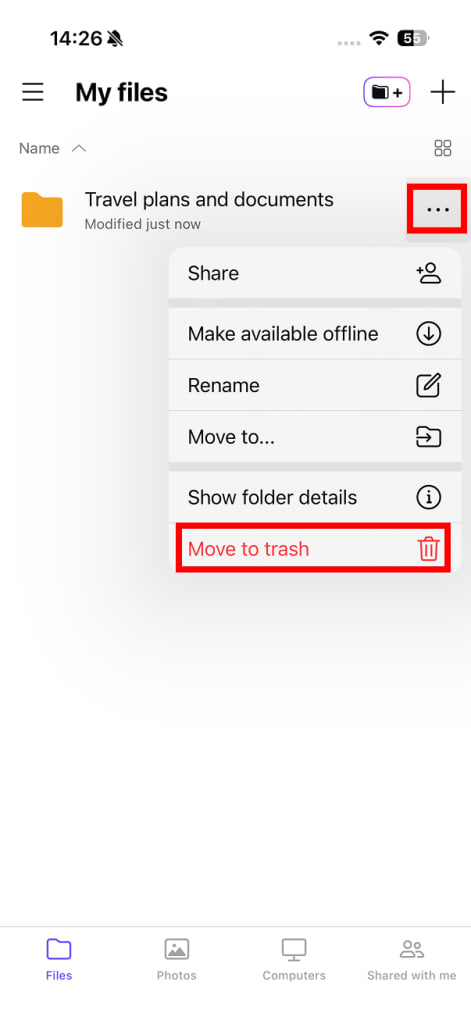
3. Trykk på Fjern mappe for å bekrefte.
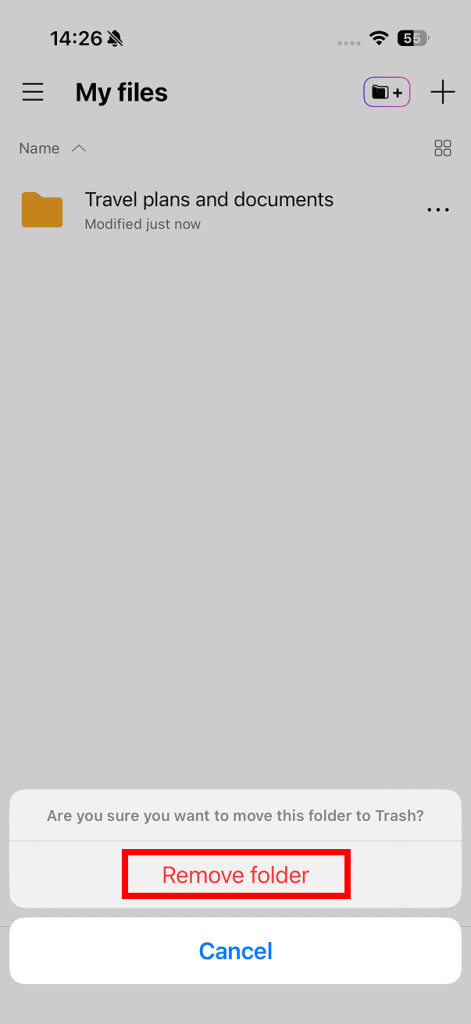
Elementet er nå i papirkurvmappen din. For å slette det permanent:
4. Åpne sidepanelet (trykk på ☰) og velg Papirkurv fra menyen.
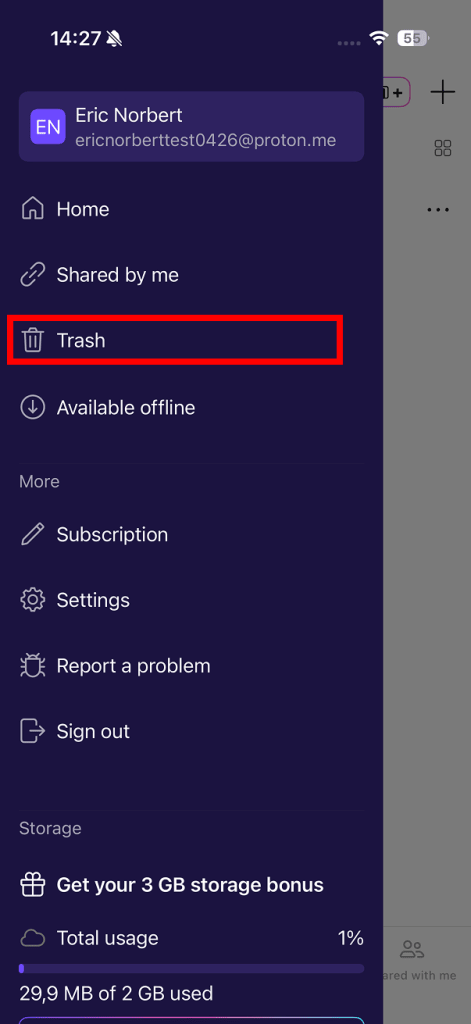
5. Finn elementet du vil slette, og trykk på de tre loddrette prikkene (⋮). Velg Slett.
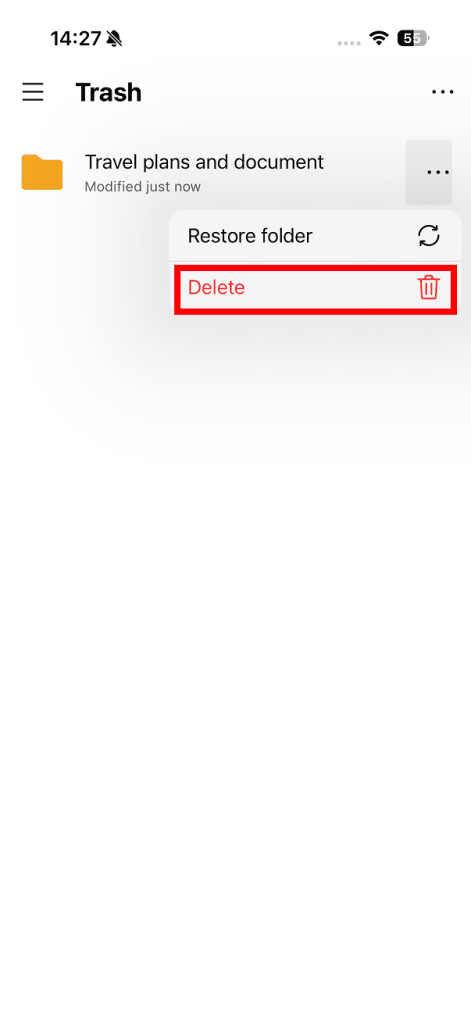
6. Dette vil slette elementet permanent fra Proton Drive. Det kan ikke gjenopprettes. Hvis du er sikker på at du vil fortsette, trykker du på Slett mappe.
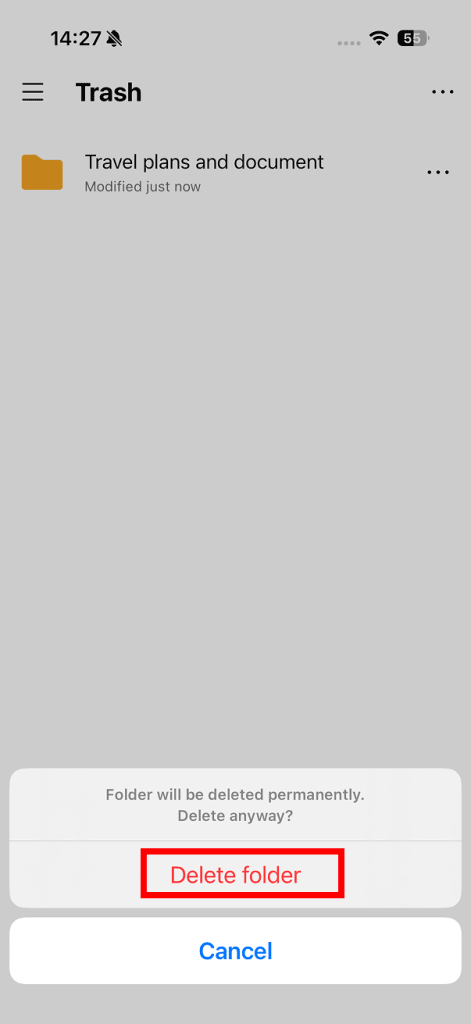
Alt klart. Filen din er permanent slettet.
Android
Opprett en mappe
- Trykk på + (plussikonet) og velg Opprett mappe fra menyen.
- Angi mappenavnet ditt og trykk på Opprett.
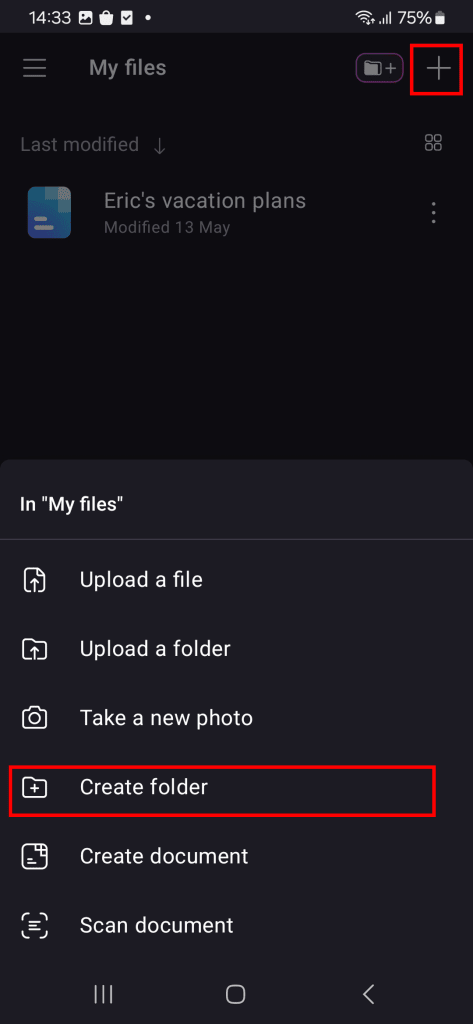
Mappen din er opprettet.
For å opprette en undermappe åpner du den nye mappen din, trykker på + (plussikonet) igjen og velger Opprett mappe.
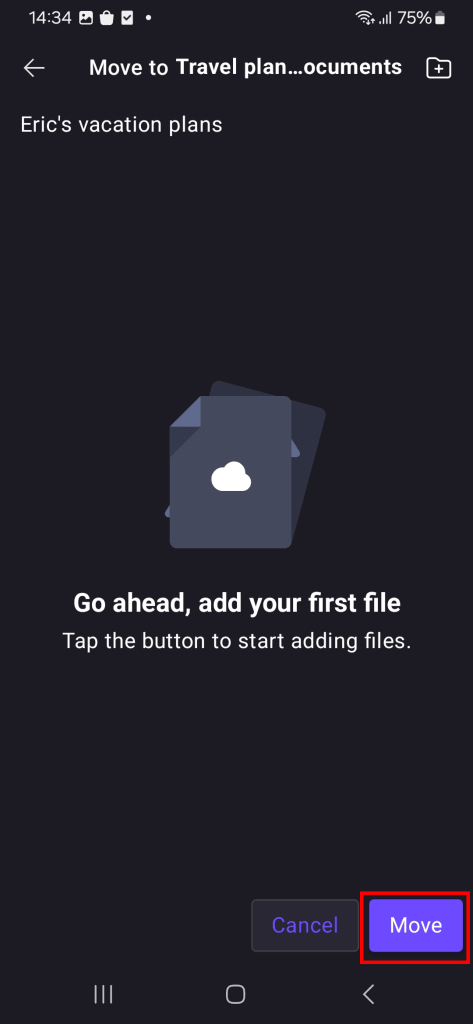
Flytt et element til en mappe
- Trykk på de tre loddrette prikkene (⋮) ved siden av filen eller mappen du vil flytte.
- Velg Flytt fra menyen.
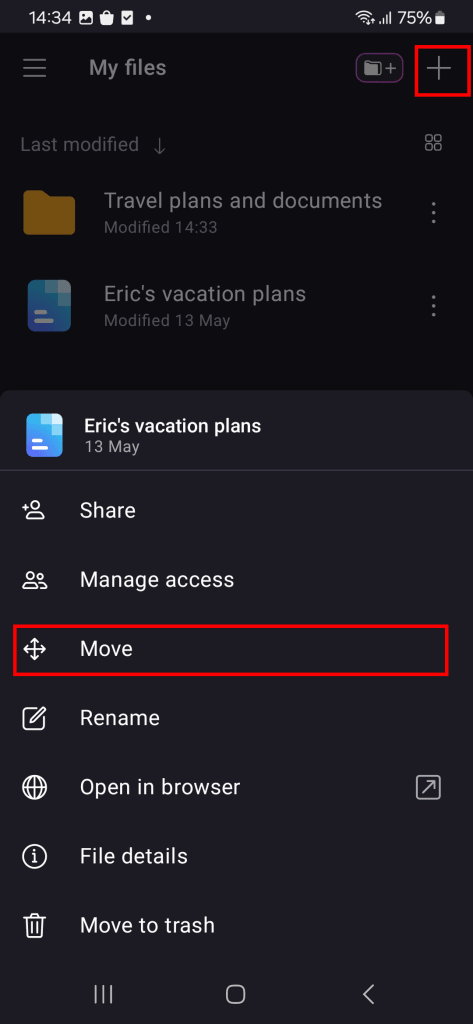
3. Velg målmappen din.
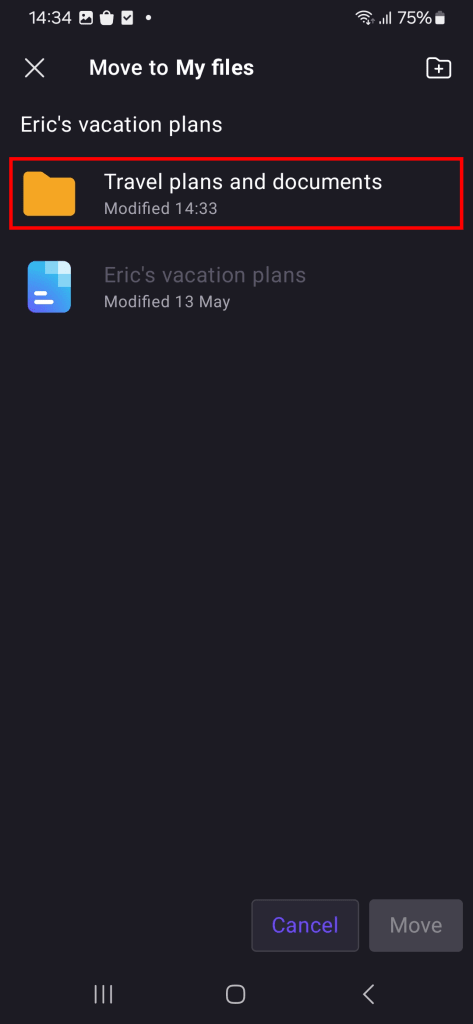
4. Trykk på Flytt for å bekrefte.
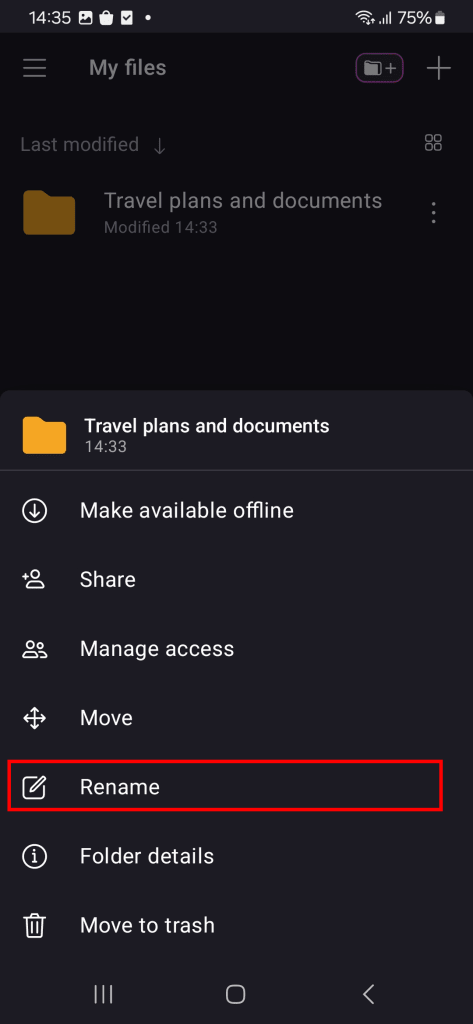
Gi en fil eller mappe nytt navn
- Trykk på de tre loddrette prikkene ( ⋮) ved siden av filen eller mappen du vil gi nytt navn til.
- Velg Gi nytt navn fra menyen.
- Angi et nytt navn, og trykk deretter på Gi nytt navn.
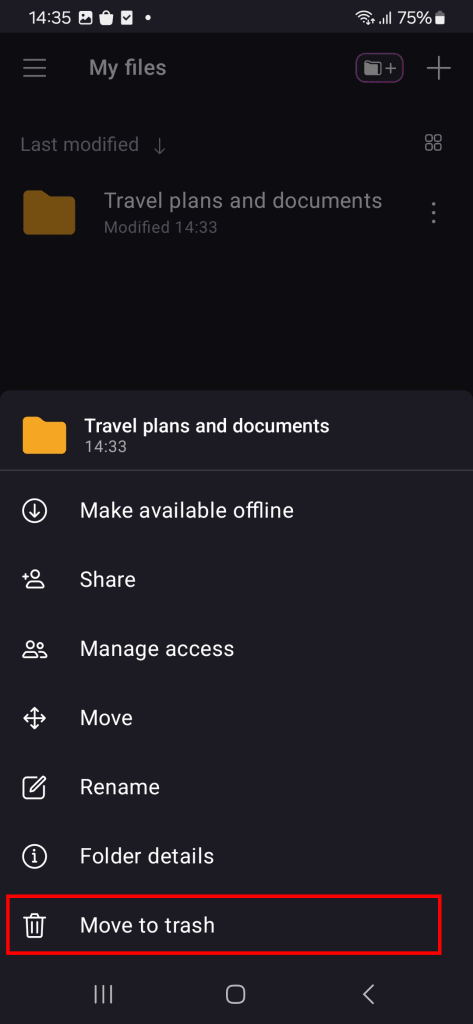
Slett en fil eller mappe
- Trykk på de tre loddrette prikkene ( ⋮) ved siden av elementet du vil slette.
- Velg Flytt til papirkurven fra menyen.
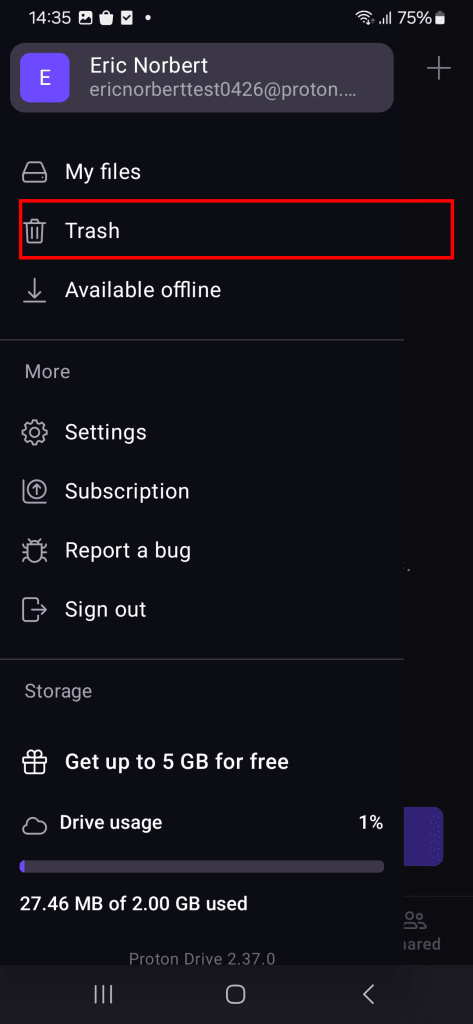
Elementet er nå i papirkurvmappen din. For å slette det permanent:
3. Åpne sidepanelet (trykk på ☰) og velg Papirkurv fra menyen.
4. Trykk på de tre loddrette prikkene ( ⋮) ved siden av elementet du vil slette. Velg Slett.
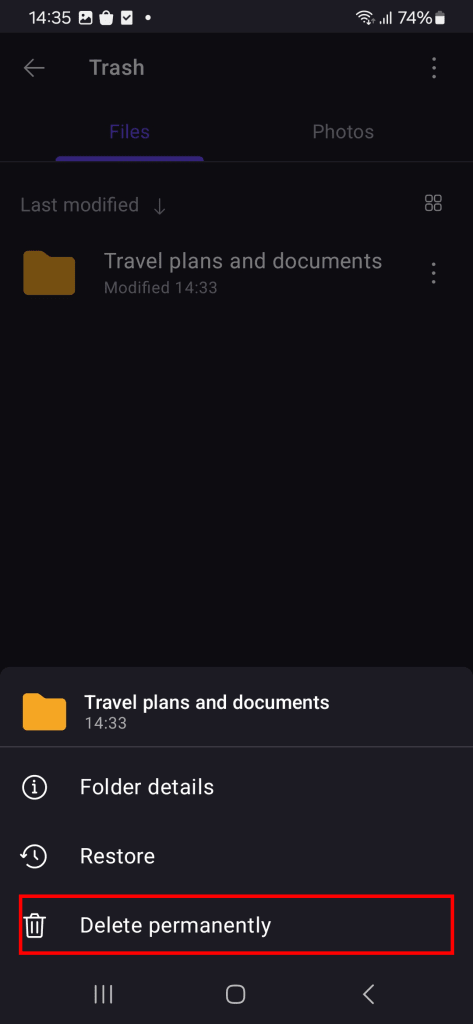
5. Dette vil slette elementet permanent fra Proton Drive. Det kan ikke gjenopprettes. Hvis du er sikker på at du vil fortsette, trykker du på Slett permanent.
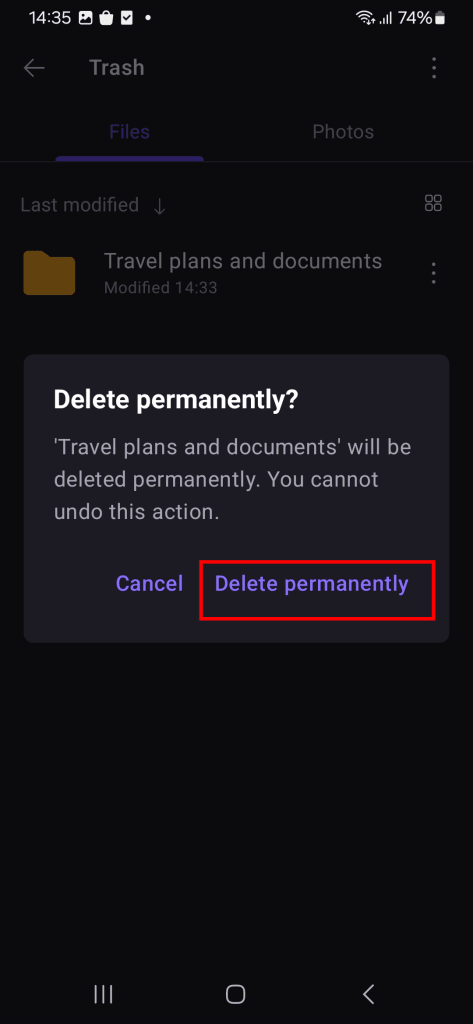
Filen eller mappen har blitt slettet permanent fra Proton Drive.