
Vanliga synkroniseringsproblem och lösningar i Proton Drive för Windows
- Lästid
- 4 min
- Kategori
- Proton Drive
Här är några av de vanligaste problemen du kan stöta på när du synkroniserar filer från din Windows-enhet med Proton Drive-appen, tillsammans med steg för att lösa dem.
En snabb notering om synkroniseringshastighet: Eftersom Proton Drive tillämpar end-to-end-kryptering, krypteras varje fil och mapp individuellt innan den laddas upp. Som ett resultat kan det ta betydligt längre tid att synkronisera ett stort antal små filer eller djupt kapslade mappar än att synkronisera en enskild stor fil med samma totala storlek.
Om synkroniseringen är långsam men fliken Aktivitet visar att den fortfarande gör framsteg, ha tålamod istället för att pausa. Detta gäller särskilt om du hanterar mycket stora filer — om du pausar avbryts pågående överföringar och när du återupptar startar de om från början.
Sök efter uppdateringar av Proton Drive-appen
De flesta synkroniseringsproblem åtgärdas genom att köra den senaste versionen av Proton Drive-appen för Windows. Innan du gör något annat, sök efter uppdateringar manuellt:
- Öppna appmenyn och gå till Om.
- Proton Drive söker automatiskt efter uppdateringar. Om en nyare version finns tillgänglig, klicka på Uppdatera app.
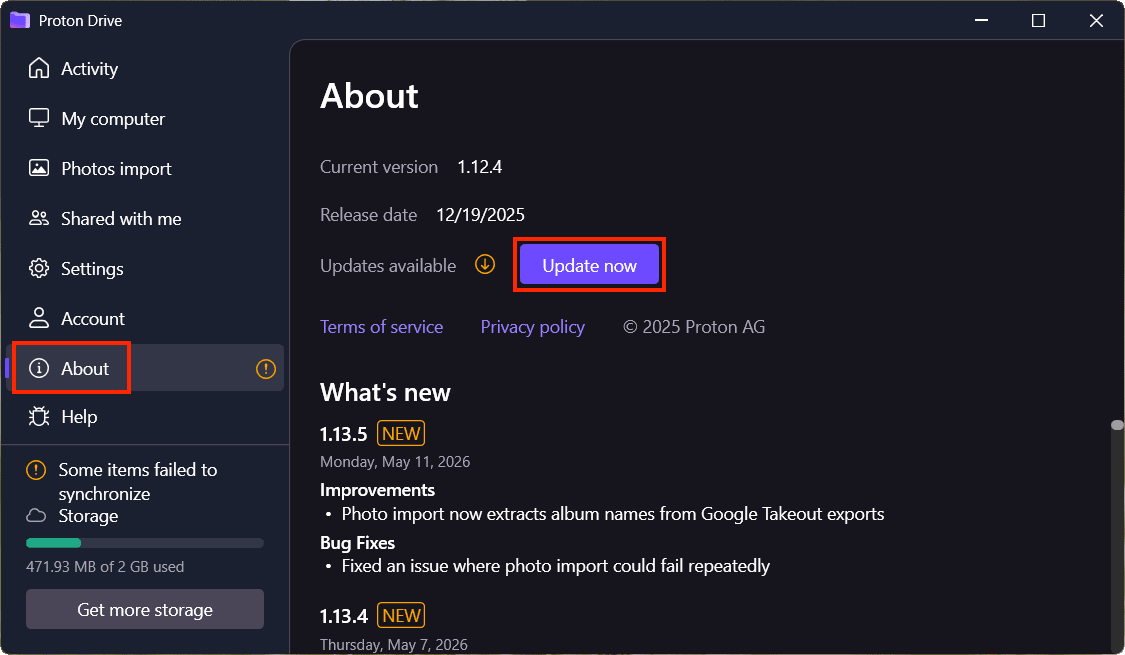
- När uppdateringen är installerad, starta om appen och låt synkroniseringen köras i några minuter innan du kontrollerar om problemet är löst.
Alternativt kan du ladda ner den senaste Proton Drive-appen för Windows och installera den på din dator.
Kontrollera om filerna är öppna i en annan app
Om du öppnar en fil med en annan app (till exempel om du arbetar på en .doc-fil i Microsoft Word) hindras den från att synkroniseras.
För att framgångsrikt synkronisera en fil, stäng alla andra appar där den är öppen och kontrollera synkroniseringsstatusen i fliken Aktivitet.
Mappar och filer som synkroniseras till en annan molnlagringsapp
Filer du synkroniserar till en annan molnlagringsapp kanske inte synkroniseras till Proton Drive om du lagrar dessa filer som endast online.
För att framgångsrikt synkronisera dessa filer, se till att de är inställda på Behåll alltid på den här enheten.
Pausa och återuppta synkronisering
Om synkroniseringen inte fungerar, gå till fliken Aktivitet och klicka på Pausa synkronisering. Vänta några sekunder och klicka på Återuppta synkronisering.

Byt namn på filer med tecken som inte stöds
Om de filer eller mappar du försöker synkronisera har namn som inte stöds av Proton Drive, kommer de inte att synkroniseras. När Drive upptäcker ett tecken som inte stöds, flaggas de berörda filerna. Här är vad du behöver göra:
- Öppna fliken Aktivitet och klicka på Visa fler detaljer för att expandera listan över objekt med synkroniseringsproblem.
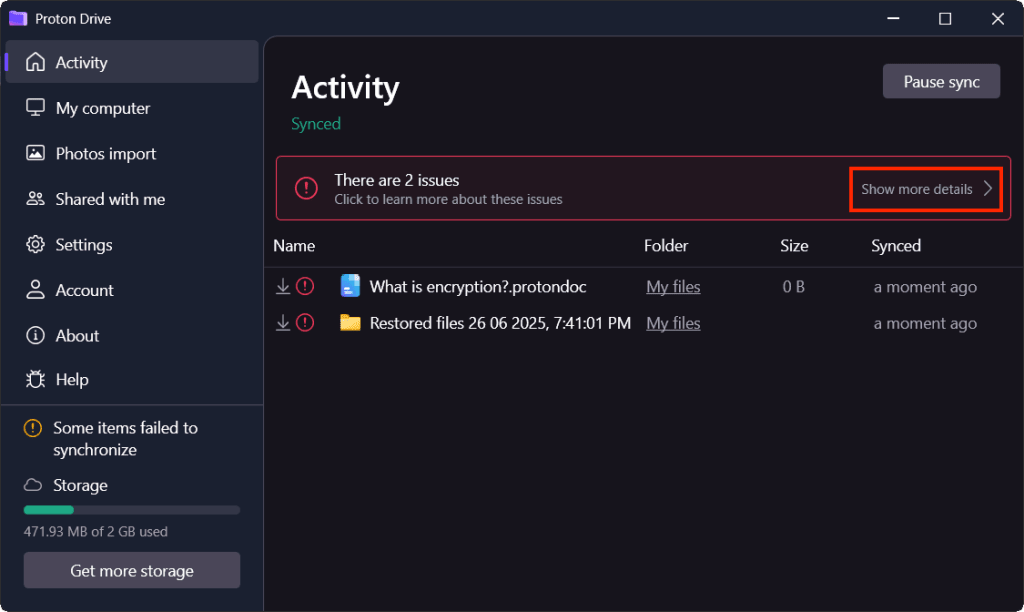
- För varje fil, kontrollera och bekräfta statusen “Namnet innehåller tecken som inte stöds av Windows”, och klicka sedan på Ändra namn.
- Förhandsgranska det föreslagna nya namnet. Du kan behålla det som det är (Proton Drive ersätter tecken som inte stöds med säkra motsvarigheter) eller redigera det.
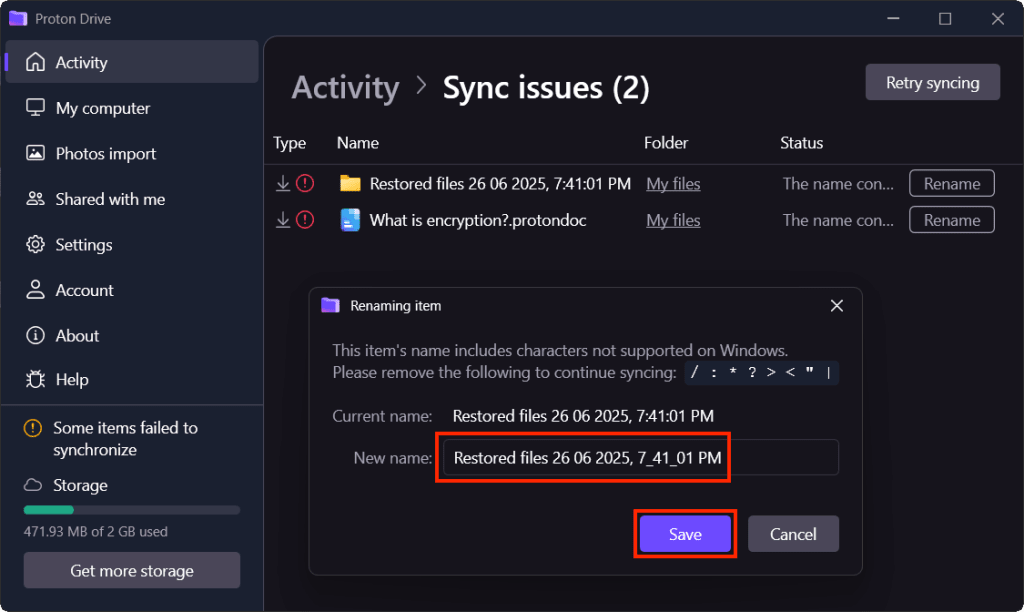
- Klicka på Spara för att tillämpa ändringarna.
Proton Drive kommer automatiskt att försöka synkronisera igen när filen har bytt namn. Det kan ta en liten stund innan ändringen sprids och filen visas som synkroniserad.
Logga ut och logga in igen
Logga ut från Proton Drive-appen och logga in igen för att uppdatera appens session.
Kontrollera din nätverksanslutning
Synkronisering kräver en stabil anslutning till Protons servrar. Om appen verkar ansluten men inte gör några framsteg:
- Bekräfta att andra appar och webbplatser laddas normalt för att utesluta ett allmänt nätverksproblem.
- Om du är ansluten till ett VPN(nytt fönster) (inklusive Proton VPN), prova att byta till en annan server(nytt fönster). Vissa servrar kan vara överbelastade eller dirigera trafik på ett sätt som påverkar uppladdningsprestandan. Efter bytet, vänta en minut på att synkroniseringen återansluter.
- Om det inte hjälper att byta server, prova att koppla från VPN-tjänsten en kort stund för att bekräfta om det är orsaken till den långsamma hastigheten.