
Probleme comune de sincronizare și remedieri în Proton Drive pentru Windows
- Lectură
- 4 min
- Categorie
- Proton Drive
Iată câteva dintre cele mai frecvente probleme pe care le puteți întâmpina atunci când sincronizați fișiere de pe dispozitivul dvs. Windows cu aplicația Proton Drive, împreună cu pașii pentru a le rezolva.
O notă rapidă privind viteza de sincronizare: Deoarece Proton Drive aplică criptare de la un capăt la altul, fiecare fișier și folder este criptat individual înainte de a fi încărcat. Prin urmare, sincronizarea unui număr mare de fișiere mici sau a unor foldere imbricate adânc poate dura semnificativ mai mult decât sincronizarea unui singur fișier mare cu aceeași mărime totală.
Dacă sincronizarea este lentă, dar fila Activitate indică faptul că se fac progrese, acordați-i timp în loc să o suspendați, mai ales dacă gestionați fișiere foarte mari — suspendarea anulează transferurile curente, iar reluarea le repornește de la început.
Verificați dacă există actualizări pentru aplicația Proton Drive
Cele mai multe probleme de sincronizare se remediază prin rularea celei mai recente versiuni a aplicației Proton Drive pentru Windows. Înainte de a face orice altceva, verificați manual dacă există actualizări:
- Deschideți meniul aplicației și accesați Despre.
- Proton Drive verifică automat dacă există actualizări. Dacă este disponibilă o versiune mai nouă, faceți clic pe Actualizare aplicație.
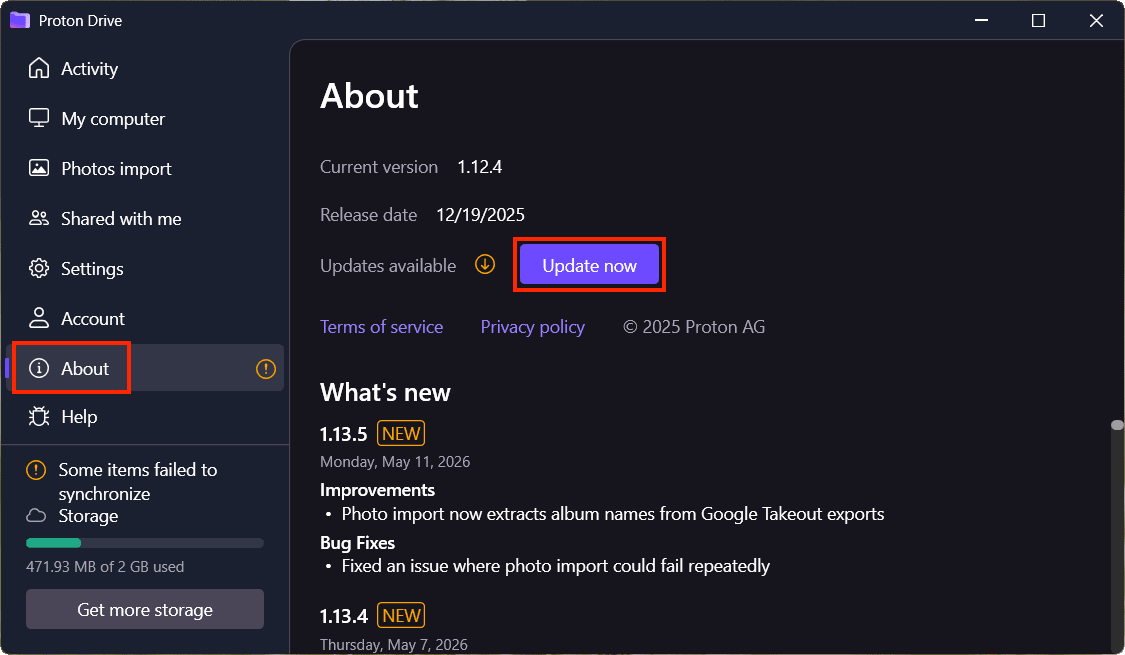
- Odată ce actualizarea este instalată, reporniți aplicația și lăsați sincronizarea să ruleze timp de câteva minute înainte de a verifica dacă problema a fost rezolvată.
Alternativ, puteți descărca cea mai recentă aplicație Proton Drive pentru Windows și să o instalați pe computerul dvs.
Verificați dacă fișierele sunt deschise în altă aplicație
Deschiderea unui fișier cu o altă aplicație (de exemplu, dacă lucrați la un fișier .doc în Microsoft Word) va împiedica sincronizarea acestuia.
Pentru a sincroniza cu succes un fișier, închideți toate celelalte aplicații în care acesta este deschis și verificați starea sincronizării în fila Activități.
Foldere și fișiere sincronizate cu o altă aplicație de stocare în cloud
Este posibil ca fișierele pe care le sincronizați cu o altă aplicație de stocare în cloud să nu fie sincronizate cu Proton Drive dacă stocați aceste fișiere ca disponibile doar online.
Pentru a sincroniza cu succes aceste fișiere, asigurați-vă că acestea sunt setate la Păstrați întotdeauna pe acest dispozitiv.
Suspendarea și reluarea sincronizării
Dacă sincronizarea nu funcționează, accesați fila Activitate și faceți clic pe Suspendare sincronizare. Așteptați câteva secunde și faceți clic pe Reluare sincronizare.

Redenumiți fișierele cu caractere neacceptate
Dacă fișierele sau folderele pe care încercați să le sincronizați au nume neacceptate de Proton Drive, acestea nu vor fi sincronizate. Când Drive detectează un caracter neacceptat, acesta marchează fișierele afectate. Iată ce trebuie să faceți:
- Deschideți fila Activitate și faceți clic pe Afișare detalii pentru a extinde lista elementelor cu probleme de sincronizare.
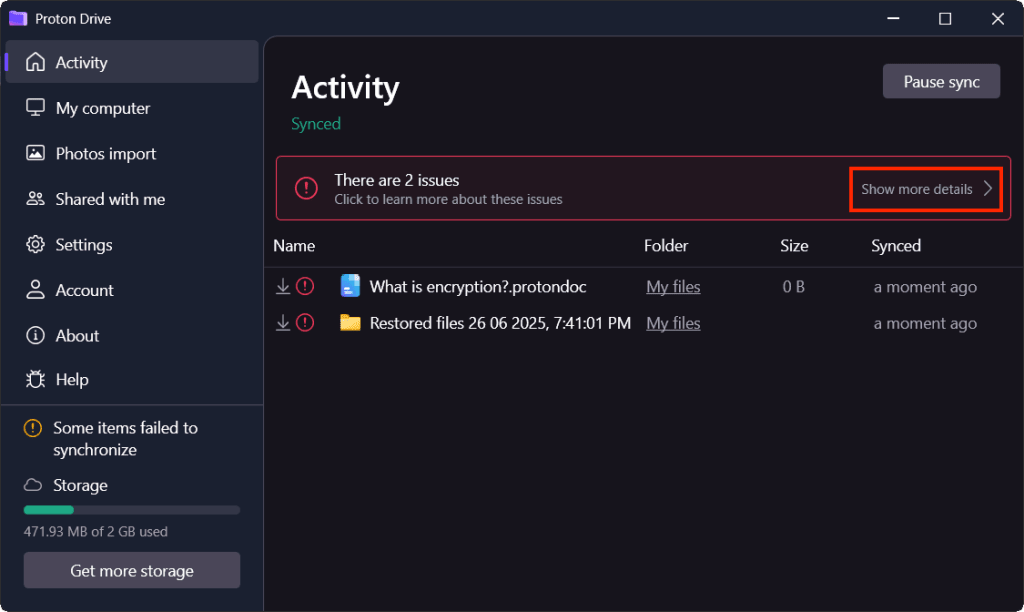
- Pentru fiecare fișier, verificați și confirmați starea „Numele conține caractere neacceptate de Windows”, apoi faceți clic pe Redenumire.
- Previzualizați noul nume sugerat. Îl puteți lăsa așa cum este (Proton Drive va înlocui caracterele neacceptate cu echivalente sigure) sau îl puteți edita.
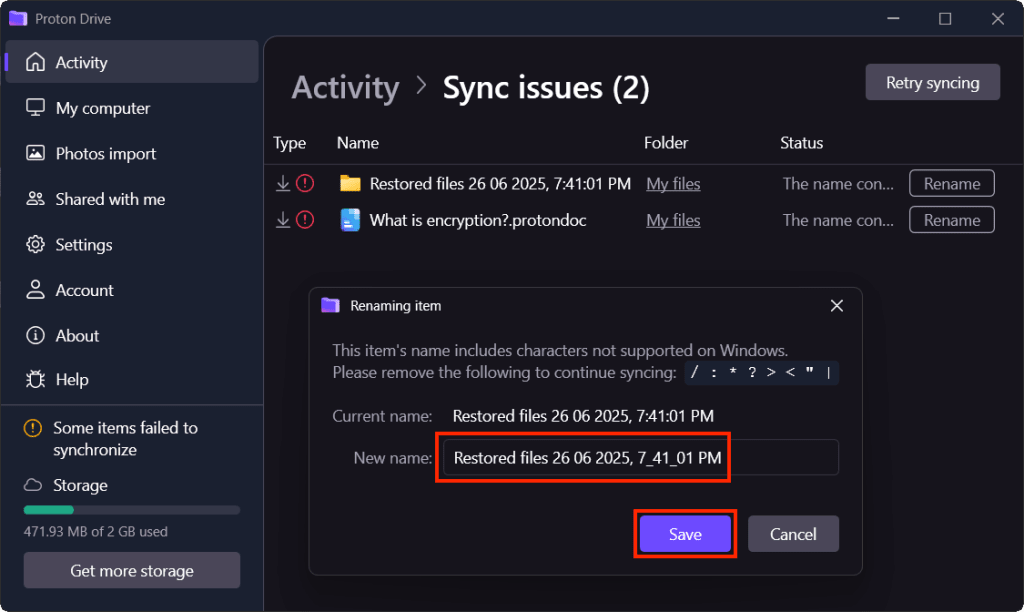
- Faceți clic pe Salvare pentru a aplica modificările.
Proton Drive va reîncerca automat sincronizarea odată ce fișierul este redenumit. Poate dura puțin timp până când modificarea se propagă și fișierul apare ca sincronizat.
Deconectare și reconectare
Deconectați-vă din aplicația Proton Drive și conectați-vă din nou pentru a reîmprospăta sesiunea aplicației.
Verificați conexiunea la rețea
Sincronizarea depinde de o conexiune stabilă la serverele Proton. Dacă aplicația pare conectată, dar nu face progrese:
- Confirmați că alte aplicații și site-uri web se încarcă normal pentru a exclude o problemă generală de rețea.
- Dacă sunteți conectat la un VPN(fereastră nouă) (inclusiv Proton VPN), încercați să comutați pe un alt server(fereastră nouă). Unele servere pot fi congestionate sau pot ruta traficul într-un mod care afectează performanța încărcării. După comutare, acordați sincronizării un minut pentru a se reconecta.
- Dacă schimbarea serverelor nu ajută, încercați să vă deconectați scurt timp de la VPN pentru a confirma dacă acesta este sursa încetinirii.