
Nu primiți notificări Proton Mail pe mobil?
- Lectură
- 3 min
- Categorii
- Aplicația iOS
- Aplicație Android
Dacă nu primiți notificări push pe mobil pentru mesajele primite, încercați aceste sfaturi de depanare.
Notă: Nu trimitem notificări push pentru e-mailurile marcate ca spam.
Android
Verificați permisiunile pentru notificări
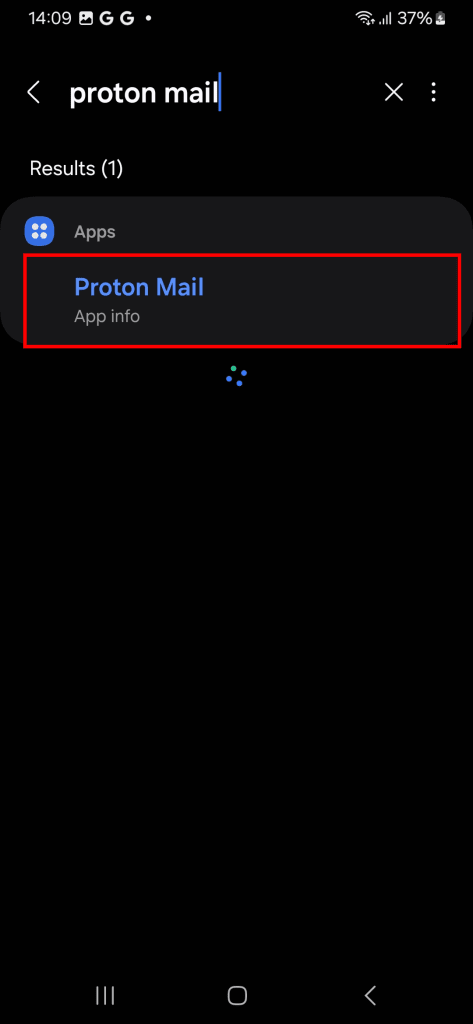
- Deschideți Setările dispozitivului dvs. Căutați Proton Mail sau accesați Aplicații > Proton Mail.
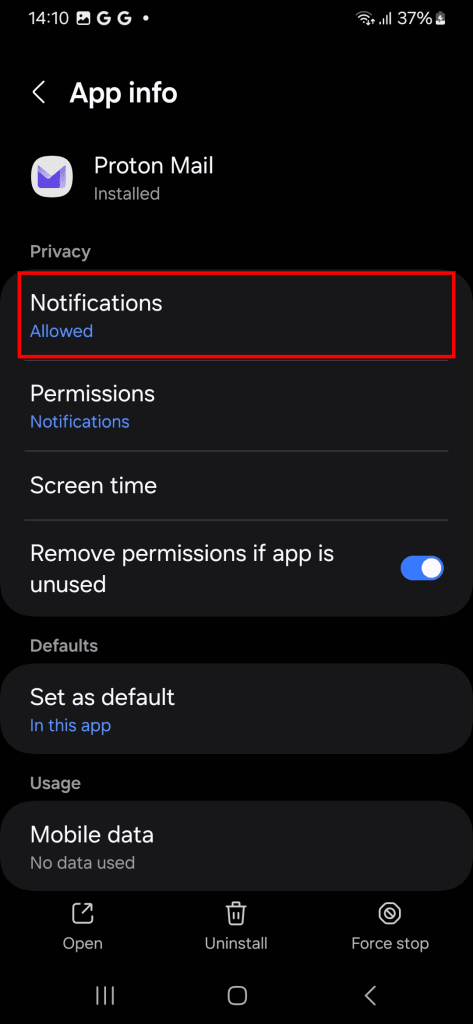
2. Atingeți Notificări și asigurați-vă că este setat pe Permise.
Verificați dacă Google Play Services sunt activate
În prezent, folosim Google Play Services(fereastră nouă) pentru a implementa notificările push.
Reporniți aplicația
- Închideți forțat și redeschideți aplicația.
- După redeschidere, deconectați-vă de la contul dvs. și conectați-vă din nou.
Excludeți Proton Mail de la optimizarea bateriei și de la modurile de economisire a energiei
Iste din ce în ce mai frecvent ca producătorii de dispozitive Android să prelungească durata de viață a bateriei prin închiderea aplicațiilor. Dacă acest lucru se întâmplă cu Proton Mail, este posibil să nu primiți notificări push pentru mesajele noi.
Pentru a împiedica acest lucru, puteți exclude aplicația Proton Mail de la optimizarea bateriei și de la modurile de economisire a energiei. Modul în care faceți acest lucru depinde de dispozitivul dvs.:
Samsung OneUI
- Deschideți Setările dispozitivului dvs. Căutați Proton Mail sau accesați Aplicații > Proton Mail.
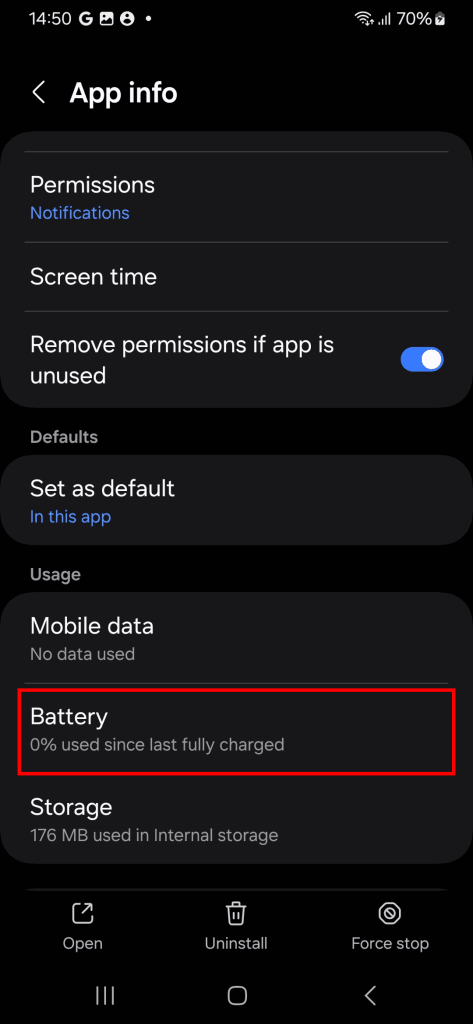
2. Derulați până la Utilizare și selectați Baterie.
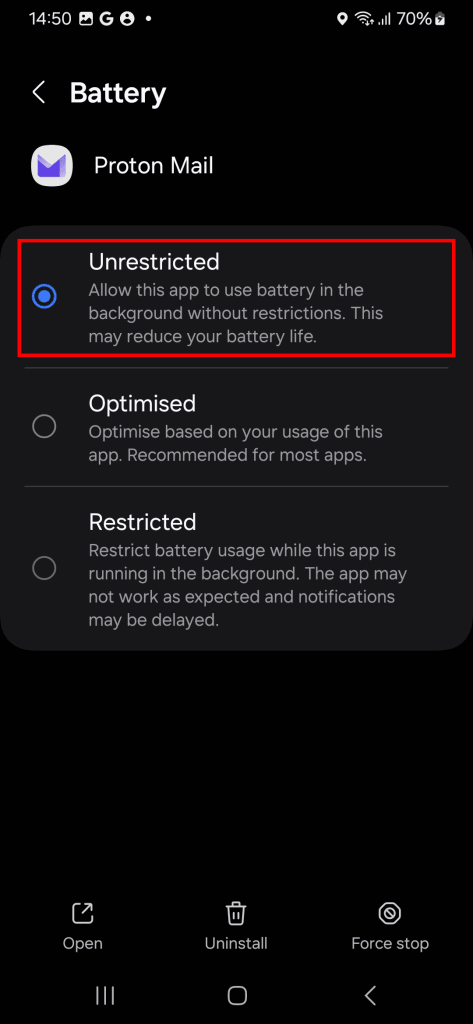
3. Selectați Fără restricții din meniu. Acest lucru va împiedica trecerea Proton Mail în modul de repaus.
Huawei
- Deschideți Setările dispozitivului și accesați Setări avansate→ Manager baterie→ Aplicații protejate.
- Găsiți Proton Mail și protejați-o.
Această acțiune adaugă Proton Mail la lista de permisiuni a dispozitivului dvs., împiedicând închiderea sa sau trecerea în modul de repaus.
Reinstalați Proton Mail
Dacă niciuna dintre opțiunile de mai sus nu funcționează, încercați să ștergeți și să reinstalați aplicația Proton Mail.
iOS
Verificați permisiunile pentru notificări
- Deschideți Setările dispozitivului dvs. Căutați „Proton Mail” sau accesați Aplicații > Proton Mail.
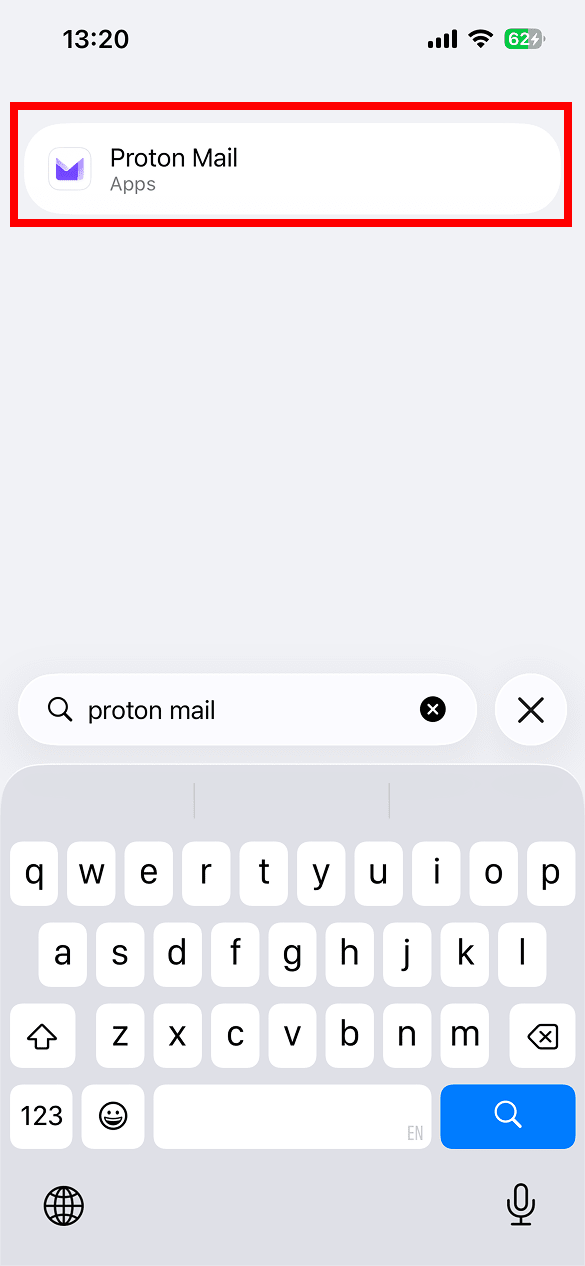
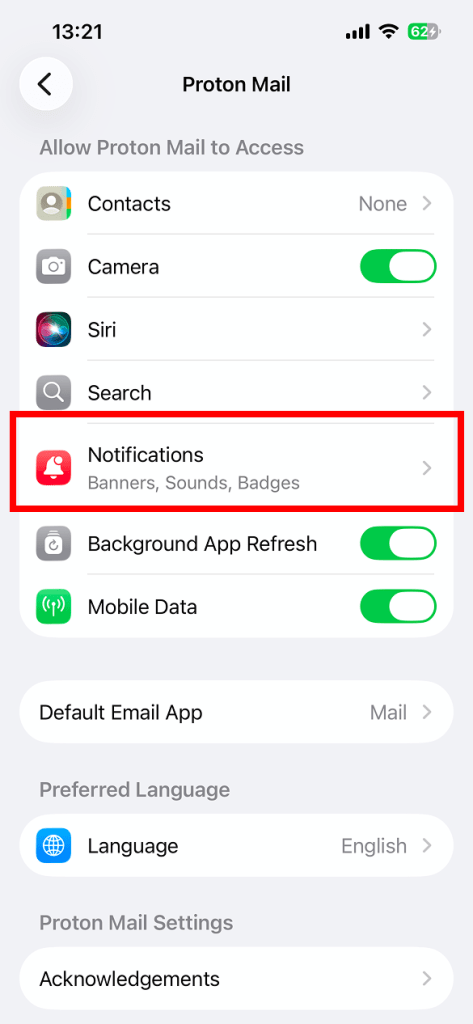
2. Selectați Notificări din meniu.
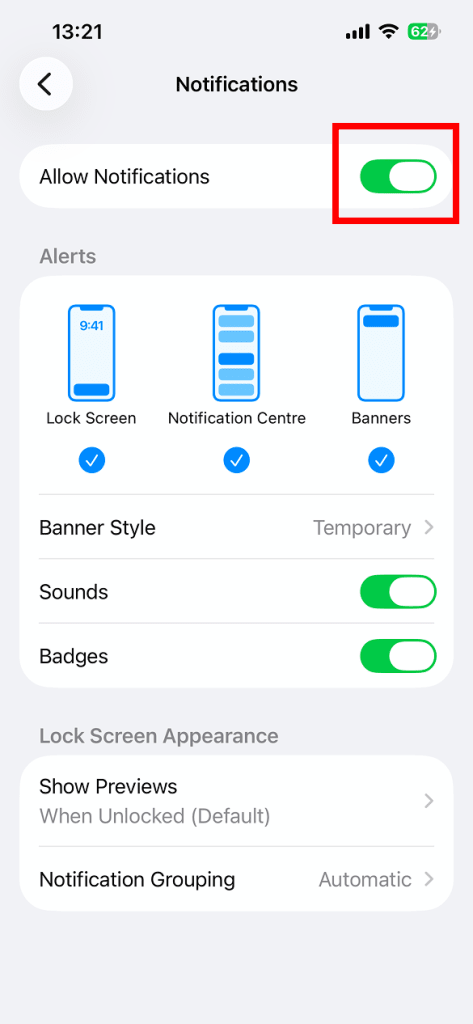
3. Asigurați-vă că opțiunea Permite notificări este activată.
4. Închideți forțat și redeschideți aplicația.
5. După redeschiderea aplicației, deconectați-vă de la contul dvs. și apoi conectați-vă din nou.
Verificați setările de notificare pentru folderele personalizate
Dacă nu primiți notificări pentru mesaje doar pentru anumite foldere, este posibil ca notificările să fie dezactivate pentru folderele respective. Pentru a verifica acest lucru:
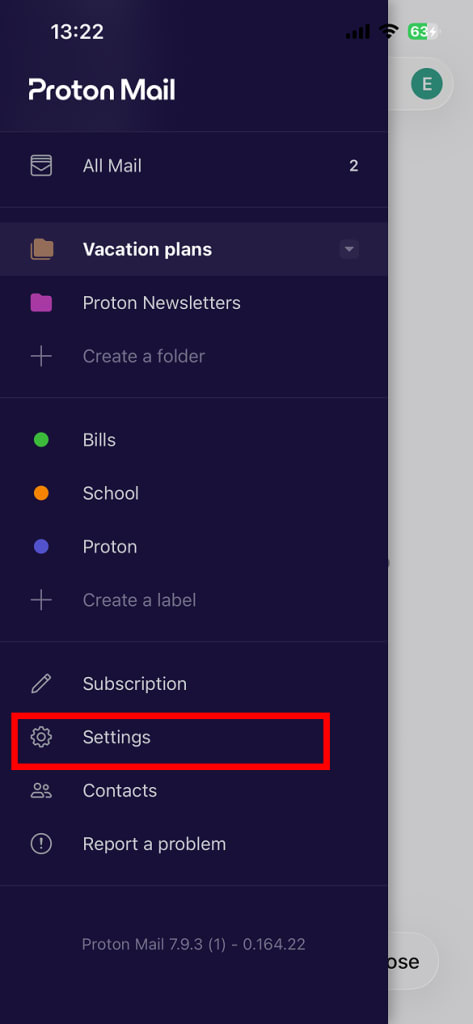
- Accesați folderul Primite din Proton Mail și deschideți bara laterală (atingeți ≡ ).
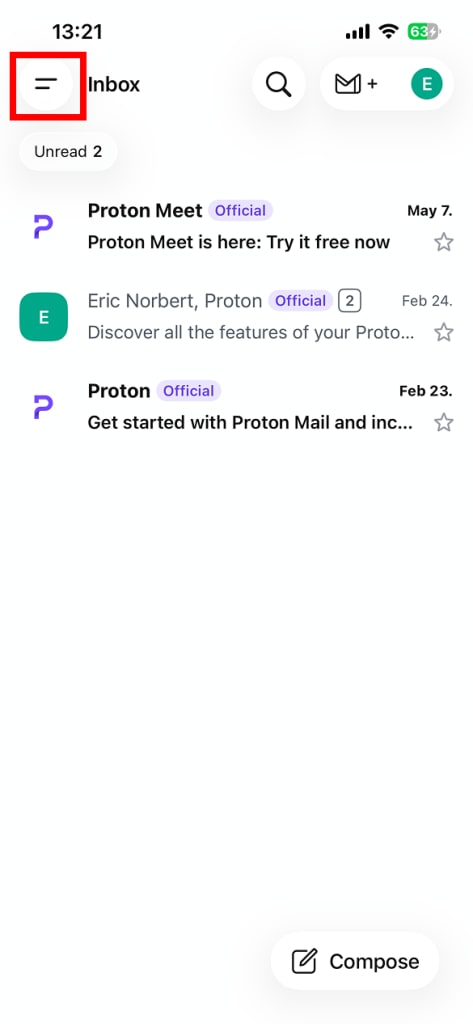
2. Selectați Setări.
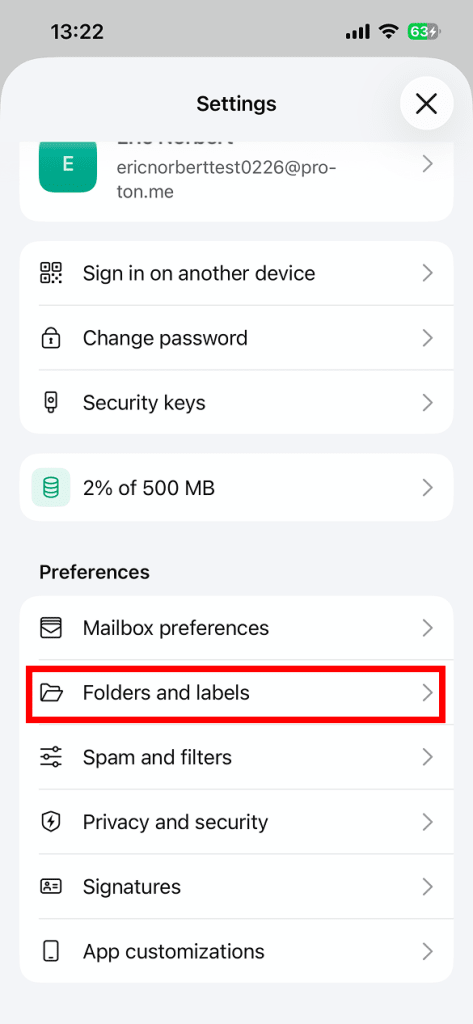
3. Derulați până la Preferințe și selectați Foldere și etichete.
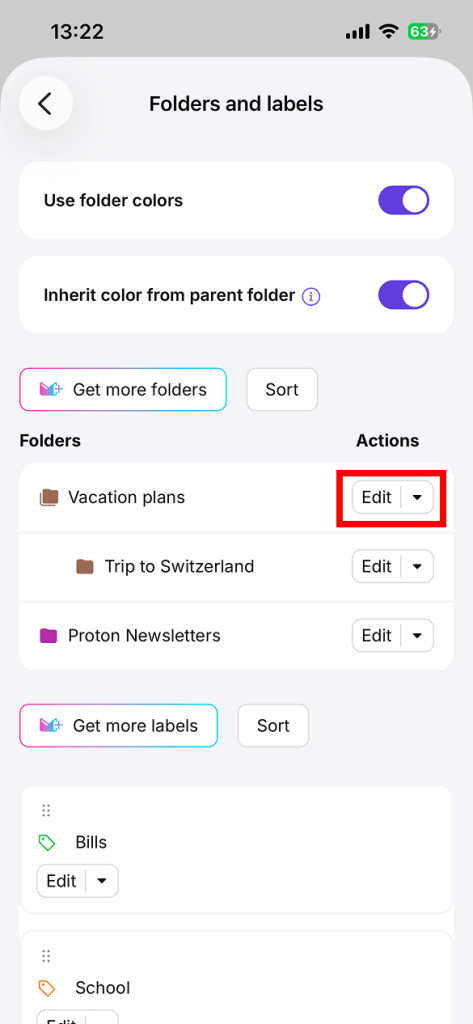
4. Găsiți folderul pe care doriți să-l verificați și atingeți Editare.
5. Verificați dacă opțiunea Notificare este activată, apoi atingeți Salvare.
Reinstalați Proton Mail
Dacă niciuna dintre opțiunile de mai sus nu funcționează, încercați să ștergeți și să reinstalați aplicația Proton Mail.