Si su iPhone se siente lento o si usted descarta las advertencias de «Espacio casi lleno» a pesar de eliminar aplicaciones, es posible que la caché sea parte del problema. Los navegadores y las aplicaciones guardan datos temporales para ayudar a que las cosas carguen más rápido, pero con el tiempo, se acumulan y actúan en su contra, causando problemas como ralentizaciones del iPhone y fallos de las aplicaciones.
iOS no lo hace obvio, pero le mostraremos dónde mirar y cómo borrar la caché de los principales infractores, como su navegador y aplicaciones como Instagram, TikTok(nueva ventana) y YouTube(nueva ventana).
- Caché de Safari
- Caché de Chrome
- Caché de aplicaciones
- Caché del sistema
- Obtener más espacio
- Preguntas frecuentes
Cómo borrar la caché de Safari en el iPhone
- Vaya a Ajustes → Aplicaciones.
- Busque y pulse en Safari.
- Pulse Borrar historial y datos de sitios web.
- Elija Todo el historial para realizar un borrado completo.
- Pulse Borrar historial para confirmar.

Esto borrará su historial de navegación, las cookies y los archivos en caché. Sus contraseñas guardadas y marcadores se mantendrán. Tenga en cuenta que se cerrará su sesión en los sitios web.
Cómo borrar la caché de Chrome en el iPhone
- Abra la aplicación Chrome.
- Pulse el menú de tres puntos ⋮ en la esquina inferior derecha.
- Pulse Eliminar datos de navegación.

- Establezca el Intervalo de tiempo en Desde siempre para un borrado completo.
- Seleccione Datos de navegación y luego Archivos e imágenes en caché. También puede incluir Cookies y datos de sitios para borrar más datos.
- Pulse Eliminar datos.

Borrar las cookies cerrará su sesión en los sitios web.
Si usted utiliza un navegador diferente, como Firefox o Brave, busque opciones con las etiquetas “Privacidad”, “Datos” o “Borrar datos de navegación” en los ajustes de la aplicación.
Cómo borrar la caché de las aplicaciones en el iPhone
Las aplicaciones también almacenan sus propios datos en caché en su iPhone. A diferencia de Safari, no existe un único lugar en iOS para borrar la caché de las aplicaciones. Algunas aplicaciones le permiten hacerlo desde sus propios ajustes, mientras que otras requieren que las elimine y las reinstale por completo.
Cómo borrar la caché de WhatsApp en el iPhone
WhatsApp no tiene un único botón para borrar toda la caché, por lo que usted debe liberar espacio de cada chat por separado:
- Abra WhatsApp.
- Vaya a Ajustes → Almacenamiento y datos.
- Pulse en Administrar almacenamiento.
- Seleccione un chat para ver los archivos en caché y eliminarlos.
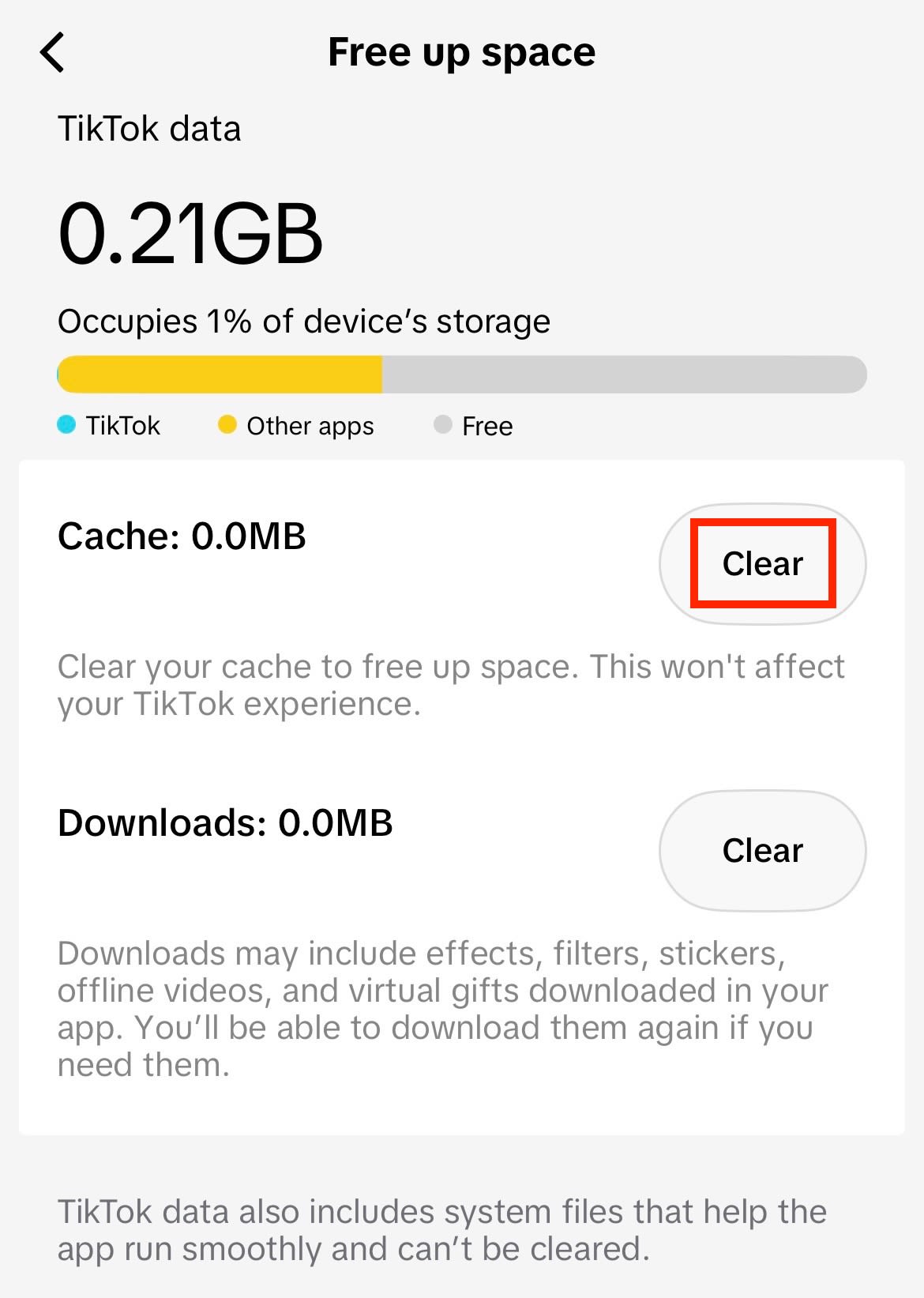
Cómo borrar la caché de TikTok en el iPhone
- Abra TikTok.
- Vaya a su perfil y pulse el icono de menú de tres líneas en la parte superior derecha.
- Pulse en Ajustes y privacidad y seleccione Liberar espacio.
- Pulse Borrar en la fila de la caché.
Cómo borrar la caché de Instagram en el iPhone
Algunas aplicaciones como Instagram no tienen una opción de caché, pero existen soluciones alternativas:
- Abra la aplicación Ajustes.
- Vaya a General → Almacenamiento del iPhone.
- Busque y pulse en Instagram. Usted puede elegir entre
- Desinstalar aplicación: Esto borra la aplicación pero mantiene los datos locales, como los ajustes y documentos.
- Eliminar aplicación: Esto borra la aplicación y sus datos locales.
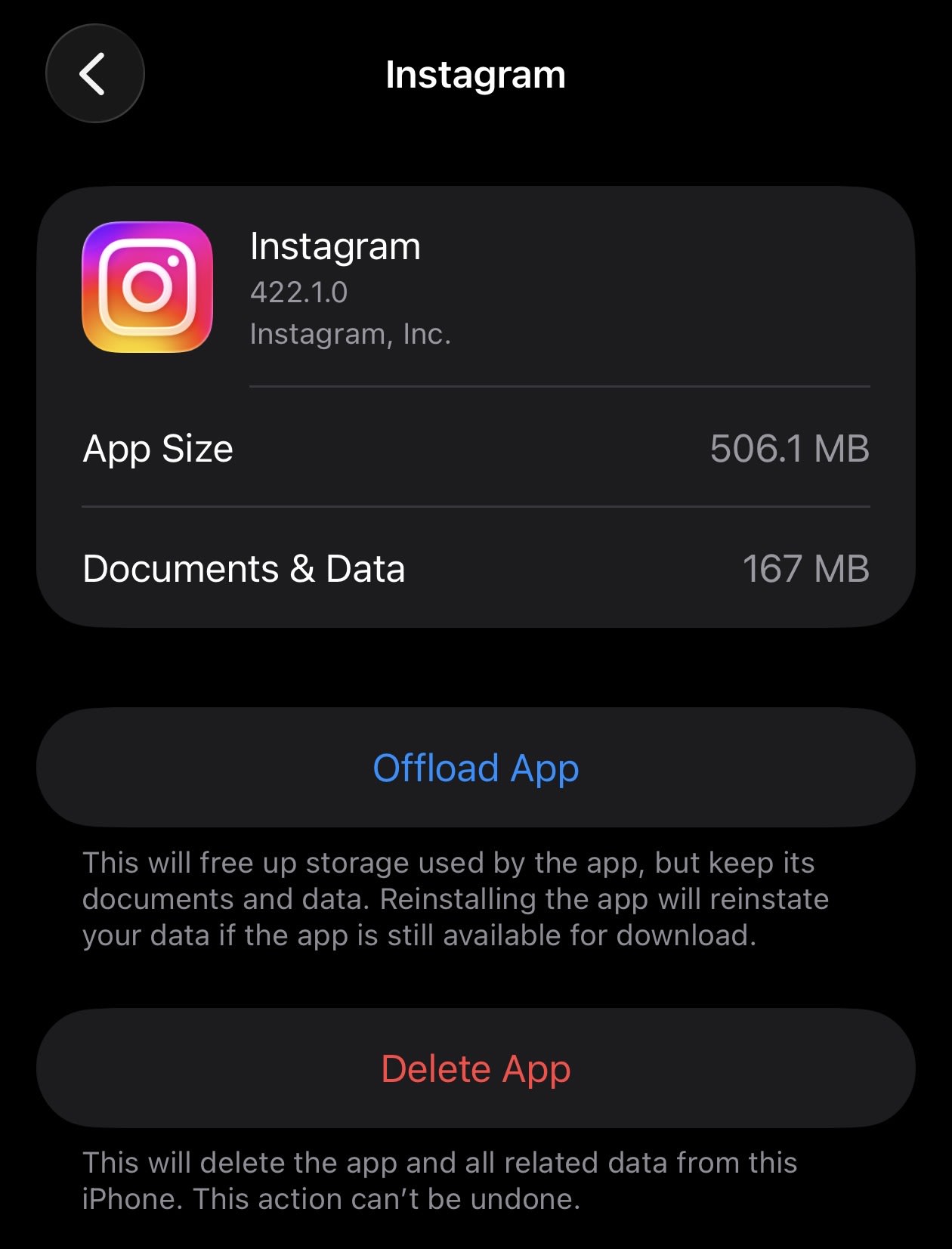
Si usted ha eliminado la aplicación, puede volver a instalar Instagram desde la App Store e iniciar sesión de nuevo. Después de desinstalarla, busque el icono de Instagram atenuado en su pantalla de inicio y púlselo para volver a instalar los datos de la aplicación.
Desinstalar o eliminar la aplicación para borrar la caché
Para las aplicaciones que no tienen una opción de caché integrada, usted tiene dos opciones:
- Desinstalar aplicación: Borra la aplicación pero mantiene los datos locales, como los ajustes y documentos. Cuando usted vuelve a instalar la aplicación, se restauran los datos locales. Esto no libera mucho espacio, pero es menos disruptivo.
- Eliminar aplicación: Borra la aplicación y sus datos locales, para que usted pueda realizar una instalación limpia. Su cuenta no se verá afectada y solo tendrá que volver a iniciar sesión después de reinstalar la aplicación.
Cómo borrar la caché del sistema en el iPhone
La caché del sistema, también conocida como datos del sistema en el iPhone, incluye cachés, registros y archivos temporales que su iPhone almacena para funcionar sin problemas. A diferencia de la caché del navegador o de la aplicación, no hay una forma directa de borrarla desde iOS.
Sin embargo, un reinicio ayuda a borrar la memoria temporal, lo que puede solucionar pequeños fallos y recuperar una mínima cantidad de almacenamiento. A continuación, se explica cómo reiniciar su iPhone:
- Mantenga pulsados el botón lateral (el botón de encendido) y cualquiera de los botones de volumen simultáneamente hasta que aparezca el deslizador para apagar.
- Arrastre el deslizador para apagar su iPhone.
- Espere unos 30 segundos.
- Mantenga pulsado el botón lateral hasta que aparezca el logotipo de Apple.
Si los datos del sistema están ocupando un segmento grande de almacenamiento, usted tendrá que borrar la caché del navegador y la caché de la aplicación(nueva ventana). Un método alternativo es borrar los datos del sistema cambiando la fecha de su iPhone al futuro(nueva ventana), aunque no es una solución oficial.
Consiga más espacio en el iPhone con el almacenamiento seguro en la nube
La caché se acumula con el tiempo, pero también lo hacen las fotos y los videos. Cuando los archivos multimedia comienzan a acumularse, el almacenamiento de su iPhone se llena rápidamente. Borrar la caché ayuda a liberar algo de espacio, pero tarde o temprano vuelve a acumularse. Y eliminar recuerdos personales solo para que su teléfono siga funcionando no debería ser una opción.
Hacer una copia de seguridad de sus fotos en un almacenamiento en la nube seguro significa que no tiene que renunciar a nada. Proton Drive ofrece un enfoque centrado en la privacidad para almacenar fotos, videos, documentos y otros archivos para que no tenga que preocuparse por quedarse sin espacio en su iPhone. Lo hemos hecho fácil y seguro con copias de seguridad automáticas de fotos y videos, así como con el intercambio de archivos fuera del ecosistema de Apple.
El cifrado de extremo a extremo de Proton Drive mantiene sus archivos realmente privados y accesibles solo para quienes usted elija. Con aplicaciones para iPhone, iPad y Mac, sus archivos siempre estarán a su alcance, incluso si pierde su teléfono o se lo roban.
Preguntas frecuentes sobre la caché del iPhone
La caché guarda fragmentos de contenido de sitios web y aplicaciones para que se carguen más rápido cuando vuelva a visitarlos. Las cookies son específicas del navegador y almacenan detalles como su estado de inicio de sesión y sus preferencias del sitio.
Cuando borra la caché, significa que su navegador o aplicación debe volver a descargar el contenido en su dispositivo, e incluso podría notar que tarda más en cargarse. Borrar las cookies elimina sus preferencias de sitios web y cierra sus sesiones en la web. La mayoría de los navegadores le permiten borrar una sin la otra.
La caché es como una hoja de trucos que su iPhone guarda para sí mismo. Cuando visita un sitio web o usa una aplicación, se guardan fragmentos de contenido y datos localmente para que su teléfono pueda omitir una descarga completa la próxima vez. Ayuda a que los elementos se carguen y abran más rápido, para que no tenga que esperar demasiado en una pantalla de carga.
El problema es que esta hoja de trucos crece sin cesar. Cada sitio y aplicación se suma a ella, y iOS no la purga automáticamente. Aquí es donde la caché se convierte en un acaparador de almacenamiento difícil de manejar que limita el rendimiento y la funcionalidad de su iPhone.
Usted no debería borrar la caché del iPhone con regularidad, sino solo cuando el almacenamiento se esté llenando o como un paso de resolución de problemas cuando las aplicaciones no funcionen correctamente. Hacerlo con demasiada frecuencia puede hacer que su iPhone cargue las cosas con lentitud, ya que tiene que volver a descargar contenido que normalmente obtendría del almacenamiento.
No. Sus contraseñas guardadas viven en el Llavero de iCloud o en su gestor de contraseñas; borrar la caché no las tocará. Sin embargo, borrar las cookies cerrará sus sesiones en los sitios web, así que asegúrese de que sus inicios de sesión estén guardados en su gestor de contraseñas antes de borrarlas.
Puede seguir los pasos anteriores para borrar la caché en el iPhone, lo que también incluye las cookies. Para eliminar las cookies sin borrar el historial, vaya a Ajustes → Safari → Avanzado → Datos de sitios web, luego pulse Borrar todos los datos de sitios web o deslice hacia la izquierda en sitios individuales para eliminar cookies específicas.
Los limpiadores de aplicaciones para iPhone pueden ayudar con algunas cosas, como encontrar fotos duplicadas, pero en realidad no pueden borrar la caché de otras aplicaciones. Apple no permite que las aplicaciones accedan a los datos de las demás, por lo que una aplicación de limpieza no tiene forma de llegar a los archivos almacenados en la caché de otras aplicaciones. Si una aplicación afirma que puede borrar la caché por usted, tómelo con cautela.