Når du videresender en e-post, kan formateringen bli ødelagt, og metadata, som tidsstempler og emnelinjer, blir av og til fjernet. Hvis du videresender en bedriftse-post som et bekreftet bevis, eller vil at mottakeren skal se nøyaktig hva du mottok, vil det å legge ved e-posten holde den opprinnelige meldingen helt intakt.
De fleste e-posttjenester legger ved e-porter som .eml-filer, noe som bevarer den opprinnelige formateringen og vedleggene. Du kan legge ved en e-post i en e-post i Gmail, Outlook og Proton Mail.
Slik legger du ved en e-post i en e-post i Gmail
Videresend en e-post som vedlegg
- Velg avkrysningsboksen ved siden av e-postene du vil videresende som vedlegg.
- Velg Mer (eller de tre vertikale prikkene) og velg Videresend som vedlegg.

- Legg til mottakere, skriv meldingen og klikk på Send.
Du kan videresende så mange e-poster som vedlegg du vil, men hvis det totale volumet overstiger 25 MB, vil Gmail legge dem ved via en Google Drive-lenke.
Finn ut mer om Gmail-grenser for vedleggsstørrelse og hvordan du sender store filer via e-post.
Last ned og legg ved en e-post
- Åpne e-posten du vil sende som vedlegg.
- Klikk på de tre vertikale prikkene i e-posten og velg:
- Last ned melding: For å lagre e-posten som en .eml-fil.

- Skriv ut: For å lagre e-posten som en .pdf-fil.

- I den nye e-posten din velger du Legg ved filer (bindersikonet) for å legge ved den nedlastede e-posten. Du kan også dra og slipp en tidligere nedlastet e-post direkte inn i meldingsteksten.
- Legg til mottakere, skriv meldingen og klikk på Send.
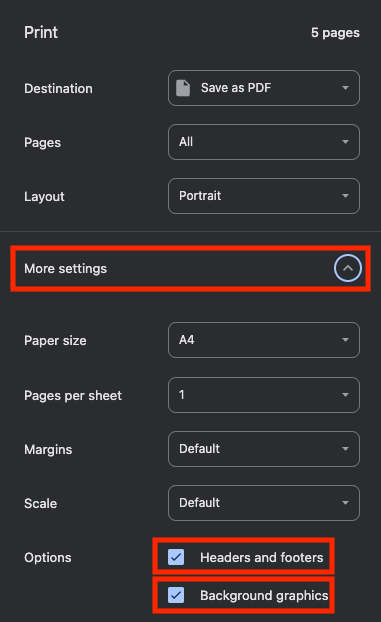
Merk: For å sikre at e-posten ser ut som originalen når den lagres som .pdf, må du kontrollere at Topptekst og bunntekst og Bakgrunnsgrafikk er valgt. Du kan gjøre dette ved å velge Flere innstillinger fra sprett-opp-vinduet.
Slik legger du ved en e-post i en e-post i Outlook
Det finnes to versjoner av Outlook: nye Outlook og klassisk Outlook. Trinnene er stort sett like, og forskjellene er markert nedenfor.
Videresend en e-post som vedlegg
- Åpne e-posten du vil videresende som vedlegg.
- Velg Flere handlinger (de tre horisontale prikkene) → Andre svarhandlinger → Videresend som vedlegg.

- Et nytt e-postvindu åpnes med e-posten vedlagt som en .eml- eller .msg-fil, avhengig av din Outlook-versjon.
- Legg til mottakere, skriv meldingen og klikk på Send.
Last ned og legg ved en e-post
- Åpne e-posten du vil sende som vedlegg.
- Velg Mer (de tre horisontale prikkene) og velg:
- Last ned: For å lagre e-posten som en .eml (eller .msg hvis du bruker klassisk Outlook).

Skriv ut: For å lagre e-posten som en .pdf-fil.

I den nye e-posten din velger du Legg ved en fil i dette elementet (bindersikonet) for å legge ved den nedlastede e-posten. Du kan også dra og slipp en tidligere nedlastet e-post direkte inn i meldingsteksten.
Legg til mottakere, skriv meldingen og klikk på Send.
Slik legger du ved en e-post i en e-post i Proton Mail
For å legge ved en e-post i Proton Mail, må du laste ned og laste opp e-posten til utkastet ditt.
Last ned og legg ved en e-post
Åpne e-posten du vil sende som vedlegg.
Velg Mer (de tre horisontale prikkene) og velg:
Eksporter: For å lagre e-posten som en .eml-fil.

Skriv ut: For å lagre e-posten som en .pdf-fil.
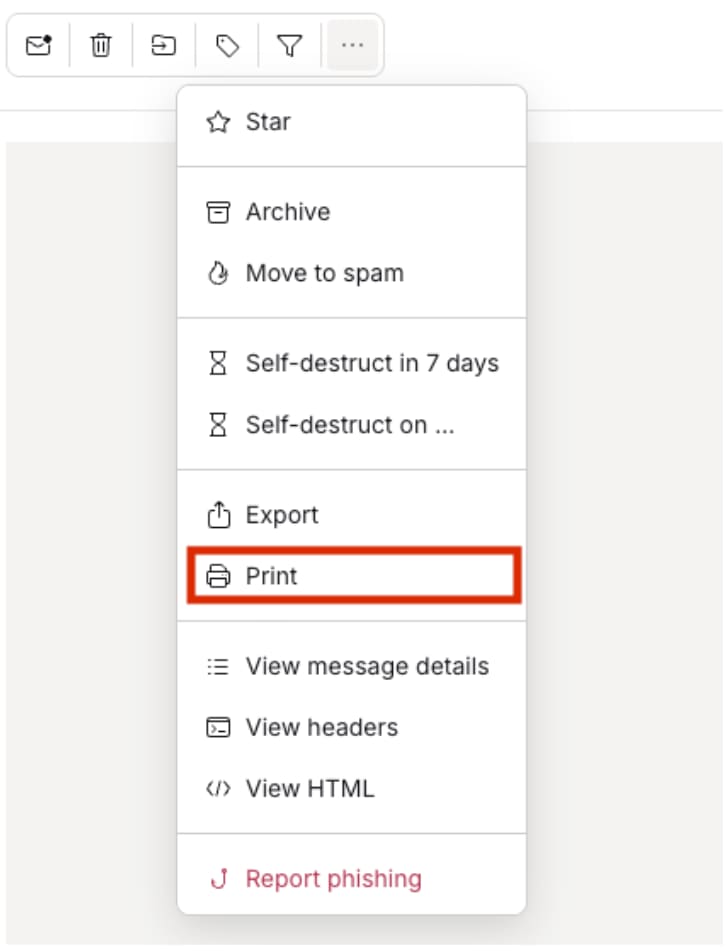
I den nye e-posten din velger du Vedlegg (bindersikonet) for å legge ved den nedlastede e-posten. Du kan også dra og slipp en tidligere nedlastet e-post direkte inn i meldingsteksten.
Legg til mottakere, skriv meldingen og klikk på Send.
Protons personvernfokuserte design betyr at alle e-postene dine er ende-til-ende-kryptert som standard, slik at de forblir sikre og private. Når du eksporterer en e-post fra Proton Mail, dekrypteres den eksporterte filen lokalt på enheten din, slik at den kan vises i andre e-postklienter eller applikasjoner.
Å legge ved e-poster fungerer bedre enn å videresende
Å legge ved en e-post i stedet for å videresende den bidrar til å bevare den opprinnelige meldingen, inkludert formatering, tidsstempler, vedlegg og avsenderdetaljer. Uansett om du bruker Gmail, Outlook eller Proton Mail, kan det å legge ved e-poster gjøre samtaler klarere og gi et mer pålitelig bevis på hva som opprinnelig ble sendt.
Hvis du regelmessig deler sensitive bedriftse-poster eller dokumenter, hjelper det å bruke en personvernfokusert e-posttjeneste som Proton Mail med å holde kommunikasjonen din sikker med ende-til-ende-kryptering som standard.