
Benutzerdefinierte Lumos
- Lesen
- 4 Min.
- Kategorie
- Lumo KI
Benutzerdefinierte Lumos sind speziell entwickelte KI-Assistenten, die du für bestimmte Aufgaben erstellen und konfigurieren kannst.
Anstatt deine Anweisungen jedes Mal anzupassen, wenn du einen Chat startest, definierst du, wie sich ein benutzerdefiniertes Lumo verhält, und es befolgt diese Anweisungen in jeder Unterhaltung konsistent.
Benutzerdefinierte Lumos sind sowohl in kostenlosen als auch in kostenpflichtigen Abonnements verfügbar, aber du benötigst ein Proton-Konto. Hinweis: Benutzerdefinierte Lumos sind nur in der Web-App verfügbar.
In diesem Artikel erklären wir:
- Anwendungsfälle für benutzerdefinierte Lumos
- Ein benutzerdefiniertes Lumo erstellen
- Ein benutzerdefiniertes Lumo bearbeiten
- Ein benutzerdefiniertes Lumo löschen
- So schreibst du effektive Anweisungen für ein benutzerdefiniertes Lumo
Anwendungsfälle für benutzerdefinierte Lumos
Du kannst ein benutzerdefiniertes Lumo für jede Aufgabe einrichten, die du einem KI-Assistenten stellen würdest. Hier sind einige Beispiele dafür, wie sie helfen können:
- Konsistente Schreibstile beibehalten. Wenn du häufig E-Mails, Blogbeiträge oder Dokumentationen in einer bestimmten Tonalität verfasst, erstelle ein benutzerdefiniertes Lumo, das speziell auf diesen Stil ausgerichtet ist. Du könntest es beispielsweise bitten: „Verwende immer einen professionellen, aber dennoch nahbaren Ton, vermeide Fachjargon und halte Absätze unter drei Sätzen.“ Egal, ob du einen Quartalsbericht oder einen Newsletter entwirfst, der Assistent wendet diese Regeln jedes Mal automatisch an.
- Abläufe für Sprachübersetzungen einrichten. Du kannst Assistenten erstellen, die auf bestimmte Sprachpaare oder regionale Nuancen zugeschnitten sind. Anstatt allgemeine Übersetzungsfragen zu stellen, erstelle ein „Technisches Englisch/Französisch“-Lumo mit Anweisungen wie: „Übersetze technische Dokumentationen vom Englischen ins Französische, stelle dabei eine präzise Terminologie für technische Konzepte sicher und verwende das formelle Pronomen ‚vous‘.“ Dadurch bleiben Übersetzungen über mehrere Projekte hinweg korrekt und kulturell angemessen, ohne dass manuelle Korrekturen erforderlich sind.
- Nischen-Forschungsassistenten erstellen. Für tiefe Einblicke in bestimmte Bereiche kannst du ein benutzerdefiniertes Lumo mit einem speziellen Fokus einrichten. Du könntest es beispielsweise bitten: „Agiere als juristischer Forschungsassistent, der auf das Schweizer Datenschutzrecht spezialisiert ist, zitiere relevante Artikel aus dem DSG/der DSGVO und stelle Zusammenfassungen in Aufzählungspunkten bereit.“ Dadurch kannst du direkt in komplexe Fragen einsteigen, ohne den rechtlichen Rahmen und den Umfang für jede Frage neu festlegen zu müssen.
Ein benutzerdefiniertes Lumo erstellen
1. Gehe zu lumo.proton.me(neues Fenster), und melde dich mit deinem Proton-Konto an.
2. Wähle unter dem Chat-Fenster Tools > Benutzerdefinierte Lumos aus.

3. Wähle unten im Pop-up + Erstellen aus.

4. Konfiguriere dein benutzerdefiniertes Lumo:

- Name
- Beschreibung: Wobei dein benutzerdefiniertes Lumo helfen soll.
- Anweisungen: Beschreibe die Rolle, den Umfang und das Verhalten, das Lumo annehmen soll. Benötigst du Hilfe beim Schreiben von Anweisungen?
- Unterhaltungsstarter: Du siehst diese Beispiel-Prompts, wenn du eine Unterhaltung startest.
Sobald du fertig bist, wähle Agent erstellen aus, um zu bestätigen.
Dein benutzerdefiniertes Lumo wurde jetzt erstellt und du kannst es verwenden, indem du es aus deiner Liste der benutzerdefinierten Lumos auswählst.
Ein benutzerdefiniertes Lumo bearbeiten
1. Gehe zu lumo.proton.me(neues Fenster), und melde dich mit deinem Proton-Konto an.
2. Wähle unter dem Chat-Fenster Tools > Benutzerdefinierte Lumos aus.
3. Suche das benutzerdefinierte Lumo, das du bearbeiten möchtest, und wähle das Symbol Bearbeiten (🖊) aus.
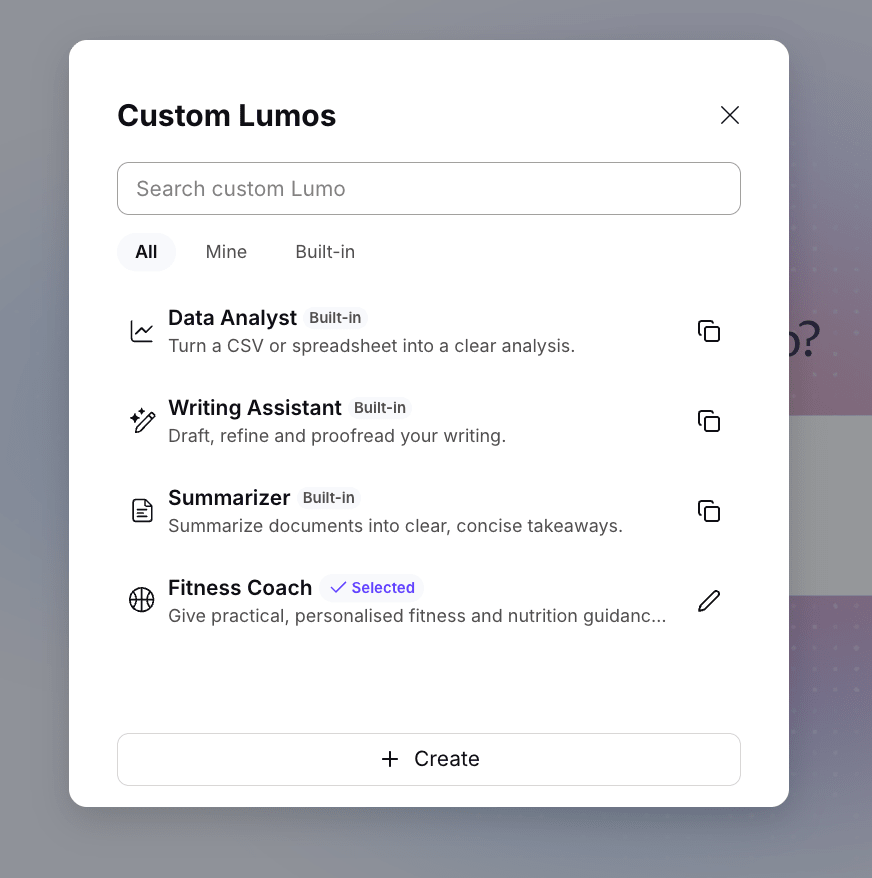
4. Sobald du deine Änderungen an deinem benutzerdefinierten Lumo vorgenommen hast, wähle Änderungen speichern aus.
Ein benutzerdefiniertes Lumo löschen
1. Gehe zu lumo.proton.me(neues Fenster), und melde dich mit deinem Proton-Konto an.
2. Wähle unter dem Chat-Fenster Tools > Benutzerdefinierte Lumos aus.
3. Suche das benutzerdefinierte Lumo, das du bearbeiten möchtest, und wähle das Symbol Bearbeiten (🖊) aus.
4. Wähle Löschen aus, um dieses benutzerdefinierte Lumo dauerhaft zu löschen.
So schreibst du effektive Anweisungen für ein benutzerdefiniertes Lumo
Ein benutzerdefiniertes Lumo funktioniert am besten, wenn seine Anweisungen klar und direkt sind. Denke über die Aufgabe nach, die es erledigen soll, das gewünschte Ausgabeformat und die Regeln, die es jedes Mal befolgen soll. Vermeide vage Formulierungen.
Gute Anweisungen umfassen in der Regel:
- Rolle und Zweck: Definiere, wofür das benutzerdefinierte Lumo gedacht ist und in welcher Rolle es agieren soll.
- Kernverhalten: Erkläre, was es zuerst tun soll, was am wichtigsten ist und wie es die Aufgabe angehen soll.
- Ausgabestil: Teile ihm mit, wie Antworten strukturiert sein sollen, wie viele Details du benötigst und ob Aufzählungspunkte, Tabellen oder kurze Absätze verwendet werden sollen.
- Tonalität und Stil: Definiere, wie die Antworten klingen sollen. Du könntest es beispielsweise bitten, formell, freundlich, prägnant, technisch oder überzeugend zu klingen.
- Wichtige Regeln: Füge Grenzen, zwingend einzuhaltende Einstellungen oder Dinge hinzu, die es zu vermeiden gilt.
- Beispiele: Füge nach Möglichkeit Beispielausgaben hinzu, damit das benutzerdefinierte Lumo ein klares Modell als Referenz hat.
Es hilft auch, wenn sich die Anweisungen auf eine einzige Aufgabe konzentrieren. Benutzerdefinierte Lumos funktionieren am besten mit einem einzigen, klaren Zweck – wenn man ihnen mehrere Dinge gleichzeitig aufträgt, kann dies die Leistung beeinträchtigen.