
Discreet app icon
- Reading
- 1 min
- Category
- Mobile applications
Proton Mail mobile apps allow you to replace our standard app icon with something more discreet. Disguising your app icon makes it less obvious that you’re using Proton Mail if someone looks at your home screen. Notifications will still show the Proton Mail name and icon.
- How to disguise the Proton Mail app icon
- What changes when discreet app icon is enabled?
- How to disable discreet app icon
How to disguise the Proton Mail app icon
Discreet app icons are available on our iOS and Android apps. The screenshots in this article are from iOS, but the steps are exactly the same on Android.
- Open the Proton Mail app. Tap Settings, then select App customizations.

- 2. Tap App icon, then toggle Discreet app icon on.

- 3. Select a new icon from the available options.
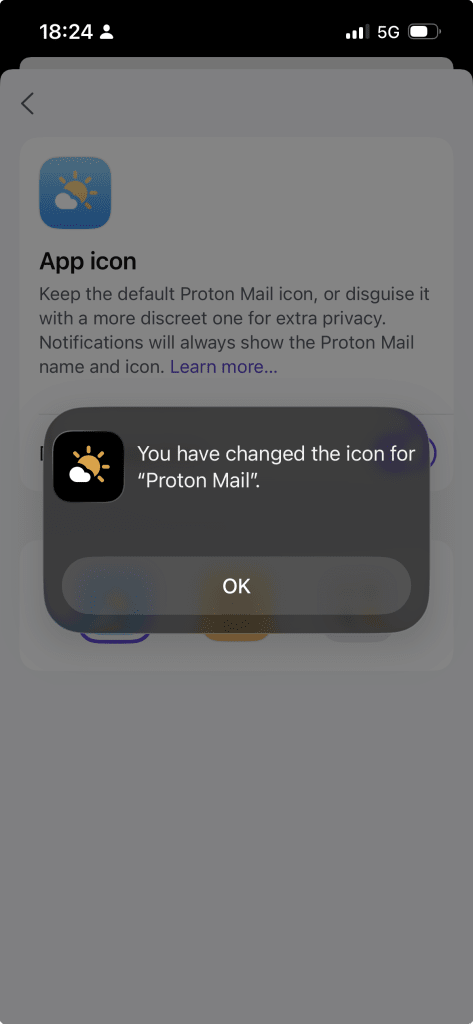
Your choice is applied immediately.
What changes when discreet app icon is enabled?
- Your selected app icon will replace the Proton Mail icon on your home screen
- The app name on your home screen changes to match your new icon. (Note: The app name changes to match your new icon only on the Android app; iOS doesn’t update the app name)
- Notifications still show the Proton Mail name and icon
This feature only changes how the app appears on your device. It doesn’t affect your emails, account security, or encryption.
How to disable discreet app icon
- In the Proton Mail app, go to Settings and select App customizations.
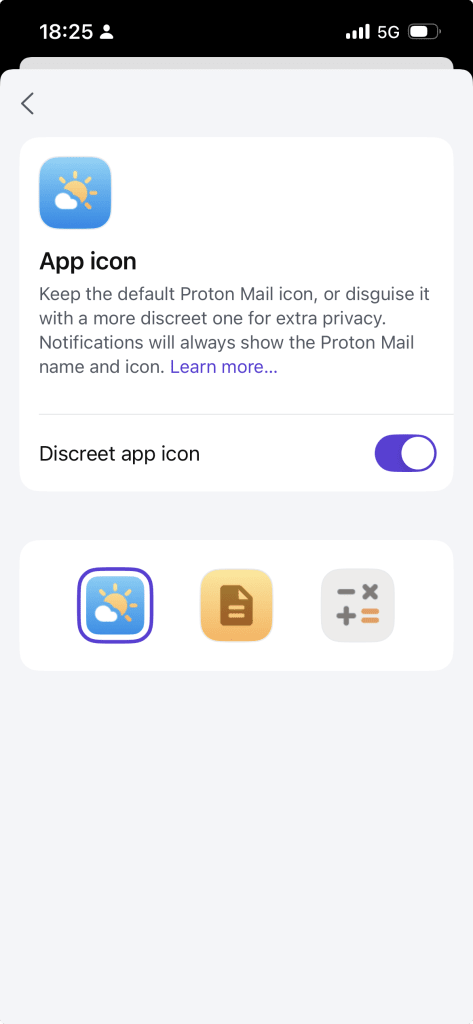
- 2. Tap App icon, then toggle Discreet app icon off.
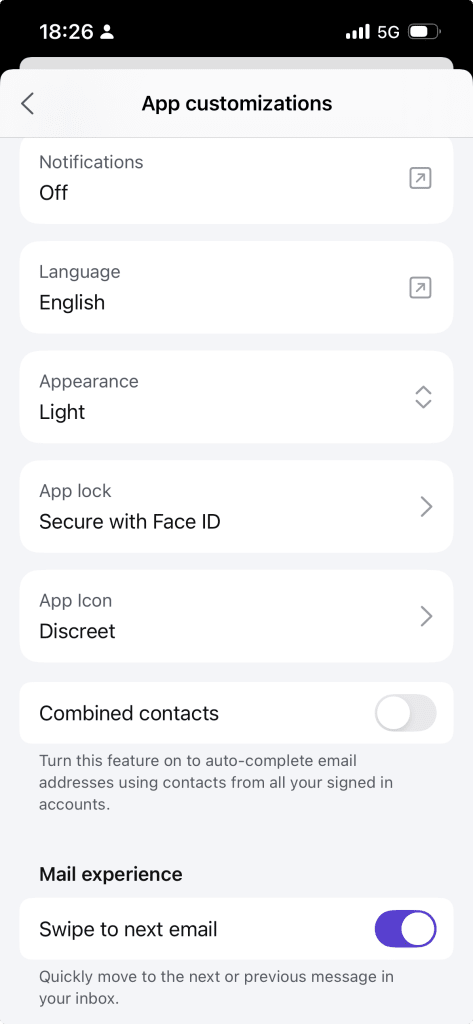
All done. You’ve reverted back to the standard Proton Mail name and icon.