
Lumo में डिक्टेशन
- पढ़ने का समय
- 0 मिनट
- श्रेणी
- Lumo AI
डिक्टेशन की मदद से Lumo से टाइप करने के बजाय बोला जा सकता है। आपके शब्द चैट विंडो में रीयल टाइम में लिखे जाते हैं।
Lumo के बाकी हिस्सों की तरह, जो आपकी बातचीत और डेटा को गोपनीय रखते हैं, डिक्टेशन भी एन्क्रिप्शन और प्राइवेसी के वही मानक अपनाता है। ट्रांसक्रिप्शन Proton के सर्वर पर चलता है जब Lumo ब्राउज़र पर इस्तेमाल किया जाता है, या Lumo ऐप्स के साथ डिवाइस पर। आपकी आवाज़ और आपकी कही बातें कभी स्टोर या शेयर नहीं की जातीं, और खुद Proton भी उन्हें नहीं सुन सकता।
डिक्टेशन अब सभी Lumo यूज़र्स के लिए वेब और मोबाइल दोनों पर उपलब्ध है।
इस आर्टिकल में हम समझाते हैं:
- Lumo का स्पीच रिकग्निशन मॉडल और समर्थित भाषाएं
- डिक्टेशन का इस्तेमाल कैसे करें
- Lumo डिक्टेशन की भाषा कैसे बदलें
Lumo का स्पीच रिकग्निशन मॉडल और भाषाएं
Lumo का डिक्टेशन मोड Qwen3-ASR-1.7B का इस्तेमाल करता है, जो एक ओपन-सोर्स, स्वचालित स्पीच रिकग्निशन मॉडल है। यह 30 भाषाओं और बढ़ती संख्या के लिए भाषा पहचान का समर्थन करता है, जिनमें शामिल हैं:
- अंग्रेज़ी
- अरबी
- चीनी (22 बोलियों में)
- डच
- फिलिपीनो
- फ्रेंच
- जर्मन
- इंडोनेशियाई
- इतालवी
- जापानी
- कोरियाई
- स्पेनिश
- थाई
डिक्टेशन मोड पहली बार इस्तेमाल करने से पहले अपनी पसंदीदा डिक्टेशन भाषा चुनी जा सकती है, या उसे ऑटो-डिटेक्ट पर सेट किया जा सकता है। अगर Proton खाते से लॉग-इन हैं, तो आपकी चुनी हुई डिक्टेशन भाषा तब तक सहेजी जाएगी जब तक उसे बदला न जाए।
Lumo डिक्टेशन का इस्तेमाल कैसे करें
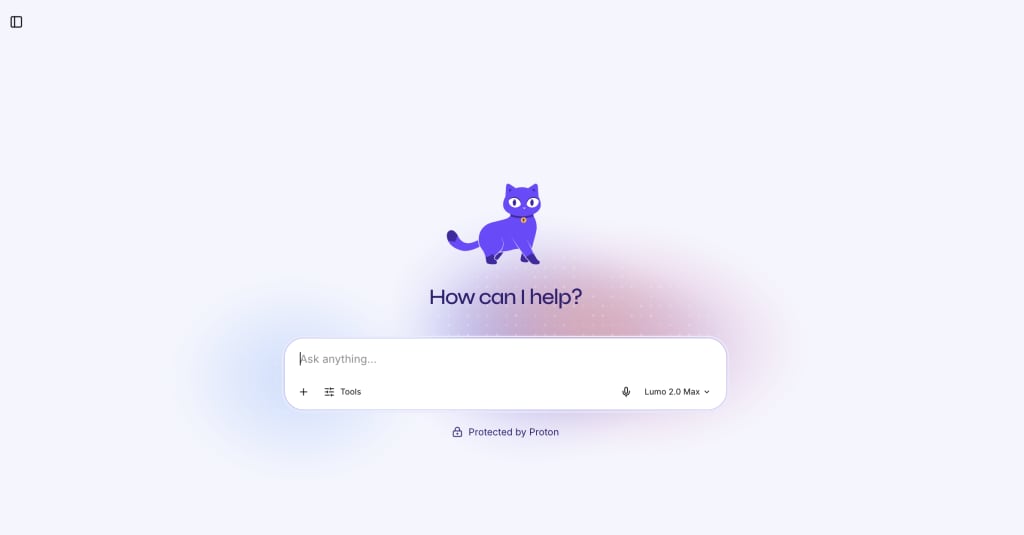
1. lumo.proton.me(नई विंडो) पर जाएं या Lumo मोबाइल ऐप खोलें।
2. चैट विंडो के नीचे 🎤 माइक्रोफोन आइकन पर टैप करें।
3. अगर पहली बार डिक्टेशन इस्तेमाल किया जा रहा है, तो पसंदीदा भाषा चुनने के लिए कहा जाएगा। चयन करने के बाद जारी रखें पर क्लिक करें। अगर संकेत मिले, तो Lumo को माइक्रोफोन एक्सेस करने की अनुमति देने के लिए अपने डिवाइस की माइक्रोफोन सेटिंग सक्षम करें।

डिक्टेशन अब सक्रिय है और Lumo से तुरंत बात शुरू की जा सकती है। बोलना पूरा होने पर, Lumo को ट्रांसक्राइब करने के लिए ✓ चेकमार्क आइकन पर क्लिक करें। डिक्टेशन बंद करने के लिए X आइकन पर क्लिक करें।
Lumo डिक्टेशन की भाषा कैसे बदलें
अपनी डिक्टेशन भाषा चुनने के बाद, उसे अपनी सेटिंग में कभी भी बदला जा सकता है।
1. lumo.proton.me(नई विंडो) पर जाएं या Lumo मोबाइल ऐप खोलें और अपने Proton खाते से लॉग-इन करें।
2. सेटिंग खोलें:
- वेब: नीचे बाईं ओर सेटिंग (⚙) आइकन पर क्लिक करें।
- मोबाइल: मेन्यू आइकन (☰) पर टैप करें, फिर सेटिंग (⚙) पर टैप करें।
3. साइडबार से सामान्य चुनें।
4. डिक्टेशन भाषा के अंतर्गत, ड्रॉपडाउन सूची से वह भाषा चुनें जिस पर स्विच करना है।
आपकी पसंदीदा डिक्टेशन भाषा अब अपडेट हो गई है।