Cara menggunakan Kunci aplikasi di Android
- Membaca
- 1 mnt
- Kategori
- Aplikasi Android
- Proton Mail
Untuk melindungi pesan terenkripsi agar tidak jatuh ke tangan yang salah, fitur kunci otomatis dapat diaktifkan di aplikasi Proton Mail(jendela baru).
Fitur ini akan meminta untuk memasukkan kode PIN atau menggunakan biometrik untuk membuka Proton Mail. Perangkat dapat diatur untuk mengunci secara otomatis setiap kali aplikasi ditutup, atau setelah jangka waktu yang ditentukan.
Aktifkan Kunci aplikasi
- Buka aplikasi Proton Mail dan masuk.
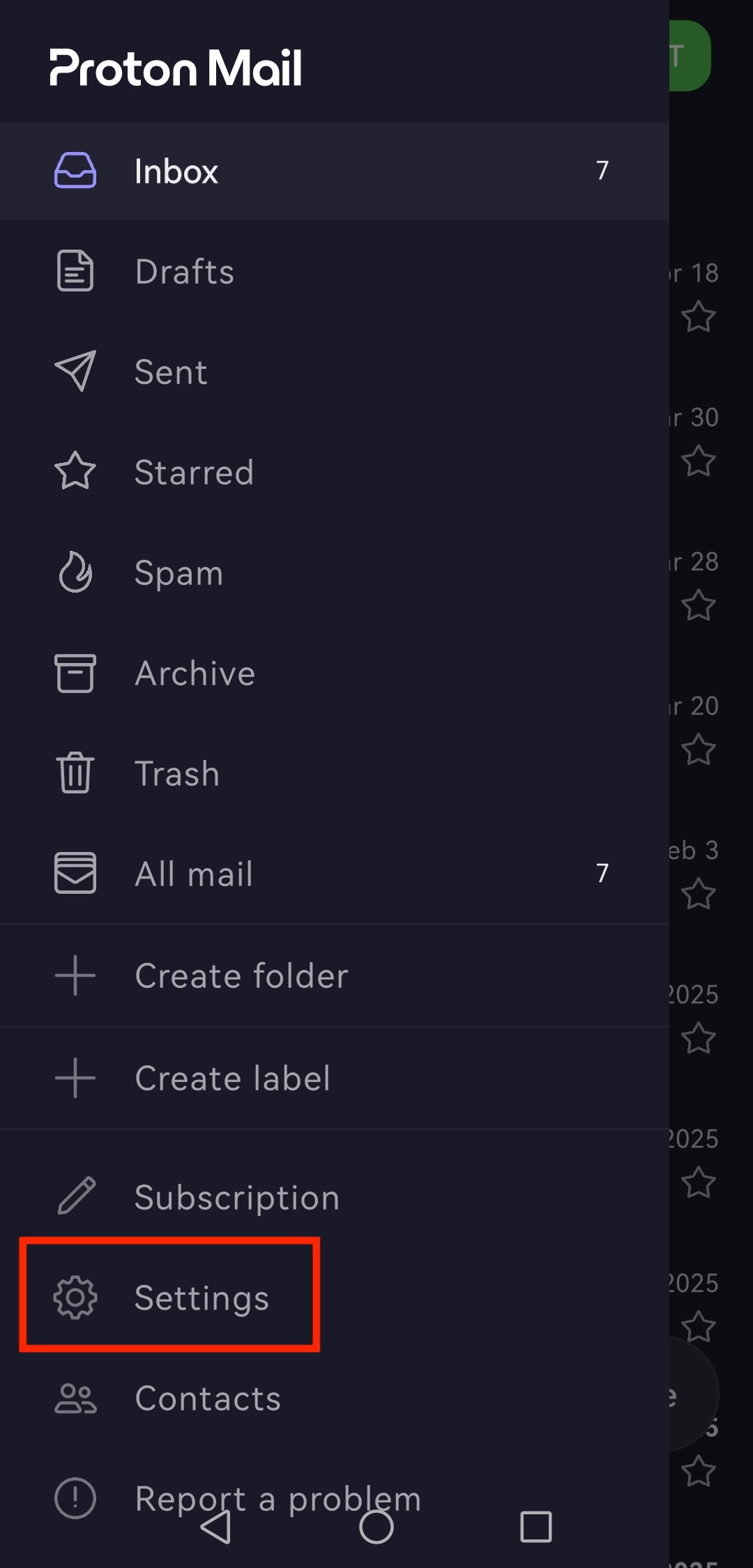
- Ketuk tombol menu ☰ dan buka Pengaturan.
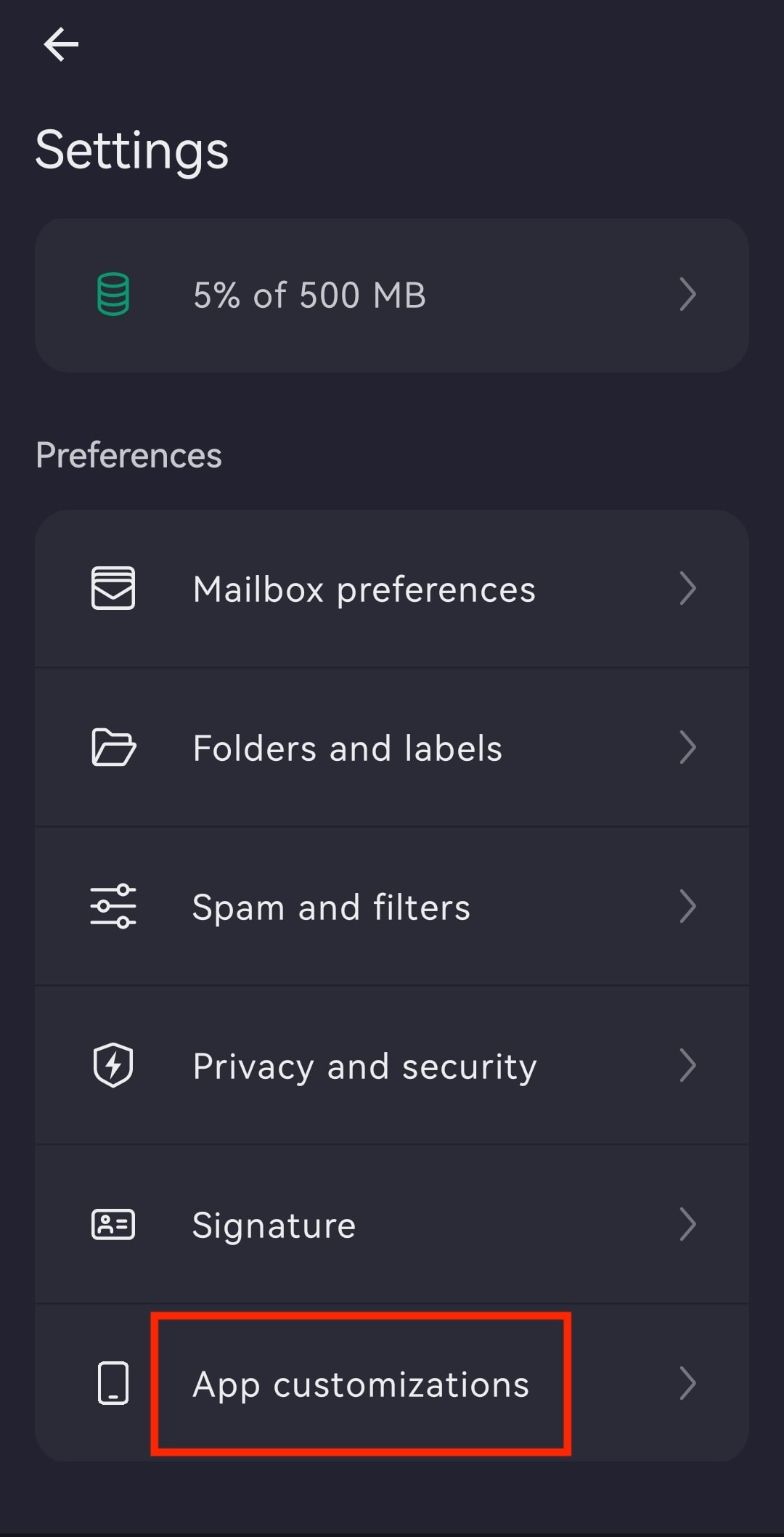
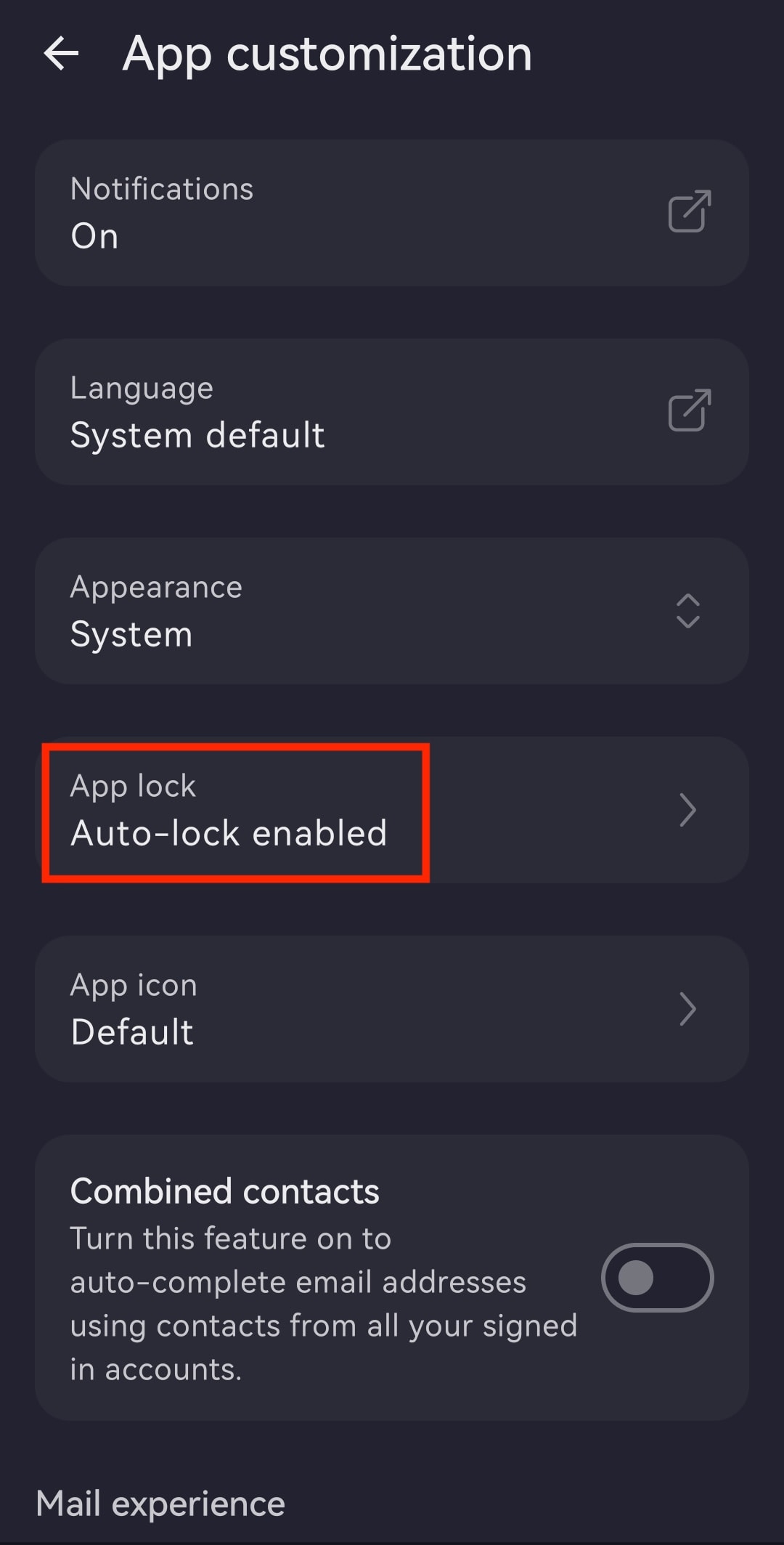
- Ketuk Penyesuaian aplikasi.
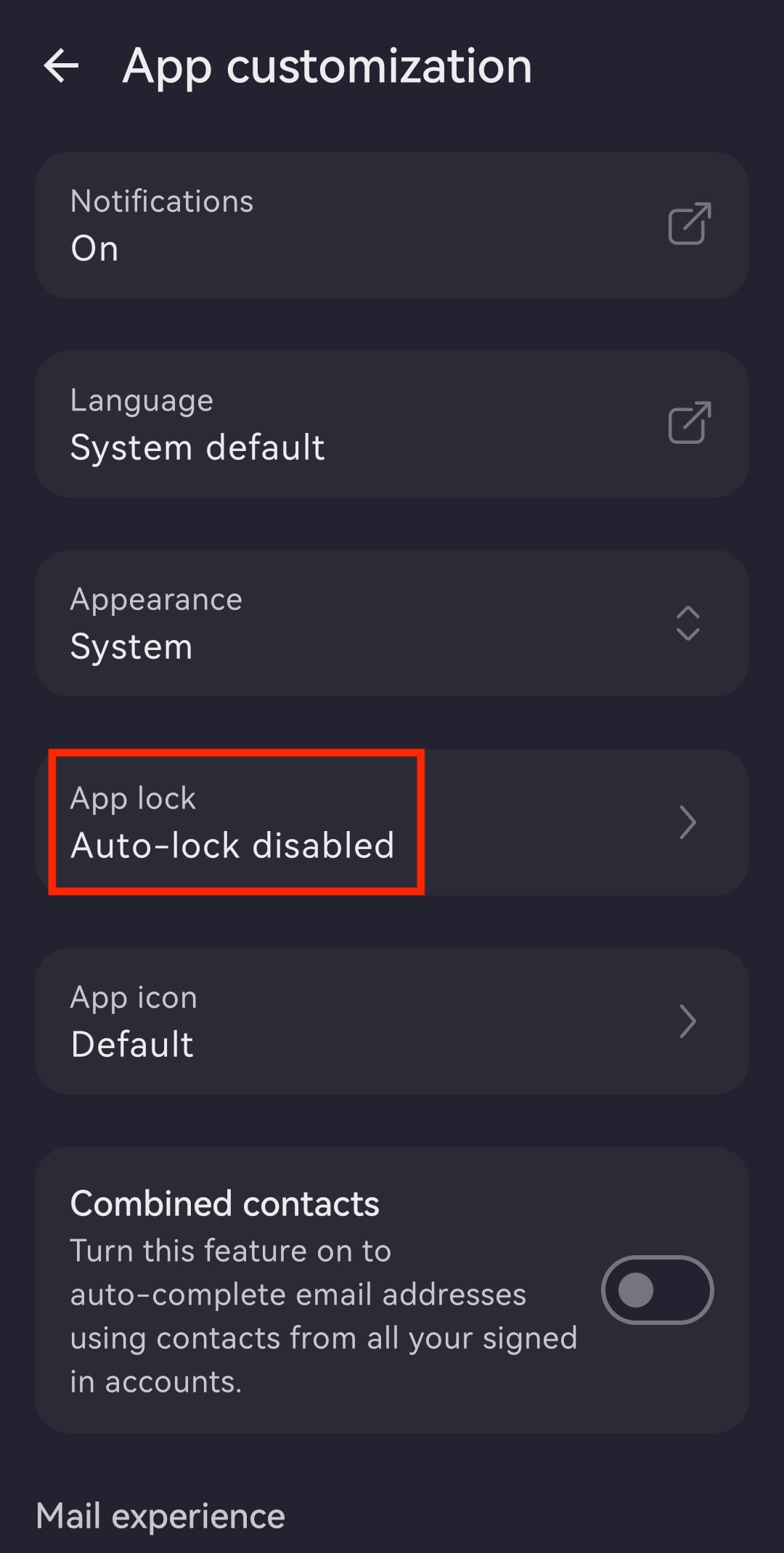
- Buka Kunci aplikasi.
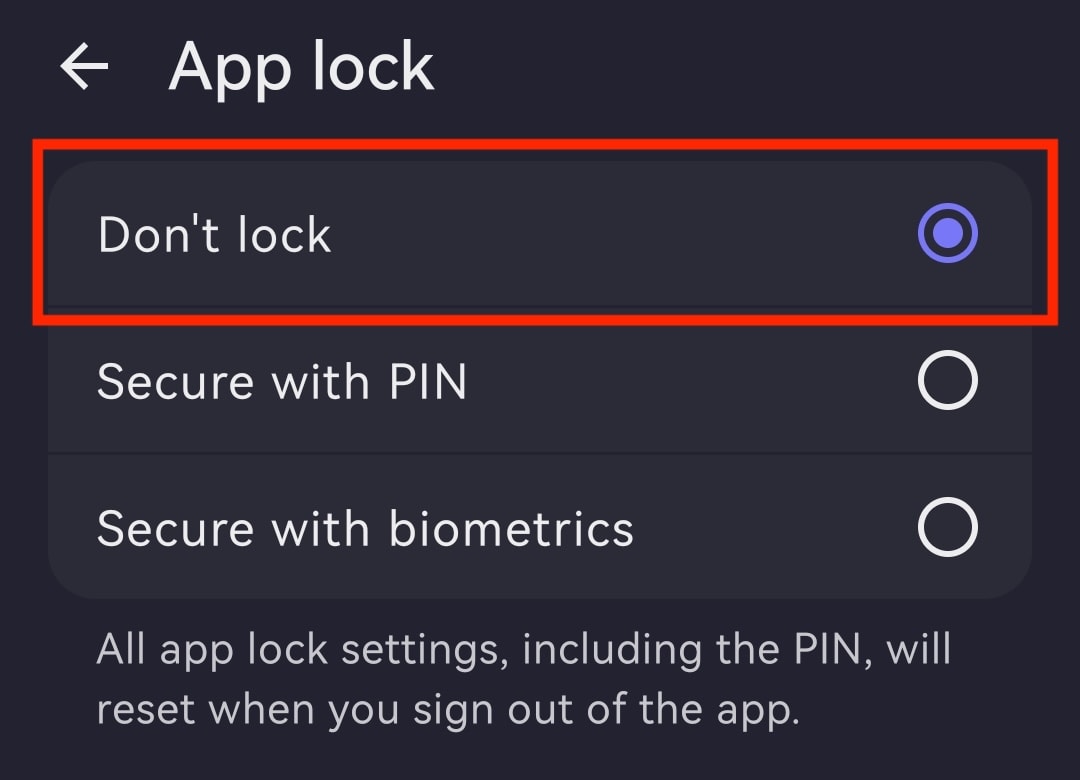
- Pilih antara:
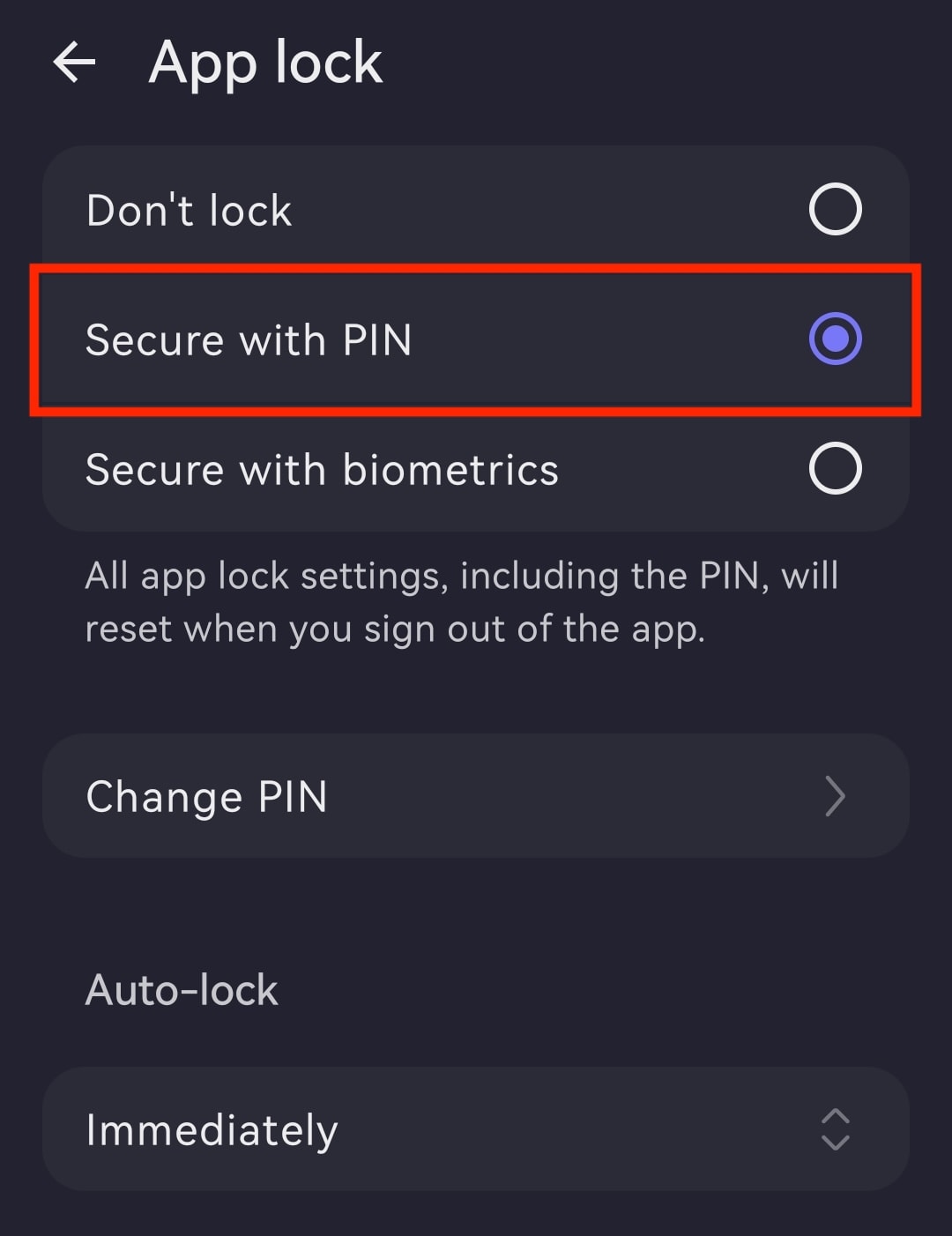
- Amankan dengan PIN: Masukkan kode PIN dan ulangi untuk mengonfirmasi. Setelah itu, ubah pengatur waktu kunci otomatis, beralih ke Amankan dengan biometrik (memerlukan PIN), atau nonaktifkan Kunci aplikasi.
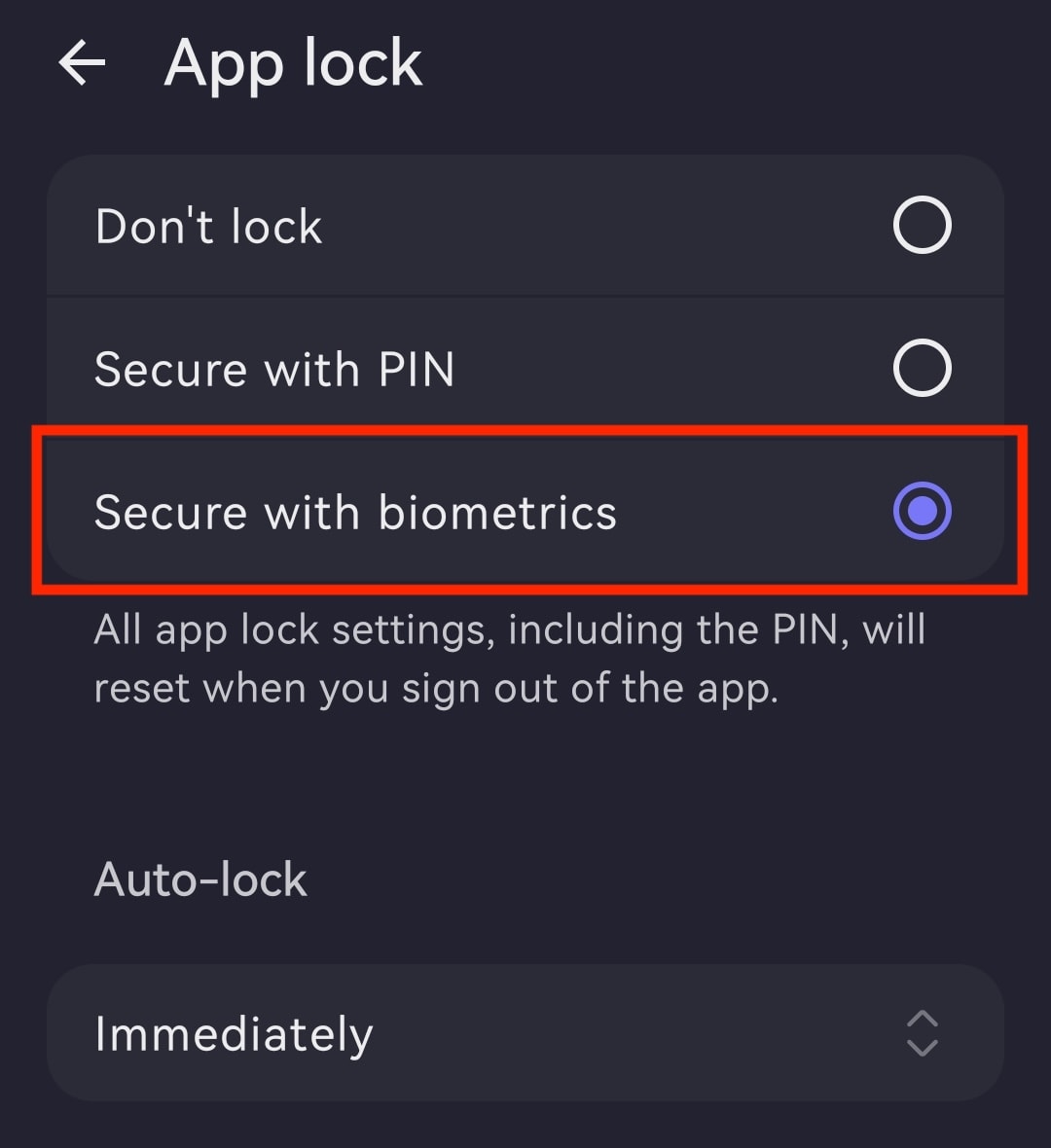
- Amankan dengan biometrik: Konfirmasi dengan menyentuh area sensor sidik jari pada ponsel. Setelah itu, ubah pengatur waktu kunci otomatis, beralih ke Amankan dengan PIN (memerlukan penggunaan sidik jari), atau nonaktifkan Kunci aplikasi.
Ubah pengatur waktu kunci otomatis
- Buka aplikasi Proton Mail dan masuk dengan Akun Proton.
- Ketuk ☰ dan buka Pengaturan.
- Buka Penyesuaian aplikasi.
- Buka Kunci aplikasi.
- Ketuk pengatur waktu (misalnya, Segera) di bawah Kunci otomatis.
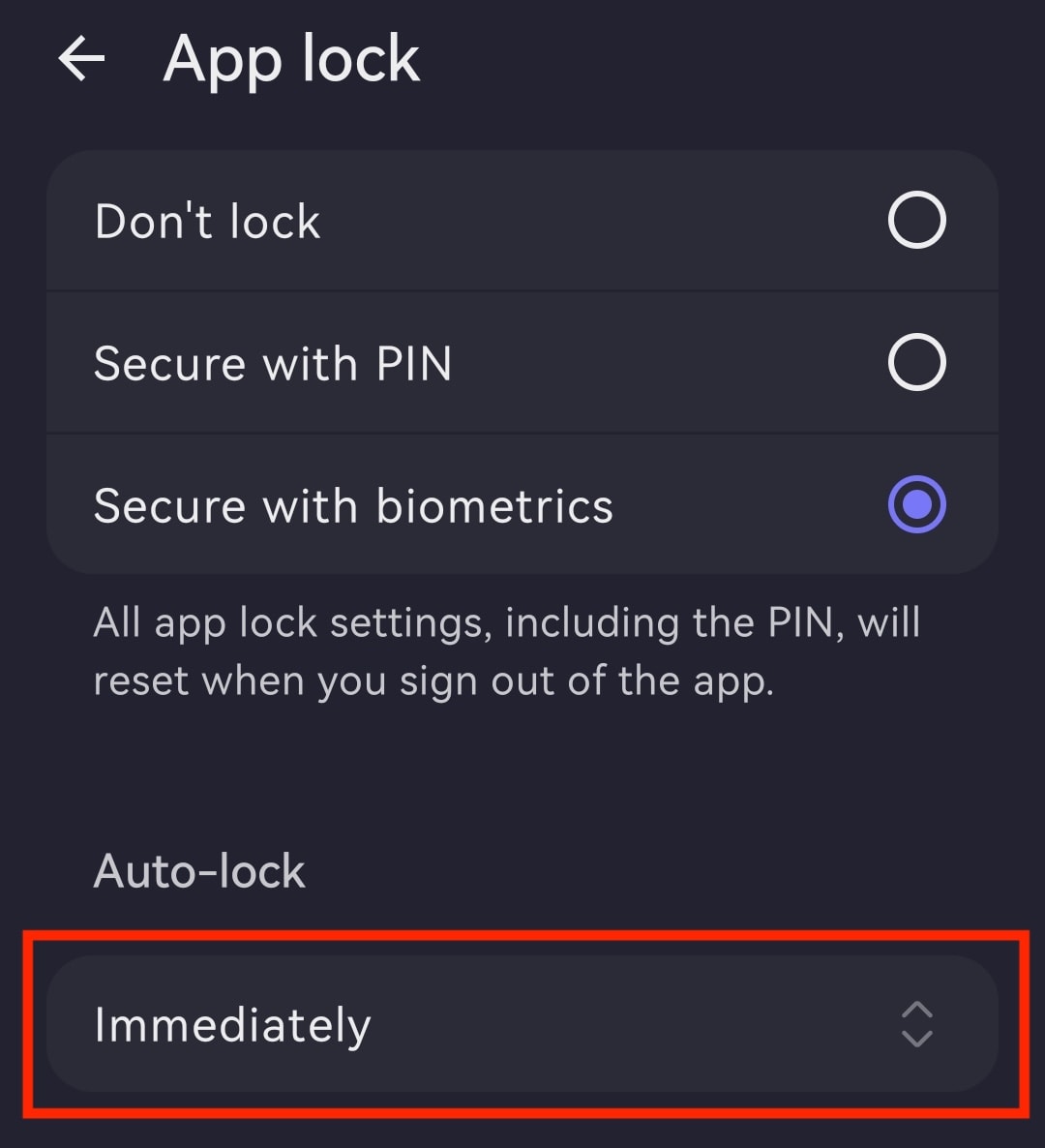
- Atur waktu kunci otomatis yang diinginkan, mulai dari Segera hingga Setelah 60 menit.

Nonaktifkan Kunci aplikasi
- Buka aplikasi Proton Mail dan masuk.
- Ketuk tombol menu ☰ dan buka Pengaturan.
- Ketuk Penyesuaian aplikasi.
- Buka Kunci aplikasi.
- Pilih Jangan kunci.