Proton 主页

如何在 Android 上使用应用锁

阅读
0 分钟
类别
Android 应用
Proton Mail

为了保护已加密的邮件不落入他人之手,您可以在 Proton Mail(新窗口) 应用中启用自动锁定功能。

此功能会提示您输入 PIN 码或使用生物识别来打开 Proton Mail。您可以将设备设置为在每次关闭应用时自动锁定,或在设定的一段时间后自动锁定。

启用应用锁

  1. 打开 Proton Mail 应用并登录。
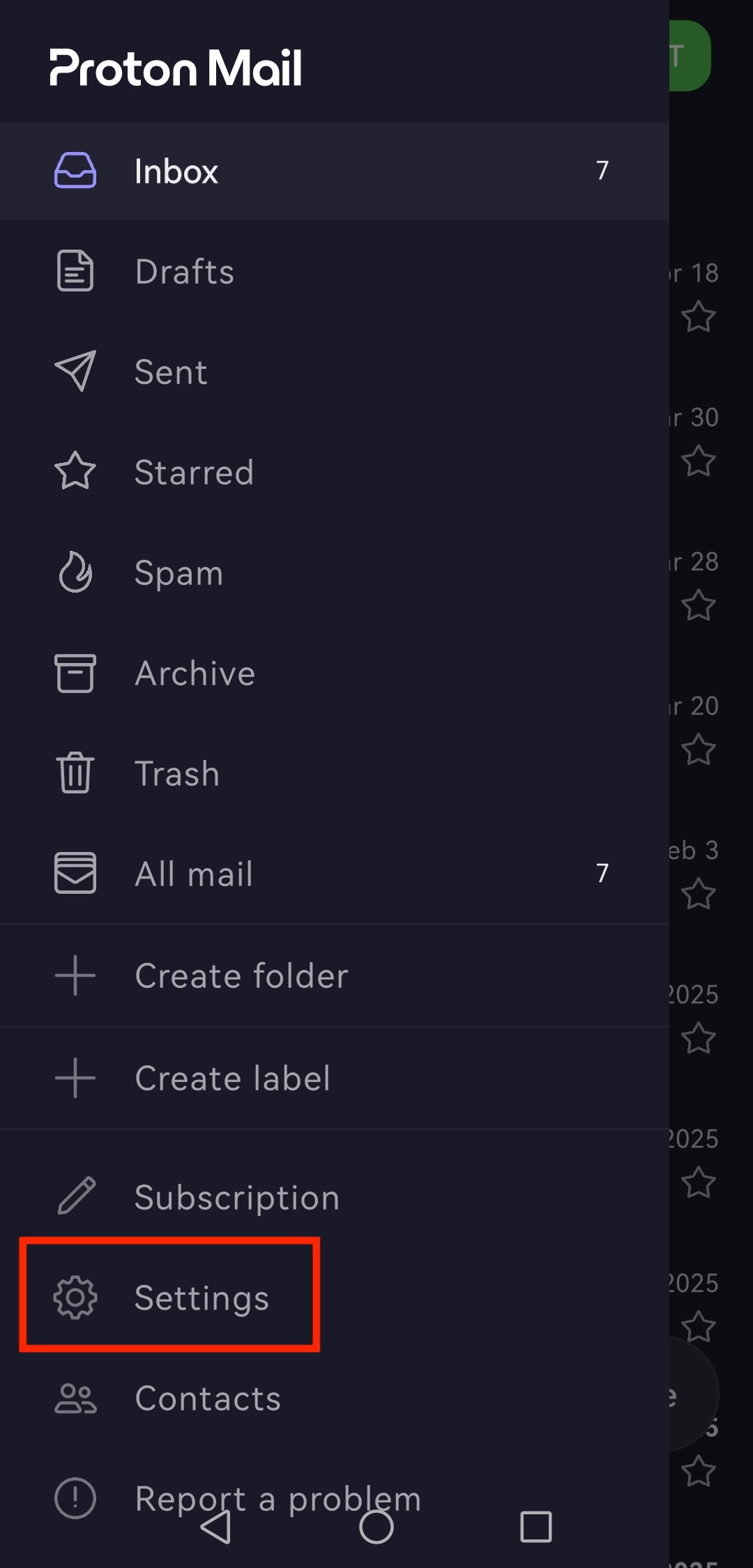
  2. 轻点菜单 ☰ 按钮,然后打开设置。
The Proton Mail Android app highlights the Settings entry
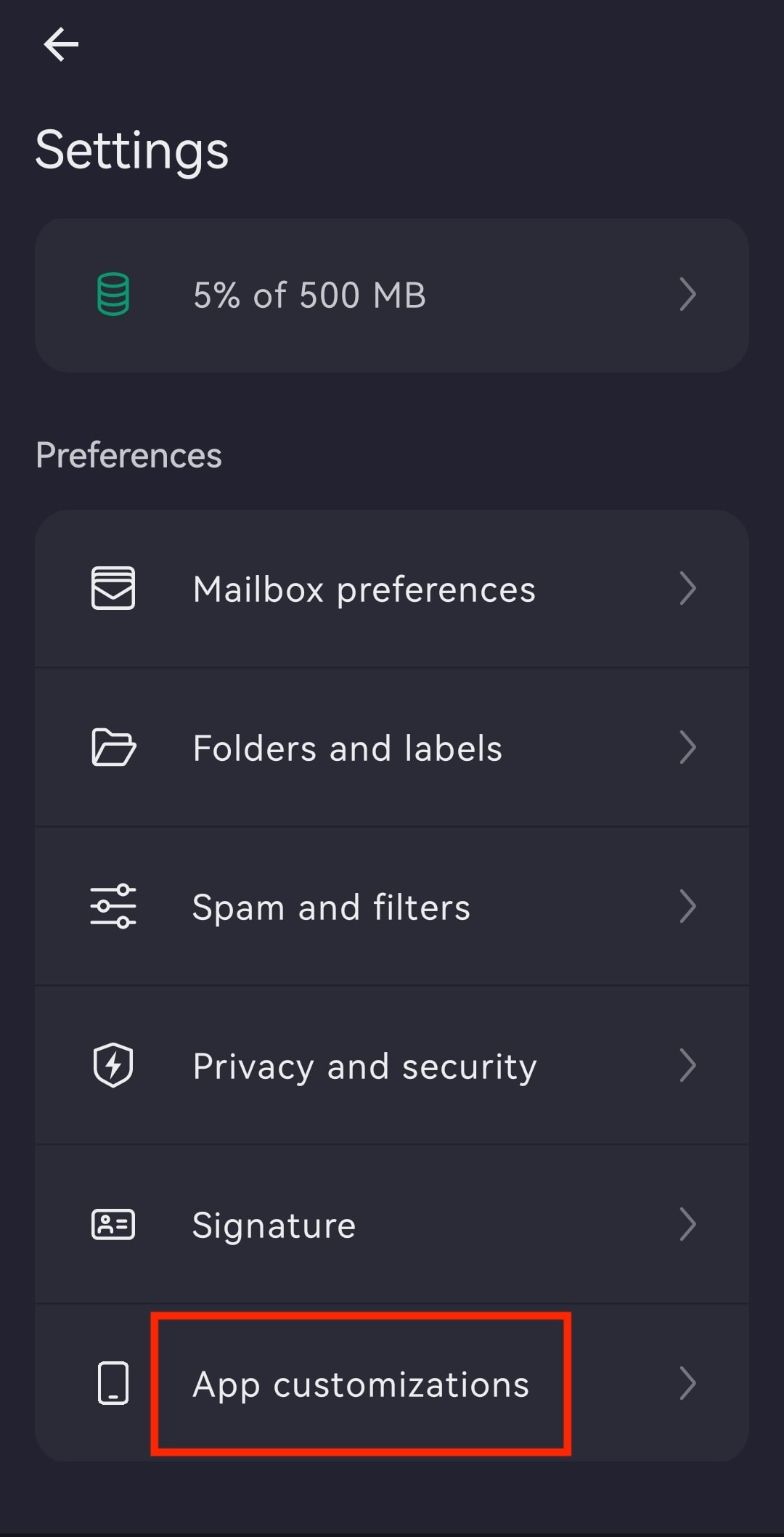
  1. 轻点个性化设置。
The Proton Mail Android app highlights the App customizations entry
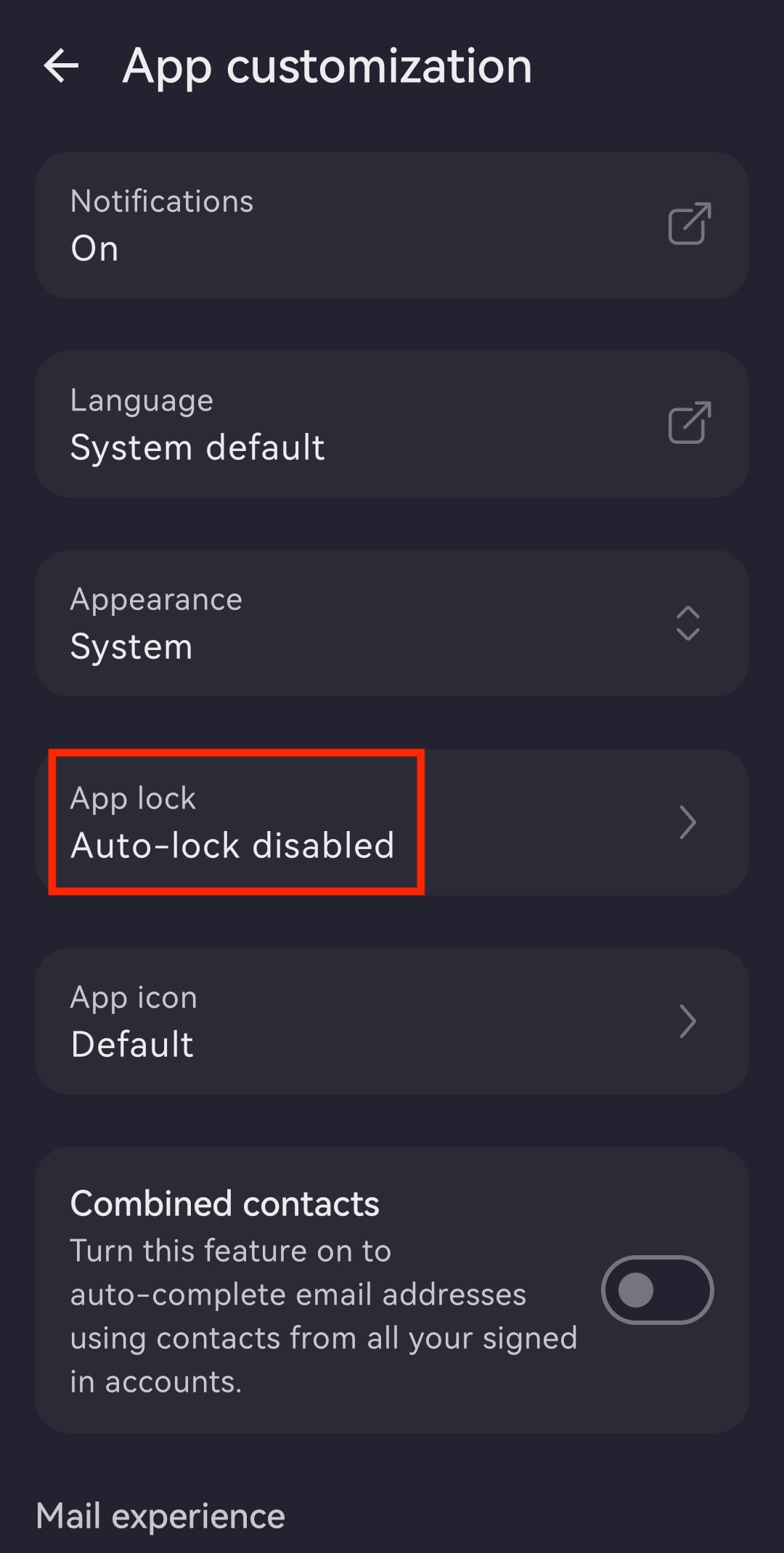
  1. 打开应用锁。
The Proton Mail Android app highlights the App lock with Auto-lock disabled entry
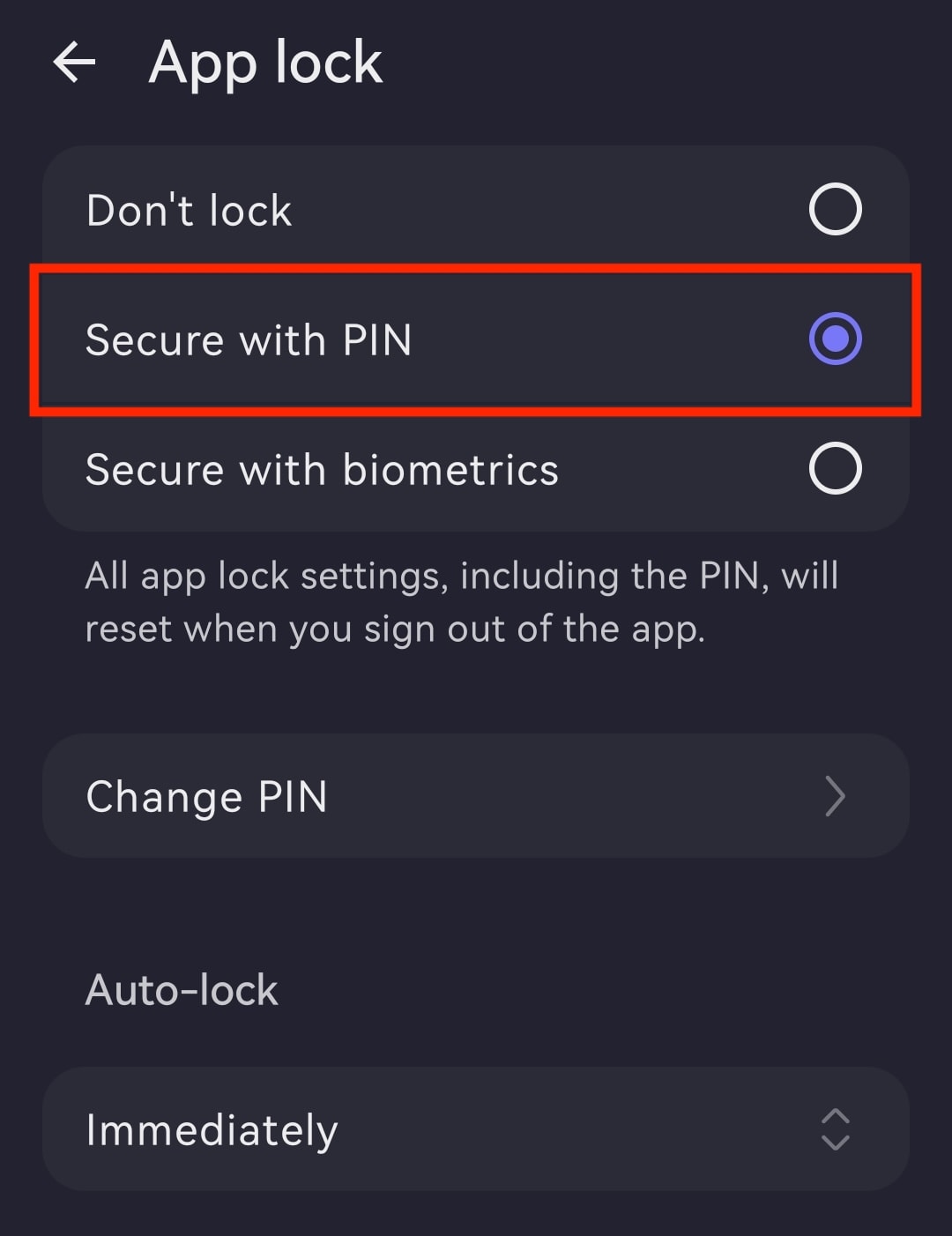
  1. 请选择:
The Proton Mail Android app highlights the Secure with PIN entry of App lock
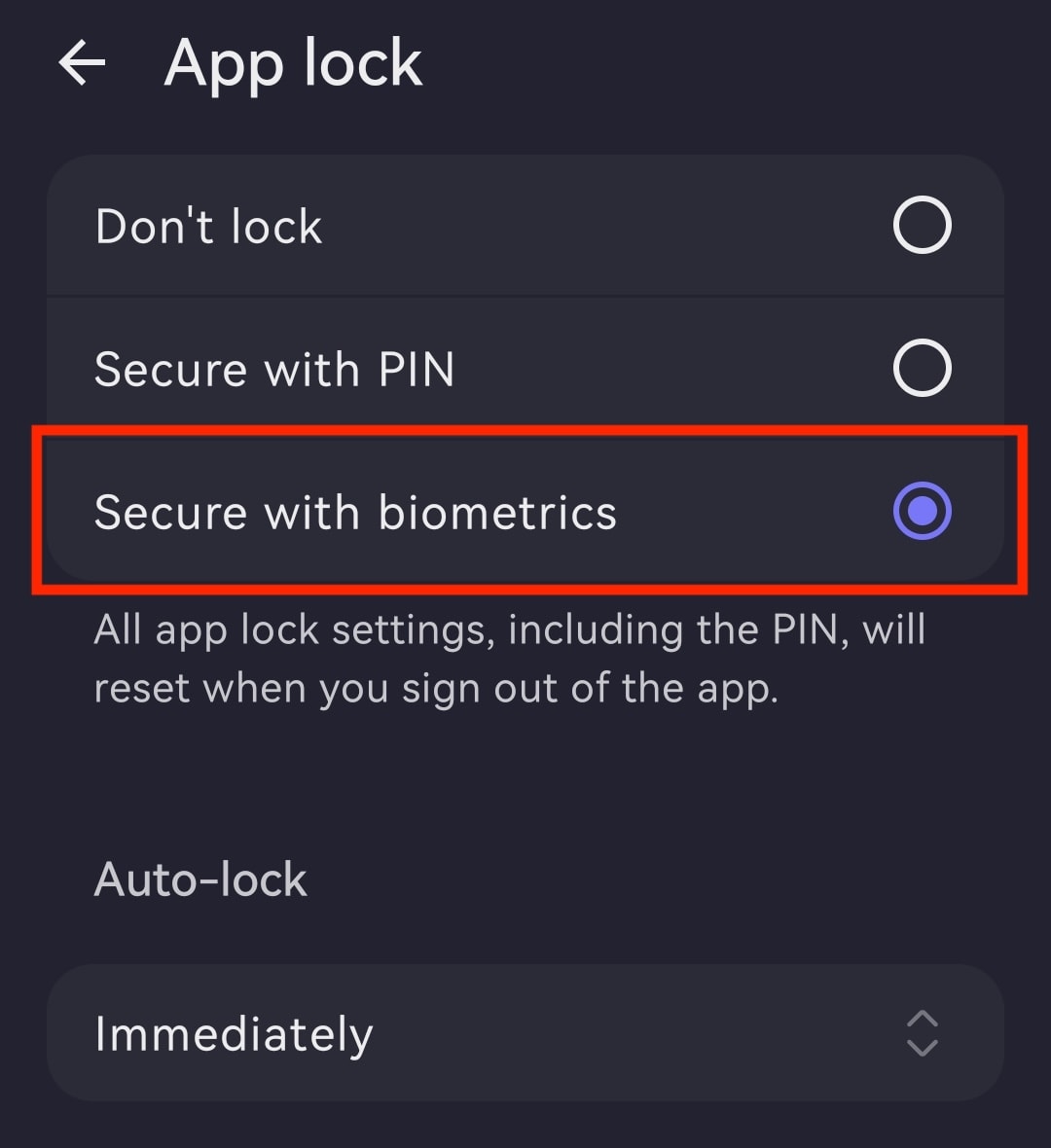
  • 使用生物识别技术锁定:触摸手机上的指纹传感器区域进行确认。然后,您可以更改自动锁定计时器、切换到使用 PIN 码保护(需要使用您的指纹),或停用应用锁。
The Proton Mail Android app highlights the Secure with biometrics entry of App lock

更改自动锁定计时器

  1. 打开 Proton Mail 应用并使用 Proton 帐户登录。
  2. 轻点 ☰ 并打开设置。
The Proton Mail Android app highlights the Settings entry
  1. 前往个性化设置。
The Proton Mail Android app highlights the App customizations entry
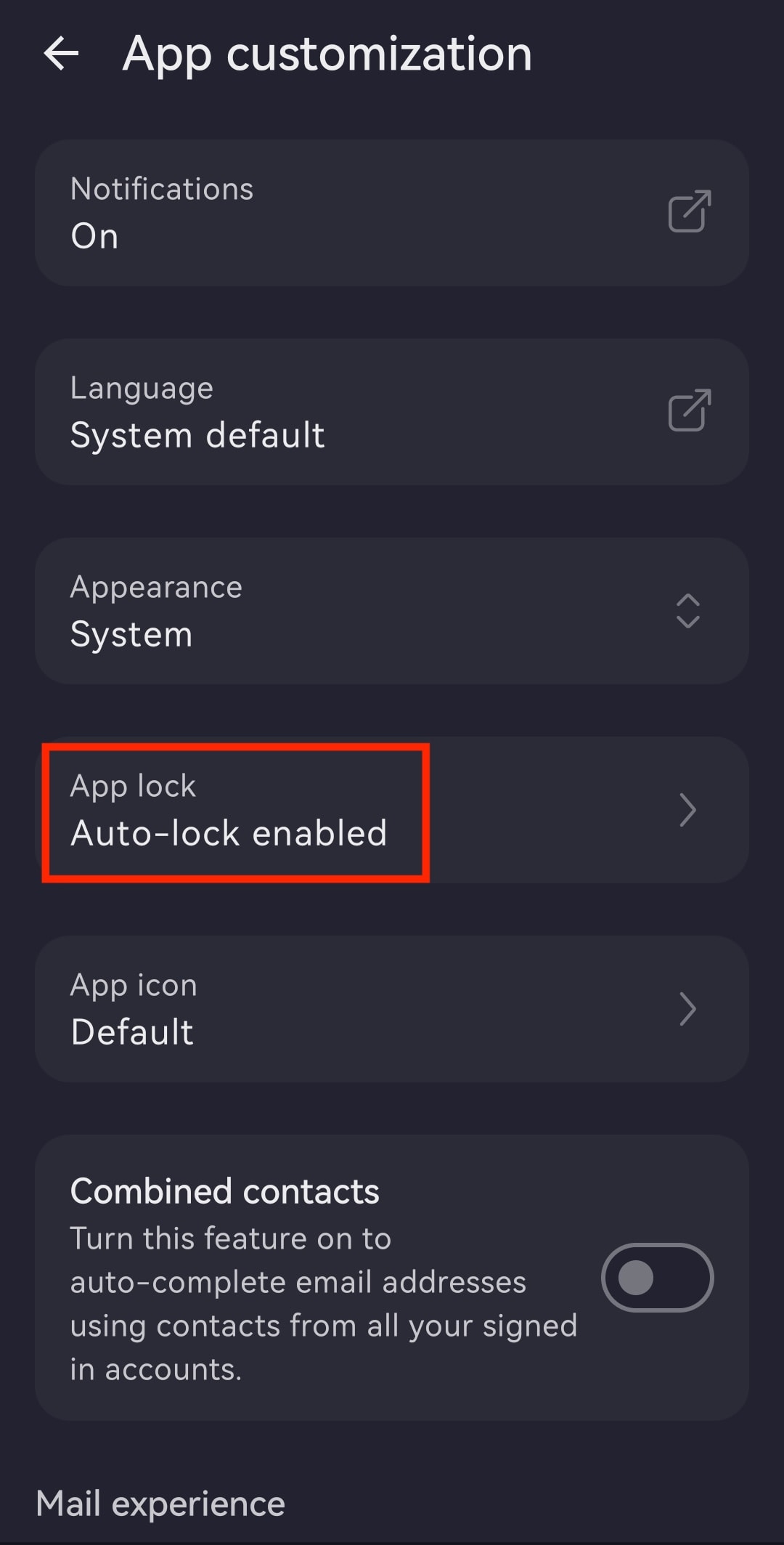
  1. 打开应用锁。
The Proton Mail Android app highlights the App lock with Auto-lock enabled entry
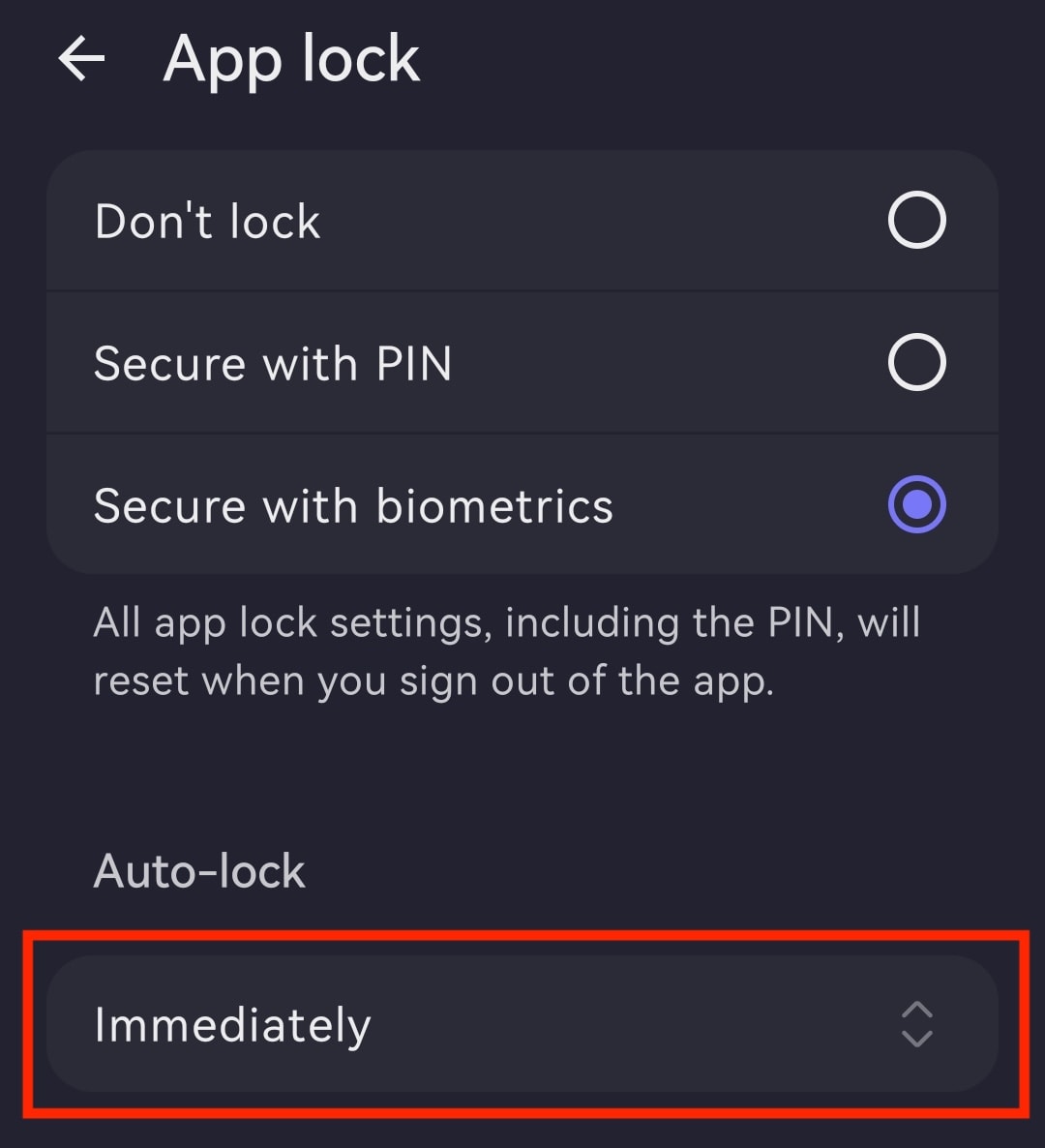
  1. 轻点自动锁定下方的计时器(例如立刻)。
The Proton Mail Android app highlights the timer under the Auto-lock entry
  1. 设置首选的自动锁定时间,范围从立刻到60 分钟后。
The Proton Mail Android app shows the auto-lock timer options

停用应用锁

  1. 打开 Proton Mail 应用并登录。
  2. 轻点菜单 ☰ 按钮,然后打开设置。
The Proton Mail Android app highlights the Settings entry
  1. 轻点个性化设置。
The Proton Mail Android app highlights the App customizations entry
  1. 打开应用锁。
The Proton Mail Android app highlights the App lock with Auto-lock enabled entry
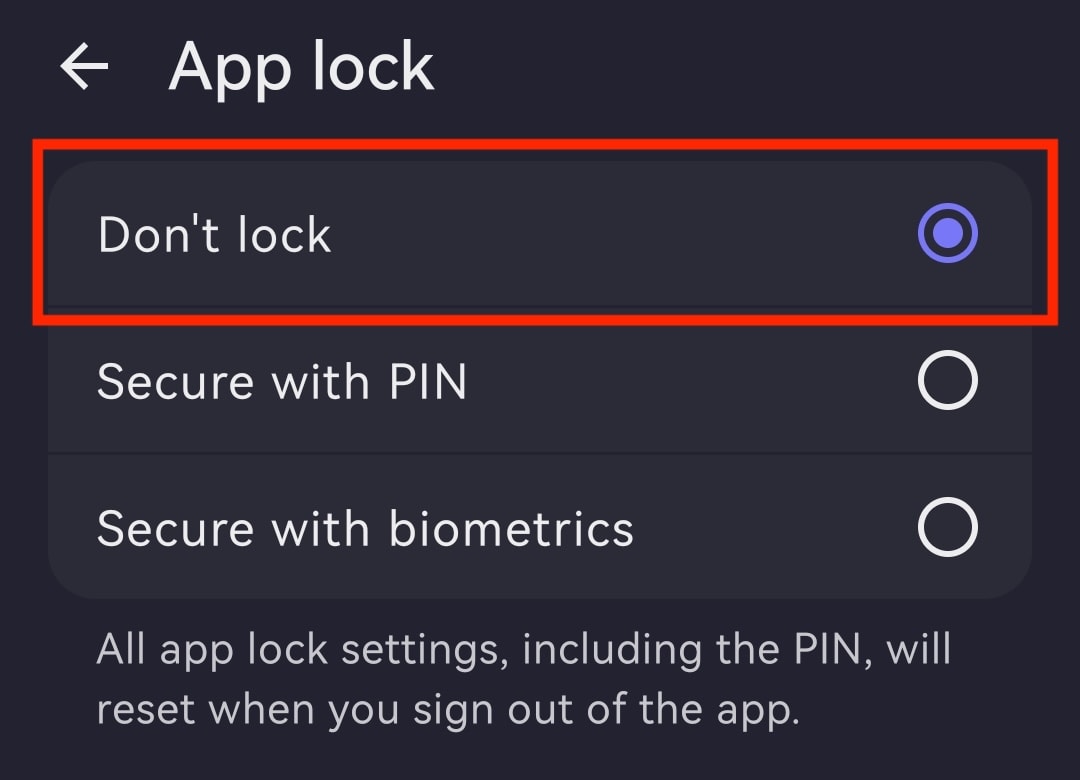
  1. 选择不锁定。
The Proton Mail Android app highlights the Don't lock entry of App lock