Come usare il Blocco app su Android
- Lettura
- 1 minuto
- Categorie
- App Android
- Proton Mail
Per proteggere i tuoi messaggi crittografati ed evitare che finiscano nelle mani sbagliate, puoi attivare la funzionalità di blocco automatico nell’app Proton Mail(nuova finestra).
Questa funzionalità ti chiederà di inserire un codice PIN o di usare la biometria per aprire Proton Mail. Puoi impostare il tuo dispositivo in modo che si blocchi automaticamente ogni volta che chiudi l’app o dopo un determinato periodo di tempo.
Attiva il Blocco app
- Apri l’app Proton Mail e accedi.
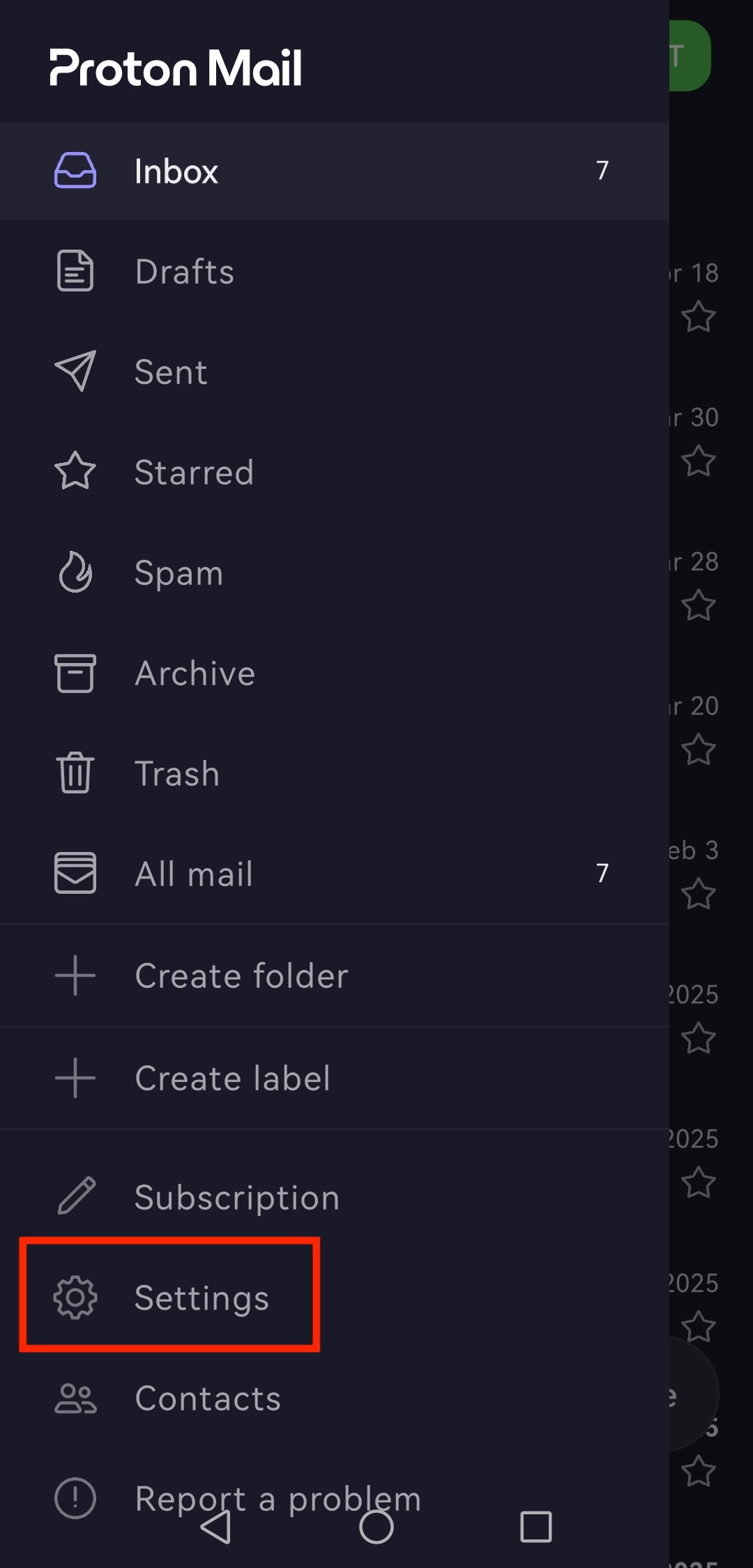
- Premi il pulsante del menu ☰ e apri Impostazioni.
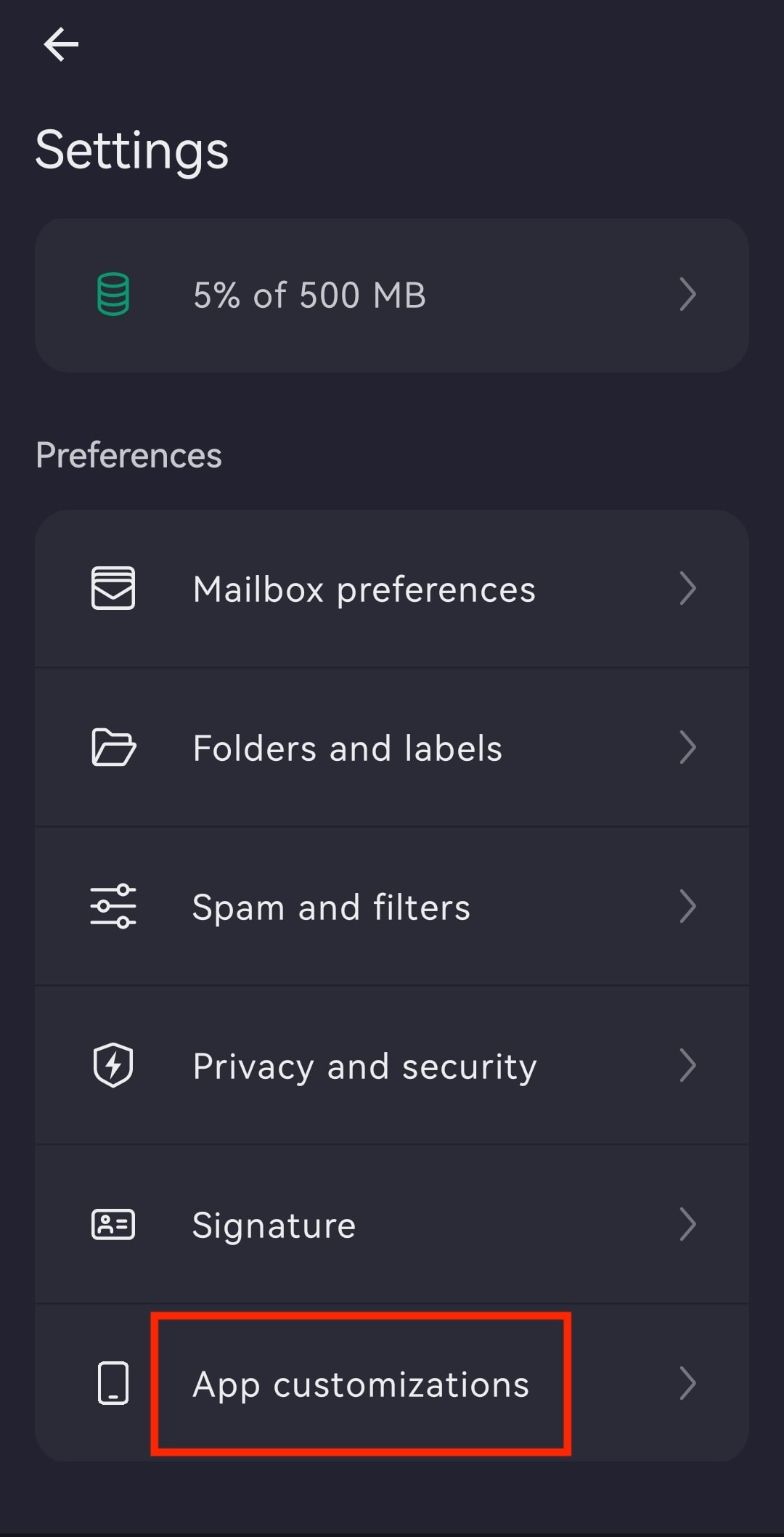
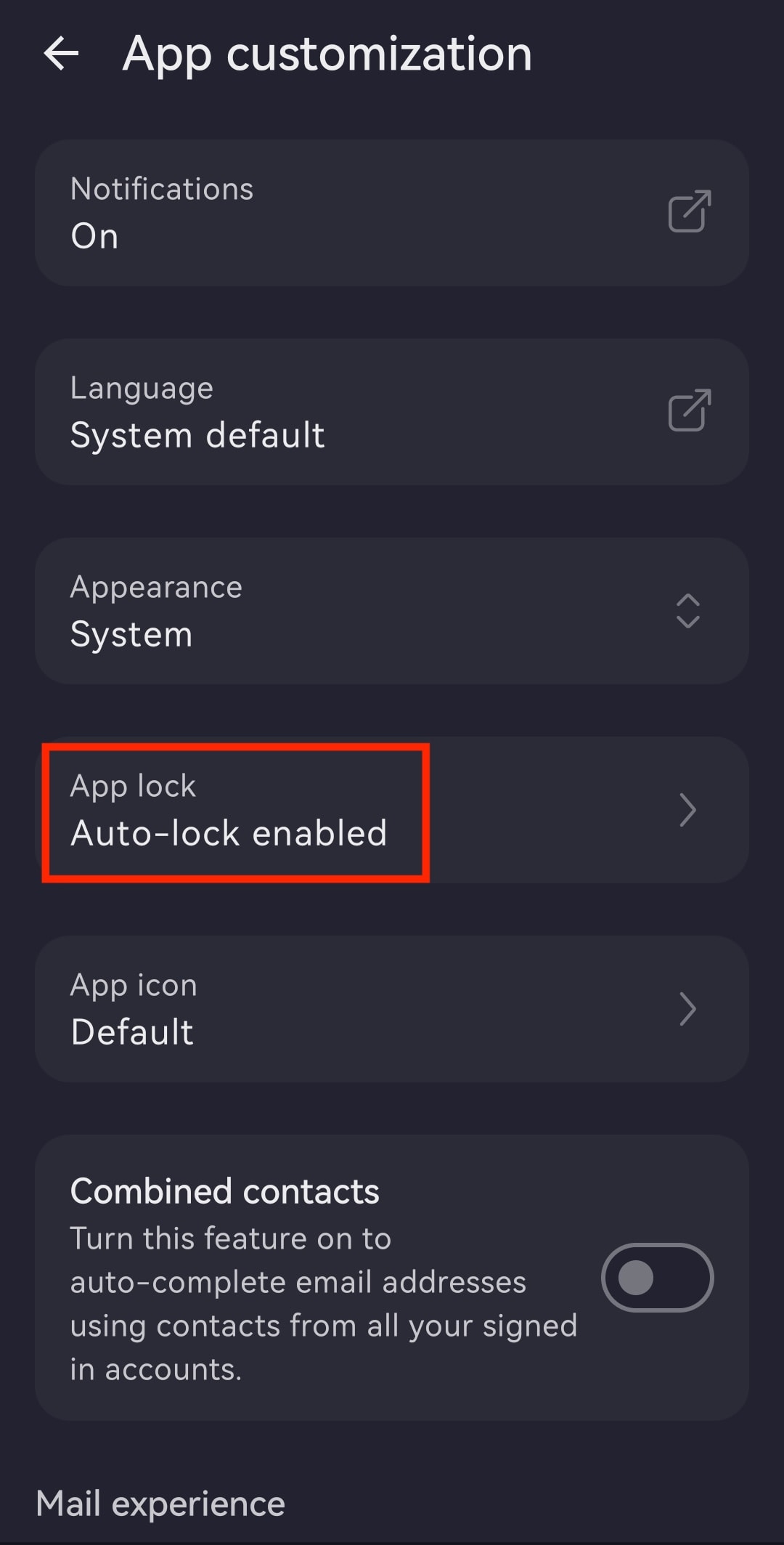
- Premi su Personalizzazioni dell’app.
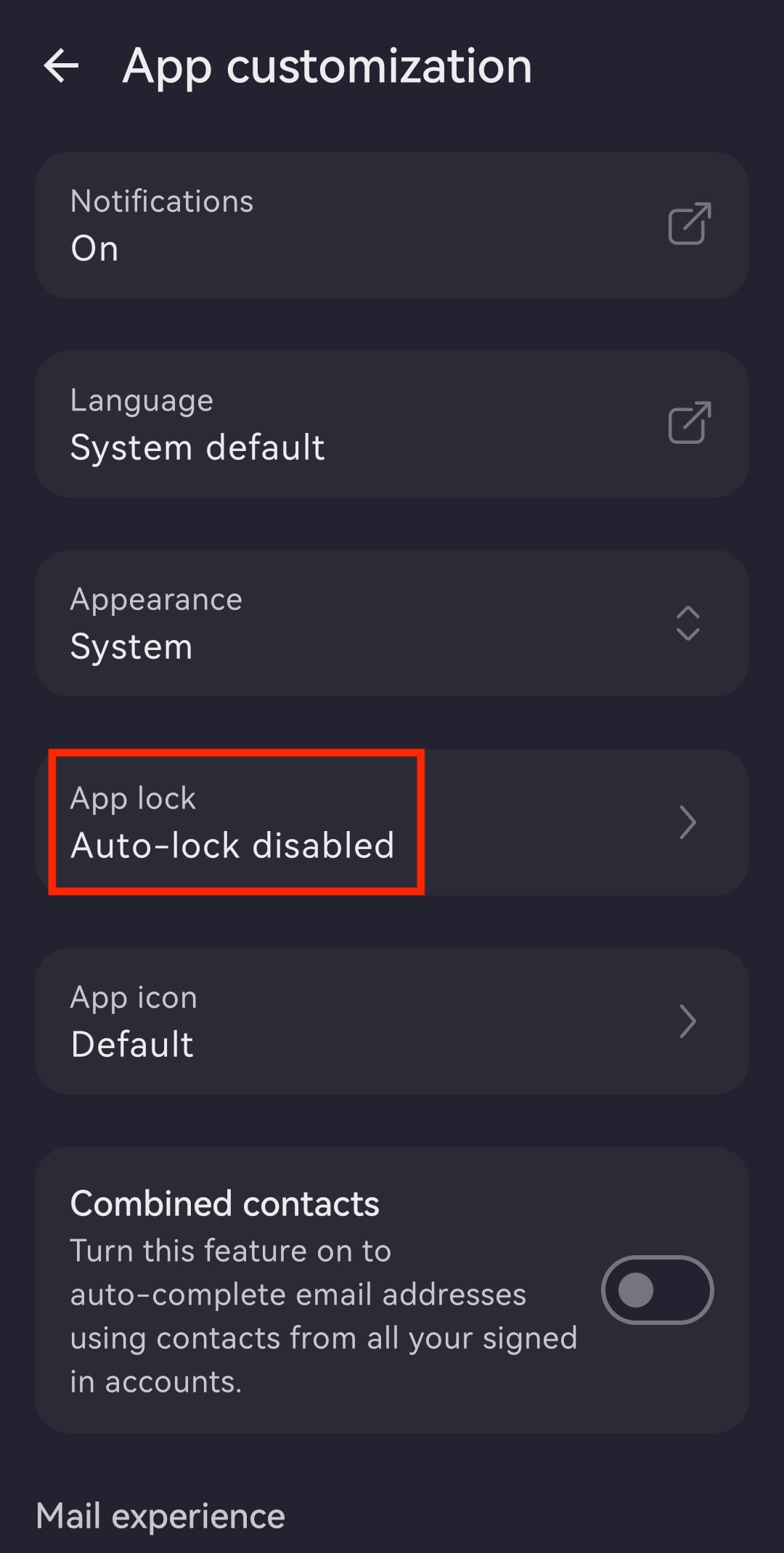
- Apri Blocco app.
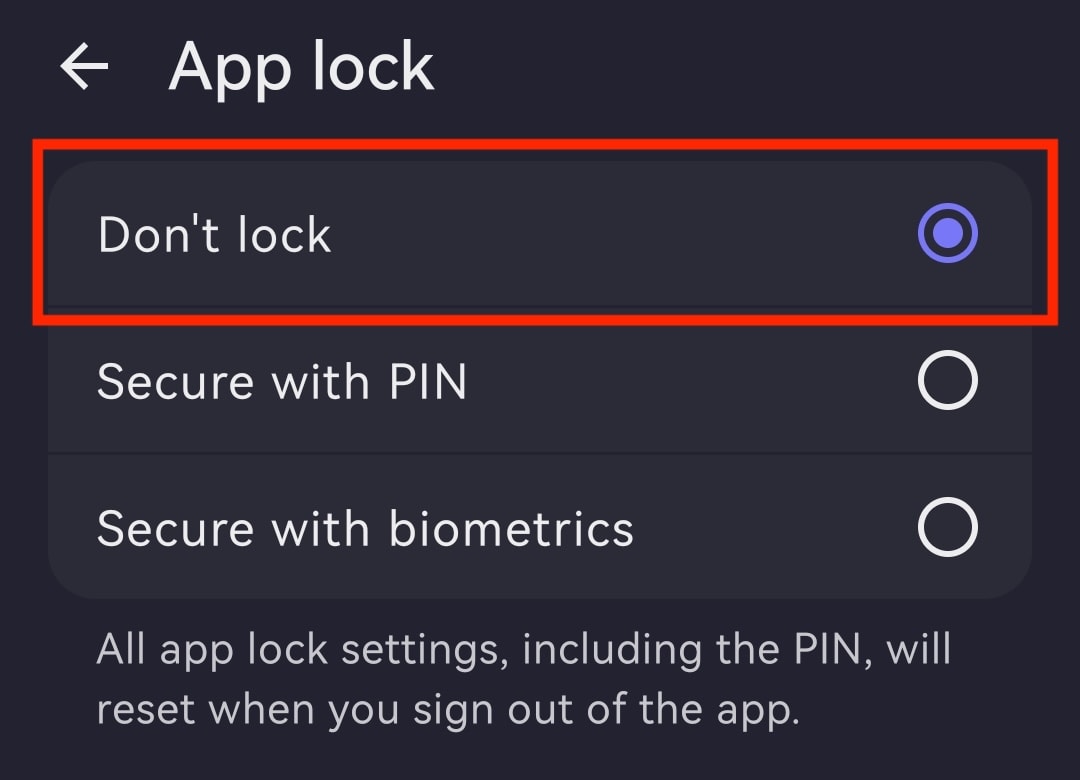
- Seleziona tra:
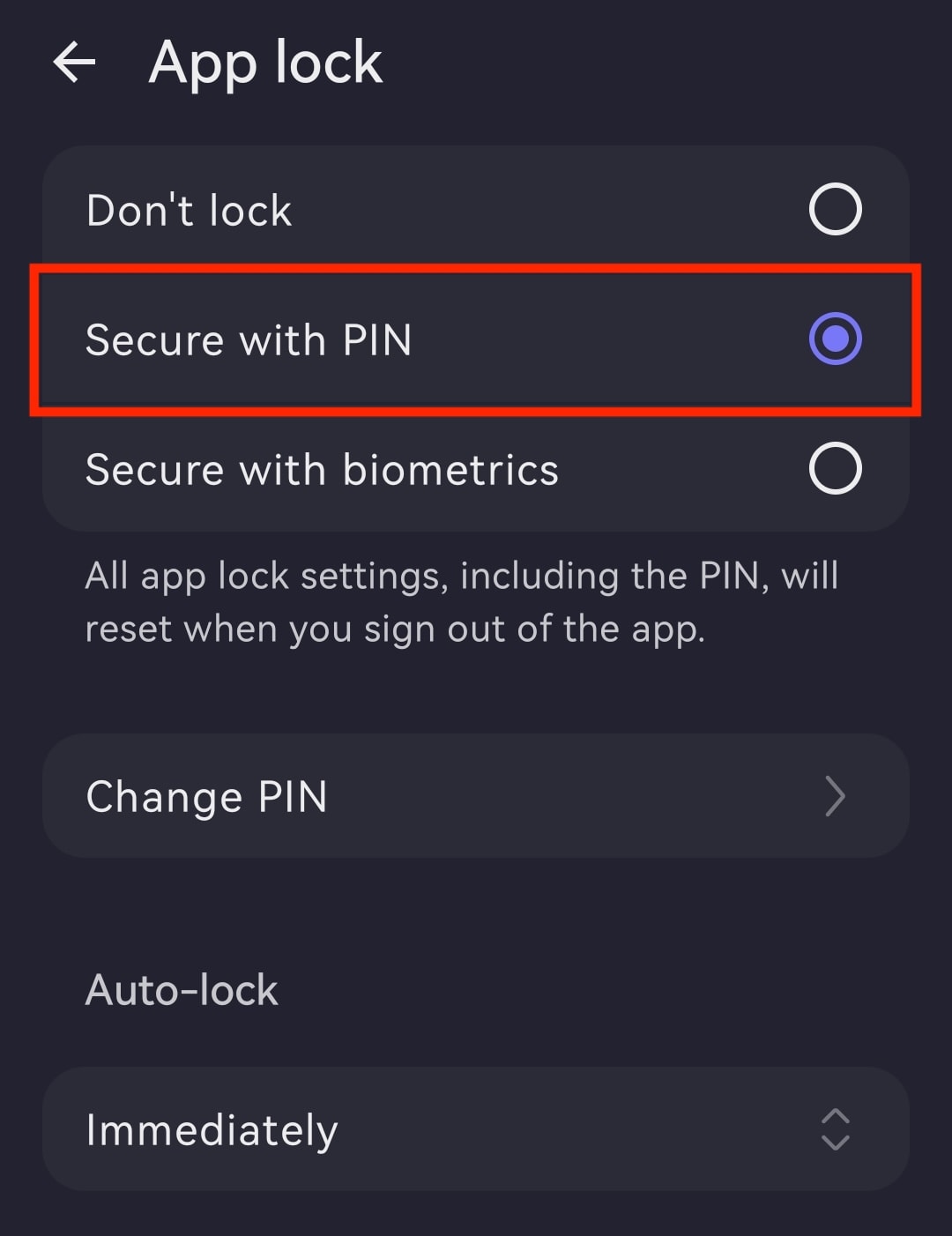
- Proteggi con PIN: inserisci un codice PIN e ripetilo per confermare. Potrai poi modificare il timer del blocco automatico, passare a Proteggi con i dati biometrici (richiede l’inserimento del PIN) o disattivare il Blocco app.
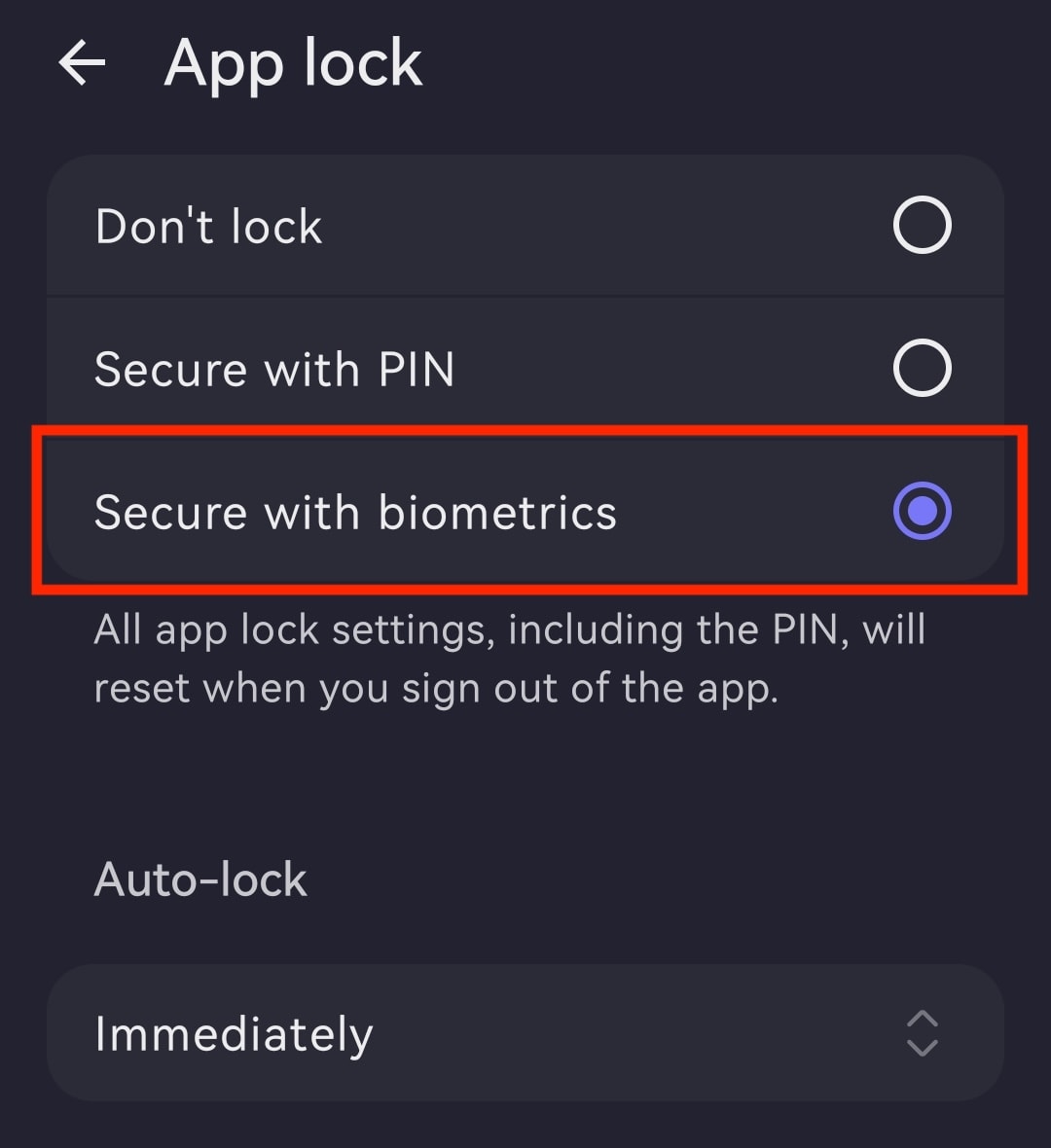
- Proteggi con i dati biometrici: conferma toccando l’area del sensore d’impronte digitali sul telefono. Potrai poi modificare il timer del blocco automatico, passare a Proteggi con PIN (richiede l’uso dell’impronta digitale) o disattivare il Blocco app.
Modifica il timer del blocco automatico
- Apri l’app Proton Mail e accedi con il tuo account Proton.
- Premi ☰ e apri Impostazioni.
- Vai su Personalizzazioni dell’app.
- Apri Blocco app.
- Premi il timer (ad esempio, Immediato) sotto Blocco automatico.
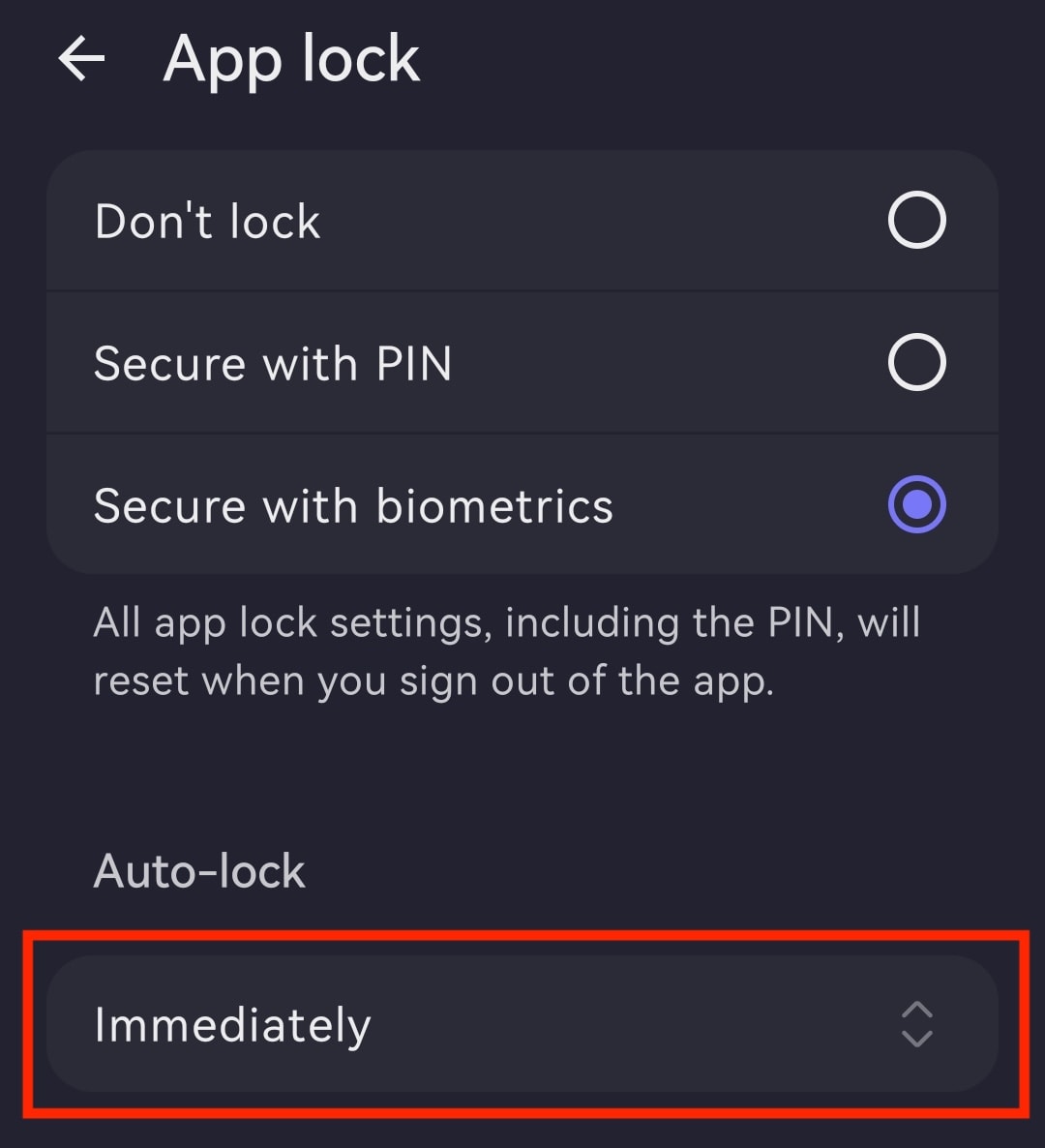
- Imposta il tempo di blocco automatico preferito, da Immediato a Dopo 60 minuti.

Disattiva il Blocco app
- Apri l’app Proton Mail e accedi.
- Premi il pulsante del menu ☰ e apri Impostazioni.
- Premi su Personalizzazioni dell’app.
- Apri Blocco app.
- Seleziona Non bloccare.