Como utilizar o Bloqueio da Aplicação no Android
- Leitura
- 2 min
- Categorias
- Aplicação para Android
- Proton Mail
Para proteger as suas mensagens encriptadas de caírem em mãos erradas, pode ativar a funcionalidade de bloqueio automático na aplicação Proton Mail(nova janela).
Esta funcionalidade irá pedir-lhe para introduzir um código PIN ou utilizar a biometria para abrir o Proton Mail. Pode definir o seu dispositivo para bloquear automaticamente sempre que fechar a sua aplicação, ou após um determinado período de tempo.
Ativar o Bloqueio da Aplicação
- Abra a aplicação Proton Mail e inicie sessão.
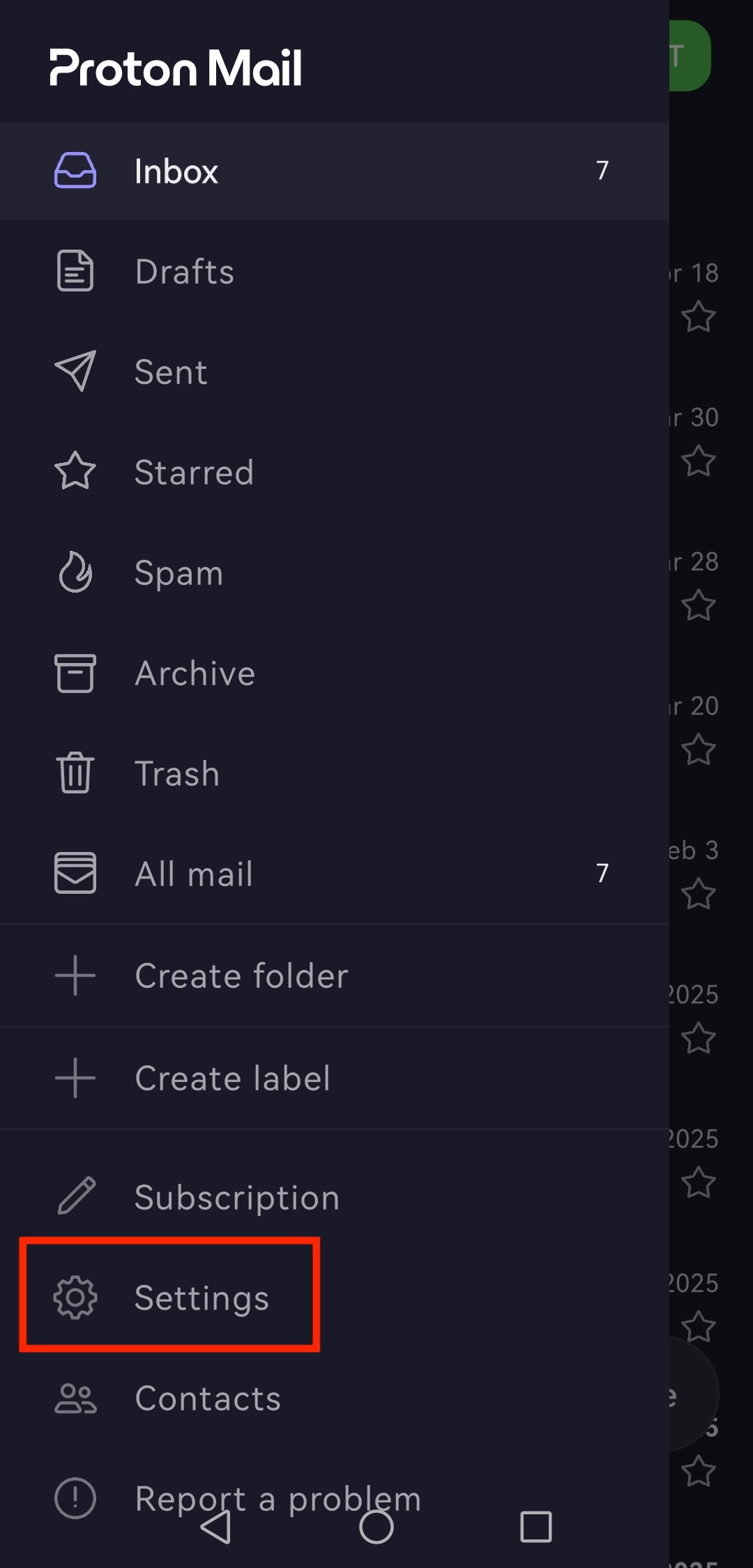
- Toque no botão de menu ☰ e abra as Definições.
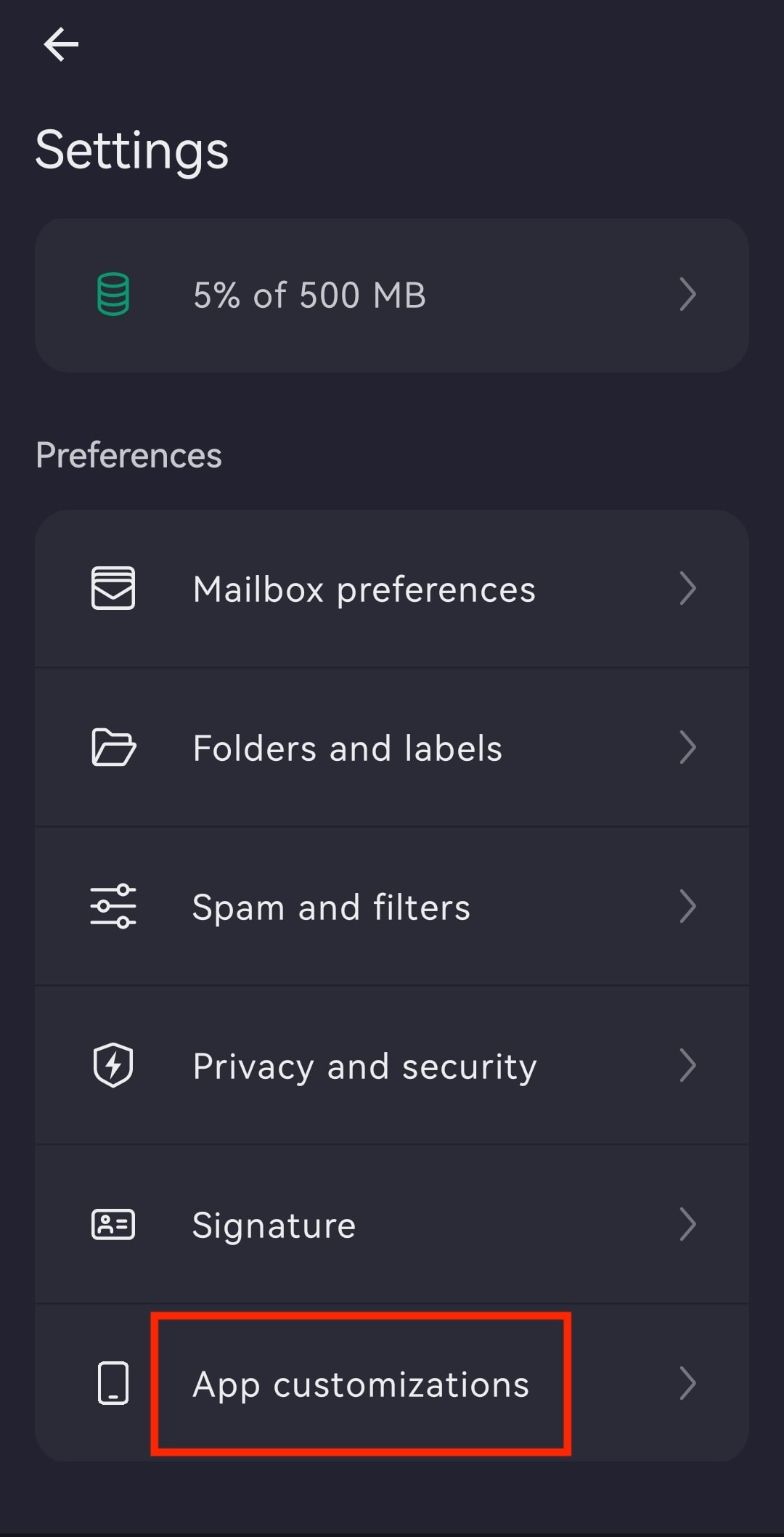
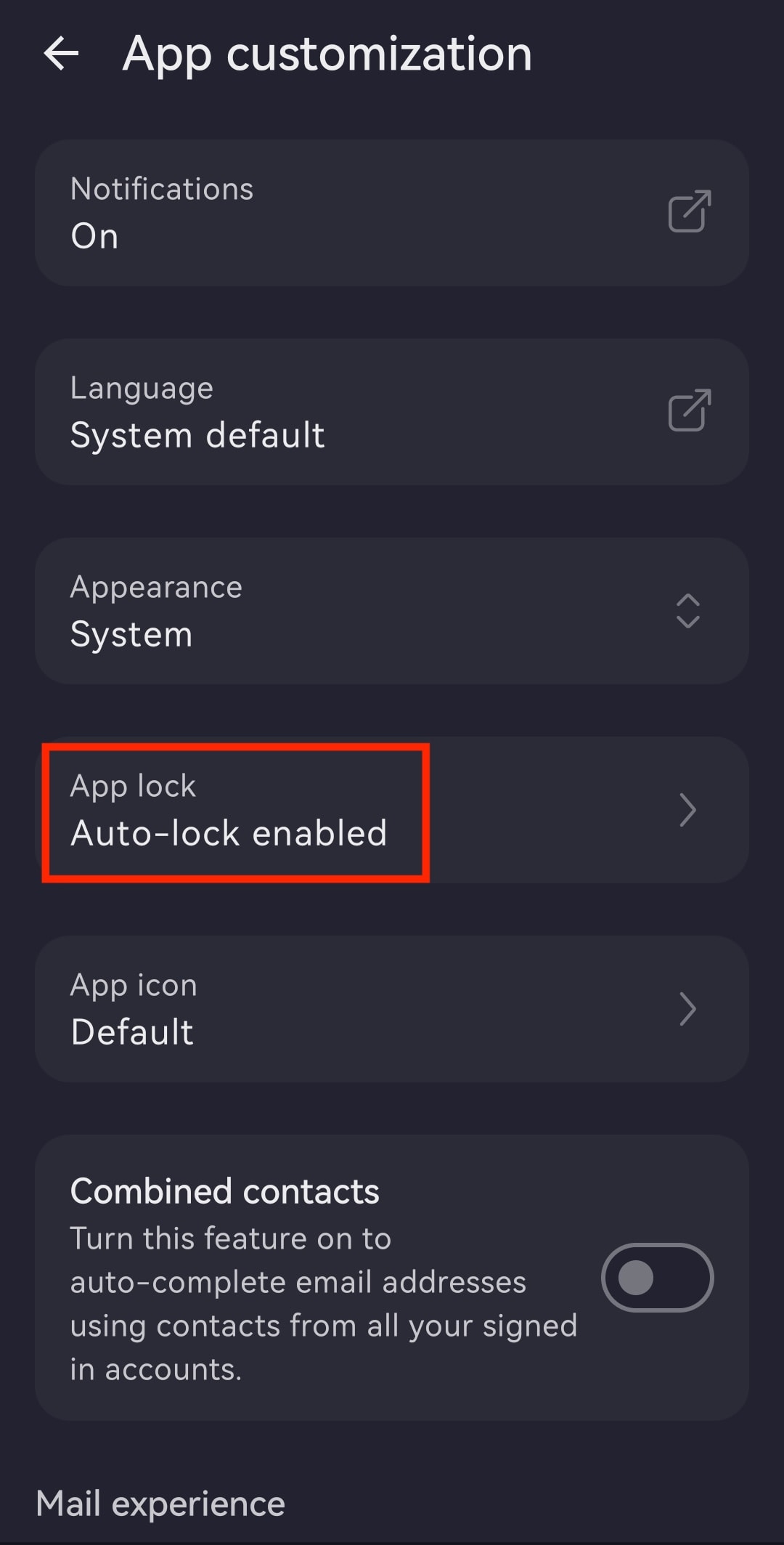
- Toque em Personalizações da aplicação.
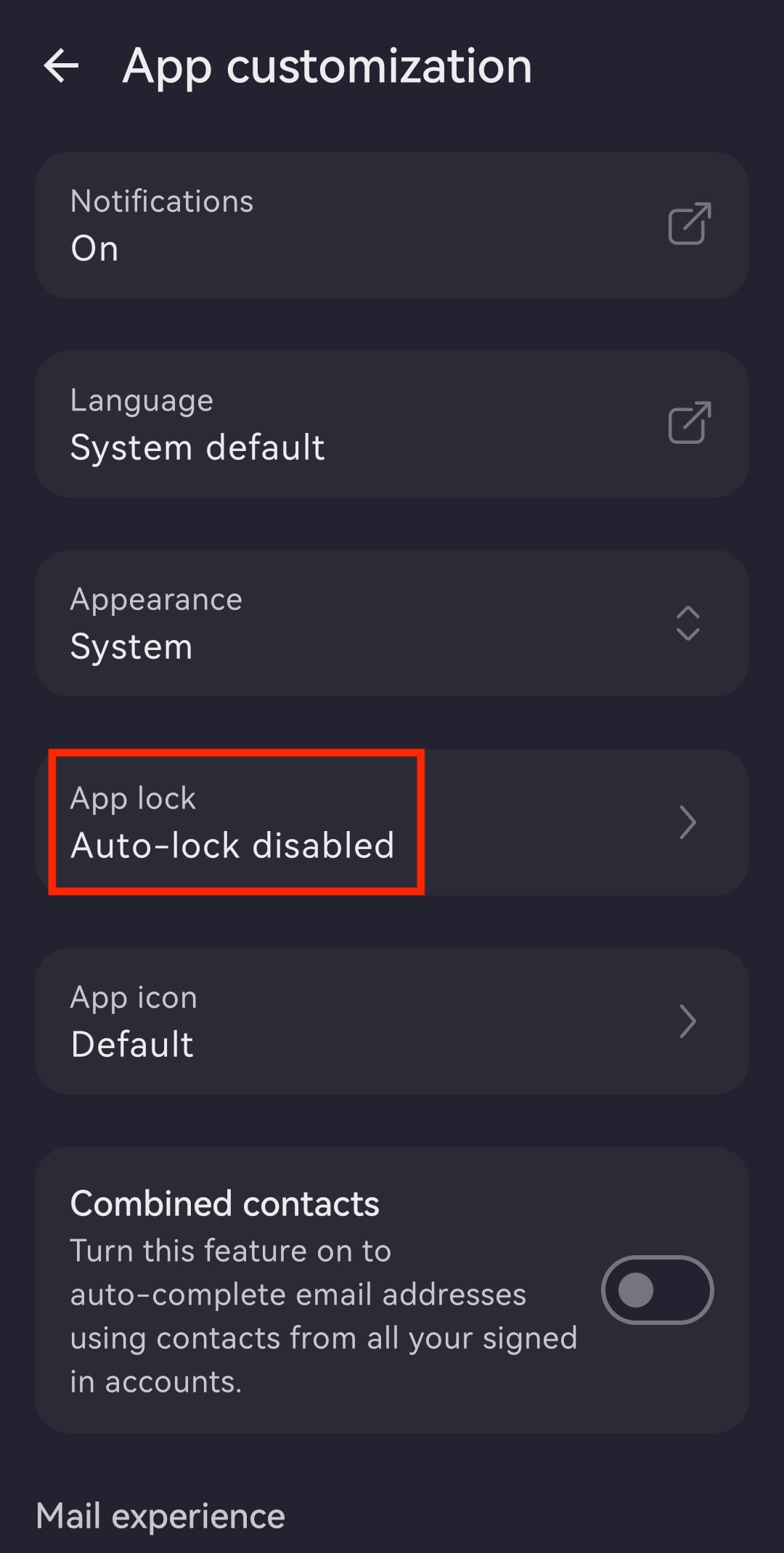
- Abra o Bloqueio da Aplicação.
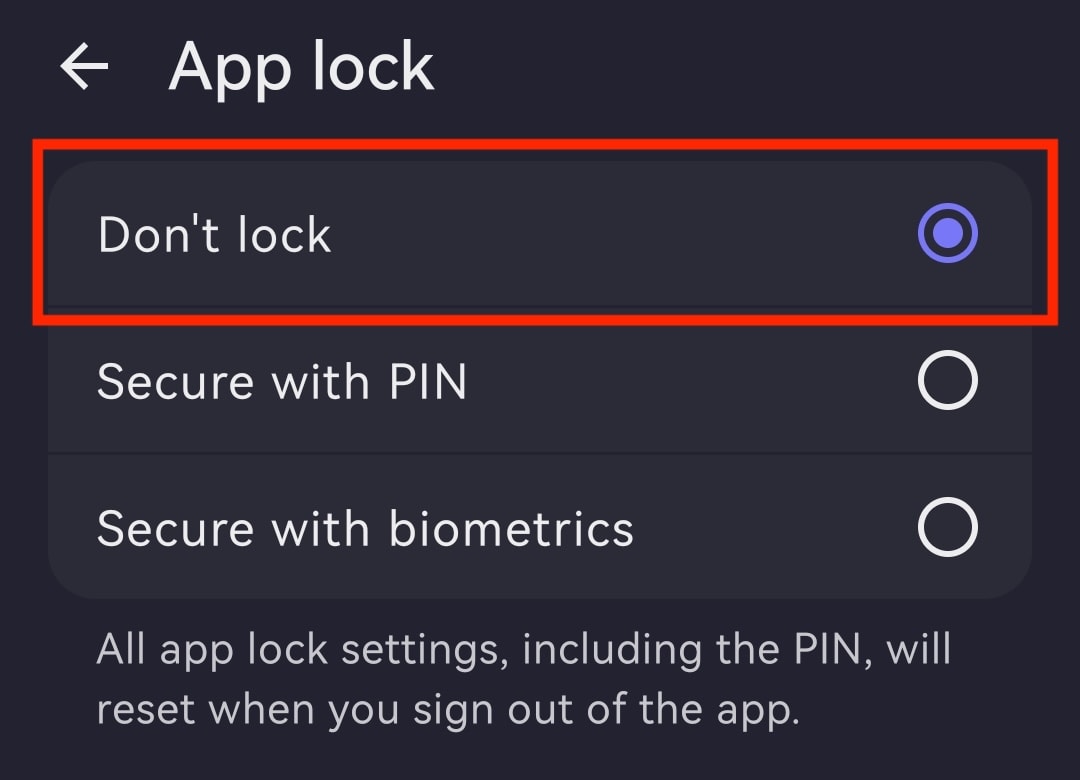
- Selecione entre:
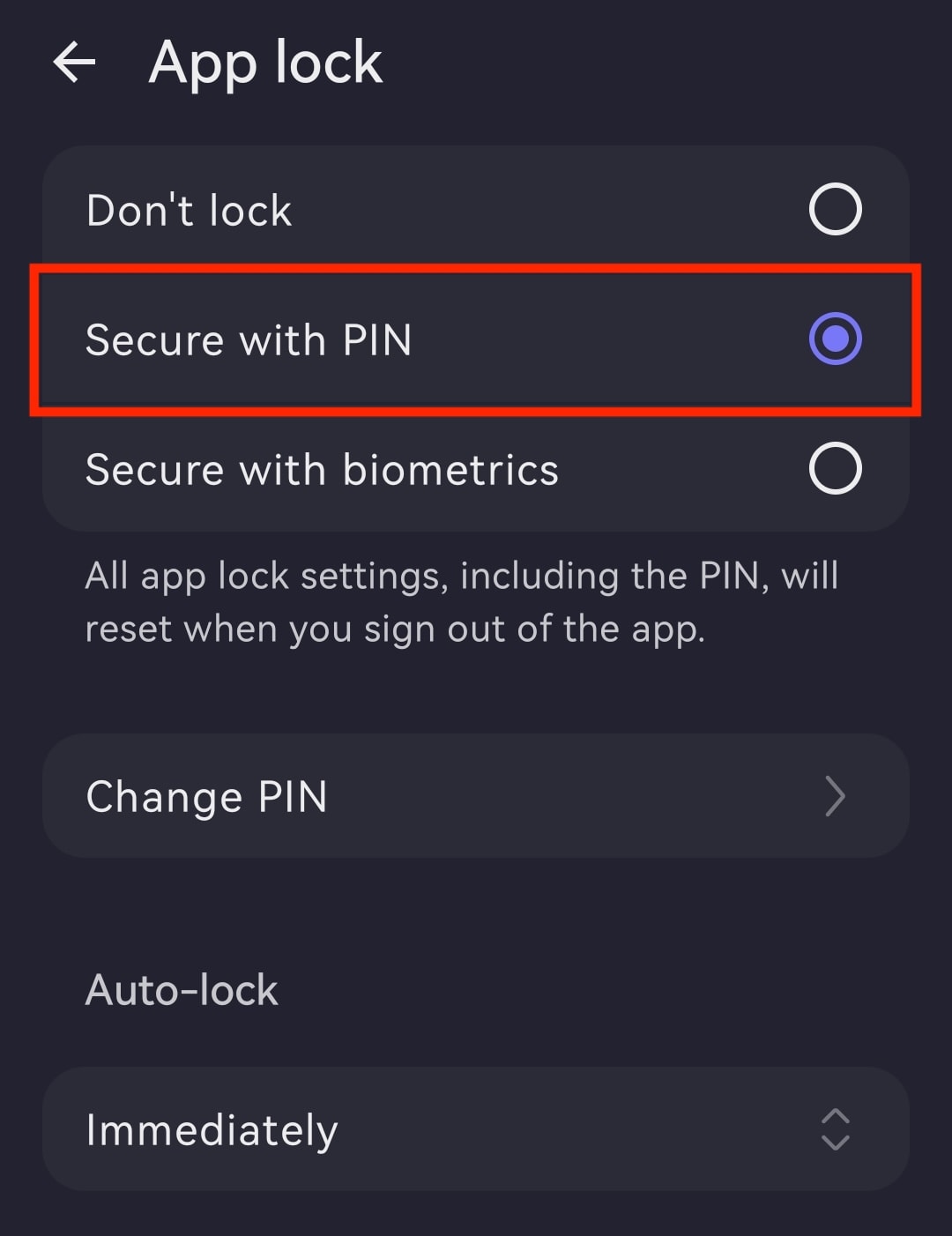
- Proteger com PIN: Introduza um código PIN e repita-o para confirmar. Depois, pode alterar o temporizador do bloqueio automático, mudar para Proteger com biometria (requer a introdução do seu PIN) ou desativar o Bloqueio da Aplicação.
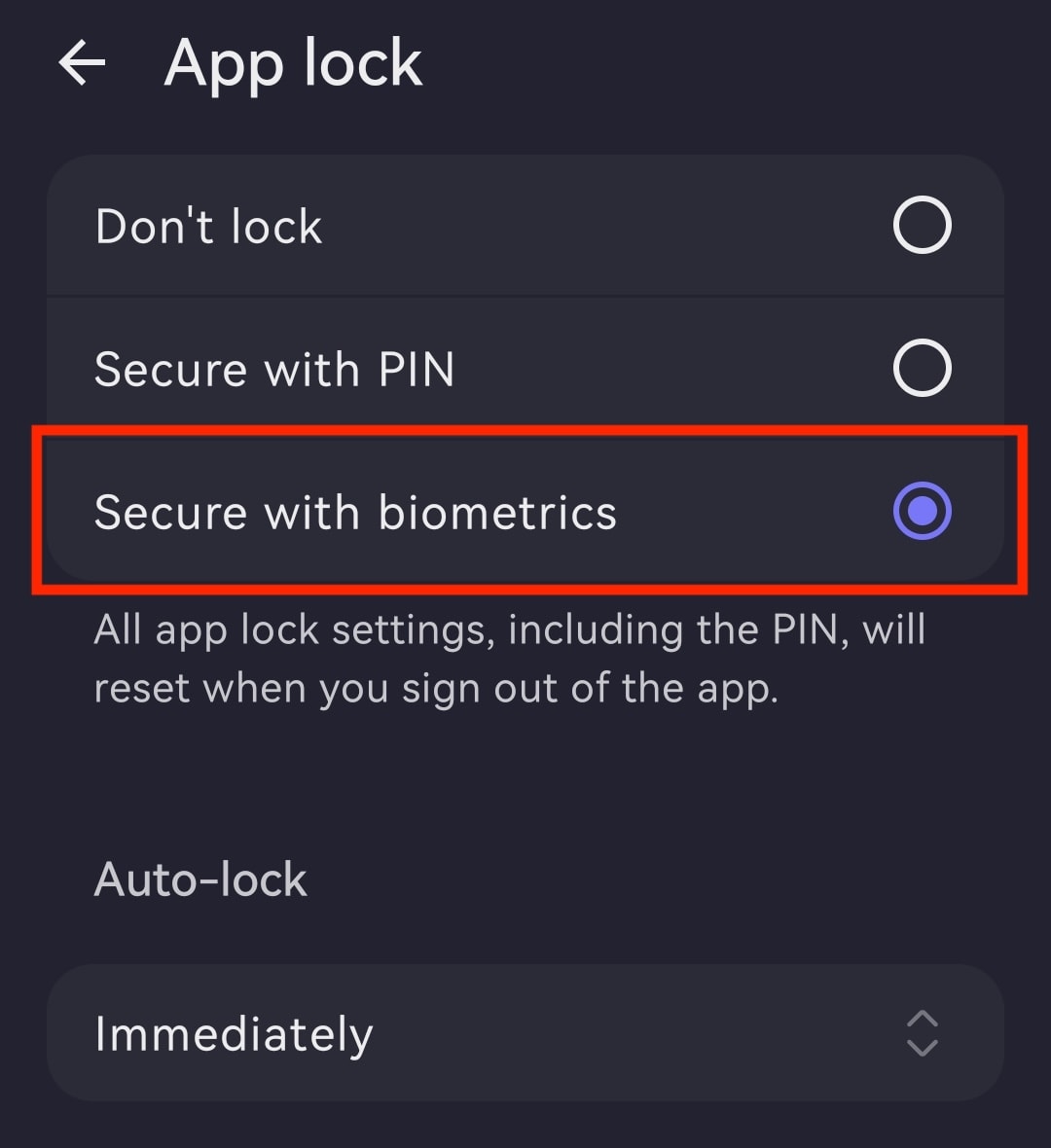
- Proteger com biometria: Confirme tocando na zona do sensor de impressão digital no seu telemóvel. Depois, pode alterar o temporizador do bloqueio automático, mudar para Proteger com PIN (requer a utilização da sua impressão digital) ou desativar o Bloqueio da Aplicação.
Alterar o temporizador do bloqueio automático
- Abra a aplicação Proton Mail e inicie sessão com a sua Conta Proton.
- Toque em ☰ e abra Definições.
- Aceda a Personalizações da aplicação.
- Abra Bloqueio da Aplicação.
- Toque no temporizador (por exemplo, Imediatamente) sob o Bloqueio automático.
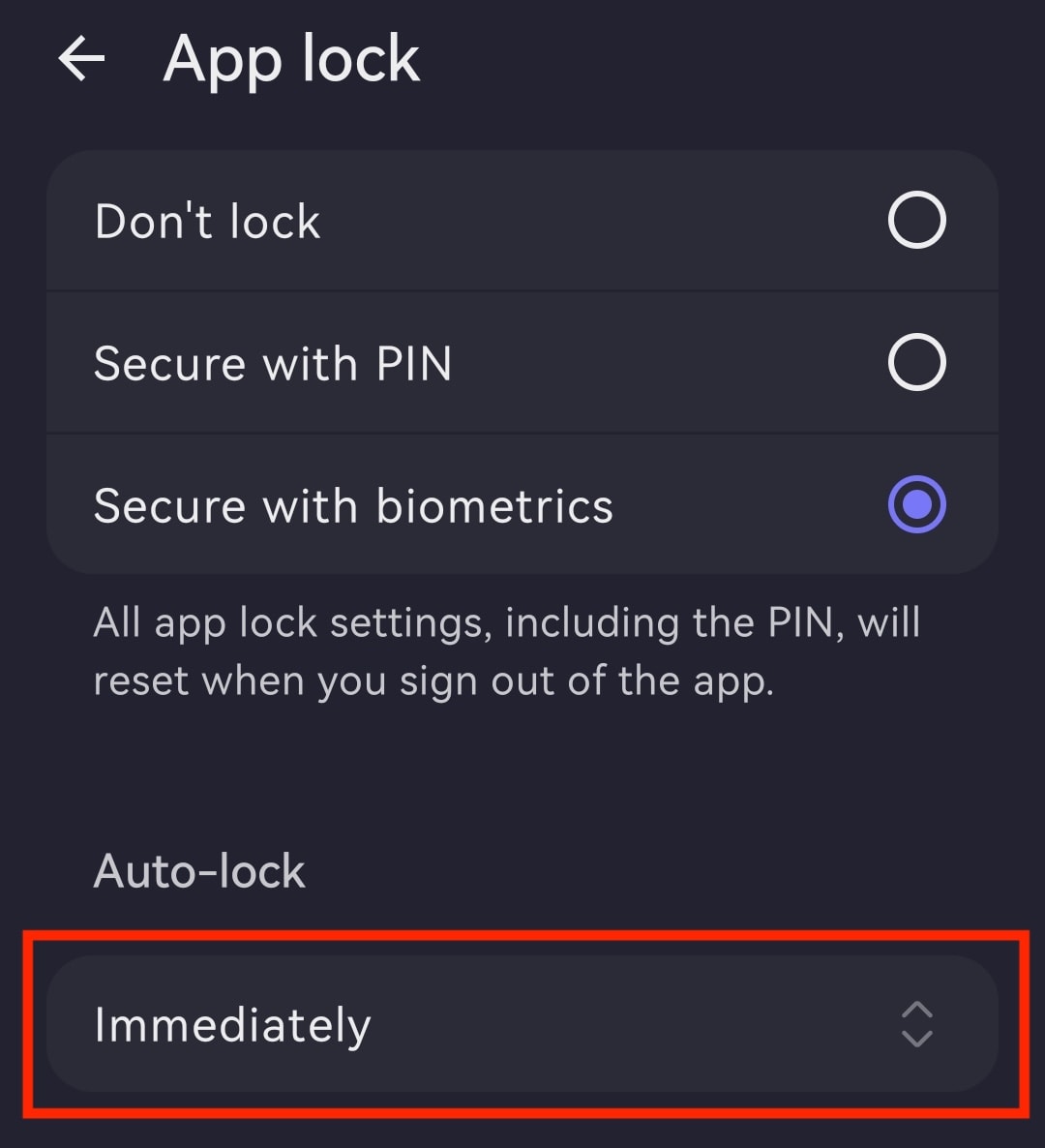
- Defina o tempo de bloqueio automático preferido, variando de Imediatamente a Após 60 minutes.

Desativar o Bloqueio da Aplicação
- Abra a aplicação Proton Mail e inicie sessão.
- Toque no botão de menu ☰ e abra as Definições.
- Toque em Personalizações da aplicação.
- Abra o Bloqueio da Aplicação.
- Selecione Não bloquear.