
Recupero dati assistito da contatti
- Lettura
- 5 minuti
- Categorie
- Recupero dell'account e dei dati
- Account Proton
Il recupero dati assistito da contatti è un metodo di recupero dati. Ti consente di impostare da 1 a 5 contatti attendibili che possono aiutarti a ripristinare i dati crittografati (come email, contatti, password, documenti) sul tuo account dopo una reimpostazione della password. I contatti di recupero verificano la tua identità in modo che tu possa riottenere i tuoi dati, ma non otterranno mai l’accesso al tuo account o ai tuoi dati stessi.
Per proteggere completamente il tuo account in caso di smarrimento della password, dovresti anche attivare almeno un metodo di reimpostazione della password.
In questo articolo
- Come funziona
- Come usare il recupero dati assistito da contatti
- Se hai ricevuto un’email che ti informa che sei stato aggiunto ai contatti di recupero di qualcuno
- Panoramica tecnica
Come funziona
Se i dati del tuo account sono bloccati in seguito a una reimpostazione della password, puoi chiederci di inviare una richiesta via email a uno dei tuoi contatti di recupero dati. Chiederemo loro di confermare che sei proprio tu a cercare di sbloccare i tuoi dati.
I contatti di recupero devono essere
- Utenti Proton: puoi aggiungere solo indirizzi email collegati a un Account Proton.
- Persone che conosci, di cui ti fidi e che puoi contattare facilmente: anche se non hai accesso a Proton.
Il recupero dati assistito da contatti sblocca i dati del tuo account, ma non può reimpostare la tua password. Scopri come funziona il recupero dell’account Proton
Come usare il recupero dati assistito da contatti
Aggiungi un contatto di recupero
- Accedi a account.proton.me e apri le impostazioni dell’account.
- Nella barra laterale, seleziona Recupero e scorri fino a Contatti di recupero. Seleziona Aggiungi contatto di recupero.
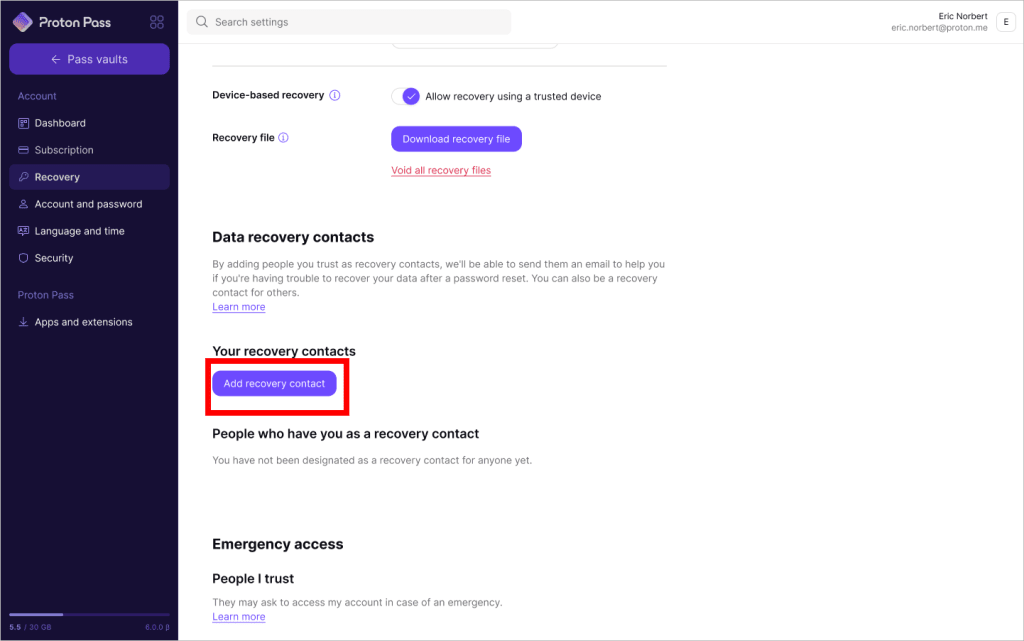
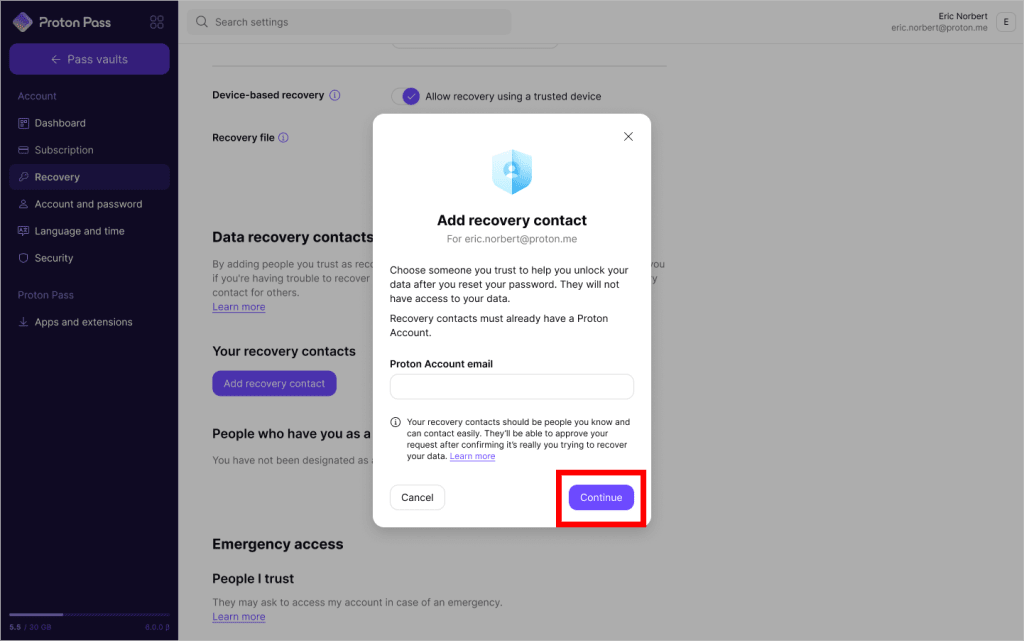
3. Inserisci l’indirizzo email del tuo contatto. L’indirizzo email deve essere collegato a un Account Proton.
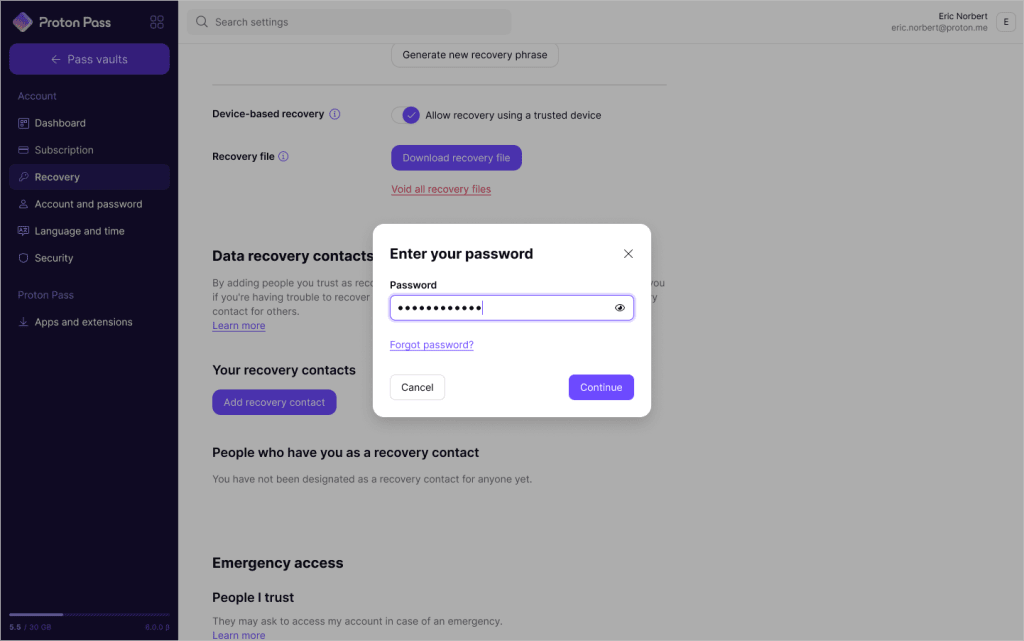
4. Ti verrà richiesto di autenticarti. Inserisci la tua password e fai clic su Continua.
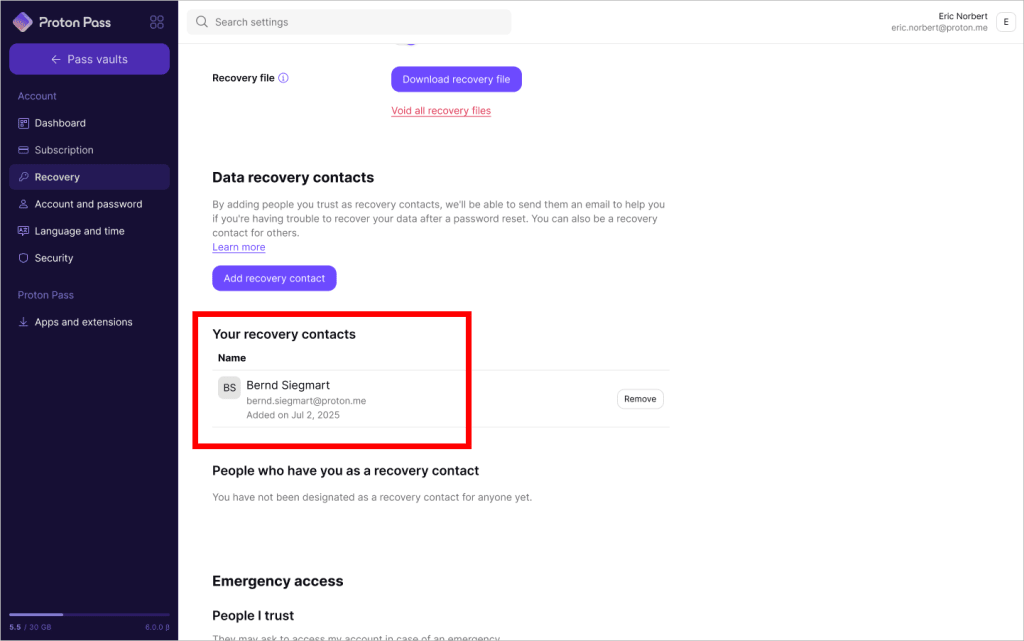
Fatto. Vedrai il tuo nuovo contatto di recupero in Contatti di recupero. Riceverete entrambi un’email di conferma.
Ripristina i tuoi dati
Se non riesci ad accedere al tuo account, dovrai reimpostare la password prima di poter recuperare i dati. Come reimpostare la password dell’Account Proton
- Dopo una reimpostazione della password, vedrai che i tuoi dati sono bloccati.
- Potresti visualizzare un pop-up o una notifica che ti invita a recuperare i dati del tuo account. In tal caso, fai clic su recupera dati.
- In alternativa, apri le tue impostazioni di recupero (Impostazioni ⚙️ → Tutte le impostazioni → Recupero) e fai clic su Sblocca dati.

2. Nella scheda Contatti, vedrai un elenco dei tuoi contatti di recupero dati. Seleziona uno o più contatti e fai clic su Inizia il recupero.
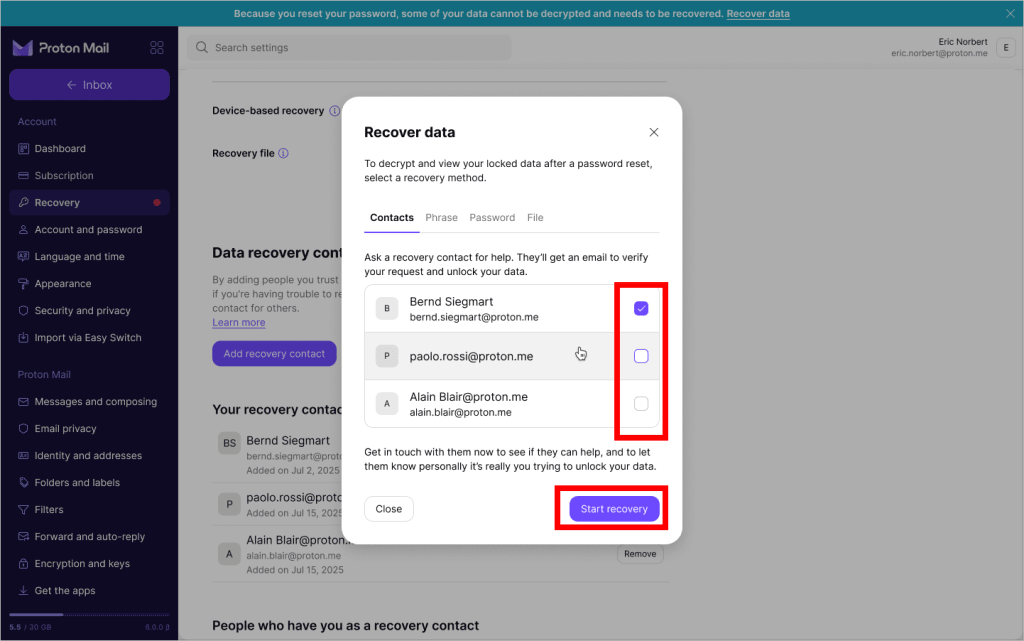
3. Se non l’hai ancora fatto, mettiti in contatto con il tuo contatto e fagli sapere che sei davvero tu a chiedere aiuto.

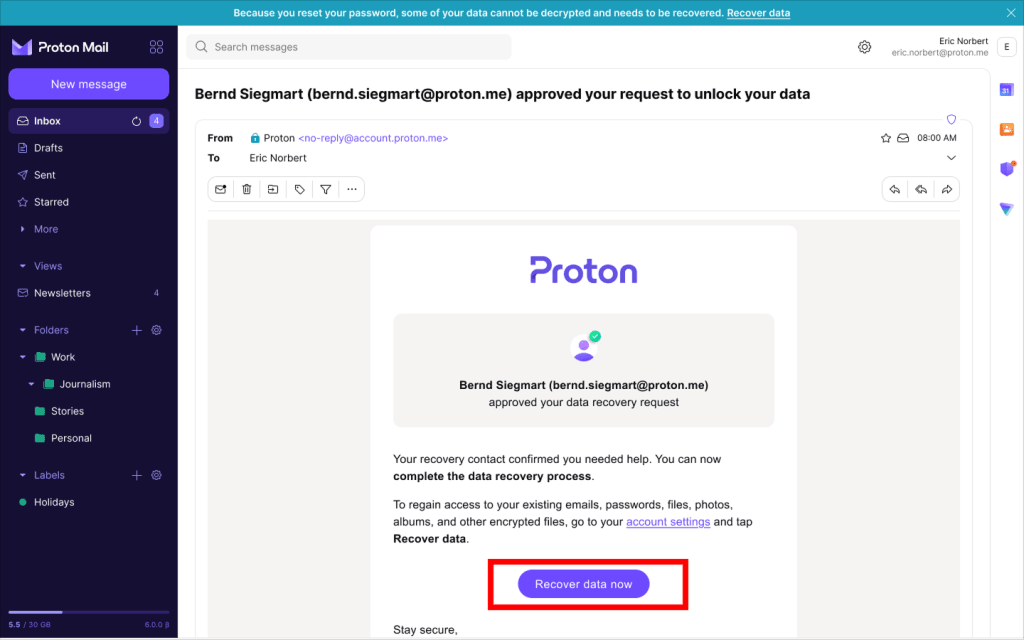
- Non appena il tuo contatto avrà confermato l’autenticità della richiesta, ti invieremo un’email di conferma. Apri l’email e fai clic su Recupera dati ora.
5. Nella scheda Contatti, fai clic nuovamente su Recupera dati.
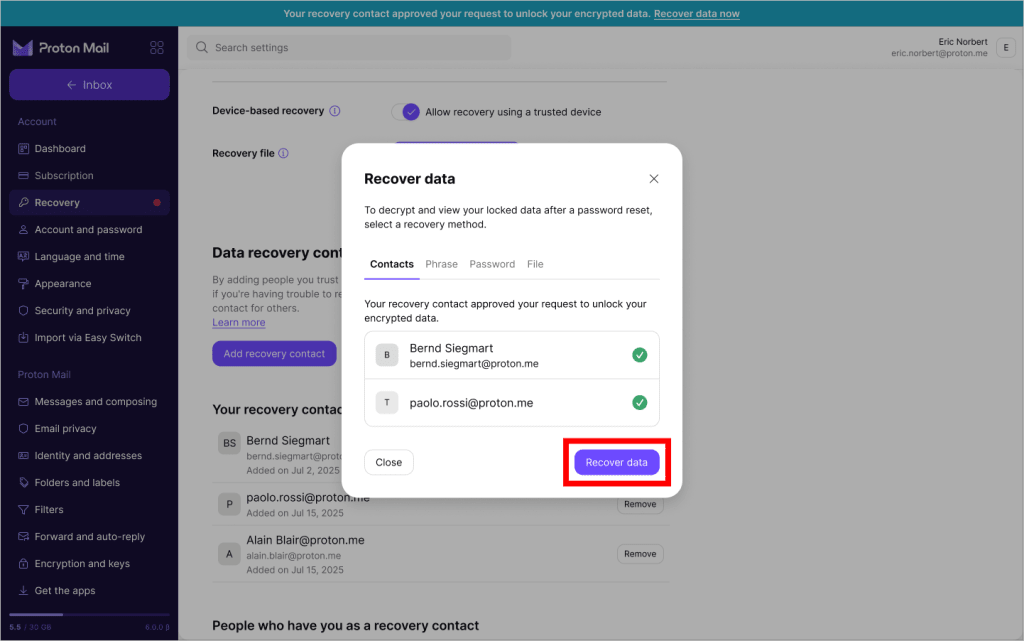
Ecco fatto. I tuoi dati sono stati recuperati.
Visualizza i tuoi contatti di recupero
- Accedi ad account.proton.me e apri le tue Impostazioni dell’account.
- Nella barra laterale, seleziona Recupero e scorri fino a Contatti di recupero.
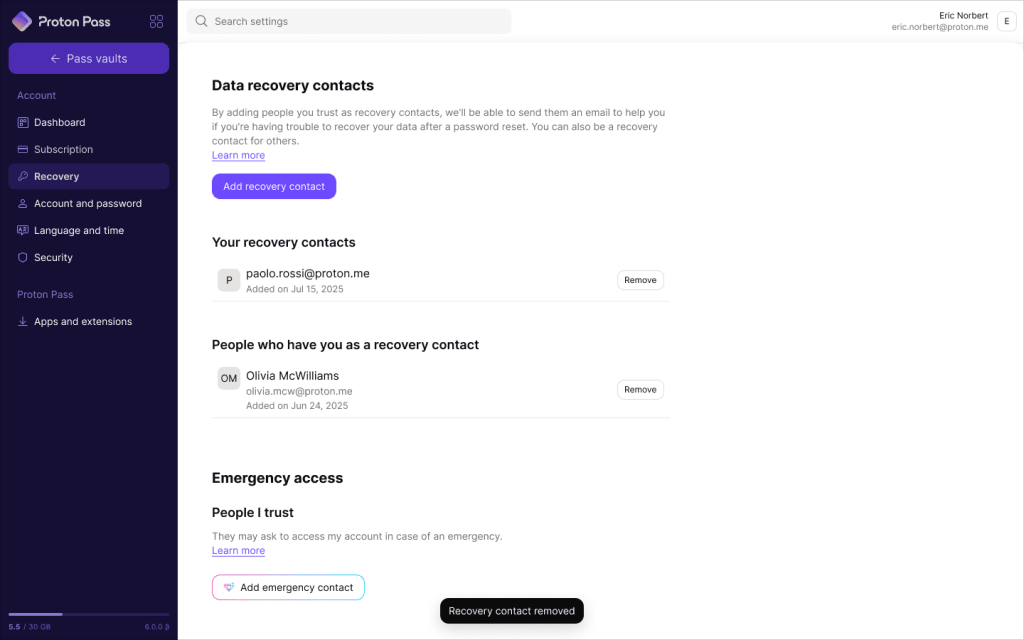
- I tuoi contatti di recupero sono le persone che possono aiutarti a recuperare i tuoi dati.
- Persone che ti hanno come contatto di recupero è un elenco di persone per le quali sei un contatto di recupero.
Elimina un contatto di recupero
- Accedi a account.proton.me e apri le impostazioni dell’account.
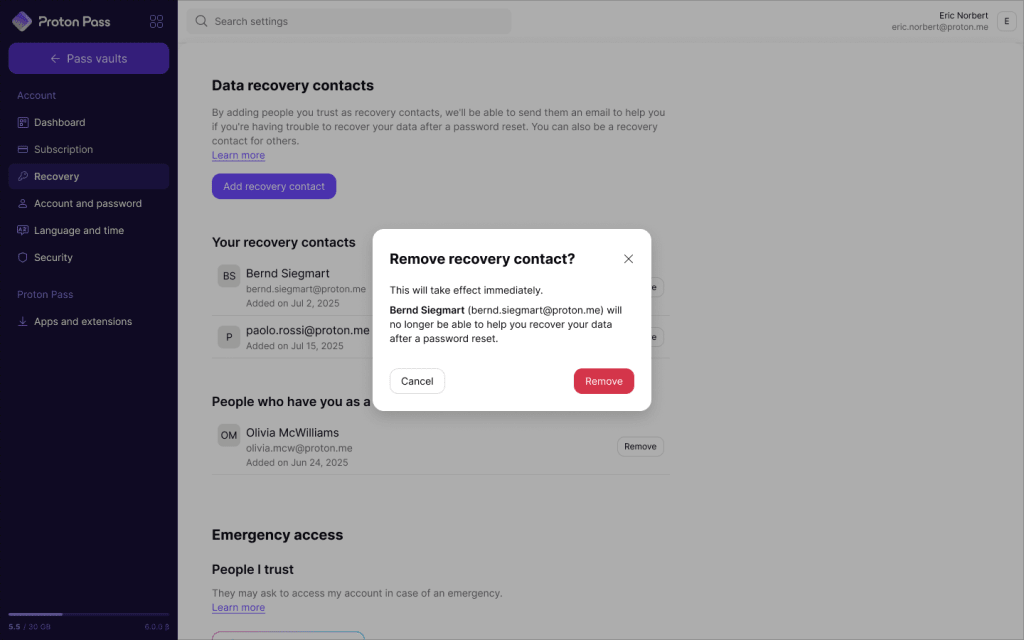
- Nella barra laterale, seleziona Recupero e scorri fino a Contatti di recupero dati → I tuoi contatti di recupero.
- Trova il contatto che vuoi eliminare e fai clic su Rimuovi.

4. Leggi attentamente l’avviso. Se desideri davvero continuare, fai clic nuovamente su Rimuovi.
5. Inserisci la tua password per confermare.

Fatto. Hai rimosso il contatto dal tuo elenco.
Rimuoviti dai contatti di recupero di qualcuno
- Accedi a account.proton.me e apri le impostazioni dell’account.
- Nella barra laterale, seleziona Recupero e scorri fino a Contatti di recupero → Persone che ti hanno come contatto di recupero.
- Trova il contatto e clicca su Rimuovi.
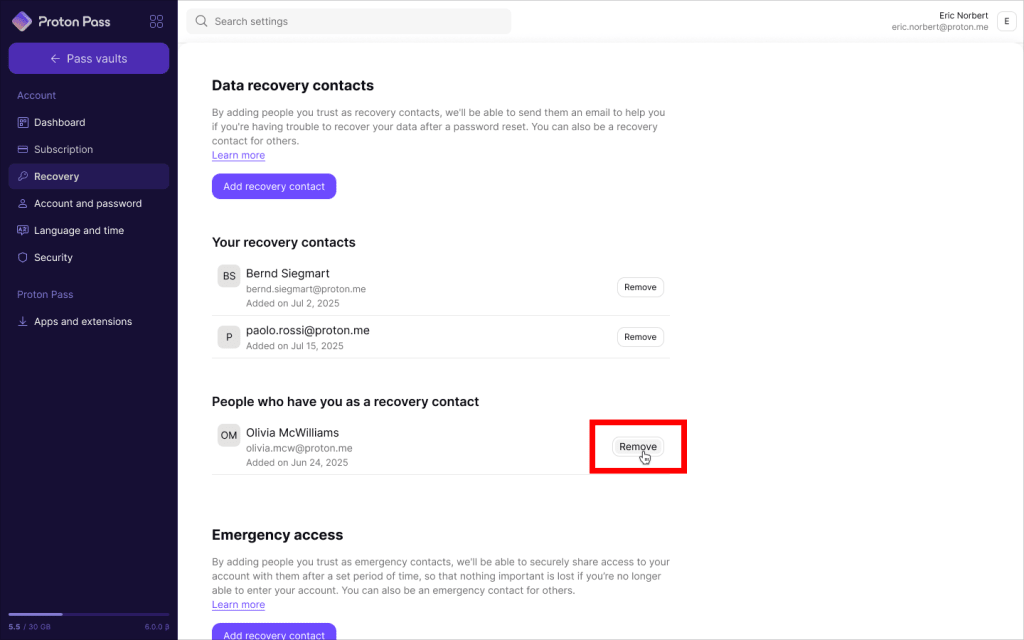
4. Leggi attentamente l’avviso. Se sei sicuro di voler continuare, clicca su Opt-out.
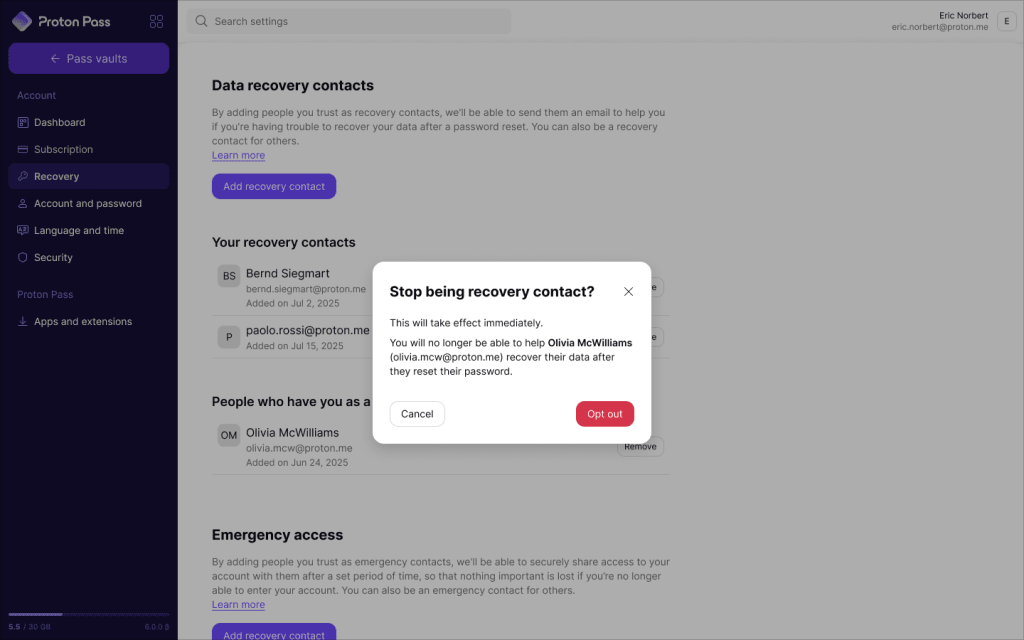
Tutto fatto. Non verrai più contattato se questa persona ha bisogno di aiuto con il recupero dati. Invieremo a entrambi un’email di conferma.
Ho ricevuto un’email che dice che sono stato aggiunto come contatto di recupero. Cosa significa?
Se un utente Proton ti aggiunge come contatto di recupero, significa che ti ha scelto per aiutarlo a ripristinare i dati del suo account nel caso in cui rimanga bloccato fuori dall’account. Ecco un articolo che spiega meglio perché questo potrebbe accadere.
Non devi fare nulla per ora. E se dovesse rimanere bloccato, i passaggi per aiutarlo sono rapidi e semplici.
Tuttavia, dovresti essere un contatto di recupero solo per qualcuno che:
- Ti conosce e si fida di te
- Può mettersi in contatto con te facilmente (anche se non ha accesso a Proton)
Se non vuoi essere il contatto di recupero di qualcuno, puoi rimuoverti dalla sua lista di contatti.
Panoramica tecnica
Gli account Proton utilizzano due set di chiavi crittografiche per proteggere i tuoi dati. Le “chiavi dell’indirizzo” proteggono i tuoi messaggi, file, contatti e altri dati, mentre le “chiavi dell’account” bloccano e sbloccano le chiavi dell’indirizzo.
Quando configuri un contatto di recupero, Proton crea una copia di backup crittografata delle tue chiavi dell’account. Le condividiamo con il tuo contatto di recupero utilizzando la crittografia end-to-end, in modo che Proton non vi abbia mai accesso.
Se dovessi mai aver bisogno dell’aiuto del tuo contatto per ripristinare i tuoi dati, seguirai i passaggi precedenti. Confermi di essere il proprietario dell’account tramite verifica via email o SMS, quindi chiedi aiuto al tuo contatto per riottenere l’accesso ai tuoi dati. Le tue chiavi dell’account verranno ritrasferite utilizzando la crittografia end-to-end.
Le persone che designerai come contatti di recupero non avranno mai le tue chiavi dell’indirizzo, quindi non potranno mai accedere ai tuoi dati o impersonarti. Inoltre, potranno aiutarti solo dopo che avrai avviato esplicitamente il recupero e verificato la tua identità tramite email o SMS.