Of u nu overstapt naar een nieuwe provider, meerdere inboxes samenvoegt of gewoon wilt dat berichten die naar een oud adres zijn verzonden terechtkomen op een plek die u daadwerkelijk controleert, met e-mail doorsturen kunt u binnenkomende e-mail omleiden zonder iets te missen. Deze functie, waarmee u continu en naadloos e-mail van de ene inbox naar de andere kunt verzenden, maakt het eenvoudiger om met collega’s en klanten te communiceren vanaf één centraal e-mailadres.
Hieronder vindt u de exacte stappen voor Gmail, Outlook, Yahoo Mail en Proton Mail, samen met wat doorsturen wel en niet doet, en wat het overwegen waard is voordat u besluit waarnaar u uw e-mail wilt doorsturen.
- Hoe u e-mails doorstuurt in Gmail
- Hoe u e-mails automatisch doorstuurt in Outlook
- Hoe u e-mails doorstuurt naar een andere e-mail met Yahoo Mail
- Hoe u e-mails doorstuurt in Proton Mail
- Wat doet het doorsturen van een e-mail?
- Een meer privéplek voor uw e-mails
Hoe u e-mails doorstuurt in Gmail
- Open Gmail op een computer en log in.
- Klik op Instellingen ⚙ → Alle instellingen bekijken.

- Ga naar Doorsturen en POP/IMAP en klik op Een doorstuuradres toevoegen.
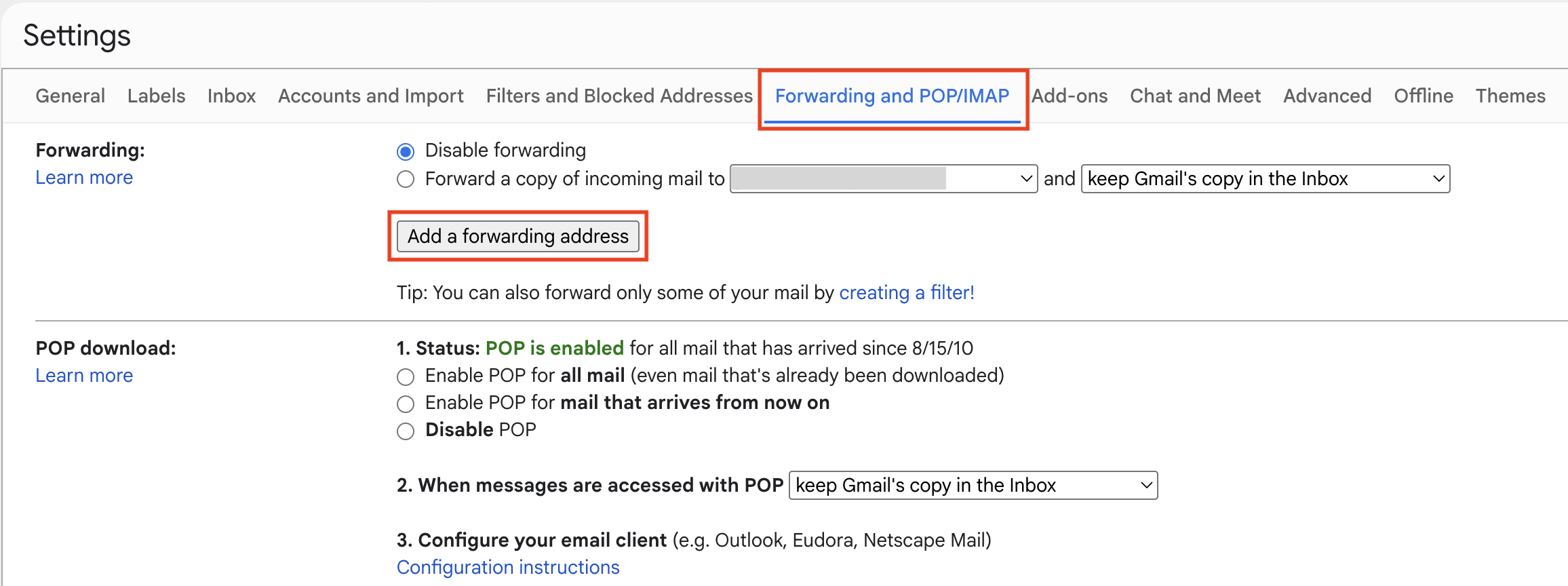
- Voer het e-mailadres van de ontvanger in en klik op Volgende. (Als u specifiek op zoek bent naar hoe u Gmail doorstuurt naar een ander Gmail-account, gelden dezelfde stappen — voer hier gewoon uw tweede e-mailadres in.)

- Er wordt een nieuw browsertabblad geopend en Gmail kan u vragen om uw identiteit te verifiëren. Klik daarna op Doorgaan.

- Log in op het e-mailaccount van de ontvanger en verifieer het Gmail-bevestigingsbericht.

- Ga terug naar de Gmail-instellingen → Doorsturen en POP/IMAP.
- Selecteer Een kopie van binnenkomende e-mail doorsturen naar en kies het e-mailadres van de ontvanger in het menu. U kunt er ook voor kiezen om de kopie van Gmail in de inbox te bewaren, te markeren als gelezen, te archiveren of te verwijderen.

- Klik onderaan op Wijzigingen opslaan.
Hiermee worden toekomstige binnenkomende Gmail-berichten doorgestuurd, niet alle bestaande e-mails die al in uw inbox staan. Als u later van gedachten verandert, gaat u terug naar de Gmail-instellingen voor Doorsturen en POP/IMAP, selecteert u Doorsturen uitschakelen en klikt u op Wijzigingen opslaan.
Als alternatief kunt u Gmail-doorsturen zo instellen dat dit alleen voor bepaalde berichten geldt door een filter aan te maken. Ga naar Instellingen → Alle instellingen bekijken → Filters en geblokkeerde adressen → Een nieuw filter maken, kies uw criteria en selecteer Doorsturen naar. Voordat u het filter maakt, moet u het doorstuuradres toevoegen en verifiëren.
Wanneer u overstapt van Gmail naar Proton Mail, kunt u Easy Switch gebruiken om uw berichten, contacten en agenda’s te migreren. U kunt ook e-mails van uw Gmail-adres blijven ontvangen en verzenden, rechtstreeks binnen Proton Mail. Dit maakt het gemakkelijker om geleidelijk over te stappen naar een privé Gmail-alternatief totdat u klaar bent voor de volledige overstap. Proton Mail verwijdert trackers uit uw Gmail-berichten en beschermt uw gegevens met zero-access-versleuteling.
Hoe u e-mails automatisch doorstuurt in Outlook
Microsoft biedt verschillende versies van Outlook aan: Outlook.com, Outlook op het web, het nieuwe Outlook en het klassieke Outlook. E-mail doorsturen is vergelijkbaar in Outlook.com, Outlook op het web en het nieuwe Outlook. Het klassieke Outlook werkt anders, omdat u hier meestal een doorstuurregel voor moet maken.
De onderstaande instructies zijn specifiek voor Outlook.com, de webgebaseerde e-mailservice van Microsoft voor persoonlijke adressen zoals @outlook.com, @hotmail.com, @live.com en @msn.com.
- Ga naar Outlook.com en log in.
- Klik op Instellingen ⚙ in de rechterbovenhoek.

- Ga naar E-mail → Doorsturen en IMAP en log in indien vereist.
- Schakel Doorsturen inschakelen in.
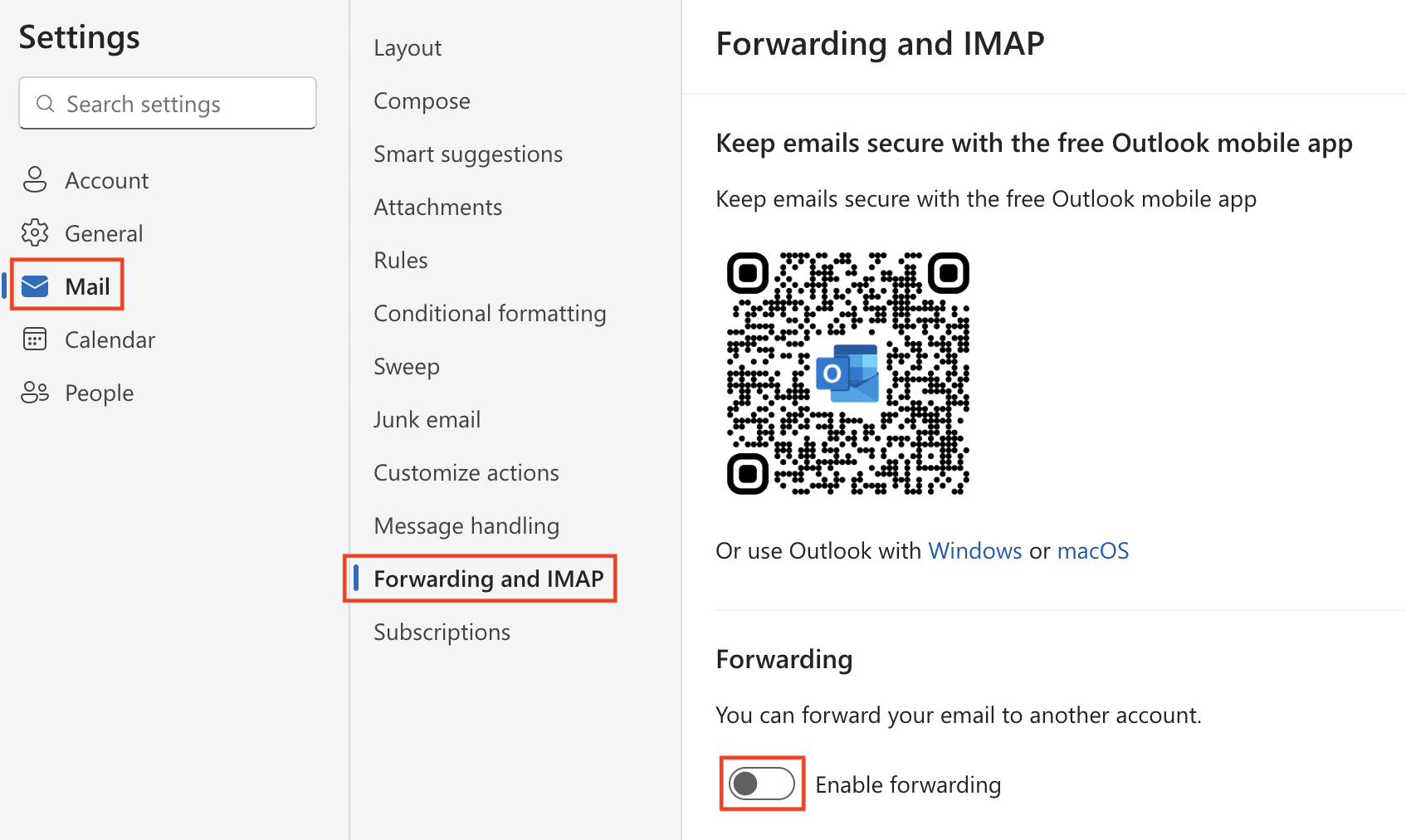
- Voer het e-mailadres van de ontvanger in.
- Selecteer Een kopie van doorgestuurde berichten bewaren als u wilt dat de originele berichten in uw Outlook.com-inbox blijven staan.
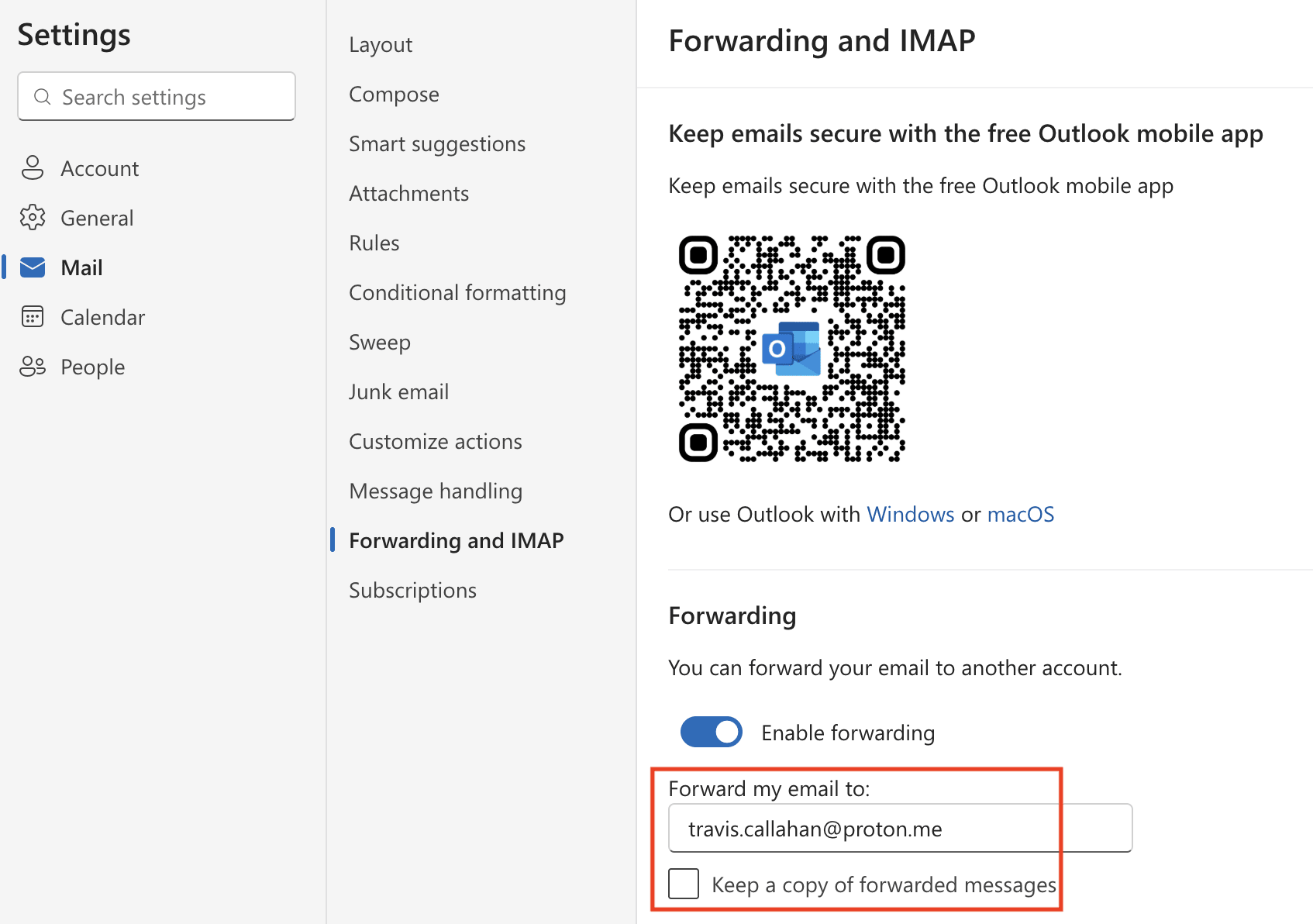
- Klik op Opslaan.
Zodra doorsturen is ingeschakeld, worden nieuwe berichten die naar uw Outlook-adres worden verzonden automatisch doorgestuurd naar het adres dat u hebt ingevoerd. Bestaande e-mails die al in uw postvak IN zijn opgeslagen, worden niet automatisch doorgestuurd. Als u later van gedachten verandert en het doorsturen van e-mail wilt uitschakelen, gaat u terug naar Instellingen → E-mail → Doorsturen, schakelt u Doorsturen inschakelen uit en klikt u op Opslaan.
Als alternatief kunt u alleen bepaalde e-mails automatisch doorsturen in Instellingen → E-mail → Regels met behulp van voorwaarden zoals de afzender, het onderwerp, de ontvanger of trefwoorden — samen met uitzonderingen.
Wanneer u migreert van Outlook naar Proton Mail, kunt u Easy Switch gebruiken om uw volledige postvak IN in slechts een paar klikken te importeren — inclusief e-mails, agenda’s en contacten — naast het doorsturen van nieuwe berichten. Proton Mail biedt u een privé Outlook-alternatief met end-to-end versleuteling, sterke privacybescherming en zonder advertenties of tracking, zodat u uw communicatie veilig kunt beheren zonder in te leveren op gemak.
Hoe u e-mails doorstuurt naar een andere e-mail met Yahoo Mail
De functie voor automatisch doorsturen van Yahoo Mail verzendt een kopie van nieuwe binnenkomende berichten naar een ander e-mailadres. Voor deze functie is Yahoo Mail Plus of het gelijkwaardige betaalde abonnement in uw regio vereist, en de functie wordt mogelijk niet op elke locatie aangeboden.
In tegenstelling tot andere e-mailservices ondersteunt Yahoo Mail geen voorwaardelijk automatisch doorsturen voor alleen bepaalde afzenders of onderwerpen.
- Log in op Yahoo Mail op uw desktop.

- Ga naar … Meer → ⚙ Instellingen.
- Selecteer Postvakken en klik naast Automatisch doorsturen op Instellen.

- Voer het e-mailadres van de ontvanger in en klik op Verifiëren.
- Log in op het e-mailaccount van de ontvanger en volg de instructies van Yahoo Mail om het doorsturen van e-mail te bevestigen.
Na de verificatie worden nieuwe berichten die op uw Yahoo Mail-account worden ontvangen, automatisch doorgestuurd naar het adres dat u hebt geselecteerd. Hiermee worden e-mails die al in uw inbox zijn opgeslagen niet overgezet. Als u later van gedachten verandert, gaat u terug naar Instellingen → Postvakken en verwijdert u het doorstuuradres.
Wanneer u overstapt van Yahoo Mail naar Proton Mail, kunt u Easy Switch instellen om snel uw bestaande e-mails, agenda’s en contacten te importeren, terwijl u ook nieuwe berichten doorstuurt naar uw Proton-inbox.
Hoe u e-mails doorstuurt in Proton Mail
Automatisch e-mail doorsturen is beschikbaar bij betaalde Proton Mail-abonnementen.
- Log in bij Proton Mail in uw webbrowser.
- Klik op Instellingen ⚙ → Alle instellingen.
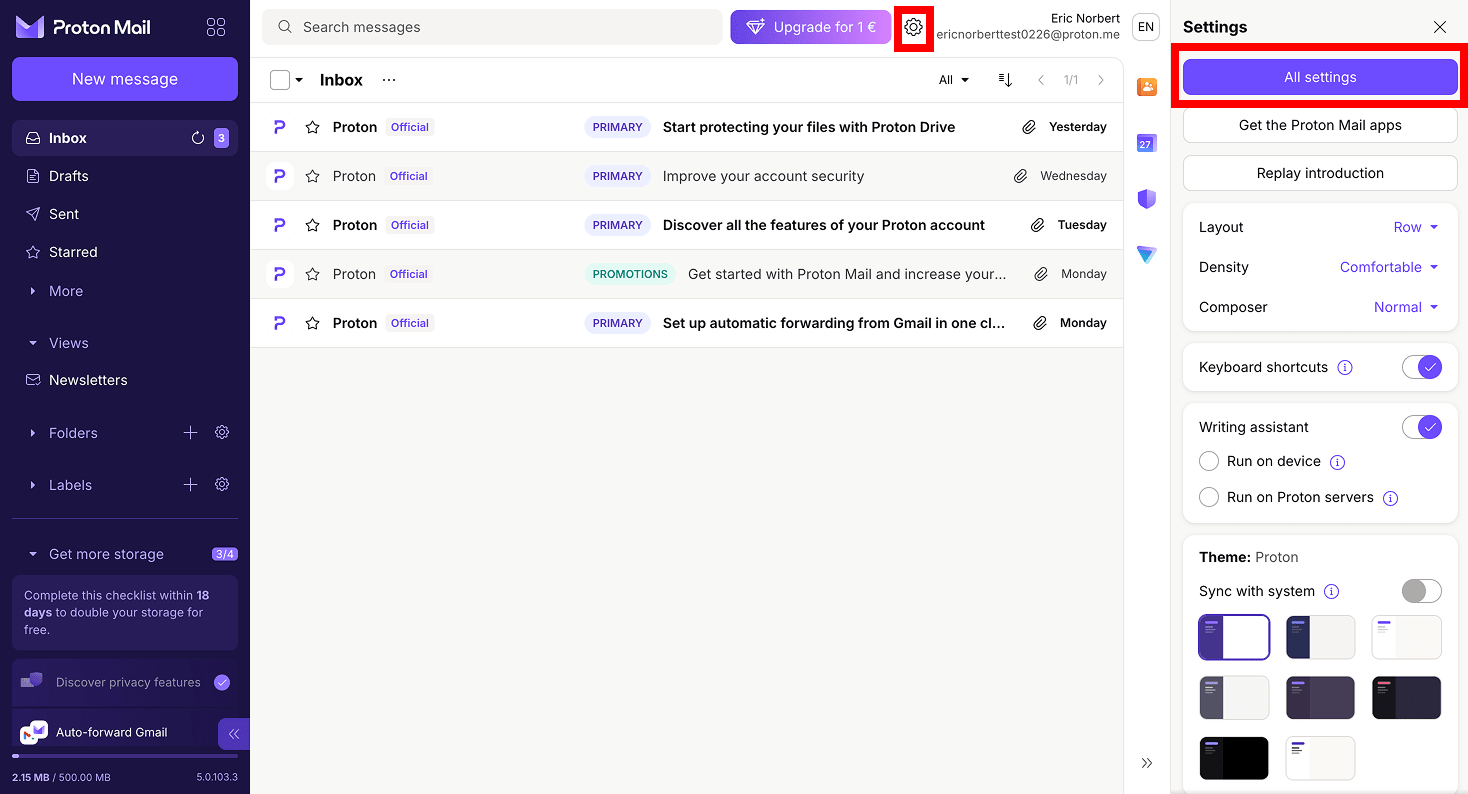
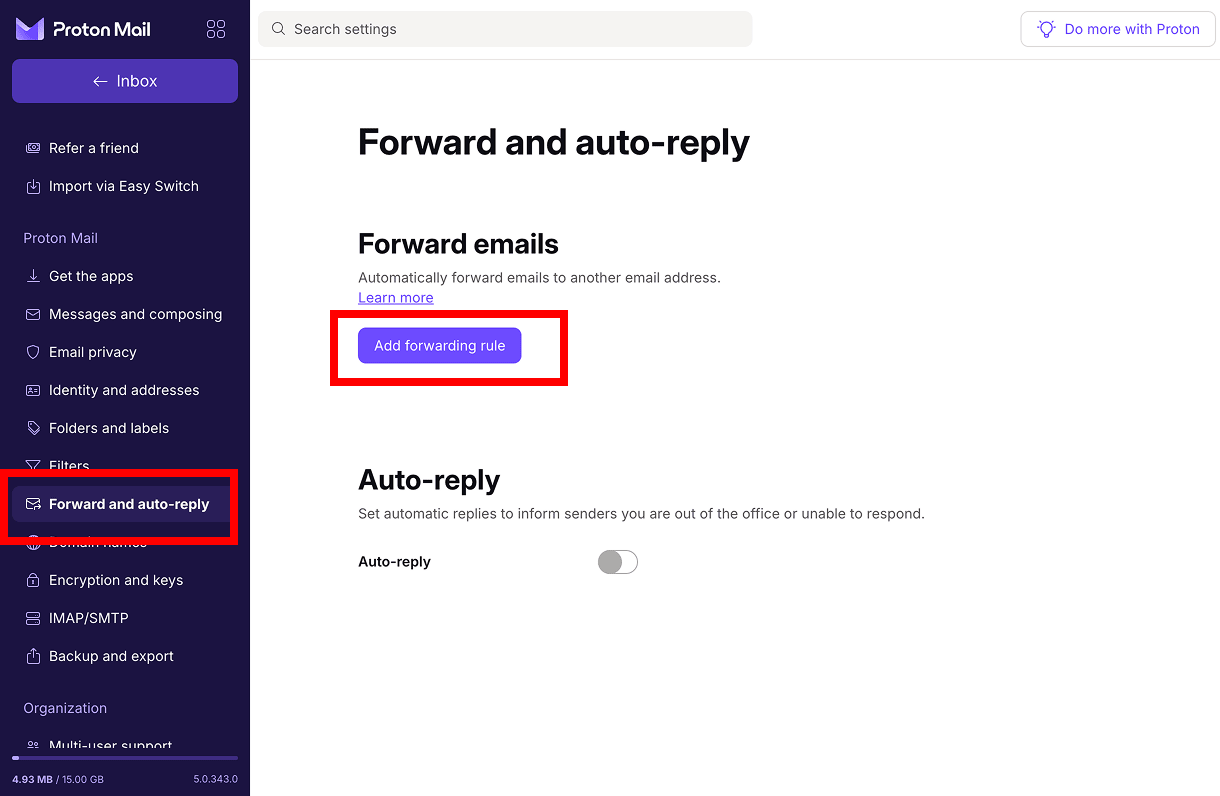
- Ga naar Doorsturen en automatisch antwoord en klik op Doorstuurregel toevoegen.
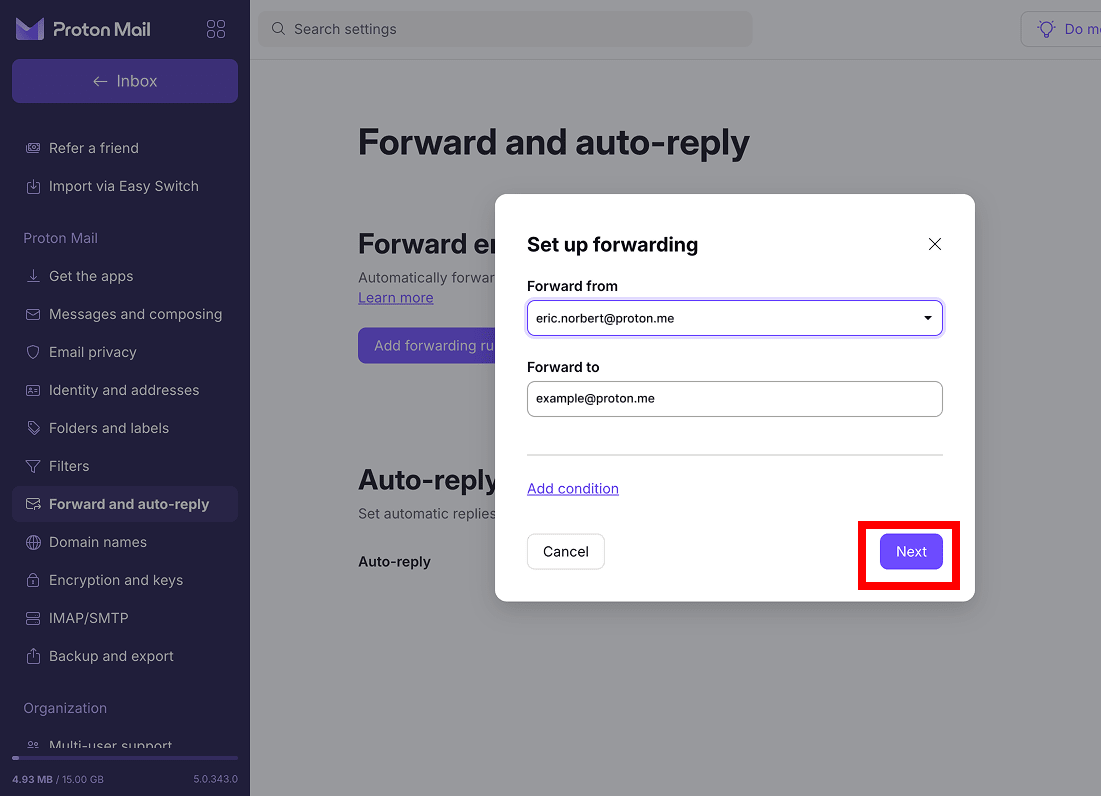
- Selecteer onder Doorsturen van het Proton Mail-adres waarvan u berichten wilt doorsturen.
- Voer onder Doorsturen naar het e-mailadres van bestemming in.
- Voeg geen voorwaarden toe om alle nieuwe berichten door te sturen. Klik op Volgende.
- Klik op Bevestigingsmail verzenden.
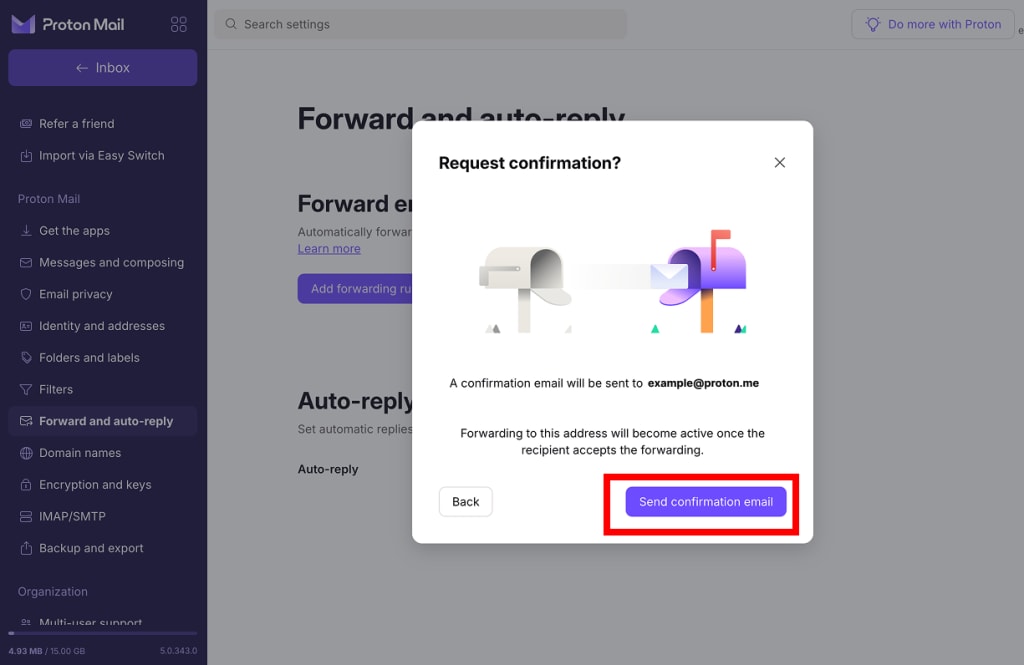
- Open het bevestigingsbericht in het ontvangende account en accepteer het doorstuurverzoek.
Zodra dit is bevestigd, worden nieuwe berichten die naar het e-mailadres van bestemming worden verzonden automatisch doorgestuurd. E-mails die al in uw postvak IN zijn opgeslagen, worden niet overgedragen.
Als alternatief kunt u alleen bepaalde Proton Mail-berichten doorsturen door een voorwaardelijke doorstuurregel te maken. Neem dezelfde stappen als hierboben, maar klik op Voorwaarde toevoegen en kies welke berichten u wilt doorsturen op basis van criteria zoals het onderwerp, de afzender of de bijlage (met of zonder bijlagen).
Als u later van gedachten verandert en het doorsturen van e-mail wilt uitschakelen, gaat u terug naar Instellingen → Alle instellingen → Doorsturen en automatisch antwoord, klikt u op het menu met de drie stippen naast de doorstuurregel en selecteert u Onderbreken of Verwijderen.
Wat doet het doorsturen van een e-mail?
E-mails kunnen handmatig of automatisch worden doorgestuurd. Dit betekent dat ze worden gekopieerd en omgeleid naar een ander e-mailadres, maar dat kan op verschillende manieren gebeuren.
Bij handmatig doorsturen wordt er, wanneer u Doorsturen selecteert voor een specifieke e-mail, een nieuw berichtvenster geopend, zodat u het adres van de ontvanger kunt invoeren en een optionele opmerking kunt toevoegen. Het doorgestuurde bericht bevat meestal de oorspronkelijke afzender, het onderwerp, de inhoud van het bericht en de bijlagen. FW: of FWD: wordt standaard meestal aan het begin van de onderwerpregel toegevoegd. De originele e-mail blijft in uw inbox staan, tenzij u deze verwijdert of verplaatst.
Automatisch doorsturen werkt anders: in plaats van berichten één voor één door te sturen, stelt u uw e-mailaccount zo in dat nieuwe binnenkomende berichten automatisch naar een ander adres worden verzonden. Afhankelijk van de provider kunt u elk nieuw bericht doorsturen of alleen e-mails die aan specifieke regels of filters voldoen. Het oorspronkelijke bericht kan in uw inbox blijven staan, afhankelijk van de instellingen die u kiest, en e-mails die al in uw postvak IN staan, worden niet met terugwerkende kracht doorgestuurd.
Een meer privéplek voor uw e-mails
Gmail, Outlook en Yahoo behoren tot de meest gebruikte e-mailservices ter wereld. Maar er is een privacyprobleem, aangezien deze providers advertenties in uw inbox tonen en AI-functies integreren die een terechte vraag oproepen: hoe worden uw gevoelige gegevens precies verwerkt en wie krijgt ze nog meer te zien?
Er is ook een jurisdictieprobleem. Omdat deze diensten worden beheerd door Amerikaanse bedrijven, vallen ze onder wetten zoals FISA Section 702 en de CLOUD Act, waardoor ze verplicht kunnen worden uw gegevens (inclusief e-mails) over te dragen, ongeacht waar u woont. Dit is allemaal mogelijk omdat Gmail, Outlook en Yahoo de technische mogelijkheid hebben om de inhoud van uw e-mails te scannen.
Proton Mail daarentegen beschermt uw e-mails met end-to-end versleuteling en zero-access-versleuteling, wat betekent dat we nooit toegang hebben tot uw berichten. Geen advertenties, geen AI-training, geen enkele vorm van surveillance. We vallen onder Zwitserse privacywetgeving, buiten de Amerikaanse jurisdictie, en onze privacyclaims kunnen door iedereen worden geverifieerd, aangezien Proton Mail open source is en onafhankelijk wordt gecontroleerd.
Als u de voorkeur geeft aan een Europese e-mailprovider die uw correspondentie als privé behandelt in plaats van als een gegevensbron, is Proton Mail daar precies voor gebouwd, of u nu berichten doorstuurt tijdens uw overstap, of de overstap definitief maakt.