
Cómo activar la copia de seguridad de fotos
- Lectura
- 3 min
- Categoría
- Aplicaciones móviles
Proton Drive te permite hacer una copia de seguridad automática de las fotos de tu dispositivo móvil en su calidad original y con cifrado de extremo a extremo gracias a nuestra función de copia de seguridad de fotos. En este artículo te explicamos cómo activar la copia de seguridad de fotos en tu dispositivo Android e iOS.
Antes de empezar, te recomendamos que te asegures de tener suficiente batería, ya que el proceso de copia de seguridad puede tardar un tiempo, especialmente con las bibliotecas más grandes.
Ten en cuenta que el proceso de copia de seguridad se ejecutará hasta que se complete o hasta que alcances tu límite de almacenamiento de Proton Drive.
- Cómo activar la copia de seguridad de fotos en Android
- Cómo activar la copia de seguridad de fotos en iPhone
Cómo activar la copia de seguridad de fotos en Android
Android
- Abre Proton Drive y selecciona la pestaña Fotos.
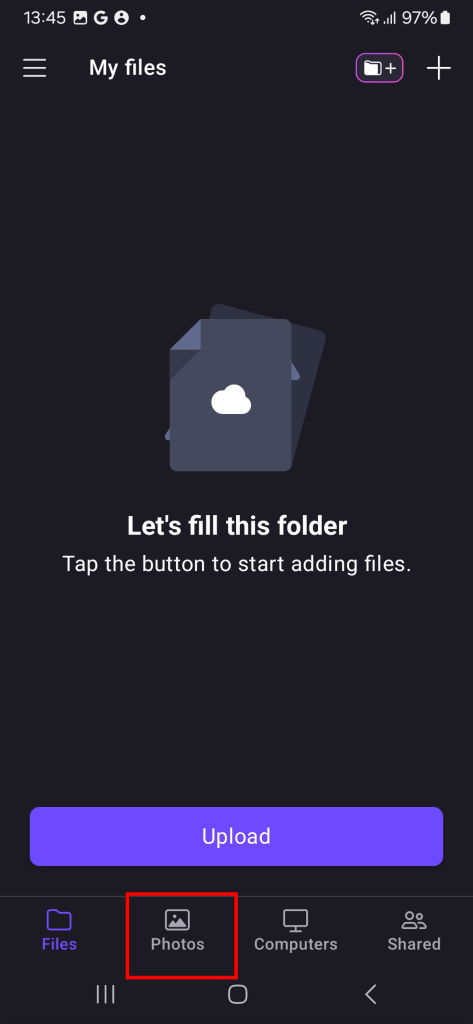
- Pulsa Activar la copia de seguridad.

- De forma opcional, puedes activar las notificaciones para recibir actualizaciones sobre tu copia de seguridad.

- Proton Drive empezará a realizar la copia de seguridad y a cifrar todas las fotos de tu biblioteca. Verás una barra de progreso que te indicará cuántos elementos quedan por copiar. Una vez completado, aparecerá un mensaje que dirá Se ha finalizado la copia de seguridad.

- La copia de seguridad puede tardar bastante tiempo, especialmente en el caso de colecciones de fotos más grandes.
- Debido a las particularidades del sistema Android, las copias de seguridad se realizan más rápido durante el día que por la noche.
- Para evitar interrupciones en la copia de seguridad, mantente conectado a la red WiFi.
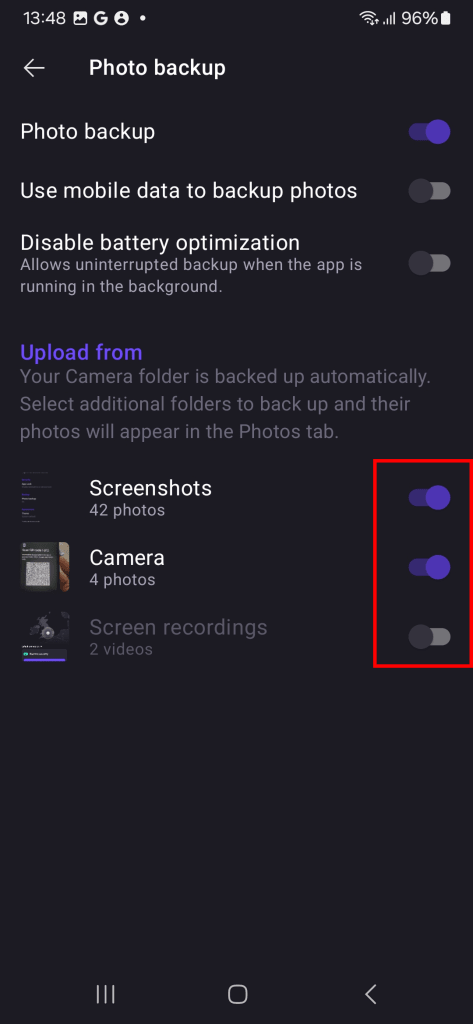
Por defecto, solo se realiza una copia de seguridad de las fotos de tu carpeta de la cámara. A continuación, te explicamos cómo añadir más carpetas a tu copia de seguridad desde los ajustes de la aplicación:
- Abre Proton Drive y abre la barra lateral (pulsa ☰).

- Selecciona Ajustes en el menú.

- Pulsa Copia de seguridad de fotos.

- En Cargar desde, activa el interruptor de cada carpeta de la que quieras hacer una copia de seguridad.
Cómo activar la copia de seguridad de fotos en iPhone
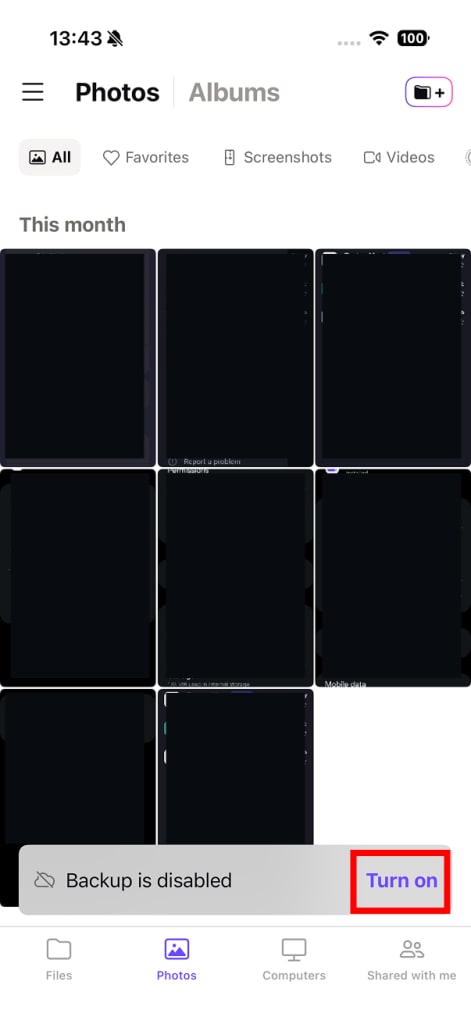
- Abre Proton Drive y selecciona la pestaña Fotos.

- Aparecerá una notificación indicando que La copia de seguridad está desactivada. Pulsa Activar para activar la copia de seguridad de fotos.
- Se te pedirá que des acceso a tus fotos a Proton Drive. Pulsa Permitir acceso completo para continuar.

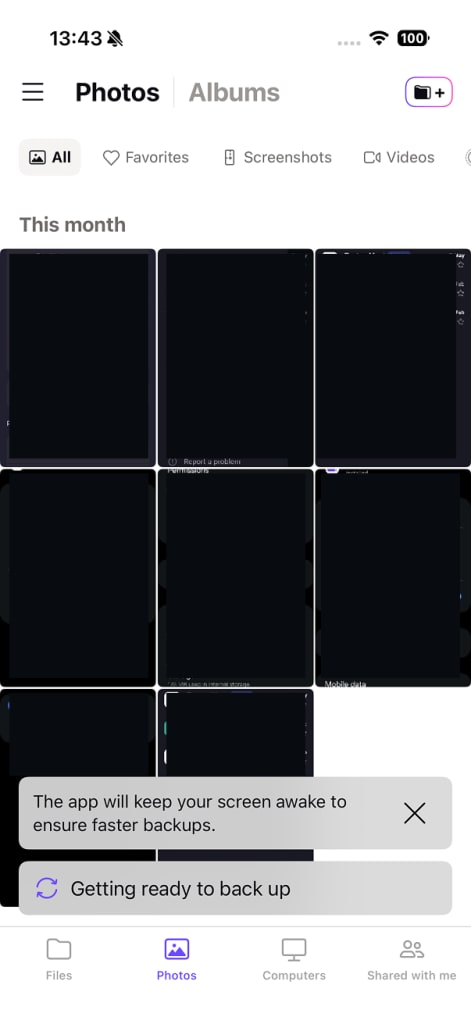
- Proton Drive empezará a realizar la copia de seguridad de tus fotos y a cifrarlas. Verás una barra de progreso que te indicará cuántos elementos más quedan por copiar.
- Las copias de seguridad pueden tardar bastante tiempo. En el caso de colecciones de fotos más grandes, podría tardar varios días.
- Mantén la aplicación abierta para que las copias de seguridad se realicen más rápido. Si tienes que cerrar la aplicación, mantenla en segundo plano; si fuerzas el cierre, se detendrá la copia de seguridad.