Sblocchi il telefono per controllare un promemoria, ma 40 minuti dopo ti ritrovi immerso in un doomscrolling che non avevi alcuna intenzione di iniziare. Se ti suona familiare, non sei il solo — e non è una coincidenza.
Che si tratti del tuo tempo sullo schermo che aumenta, dei tuoi figli incantati davanti ai loro dispositivi o semplicemente della sensazione diffusa che la tecnologia abbia preso il sopravvento sulla tua vita più di quanto avevi accettato, c’è un nome per quello che stai vivendo e una via d’uscita pratica: il minimalismo digitale. E non c’è bisogno di buttare nel Cestino la tua tecnologia per arrivarci.
Il minimalismo digitale consiste nell’usare la tecnologia in modo intensionale e alle tue condizioni. Ecco come si presenta nella pratica e come iniziare.
- Cos’è il minimalismo digitale?
- Come la Big Tech cattura la tua attenzione
- Inizia controllando il tuo tempo sullo schermo
- Come ridurre il tempo sullo schermo con una migliore igiene digitale
- Gestire il tempo sullo schermo per i bambini
- Come riprendere il controllo dei tuoi dati
- Il minimalismo digitale inizia con piccole scelte
Cos’è il minimalismo digitale?
Cal Newport(nuova finestra) ha coniato il termine nel suo libro del 2019, Digital Minimalism. Lo definisce come “una filosofia di utilizzo della tecnologia in cui concentri il tuo tempo online su un piccolo numero di attività accuratamente selezionate e ottimizzate che danno un forte supporto a ciò a cui dai valore, per poi rinunciare felicemente a tutto il resto”
Non si tratta di privazione o di isolarsi dal mondo. Si tratta di lasciar andare le parti della tua vita digitale che non ti servono. Il tuo tempo e la tua attenzione sono finiti, quindi chiediti se la tua tecnologia e le tue app valgono davvero la pena. Danno davvero supporto a qualcosa a cui tieni, come i tuoi obiettivi di fitness? Se la risposta è no, lasciale andare.
Come la Big Tech cattura la tua attenzione
Le grandi aziende tecnologiche hanno tutto l’interesse a tenerti coinvolto il più a lungo possibile. Dopotutto, più tempo trascorri sulle loro app, più annunci vedi e più denaro guadagnano. Non dimenticare che ogni mi piace, visualizzazione, condividere e salvataggio fornisce loro più dati su di te.
Le app di social media sono i principali colpevoli. Utilizzano la stessa psicologia che rende le slot machine così crea dipendenza: sono imprevedibili. Gli algoritmi sono perfezionati in base ai tuoi gusti, ma sono anche progettati per proporre un mix di post interessanti, post noiosi e quel colpo di gratificazione che ti spinge a scorrere verso quello successivo.
E non si limita ai contenuti che vedi. Ogni notifica di un mi piace, commento, condividere e nuovo follower è progettata per riportarti nell’app. Al posto del denaro contante, il premio è una convalida che genera dopamina.
Unisci questo allo scorrimento infinito e alla riproduzione automatica, e non c’è più un Endpoint naturale quando usi queste app, come invece accade con i capitoli di un libro o la fine di un episodio. Hanno essenzialmente rimosso la via d’uscita tra te e l’app: è così che ti ritrovi catturato in una sessione di scorrimento di 40 minuti quando stavi solo cercando di rispondere a un messaggio diretto.
Le aziende sono diventate bravissime in questo. L’americano medio trascorre quattro ore e mezza al giorno al telefono(nuova finestra), e questo è proprio il piano della Big Tech. La buona notizia è che le persone stanno reagendo attraverso battaglie legali(nuova finestra), Policy mirate al design che crea dipendenza(nuova finestra) e iniziative personali per riprendere il controllo della propria attenzione.
Inizia controllando il tuo tempo sullo schermo
Il primo passo è fare il punto sulle tue abitudini. Sia iPhone che Android dispongono di strumenti integrati per Mostra dove va il tuo tempo. Ecco come controllare il tempo sullo schermo su iPhone e Android:
Come controllare il tempo sullo schermo su iPhone (iOS)
- Apri l’app Impostazioni.
- Vai su Tempo di utilizzo.
- Premere Mostra tutte le attività delle app & dei siti web.
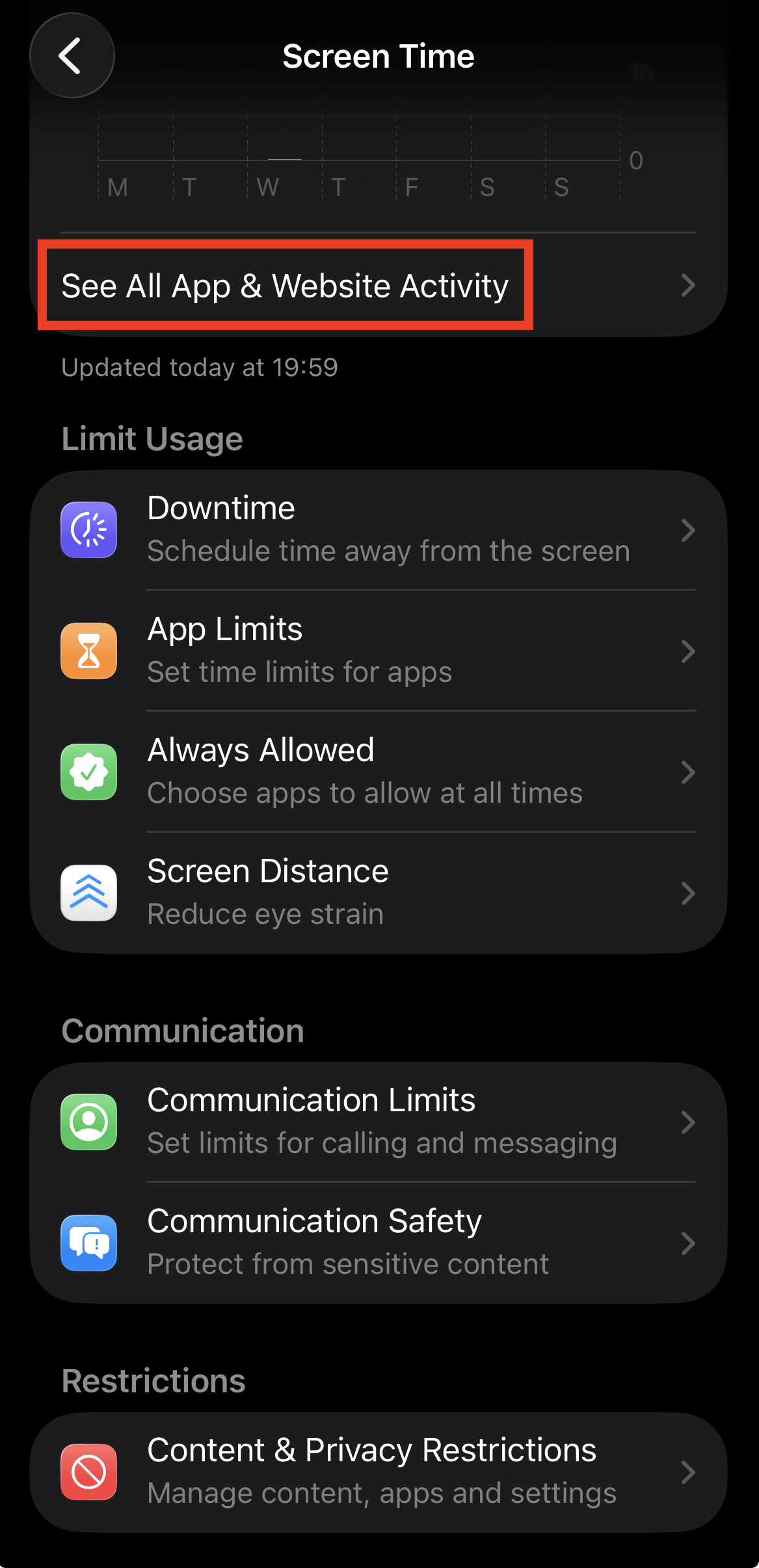
Vedrai un dettaglio del tuo utilizzo giornaliero e settimanalmente, tra cui le app su cui trascorri il tempo, il numero di volte in cui prendi in mano il telefono e le app che ti inviano il maggior numero di notifiche. Premere Dispositivi nell’angolo in alto a destra per visualizzare il Tempo di utilizzo degli altri tuoi dispositivi Apple.
Un modo più rapido per visualizzare i dati del Tempo di utilizzo del tuo iPhone è aggiungere il widget Tempo di utilizzo alla tua schermata Home.
Per i genitori: Tempo di utilizzo ti consente anche di gestire il dispositivo di un bambino(nuova finestra) tramite In famiglia. Puoi impostare limiti per le app, pianificare le pause e limitare i contenuti dal tuo dispositivo.
Come controllare il tempo sullo schermo su Android
Il tempo sullo schermo è noto come Benessere digitale su Android. Per accedere:
- Apri l’app Impostazioni
- Vai su Benessere digitale & controllo genitori.
- Premere Pannello di controllo.

Vedrai il tuo tempo totale sullo schermo, le app che usi e per quanto tempo, la frequenza con cui sblocchi il telefono e il numero di notifiche ricevute. Premere su ciascuna app per un resoconto più dettagliato.
Per i genitori: Benessere digitale di Android include controlli parentali tramite Google Family Link(nuova finestra). Una volta configurato, puoi monitorare il tempo sullo schermo di tuo figlio, impostare limiti giornalieri e disattivare le app all’ora di andare a dormire.
Come ridurre il tempo sullo schermo con una migliore igiene digitale
Adottare il minimalismo digitale non significa solo frenare i social media. Certo, questo è l’obiettivo più ovvio, ma significa anche usare intenzionalmente tutti gli strumenti digitali nella tua vita, comprese la tua posta in arrivo e le notifiche.
L’igiene digitale è il modo in cui lo metti in pratica. Sebbene il termine si riferisca solitamente ad abitudini che proteggono la tua vita digitale e i tuoi dati, può estendersi a qualsiasi cosa la mantenga sana. Proprio come l’igiene personale previene le malattie, l’igiene digitale aiuta a prevenire il burnout, la distrazione e lo sfruttamento dei dati.
La buona notizia è che non devi smettere drasticamente dall’oggi al domani. Gli studi(nuova finestra) hanno Mostra che piccoli cambiamenti intenzionali si sommano, portando a un miglioramento del benessere, della salute mentale e della soglia di attenzione. Prova questi consigli:
Metti il telefono fuori dalla tua portata
Sembra fin troppo semplice, ma funziona. Se il tuo telefono non è a portata di mano, è molto meno probabile che tu lo prenda per abitudine. Prova a lasciarlo in un’altra stanza mentre lavori o a tenerlo fuori dalla camera da letto la notte.
Disattiva le notifiche non essenziali
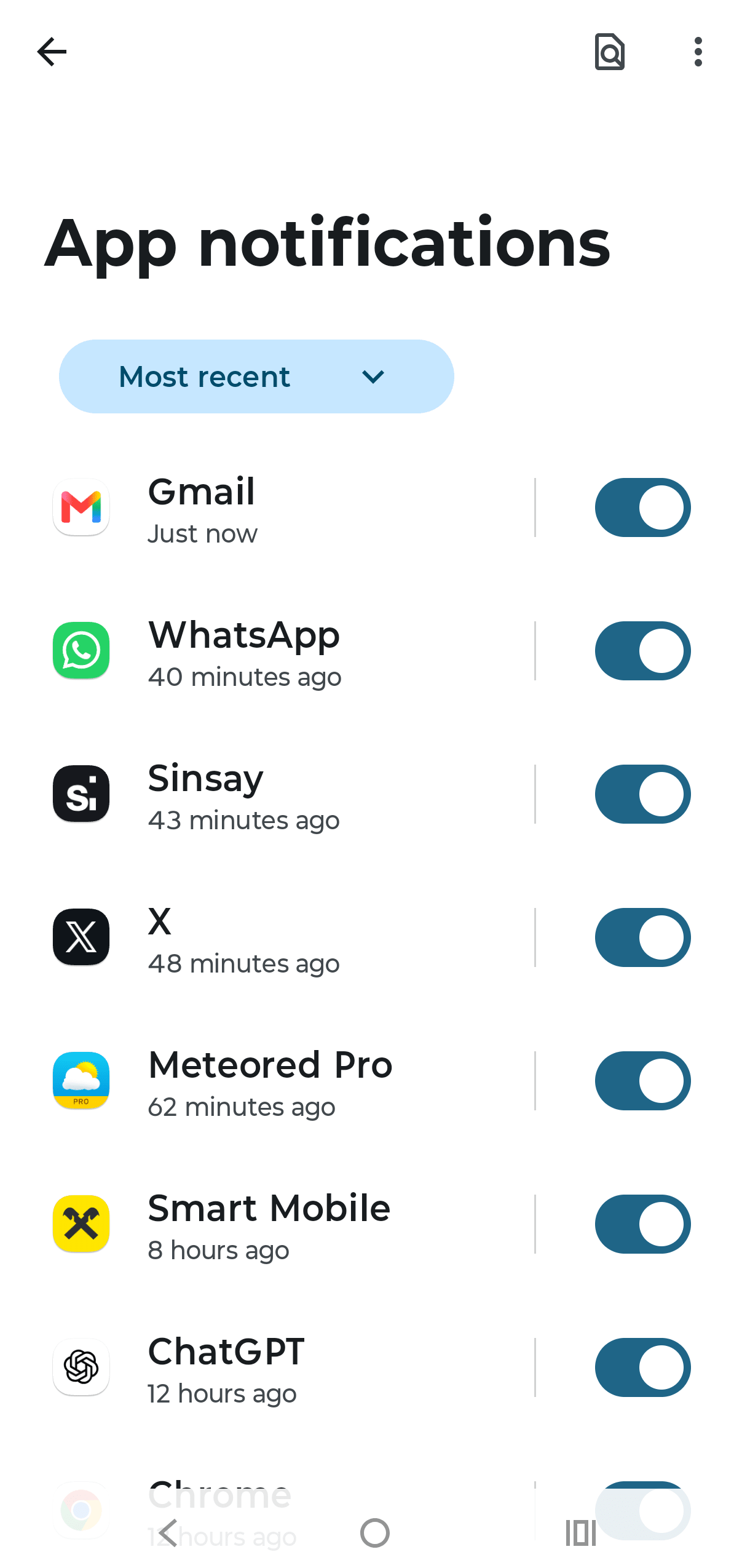
Siamo onesti: la maggior parte delle notifiche non è urgente. Disattivare le notifiche non essenziali è uno dei modi più semplici per riprendere la concentrazione. Sii spietato mentre lo fai; se non richiede davvero la tua attenzione immediata, disattivala.
Su iPhone, vai su Impostazioni → Notifiche, selezionare un’app e disattiva le notifiche.

Su Android, vai su Impostazioni → Notifiche → Notifiche app, selezionare un’app e disattiva le notifiche.
Imposta limiti per le app
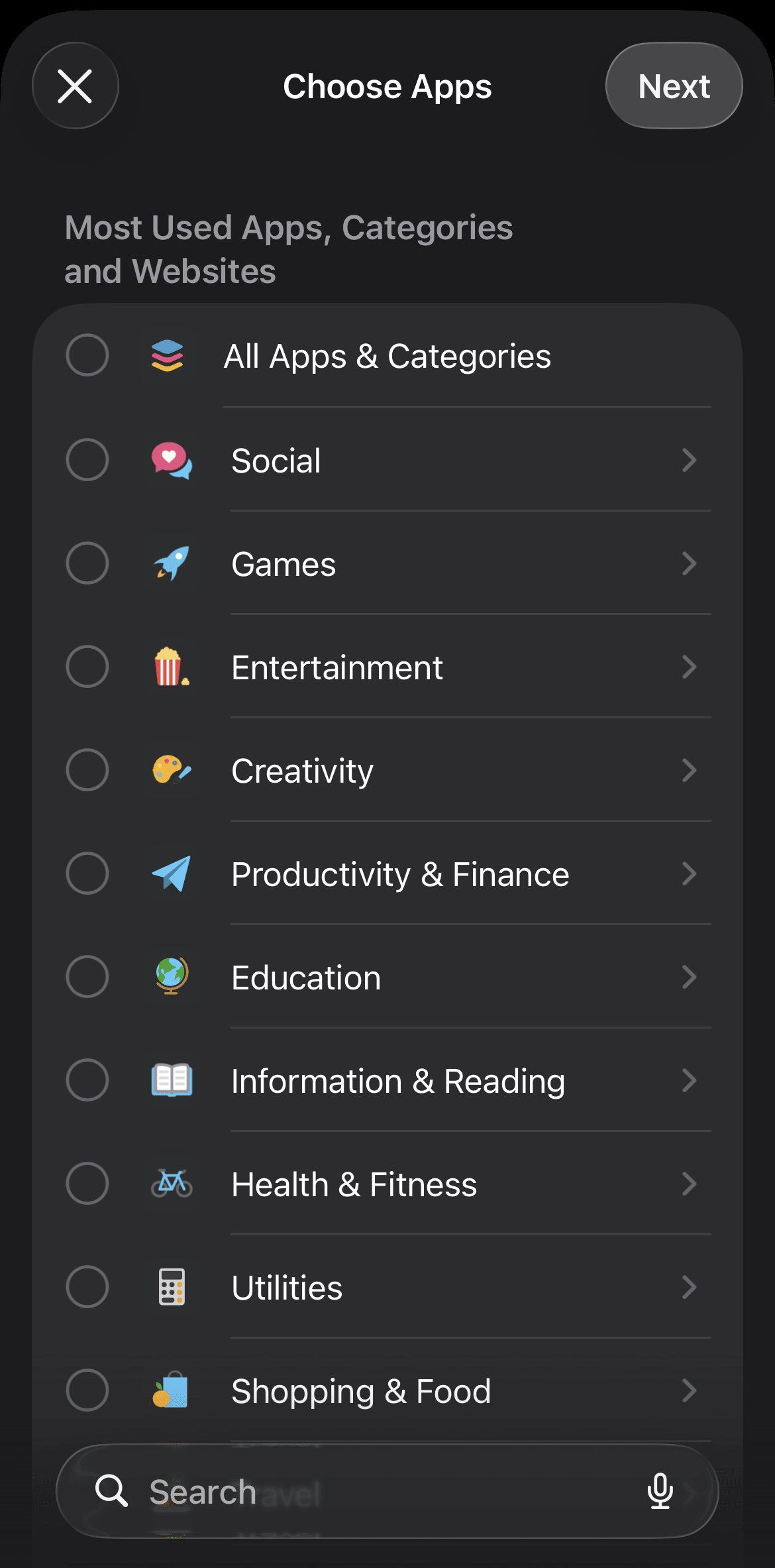
Puoi impostare limiti giornalieri per le app sia su iPhone che su Android per app specifiche. Una volta raggiunto il limite, l’app si blocca fino al giorno successivo. Ecco come:
Su iPhone, vai su Impostazioni → Tempo di utilizzo → Limiti app → Aggiungi limitazione di utilizzo, scegli le app o la categoria e imposta il tuo limite giornaliero.
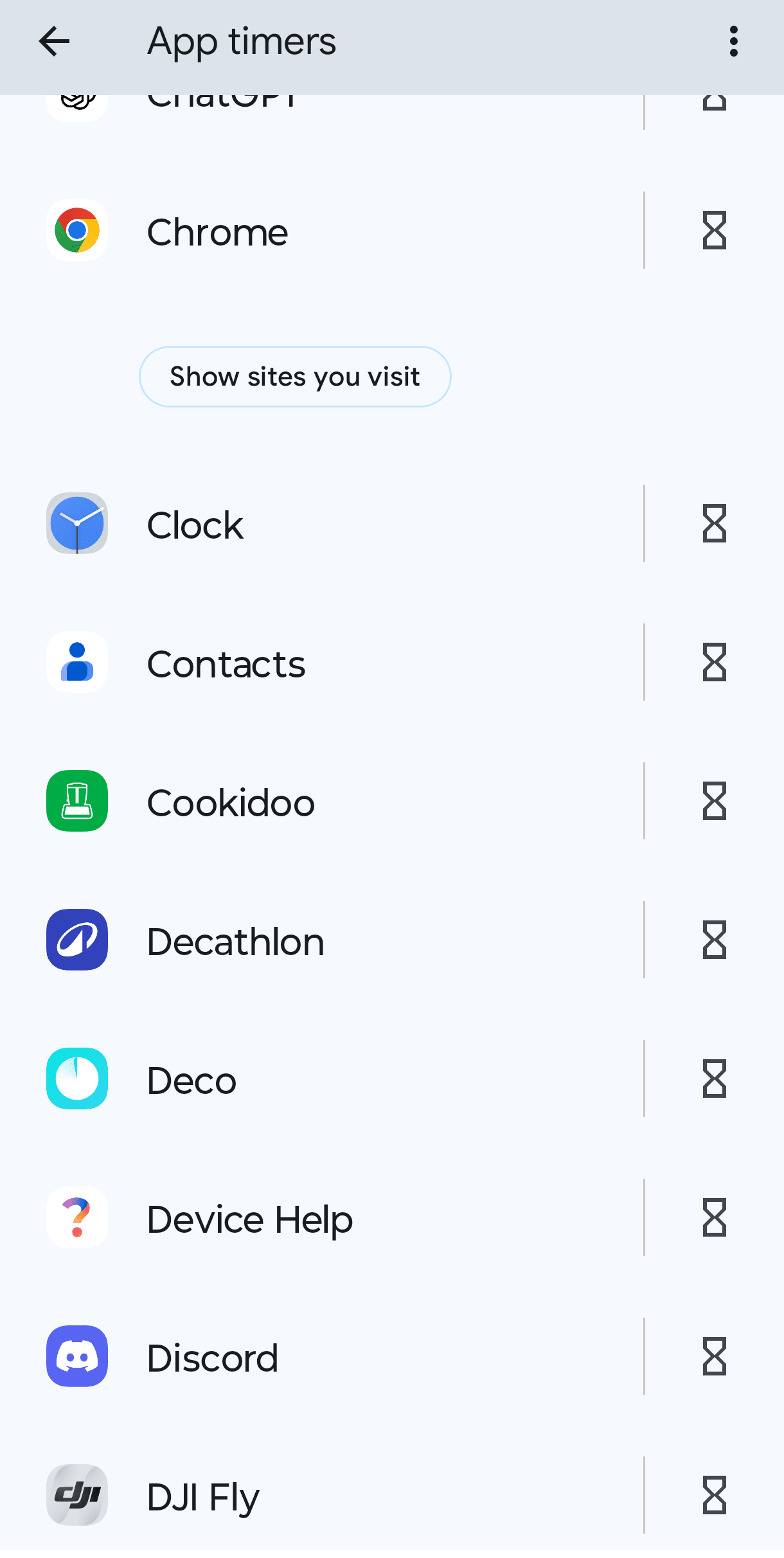
Su Android, vai su Impostazioni → Benessere digitale e controllo genitori → Timer app, scegli le app che desideri limitare e imposta il tuo limite giornaliero.
Se temi di esaurire rapidamente i tuoi limiti giornalieri, puoi attivare i limiti delle app per sessione utilizzando strumenti come ScreenZen(nuova finestra). Limiti il numero di sessioni disponibili in un giorno e imposti un timer per ciascuna sessione, creando una via d’uscita naturale tra te e le app.
Inizia impostando limiti per le app che ti fanno perdere più tempo: social media, app video e giochi. Imposta limiti stimolanti ma realistici; non devi renderlo così difficile da finire per rinunciare del tutto.
Usa gli strumenti di concentrazione integrati
Gli smartphone dispongono di modalità di concentrazione progettate per aiutarti a bloccare le distrazioni, e puoi usarle per ridurre il tempo sullo schermo.
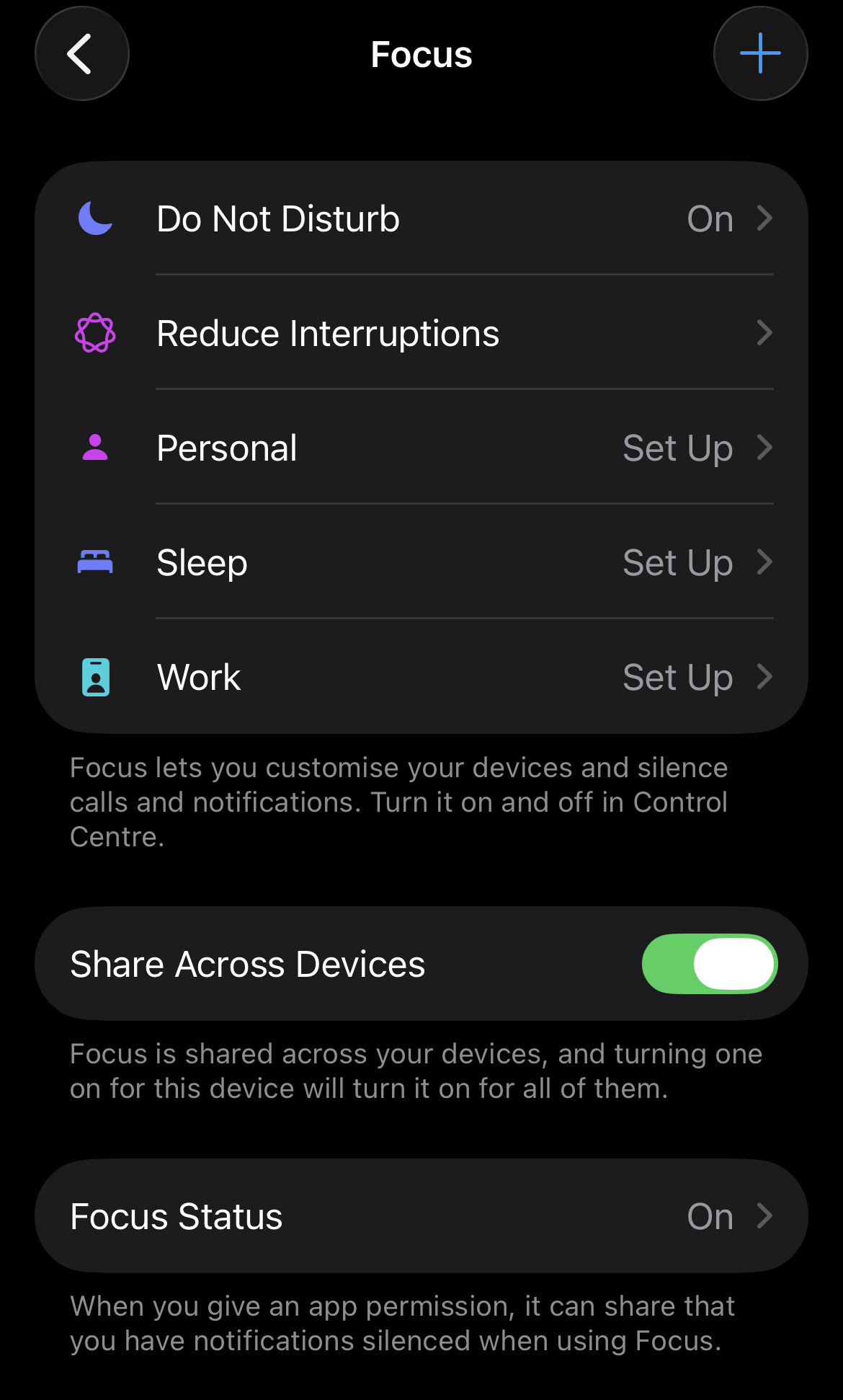
Se usi un iPhone, puoi utilizzare la modalità Pausa di utilizzo o Concentrazione:
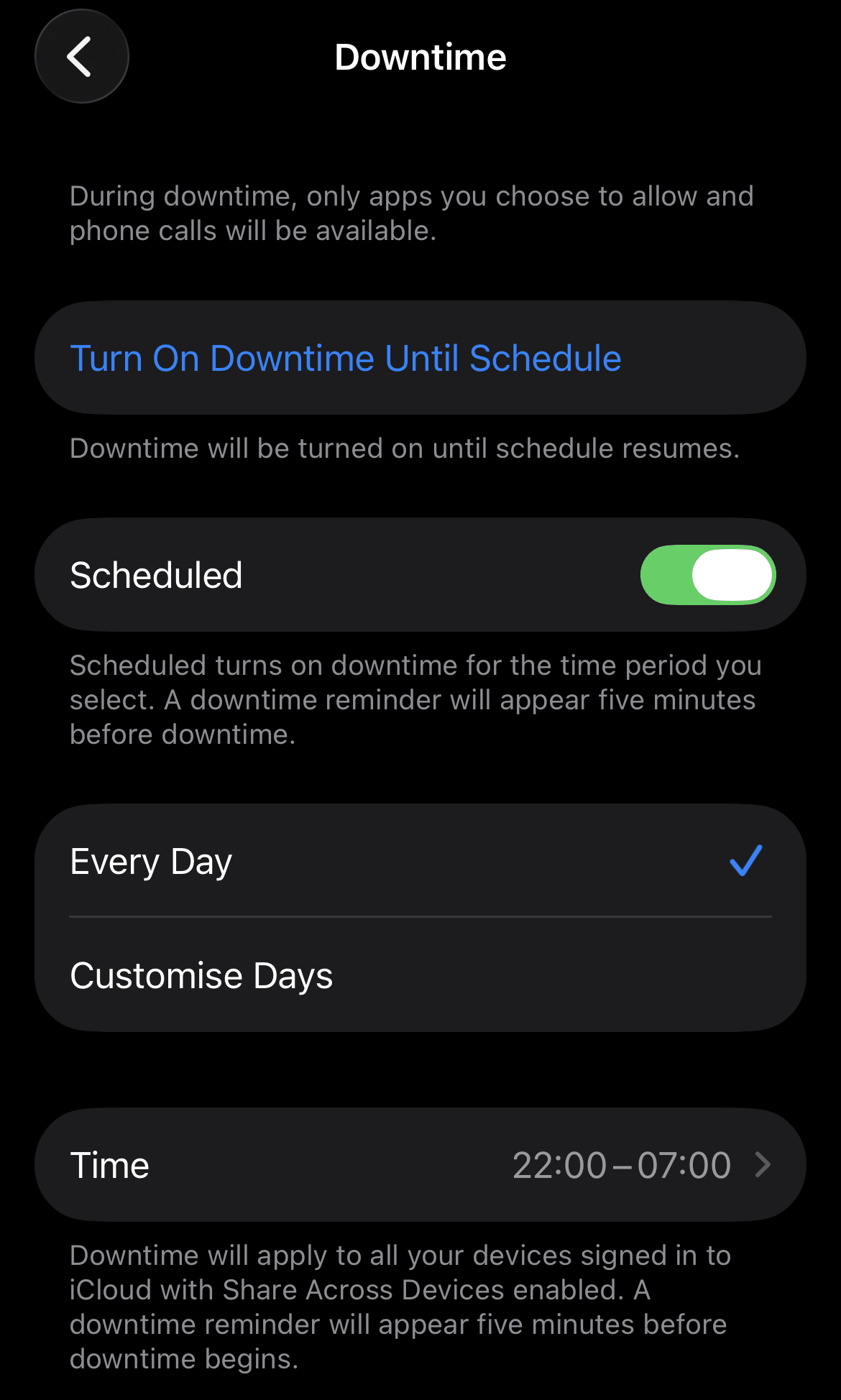
La modalità Pausa di utilizzo blocca tutte le app ad eccezione di quelle che autorizzi nello specifico durante gli orari programmati. È ideale per restrizioni generali, come la sera o l’ora di andare a dormire. Per attivare la funzione, vai su Impostazioni → Tempo di utilizzo → Pausa di utilizzo.
La modalità Concentrazione aiuta a limitare le distrazioni quando hai bisogno di maggiore flessibilità rispetto alla modalità Pausa di utilizzo. Scegli quali persone e app possono contattarti in base a ciò che stai facendo. Per usarla, vai su Impostazioni → Concentrazione.
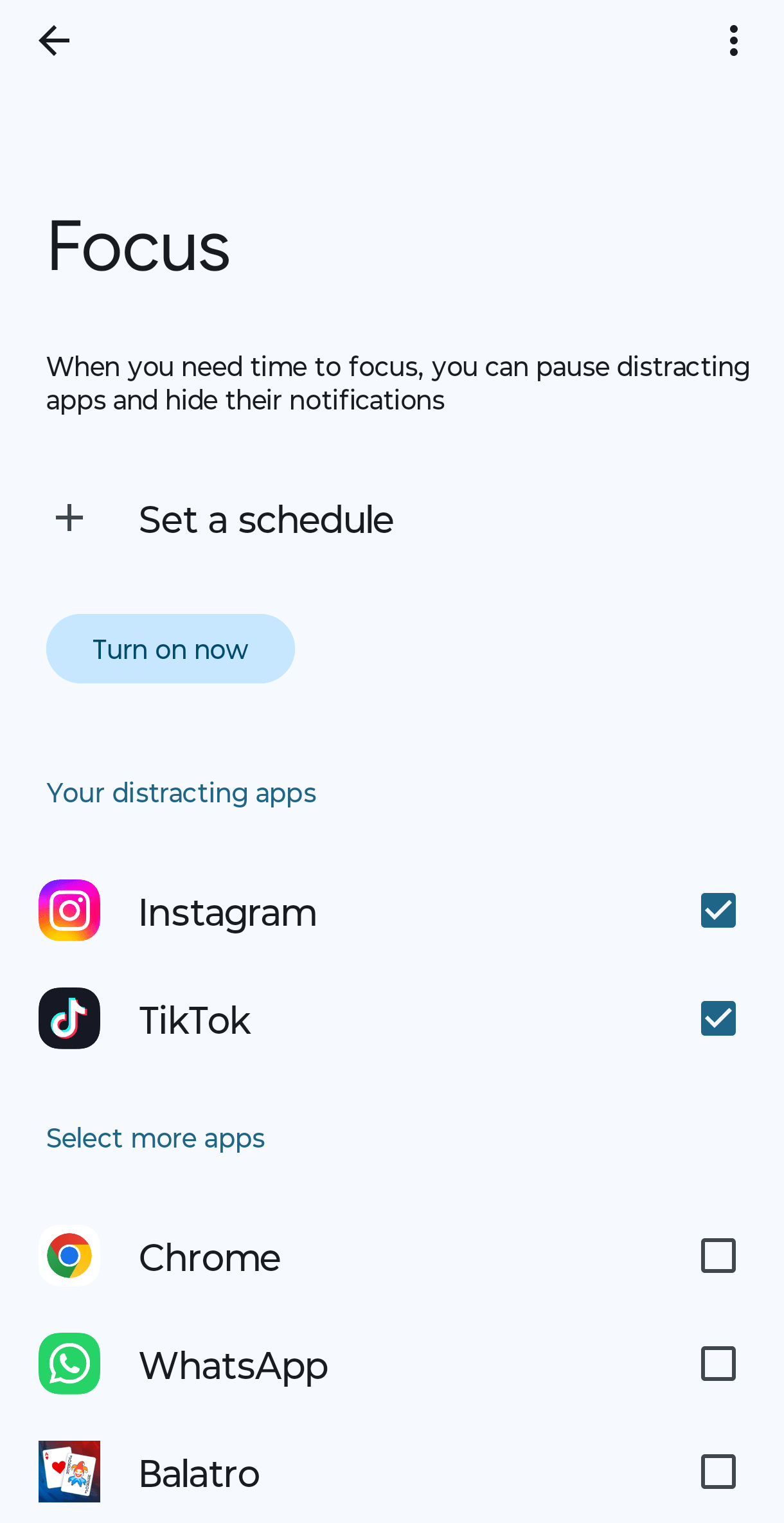
Su Android, puoi usare la modalità Modalità senza distrazioni o Modalità Riposo:
La modalità Modalità senza distrazioni ti consente di mettere in pausa le app manualmente o secondo una pianificazione per limitare le distrazioni. Per attivare la funzione, vai su Impostazioni → Benessere digitale e controllo genitori → Modalità senza distrazioni.
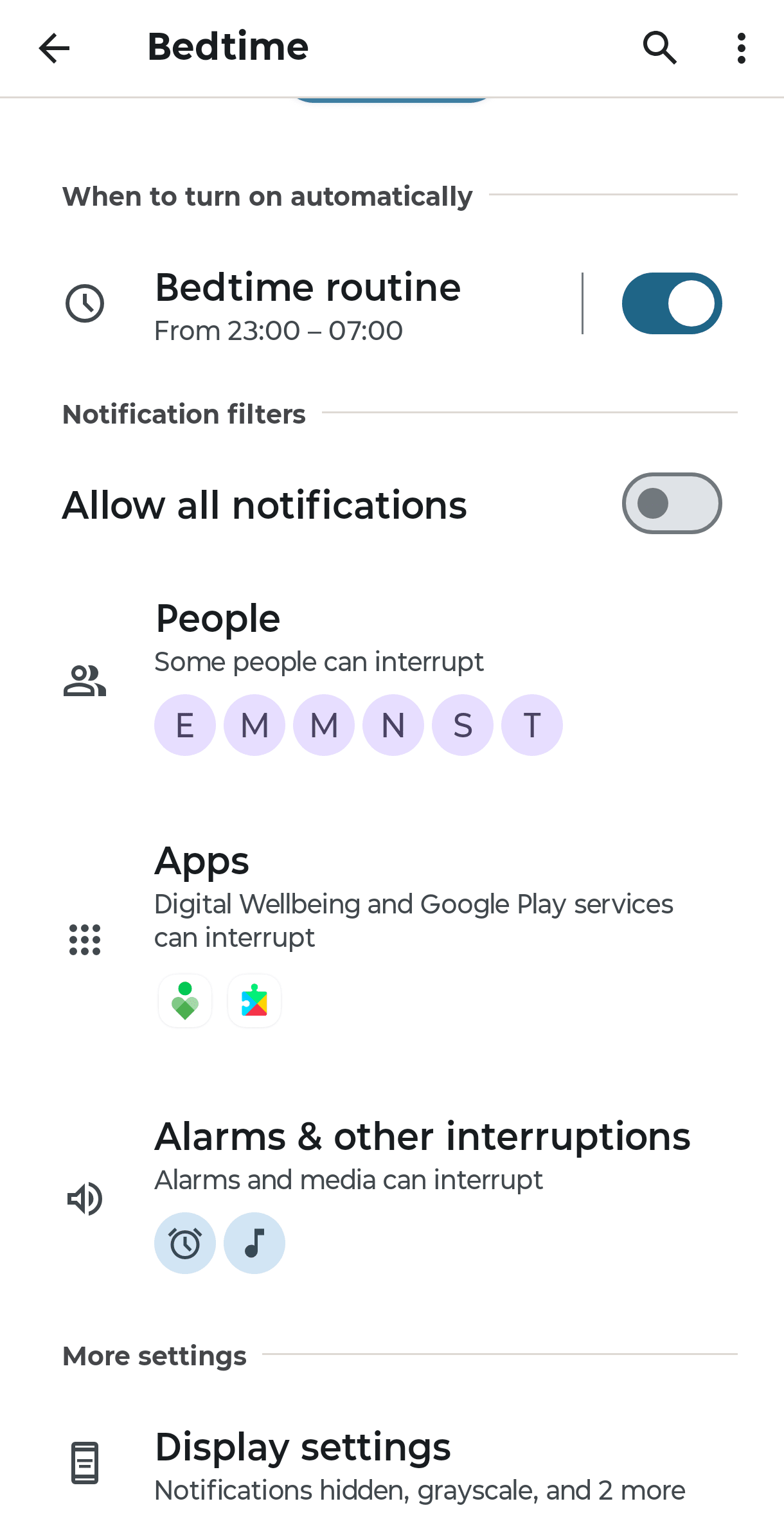
La Modalità Riposo imposta la schermata Home in scala di grigi e disattiva l’audio delle notifiche per aiutarti a rilassarti prima di dormire. Per attivare la funzione, vai su Impostazioni → Benessere digitale e controllo genitori → Modalità Riposo.
Controlla il telefono meno spesso
Invece di reagire a ogni notifica appena arriva, controlla i tuoi messaggi, la tua email e i social media intenzionalmente, in orari stabiliti, ad esempio una volta al mattino, una a pranzo e una alla sera. In questo modo mantieni il controllo della tua attenzione invece di affidarla a chiunque ti invii un segnale per primo.
Fai ordine nella tua posta in arrivo
L’email è un’altra fonte di rumore digitale che viene spesso trascurata. Le email promozionali, le newsletter dimenticate e gli aggiornamenti sugli abbonamenti si accumulano e si contendono la tua attenzione.
Alcuni servizi email, come Proton Mail, includono strumenti per rendere più semplice gestire tutto questo. La vista Newsletter raccoglie tutti i tuoi abbonamenti in un unico posto, consentendoti di annulla iscrizione a ciò che non ti serve con un solo clic, senza dover accedere a dozzine di servizi solo per cancellarti.
Sostituisci il tempo sullo schermo con qualcosa di migliore
Ridurre il tempo sullo schermo è più facile quando hai qualcosa con cui colmare il vuoto. Pensa ad attività che ti facciano sentire davvero bene dopo: leggere, cucinare, fare una passeggiata, sfogliare un album fotografico o dedicarti a un hobby. L’obiettivo non è sedersi in una stanza buia evitando la tecnologia, ma trascorrere il proprio tempo in attività appaganti con persone che contano davvero per te.
Gestire il tempo sullo schermo per i bambini
Sebbene i consigli di cui sopra si applicare anche ai bambini, gestire il loro tempo sullo schermo è una sfida diversa, poiché i dispositivi sono ampiamente integrati con i compiti scolastici, la socializzazione e l’intrattenimento. L’obiettivo non è rimuovere i dispositivi dalla vita di tuo figlio, ma aiutarlo a sviluppare un rapporto sano con la tecnologia. Ecco alcuni consigli:
Configurare i controlli parentali per monitorare e limitare l’uso del dispositivo da parte di tuo figlio. Su iPhone, Tempo di utilizzo con In famiglia ti consente di visualizzare i resoconti sulle attività, impostare limiti per le app, programmare la pausa di utilizzo e limitare i contenuti, tutto dal tuo dispositivo (di genitore). Su Android, puoi utilizzare Google Family Link per monitorare il tempo sullo schermo, impostare limiti giornalieri e disattivare le app all’ora di andare a dormire.
Crea zone e momenti privi di schermi, come il tavolo da pranzo, un’ora prima di andare a dormire e nelle camere da letto. Le regole sono più facili da seguire quando si applicare a tutta la famiglia.
Carica i dispositivi fuori dalle camere da letto durante la notte per rimuovere la tentazione dello scorrimento notturno e l’impulso di prendere in mano il telefono come prima cosa al mattino.
Fai da modello per il comportamento che desideri. Se chiedi ai tuoi figli di mettere via gli schermi a cena, cerca di fare lo stesso. È più facile far rispettare i limiti quando tutta la famiglia li rispetta.
Manti una conversazione continua con i tuoi figli sul perché i limiti digitali sono importanti, sui contenuti e sui messaggi che incontrano online, su come tali esperienze li influenzano e su come le app sono progettate per mantenerli in scorrimento. Queste conversazioni aiutano a sviluppare quel senso critico che i controlli parentali non possono fornire.
Non è facile aiutare i tuoi figli a gestire meglio la loro vita digitale. Dai un’occhiata alla nostra guida alla tecnologia per bambini divisa per età e scopri come i genitori di Proton affrontano la privacy online e i limiti della tecnologia.
Come riprendere il controllo dei tuoi dati
Ora che sai come limitare il tempo sullo schermo, il passo successivo è capire come le tue attività vengono tracciate online.
I principali servizi tecnologici spesso raccolgono molti più dati personali di quanti ne abbiano bisogno. A seconda del fornitore e delle sue Policy, le tue email, i tuoi File, le tue ricerche e le tue attività potrebbero essere usati per la profilazione, la pubblicità mirata, lo sviluppo di prodotti o l’addestramento dell’IA.
La sede legale di un’azienda determina inoltre quali leggi sulla privacy e sulla sorveglianza si possono applicare ai tuoi dati. Ad esempio, le società con sede negli Stati Uniti potrebbero essere tenute, ai sensi di leggi come la FISA, a fornire alle autorità l’accesso a determinati dati in loro possesso, anche quando sono coinvolti cittadini non americani. Nell’ultimo decennio, le richieste dei governi alla Big Tech sono aumentate del 770%, con Google, Apple e Meta che hanno condiviso con le autorità statunitensi i dati provenienti da oltre 3,5 milioni di account Utente.
Ecco alcuni cambiamenti pratici per aiutarti a riprendere il controllo dei tuoi dati:
Passa a fornitori incentrati sulla privacy
Scegli fornitori che raccolgono meno dati, utilizzano una solida crittografia e sono trasparenti riguardo a come guadagnano e gestiscono le tue informazioni.
Quando si tratta di archiviazione cloud, prova Proton Drive come alternativa a Google Drive. Tutti i File sono protetti da crittografia end-to-end, così puoi avere la certezza che nessuno tranne te vi possa accedere, nemmeno Proton. La nostra sede è in Svizzera, quindi tutti i tuoi dati sono protetti da alcune delle leggi sulla privacy più severe al mondo.
Per altre opzioni attente alla privacy, esplora le alternative europee che offrono protezioni più forti per i tuoi dati personali.
Blocca i tracker email
Il nostro report Spam Watch ha rilevato che l’80% dei principali rivenditori statunitensi ha incorporato tracker in ogni email di marketing analizzata. I tracker sono pixel spia che rivelano quando hai aperto un messaggio, quale dispositivo hai usato e dove ti trovavi. I link di tracciamento possono anche seguirti tra i vari siti web, connettendo il tuo indirizzo email alla tua attività di navigazione. I data broker e altre aziende possono usare queste informazioni per creare profili dettagliati su di te, ed è per questo che cercare qualcosa una sola volta può far apparire annunci correlati per settimane.
La protezione avanzata dal tracciamento in Proton Mail blocca automaticamente i tracker noti nelle tue email e rimuove i parametri di tracciamento dai link prima che tu li clicchi. Inoltre, le immagini vengono caricate tramite un proxy, in modo che il tuo indirizzo IP(nuova finestra) e la tua Posizione rimangano nascosti alle aziende che cercano di estrarre più dati su di te. Puoi usare Proton Mail come alternativa a Gmail.
Usa una VPN
Quando il tuo indirizzo IP è visibile, stai fornendo più informazioni di quante credi. Ogni sito web che visiti può vedere la tua Posizione approssimativa, il tuo fornitore di servizi internet e informazioni sufficienti a riconoscerti tra le varie sessioni di navigazione. Va ancora peggio sulle reti WiFi pubbliche(nuova finestra), poiché il tuo traffico può essere intercettato dagli hacker.
Proton VPN è una VPN(nuova finestra) con una politica di non conservazione dei log(nuova finestra) che crittografa la tua connessione e Maschera il tuo indirizzo IP, impedendo ai siti web e agli inserzionisti di tracciare dove ti trovi o di seguire la tua attività sul web. Una solida crittografia mantiene il tuo traffico internet al sicuro da sguardi indiscreti, così puoi usare in sicurezza il WiFi pubblico. L’ad-blocker Netshield(nuova finestra) integrato ti mantiene al sicuro bloccando annunci, tracker e malware prima che raggiungano il tuo dispositivo.
Disattiva la personalizzazione degli annunci
Puoi limitare la quantità di dati condivisi con gli inserzionisti direttamente dalle impostazioni del tuo telefono. Non fermerà del tutto il tracciamento, ma ridurrà la quantità di informazioni usate per indirizzarti contenuti mirati.
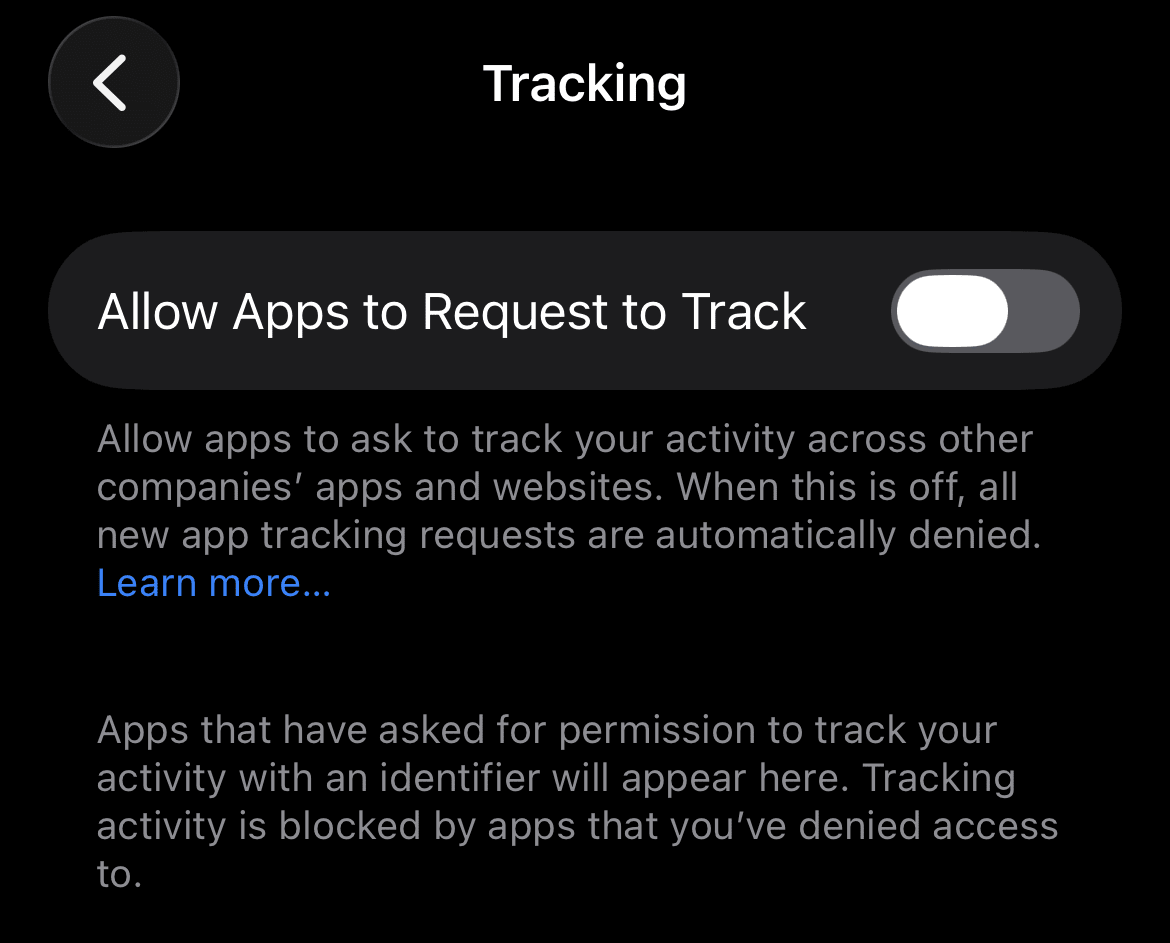
Su iPhone, vai su Impostazioni → Privacy e sicurezza → Tracciamento e disattiva Richiesta tracciamento attività. Questo impedisce alle app di tracciare la tua attività su altre app e siti web.
Poi vai su Impostazioni → Privacy e sicurezza → Pubblicità Apple e disattiva Annunci personalizzati. Continuerai a vedere annunci, ma non saranno più creati in base alle tue preferenze.

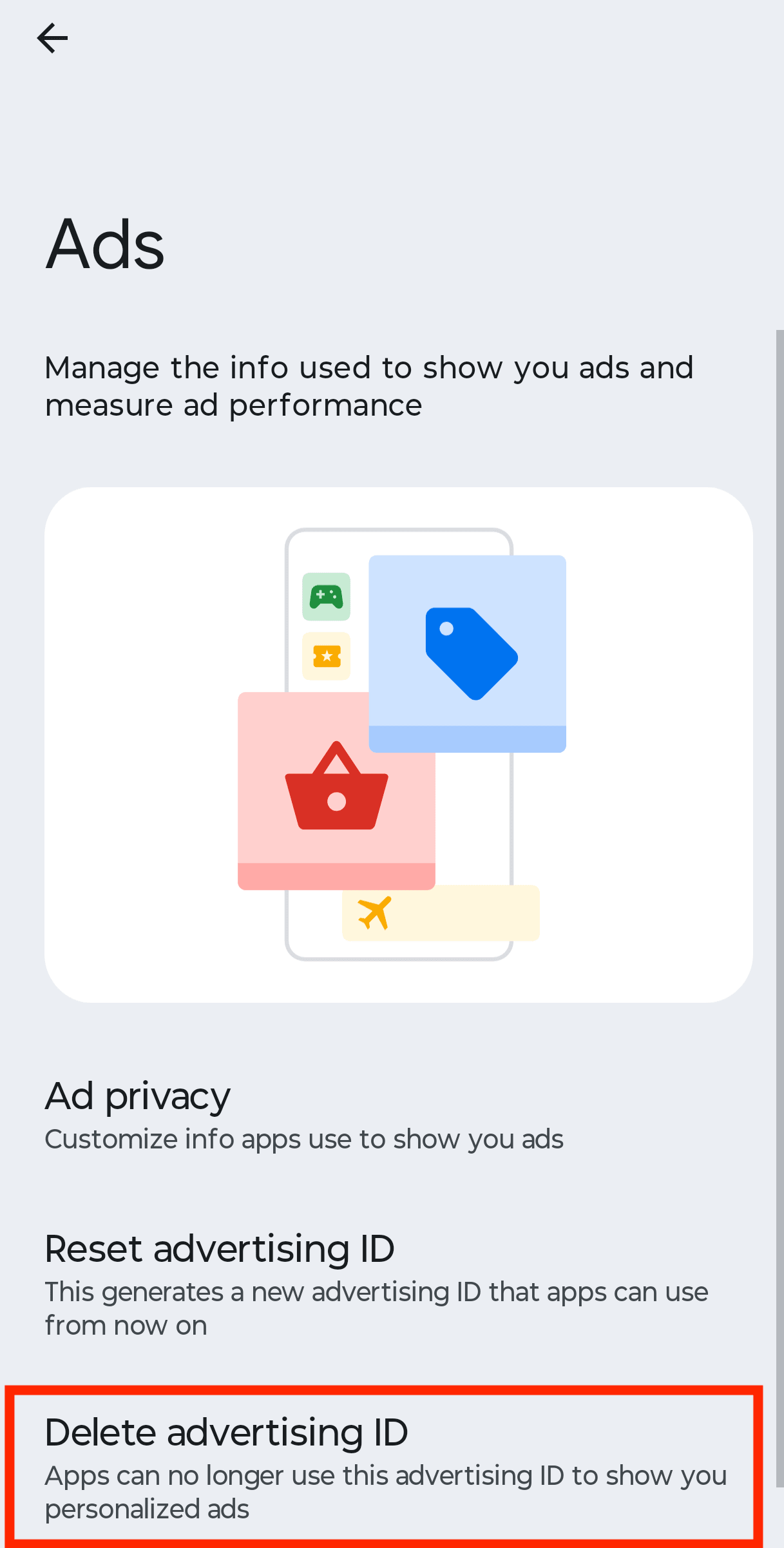
Su Android, vai su Impostazioni → Sicurezza e privacy → Controlli privacy → Annunci e selezionare Elimina ID pubblicitario. Questo reimposta l’identificatore che gli inserzionisti usano per tracciarti.
Disattiva Attività web e app di Google
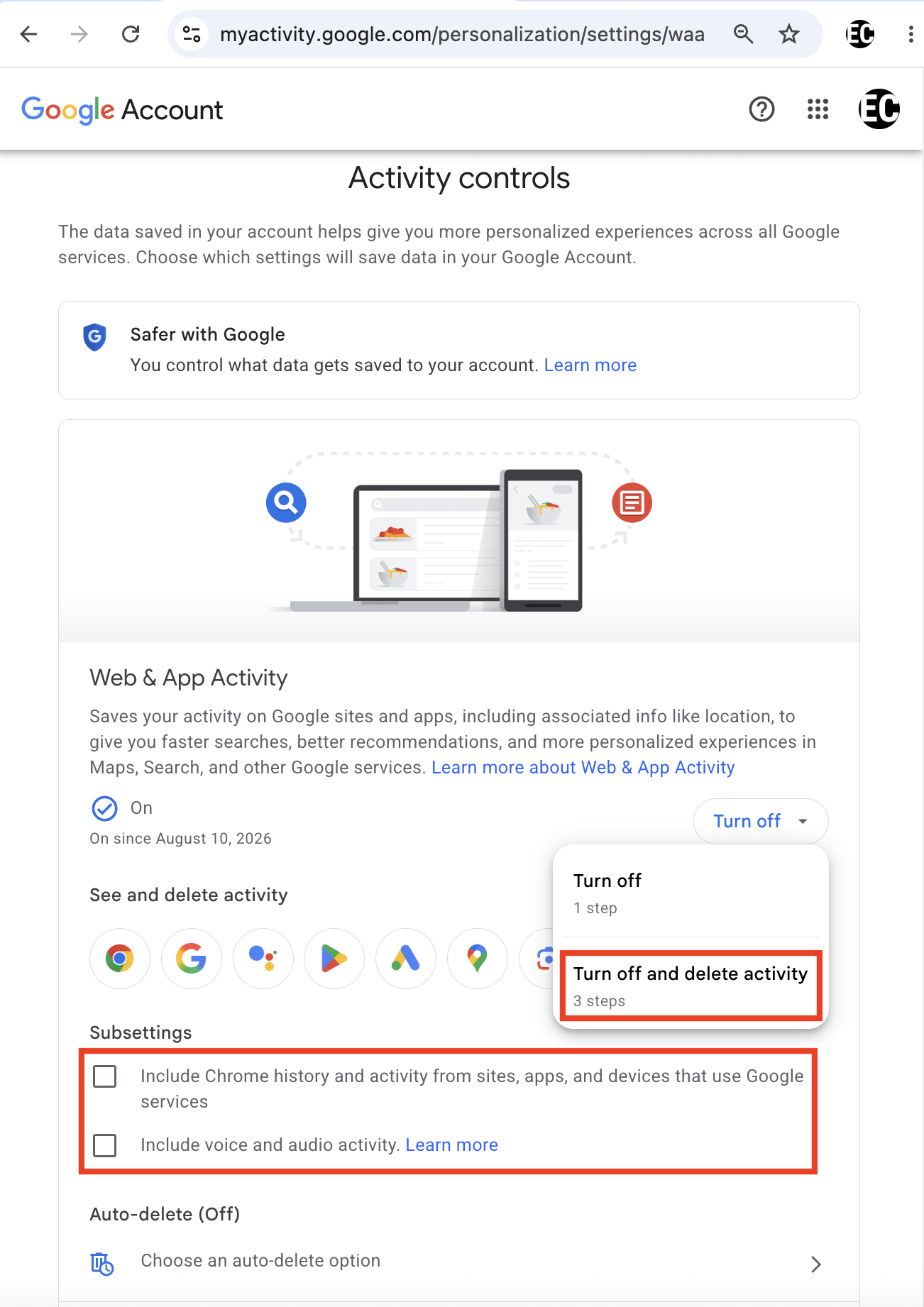
La posizione dominante dei servizi Google ha reso il tuo account Google uno strumento prezioso per tracciare e raccogliere dati al fine di personalizzare annunci e consigli, oltre a creare un profilo dei tuoi interessi e delle tue abitudini. Fortunatamente, Google ti consente di disattivare questa funzione ed eliminare ciò che è stato raccolto.
Vai su myaccount.google.com → Dati e privacy → Attività web e app, fai clic su Disattiva → Disattiva ed elimina l’attività e deselezionare tutto ciò che si trova in Sottoimpostazioni.
Il minimalismo digitale inizia con piccole scelte
Diventare un minimalista digitale non significa rinunciare del tutto alla tecnologia. Si tratta di decidere quali strumenti meritano il tuo tempo, la tua attenzione e i tuoi dati personali, e di usarli alle tue condizioni. Piccoli cambiamenti, come silenziare le notifiche non necessarie, impostare limiti per le app e scegliere servizi più privati, possono rendere la tua vita digitale meno dispersiva e invasiva.
Inizia con un singolo cambiamento che ti sembri gestibile, poi prosegui da lì. Più diventerai consapevole di quando usi la tecnologia e di quali informazioni condividi, più controllo riprenderai dalle aziende che competono sia per la tua attenzione che per i tuoi dati.