
How to enable or disable conversation view
- Reading
- 3 mins
- Category
- Receive and read emails
Conversation view groups messages from the same conversation together in your Proton Mail inbox so they’re easy to follow and respond to.
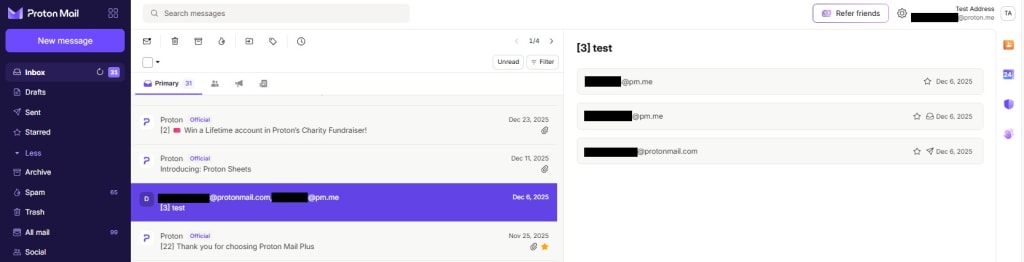
We explain how conversation view works and how to enable or disable it on the web app, the Android app, and iOS or iPadOS apps.
How does conversation view work?
We can’t read the contents of emails because all messages are stored using zero-access encryption. So we use advanced heuristics on the email headers, subject line, and conversation participants to match and thread messages.
However, this does leave a small amount of room for error, particularly if some of these elements are missing (for example, not all email providers include all the standard information in their email headers).
Conversation view on the web app
To enable or disable conversation view in the web app:
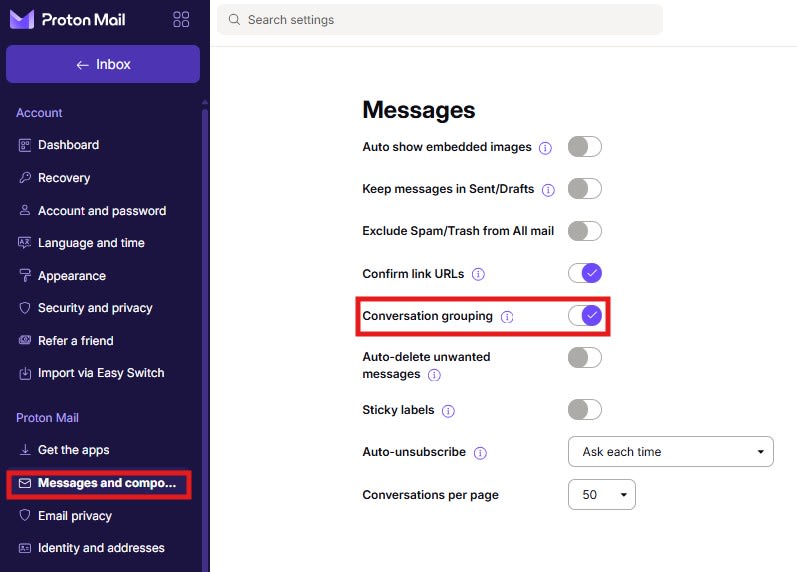
1. Log in to your Proton Account at account.proton.me and go to Settings → All settings → Proton Mail → Messages and composing.
2. Turn the Conversation grouping switch on or off to enable or disable conversation view.
Conversation view on iOS and Android
To enable or disable conversation view on your iOS and Android apps, follow the steps below:
1. Open the Proton Mail app and go to the hamburger menu (≡) → Settings → Mailbox preferences → Conversation grouping.
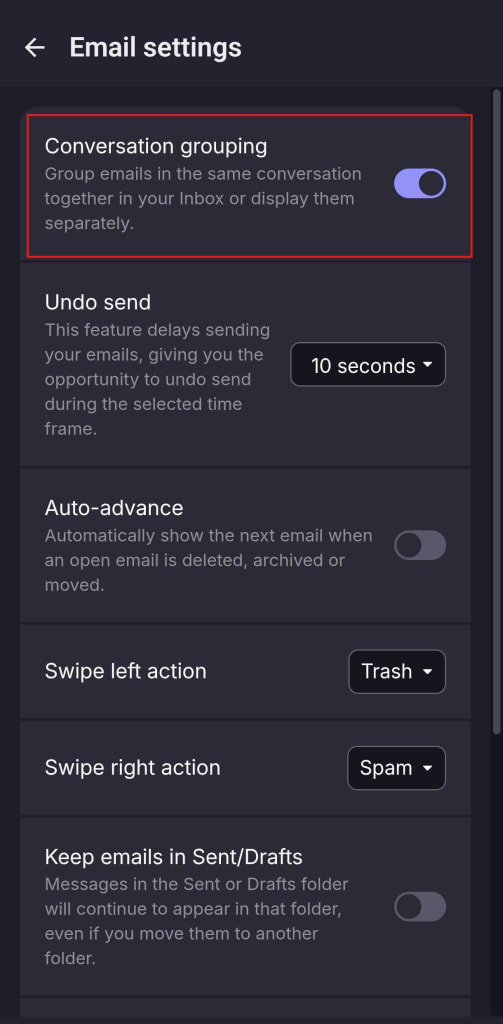
2. Toggle the Conversation grouping switch on or off to enable or disable conversation view.