You spot the typo or the wrong address half a second right after you send an email. Accidentally sending an email too soon or to the wrong person can be nerve-wracking, especially if the message contains sensitive information. Many email providers offer ways to unsend an email and avoid these common pitfalls. But what actually happens during that window, and what can you do once it closes?

This article explains how email providers like Gmail, Microsoft Outlook, and Proton Mail handle email unsending and the limitations of each method. 

Can you unsend an email? 

Yes, most of the time you can unsend an email, within a certain time limit. Most email providers let you do this, but how it works and whether it succeeds depend on the service you use. The key is understanding the two different ways unsending is handled: delaying delivery, or recalling a message after it’s been sent.

Delayed-sending mechanism

When you click Send with Undo Send enabled, your email app doesn’t send the message immediately. It holds on to it for a few seconds, giving you time to change your mind. Click Undo before the window closes, and the message returns to your drafts. Otherwise, it gets sent.

Once the email reaches the recipient’s mail server, your provider can no longer delete it (with an exception explained below). That’s why choosing the right Undo Send delay matters: the longer the window, the more time you have to catch a mistake before your email leaves your control.

Server-side recall mechanism

Server-side recall attempts to remove an email after it has already been delivered. Some providers, such as Outlook with Microsoft 365, support this feature within the same organization. Depending on the system’s settings, recall may even work after the recipient has opened the message.

However, server-side recall has limitations. It generally doesn’t work when you send an email to someone using a different provider or outside your organization, and successful removal isn’t always guaranteed. Once a message leaves your provider’s control, there’s usually no reliable way to retrieve it.

How email unsending works across different email providers

Gmail, Outlook, and Proton Mail all let you stop a message from being sent, but they handle it differently and give you different amounts of time to act. Here’s how their unsend and recall options compare.

How to unsend an email in Gmail

You can unsend an email using the Gmail web or mobile app, and the steps are similar for both.

  1. Write your email and send it as usual.
  2. Look for the Message Sent notification at the bottom left.
  3. Click Undo before the notification disappears.

Your email will reopen as a draft, allowing you to edit it, change the recipient, or discard it.

Gmail shows the "Undo" button after sending an email

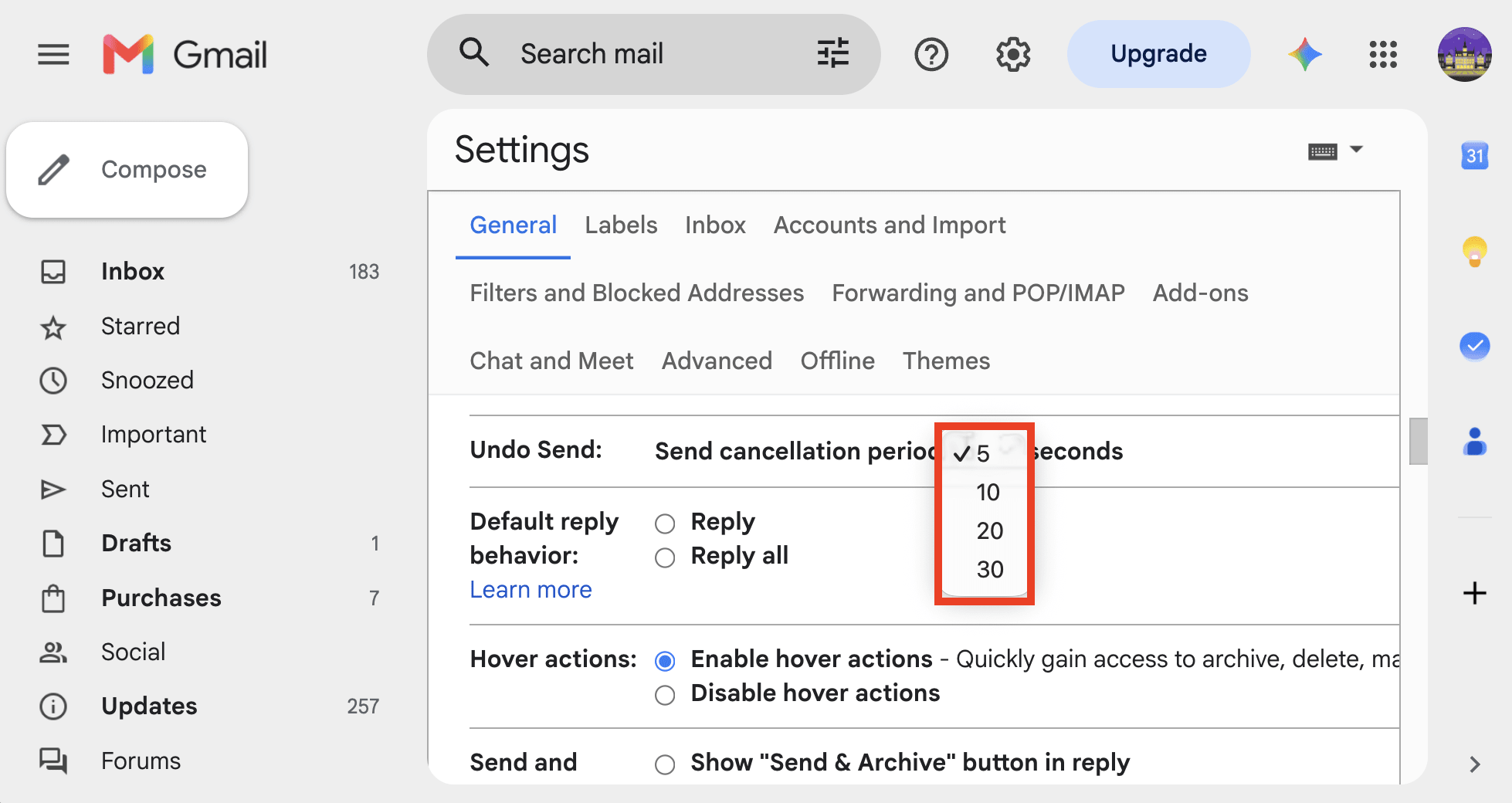
By default, Gmail holds an email for 5 seconds before sending it, during which you can unsend it. If you need more time, here’s how to configure Undo Send settings using the web app:

  1. Go to Settings ⚙ → See all settings.
  2. In the General tab, find Undo Send.
  3. Set the Send cancellation period to 5, 10, 20, or 30 seconds.
  4. Scroll to the bottom and click Save changes.
Gmail Undo Send settings

Changing the cancellation period in Gmail’s web settings does not extend the Undo Send window on mobile, which lasts approximately 5–10 seconds.

How to unsend an email on the Outlook desktop and web apps

Undo Send is disabled by default (set to 0 seconds) on the Outlook desktop (Windows, Mac) and web apps. Here’s how to enable it:

  1. Go to View → View Settings ⚙ → Mail → Compose.
  2. Under Undo send, click and drag the slider to 5, 10, 15, 20, 25, or 30 seconds. On the Outlook Mac app, click the plus + and minus – buttons to set the cancellation time.
  3. Click Save.
Microsoft Outlook Undo send settings

After you send an email, a Sending pop-up appears at the bottom of the screen. Click Undo before the timer runs out, and the email goes back to your drafts.

Microsoft Outlook Undo send notification

How to delay sending on Classic Outlook for Windows

Classic Outlook has no undo send button, but you can hold outgoing emails with a rule:

  1. Click Rules on the ribbon, then Manage Rules & Alerts.
  2. Create a new rule that applies to messages you send.
  3. Choose the action Defer delivery by a number of minutes and set the preferred time.

Until that time passes, your emails wait in the outbox. If you change your mind about sending a message, open it in the outbox to edit or delete it.

How to recall an email in Outlook (Microsoft 365)

Recall only works if you and the recipient both have Microsoft 365 in the same organization (work or school accounts). It’s also possible to remove messages that have already been read, provided the organization’s administrator allows it. Recall doesn’t work in Outlook for Mac or with personal accounts.

Recall an email on New Outlook and Outlook on the web

  1. Open Sent Items and double-click the email.
  2. Click Recall message (or More actions → Recall message).
  3. Choose Only recall this message or Recall and open this message as a draft.

Recall an email on Classic Outlook

  1. Open Sent Items and double-click the email.
  2. On the Message tab, click Actions → Recall This Message.
  3. Select Delete unread copies of this message and click OK.

A Message Recall Report then arrives in your inbox. It shows whether the recall succeeded, is pending, or failed.

How to unsend an email in Proton Mail

With Proton Mail, you can unsend an email on the Proton Mail apps for web, Android, and iOS (iPhone, iPad).

Compose and send your message. When the Message sent notification appears, click Undo.

Proton Mail Undo send button

Your email will reopen in the composer window, and you can pick up where you left off.

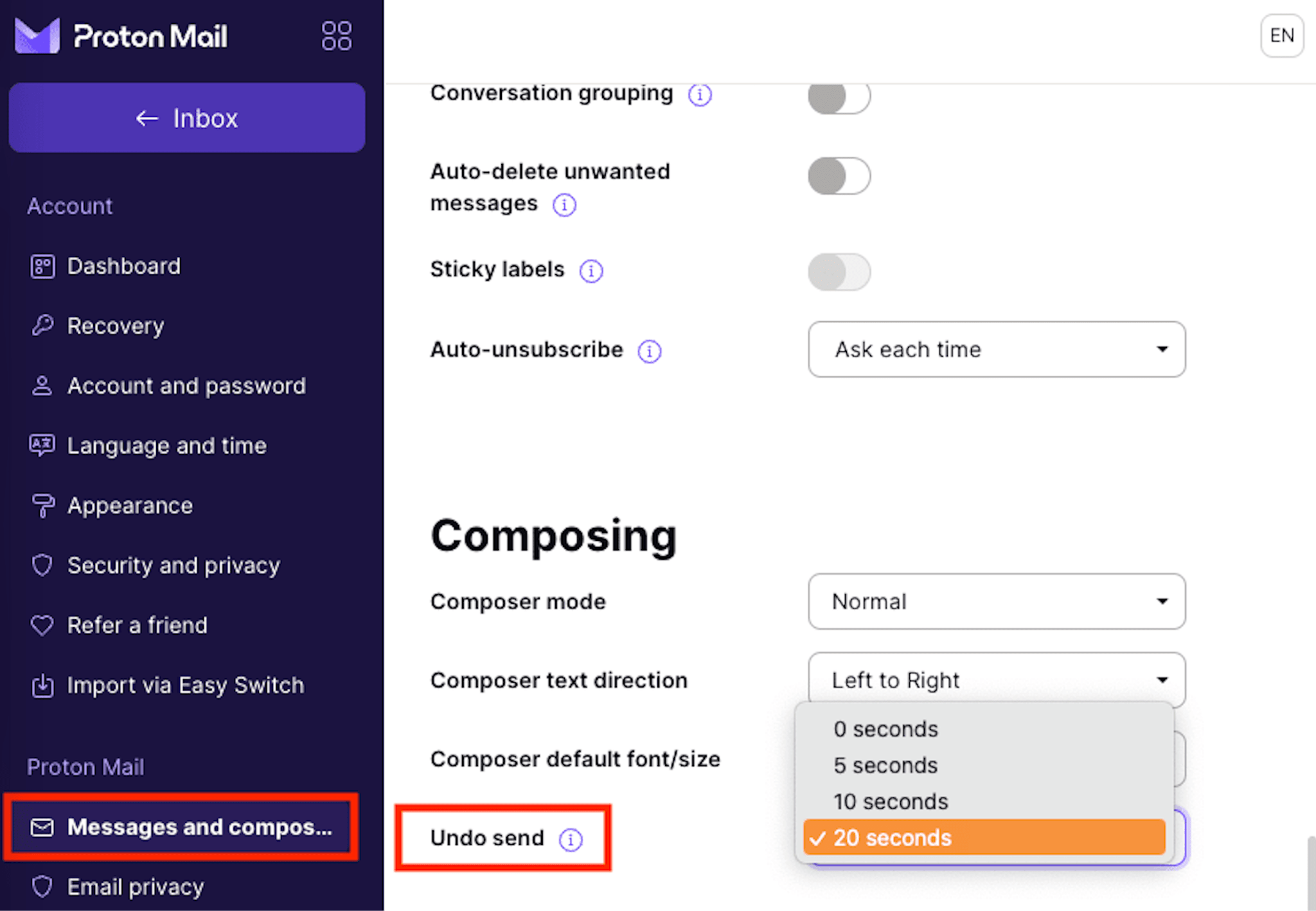
By default, Proton Mail gives you a 10-second window to unsend your messages. Here’s how to change this:

  1. Click Settings → Go to settings → Messages and composing → Composing.
  2. Next to Undo send, select your preferred cancellation time: 0, 5, 10, or 20 seconds. ‘0’ disables Undo Send.
Proton Mail undo send settings

Your Undo Send settings sync across all your devices, so any changes you make on the web will automatically apply to the Proton Mail mobile apps, and vice versa.

What to do if you can’t unsend an email

If you’ve missed the Undo Send window, your next steps depend on what went wrong:

  • Sent an email with a typo or incorrect information? Send a short follow-up correcting the mistake. If you forgot an attachment, simply reply with the file and a quick explanation.
  • Sent an email to the wrong person? Contact them promptly, explain the mistake, and ask them to delete the message without forwarding it.
  • Accidentally shared sensitive information? If the email contained a password, change it immediately. If it included a link to a document, remove the recipient’s access or disable the sharing link where possible. For confidential business information, follow your organization’s incident-reporting procedures.
  • Sent something you regret? Resist the urge to send several increasingly elaborate explanations. A concise, thoughtful follow-up is usually more useful than pretending the message never happened.

How to avoid sending emails you regret

Undo Send is useful, but it’s better to prevent mistakes before they happen. A few simple habits can save you from that familiar moment of panic.

  • Set the longest Undo Send delay available. A few extra seconds can make all the difference when you notice a mistake just after clicking Send.
  • Double-check recipients. Email autocomplete can make it surprisingly easy to send a message to the wrong person, especially when contacts have similar names.
  • Review attachments before sending. Make sure you’ve attached the right file and haven’t accidentally included something confidential. Email providers like Proton Mail offer attachment reminders, warning you if you mention an attachment in your message but forget to actually attach a file before hitting Send.
  • Use scheduled sending. If you’re writing an important email late at night or while frustrated, schedule it for later. You’ll have time to reconsider or edit it before it goes out.
  • Protect sensitive emails. When sending confidential information, consider using end-to-end encryption, password protection, and message expiration rather than relying on Undo Send alone.

Give yourself more control with Proton Mail

With Proton Mail, you can give yourself up to 20 seconds to undo a sent email and quickly correct mistakes like typos, forgotten attachments, or accidentally sending an unfinished email. It’s a particularly useful feature for maintaining email etiquette, as errors when writing a professional email can impact client or partner relationships.

But protecting your communications doesn’t have to stop there. End-to-end and zero-access encryption keep your emails private, while password-protected emails let you securely communicate with people who don’t use Proton Mail. You can also set expiration dates for sensitive messages, so they automatically become inaccessible after a chosen period.

And because Proton Mail doesn’t scan your inbox to serve ads or train AI models, your conversations stay yours.

Frequently asked questions about unsending emails

What’s the difference between unsending, recalling, and deleting an email?

They’re three different things:

Unsending usually means stopping an email before it actually leaves your account. Gmail, Proton Mail, and modern Outlook typically do this by delaying delivery for a few seconds.

Recalling means trying to remove an email after it has already been delivered. This is much more limited and usually only works inside controlled systems, such as Microsoft 365 within the same organization.

Deleting means removing the email from your own mailbox. Deleting something from Sent Items does not remove it from the recipient’s inbox.

Can you unsend an email after an hour or a day?

In most cases, no. Once the Undo Send window closes and the email is delivered, you can’t simply retrieve it from the recipient’s inbox. Even deleting the message from your Sent folder won’t help. It removes your copy, not theirs.

There are a few exceptions, such as Outlook’s message recall feature in supported business environments. But if you’re sending a regular email between different providers, you should assume that delivery is final.

If you delete an email, does it unsend?

No, not normally. Deleting an email from your Sent folder only deletes your copy.

The exception is when the message is still waiting to be sent, such as in Outlook’s outbox during a delivery delay. Deleting it there prevents it from being sent in the first place.