How to use autotype in Proton Pass
- Reading
- 1 min
- Category
- Proton Pass
Autotype helps you autofill user name and password fields in your desktop apps for faster, easier logins. Whenever you open a frequently used app, autotype will fill in your details for you. It’s available on all paid Proton Pass plans.
How to grant permission for autotype on macOS
How to grant permission for autotype on Linux
How to use autotype
- Open the browser or desktop app you want to autofill, and select one of the authentication fields. Make sure the cursor is inside the field.
- Open your Proton Pass app and select the login item you’d like to autotype in your chosen field → select the three dot ⋮ icon → Autotype → Choose the type of field you want to autofill.
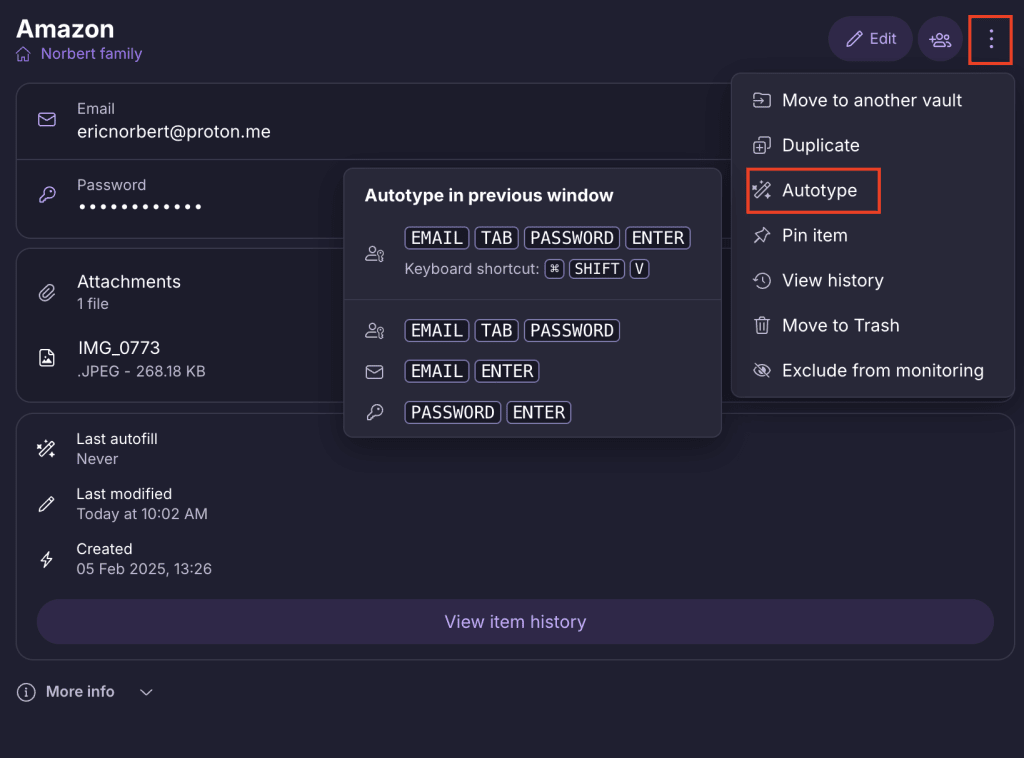
- Next time you open this app, your selected field will autofill.
How to grant permission for autotype on macOS
If you’re using a macOS device, you’ll need to give Proton Pass permission to use autotype. You’ll be prompted to grant permission the first time you use autotype, and once you’ve done so you won’t be reminded again.
Here’s how to do it:
1. Follow the steps to enable autotype. After selecting autotype, you’ll see a confirmation dialog. Read it carefully, then click Confirm if you’re happy to continue.

- A system pop-up will appear, asking to grant us access to accessibility features. Select Open System Settings.

3. Switch on the toggle next to Proton Pass.

- Enter your Apple account password to confirm, then close accessibility settings.
All done. You can now use autotype.
How to grant permission for autotype on Linux
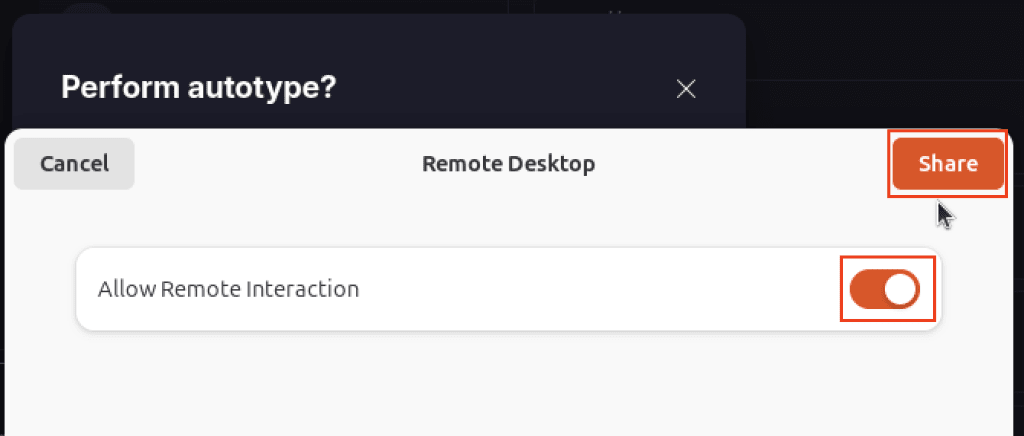
If you’re using Linux, you’ll need to grant permission for Proton Pass to use autotype.
Switch on the toggle allowing remote interaction → Share. You’ll then be able to use autotype.